Hope this message find you are doing well and have happy weekend with your family 🙂
We are happy to report you, based on an amazing users’ feature request, we just released wordpress tooltip glossary plugin 10.6.0, in this version, when you disable specific tooltips in wordpress post editor, all synonyms of the tooltip will be disabled in that wordpress post automatically too.
You can find the “Disable specific tooltip” meta box at right hand of your wordpress post editor, it looks like this:
As you can see, we added the tooltip term “Apple” in “Disable specific tooltip” meta box.
Also you can find Synonyms Tooltip box at the right hand of your wordpress tooltip editor, it looks like this:
synonyms tooltip
In here, you can see I added a tooltip term “Apple”, and I have a synonyms tooltip “Kelly”
Now because I disabled the the tooltip “Apple” in a wordpress post, when you hover over the word apple in the wordpress post, we will not add tooltip effects on the word “apple” in front end, at the same time, if the wordpress post have the word “kelly”, when users hover over the word kelly, you will find tooltip effect has been disabled on the word kelly too. 🙂
In the new version of the guide, we have make two video tutorials, and added a few screenshot with detailed text description, also we added guide of “how to add a tooltip into menu item, and when users click the URL of the menu item, users will not be redirected to the page which menu item linked”, please check our new version of wordpress menu tooltips 🙂
WordPress Tooltip can add tooltip effects on wordpress menu items automatically.
WordPress tooltip plugin will scan all wordpress menu items automatically, once find wordpress menu title have tooltip terms, wordpress tooltip plugin will add tooltip effect on menu title, please check our video at below:
How to add WordPress Tooltips in the menu?
1. Login wordpress admin area.
2. Click “Tooltips” menu item, then click “Add New” sub menu item to add a new tootips, just input the your tooltips title and content in wordpress tooltip editor, you can input text, video, image, QR Code, google map or any HTML code…and so on in content area. You can design many marvelous WordPress Tooltips for your wordpress menu item in here, it looks like this:
add new tooltip
3: Design your menu tooltip style
We have a few methods to help you design your menu tooltip style:
You can customize your tooltips Box Width, Font Color, Tooltip Box Postion, opacity, background color … and so on in the “Tooltip Box Customize Setting” meta box — you can find “Tooltip Box Customize Setting” meta box at the bottom of the wordperss tooltip editor.
b) A faster method is just select one of default tooltips themes, please click “Tooltips” menu item, and then click “Tooltips Style” sub menu item, you will find 7 different color theme in “Tooltip Box Style” area, please select the theme your like, then Click the Button “Update Now”, it looks like this:
select tooltip default template
c) Also in “Tooltips Style”, you can customize your global tooltip style too, just selecting “Customized” in “Tooltip Box Style” area, and then Click the Button “Update Now”, then you select marvelous options in “Tooltip Box Customize Setting” panel, you can change background color, font color, border color, border color … , via colorpicker, or change border width, opacity, tooltip title font size, tooltip box position…. and so on.
4. Add your menu item
WordPress tooltip plugin will scan each wordpress menu item, once tooltip plugin find a tooltip term in the title of a menu item, wordpress tooltip plugin will add tooltip effect on the tooltip term which be found in menu titles automatically.
If you did not add a menu item yet, you can do it by this way:
Please click wordpress “appearance” menu item, then click “menus” sub menu item, select your page or posts that you want to add in the menu, click the button “add to menu”, then click the button “save menu”
5. You can see the menu tooltip in the menu like this:
menu tooltip on menu item
Also we received another ticket which asked us how to add a tooltip into menu item, and when users click the URL of the menu item, they will not be redirected to the page which menu item linked too 🙂
Although it seems a little strange, because in general, the function of menu item is redirect users to a page, that’s how menu works, ?but of course if you really want to add a menu item with tooltip effect, and do not allow users redirect to other pages, yes, we can, please check our video at below:
As you can see, actually this is not related with tooltip functions, when you make a menu item via “Add menu items” panel, please just select “Custom Links”, and then in the “URL” field, just enter “#”, no anything more, just a # ,then add your tooltip term in “Link Text” field, in front end, you will find the menu tooltip, and when you click the menu, users will stay the same page, a sample screenshot can be found at below:
That’s all 🙂
If you have any feature request or question for wordpress tooltip, please don’t hesitate to tell us, we are always happy to build the best wordpress plugin for you 🙂
Hope this message find you are doing well and have happy days with your family! 🙂
We received a ticket which the user asked a question:
How to Disable WordPress Image Tooltip in Whole Site?
As you know, we used a lot of energy to improve wordpress image tooltip function and build a power image tooltip function for users, if you search image tooltip, you will find there are more than 100 articles / plugin release report in search result, for example:
I am happy to report you that wordpress tooltip plugin have a powerful image tooltip function, you can enable / disable image tooltip by this way:
#1 Login wordpress admin area
#2 Click “Tooltips” Menu item
#3 Click “Global Settings” Sub Menu item
#4 In ” Tooltips Global Settings” panel, you will find “Tooltips for Image setting” option box, in here, please select “I want to disable tooltips for image” and click “Update Now” button
The “Tooltips for Image setting” option box looks like this:
Please, if your image tooltip is generated by tooltips shortcode, the option “I want to disable tooltips for image” will not control these image tooltips which generated by wordpress tooltip plugin shortcodes.
We received many amazing feature requests, we are working hard to realize them for happy wordpress tooltip glossary plugin users, hope you will see it soon, if you have any question of feature request, please don’t hesitate to tell us, let’s work together to build a better and better wordpress tooltip glossary plugin 🙂
We received a ticket, in which the user asked us how to get wordpress tooltip document, I guess may a few more users have the same question, I’d like reply in here publicly 🙂
The lovely user told us, she always go to google.com to search our document by site:tooltip.org…, actually in our site, you have two method to search and find tooltip document quickly:
1: When you open a page in tooltips.org, you will find on the top of the right sidebar, we have a search form
It looks like this:
tooltip document search form on sidebar
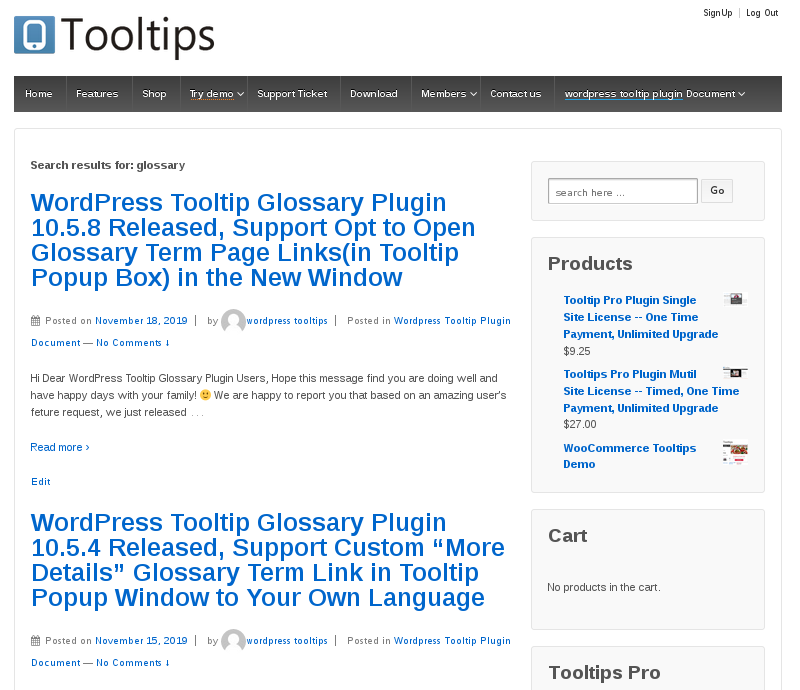
Now let’s search something, for example “glossary”, you will find all posts related with “glossary” will show in the result page, it looks like this:
You will find our wordpress tooltip document page at the top menu, it looks like this:
wordpress tooltip top menu
Once you click the “wordpress tooltip plugin document” menn item, you will open our wordpress tooltip plugin document page, at the top of the wordpress tooltip plugin document page, you will find we putted a search form in here, it looks like this:
search form on wordpress document page
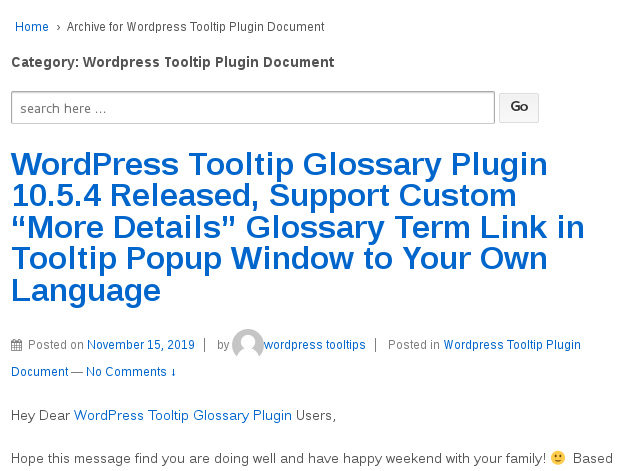
Just try to search something in the search form, for example glossary, you will find all glossary pages listed in the result page, it looks like this:
search result by search form on-sidebar
Actually it just the same search result page with the search result page via first search method 🙂
If you have any question, please search first, also we make detailed video tutorial for you, you can find all video tutorial at wordpress tooltip video tutorial page. 🙂
Hope this message find you are doing well and have happy days with your family! 🙂
We are happy to report you that based on an amazing user’s feture request, we just released WordPress Tooltip Glossary Plugin 10.5.8, changes in this version:
WordPress Tooltip Glossary Plugin 10.5.8 Support Opt to Open Glossary Term Page Links in Tooltip Popup Box Window
Since wordpress tooltip 8.7.6, we support add glossary term links in tooltip popup box, for better SEO ranks, and when you opt to use tooltip excerpt as content in tooltip popup box, it is helpful for help users can find the full content of the tooltip / glossary via click the “More Details” link in tooltip popup box 🙂
Then after released wordpress tooltip 10.5.4, an user told us he hope open “more details” glossary term link in new window, not in the same window, it’s why we developed a new wordpress tooltip glossary plugin, in wordpress tooltip glossary plugin 10.5.8, now you can opt to open “more details” glossary term link in new window just via one click, it is very easy to do:
#1 Login your wordpress admin area
#2 Click “Tooltips” menu
#3 Click “Optional Settings” sub menu
#4 In “Add tooltips links in tooltip popup box” option box, you will find we added a new checkbox: “ “, if you checked this option, when users click “more details” glossary term link in tooltip popup box, they will be redirected to a new window to open related glossary term page. If you uncheck this checkbox, when users click the “more details” glossary term link in tooltip popup box, the glossary term page will be opened at the same window 🙂
In backend, it looks like this:
open glossary term link in new window
Easy, right? Creating a plugin with more features and being easier to use is our goal, if you have any feature request or question, please don’t hesitate to tell us 🙂
custom tooltip glossary more details with your own words
A new wordpress tooltip plugin is on the road now, you will see it soon 🙂
Hope this message find you are doing well and have happy weekend with your family! 🙂 Based on users requests, we just released WordPress Tooltip Glossary Plugin 10.5.4, changes in this version:
Support Custom “More Details” Glossary Term Link in Tooltip Popup Window to Your Own Language
An amazing user told us, she like the the glossary term link “more details” in tooltip popup box, so she can just put tooltip excerpt in tooltip popup window to make the tooltip simple and clean and light and looks near, also users can click to see full content about this glossary term in glossary term page, that’s great, and she hope she can change the word “more details” with her own words, this is the problem what wordpress tooltip plugin 10.5.4 solved 🙂
As you know, if you want to custom words in wordpress tooltip glossary plugin with your own words, in backend, at first you need to enable tooltip glossary language addon,, then you will find “language” sub menu item, and if you click the “language” sub menu item, you will open”Custom Language of Tooltip and Glossary ” setting panel, in here you can find new ‘Custom “More Details”‘ in Tooltip Popup Window’ option box, it looks like this:
custom tooltip glossary more details with your own words
You can enter your own words with your own language in the ‘Custom “More Details”‘ input box, of course, if you do not change it, by default, wordpress tooltip will still use “More Details”.:)
Where to find the “More Details” link in front end? In general, in front end, if you enabled “enable tooltip link in tooltip popup box” option in “Tooltips Optional Settings” setting panel, you will see “More Details” glossary term link in tooltip popup box, and your customized “More Details” language will replace this default word “More Details” 🙂
We upgrade very fast in recent weeks, please don’t forget to upgrade to the newest version, you can always find newest version change log at “features of wordpress tooltip plugin“.
We are develop a new version for wordpress tooltip glossary plugin, thank you so much for the great suggestions, that’s make the plugin better! If you have any wordpress tooltip glossary feature request or question, please don’t hesitate to tell us 🙂
We still received a few users ticket saying they hope use their credit card to purchase wordpress tooltip plugin, and they do not have an paypal account, so they do not know how to finish the purchase process progress, we updated the guide “How to Pay Tooltips Plugin Via Credit Card or Debit Card Without Paypal Account”, to added more clearly step by step guide, you can pay with your credit card or debit card without paypal account very easy and quick, please check our new version of “How to Pay Tooltips Plugin Via Credit Card or Debit Card Without Paypal Account” again 🙂
Hope this message find you are doing well and have happy days with your family 🙂 We are happy to report you that we just released wordpress tooltip glossary plugin 10.5.0, changes in this version:
Opt to add a gray “tooltip support” link (https://tooltips.org/contact-us) at the bottom of tooltip popup window
So once users find any problem in tooltip box, they can contact us and report the problem directly, in front end, it looks like this:
WordPress Tooltip Support Link
You can see the gray “tooltip support” link looks natural and doesn’t affect the reading experience 🙂
By default, the option is disabled, only when you enabled credit link option in optional settings panel, the gray “tooltip support” credit link will be shown at the bottom of tooltip popup window, else in tooltip popup box have no any credit link.
#4 At the bottom of the “Optional Settings” panel, click “YES” in “Tooltip Support” Credit Link at Bottom of Tooltip option box, then click “Update Now” button, it looks like this:
enable tooltip support link
Then you will enable tooltips support link in tooltip popup box 🙂
We received TONs of suggestion, we are upgrade very fast, actually if you check wordpress tooltip glossary plugin document page, you will find we are release new version per day, we work hard from day to night and then to the morning, in many days, we have dinner at 01:00am and sleep in the middle night and wake up when sun rise up, we are try our best to offer a better wordpress tooltip glossary plugin for you, if you have any feature request of wordpress tooltip glossary plugin, no matter how “strange” it is(yes, a few suggestion really looks strange), please don’t hesitate to tell us, we are happy to realize them for you, if you have any question, contact us! 🙂
Hope this message find you are doing well and have happy weekend with your family! 🙂 We are very happy to report you we have released a new version of wordpress tooltip glossary plugin 10.4.6, based on amazing users feature requests, the changes in the wordpress tooltip glossary plugin 10.4.6:
New option box “Significant Display of Digital Superscripts on Navigation Bar” or Not in “Glossary Settings” panel
A few users told us, the digital superscripts on glossary navigation bar is great to help glossary users know how much glossary terms start with character “A”, “B”… and so on, with the current mode, glossary page is significant display of digital superscripts on navigation bar, it make the character box is a little larger then other character box which did not assigned any glossary items, they would like keep all character boxes have the same height, because it looks more comfortable in their eyes. 🙂
Thanks for the amazing feature requests, we have developed wordpress tooltip glossary new version to solve this problem, now in back end you can Opt to “Significant Display of Digital Superscripts on Navigation Bar” or show Digital Superscripts with normal mode: in “Glossary Settings” panel.
In the current time, by default, we will “Significant Display of Digital Superscripts on Navigation Bar”, at front end of glossary page, it looks like this:
Significant Display of Digital Superscripts on Navigation Bar
In glossary settings panel, you can opt to show Digital Superscripts with normal mode, it looks like this:
WordPress Tooltip Glossary Digital Superscripts normal mode
You can do this just via one click on wordpress glossary plugin settings panel i backend, it looks like this
We get Tons of feature requests from amazing tooltip glossary users, thank you very much, we are happy to realize them and offer a better wordpress tooltip glossary plugin for you 🙂
* 16 Years. Industry Benchmark. Defines the Tooltip Standard
* 688 Versions Released
* 1,000+ multilingual docs and videos, legacy support excellence
* 20,000+ websites trust us
* Ticket Support, Detailed Video Tutorials and Document
* Preset beautiful color schemes & stylesheet, Customize wordpress tooltip plugin style via a few mouse clicks, Multi language, positioning, trigger method, Multi browsers / Mobile devices supported, supports tooltips for many popular wordpress plugins
* Join Our Diverse Community of Users: Our plugin is loved by teachers, writers, manga artists, analysts, engineers, financial experts, and professionals from universities, banks, finance, aerospace, the internet, and beyond!