Category: Wordpress Tooltip Plugin Document

How to Add Tooltip Effect on WooCommerce Product Attribute?

Hi Dear WooCommerce Tooltip Plugin Users,
Hope this message find you are doing well and having happy weekend with your family! 🙂
We get a user’s ticket, in which he ask us how to add woocommerce tooltip effect on woocommerce product attribute tab, I think might more users have the same woocommerce tooltip question, I’d like reply in here publicly 🙂

How to Add Tooltip Effect on WooCommerce Product Attribute?

1: Login client account at woocommerce tooltip plugin site

2: Download wordpress tooltip plugin in “My account” Tab

3: Login your wordpress site

4: In your wordpress admin, click “Plugins” menu item

5: Deactivated old woocommerce tooltip version

6: Delete your wordpress tooltip plugin

7: In “Plugins” menu item, click “add new” button at the top of the plugins page

8: Upload the woocommerce tooltip plugin zip file to your woocommerce site

9: Activate latest version of wordpress tooltip  plugin in back end

10: Click “Tooltips” menu item

11: Click “Addons” sub menu item to open “Tooltips Addon settings” panel

12: In “Tooltips Addon settings” panel, you will find a lot of addons, please just enable “Tooltips for WooCommerce Products” and click “Update Now”,  it looks like this:

woocommerce tooltip addon

woocommerce tooltip addon

13 Then in your woocommerce product pages, please click Additional information tab, you will find we had add woocommerce tooltips on woocommerce product attributes for your woocommerce products, It looks like this:

woocommerce attribute tooltip


If you have any question or suggestion of woocommerce tooltip plugin, please don’t hesitate to tell us 🙂
Thanks, have a blessed day with your family 🙂
Best Regards,
WordPress Tooltip Plugin Support Team
Tagged with: , , ,

WordPress Tooltips Glossary Plugin 12.3.0 Released

Hi Dear WordPress Tooltips Glossary Plugin Users,

Hope this message find you are doing well and have happy days with your family! 🙂
We get a user’s ticket, in which she said wordpress tooltips plugin free have a conflicts with her navigation bar in OceanWP theme , we installed the OceanWP theme in our site and did a check, but we can not find any problem, all things works well, finally, after did a check for she, we find this is problem existed when enabled a settings in OceanWP wordpress theme, and it is caused by a API conflicts in OceahWP WordPress theme, that’s why  we released wordpress tooltip glossary plugin pro 12.3.0, in this wordpress tooltip version, we have fixed the conflicts of tooltips with navigation bar in oceanWP theme, if you are using wordpress tooltip glossary plugin with oceanWP theme, please don’t forget to upgrade to the latest wordpress tooltip glossary plugin 12.3.0m, thanks 🙂
Thanks for the conflicts report, if you have any question or conflicts report about wordpress tooltip plugin, please don’t hesitate to tell us, we are happy to solve it for you 🙂
Thanks, have a blessed day with your family 🙂
Best Regards,
WordPress Tooltip Glossary Plugin Support Team
Tagged with: , , ,

WordPress Tooltip Glossary Plugin 12.2.8, Support Custom Tooltip Box Margin

WordPress Tooltip Glossary Plugin 12.2.8, Support Custom Tooltip Box Margin

WordPress Tooltip Glossary Plugin Users,
Hope this message find you are doing well and having happy weekend with your family! 🙂
We get a ticket from wordpress tooltip users, in which the amazing user told us, she want to custom tooltip box margin, we replied to she, we can develop an option box in wordpress tooltip style settings panel in the new version of wordpress tooltip plugin, this is why we released wordpress tooltip glossary plugin 12.2.8 🙂

How to Custom WordPress Tooltip Box Margin?

1: Login your client account in wordpress tooltip plugin

2: Click “My account” page, and download wordpress tooltip plugin zip file

3: Login admin section of your wordpress site

4: Click wordpress “Plugins” menu item

5: Please deactivated old tooltips plugin first

6: Please click the “delete” link under the wordrpess tooltip pro plugin to delete the old wordpress tooltip plugin

7: At the top of the “Plugins” panel, click “add new”

8: Upload wordpress tooltips plugin zip file

9: Activate new wordpress tooltip glossary plugin

10: In wordpress admin, click “Tooltips” menu item

11: Click “Tooltips Style” sub menu item, you will open “Tooltips Style Settings” panel

12: You will find the new option: “Glossary Term Underline Color” at the bottom of the “Tooltip Box Margin” panel, the wordpress tooltip panel looks like this:

wordpress tooltip plugin style settings panel in wordpress tooltip glossary plugin 12.2.8

wordpress tooltip plugin style settings panel in wordpress tooltip glossary plugin 12.2.8

You can see in wordpress tooltips plugin style settings panel, at the bottom of the panel,  you will find option box “Tooltip Box Margin“, by default please enter 0, that’s okay, else you can enter wordpress tooltip box margin like: 0px 10px 0px -6px, note:only do this if you are designer, if you have no knowledge of CSS, please just enter 0.

13 Click “Save Changes” button

14 In front end, if you hover a tooltip term in wordpress post, you will find the tooltip box margin has been changed as you specific in wordpress tooltip style settings panel.

Thanks for the amazing question,if you have any more suggestion of wordpress tooltip plugin, please contact us 🙂

Thanks, have a blessed weekend with your family 🙂
Best Regards,
WordPress Tooltip Plugin Support
Tagged with: , , ,

WordPress Tooltip Glossary 12.2.4, Opt to Show Excerpt or Full Content of Glossary Content in Glossary Index Page

Dear Users of WordPress Tooltip Glossary Plugin,
We have released new wordpress tooltip glossary plugin version 12.2.4, in this wordpress glossary tooltip plugin, you can opt to show Glossary excerpt or full Content in glossary index page 🙂

How to Show Excerpt or Full Content of Glossary Term Content in Glossary Index Page?

1: Login your account at wordpress glossary plugin site

2: Download wordpress glossary plugin via “My account”

3: Login your wordpress admin on your site

4: Click “Plugins” menu item in your wordpress admin area

5: Deactivated old tooltips version in plugins panel

6: Delete the old wordpress tooltip plugin in wordpress plugins panel

7: In WordPress “Plugins” menu item, please click “add new” link at the top of the plugins panel

8: Upload the wordpress glossary plugin zip file which you downloaded from wordpress glossary  site

9: Activate latest version of wordpress glossary plugin 12.2.4

10: In WordPress admin area, click “Tooltips” menu

11: Click “Glossary Settings” sub menu item in wordpress admin area,  open “Glossary Settings” panel

12: You will find “Glossary Excerpt or Full Content” option box, just select excerpt option or full content option,  it looks like this:

glossary settings panel in wordpress tooltip glossary plugin 12.2.4

glossary settings panel in wordpress tooltip glossary plugin 12.2.4

13 Please remember to click “Save Changes” blue button

14 Check glossary index page in front end, you will find the content of glossary terms column has been changed as you settings in back end

Thanks for the great feature request for our wordpress glossary plugin! If you have any question or request of wordpress glossary plugin, please don’t hesitate to contact us 🙂
Thanks, have a blessed day with your family 🙂
Best Regards,

WordPress Glossary Plugin Support Team

Tagged with: , ,

WordPress Tooltip Glossary 12.2.0 Released

Hi WordPress Tooltip Users,

Hope this message find you are doing well and have happy days with your family! 🙂
We are happy to report you, we just finished wordpress tooltip glossary 12.2.0, we get a ticket, in which told us, the color of tooltip support link is a little too “gray”, he hope can change the color of the tooltip support link to looks better in his theme,  in the wordpress tooltip version 12.2.0, you can custom color of tooltip support link in tooltip pop box. 🙂

How to Change the Color of WordPress Tooltip Support Link?

1: Login your account at wordpress tooltip plugin site

2: Download wordpress tooltip plugin 12.2.0 via “My account” page

3: Login your site admin area

4: In wordpress admin, click “Plugins” menu item

5: Deactivated old version of wordpress tooltips plugin

6: Delete the prev version of wordpress tooltip plugin

7: In “Plugins” menu item, click add new at the top of the plugins panel

8: Upload the wordpress tooltips plugin 12.2.0 zip file which you downloaded from wordpress plugin plugin site

9: Activate latest version of wordpress tooltip plugin 12.2.0

10: Click “Tooltips” menu item

11: Then Click “Tooltips Style” sub menu item, you will open “Tooltips Style Settings” panel

12: You will find the new option: “Color of Tooltip Support Link” at the bottom of the “Tooltip Box Customize Setting” panel, please just select the color for your wordpress support link by wordpress color picker.

13 Click blue “Save Changes”  button in custom tooltip style settings panel

14 In front end, if you enabled wordpress tooltip support in wordpress tooltip optional settings panel, you will find the color of wordpress tooltip support link has been changed

If you have any question or feature request of wordpress tooltip plugin, please don’t hesitate to tell us 🙂
Thanks, have a blessed day with your family 🙂
Best Regards,
WordPress Tooltip Glossary Plugin Support
Tagged with: , , , , ,

Update: We have updated WordPress Glossary Plugin Demo

Hi Dear WordPress Glossary Plugin Client,

We just updated Glossary Demo page, in this wordpress glossary demo page, we have added new links of glossary functions description, and we have use glossary option “Bulk remove terms from glossary directory” to show how to bulk disable glossary items in glossary directory, it looks like this:

wordpress glossary setting panel demo for build remove items from glossary directory

wordpress glossary setting panel demo for build remove items from glossary directory

You can see in “bulk remove terms from glossary directory” option, we have added a few glossary IDs, these glossary item will not show in WordPress Glossary Demo page, also we tweaked a little glossary colors in the wordpress glossary demo page. Also in here you can see,  if you do not want to change glossary term font size, when you click “Save Changes” button,  you can just enter 0 in the “glossary term font size” option box 🙂

As you can see, we are upgrade our wordpress glossary functionality quickly now, we upgrade our wordpress glossary plugin nearly one version per day, we have Tons of feature request about wordpress glossary section, we will finish them asap we can, in recent days, we are focus on improve wordpress glossary plugin functions for users,  if you need more glossary functions or any question, please  contat us 🙂

Thanks, have a blessed day with your family 🙂
Best Regards,
WordPress Tooltip Glossary Plugin Support Team
Tagged with: , , ,

WordPress Tooltip Glossary Plugin 12.1.8 Released, Opt to Decide Show Tooltip Support Link in Specific Tooltip or Not

Hi Dear WordPress Tooltip Glossary Plugin Users,

Hope this message find you are doing well and have happy days with your family! 🙂

We just released WordPress Tooltip Glossary Plugin 12.1. 🙂

We get a few user’s suggestion, they said they love our wordpress tooltip plugin, they want to add tooltip support link in their tooltip box, but sometimes, in a few kinds of tooltip content, they do not want to show tooltip support link, but in a few other kinds of tooltip popup box, they hope show tooltips support link for users 🙂

That’s why we released wordpress tooltip plugin 12.1.8, in this version, wordpress tooltip admin can opt to decide show wordpress tooltip support link in specific tooltips or not, when you edit tooltips in wordpress tooltips editor, at the bottom of the wordpress tooltip editor, below the metabox, ‘tooltip box customize box‘,  you will find new “Enable / Disable WordPress Tooltips Support Link in This Tooltip Popup Box” metabox, in which you can opt to enable / disable tooltip support link in wordpress tooltip popup box for this tooltip. 🙂

Maybe you know,we have an option “Tooltip Support Link at Bottom of Tooltip” in “Tooltips Optional Settings” panel. Please note, our new wordpress tooltip support link for specific tooltips option takes precedence over options set globally, that means, if you disabled or / enabled tooltip support link in tooltip editor “Enable / Disable Tooltips Support Link in This Tooltip Popup Box” metabox, we will ignore the option in “Tooltips Optional Settings” panel, by this way, you can control in which tooltip popup box show wordpress tooltip support link, or not. 🙂

If you have any question or idead of wordpress tooltip plugin, please don’t hesitate to tell us 🙂

Thanks, have a blessed day with your family 🙂

Best Regards,
Wordpress Tooltip Glossary Plugin Support Team

Tagged with: , ,

WordPress Tooltip Glossary Plugin 12.1.6, Support Custom Glossary Term Font Size in WordPress Glossary Index Page

Dear WordPress Glossary Plugin Users,

We just released wordpress glossary plugin 12.1.6, in this version, based on user’s requested, wordpress tooltip glossary plugin support custom glossary term font size in wordpress glossary index page 🙂

How to Custom WordPress Glossary Term Font Size?

step 1: Please login wordpress glossary plugin

step 2: Download wordpress glossary plugin in tooltips.org

step 3: Then sign in your site’s wordpress as wordpress administrator user role

step 4: In admin area, open “Plugins” menu item

step 5: Deactivated wordpress glossary plugin

step 6: Delete the old wordpress glossary plugin

step 7: In “Plugins” menu item,  please click add new at the top of the plugins panel

step 8: In here you can upload the glossary plugin zip file

step 9: After uploaded wordpress glossary tooltip plugin 12.1.6,  activate the new wordpress glossary tooltip plugin in wordpress plugins panel

step 10: Then Click “Tooltips” menu item

step 11: Then Click “Glossary Settings” sub menu item, you will open “Glossary Settings” panel

step 12: You will find the new option: “Glossary Term Font Size” at the bottom of the “Glossary Setting” panel, you can change the wordpress glossary font size in here, it looks like this:

wordpress tooltip glossary plugin 12.1.6 glossary setting panel

wordpress tooltip glossary plugin 12.1.6 glossary setting panel

step 13 Click “Save Changes” button

step 14 Now in front end of wordpress glossary index page, all glossary content font color has been changed as you specified in glossary settings panel

We are developing wordpress glossary version 12.1.8, you will see it very soon, any question of wordpress tooltip plugin, or any more feature request, don’t hesitate to contact us 🙂
Thanks, have a blessed day with your family 🙂
Best Regards,
WordPress Tooltip Glossary Plugin
Tagged with: , ,

WordPress Tooltip Glossary Plugin 12.1.2, Support Custom Glossary Content Font Color

Hey WordPress Glossary Tooltip Plugin Customers,

Hope you are enjoy your weekend  with your family! 🙂

New WordPress Glossary Tooltip Plugin version 12.1.2 hase been released, we received requests from  wordpress glossary plugin user, to allow wordpress tooltip user to change font color of glossary content in glossary index page, in this wordpress glossary version, we start to support custom glossary content font color. 🙂

How to Setup WordPress Glossary Tooltip Plugin to Custom Glossary Content Font Color?

It is vert easy to custom wordpress glossary content font color:

1: Please login your account at wordpress glossary plugin

2: Please download wordpress glossary tooltip plugin zip file

3: Please login your site’s wordpress admin

4: Please open “Plugins” menu item

5: Deactivated old version of wordpress glossary plugin

6: Delete the old wordpress tooltip plugin

7: Then in “Plugins” menu item,  please click add new at the top of the plugins panel

8: In here you can upload the glossary plugin zip file

9: Then activate the new wordpress glossary tooltip plugin

10: Click “Tooltips” menu item

11: Click “Glossary Settings” sub menu item, you will open “Glossary Settings” panel

12: You will find the new option: “Glossary Content Font Color” at the bottom of the “Glossary Setting” panel, you will find the color picker in here, just select the color for your glossary content color, it looks like this:

WordPress Glossary Tooltip Plugin Glossary Settings Panel 12.1.2

WordPress Glossary Tooltip Plugin Glossary Settings Panel 12.1.2

13 Click “Save Changes” button

14 Now in front end of wordpress glossary index page, all glossary content font color has been changed as you specified in glossary settings panel

Thanks for suggestion, any question of wordpress tooltip plugin, or any more feature request, don’t hesitate to contact us 🙂
Thanks, have a blessed weekend with your family 🙂
Best Regards,
WordPress Glossary Plugin Support Team
Tagged with: , , , ,

WordPress Tooltip Glossary Plugin 12.0.8, Support Custom Glossary Term Font Color

Hi Dear WordPress Glossary Tooltip Plugin Users,

Hope this message find you are doing well and have happy days with your family! 🙂 We have released WordPress Glossary Tooltip Plugin 12.0.8, based on wordpress glossary plugin user’s suggestion: “although wordpress glossary tooltip plugin have 5 pretty preset wordpress glossary template, but it is better to allow users custom glossary font color”, our WordPress Glossary Tooltip Plugin support custom glossary term font color now. 🙂

How to Custom Glossary Term Font Color in WordPress Glossary Tooltip Plugin?

1: Login your wordpress glossary plugin account

2: Download wordpress glossary tooltip plugin via “My account”

3: Login wordpress admin

4: Click “Plugins” menu item in wordpress admin

5: Deactivated old version of wordpress tooltips plugin

6: Delete the old wordpress tooltip plugin

7: In “Plugins” menu item, click add new at the top of the plugins panel

8: Upload the tooltips plugin zip file which you downloaded from wordpress glossary tooltip plugin site

9: Activate latest version of wordpress glossary tooltip plugin

10: Click “Tooltips” menu item

11: Click “Glossary Settings” sub menu item, you will open “Glossary Settings” panel

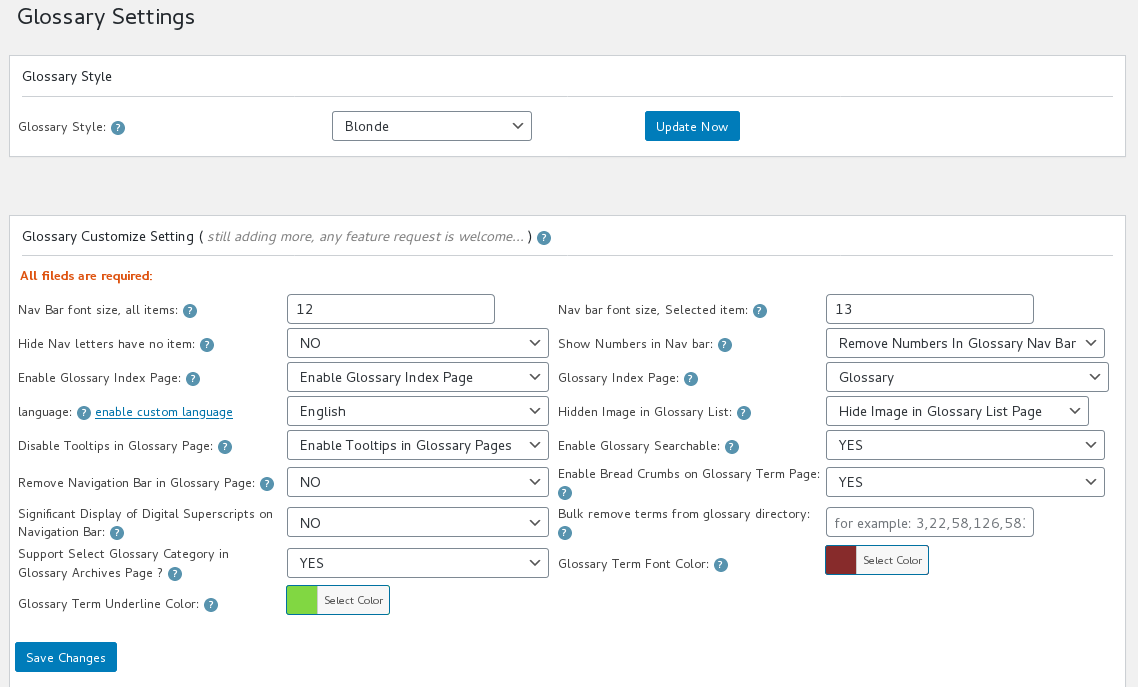
12: You will find the new option: “Glossary Term Font Color” at the bottom of the “Glossary Term Font Color” panel, please just select the color for your wordpress glossary term via wordpress color picker, it looks like this:

glossary settings panel version 12.0.8

glossary settings panel version 12.0.8

13 Click “Save Changes” blue button

14 In front end, if you open glossary index page, you will find the glossary terms font color has been changed

If you have any question or suggestion of wordpress tooltip plugin, please don’t hesitate to tell us 🙂
Thanks, have a blessed day with your family 🙂
Best Regards,
WordPress Glossary Tooltip  Plugin Team
Tagged with: ,
Top