Category: Wordpress Tooltip Plugin Document

How Can I Put Read More of the Tooltip Content in the WordPress Tooltip Popup Box?

Hi Dear WordPress Tooltip Glossary Plugin Users,

Hope this message find you are doing well and having happy holiday with your family! 🙂

We get a ticket from an amazing user, in which she asked us a question:

How Can I Put Read More of the Tooltip Content in the WordPress Tooltip Popup Box?

I guess maybe more users have the same question, I am happy to reply the question in here publicly 🙂

1: Login wordpress admin area

2: Click “Tooltips” menu item

3: You will see all tooltip terms in here, please edit the Tooltip Term which you want to show excerpt in tooltip pop up box

4: In tooltips editor, you will find you can specify specific settings for each tooltip term to show excerpt or full content in tooltip window, in tooltip editor,you will find “show excerpt in tooltip pop up metabox” metabox,  it looks like this:

show excerpt in tooltip pop up metabox

show excerpt in tooltip pop up metabox

Just select “Use Excerpt in Tooltip Pop up box, and publish the tooltip post.

5: After wordpress tooltip version 12.5.4, we added a new option “Follow the Settings of the Optional Settings Panel” in this metabox, in this case, you will do not need set up this metabox for each tooltip. What you need to do it:

5.1: Click “Optional Settings” menu item

5.2: You will open “Optional Settings” panel, you will find “show excerpt or full content of tooltips in tooltip pop box” option, it looks like this:

show excerpt or full content of tooltips in tooltip pop box

show excerpt or full content of tooltips in tooltip pop box

5.3: Please select “Use Excerpt in Pop Up Box”, then click “Update Now” button

5.4: If  you add new tooltip terms, this option “Use Excerpt in Pop Up Box” will works well for all new tooltip terms automatically.

5.5: Old tooltip terms which entered before 12.5.4, still need set up metabox “show excerpt in tooltip pop up metabox” manually

Hope this have a little help 🙂

If you have any question or suggestion of wordpress tooltip plugin, please don’t hesitate to tell us 🙂
Thanks, have a blessed day with your family 🙂
Best Regards,
WordPress Tooltip Glossary Plugin Support Team
Tagged with: , ,

How to Reference the Content from an Already Existing Tooltips Term in Tooltip Short Code?

How to Reference the Content from an Already Existing Tooltips Term in Tooltip Short Code?

1: Login your account at wordpress glossary tooltip plugin site

2: Download wordpress glossary tooltip plugin at “My account” page

3: Login wordpress admin area

4: Click “Tooltips” menu item, in “All Tooltips” Panel, search the existed tooltip term which you want to reference.

5: Click Editor button of the tooltip term, it looks like this:

edit button of tooltip term

edit button of tooltip term

6: Then you will open “Edit Tooltip” panel.

7: In “Edit Tooltip” panel, you will find the tooltip id in browser URL bar,  it looks like this:

find tooltip term which you want to reference

find tooltip term which you want to reference

You will find the in the browser URL bar, the URL is: tooltips.org/wp-admin/post.php?post=3107&action=edit&classic-editor, and the tooltip id is 3107.

8: Now you can insert this tooltip id in your tooltip_by_id shortcode [tooltip_by_id tooltip_id='3107'] in any wordpress page or post

9: The result looks like this:

Tooltip For Forms Demo - Message Field
In the current time, wordpress shortcode mechanism have many flaws yet, by this way,  you can easily push the limits of the wordpress shortcode. You can achieve many complex effects in wordpress tooltips standard WYSWYG editor, and then use tooltip_by_id shortcode to reference the content of the tooltip term into any wordpress post or page. 🙂
If you have any question or suggestion of wordpress tooltip plugin, please don’t hesitate to tell us 🙂
Thanks, have a blessed day with your family 🙂
Best Regards,
WordPress Tooltip Glossary Plugin Support Team


Tagged with:

WordPress Tooltips Glossary 12.5.0 Released, Enhanced Glossary Search Functions

Hey Dear WordPress Tooltip Glossary Plugin Users ,
Hope this message find you are doing well and having happy days with your family! 🙂
We are happy to report you, we just released wordpress tooltips glossary 12.5.0 plugin, changes in this version:

WordPress Tooltips Glossary New Version,  Enhanced Glossary Search Functions, Support Cancel the Previous Search

We received an amazing user’s ticket, in which he requested:
when I use the search bar below the nav bar, it finds the searched word but then you cannot go back because the search has changed the  address of the web page: at that point the nav bar no longer works,  there is no a way to cancel the previous search. It is not resolved  even by updating the site page. Can I remove the search bar or make it work?
This is a great suggestion, we developed  a new version wordpress tooltip plugin 12.5.0 to solve this problem, please check our the wordpress glossary demo page, it looks like this:
wordpress glossary search bar

wordpress glossary search bar

In the glossary search bar, try to search anything, you will find when you enter a glossary term in search input box, we will show the search result for you, and in the search bar, you will see a new button “Reset” — before the “Search” button, it looks like this:
wordpress glossary search bar reset button and search button

wordpress glossary search bar reset button and search button

Then if you click the “Reset” button, we will reset the glossary page to the init status,just like the screenshot above, of course, if you click the “Search” button to search another glossary term, we will show  new search results for another glossary term. 🙂
If you have any question or suggestion of wordpress tooltip plugin, please don’t hesitate to tell us 🙂
Thanks, have a blessed day with your family 🙂
Best Regards,
WordPress Tooltip Glossary Plugin Support Team
Tagged with: , ,

WordPress Tooltips Glossary Plugin 12.4.8 Released

Hi Dear WordPress Tooltip Glossary Users,
Hope this message find you are doing well and having happy weekend with your family! 🙂

In wordpress tooltip plugin 12.4.2, based on user’s suggestion, we re-developed glossary plugin UI, when users click the words in wordpress glossary page, the page will now scroll up to the head, users will not need to scroll down again, but the user’s told us that’s it not enough, in wordpress tooltip plugin 12.4.2, yes, when users click the words in navigation bar, the page will not scroll up to the head, but it is a little scroll up to the words, the words should just stay in place, users should no need to scroll up a little to find other words, yes, this is valuable feedback, we just released wordpress tooltip glossary plugin 12.4.8, in this version, we improved glossary navigation bar, when users click any letter in glossary navigation bar, the page will not scroll down or scroll up, the page will stay in place. Also we improved glossary templates. 🙂

Please note: you might need to clean site cache and your browser cache

If you have any question or suggestion of wordpress tooltip plugin, please don’t hesitate to tell us 🙂
Thanks, have a blessed day with your family 🙂
Best Regards,
WordPress Tooltip Glossary Plugin Support Team


Tagged with: , ,

WordPress Tooltips Glossary Plugin 12.4.4 Released

Hi Dear WordPress Tooltip Glossary Users,
Hope this message find you are doing well and having happy days with your family! 🙂
We are happy to report you, we just released wordpress tooltip glossary plugin 12.4.4, based on an user’s suggestion, the wordpress acf tooltip addon support wordpress ACF free plugin, and fixed ACF tooltip case sensitive.
We are developing another version based on another user’s suggestion, you will see it soon 🙂
If you have any question or suggestion of wordpress tooltip plugin, please don’t hesitate to tell us 🙂
Thanks, have a blessed day with your family 🙂
Best Regards,
WordPress Tooltip Glossary Plugin Support Team
Tagged with: , ,

WordPress Tooltip Glossary Plugin New Version 12.4.2 Released

Dear Users of WordPress Tooltip Glossary Plugin,
Hope this message find you are doing well and having happy days with your family! 🙂
Yesterday we received a user’s ticket, in which he said:
“I wanted to insert the glossary in an existing page of the site: I inserted the shortcode [glossary], I see the list of words well, but when I press on any of the  letters in the nav bar, the page returns to the header and you have to go back down, it is like this for all the letters and also for “all”, it is impossible to use the nav bar like this: keep going up and down on the web page”
This is a valuable feature request, we have released WordPress Tooltip Glossary Plugin New Version 12.4.2 to solve this problem, now if you insert shortcode [glossary] in your wordpress post, in glossary navigation bar, we have added anchor for each alphabet, so when users click any letter in wordpress glossary navigation bar, we will show glossary items for that alphabet, and stay in place, users do not need to scroll down to the alphabet again.:)
Please note, you might need to clean site cache and your browser cache 🙂
We are developing a new wordpress tooltip glossary plugin, if you have any question or suggestion of wordpress tooltip plugin, please don’t hesitate to contact us 🙂
Thanks for the amazing feature request again, have a blessed day with your family 🙂
Best Regards,
WordPress Tooltip Glossary Plugin Support
Tagged with: , , ,

How to Exclude Tooltips of Specified Tooltips Categories in Glossary Page?

Hi Users  of Dear WordPress Tooltip Glossary Plugin,
Hope this message find you are doing well and have happy days with your family! 🙂
We received a user’s ticket, in which he said, “I have created two categories and I would like one of these not to appear in the glossary, how do you do it?”, we guess more users have the same question, we are happy to reply this glossary question in here publicly:

How to Exclude Tooltips of Specified Tooltips Categories in Glossary Page?

1: Login your account via wordpress glossary plugin site

2: Download wordpress tooltip glossary plugin via “My account”

3: Login admin area of your wordpress site

4: Click “Posts” menu item

5: Create a new post.

6: Insert [glossary] shortcode in the new post, by this way:

use [glossary catid='1,2,3'] to only show tooltips of specified tooltips categories in glossary page, by category id.

Or

use [glossary catname='classmate,family,school'] to show tooltips of specified categories in glossary page, by category name.

If you want to remove any glossaries from a specific glossary category, just do not insert glossary cat id or glossary cat name in glossary shortcode

7: Publish your post, do a check at front end, all things will works like you want 🙂

We are developing a new wordpress glossary plugin version, based on this user’s other feature request, you will see it soon, if you have any question or suggestion of wordpress glossary plugin, please don’t hesitate to tell us 🙂
Thanks, have a blessed day with your family 🙂
Best Regards,
WordPress Tooltip Glossary Plugin Support Team
Tagged with: , , ,

WordPress Tooltip Glossary Plugin New Version 12.4.0

Hi Dear Users of WordPress Tooltip Glossary Plugin,
Hope this message find you are doing well and having happy days with your family! 🙂
We are happy to report you, we have released wordpress tooltip glossary plugin 12.4.0, in this version, our developer finished the code audit, changes in wordpress tooltip plugin 12.4.0:
1: Move all glossary settings admin functions to dedicated file for expand functions of wordpress glossary better
2: Use wordpress sanitize security functions to enhance security glossary settings panel
3: Rewrite description of “Glossary Excerpt or Full Content” option
The wordpress glossary settings panel in wordpress tooltipplugin12.4.0 looks like this:

wordpress glossary plugin 12.4.0 glossary settings panel

We are focus to improve glossary functionality to offer a better wordpress glossary plugin for users, there are many changes in glossary section, we are developing a new wordpress tooltip plugin version, you will see it soon 🙂
If you have any question or suggestion of wordpress glossary plugin, please contact us, we are happy to offer a better and better wordpress glossary plugin for users. 🙂
Thanks, have a blessed weekend with your family 🙂
Best Regards,
WordPress Tooltip Glossary Plugin Support Team


Tagged with: , , ,

WordPress Tooltip Glossary Plugin 12.3.6 Released

Dear Customer of WordPress Tooltip Plugin,
Hope this message find you are doing well and having happy days with your family! 🙂
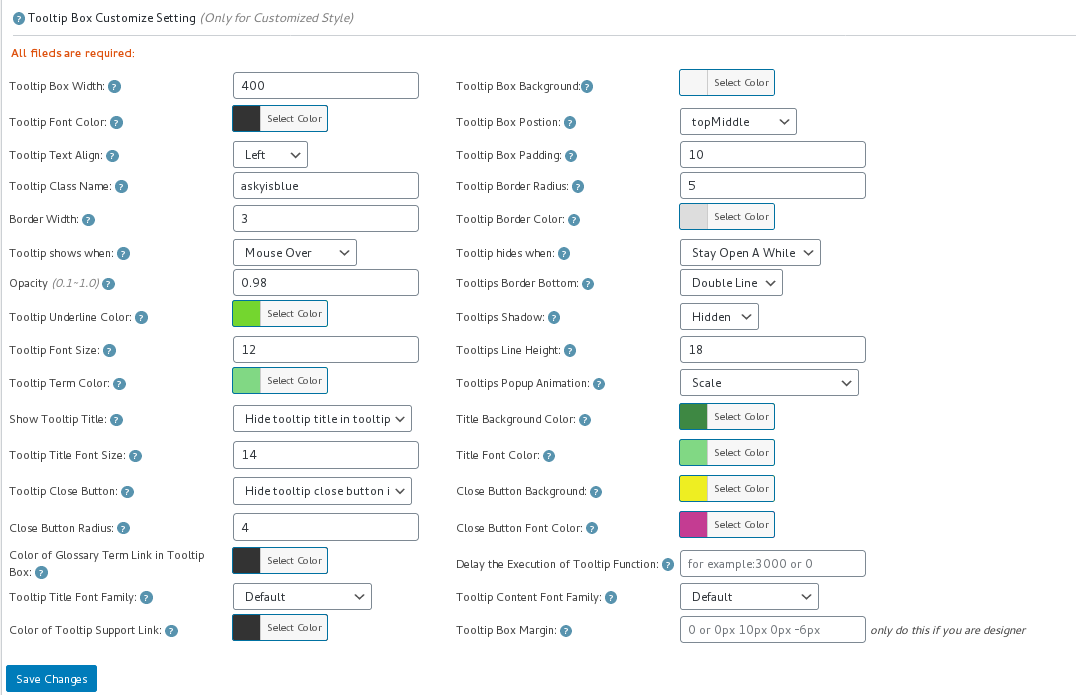
We are happy to report you, we have released a new wordpress tooltip plugin version 12.3.6, in this version, based on an amazing user’s suggestion, we have add a new module to set up wordpress tooltip style default values for new users, that means, if you are first time to install wordpress tooltip plugin, after activated wordpress tooltip plugin, wordpress tooltip pro plugin will set up a default tooltip style template for you automatically, by this way, you do not need to research how to set up tooltip style with all tooltip style fields one by one, what you need to do is just start to use wordpress tooltip instantly, and then you can customize your own tooltip style via a few clicks in wordpress tooltip style panel later, new wordpress tooltip style panel looks like this:
tooltip style panel version 12.3.6

tooltip style panel version 12.3.6

You can see we have setup wordpress tooltip font color, anamation, font size, background color, shadow…. and so on for you automatically, what you need to do is just install and using, easy, right ? 🙂
Thanks for amazing suggestion, we are realize your other suggestions, you will see it soon 🙂  If you have any question or suggestion of wordpress tooltip plugin, please contact us 🙂
Thanks, have a blessed day with your family 🙂
Best Regards,
WordPress Tooltip Support Team
Tagged with: ,

WordPress Tooltip Glossary 12.3.2 Released

Dear Users of WordPress Tooltip Plugin,
Hope this message find you are doing well and have happy weekend with your family! 🙂
I am happy to report you, we just released wordpress tooltip glossary plugin 12.3.2, in this version, we support opt to enable / disable wordpress tooltip in the entire site.

How to Disable / Enable WordPress Tooltip in Entire Site?

1: Login wordpress tooltip plugin

2: Download wordpress tooltip plugin 12.3.2 in WooCommerce “My account” page

3: Login admin area of your wordpress site

4: Click “Plugins” menu item in the back end of your wordpress site

5: Deactivated old version of wordpress tooltip plugin

6: Delete the old version of  wordpress tooltip plugin

7: In “Plugins” menu item, click add new at the top of the wordpress plugins panel page

8: Upload the tooltips plugin 12.3.2 zip file which you downloaded from wordpress glossary plugin site

9: Activate latest version of wordpress tooltip plugin

10: Click “Tooltips” menu item

11: Click “Global Settings” sub menu item, you will open ” Tooltips Global Settings” panel

12: You will find the new option: “Disable Tooltip in Entire Site” at the bottom of the “Tooltips Global Settings” panel, it looks like this:

disable tooltip in entire site option box

disable tooltip in entire site option box

13 By default, wordpress tooltip is enabled in the entire site, but we get an amazing user’s ticket, in which she request we offer a tooltip disable tooltip in the entire site, in wordpress tooltip 12.3.2, you can just select “Disable Tooltip in Entire Site” in the “Disable Tooltip in Entire Site” option box to disable wordpress tooltip in the entire site, and select “Enable Tooltip in Entire Site” in the “Enable Tooltip in Entire Site” option box to enable  wordpress tooltip in the entire site

14 Please remember to click “Update NOw” button

Thanks for the amazing feature request, if you have any question or suggestion of wordpress tooltip plugin, please don’t hesitate to tell us, we are very happy to build a better and better wordpress tooltip plugin for you  🙂
Thanks, have a blessed weekend with your family 🙂
Best Regards,
WordPress Tooltip Glossary Plugin Support Team
Tagged with: , , ,
Top