Category: Wordpress Tooltip Plugin Document

Resigned the custom language option in glossary settings panel, wordpress tooltips pro plus 30.0.8, tooltips pro 19.9.8, tooltips free 9.6.5 released

Dear users of WordPress Tooltip, I hope this message reaches you in good spirits, surrounded by the warmth of loved ones. Recently, we received invaluable feedback from a user of the WordPress Tooltip plugin regarding the custom language option in glossary settings panel:

Hi there! I’ve been absolutely loving your WordPress Tooltips Pro Plugin! It’s fantastic! However, I’ve run into a little hiccup with the glossary feature. I’m trying to switch the English word “ALL” to French, but whenever I click on custom language, I keep getting a message saying “Sorry, you are not allowed to access this page.” Could you please lend me a hand in resolving this issue? Your assistance would be greatly appreciated!

Okay, we checked this ticket and we replied the user:

Hello sir, it’s great to hear that you like our WordPress Tooltip plugin! I’m sorry to hear about the issue. Could you please follow these steps:

  1. Log in to WordPress as an administrator.

  2. Go to the tooltips menu item on the WordPress dashboard.

  3. Click on the glossary settings sub-menu item to open the glossary settings panel.

  4. In the glossary settings panel, look for the language option. On the right-hand side of the “language” option, there is a small blue tooltip icon (“?”). Hover your mouse over the icon to view detailed steps.

  5. Click the yellow link “enable custom language first” within the tooltip. You will be redirected to the tooltip addons panel.

  6. In the tooltip addons panel, enable the “tooltips language customization” option and click the “Update Now” button.

  7. Click the “Update Now” button. At the top of the tooltips addon settings panel, you will see a notice bar saying “Changes saved, please click there to customize languages for the glossary.” Click on the link to customize languages for the glossary.

  8. You will then open the “Custom Language of Tooltip and Glossary” panel where you can customize the language for your glossary.

The user told us the issue has been solved 🙂

Our wordpress tooltips plugin developer read this ticket, and he said we should offer easier method for wordpress tooltip users, so we added two link  under the language option in glossary settings:

1: enable addon link

2: custom language link

So when users want to custom language, what they need is click 1: enable addon and then click 2: custom language, all the steps at a glance, very easy for new users to understand and modify the glossary’s language.


Thanks for the great feature requests, if you have any more question, please don’t hesitate to contact us, we are very happy to create pretty wordpress plugin for you always

Thanks, have a blessed day with your family

Best Regards,

WordPress tooltips plugin support
Tagged with: , ,

Beautified Bullet Screen Settings panel, improved code security of Bullet Screen module, wordpress tooltips pro plus 29.9.8 released

Hey, esteemed users of WordPress Tooltip! I hope this message finds you well and enjoying joyful moments with your loved ones!  Yesterday, we got a feedback from a WordPress Tooltip plugin, he praised the functionality of our Bullet Screen, noting that it was the only WordPress Bullet Screen plugin he could find 🙂

What is Bullets-Screen?

Bullets Screen is a feature that displays a barrage effect of user comments, real-time messages, or other text content on a website in a scrolling or floating manner. The benefits of supporting Bullets Screen functionality for a website include:

  1. Increased User Engagement: Bullets allow wordpress content to be displayed on the page intuitively and in real-time, encouraging user interaction.
  2. Attention-Grabbing: The dynamic nature of the bullet screen effect can attract user attention, increasing focus on website content.
  3. Social Aspect: Bullets create a social environment where users feel engaged and involved, enhancing interaction and communication among users.
  4. Entertainment Value: Bullets add an element of fun and entertainment, making the user experience more engaging and diverse. Overall, the Bullets Screen feature can add a dynamic interactive way for websites to enhance user experience and engagement.

Starting from the release of wordpress tooltips pro 5.9.2 back in 2018 (the latest version being 29.9.8 in 2024), we initiated the development of the bullet screen effect for our wordpress tooltip users. The feedback from many users has been overwhelmingly positive, expressing their appreciation for this new feature. 🙂

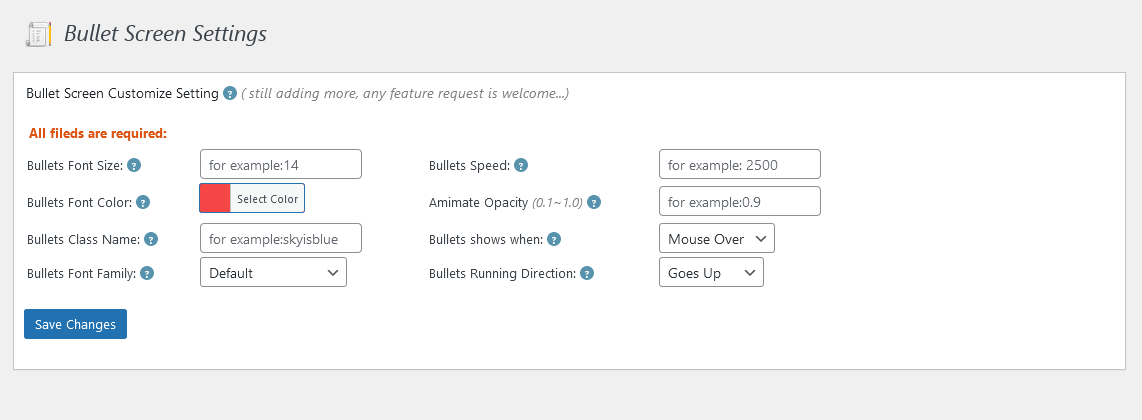
Today, we developed a new version of wordpress tooltips pro plus 29.9.8, in this version, we improved UI of Bullet Screen Settings panel, the new Bullets Screen Settings panel looks like this:

Bullet Screen Settings in wordpress tooltips pro plus 29.8.8

From the screenshot, you can see that the Bullets Screen Settings panel now looks much more lively. 🙂

Also we have improved code security of WordPress Bullets Screen module 🙂

If you have any more question of feature request, please don’t hesitate to contact us 🙂

Best Regards,

WordPress Tooltips Plugin Support

Tagged with: , ,

Support for more member directory functions, wordpress tooltips free plugin 9.6.1 released

Hi, greetings to all the devoted users of the WordPress Tooltip plugin! I hope this message finds each and every one of you in high spirits, enjoying your happy days to the fullest with your dear family.     A few days before, we released wordpress tooltips free plugin 9.5.9 to support filtering users by including only those whose IDs are included in the “include” parameter list. Today, we added a new function of members directory in wordpress tooltips plugin, to support for more member directory functions from amazing user: A WordPress user is using wordpress tooltips plugin with the member directory feature. They requested the addition of a parameter to exclude certain WordPress user IDs from being displayed in the member directory. We support this feature in this version in tooltips 9.6.1.

This is a great feature request, possible reasons for the requested functionality,  A members directory admin may have different reasons for wanting to exclude specific user IDs from the member directory. Here are some possible explanations:

  1. Privacy Protection: Some users might not want their profiles to be visible in the member directory due to security or privacy concerns.
  2. Internal Management: In certain cases, specific users may belong to internal teams or special organizations and prefer not to be listed in the member directory. This can help limit the directory to display only certain roles or specific users.
  3. Special Membership Privileges: Occasionally, certain users may have unique privileges or roles and would like to distinguish themselves by not being listed among regular users in the member directory. In summary, the requested functionality provides users with more flexibility and control to exclude specific user IDs from the member directory as per their needs. This can be done to ensure privacy protection, internal management, or to provide special membership privileges.

We also updated member directory panel in wordpress tooltips free 9.6.1, we have added examples of the use of the shortcode [ member_directory ]

We have also written a detailed step-by-step guide on how to use this function in member_directoery shortcode, please click ‘How to disable a specified user from appearing in the member directory?‘ to view


What are tooltips?

Tooltips are small popup box with more information like video /  audio / image / google maps / QR code / wiki / text… and so, tooltips box will pop up when users hover over an element in your pages, the element can be a word in your post, a search form input box, an image in your page, a widget on your sidebar.. and so on, wordpress tooltip plugin supports add tooltip effect on any element on the wordpress posts, or display on wordperss menu, comment, contact form, woocmmerce product, bbpress forum, buddypress activity…etc, with pretty effects and many more little amazing components and addons, for example, Bullets Screen 🙂

What it WordPress Tooltip Plugin:

WordPress tooltip pro is a tooltips plugin for wordpress, which be designed to help you create colorful, varied and graceful tooltip styles to present the content to your users, with lively and elegant animation effects, and save your valuable screen space.

When the users hover over an item, the colorful tooltip popup box will display with the animation effect. You can add video, audio, image, and even other content which generated by 3rd wordpress plugins like QR code, Amazon AD, Google Map in tooltip popup box via wordpress standard editor, it is very easy to use.

WordPress Glossary:

Thanks for the great feature requests, if you have any more question, please don’t hesitate to contact us, we are very happy to create pretty wordpress plugin for you always 🙂

Thanks, have a blessed day with your family 🙂

Best Regards,

WordPress tooltips plugin support

Tagged with: , ,

WordPress tooltips pro plus 29.8.8 and wordpress tooltips pro 19.8.8 released

Hi, dear users of WordPress Tooltip! I sincerely hope this message finds you in the best of spirits and basking in the warmth of happiness alongside your cherished companions. 🙂  We are happy to report you we just released WordPress tooltips pro plus plugin version 29.8.8 and wordpress tooltips pro plugin version 19.8.8 , to fix an issue which reported by an amazing wordpress tooltip plugin user 🙂

The wordpress tooltip plugin user said he installed tooltips pro plugin and he added some tooltip terms, then create wordpress pages via Divi Builder, he found an issue: warning: preg_replace unkown modifier ‘F’ in tooltips.php, this user is a great developer, he said he debug the issue and manually modify the plugin code to fix the error, and the great developer shared his code with us 🙂

Our wordpress tooltips plugin developer checked the problem carefully and checked our wordpress tooltips plugin carefully, we fixed the problem in WordPress tooltips pro plus plugin version 29.8.8 and wordpress tooltips pro plugin version 19.8.8, please upgrade to latest version of wordpress tooltips plugin asap you can 🙂

Thanks a lot of the bug report, which is greatly appreciated by our WordPress tooltip plugin developer.  As a token of our gratitude, our wordpress tooltip developer offered the great user a license for the WordPress FAQ Pro Plugin.

The WordPress FAQ Pro plugin is a powerful tool designed to make creating and managing FAQs on your WordPress website easy and efficient. It offers a wide range of features, including pre-designed FAQ templates, customizable FAQ styles via a user-friendly interface, AI-generated high-quality content for FAQs and WordPress posts, support for WooCommerce Product FAQs, responsive design for optimal display on different devices, multiple FAQ templates to choose from, FAQs grouped by category, and the ability to specify the number of FAQ items for each FAQ page, among many other features.

We hope that this license will be of great value to you and your WordPress endeavors. If you have any further questions or require assistance, please do not hesitate to contact us 🙂

Thanks, have a blessed day with your family 🙂

Best Regards,

WordPress tooltips plugin support

Tagged with: ,

WordPress tooltips free 9.5.9 released

Hello, beloved users of WordPress Tooltip! I sincerely hope this message finds you in the best of spirits and basking in the warmth of happiness alongside your cherished companions. May your days be filled with joy and contentment! We are very happy to report you: we just released wordpress tooltips free 9.5.9 🙂

Changes in wordpress tooltips free 9.5.9:

1: In the MEMBER DIRECTORY feature, we  provide support for filtering users by including only those whose IDs are included in the “include” parameter list. Please check more details at How to display only the users in a specified user ID list in the member directory?

2: Fully followed wordpress security standard to re-developed wordperss tooltips plugin

We changed more than 100 functions to use sanitize* functions , esc* functions, wp_kses* functions, wpdb* functions. check_admin_referer functions, wp_nonce* functions… etc to enhance to code security of wordpress tooltips plugin

Please upgrade to the latest version of wordpress tooltips free plugin, if you have any more question or feature request, please don’t hesitate to contact us 🙂

At the same time,  in tooltips pro plus version, we added many more amazing members directory functions, and in last version, we support the ability to use the shortcode of all member directories on a page at the same time

Thanks, have a blessed day with your family 🙂

Best Regards,

WordPress tooltips plugin support

Tagged with: ,

Supports the ability to use the shortcode of all member directories on a page at the same time, wordpress tooltips pro plus 29.6.8 released

Hi To all dear users of WordPress Tooltip, I send my greetings, hoping that this message finds you in high spirits, surrounded by the love of your dear ones. Recently, we received many amazing feature request from a user of the WordPress Tooltip plugin, the great user has been using the member directory by wordpress tooltip to create a specialized list for educators.  🙂

However, they encountered a challenge where they only wanted to display users with the role of “teacher,” while the directory was showing all users. To tackle this issue, our diligent developer has devised a solution in the latest version, WordPress Tooltip Pro Plus 28.8.8.

The user expressed their contentment with the resolution of the problem and also shared another suggestion. They are currently working on a class page and require the ability to list both teachers and administrators using the member directory functionality. They inquired if there was a way to achieve this. As a token of gratitude and to meet their needs, our dedicated developer has released WordPress Tooltip Pro Plus 28.9.8. This new version incorporates a feature that enables the display of specific user information in the member directory based on designated user IDs.

The user spoke highly of the WordPress Tooltip plugin, considering it the best they have ever used and commending our exceptional support. We expressed our appreciation for their feedback and assured them of our commitment to continuously enhance the user experience. In response, the teacher expressed gratitude for the recent version update. They acknowledged the outstanding work of our team in addressing their previous request and admired the WordPress Tooltip plugin. Additionally, they presented another requirement – to create a member directory using the WordPress Tooltip plugin that can exclude certain users, including those who are no longer associated with the organization or administrators. They sought guidance on achieving this functionality and expressed their gratitude in advance for any assistance provided. Our diligent developer carefully reviewed this new feature request, and it is with great joy that we announce the release of WordPress Tooltip Pro Plus 29.0.8. This version empowers administrators to selectively remove specified users from appearing in the member directory.

Just a few days later, the user once again expressed their gratitude and expressed their desire to go even further. They requested the ability to display all users with the role of “teacher” in the member directory while still having the option to exclude specific users. In response to their needs, our WordPress Tooltip plugin developer has re-engineered version 29.1.8 to fulfill their requirements.

Then the user wrote to us again, he told us, the individual expresses immense gratitude for the swift and impeccable assistance received regarding the user list feature. The outcome has been nothing short of extraordinary, earning esteemed recognition from the educational institution. However, a new challenge has arisen, calling for a member directory that encompasses all the noteworthy class presidents. Given the annual influx of new students and subsequently appointed class presidents, an automated system that accommodates dynamic updates without manual intervention is sought after. It is with this in mind that the individual wishes to harness the power of a fuzzy search function within the WordPress Tooltip plugin. The aim is to effortlessly present a comprehensive roster of users whose names are prefixed with “class_president” in the member directory. Thus, in a spirit of both curiosity and anticipation, the individual humbly requests guidance on the implementation of this desired functionality. Our WordPress tooltips plugin developer has worked tirelessly to create WordPress Tooltips Pro Plus 29.5.8, which allows for the display of specific types of users using fuzzy search in the member directory.

Today, this user once again offered a valuable piece of feedback, the individual graciously extends their heartfelt appreciation for the swift assistance received, highlighting the seamless functionality of the new version. However, a minor query has arisen regarding the utilization of the shortcode function for multiple member directories on a single page. Is it conceivable to expand the capabilities and allow for the simultaneous employment of shortcode functionality for multiple member directories in a cohesive manner? With utmost respect, the individual kindly seeks guidance on this matter, driven by both enthusiasm and a genuine desire for optimal efficiency. Our wordpress tooltips developer fixed thie problem in wordpress tooltips pro plus 29.6.8 🙂

If there are any additional features you’d like to request, please feel free to reach out to us. We greatly appreciate your enthusiasm as a user, and we are dedicated to continually enhancing our plugin while ensuring your satisfaction. 🙂


Have a day filled with blessings and cherished moments with your loved ones. 🙂

Warmest regards,
Support for the WordPress tooltips plugin

Tagged with: , , ,

How to list specific type of users using fuzzy search in member directory of wordpress tooltip plugin? WordPress tooltips pro plus 29.5.8 released

Dear esteemed users of WordPress Tooltip,

I hope this message reaches you in good spirits, surrounded by the warmth of loved ones. Recently, we received invaluable feedback from a user of the WordPress Tooltip plugin regarding its member directory feature.

This user has been utilizing the member directory to create a specialized list for teachers. However, they faced a challenge where they only wanted to display users with the role of “teacher,” while the directory was showing all users. To address this issue, our diligent developer has devised a solution in the latest version, WordPress Tooltip Pro Plus 28.8.8.

The user expressed their satisfaction with the problem being resolved and also shared another suggestion. They are currently working on a class page and require the ability to list both teachers and administrators using the member directory functionality. They inquired if there was a way to accomplish this. As a gesture of appreciation and to fulfill their needs, our dedicated developer has released WordPress Tooltip Pro Plus 28.9.8. This new version incorporates a feature that allows the display of specific user information in the member directory based on designated user IDs.

The user highly praised the WordPress Tooltip plugin as the best they have ever used, highlighting the exceptional support we offer. We expressed our gratitude for their feedback and reassured them of our commitment to continually enhance the user experience. In response, the teacher expressed their appreciation for the recent version update. They acknowledged the team’s outstanding work in addressing their previous request and expressed admiration for the WordPress Tooltip plugin. Additionally, they presented another requirement – to create a member directory using the WordPress Tooltip plugin that can exclude certain users, including those who are no longer associated with the organization or administrators. They sought guidance on achieving this functionality and expressed gratitude in advance for any assistance provided. Our diligent developer carefully reviewed this new feature request, and we are elated to announce the release of WordPress Tooltip Pro Plus 29.0.8. This version empowers administrators to selectively remove specified users from appearing in the member directory.

Just a few days later, the user extended their thanks once again and expressed their desire to take it a step further. They requested the ability to display all users with the role of “teacher” in the member directory while still having the option to exclude specific users. Responding to their needs, our WordPress Tooltip plugin developer has re-engineered version 29.1.8 to fulfill their requirements.

Then the user told us:

Hi, I want to express my gratitude for your prompt assistance with the user list feature. It turned out to be fantastic, and I received accolades from the school. Now, I have encountered a new challenge. I require a member directory that includes all the class presidents. Since we have new students and class presidents every year, I would like to have an automated system that updates the list without manual intervention. The user names assigned to class presidents all start with “class_president”. Consequently, I’m hoping to utilize a fuzzy search function in the WordPress tooltip plugin to display a list of users with the “class_president” prefix in the member directory. Could you please guide me on how to achieve this?

Great! This is an excellent feature request. Our WordPress tooltips plugin developer has worked tirelessly to create WordPress Tooltips Pro Plus 29.5.8, which allows for the display of specific types of users using fuzzy search in the member directory.

How to list specific type of users using fuzzy search in member directory of wordpress tooltip plugin?

1: WordPress Tooltip Pro Plus plugin customers can simply click on the “Download WordPress Tooltip” button to directly download the latest version. New users are kindly requested to purchase a license for WordPress Tooltip Pro Plus.

2: Once you have downloaded and installed WordPress Tooltip Pro+ plugin version 29.5.8 or higher, please proceed with the following steps.

3: For newcomers, we highly recommend watching our comprehensive video tutorial series titled “WordPress Tooltips Video Tutorial.” The third video in this series, titled “How to Upload and Activate WordPress Tooltips Pro Plugin,” provides detailed instructions.

4: Create a new WordPress post and insert the shortcode

[ member_directory search=’*class_president*’ ]

5: After completing the above steps, please check the member directory in the front-end. You will notice that it displays all class president in the member directory 🙂

If you have any more feature request, please don’t hesitate to contact us, we are delighted to have such enthusiastic users, and we remain committed to continuously improving our plugin.

Thanks, have a blessed day with your loved ones 🙂

Best Regards,

WordPress tooltips plugin support

Tagged with: , , ,

Added “No Change” option in tooltip term font weight option at tooltips style panel, wordpress tooltips pro plus 29.4.8 released

Hello, esteemed users of WordPress Tooltip ,  I hope this message finds you well and enjoying happy days  with your loved ones. Recently, we got a ticket in wordpress tooltip support forum,  a wordpress tooltip user told us:

Hi,

I am having issues with your setting of having my whole site to just one set weight for my tooltip terms. I want to be able to control this through my editor.

I cant seem to find the exact css so as I can turn this off and let my theme editor deal with weights.

Could you please let me know where I can delete the css or js that handles the restrictive 1 weight option.

An option for none would be excellent in the weight dropdown…..

Thanks

Our wordpress tooltip plugin support replied:

Thanks for the message

We are very happy to help you:)

Do you mean: “Tooltip Term Font Weight” option in “Tooltips Style Settings” panel? Would you:

1: login wordpress as admin

2: click tooltips menu item

3: click tooltips style sub menu item

4: In “Tooltip Term Font Weight” option, please select the option value “Normal”

5: Click “Save Changes” blue button

Would you please do a check and tell us the result? So we can help you better

Thanks, have a blessed day with your family

Best Regards,
Wordpress tooltips plugin support


The user offered more details:

Hi,

Im having issues with your forum actually saving my replies…..

Hi,

Yes by having the option value set to “normal’ is the thing that’s causing my issue.

The value from your plugin overrides my whole sites ability to use bold where I choose.

If you go to my site.

Half way down the page where it says MAIN DOT POINTS and look at “Critiquing Ableism:” you can see where your plugins value of normal strips my ability to use bold.

Thanks

A few hours later, our wordpress tooltip developer added a new “No Change” option in tooltip term font weight option at tooltips style panel, we released wordpress tooltips pro plus 29.4.8 to fix the problem, and we reported:


Hope this message find you are doing well and have wonderful day with your loved ones

We are happy to report you, we have released wordpress tooltips pro plus 29.6.8 to solve the problem of font-weight for you, would you please login your account and download the plugin and check it again?

In the new version, we added a new option “No Change”, if you select “No Change”, then the font-weight will be set as the “inherit” option which allows your site to preserve the current font-weight property of an element without directly modifying it. This option caused the element to inherit the font-weight value from its parent element. If this still conflicts with your theme CSS, then we will change the code in our plugin to remove font-weight value in our side — when you select No Change option

We appreciate your valuable feedback, and to show our appreciation, we are gifting you a wordpress FAQ PRO plugin — tooltips.org/product/wordpress-faq-pro-plugin-with-wordpress-tooltips/, it is a Powerful WordPress FAQ plugin, easy to use, select pretty FAQ templates from pre-designed template, custom FAQ style in back-end via a few clicks, Support use OpenAI ChatGPT to generate high-quality content for WordPress F.A.Q and wordpress post automatically, support WooCommerce Product FAQ, Responsive FAQ, Multiple FAQ Templates, FAQs grouped by category, specified number of FAQ items for each FAQ… and more and more, You can download the plugin in your account too

It’s 04:12 in our early morning and we’ve been up all night, I will assign our developer check another issue tomorrow, we 100% believe we can solve it for you

Sir, we will remove your other duplicate post to make it easier to manage, all questions please reply inside this thread or via email ticket as well, thanks!

Thanks, have a blessed day with your family

Best Regards,

WordPress tooltips plugin support

Thanks for the report, if you have any more feature request, please don’t hesitate to tell us, we are very happy to help you 🙂

Thanks, have a blessed day with your family 🙂

Best Regards,

WordPress tooltips plugin support

Tagged with: , ,

How do I display only users with specific user roles from a specified list of user IDs in the Member Directory? WordPress tooltips pro plus 29.3.8

Greetings, esteemed users of wordpress tooltips ! I extend my warm wishes to you and hope you are cherishing delightful moments with your loved ones. Recently, we received valuable feedback from a WordPress Tooltip plugin user, and I would like to share the details with you.

This user has been utilizing the member directory feature of the WordPress Tooltip plugin to create a dedicated directory for teachers. However, they encountered a challenge wherein they wanted to display only users with the role of “teacher” while the member directory was showing all users. Our diligent WordPress Tooltip developer addressed this issue and introduced a solution in the latest version, WordPress Tooltip Pro Plus 28.8.8.

The user conveyed their satisfaction with the resolved problem and shared another suggestion. They are currently working on a class page and need to list both teachers and administrators using the member directory functionality. They inquired if there was a way to achieve this. In response to their suggestion, and as a token of appreciation, our dedicated WordPress Tooltip plugin developer has released WordPress Tooltip Pro Plus 28.9.8. This new version includes a feature that allows the display of user information in the member directory based on a specified list of user IDs.

The user lauded the WordPress Tooltip plugin as the best they have ever used and highlighted the exceptional support we provide. We expressed our gratitude for their feedback and assured them that we are constantly striving to enhance the user experience. Furthermore, the teacher responded with appreciation for the recent version update, applauding the team’s excellent work in addressing their previous request and expressing admiration for the WordPress Tooltip plugin. They then presented another requirement: to create a member directory using the WordPress Tooltip plugin but with the ability to exclude specific users, including those who are no longer part of the organization or administrators. They requested guidance on achieving this functionality and expressed their gratitude in advance for any assistance provided. Our diligent WordPress Tooltip plugin developer reviewed this new feature request, and we are thrilled to announce the release of WordPress Tooltip Pro Plus 29.0.8. This version empowers administrators to selectively remove specified users from appearing in the member directory.

A few days later, the user extended their gratitude once again and expressed a desire to go even further. They wished to display all users with the role of teacher in the member directory while having the ability to disable specific users from being shown. In response to their request, our WordPress Tooltip plugin developer has redeveloped a new version, 29.1.8, to fulfill this function for the user

Yesterday, the wordpress tooltip user wrote to us again:

Hi, thanks a lot for your prompt response, I’ve solved yesterday’s dilemma, today I’m building the school’s PTA(Parent-Teacher Association)  page and I want to show only users with a specific user role PTA from a specified list of user IDs in the member directory, is there a way to do that?

Okay, our wordpress tooltips plugin developer added a new module to solve the problem for the wordpress member directory user like this:

1: Users of WordPress tooltip pro plus plugin please click download wordpress tooltip to download the new version directly, new user please purchase a license of wordpress tooltip pro plus

2: Downloaded and install wordpress tooltip pro + plugin which version >= 29.3.8

New users please check our detailed video tutorials at WordPress Tooltips Video Tutorial 3: How to upload and activate wordpress tooltips pro plugin

3: Crete a new wordpres post and insert the wordpress tooltip member directory shortcode :

[ member_directory role=’PTA’  include=’6,96,236,1151’ ]

4: Then please check member directory in front-end, you’ll find that the member directory will display  users who have the role “PTA”, and  user IDs  in (6,96,236,1151)


We value your feedback and are committed to continuously improving our WordPress Tooltip plugin to meet your needs. If you have any more question or feature request, please don’t hesitate to contact us 🙂

Thanks, have a blessed day with your family

Best Regards,

WordPress tooltips plugin support

Step 5 Toward Displaying Tooltips in the Administrator Control Panel, wordpress tooltips pro plus 29.2.8 released

Hi, Dear WordPress Tooltip users, hope this message find you are doing well and having happy days with your loved ones  🙂 A couple of days back, we received an incredibly uplifting plea from a devoted patron of our WordPress tooltips extension. This user ardently wished for our plugin to incorporate tooltip capabilities within the administrative control panel of the WordPress dashboard. The user disclosed their extensive utilization of the WordPress backend, where a number of editors tirelessly toil. As a swift response, we expeditiously unleashed numerous iterations, with an unwavering emphasis on bolstering the impregnability of our WordPress tooltips extension Following the fortification of all our code, we’ll be enabling the wordpress tooltip effect within the WordPress backend for any text therein.

Today our wordpress tooltips plugin developer re-developed our wordpress tooltips pro plus addon panel to enhance code security 🙂

What is wordpress tooltip?

WordPress tooltip pro is a tooltips plugin for wordpress, which be designed to help you create colorful, varied and graceful tooltip styles to present the content to your users, with lively and elegant animation effects, and save your valuable screen space.

When the users hover over an item, the colorful tooltip popup box will display with the animation effect. You can add video, audio, image, and even other content which generated by 3rd wordpress plugins like QR code, Amazon AD, Google Map in tooltip popup box via wordpress standard editor, it is very easy to use.

What does the “WordPress tooltip plugin addon” mean?

In the realm of WordPress, an “addon” for a plugin typically refers to an supplementary extension or feature that enhances the existing functionality of a WordPress plugin. It serves as a means to expand the capabilities of a core plugin by incorporating additional features, tools, or integrations.
When you encounter a menu item labeled “Addon” within a WordPress plugin, it generally signifies that the plugin developer has purposely designed the plugin to be easily extended or customized through these addons. These addons can furnish supplementary functionality that may not be encompassed by the plugin’s core features.
For instance, envision having a WordPress plugin dedicated to managing a contact form on your website. The core functionality could encompass the creation and administration of basic contact forms. However, the plugin developer might offer addons that facilitate integration with third-party email marketing services, provide additional form field types, or enrich the styling options of the form. These addons permit users to tailor the plugin to their precise requirements without burdening the core plugin with every conceivable feature.
To sum up, a WordPress plugin addon denotes an auxiliary component that expands the capabilities of a plugin, granting users the flexibility to customize and enhance the plugin’s functionality based on their specific needs.

Which wordpress tooltip addons do we presently include in the pro plus version?

Within the pro plus version of wordpress tooltips, we presently offer the following wordpress addons:

  • Tooltips for TablePress Addon
  • Tooltips for Contact Form 7 Addon
  • Tooltips for WooCommerce Products Addon
  • Glossary for WooCommerce Products Addon
  • Tooltips for bbPress Topic & Reply Addon
  • Tooltips for BuddyPress Activity Addon
  • Tooltips Language Customization Addon
  • Tooltips for ACF Addon
  • Tooltips for OceanWP Theme Addon
  • Tooltips for Custom Product Tabs for WooCommerce Addon
  • SVG Image Tooltips Addon
  • WikiPedia Tooltips Addon
  • WordPress Comment Tooltips Addon
  • Tooltips PDF Viwer Addon
  • SouldCloud Tooltips Addon
  • Youtube Tooltip Shortcode Addon
  • Vimeo Tooltips Addon
  • Smart Content Link Tooltips Addon

How can I locate the wordpress tooltip addons?

Finding the wordpress tooltip addons is quite straightforward:

  1. Log in to your wordpress site as an administrator. Normally, you can log in to your wordpress site by visiting yourdomain.com/wp-admin (replace yourdomain.com with your actual domain).
  2. Once logged in, you will be redirected to the wordpress dashboard. On the left-hand side of the dashboard, you will spot a tooltips menu item. Click on it if you have already downloaded and installed the wordpress tooltips pro plus plugin.
  3. You will come across additional submenu items. Towards the bottom of the tooltips menu item, you will find the addons submenu item. Here is how it appears:

wordpress tooltip menus 14.3.6


4. Click on the addons submenu item, and you will access the tooltips addon settings panel. It will resemble the following:

Within this panel, you will find all the available wordpress tooltip addons. You can enable or disable your desired wordpress tooltip addons here We are in the process of preparing a more comprehensive documentation on how to utilize these wordpress tooltip addons, and you can expect to see it soon


Thanks, have a blessed day with your family

Best Regards,

WordPress tooltip plugin support


Tagged with: , ,
Top