Tag: tooltip

How to Custom the Display Time of Tooltip Window so Tooltip Users can Click links in the Tooltips or Watch Video in Tooltip Popup?

WordPress Tooltip Users,
Hope this message find you are doing well and have happy days with your family! 🙂  we get a user’s ticket, in which he asked us, how to custom the display time of tooltip window so tooltip users can click links in the wordpress tooltip window and watch video in tooltip Popup? I think may be more users have the same question, I’d like reply in here publicly 🙂

How Can I Custom the Display Time of Tooltip Window, So Tooltip Users Can Click links in the Tooltips or Watch Video in Tooltip Popup?

In general, when users mouse hover a wordpress tooltip term in your wordpress post or wordpress page, wordpress tooltip plugin will show a tooltip pop-up window for the user, in the tooltip window, we will show content of the tooltip which admin made in the tooltip advanced editor, in wordpress tooltips editor,

tooltips editor

tooltips editor

As you can see, you can insert text, link, image, video, audio, google map…and so as tooltip content,  in the wordpress tooltip editor 🙂
By default, in front end of your wordpress site, when users mouse hover the tooltip term, we will show tooltip pup window, when user mouse move out from the tooltip popup window, we will hide tooltip pop-up. If you want keep tooltip pop-up display in the front end and allow users click links in the tooltip window, you can just do it by this way:

1: If you didn’t installed wordpress tooltip, please login your account at wordpress glossary tooltip plugin site, if you have installed wordpress tooltip plugin, please jump to step #10 directly 🙂

2: Download wordpress glossary tooltip plugin at “My account” page

3: Login wordpress admin area

4: Click “Plugins” menu item

5: Deactivated old tooltips version

6: Delete the old wordpress tooltip plugin

7: In “Plugins” menu item, click add new at the top of the plugins panel

8: Upload the tooltips plugin zip file which you downloaded from wordpress glossary plugin site

9: Activate latest version of wordpress tooltip glossary plugin

10: Click “Tooltips” menu item

11: Click “Tooltip Style” sub menu item, you will open “Tooltip Style Settings” panel, it looks like this:

wordpress tooltips pro 13.9.4 tooltip style settings panel

wordpress tooltips pro 13.9.4 tooltip style settings panel

12: In the tooltips style settings panel, please find the option: “Tooltip hides when”,  and choose the option “Stay Open A While”, then in the front end of wordpress post, users can click links, video buttons in the tooltip window

13 How to custom display time of tooltip pop up window?

May be a few users want more, because by default, the length of time of the wordpress tooltip popup window stays open is “2 seconds”. So if  the option ‘Stay Open a While’ is selected, wordpress tooltip popup window will remain on the screen about 2 seconds and will close automatically — after the mouse leaves the tooltip popup window. but some users maybe want a bit more display time of the wordpress tooltip window, you can do this in wordpress tooltip style settings panel too. 🙂

Just click into the option “Time of the Option ‘Stay Open a While‘” in the tooltip style settings panel, then enter the length of the time, then in the front end of your wordpress site, when users mouse leaves the tooltip pop-up window, the tooltip window will remain on the screen with x seconds which you typed in this option 🙂

14 After finish the config works,  please remember to click “Save Changes” blue button

We get a lot of tooltip suggestion, we are developing it asap we can, if you have any question or suggestion of wordpress tooltip plugin, please don’t hesitate to tell us 🙂
Thanks, have a blessed day with your family 🙂
Best Regards,
WordPress Tooltip Glossary Plugin Support Team
Tagged with: , , , ,

WordPress Tooltip 13.8.0 Released, Support Tooltips for WordPress Comment

Dear Users of WordPress Tooltip Glossary Plugin,
Hope this message find you are doing well and having happy days with your family! 🙂
We just released WordPress Tooltip glossary 13.8.0, we are happy to report you, this is our 313th version of wordpress tooltip plugin 🙂

WordPress Tooltip Plugin Support Tooltips for WordPress Comment

A user of the wordpress tooltip plugin submitted a development request to us, he said that his wordpress site has a lot of comments, whenever he replies to user comments, he finds that he needs to enter a lot of text information, while explaining some complex issues, he wants to add to these wordpress comments with tooltip effect, so he can add video tooltip, audio tooltip… to the comment through wordpress comment tooltip, by this way, when replying to a user’s comment, he can provide the user with richer information for the user, then, when the user watches his reply, he can understand his thoughts at a glance. 🙂

This is a great tooltip feature request! Our developer lost his weekend and sleep to developed the tooltips for comment for the user asap, now since wordpress tooltip plugin 13.8.0, wordpress tooltip plugin support comment tooltip!

Please check out the comments below this article and you’ll see that you can add rich text replies to wordpress comments 🙂

How to Use WordPress Comment Tooltip?

1: If you didn’t installed wordpress tooltip multisite license plugin, please login your account at wordpress glossary tooltip plugin site, if you have installed wordpress tooltip plugin, please jump to step #10 directly 🙂

2: Download wordpress tooltip plugin via “My account” page

3: Login wordpress admin area

4: Click “Plugins” menu item

5: Deactivated old tooltips version

6: Delete the old wordpress tooltip plugin

7: In “Plugins” menu item, click add new at the top of the plugins panel

8: Upload the tooltips plugin zip file which you downloaded from wordpress glossary plugin site

9: Activate latest version of wordpress tooltip glossary plugin

10: Click “Tooltips” menu item

11: Click “Addons” sub menu item, you will open “Tooltips Addon Settings” panel

12: You will find  at the bottom of the Tooltips Addon Settings panel,  there are the option: “Enable / Disable Tooltips for WordPress Comment?”, if looks like this:

wordpress comment tooltip addon panel

wordpress comment tooltip addon panel

13: If you want to add tooltip effect to wordpress comments, please select “Yes, support comment tooltips”, else please select “No, don’t support comment tooltips”

14: Click “Save Changes” blue button

15: In front end, wordpress tooltip plugin will scan content of your comments, and add tooltip effect on tooltip terms automatically 🙂

16: When user hover tooltip terms in wordpress comments, tooltip window will pop up, you can insert video / audio / map / QR codes / links / woocommerce products in tooltip pop up window

It is easy, what you need to do is just enable wordpress comment tooltip addon, and write your tooltips terms and content in tooltips editor in backend, if you do not know how to create tooltips, please check our video tutorial:

WordPress Tooltips Video Tutorial 4: How to Create Your First Tooltips In WordPress Tooltips Pro Plugin

You can find wordpress tooltips multi-site license plugin at below, also you will find many free wordpress plugins we developed for wordpress tooltip users:


We get Tons of tooltip feature request, we are try our best to finish then asap we can,  If you have any question or suggestion of wordpress tooltip plugin, please don’t hesitate to tell us 🙂
Thanks, have a blessed day with your family 🙂
(Updated at 2024-09-29)
Best Regards,
WordPress Tooltip Plugin Support Team
Tagged with: , , ,

WordPress Tooltip Free 7.2.1 Released, Admin can Decide WordPress Glossary searchable or Not

Dear WordPress Tooltip Glossary Plugin Users,

Hope this message find you are doing well and having happy weekend with your family! 🙂

We are happy to report you, we released wordpress tooltips free 7.2.1. 🙂

An attentive tooltip plugin user wrote to us and noticed that when he read wordpress tooltips documents, from our  tooltip screenshot, he found our tooltips pro version has a feature he wanted: allowing admin to decide glossary terms can be searchable or not, it looks like this:

glossary settings panel enable glossary searchable

glossary settings panel enable glossary searchable

Yes since wordpress tooltips pro version 7.5.0, we added this feature. In the above screenshot you can find the option “enable glossary searchable”, you can opt yo enable glossary terms searchable, it means glossary terms / tooltip terms will shown in wordpress standard search result.

If you enable, glossary terms searchable, that means the tooltip terms can be searched and displayed in wordpress’ standard search results listings, also this is good form improve SEO ranks in search engines. 🙂

However, some users want tooltip terms to be unsearchable, for example, a webmaster build a Web Academy, he  told us he wanted to hide his glossary terms, that’s why we developed the function of “enable glossary searchable or not”.

Please note, by default, we enabled glossary searchable for tooltip users 🙂

We added this feature into wordpress tooltips 7.2.1 version, if you have any feature request or suggestion, please don’t hesitate to contact us, we are always happy to build better and better wordpress tooltip plugin for you,  this is our 311th wordpress tooltip plugin 🙂


Thanks, have a blessed day with your family 🙂

Best Regards,
WordPress Tooltip Glossary Plugin Support Team

Tagged with: , , ,

WordPress Tooltip Glossary Plugin 13.7.4 Released, the 310th version of WordPress Tooltip Glossary Plugin

Dear WordPress Tooltip Glossary Plugin Users,
Hope this message find you are doing well and having happy weekend with your family! 🙂
We just released WordPress Tooltip Glossary Plugin 13.7.4, this is our 310th version of WordPress Tooltip Glossary Plugin 🙂
A few days before, an amazing wordpress tooltip plugin user told us that he really liked our advance tooltips shortcode, because the advance tooltips shortcode can create many tooltip terms, and flexible enough to add images, videos, audio… as the content in the tooltip pop-up.
His problem is that, as a heavy user of the wordpress tooltip plugin, he finds that every time he writes a post, he has to manually enable the enable advance tooltip shortcode in metaobox of in the wordpress editor, he hope we can add a new option to enable advance tooltip shortcode globally.
Our developer said this is a great suggestion, practice makes perfect, the real rare feature is always come from users 🙂 And he lost his holiday to developed a new version wordpress tooltips glossary plugin 13.7.4 to realize the feature for the user 🙂
Now if you upgrade to wordpress tooltip 13.7.4, in optional settings panel, you will find a new option ” Enable advance tooltips shortcode globally”, it looks like this:
 Enable advance tooltips shortcode globally

Enable advance tooltips shortcode globally

If you enabled “Enable advance tooltips shortcode globally” option, when you edit a post, by default the advance tooltips shortcode option will be enabled. Of course, you still can disable “advance tooltips shortcode” in post editor metabox. If you disabled “Enable advance tooltips shortcode globally” option, when you edit a post, advance tooltips shortcode option is disabled, if you did not set up the option “Enable advance tooltips shortcode globally”, by default the advance tooltips shortcode option will be disabled too. 🙂
Thanks for the great suggestion of wordpress tooltip plugin,  If you have any question or suggestion of wordpress tooltip plugin, please don’t hesitate to tell us, we are happy to develop new version to realize your feature request  🙂
Thanks, have a blessed day with your family 🙂
Best Regards,
WordPress Tooltip Glossary Plugin Support Team
Tagged with: , , , , ,

WordPress Tooltip Site Update Work of This Week at 2020-10-07

Dear Users  of WordPress Tooltip Glossary Plugin,
Hope this message find you are doing well and have happy days with your family! 🙂
This week, we released a new version of wordpress tooltips plugin, in wordpress tooltip version 13.7.2, wordpress tooltip glossary plugin support add tooltips in the WordPress Beaver Page Builder, when users enter a tooltip terms in beaver page builder, in front end, tooltips effects be added to tooltip terms automatically, and when users added the tooltip shortcodes in the wordpress beaver page builder, it works well too.

And we make a few changes at wordpress tooltip glossary pro plugin product pages

Also we updated wordpress features page, we added a few more new descriptions of new features of wordpress tooltip plugin

We get a few user’s ticket, in which they asked us how to use wordpress tooltips in wordpress gutenberg editor, we replied with a publicly document at:

Does WordPress Tooltip Glossary Plugin Support Gutenberg?

We developing a new version to support enable “Tooltip Advance ShortCode” globally, you will see the new version of wordpress tooltip soon 🙂
Now we are developing a new version to support a advanced editor 🙂
If you have any question or suggestion of wordpress tooltip plugin, please don’t hesitate to tell us 🙂
Thanks, have a blessed day with your family 🙂
Best Regards,
WordPress Tooltip Glossary Plugin Support Team
Tagged with: , , , ,

WordPress Tooltip Glossary Plugin 13.7.2 Released, Support WordPress Beaver Page Builder

Hi Dear WordPress Tooltip Glossary Users,
Hope this message find you are doing well and having happy weekend with your family! 🙂
We are very happy to report you, we just released WordPress Tooltip Glossary Plugin 13.7.2, in this wordpress tooltip version, wordpress tooltip plugin support WordPress Beaver Page Builder.
Beaver Builder is a flexible drag and drop page builder that works on the front end of your WordPress website. Whether you’re a beginner or a professional, you’re going to love taking control of your website.
Tooltips are small popup box with more information like video /  audio / image / google maps / QR code / text… and so, tooltips box will pop up when users hover over an element terms in your pages, the element can be a word in your post, a search form input box, an image in your page, a widget on your sidebar.. and so on, wordpress tooltip plugin supports add tooltip effects in wordpress posts.
n the current time, beaver builder have no function of tooltips, now with wordpress tooltips plugin, in beaver builder, you can use wordpress tooltip shortcodes to add tooltips in your wordpress posts via beaver page builder very easy. About wordpress tooltip shortcode, please check our detailed document at How to use wordpress tooltip shortcode ‘tooltips’ to add tooltips manually?
Our wordpress tooltips plugin works well with many wordpress page builder plugins, many happy users tell us they are using wordpress element page builder with our wordpress tooltip plugin or they are using the Divi theme with our wordpress tooltip plugin, and they are happy with our pretty tooltip effects on these wordpress page builders, a few more document can be found at:
Please upgrade to our wordpress tooltip version 13.7.2 asap you can, also this is our 309th version of wordpress tooltip glossary plugin 🙂
If you have any question or suggestion of wordpress tooltip plugin, please don’t hesitate to tell us 🙂


Thanks, have a blessed day with your family 🙂
Best Regards,
WordPress Tooltip Glossary Plugin Support Team
Tagged with: , , , ,

Does WordPress Tooltip Glossary Plugin Support Gutenberg?

Hi Dear WordPress Tooltip Glossary Users,
Hope this message find you are doing well and have happy days with your family! 🙂
One of the new users of wordpress tooltip asked us a question:

Does WordPress Tooltip Glossary Plugin Support Gutenberg?

Our answer is clear: YES 🙂
Gutenberg is a new wordpress editor developed by wordpress official development team — they said ““Gutenberg” is a codename for a whole new paradigm in WordPress site building and publishing, that aims to revolutionize the entire publishing experience as much as Gutenberg did the printed word. Right now, the project is in the first phase of a four-phase process that will touch every piece of WordPress — Editing, Customization, Collaboration, and Multilingual …” 🙂
On wordpress tooltip plugin side, we support the wordpress classic editor and gutenberg  editor at the same time. WordPress Tooltip followed wordpress standard API to hook “the_title”, “the_content”… and more wordpress APIs to scan tooltip terms in wordpress posts automatically, and add tooltip effects on tooltip terms automatically. That means, whether you use the wordpress classic editor or the wordpress gutenberg editor, the wordpress tooltip plugin will automatically recognize the tooltip terms and add a tooltip effect to the detected tooltip terms automatically.
If you have any question or suggestion of wordpress tooltip plugin, please don’t hesitate to tell us 🙂
Thanks, have a blessed day with your family 🙂
Best Regards,
WordPress Tooltip Glossary Plugin Support Team
Tagged with: , , ,

How can I stop the tooltip from appearing offscreen on mobile?

Dear WordPress Tooltip Users,
Hope this message find you are doing well and have happy weekend with your family! 🙂
We received a help request from an amazing user, in his ticket, he asked us a question:

How can I stop the tooltip from appearing offscreen on mobile?

It is very easy to stop the wordpress tooltip popup box from appearing offscreen on mobile, just follow our detailed steps below and with a few clicks of the mouse you can quickly accomplish this goal. 🙂

1: If you don’t have our wordpress tooltip plugin installed on your wordpress, please login your buyer account at wordpress tooltip site, if you have installed wordpress tooltip plugin on your site, please jump to step #10 directly 🙂

2: Download wordpress tooltip plugin via “My account” page

3: Login admin area of your wordpress site

4: Click “Plugins” menu item

5: If you installed wordpress tooltip free plugin or other version of our wordpress tooltip plugin, please deactivated old tooltips version

6: Delete the old wordpress tooltip plugin

7: In “Plugins” menu item, click add new at the top of the plugins panel

8: Upload the tooltips plugin zip file which you downloaded from wordpress glossary plugin site

9: Activate latest version of wordpress tooltip plugin

10: Click “Tooltips” menu item

11: Click “Tooltips Style” sub menu item, you will open “Tooltip Style Settings” panel, it looks like this:

tooltip style panel version 12.3.6

tooltip style panel version 12.3.6

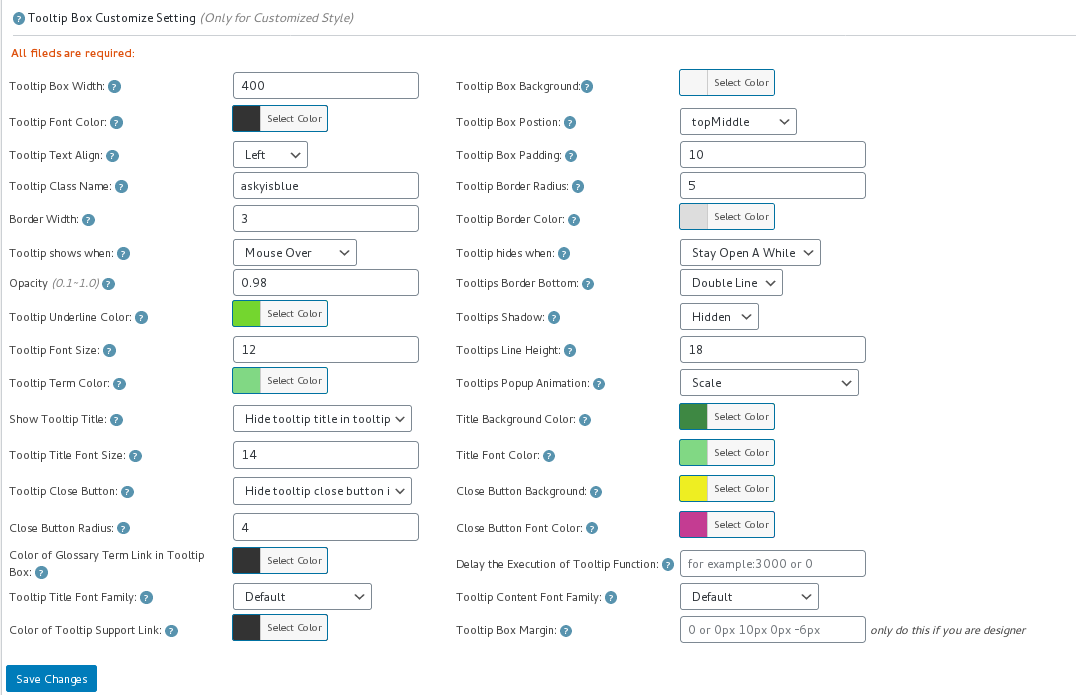
12: In the screenshot of tooltip style settings panel, you will find the option: “Tooltip Box Postion” at the top of the “Tooltip box Customize Setting” panel, Please set the “Tooltip Box Postion” option to “topMiddle” or “bottomMiddle”.

13 Click “Save Changes” blue button at the bottom of the “Tooltip box Customize Setting” panel

14 In front end, when you open your page on mobiles, you will find the tooltip popup box does not go beyond the boundaries of the mobile screen.

If you have any question or suggestion of wordpress tooltip plugin, please don’t hesitate to tell us 🙂
Thanks, have a blessed day with your family 🙂
Best Regards,
WordPress Tooltip Glossary Plugin Support
Tagged with: , ,

WordPress Tooltip Glossary Plugin 13.6.4 Released, The 306th Version

Hi Dear WordPress Tooltip Glossary Users,
Hope this message find you are doing well and have happy days with your family! 🙂
We are happy to report that we have released the 306th version of the wordpress tooltip plugin. 🙂
This month we released some new versions of the wordpress tootlip glossary plugin, in these new versions, we added some new features, then we have been receiving some support requests from users asking us how to use these new features. With this in mind, we have added some new FAQ Items to wordpress tootlip knowledge, including some of the latest frequently asked questions and answers, for example, how to add wikipedia tooltip in wordpress posts, How to Get Search Engines to Read Tooltip’s Content… and so on  🙂
How to find wordpress tooltip FAQ items in wordpress tooltip knowledge base panel?
1: Please login your wordpress admin area
2: Please click “Tooltips” menu item
3: Please click “Knowledge Base” sub menu item
4: You will find all faq items and video tutorials and our support  links
If you have any question or suggestion of wordpress tooltip plugin, please don’t hesitate to tell us 🙂
Thanks, have a blessed day with your family 🙂
Best Regards,
WordPress Tooltip Glossary Plugin Team
Tagged with: , , ,

WordPress Tooltip Free Version 7.1.9 Released

Hi Dear WordPress Tooltip Glossary Users,

Hope this message find you are doing well and have happy weekend with your family! 🙂

1: Modify “tooltips on mobile devices” module to avoid conflicts with another plugin

2: Modify “import tooltips” module to avoid conflicts with another plugin

3: We received feedback from an enthusiastic user, He told us that he has a problem with wordpress tooltip plugin and needs our help, but when he clicks on the “Support Ticket” link in wordpress plugins panel, he finds that the “Support Ticket” link has been changed. 🙂

Sorry for this, After upgraded our wordpress, we found the old ticket support system cannot works well  in the latest wordpress version, we had to abandon the previous customer support system, we are developing a new customer support system ourselves, about halfway done, we will share this new customer support system with our wordpress tooltip plugin users, if you check our wordpress plugin product page, you will find that we have shared some of our developed wordpress plugin for free with our wordpress tooltip plugin user.

In the wordpress tooltip 7.1.9, we have correct the empty link of the support ticket, the new support ticket is here. Also if you check our support link, you will find are added demo of tooltip for form elements in the support link, another better tooltips for form fields demo can be found at here. Actually, our new wordpress tooltips  pro plugin support add tooltips on nearly any thing on front end page — if have have a Css class or Css ID in wordpress front end pages, more details please check tooltips for anything demo.


With wordpress tooltips plugin 7.1.9, we added a few new features in the tooltip description and updated our wordpress tooltip readme pages, for example,  use wikipedia tooltip to build Lexicon / Vocabulary / Wiki / encyclopedia / dictionary / Knowledge Base site or pages very fast and easily, or functions of advanced woocommerce tooltip, changes in glossary… and so on


If you have any question or suggestion of wordpress tooltip plugin, please don’t hesitate to tell us 🙂


Thanks, have a blessed day with your family 🙂


Best Regards,
WordPress Tooltip Glossary Plugin Support Team
Tagged with: , , , , ,
Top