How to Add Custom WooCommerce Tooltip Effects to WooCommerce Variations in WooCommerce Variable Products?

Dear WordPress tooltip users, today I will tell you how to add custom WooCommerce tooltip effects to WooCommerce variations in WooCommerce variable products. 🙂  Yesterday we received a help request submitted by a woocommerce tooltip user:

Subject:
Attribute name Tooltip

Message:
Before I purchase I need to know if a tooltip can be created for an Attribute Name and pop up when hovering over the Attribute name on the product page. In the screenshot “Horsepower” is the Attribute, can the tooltip appear when hovering over “Horsepower”?

Thanks

Our wordpress tooltip plugin support replied the user::

Hi,
Thanks for the message 🙂

We are very happy to help you 🙂

Our wordpress tooltips pro plugin do support add woocoommerce tooltip effects on woocommerce attributes, we wrote a few detailed step by step document with screenshot to help woocommerce tooltip users display tooltip on woocommerce attribute labels, would you please do a check at:

How to Add Tooltip Effect on WooCommerce Product Attribute Label?

or

How to Add Tooltip Effect on WooCommerce Product Attribute Label?

Also you can find our woocommerce attribute tooltip demo at:

WooCommerce Tooltip Demo

Hope this have a little help 🙂

Thanks, have a happy day with your family 🙂

Best Regards,

WordPress Support Support Team

But the user said he want more:

Hello,

Thank you for getting back to me. I see in your demo that the attribute and the tooltip is in the tab section of the product.

I need the tooltip on the attribute label next to the variation dropdown so the user doesn’t have to scroll down.

See this screenshot for where I want the tooltip to display:

Thank you,

We checked his screenshot, this is the first time we heard this kind of feature request, in general, woocommerce variation product is using woocommerce attributes too, so we think it should works well, but  as we all known, there are many users using a few kinds of 3rd woocomemrce plugins to build their woocommerce products, so we replied the user:

Hi,

Thanks for the great screenshot 🙂

Our developer checked it, we understand, if you check our woocommerce tooltip demo at:

WooCommerce Tooltip Demo

You will find no matter tooltip terms in tooltip description section or tooltip terms in tooltip simple description section, tooltips effect can be added in the tooltip terms and it works well, the problem is we do not know how you create these variation dropdown in your site? Is it generated by a 3rd plugin?

Thanks, have a happy day with your family 🙂

Best Regards,
Woocommerce tooltip plugin support team

The users said:

Hi,

The Attributes are created using WooCommerce. The variation dropdowns are created using WooCommerce by Configuring Terms for the attribute. The attributes and the variations are then added to a product with WooCommerce. Third party plugin is not used.

Thanks,

Then our woocommerce tooltip developer build a development platform to installed woocommerce plugin, and create a few WooCommerce variable products, WooCommerce is a great ecommerce-shop plugin for wordpress, woocommerce allow to create variable products.  what is variable products? Woocommerce variable products allow shop owner create woocommerce products with variations, in general, when you sell a t-shirt or a car, then the t-shirt have multiple colors, many sizes… and so on,  with different  prices,customer can select colors or sizes from dropdown boxes, that’s woocommerce variable product. Basically, when you create a woocommerce variable product, you need create attributes and variations in woocommerce product editor.

We try to add custom WooCommerce tooltip effects to WooCommerce variations in WooCommerce variable products, after the test, we find wordpress tooltips can support add custom WooCommerce tooltip effects to WooCommerce variations in WooCommerce variable products automatically 🙂

Then our woocommerce tooltip support replied the user:

Hi,

Thanks for the reply 🙂

Our developer did a check for you, yes, tooltips pro plus support the feature, you can do it by this way:

How to Add Custom WooCommerce Tooltip Effects to WooCommerce Variations in WooCommerce Variable Products?

1: Purchase wordpress tooltips pro plus plugin via  wordpress tooltips pro plus with woocommerce tooltip

2: After finished payment, please download  wordpress tooltip multi-site license version with advanced woocomemrce addon

3: Login wordpress site as admin

4: Upload the wordpress tooltips pro plus zip file, install  and activate wordpress tooltip plugin.

5: After activated wordpress tooltips plugin, please click “Tooltips” menu item

6: Then you will find the “Addons” sub menu item, just click it, and you will be redirected to “Tooltips Addon Settings” panel, the panel looks like this:

7: As you can see, there are an option: “Enable / Disable Tooltips for WooCommerce Products”, just select “Enable Tooltips for WooCommerce” and please click the blue “Update Now” button to enable woocommerce tooltip addon.

8: Then please click tooltips menu again

9: Now you will find the new “woo tooltips” sub menu item, it looks like this, the 4th sub menu item  is “woo tooltips”

10: Please click “woo tooltips” sub menu item,  and you will be redirected to “Advanced WooCommerce Tooltips Addon Settings” panel, it looks like this:


11: In “Advanced WooCommerce Tooltips Addon Settings” panel, please enable “Tooltips for WooCommerce Product Attribute” option

12: In front end, when user view your woocommerce product, users will find the underline under woocommerce variations labels, you can custom color, style and you can add video / audio to help users understand difference of these variations, when user mouse hover the attribute label of variation dropdown box, wordpress tooltips window will popup automatically, you can add description for these variation options to help your user understand variation options better 🙂

Hope this have a little help 🙂

Thanks, have a happy day with your family 🙂

Best Regards,
Woocommerce Tooltip Plugin Support Team

Conclusions:

Woocommerce support variable products, for example, if you sell a t-shirt or a car or a keyboard, may be t-shirts have multiple colors, multiple sizes… and so on,  with different  prices,customer can select colors or sizes from dropdown boxes,sometimes, users will confuse about terms of product variations, but in woocommerce product description or product simple description area, there are no space to write a lot of text / video / audio description to help customer understand difference of these product variations, if you write a lot of terms / description… and so on, customer have no time to read too many content, they will juse leave away directly, the solution is woocommerce tooltipWooCommerce Tooltip support WooCommerce Variable Products automatically, with woocommerce tooltip, you can add video / audio / images / text / payment QR… and so onin tooltips window, and save your rare space on the woocommerce product simple description area, woocommerce tooltip support custom pretty style for your woocommerce variations, check this screenshot:

tooltip style panel -- change color of links for tooltip content in the tooltip box option

tooltip style panel — change color of links for tooltip content in the tooltip box option

Just a few clicks, you will own the powerful and colorful woocomerce tooltip for your woocommerce products, it will help you increase sale! 🙂
 

Tagged with: , , , , ,

WordPress Tooltips Plugin Free 7.7.1 Released, Increase the Page Loading Speed of the WordPress Pages

Hey, Good evening, dear users of  WordPress Tooltip Plugin , hope this message find you are doing well and having happy day with your family 🙂  We just released wordpress tooltips plugin free version 7.7.1. May be you known, in last version — wordpress tooltips plugin 7.6.9, we added a new option “move inline javascripts to the footer” , then we get another amazing wordpress tooltips user’s feature request, he said if we can move all inline javascript codes of wordpress tooltip plugin to wordpress footer, why not move the main function of tooltip to the wordpress footer too?

Our wordpress tooltip developer do a check on our codes, yet, we have a main javascript function, the main wordpress tooltip javascript function is responsible for loading the effects of the tooltip, loading the user-selected tooltip template, displaying the various components of the tooltip… etc. We was loaded it in the header of wordpress page, but it is right, if we move this section to the end of the wordpress pages, it will increase the page loading speed of the wordpress pages. 🙂

The problem is this section is included the tooltip php function which load wordpress tooltip css codes and javascript codes, our wordpress tooltip developer had to move these tooltips javascript codes out of the tooltip init php function carefully. 🙂

We also adjusted the option value of the option “move inline javascripts to the footer”, after upgraded to the new version of wordpress tooltip plugin, may be you need re-set-up this option 🙂

today, we ensure all things works well, and that’s why we releaed wordpress tooltips plugin free 7.7.1 for all wordpress tooltip users 🙂

Thanks for the great suggestion to wordpress tooltip plugin! You are amazing! 🙂

If you have any more question of feature request of wordpress tooltip plugin, don’t hesitate to contact us 🙂

Have a happy day with your family! 🙂

Best Regards,

WordPress Tooltip Plugin Support Team

Tagged with: , , ,

Question:How do I turn off the tooltip within a wordpress post for text, sentence paragraph?

Hi, Good afternoon, my dear  WordPress Tooltip Plugin users, hope this message find you are doing well and having happy day with your family 🙂 An amazing wordpress tooltip user asked us a question, “How do I turn off the tooltip within a wordpress post for text, sentence paragraph?”, we found many users have similar question, we have wrote a few documents for help users to solve this kind of problem in wordpress pages, we’d like answer the question publicly, with more clearly links of wordpress tooltip documents as a guide 🙂

The wordpress tooltip user asked the question:

Hi!
I use the tooltip pro and I am very happy with it. I can’t find a feature and I’d like to ask.

How do I turn off the tooltip within a post for text, sentence, paragraph?

For example, I would like to turn it off in the introduction to the post. Is there a short code for this?

Eg: [disble_tooltip] text, paragraph [/ disable_tooltip]

I look forward to your reply!

WordPress tooltip support replied:

Hi,
Thanks for the message 🙂

We are very happy to help you 🙂

Would you please do a check at:

How can I Make WordPress Tooltip doesn’t Apply to a Specific Page?

And you can check our document “One Click to Bulk Disable Tooltips in Post by Post ids” at:

WordPress Tooltip Glossary Plugin 10.6.6, Support One Click to Bulk Disable Tooltips in Post by Post ids

Also WordPress tooltips pro plugin support Disable Tooltips for Selected CSS Classes and IDS

WordPress Tooltip Glossary Plugin 11.7.8, Support Disable Tooltips for Selected CSS Classes and IDS

By this way, in your post editor, just add a span class or id, or divclass or id, then you can disable tooltips in the div or span 🙂

In the current time, we have no wordpress tooltips shortcode like [disble_tooltip] text, paragraph [/ disable_tooltip], We suspect that there may be some users who have such a need and we will consider developing a new version to add a disable wordpress tooltip shortcode.

Of course, an easy way to avoid any such problems is to use the shortcode of the wordpress tooltip that is already available, by using the shortcode of the wordpress tooltip, you never have to worry about turning off the effect of a wordpress tooltip in a part of a wordpress page, you can find our detailed document of wordpress tooltip shortcode at:

How to use wordpress tooltip shortcode to build a wordpress tooltip site

Would you please do a check and give us a feedback? 🙂

Thanks, have a blessed day with your family 🙂

Best Regards,
WordPress Tooltip Plugin Support Team

The amazing user replied:

Thank you for your help!
The css classes solved the problem. I can turn off the tooltip in any block.
I am grateful for the quick support.
Yours sincerely,

It is great to heard the problem solved 🙂

Should you require any further assistance, please do not hesitate to contact us. We’re always ready to assist you the best we can. 🙂

Thanks, have a blessed day with your family 🙂

Best Regards,
WordPress Tooltip Plugin Support Team

Tagged with: , , ,

WordPress Tooltips Pro Plugin 15.5.0, Support Elementor Tooltip Keyword Matching Mode for Elementor Better

Hi, good evening, dear  WordPress Tooltip Plugin users,  I hope this message find you are doing well and having happy weekend with your family 🙂

We get an amazing wordpress tooltip user’s feedback, he said he found in the wordpress tooltips global settings panel,  after setup the option “Keyword Matching Mode” as “Add tooltips to the first matching keyword in the same page”, in his site there are still found a few same tooltip terms have the tooltip effects:

The issue is related to this: How to Only Add WordPress Tooltip to the First Matching Keyword in the Same WordPress Post? but in my case for instance on my page, look at the word “tooltip term”. It’s repeated all the way down to the bottom, yet in global settings, I have “first matching keyword” selected under keyword matching mode.

This appears to be site-wide. It appears that the “Add tooltips to the first matching keyword in the same page” option isn’t working.

Thank you

We did a check on his site, we found the amazing user is using the amazing elementor page builder, and his elementor pages is based on elementor widgets, actually in his pages, full of  elementor widgets, our old design is support wordpress tooltip matching keyword for each wordpress content, wordpress menu… and so on, in general, in a wordpress page, there are only one wordpress content area, that’s why all things works well in recent years and we never get any report of wordpress tooltip matching keyword, it is the first time we found all pages is building via widgets, our wordpress tooltip developer re-developed our wordpress tooltip plugin, now no matter which kind of option be selected, for example “Add tooltips to all matching keyword in the same page” option, “Add tooltips to the first matching keyword in the same page”  option, “Add tooltips to the first N matching keyword in the same page” option, all tings works well, no matter you are using elementor widgets or wordpress content template to build your wordpress pages, all things works well too 🙂

That’s why we released the new version of wordpress tooltips pro plugin 15.5.0, thanks for the great feedback, that enhanced function of elementor tooltip and helped all wordpress tooltips users a lot! 🙂

Thanks, have a blessed day with your family 🙂

Best Regards,

WordPress Tooltips Plugin Support Team

Tagged with: , ,

WordPress Tooltips Plugin 15.4.8 Released, Support Elementor Tooltip Better

Hi, good afternoon, dear users of  WordPress Tooltip Plugin ,  I hope this message find you are doing well and having happy weekend with your family 🙂  We just released a new version of wordpress tooltips pro plugin 15.4.8, because an amazing wordpress tooltip pro user give us a feedback, in which he said there are some problems in “enable / disable tooltips for home page” option:

making some more edits to the site using your amazing plugin, I noticed another option that doesn’t want to work. That’s the “Enable/Disable Tooltips on Site Home Page” option.

We checked his site carefully, we found there are a few wordpress tooltip terms still be added tooltip effects on those terms,  finally we found it is because his site is building by a lot of elementor widgets, by the way, we found elementor is a great and powerful page builder for wordpress, we found in the function of widget tooltips, there are a bug, our wordpress tooltip plugin developer fixed this error quickly, that’s why we released WordPress Tooltips Plugin 15.4.8, to support Elementor Tooltip better 🙂

If you are a user of elementor tooltip, please upgrade to the latest wordpress tooltips pro plugin or wordpress tooltips pro plus plugin asap you can  🙂

Thanks for the great bug report, if you have any more question of feature request to wordpress tooltips pro plugin, we are very happy to realize it for you as soon as possible we can 🙂

Thanks, have a blessed day with your family 🙂

WordPress Tooltips Plugin Support Team

Tagged with: , ,

Question:Can You Tell Me What the Settings For the Green Style are?

Hey, good evening, dear  WordPress Tooltip Plugin users,  hope this message find you are doing well and having happy days with your family! 🙂 An amazing wordpress tooltip user told us he like the green tooltip template and he want to custom the template, but he found there are some troubles:

Subject:
Customize Green preset style

Message:
Hi,
I like the green preset style but would like to adjust a couple of things.
I know i need to use the custom settings but can you tell me what the settings for the Green Style are?

i have tried to guess but it is not working.

Our wordpress tooltip developer checked our template codes of wordpress tooltip plugin and we copied it in here, I guess may be more wordpress tooltip users have similar needs 🙂

Css codes of green wordpress tooltip template:

/*! Green tooltip style */
.qtip-green{
background-color: #CAED9E;
border-color: #90D93F;
color: #3F6219;
}

.qtip-green .qtip-titlebar{
background-color: #B0DE78;
}

.qtip-green .qtip-close .qtip-icon{
background-position: -42px 0;
}

Hope this have a little help 🙂

Thanks for the great question, if we miss-understand your question, please don’t hesitate to contact us, we are very happy to help you 🙂

Thanks, have a blessed day with your family 🙂

Best Regards,

WordPress Tooltips Support Team

Tagged with: , , ,

WordPress Tooltips Pro Plugin 15.4.6 Released, Support Synonyms Tooltip Better

Hi, we just released wordpress tooltips pro plugin 15.4.6 and wordpress tooltips pro plus plugin 15.4.6, based on a feedback of an amazing wordpress tooltip user, in his feedback he wrote:

Also one note if you do run an update. Something that took me some trial and error to figure out. In the tootips term page below the synonyms window you have ( separated by ‘|’ ) This is written in italics, so the pipe bar “|” is easily mistaken for a slash “/” which I thought it was. Its up to you if you want to change that but thought I’d point it out. Maybe you can keep it in italics and just write “pipe bar” in the wording?,

our wordpress tooltip developer do a check at wordpress tooltips editor, on the right hand of the wordpress tooltips editor, there are synonyms tooltip meta box, yes the wordpress tooltip user’s idea is right, the pipe bar under the synonyms tooltips meta box, looks like a slash, because it is wrapped in the italics font style, our wordpress tooltip plugin developer changed this section as the amazing wordpress tooltips feedback, now wordpress tooltip editor will not miss-understand it again 🙂

Thanks for the great feedback, you help wordpress tooltips users a lot, if you have any more question of feature request of wordpress tooltips plugin, please don’t hesitate to tell us, we are very happy to improve wordpress tooltips functions for you 🙂

Thanks, have a blessed day with your family 🙂

WordPress Tooltips Plugin Support Team

Tagged with: , ,

WordPress Tooltips Pro 15.4.4 Released, Support Icon Tooltips Better

Hi, good evening,  dear users of  WordPress Tooltip Plugin , hope this message find you are doing well and having happy day with your family. We get an amazing wordpress tooltip pro plugin user’s ticket, in which she said she want to use wordpress tooltips pro plugin in her member list of the group, she hope when mouse hover the name, she hope tooltips window pop-up. She is using elementor pro to build her wordpress memebrship site, and wordpress tooltips pro works well with elementor pro, when mouse hover the wordpress tooltip terms, she did found tooltips window pop-up. But she hope just display wordpress tooltips effects in the specific page, she do not hope display the same tooltips effect on the same tooltip terms in other pages:

Hello,

I’m hoping that you can help me.

I purchased Tooltip Pro Plugin Single Site, for my clients website

I am currently producing a new design for a home page

Where I want to have a tooltips (text only) that will show the text from a member of the site, I have enable the first three tooltips for

The tool tip is doing exactly what I want, but it also now shows up on the page which I don’t want to happen.

Do you have a suggestion as to how I will be able to stop the tooltips showing up on the additional page?

Many thanks

Our wordpress tooltip developer checked her page and we replied:

Hi,

Thanks for the message 🙂

Our developer have checked your page and we are writing a detailed step by step document for help you solve the problem, it is great to know you have solve the problem? We are still writing the document and once finish it we will give you the URL of the document 🙂

About shortcode, because we have a few shortcode, would you please tell us the shortcode content which you are using? Also would you please tell us the current method which you using to solve the problem of “figure out how to prevent the ToolTips showing up on the second page”, so we can offer right suggestion for you? 🙂

Thanks, have a blessed day with your family 🙂

Best Regards,
Support Team

The amazing tooltip user said:

Hello,

Thank you for your reply.
please can you watch this short video that I have done to explain what my client is looking for on her website

When I used the tooltip short code I tried this
But my text disappears completely and the popup then doesn’t work. I have also tried linking the text to the tooltip named file, but that
takes me to a new page.

I hope my explanations help.

Kind regards

We checked it and we replied:

Hi,

Hope you are doing well and having happy weekend with your family 🙂

We have create a detailed document for your question #1, would you please check it at:

How I Will be Able to Stop the Tooltips Showing Up on the Additional Page? (WordPress Tooltip Plugin Have A Few Methods to Do it)

About shortcode, we have many users using elementor and tooltips shortcode works well with elementor, just enter the shortcode in elementor and it will works well, but elementor have many 3rd addons, not sure does these 3rd addons support shortcode in it or not? Sorry, just from the text, it is hard to know what is happen on your site, but you can find our detailed document at:

How to use wordpress tooltip shortcode Proper Shortcode Usage is:

or
[tooltips content = 'hello, wp']wordpress[/tooltips]
to add tooltips manually?

Just check icon_tooltip_by_id section, would you please just copy our code in your elementor to check does is works or not?
And you can find demo at:

WordPress Tooltip Glossary Plugin 11.1.8, Shortcode for Icon Tooltip

Just from your word, I am not sure what’s the problem, may be, in your code

Thanks for the video, just from the video it seems everytime when you mouse hover a tooltip term, tooltip popup and works well? Would you please give us a detailed text to tell us what’s the problem, so we can understand it and help you better? 🙂

Thanks, have a blessed day with your family 🙂

Best Regards,
Support Team

Then the tooltip user give us more details about the problem, and after many tests, finally we found the real reason of conflicts, we released a new version to solve the conflict, and wordpress tooltip plugin editor can use icon_tooltip_by_id easier 🙂

Please upgrade to the wordpress tooltips pro and wordpress tooltips pro plus 15.4.4, and thanks for the great help of guide to find the problem of the icon tooltip shortcode, if you have any more question question or feature request, please don’t hesitate to contact us:

Thanks, have a blessed weekend with your family 🙂

Best Regards,

WordPress Tooltip Plugin Support Team

Tagged with: , , , ,

How to Let WordPress Tooltips Plugin Works Well With WP-Optimize?

Hi, good afternoon,  dear users of  WordPress Tooltip Plugin , we get a ticket from a wordpress tooltip plugin user which using wp-optimize plugin to optimize her wordpress site, and she reported that there are a conflict:

Hi Guys, I was wondering if you know a minify execption for your plugin? When i enable my cache and minify tool tips stops working. it shows the line but no words pop up. As soon as i disabled the  minify bit, it then appears again.
Thanks!

and

When my Cache Minify is switch off I get the correct view with the  text bubble above the commercial button on mouse hover. Then when  minify is turn on. I get error image. Where nothing pops up. I was hoping you would have a code extension of sorts, as minify speeds up my website a lot.

We asked more details about the version of WordPress tooltips plugin and did a check on her screenshot of cache plugin, and we suggestion is do not use javascript async model, she replied:

If I turn off the defer all Javascript, then the labels work again. If your developer able to supply the Java code for: Any JavaScript files that match the paths below will be loaded asynchronously.I think if we get this code right and the exeption is made then I can re enable the Javascript defer.

Thank you so much for your help, I really appreciate the promptness and wiliness of your efforts on this

Yesterday, our wordpress tooltips developer developed a new version to solve the problem for she — based on the suggestion of add defer attribute for all of our javascript files, and we have a document Javascript Codes of Tooltips and Glossary Support Defer for she  🙂

Then we requested she tell us the cache plugin name so we can do some tests to check more, she replied: “it is called WP-Optimise”

After installed WP-Optimise, we found it is really a easy-to-use cache plugin, it is great, just like the plugin author said:

Boost your site’s speed and performance through caching. Clean the database, compress images and cache your site for higher speed & SEO.

WP-Optimize Cache is a revolutionary, all-in-one WordPress performance plugin that caches your site, cleans your database, compresses your images.

Our cache feature is built around the world’s fastest caching engine. This simple, popular and highly effective tool has everything you need to keep your website fast and thoroughly optimized!

It does it in three clever ways:

* It allows you to clean and optimise your database.
* It gives you the option to compress your images.
* It allows you to cache your pages, for super fast load times (read more caching information below).

It also enables you to minify and asynchronise CSS and JavaScript (aka. “defer CSS JavaScript”).

Extensive tests show the cache feature alone can make WordPress sites at least as fast as any other caching or speed plugin available and often faster. But when you combine the cache with the database optimization, image compression features and minify, the speed difference with alternative solutions is significant.

The built-in minify feature adds another layer of optimization, reducing the size and number of requests to your server.

We tested all options in this wordpress cache plugin, for find any conflicts, finally, we found we like the cache plugin 🙂

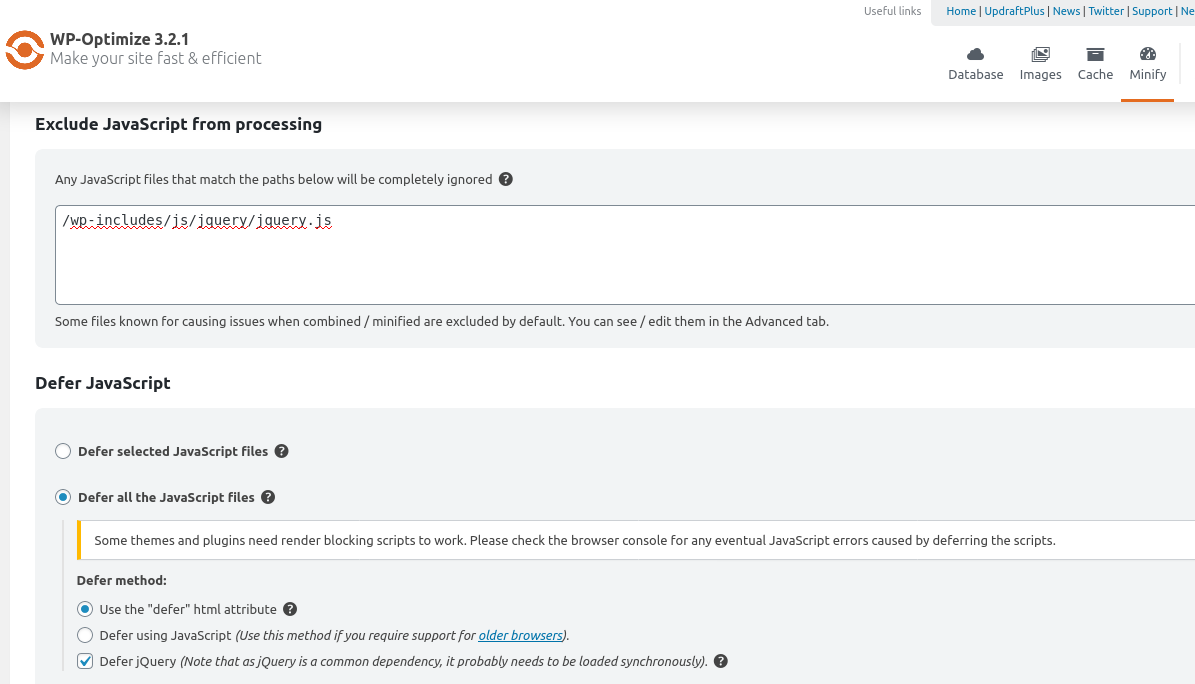
Actually, the real problem is the jquery file be loaded as defer, so all in-line javascript codes which need jquery will not works,  many wordpress plugins using in-line javascript codes and use jquery UI, this kind of plugin will have problems.

A simple method to solve the problem is:

1: login wordpress as wp admin

2: click WP-Optimize menu item in wordpress dashboard

3: click minify sub menu item

4: click javascript tab, then you will find “exclude javascript from processing” panel, just enter wordpress official jquery file path in here, and all problems will be solved, we make a screenshot for wordpress users:

WP-Optimize works with wordpress tooltips

WP-Optimize works with wordpress tooltips

Then all things well works well, and wordpress tooltips plugin will works well with WP-Optimize, all other wordpress plugin using jquery inline javascript codes will works well too 🙂

Thanks for the great feedback, if you have any question of feature request for wordpress tooltips plugin, please don’t hesitate to contact us:)

Thanks, have a blessed day with your family 🙂

WordPress tooltips support team

Tagged with: , , , , ,

WordPress Tooltips Pro Plugin 15.4.0 Released, Javascript Codes of Tooltips and Glossary Support Defer

Hi, good evening dear  WordPress Tooltip Plugin users,  hope this message find you are doing well and having happy days with your family! We get an amazing wordpress user’s feedback, he said he hope our wordpress tooltips pro plugin support defer, the defer attribute will tell user’s browser process other HTML elements directly, do not wait for the the javascript, that will increase the speed of page load speed in user’s browser. On the user’s side, the HTML pages will display content faster, and users will not leave the website because waiting a long time for the page loading completed.

Our wordpress tooltip developer think this is a great suggestion, we know a few wordpress tooltip administrator have a huge list of wordpress tooltip terms, if we can add defer attribute for our javascript files, then their user will see the full content and the theme early, so this is good for wordpress tooltip admins, so our developer checked our javascript codes, we found we have 3 javascripts, one is for wordpress glossary directory, one is for wordpress tooltip, one is for image loading, so we added defer attribute for all 3 javascript codes, defer attribute is a boolen attribute, so this work is easy on our side, but it will improve page speed for many wordpress tooltip sites.

That’s why we released a new wordpress tooltips pro plugin 15.4.0, we are very happy to realize any feature request which will help wordpress tooltip users, if you have similar wordpress tooltip feature request or questions, please don’t hesitate to tell us.  🙂

Please upgrade your wordpress tooltips pro and wordpress tooltips pro plus plugin asap you can 🙂

Thanks, have a blessed day with your family 🙂

Best Regards,

WordPress Tooltips Support Team

Tagged with: , , ,
Top


