Category: Wordpress Tooltip Plugin Document

How to Have the Possibility to Delay the popup of The WordPress Tooltip Window?

Good Morning WordPress Tooltip Glossary Users,
I received a wordpress tooltip user’s ticket, in which he asked me a question:
I like my tooltips to appear on mouse-over, but I would like to have the possibility to delay the popup of the tooltip window, to avoid immediate windows popping up as the user browse through the website.
With wordpress tooltip glossary plugin, it is very easy to delay the wordpress tooltip popup window, based on your settings, I think other users will have the same question, I’d like reply in here publicly 🙂

1: Login as wordpress admin in your wordpress admin area

2: Click “Tooltips” menu item

3: Click “Tooltips Style” sub menu item

4: You will open “Tooltips Style Settings” panel

5: In “Tooltips Style Settings” panel, you will find “Tooltip Box Customize Settings”options panel

6: In “Tooltip Box Customize Settings”options panel, you will find “Delay the Execution of Tooltip Function” option, it looks like this:
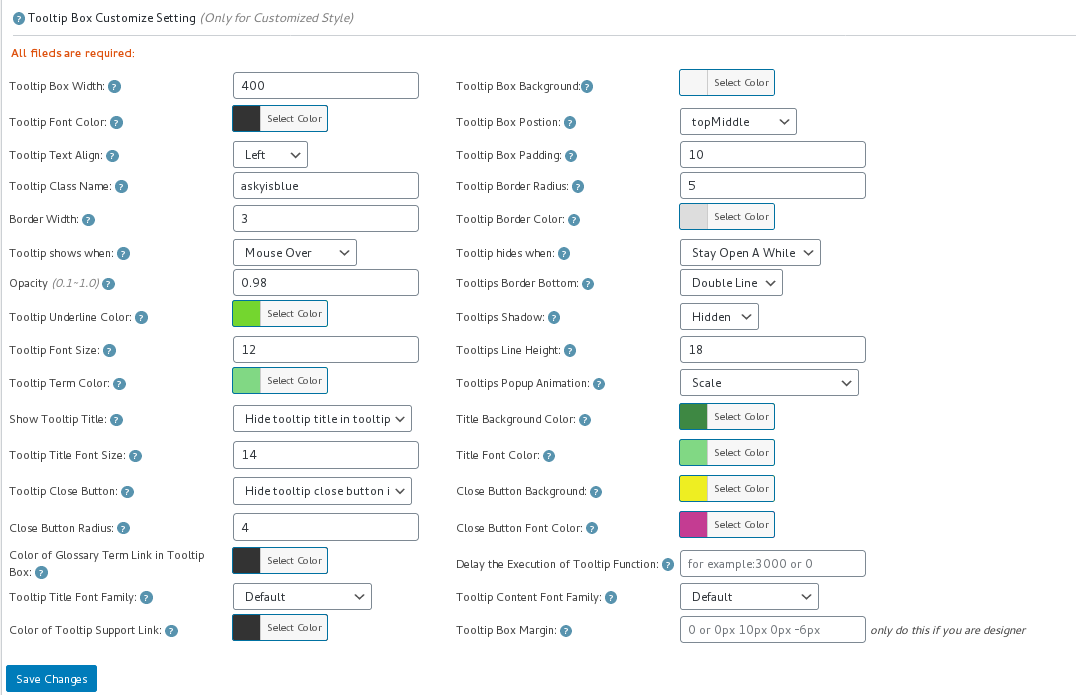
tooltip style panel version 12.3.6

tooltip style panel version 12.3.6

7: Please input millisecond in the “Delay the Execution of Tooltip Function” field, then click “save changes” button, all tooltips popup window in all wordpress posts will be delayed the specific millisecond you entered in here 🙂

8: If you do not hope all wordpress tooltips popup window in all wordpress posts be delayed, if you just hope delay wordpress tooltip popup window in a specific wordpress post, you can do it too

9: Please Click “Posts” menu item

10: Edit or add a new wordpress post

11: In the wordpress post editor, you will find “Delay the execution of tooltip function” metabox at right hand of wordpress editor,it looks like this:

delay the executon of wordpress tooltip function

delay the executon of wordpress tooltip function

12: Please enter the number of millisecond to delay in here, the execution of tooltip will delay specific milliseconds to wait javascript frameworks(ajax, vue…) generate and load dynamically generated content first, and then load our jQuery codes to add tooltip effects in those dynamically generated content, please note, the priority in wordpress post editor is higher then the global settings in tooltip style setting panel 🙂
WordPress Tooltip Plugin is powerful and very easy to use, right? How about give us a 5.0 ratings on wordpress.org? 🙂
If you have any question or suggestion of wordpress tooltip plugin, please don’t hesitate to tell us, we are always happy to realize wordpress tooltip feature for you, that’s why we released more than 100 wordpress tooltip versions in last 10 years 🙂
Thanks, have a blessed day with your family 🙂
Best Regards,
WordPress Tooltip Glossary Plugin Support
Tagged with: , , ,

WordPress Tooltip Plugin 12.9.4 Released

change tooltip content font family
Hey Dear WordPress Tooltip Glossary Plugin Fans,
Hope this message find you are doing well and having happy weekend with your family! 🙂
We are happy to report you, we have released wordpress tooltip glossary plugin 12.9.4, in which we improved wordpress tooltip for oceanWP theme, oceanWP is a great free wordpress theme, many users using oceanWP  wordpress theme and oceanWP  child theme, they give us many reports to request our wordpress tooltip glossary plugin to support oceanWP  theme, we re-developed our wordpress tooltip glossary plugin, now wordpress tooltip glossary pro plugin works well with wordpress oceanWP  theme, please download wordpress tooltip glossary pro plugin  12.9.4 asap 🙂
Thanks for give us so many amazing feature request, if you have any question or suggestion of wordpress tooltip plugin, please don’t hesitate to tell us 🙂
Thanks, have a blessed day with your family 🙂
Best Regards,
WordPress Tooltip Glossary Plugin Support Team
Tagged with: , , ,

WordPress Tooltip Plugin 12.9.2 Released

Hey Dear WordPress Tooltip Glossary Users,
Hope this message find you are doing well and having happy weekend with your family! 🙂
We get a wordpress tooltip new user’s ticket, in which he said when he try to activate wordpress tooltip glossary pro plugin directly, which means he did not deactivated wordpress tooltip free plugin, he get an error, he hope he can activate wordpress tooltip glossary pro plugin directly, no matter wordpress tooltip free plugin  is activated or not, our  developer trace into the problem, finally, we find the reason, and we re-write the wordpress tooltip global tooltip admin var, to avoid conflicts with wordpress tooltip free, it works well now, you do not need to deactivate wordpress tooltip plugin free, you can activate wordpress tooltip glossary pro plugin directly, and all things will works well 🙂
Also we are develop a new wordpress tooltip glossary plugin, you will see it tomorrow 🙂
Thanks for tell us the bug of wordpress tooltip plugin, if you have any question or suggestion of wordpress tooltip plugin, please don’t hesitate to tell us , we are very happy to develop a better and better wordpress tooltip glossary plugin for users 🙂
Thanks, have a blessed weekend with your family 🙂
Best Regards,
WordPress Tooltip Glossary Plugin Support Team
Tagged with: ,

How to Enable / Disable WordPress Tooltips in WordPress Glossary Page?

Hi Dear WordPress Tooltip Glossary Users,
Hope this message find you are doing well and having happy weekend with your family! 🙂
We get a wordpress tooltip ticket, in which the tooltip user asked us a question:

How to Enable / Disable WordPress Tooltips in WordPress Glossary Page?

1: Login as wordpress admin

2: Click “Tooltips” menu item

3: Click “Glossary Settings” sub menu item, you will open WordPress tooltip “Glossary Settings” panel

4: In “Glossary Settings” panel, You will find the option: “Disable Tooltips in Glossary Page”, it looks like this:

Disable Tooltips in Glossary Page

Disable Tooltips in Glossary Page

5: Just set up “Disable Tooltips in Glossary Page” option to enable or disable wordpress Tooltips effect in wordpress glossary page

6: Click “Save Changes” blue button at the bottom of the wordpress “Glossary Settings” panel

6: In front end, if you open glossary pages, for example “Bullet Screen“,  you will changes in “Disable Tooltips in Glossary Page” option works 🙂

If you have any question or suggestion of wordpress tooltip plugin, please don’t hesitate to tell us 🙂
Thanks, have a blessed day with your family 🙂
Best Regards,
WordPress Tooltip Glossary Plugin Support Team


How to Add Tooltip Synonyms Glossary Term Synonyms in Your WordPress Posts?

synonyms tooltip

Dear WordPress Tooltip Glossary Plugins Users,

A WordPress Tooltip User asked us a question:

How Can I Add Tooltip Synonyms and Glossary Term Synonyms in WordPress Posts?

1: Login your wordpress admin area as wordpress admin

2: Click WordPress “Tooltips” menu item

3: Click “Add New” sub menu item, which under the “Tooltip” menu item,

4: Then you will open WordPress Tooltip WYSIWYG Editor

5: In the right hand of the wordpress tooltip editor, you will find the “Synonms of this tooltip” metabox, it looks like this:

synonyms tooltip

synonyms tooltip

6:In the “Synonms of this tooltip” metabox, you can enter all synonyms of this glossary term in one time, for example, for wordpress tooltip glossary term “this”, you can input “This”, “tHis”, “THIS”… and so on in wordpress tooltip “Synonms of this tooltip” metabox, please separated by “|”

7: In front end,wordpress tooltips glossary plugin will detect all these synonyms for tooltip term, and add same tooltips content with the same tooltip effect for these synonyms for glossary term automatically

8: Please note, if you disabled specific tooltip glossary term in a wordpress post via wordpress post editor, all synonyms for the tooltip term will be disabled in that wordpress post automatically too.

That’s all, wordpress tooltip is very easy to use,  and a great time saver, right? 🙂

If you have any question of feature suggestion of wordpress tooltip glossary synonyms, please don’t hesitate to contact us 🙂

Thanks, have a blessed day with your family 🙂
Best Regards,
WordPress Tooltip Glossary Plugin Support Team
Tagged with: , , , , ,

WordPress Tooltips Glossary Plugin 12.9.0 Released

wordpress tooltip customize demo
Dear Users of WordPress Tooltip Glossary Plugin,
Hope this message find you are doing well and have happy days with your family! 🙂
We are happy to report you, we just released wordpress tooltips glossary plugin 12.9.0, changes in this wordpress tooltips 12.9.0:
1 We found in some wordpress site, sometimes codes in a few plugins or themes will stop wordpress generate excerpt of wordpress post, and sometimes our wordpress tooltip will read wordpress post excerpt, if the wordpress post excerpt is empty, that will confuse wordpress users in front end,  so we redeveloped our wordpress tooltip plugin to generate wordpress post excerpt by ourself 🙂 At first, wordpress tooltip glossary plugin will check does wordpress post excerpt existed or not? If the answer is yes, we will use default wordpress post excerpt, if we found excerpt of wordpress post is empty,  we will try to generate wordpress post excerpt by wordpress tooltips plugin side. 🙂
2 A few wordpress tooltip users write to us to say they don’t like current function of “Enable Tooltips Case Sensitive”, we have re-develop the wordpress tooltip plugin to support their request, since wordpress tooltip plugin 12.9.0,  we have removed this option from wordpress Tooltips Optional Settings panel, we will not support add tooltips for words like “this”, “This”, “tHis”, “THIS”… automatically, however, you have 3 method to do that yet:
a: When you edit a tooltip term, you will find the “Synonyms of the keyword” metabox at the right hand of the tooltip editor, just input “This”, “tHis”, “THIS”… and so on in wordpress tooltip “Synonyms of the keyword” metabox, wordpress tooltip plugin will add tooltip effect for “This”, “tHis”, “THIS” automatically yet
b: Another method is add different tooltip terms for eath “This”, “tHis”, “THIS”
c: Also, you still can use tooltip shortcode to add tooltip effect to “This”, “tHis”, “THIS”
We get Tons of wordpress tooltip feature request, we are developing a new version, you will see it soon, if you have any question or suggestion of wordpress tooltip plugin, please don’t hesitate to tell us 🙂
Thanks, have a blessed day with your family 🙂
Best Regards,
WordPress Tooltip Support Team
Tagged with: , , ,

WordPress Tooltips Glossary Plugin 12.8.4, ACF Tooltip Support ACF Multiple-Field in ACF Field Groups

wordpress tooltip customize setitngs panel

Hi Dear WordPress Tooltip Glossary Users,

Hope this message find you are doing well and have happy days with your family! 🙂

We are happy to report you, we just released wordpress tooltip plugin 12.8.4 🙂

We get a ticket from an amazing user of wordpress tooltip plugin, in which he said he using our ACF tooltip addon, and he hope ACF tooltip support multiple-field in ACF plugin Field Groups, after dig into ACF plugin, we realized this amazing user’s amazing feature request 🙂

WordPress Tooltips Glossary Plugin 12.8.4, ACF Tooltip Support ACF Multiple-Field in ACF Plugin Field Groups

What is ACF plugin multiple-field in ACF plugin Field Groups? It looks like this:

multiple field settings in field groups of ACF plugin

multiple field settings in field groups of ACF plugin

In ACF plugin, you can set up multiple fields in ACF field groups, for example, select options, checkbox options… and so on, then you can select show specific fields in front end in your wordpress editor, it looks like this:

multple-field-in-ACF-plugin

Show multiple field of ACF wordpress plugin in front end

Then in front end, wordpress tooltip plugin will scan your ACF plugin fields in front end, let’s say if you have created a tooltip term “red”, then wordpress tooltip ACF tooltip addon will add tooltips effect in the ACF filed “red” in front end automatically 🙂

This is a great suggestion of ACF tooltip, if you have any question or suggestion of wordpress tooltip plugin, please don’t hesitate to tell us 🙂

Thanks, have a blessed day with your family 🙂

Best Regards,
Wordpress Tooltip Glossary Plugin Support Team

Tagged with: , , , ,

WordPress Tooltip Glossary Plugin 12.8.2, Support Customize Numbers of Items per Page in Glossary Pagination

Wordpress Tooltip Plugin

Hi Dear WordPress Tooltip Glossary Users,

Hope this message find you are doing well and having happy weekend with your family! 🙂

We get an amazing wordpress tooltip user’s suggestion, in his ticket, he said, in last version, allow user to enable and disable wordpress glossary pagination function is good, but wordpress tooltip plugin should allow wordpress glossary plugin users to change the numbers of items per page in wordpress glossary pagination, in our last version, it always hard code to show 30 glossary items in wordpress glossary page, but some users hope show more glossary items in one wordpress glossary page, and other users may be want to show less wordpress glossary items in wordpress glossary page, for example, if glossary items have large videos, then show 30 glossary is not a smart way, so it is better to allow wordpress tooltip users to decide how many glossary items show in glossary page, we agree with this, this is a excellent suggestion, we accept it 🙂

Our developer have re-developed our plugin to support his suggestions of wordpress glossary pagination section, now in WordPress Tooltip Glossary Plugin 12.8.2, we will support:

Customize Numbers of Items per Page in WordPress Glossary Pagination

In back end of wordpress glossary style settings panel, you will find the new option “Pagination – Numbers of Items per Page”, it looks like this:

glossary settings panel in wordpress tooltip glossary plugin 12.8.2

glossary settings panel in wordpress tooltip glossary plugin 12.8.2

At the bottom of the wordpress glossary style settings panel, you will find the “Pagination – Numbers of Items per Page” option, just enter the number of glossary items, and click “Save Changes” blue button, in front end, you will find the glossary items in glossary page will be changed as you customized in here 🙂

Thanks for the great suggestion for wordpress tooltip glossary plugin, we get Tons of suggestion, from wordpress glossary, to wordpress tooltip, to woocommerce tooltip…. we are try our best to finish them asap we can. If you have any question or suggestion of wordpress tooltip plugin, please don’t hesitate to tell us 🙂

Thanks, have a blessed weekend with your family 🙂

Best Regards,
Wordpress Tooltip Glossary Plugin Support Team

Tagged with: , , , ,

How to Only Add WordPress Tooltip to the First Matching Keyword in the Same WordPress Post?

Hi Dear WordPress Tooltip Glossary Users,
Hope this message find you are doing well and have happy days with your family! 🙂

We get a new user’s ticket, in the message she told us she do not want wordpress tooltip effect added to all words “Love” in her wordpress post, she just hope the first “Love” word have the tooltip popup window 🙂

I think we have relied this question a few times, and we guess may be more users have the same question of how to add tooltip to the first matching keyword in the wordpress posts, we’d like write a document for help users do this easier 🙂

How to Only Add WordPress Tooltip to the First Matching Keyword in the Same WordPress Post?

1: Login your wordpress site as wordpress admin

2: Click “Tooltips” menu item

3: Click wordpress tooltip “Global Settings” sub menu item, you will open wordpress tooltip “Global Settings” panel

4: The wordpress tooltip “Global Settings” looks like this:

5: You will find the first option in wordpress tooltip global settings panel is “Keyword Matching Mode”

6: Please select “Add WordPress Tooltip to the First Matching Keyword” in “Keyword Matching Mode” option

7: Click blue “Update Now” button

8: In front end, you will find only the first “Love” word have wordpress tooltip popup box, other “Love” word have no wordpress tooltip pop up

If you have any question or suggestion of wordpress tooltip plugin, please don’t hesitate to tell us 🙂
Thanks, have a blessed day with your family 🙂
Best Regards,
WordPress Tooltip Glossary Plugin Support Team
Tagged with: ,

How to Enable WordPress Glossary Categories Filter in WordPress Glossary Archives Page?

Hi Dear WordPress Tooltip Glossary Plugin Users,
Hope this message find you are doing well and have happy days with your family! 🙂
A wordpress tooltip plugin user asked us this question, I ensure may be more wordpress tooltip users have the same question, I am happy to reply the question in this wordpress tooltip knowledge base publicly:

How to Enable WordPress Glossary Categories Filter in WordPress Glossary Archives Page?

1: Login your wordpress site back end

2: Click “Tooltips” menu item

3: Click “Glossary Settings” sub menu item, then you will open “Glossary Settings” panel

The “Glossary Settings” panel looks like this:

glossary settings panel

glossary settings panel

4: In “Glossary Settings” panel, you will find “Support Select Glossary Category in Glossary Archives Page ?” option, please select “Yes”

5: Click blue “Save Changes” button

6: In front end, in wordpress glossary archive page, you will find the wordpress Glossary Categories filter, it looks like this:

wordpress glossary category filter

wordpress glossary category filter

7: Just select glossary category from wordpress glossary categories filter, you will find in glossary archive page, we will just show glossary term which related with specific glossary category 🙂

That’s all

In recent months, we have released a lot of version to improve wordpress glossary functionality for wordpress tooltip plugin, we are still adding new features for wordpress glossary plugin, if you have any more feature request, please don’t hesitate to tell us 🙂

Thanks, have a blessed day with your family 🙂
Best Regards,
WordPress Tooltip Glossary Plugin Support Team
Tagged with: , , , ,
Top