Category: Wordpress Tooltip Plugin Document

WordPress Tooltips Pro Plugin 14.2.6 Released, Improved WooCommerce Glossary and Glossary Shortcode

Hi Dear  WordPress Tooltips Plugin Users,

Hope this message find you are doing well and have happy days with your family! 🙂 We are happy to report you, we have released wordpress tooltip glossary plugin 14.2.6 🙂

Changes in WordPress Tooltip Glossary Plugin:

1: Woocommerce Glossary new option “Number of Glossary Items display in WooCommerce Product Tabs”

We got a ticket from a woocommerce glossary user who said that the new addon “woocommerce glossary” is a very good feature that helps him show more details of the product with an elegant way in the limited space of the product page, which helps to increase the sales of the woocommerce product.

And he especially like the feature that woocommerce glossary support only show specific woocomemrce glossary category, but his problem is that he wrote many woocommerce glossary items, so he want to have an option to allow woocommerce store manager to decide how many woocommerce glossary items to show in woocommerce glossary tab

This is the great feature reqeust, we have re-developed the our woocommerce glossary addon to allow woocommerce store manager to custom the number of woocommerce glossary items in the woocommerce glossary settings panel, it looks like this:

woocommerce glossary addon

woocommerce glossary addon

By default, when woocommerce store manager add enabled woocommerce glossary tab in his woocommerce product pages, we will show all woocommerce glossary items in the woocommerce glossary tab, an example looks like this:

woocommerce glossary tab with full items

woocommerce glossary tab with full items

But if woocommerce shop manager entered the woocommerce glossary number in the option “Number of Glossary Items display in WooCommerce Product Tabs”, wordpress tooltip pluginwill display only the specified number of woocommerce glossary items in woocommerce glossary tab, it looks like this:
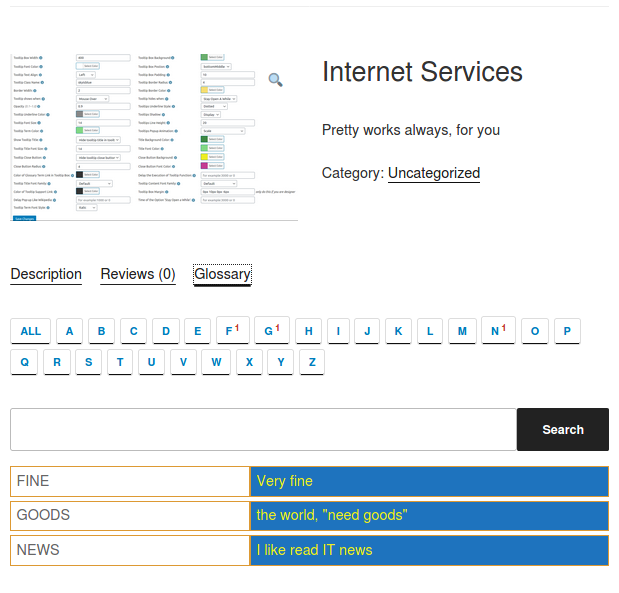
woocommerce glossary limited items

woocommerce glossary limited items

2: WordPress glossary shortcode support displaying only a specific number of glossary items in glossary page

Our wordpress glossary developer think that the new feature is not only for woocommerce stores, but in fact all glossary should support this feature – just show the specified number of glossary on the glossary page, so we re-developed our glossary shortcode to support this function, since wordpress glossary 14.2.6, you can use the [glossary] like this:

[glossary limit=10]

If you want to display all glossary items in the glossary page, just remove the “limit” and use [glossary] directly 🙂

3 Fixed a bug of wordpress tooltip shortcode tooltip_by_id in wordpress tooltip plugin

An amazing user found, under some specific settings, some special characters will appear, we have find the reason and fixed this problem in wordpress tooltip plugin, thanks for the great bug report 🙂

If you have any question or suggestion of wordpress tooltip plugin, please don’t hesitate to tell us 🙂

Thanks, have a blessed day with your family 🙂

Best Regards,
WordPress Tooltip Glossary Plugin Support Team

Tagged with: , , ,

How Can I Customize Tooltip Style For Tooltip ShortCode?

How to Customize Tooltip Style For Tooltip ShortCode?

Hope this message find you are doing well and have happy days with your family! 🙂 We get a wordpress tooltip plugin user’s support ticket, in which he asked us the question “I want the bold white text at the top of the tooltip to be the tooltip Title, so that I can style it. > This is what I am using at the moment: [tooltips keyword="WP tooltip" content="wordpress tooltip plugin"]“
This is a good question, actually, we have a easier method to help wordpress tooltip user to customize tooltip style for tooltip shortcode, include customize tooltip title font color, title font size, tooltip title background color… and so on in your tooltip shortcode, via wordpress tooltip shortcode [tooltip_by_id] , just a few steps 🙂

What is WordPress Tooltip Plugin?

WordPress tooltip pro is a tooltips plugin for wordpress, which be designed to help you create colorful, varied and graceful tooltip styles to present the content to your users, with lively and elegant animation effects, and save your valuable screen space

How Can I Customize WordPress Tooltip Style For Tooltip ShortCode?

1: If you didn’t installed wordpress tooltip, please login your account at wordpress glossary tooltip plugin site, if you have installed wordpress tooltip plugin, please jump to step #10 directly 🙂

2: Download wordpress glossary tooltip plugin at “My account” page

3: Login wordpress admin area

4: Click “Plugins” menu item

5: Deactivated old tooltips version

6: Delete the old wordpress tooltip plugin

7: In “Plugins” menu item, click add new at the top of the plugins panel

8: Upload the tooltips plugin zip file which you downloaded from wordpress glossary plugin site

9: Activate latest version of wordpress tooltip glossary plugin

10: Click “Tooltips” menu item

11: Click “Tooltip Style” sub menu item, you will open “Tooltip Style” panel, it looks like this:

wordpress tooltip style settings panel 14.1.6

wordpress tooltip style settings panel 14.1.6

In the screenshot, you can find tooltip title font color, title font size, tooltip title background color… etc. Basically, you can customize every single property of the wordpress tooltip 🙂

12: If you want to customize a unique, beautiful tooltip template for each wordpress tooltip term, that’s easy too

12.1 Click “Add New” sub menu item under the Tooltip menu item

12.2 You will find you can custom unique style for each tootip, via “custom unique style for this tooltip” metabox which at the bottom of the tooltip editor,it looks like this:

unique pretty style for each tooltip term

unique pretty style for each tooltip term

13: After customized tooltip style for the tooltip term, then use the shortcod tooltip_by_id to display it in front end.

By this way, you can customize unique style for each  tooltip shortcode, not only wordpress tooltip title, but also wordpress Tooltip Box Width, Tooltip Font Color, Tooltip Background, Tooltip Padding, Tooltip Position, Tooltip Radius, Tooltip Border, Tooltips Popup Animation … etc 🙂

For example:

[tooltip_by_id shortcode [tooltip_by_id tooltip_id='3107']

The result looks like this:

Tooltip For Forms Demo - Message Field
If you have any question or suggestion of wordpress tooltip plugin, please don’t hesitate to tell us 🙂
Thanks, have a blessed day with your family 🙂
Best Regards,
WordPress Tooltip Glossary Plugin Support Team
Tagged with: , , ,

WordPress Tooltip Glossary 14.2.0, Support WooCommerce Glossary

Hi Dear WordPress Tooltip Glossary Users,
Hope this message find you are doing well and have happy weekend with your family! We are happy to report you,We just released WordPress Tooltip Glossary Plugin 14.2.0, to support WooCommerce Glossary 🙂

What’s new in wordpress tooltip glossary pro plugin 14.2.0?

We get a wordpress tooltip glossary pro plugin user’s feedback, he told us he purchased our wordpress tooltips glossary pro plugin, it works great and help him build a powerful woocommerce shop with woocommerce tooltips, he feel happy that woocommerce tooltip can add tooltip effect on woocommerce product title, description, short description, and even product title in woocommerce shop page, or woocommrece plugin products page attribute tabs, all things works great, and he want more 🙂
He hope have a chance to add wordpress glossary in woocommerce product tabs, because he need add more product attributes and descriptions in one single tabs, to help woocommerce customer understand details about his toolbox, with images and videos for each element in toolbox, to help users understand the product and choose plans more easier, and he will save time to answer user’s question in online chat box, what he need is just send woocommerce glossary tab to users which chat with his support 🙂
No problem, this is the first time, we heard this kind of requirement to use glossary in woocommerce product tabs, our developer worked hard in many  days to support this woocommerce glossary functions and we are happy to report you, with wordpress glossary plugin multiple site license version 14.2.0, wordpress glossary plugin start to support woocommerce glossary in woocommerce product tabs 🙂

How to use woocommerce glossary?

It is very easy to use woocommerce glossary in woocommerce product tabs:
1: Login wordpress admin area
2: Click tooltips menu item
3: Click addons sub menu item
4: In tooltip glossary addons panel, it looks like this:
enable woocommerce glossary addon

enable woocommerce glossary addon

Please check “glossary for woocommerce products” option, and select “enable glossary for woocommerce ” option in the select box, and click “update now” button 🙂
5: Then under the tooltips menu item, you will find a new sub menu item “woo glossary”
6: Please click the woo glossary sub menu item
7: you will open woocommerce glossary settings panel, it looks like this:
woocommerce glossary settings panel

woocommerce glossary settings panel

8: In the option “glossary category in woocommerce product tabs:, you will find you can opt to display all glossary items in woocommerce product glossary tab, or do not display any glossary items in woocommerce product glossary tab, or show specified glossary items from a glossary category — when you add / edit a glossary in tooltips editor, you can select the category for that tooltip term .
9: Once you clicked submit button, in front end, you will find in the woocommerce product tab, there are glossary tab, if you click glossary tab, you will find the glossary show in the content area in the woocommerce product tab, it looks like this:
woocommerce glossary front end

woocommerce glossary front end

10: In glossary style sub menu item, you can custom font color, background color, font family …. and so on
Thanks a lot of the amazing feature request of the woocommerce glossary, if you have any question or suggestion of wordpress tooltip plugin, please don’t hesitate to tell us 🙂
Thanks, have a blessed day with your family 🙂
Best Regards,
WordPress Tooltip Glossary Plugin Support Team
Tagged with: , , ,

WordPress Tooltips Pro 14.1.8 Released, Support Tooltips Click Statistics

Hi Dear WordPress Tooltip Glossary Users,
Hope this message find you are doing well and have happy days with your family! Based on wordpress tooltip user’s feedback, we have released WordPress tooltips Pro plugin 14.1.8 🙂

What’s new in wordpress tooltips pro plugin 14.1.8?

We get a wordpress tooltip user’s message,he said he is doing SEO A/B testing for his website, he wants to show some tooltip terms on different pages, but with different content and style of tooltip, he wants to know which tooltip terms are most liked by users and which tooltip terms have how many views, so that he can adjust the style of tooltip window according to user’s preferences, and adjust the content of the tooltip popup window in the way that the user likes. 🙂
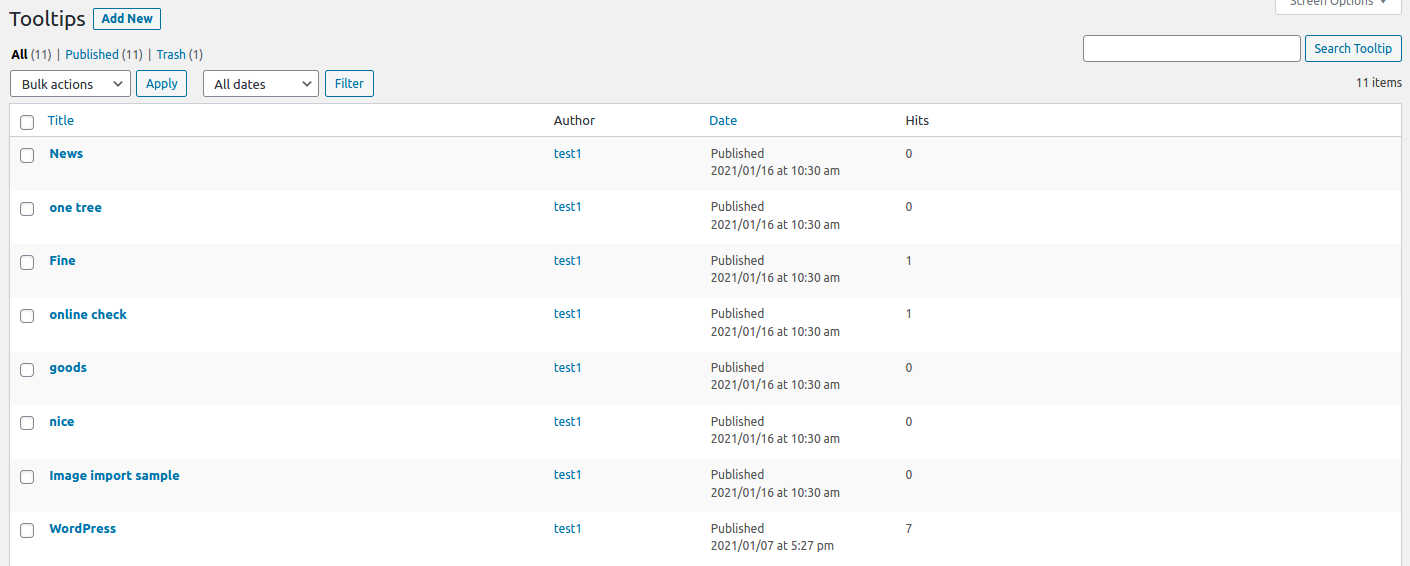
This is a good idea, we used to have count module for tooltip term to count the actual number of displays, but because we found some conflicts after we upgraded the javascript package, we disabled it, this time after receiving this user’s feature request, our developers spent some effort to research and resolve these conflicts, and finally we re-enabled the wordpress tooltip’s display statistics feature :)If you upgraded to wordpress tooltips plugin 14.1.8, when you view tooltip terms in back end, you will find it looks like this:
You can see, in “all tooltips” panel, there are a column “Hits”, if users mouse hover a tooltip term or click a tooltip term (based on your method of how to display tooltip option in “tooltip style” panel),  we will send the number of user click requests to the database in the backend using javascript ajax function, and show the hits in the back end 🙂
Please upgrade to wordpress tooltip pro plugin 14.1.8 and enjoy the wordpress tooltip hits statistics function 🙂
We are developing the new functions for wordpress tooltip plugin, if you have any question or suggestion of wordpress tooltip plugin, please don’t hesitate to tell us 🙂
Thanks, have a blessed day with your family 🙂
Best Regards,
WordPress Tooltip Glossary Plugin Support Team
Tagged with: , ,

WordPress Tooltips 14.1.6, Support Custom Tooltip Terms Font Style

Hi Dear WordPress Tooltip Glossary Users,
Hope this message find you are doing well and have happy days with your family. We just released wordpress tooltips plugin 14.1.6, based on an user’s suggestion, to allow users customize tooltip terms font style 🙂

What’s new in WordPress Tooltips Plugin 14.1.6?

We got a feedback from a user who said he is a loyal user of our wordpress tooltip plugin for many years and he likes our wordpress tooltip plugin very much because after using our wordpress tooltip plugin, his website can host more but the pages of the site are cleaner, which is the way he likes to express himself 🙂

He has a small request to allow setting the font style of wordpress tooltip terms in the front end, as his personal habit is to let tooltip terms have an italic font style, so as to distinguish it from the simple web content. After using the italic style, when users read the wordpress post, they will subconsciously realize that the italic words are more special, and they will tend to use the mouse to explore more content behind the italic words.

This way, the wonderful content hidden behind the tooltip term, including pictures, videos, and animal sounds of the species, will have more opportunities to be displayed, and the user will have the feeling of being there. 🙂

This is a great suggestion! That’s why we re-developed our wordpress tooltip plugin and released WordPress Tooltips 14.1.6.
In WordPress Tooltips Plugin 14.1.6, we support Custom Tooltip Terms Font Style, when you open tooltip style menu, at the bottom of the customize tooltip style panel, you will find the new option “Custom Tooltip Terms Font Style”, it looks like this:
wordpress tooltip style settings panel 14.1.6

wordpress tooltip style settings panel 14.1.6

When you click select box of the option “Tooltip Term Font Style“, you will find you can select “normal”, “italic”, or “oblique” 🙂

Thanks for the great feature of wordpress tooltip plugin, if you have any question or suggestion of wordpress tooltip plugin, please don’t hesitate to tell us, we are always happy to build the best wordpress tooltip plugin for tooltip users.  🙂
Thanks, have a blessed day with your family 🙂
Best Regards,
WordPress Tooltip Glossary Plugin Support Team
Tagged with: , ,

How to Exclude Titles from WordPress Tooltip?

Dear wordpress tooltip users, hope this message find you are doing well and have happy days with your family! 🙂  We get an amazing user’s ticket, in which he asked us a question: “Possible to exclude titles from tooltip?”, I think may be more users have the same question, I’d like reply in here publicly 🙂

How to Exclude Titles from WordPress Tooltip?

We have two method to disable or enable tooltips for wordpress post title:

1: If you didn’t installed wordpress tooltip, please login your account at wordpress tooltip plugin site, if you have installed wordpress tooltip plugin, please jump to step #10 directly 🙂

2: Download wordpress tooltip plugin via “My account” page

3: Login wordpress admin area

4: Click “Plugins” menu item

5: Deactivated old tooltips version

6: Delete the old wordpress tooltip plugin

7: In “Plugins” menu item, click add new at the top of the plugins panel

8: Upload the tooltips plugin zip file which you downloaded from wordpress glossary plugin site

9: Activate latest version of wordpress tooltip glossary plugin

10: Click “Tooltips” menu item

11: Click “Optional Settings” sub menu item, you will open “Optional Settings” panel

Method one of exclude titles from wordpress tooltip:

12: You will find the option: “Tooltips for Post Title” ,it looks like this:

enable disable tooltips for title of wordpress post

enable disable tooltips for title of wordpress post

Please select “Disable Tooltips for Post Title”

13 Click “Update Now” blue button

14 In front end, tooltips will be excluded from the title of wordpress post

Method second of exclude titles from wordpress tooltip:

12: You will find the option: “Disable tooltips in H1,H2…” ,it looks like this:

enable disable tooltips for title of wordpress post

enable disable tooltips for title of wordpress post

In general, wordpress theme use H2 wrap wordpress title, in this case, please just enter the “h2” in the option “Disable tooltips in H1,H2…”, if your theme using h3, then just input h3… and so on

13 Click “Update Now” blue button

14 In front end, tooltips will be excluded from the title of wordpress post

If you have any question or suggestion of wordpress tooltip plugin, please don’t hesitate to tell us 🙂
Thanks, have a blessed day with your family 🙂
Best Regards,
WordPress Tooltip Glossary Plugin Support Team
Tagged with: , , , ,

WordPress Tooltip Glossary Pro Plugin 14.1.4 Released

Dear Users of WordPress Tooltip Glossary,
Hope this message find you are doing well and have happy weekend with your family 🙂  We are happy to report you, we have released wordpress tooltip glossary pro plugin 14.1.4

What’s new in wordpress tooltip glossary pro plugin 14.1.4?

Our developer finished the code audit of our wordpress tooltips regenerate style module 🙂
May be you know, by default, wordpress tooltips plugin support 7 preset pretty wordpress tooltip color scheme, users can select tooltips template from the select box via one click 🙂
Also wordpress tooltips pro plugin support customize tooltips color, font, title, width, background, actions… and so on, it looks like this:
wordpress tooltips pro 13.9.4 tooltip style settings panel

wordpress tooltips pro 13.9.4 tooltip style settings panel

And, tooltip editor can customize wordpress tooltip font, tooltip color, tooltip border, tooltip underline, tooltip shadow, tooltip speed, tooltip background, tooltip place… and so on for each tooltip term too, each tooltip have the ability to have different tooltip style, you can find a demo at our sweet tooltip demo. 🙂
Then, then problem is, when wordpress tooltip plugin user build a  lot of wordpress tooltip template, for each tooltip terms, sometimes, you want to regenerate each tooltip template via one click, include global tooltip template, that’s the functionality of tooltip regenerate module 🙂
It looks like this:
Regenerate All Tooltips Style

Regenerate All Tooltips Style

Our developer re-checked code of tooltip regenerate module, he added wordpress function sanitize_text_field and wp_nonce_field to enhance the code security of tooltip regenerate module 🙂 Please upgrade to wordpress tooltips pro plugin 14.1.4, if you have any question or suggestion of wordpress tooltip plugin, please don’t hesitate to tell us 🙂
Also we have developed many free wordpress plugins for wordpress tooltip plugin users too,  you can download our free wordpress plugin from wordpress free plugins, please give us suggestion and feedback of wordpress plugins. 🙂 Thanks, have a blessed day with your family 🙂
Best Regards,
WordPress Tooltip Glossary Plugin Support Team
Tagged with: , , ,

WordPress Tooltip Free Plugin 7.3.3 Released

Hi Dear Users of WordPress Tooltip Plugin,
Hope this message find you are doing well and have happy weekend with your family! 🙂   We just released wordpress tooltip free plugin 7.3.3, based on an amazing user’s feedback 🙂

What’s new in the wordpress tooltip free plugin 7.3.3 ?

We get a  wordpress tooltip user’s message, in which he told us, he love our wordpress tooltip plugin, because our wordpress tooltip plugin saved him a lot of time and kept his site clean and tidy even after adding a lot of multimedia content. However, the wordpress tooltip template he likes is yellow, which is the default color scheme when tooltip is installed, and it exactly matches the color and style of his website. After choosing another tooltip color scheme, he finds that he cannot revert to the default yellow color scheme of tooltip. He hope we can give him an option to select yellow color scheme 🙂
That’s why we released wordpress tooltip 7.3.3, now after login as admin of wordpress, and then click tooltips menu item, then click global settings sub menu item, in the global settings panel, you will find the tooltip box style option box, we have added a new option “Yellow” 🙂
It looks like this:
box style option of wordpress tooltip free 7.3.3

box style option of wordpress tooltip free 7.3.3

It is great feedback to tell us this problem on wordpress tooltip color scheme, if you have any question or suggestion of wordpress tooltip plugin, please don’t hesitate to tell us, we are very happy to offer a better and better wordpress tooltip plugin for users 🙂  Also we have developed many free wordpress plugins for our tooltip users, you can download these free wordpress plugins free of charge, if you give us more feedback, we will improve functions as you want too 🙂  Thanks, have a blessed day with your family 🙂
Best Regards,
WordPress Tooltip Plugin Support Team
Tagged with: , , ,

How to Custom the Display Time of Tooltip Window so Tooltip Users can Click links in the Tooltips or Watch Video in Tooltip Popup?

WordPress Tooltip Users,
Hope this message find you are doing well and have happy days with your family! 🙂  we get a user’s ticket, in which he asked us, how to custom the display time of tooltip window so tooltip users can click links in the wordpress tooltip window and watch video in tooltip Popup? I think may be more users have the same question, I’d like reply in here publicly 🙂

How Can I Custom the Display Time of Tooltip Window, So Tooltip Users Can Click links in the Tooltips or Watch Video in Tooltip Popup?

In general, when users mouse hover a wordpress tooltip term in your wordpress post or wordpress page, wordpress tooltip plugin will show a tooltip pop-up window for the user, in the tooltip window, we will show content of the tooltip which admin made in the tooltip advanced editor, in wordpress tooltips editor,

tooltips editor

tooltips editor

As you can see, you can insert text, link, image, video, audio, google map…and so as tooltip content,  in the wordpress tooltip editor 🙂
By default, in front end of your wordpress site, when users mouse hover the tooltip term, we will show tooltip pup window, when user mouse move out from the tooltip popup window, we will hide tooltip pop-up. If you want keep tooltip pop-up display in the front end and allow users click links in the tooltip window, you can just do it by this way:

1: If you didn’t installed wordpress tooltip, please login your account at wordpress glossary tooltip plugin site, if you have installed wordpress tooltip plugin, please jump to step #10 directly 🙂

2: Download wordpress glossary tooltip plugin at “My account” page

3: Login wordpress admin area

4: Click “Plugins” menu item

5: Deactivated old tooltips version

6: Delete the old wordpress tooltip plugin

7: In “Plugins” menu item, click add new at the top of the plugins panel

8: Upload the tooltips plugin zip file which you downloaded from wordpress glossary plugin site

9: Activate latest version of wordpress tooltip glossary plugin

10: Click “Tooltips” menu item

11: Click “Tooltip Style” sub menu item, you will open “Tooltip Style Settings” panel, it looks like this:

wordpress tooltips pro 13.9.4 tooltip style settings panel

wordpress tooltips pro 13.9.4 tooltip style settings panel

12: In the tooltips style settings panel, please find the option: “Tooltip hides when”,  and choose the option “Stay Open A While”, then in the front end of wordpress post, users can click links, video buttons in the tooltip window

13 How to custom display time of tooltip pop up window?

May be a few users want more, because by default, the length of time of the wordpress tooltip popup window stays open is “2 seconds”. So if  the option ‘Stay Open a While’ is selected, wordpress tooltip popup window will remain on the screen about 2 seconds and will close automatically — after the mouse leaves the tooltip popup window. but some users maybe want a bit more display time of the wordpress tooltip window, you can do this in wordpress tooltip style settings panel too. 🙂

Just click into the option “Time of the Option ‘Stay Open a While‘” in the tooltip style settings panel, then enter the length of the time, then in the front end of your wordpress site, when users mouse leaves the tooltip pop-up window, the tooltip window will remain on the screen with x seconds which you typed in this option 🙂

14 After finish the config works,  please remember to click “Save Changes” blue button

We get a lot of tooltip suggestion, we are developing it asap we can, if you have any question or suggestion of wordpress tooltip plugin, please don’t hesitate to tell us 🙂
Thanks, have a blessed day with your family 🙂
Best Regards,
WordPress Tooltip Glossary Plugin Support Team
Tagged with: , , , ,

WordPress Tooltip 14.1.2 Released

Hi Dear WordPress Tooltip Glossary Users, Happy New Year!
Hope this message find you are doing well and have happy days with your family! 🙂

What’s new changes in wordpress tooltip plugin 14.1.2?

We get an user’s feedback, he said in his wordpress glossary page, the option “Hide Nav letters have no item” not works well, we did a check and many tests, finally we found a bug in a tooltip version, we have re-developed wordpress glossary plugin to fix the problem, this is why wordpress tooltip glossary plugin 14.1.2 released 🙂
In general, by default, when users activated wordpress glossary plugin, we will show all glossary letters at the top of the  wordpress glossary navigation bar, it looks like this:
wordpress glossary frontend

wordpress glossary frontend

As you can see, at the top of the wordpress glossary page, we show a,b,c,d,e…z, and numbers like 0,1,2,3….9 on the wordpress glossary navigation bar, however, some users don’t want to show all letters in the wordpress glossary navigation bar, what they want is just display letters which have glossary items, so it make the glossary navigation bar smaller  and looks simple & pretty, this is why we designed the option “Hide Nav letters have no item” 🙂
It looks like this:
glossary settings panel in wordpress glossary plugin 13.0.8

glossary settings panel in wordpress glossary plugin 13.0.8

The option “Hide Nav letters have no item” can help users hide glossary letters which not related with glossary items in wordpress glossary navigation bar. Also all letters, include a…z, and 0,9 can be customized for your own language, if you need customize language for wordpress tooltip / wordpress glossary , please check:
Please upgraded to wordpress tooltip glossary plugin 14.1.2 asap you can 🙂
Thanks for give us the bug report, thank you very much! 🙂 If you have any question or suggestion of wordpress tooltip plugin, please don’t hesitate to tell us 🙂
Also we have developed many free and pro wordpress plugins for wordpress tooltip users, you can download all free wordpress plugins free of charge, also if you want to purchase wordpress tooltip plugin, you can find all of them via this link:
Thanks, have a blessed day with your family 🙂
Best Regards,
WordPress Tooltip Glossary Plugin Support Team
Top


