Category: Wordpress Tooltip Plugin Document

How to Avoid WordPress Tooltip Displayed on the Site Logo and Other Images?

Hey dear users of  WordPress Tooltip plugin , hope you are doing well and having happy weekend with your family 🙂 In recent days, we received a few similar questions of how to avoid wordpress tooltip effect displayed on site logo or wordpress icons or stop display wordpress tooltip on specific images, actually this is a very simple set up problem,  we think may be more users have the some question, we would like write a detailed document to tell new users of wordpress tooltip plugin the correct method to avoid this kind of problem quickly 🙂

How to Avoid WordPress Tooltip Displayed on the Site Logo and Specific Images?

We received a wordpress image tooltip ticket from an amazing user:

Hi, so I have used the plugin to show tooltips on top of 3 images on the homepage of http://seeds3.beginflynn.com/ but the tooltips show up  on all the images in the website such as logo and checkout icons. I tried to disable the tooltips by giving classes in the admin sectiWon
but it doesn’t seem to work. Any help is appreciated. Thanks.


And another question from another new user of wordpress tooltip plugin:

I have a wordpress site,  when you mouse over the logo at top left, a blank tooltip shows up. How do i turn it off for the top logo?

Our wordpress tooltip plugin developer checked their wordpress pages, we found it is because in wordpress image tooltip settings,  they are using the content from the “ATL” attribute as their image tooltip content, actually, wordpress tooltip editor can stop this problem just one click in wordpress tooltip global settings panel, you can do it by this way:

1: Ensure your wordpress tooltip plugin is the newest version, you can check it from our site: wordpress tooltip

2: Please login our tooltips.org

3: After logged in wordpress tooltip site, please click the “download”  link on the top menu

3: Then you will open my account page, in here you can download latest wordpress tooltip pro plus plugin

4: After downloaded the latest version of wordpress tooltip plugin( a .zip file), please login your own wordpress site

5: In your wordpress dashboard panel, click “Plugins” menu item

6: If you have installed wordpress tooltips glossary free plugin or old wordpress tooltips pro version or wordpress tooltips pro plugin version already, just deactivate the old wordpress tooltip plugin, then ensure you have deleted the old wordpress tooltip plugin

7: Then just check the top section of your wordpress “Plugins” panel, in here you can find a “add new” link, click the add new link, then you will start upload the .zip file of the wordpress tooltip pro plus plugin.

8: After uploaded wordpress tooltip pro plus plugin, please remember to activate this latest wordpress tooltip plus plugin.

9: Okay, now you have the latest wordpress tooltip pro plus plugin on your site, with the newest functions 🙂

10 Now please click the “Tooltips” menu item

11: Then enter “Global Settings” sub menu item, you will open the ” Tooltips Global Settings” panel, it looks like this:

wordpress tooltips pro plugin 15.0.2 global settings panel

wordpress tooltips pro plugin 15.0.2 global settings panel

12: In the above screenshot, you can find there are a panel named “Enalbe/Disable Tooltips for image setting”, if you want to use image tooltip functions, please remember to select “I want to enable tooltips for image” option and click “Update Now” blue button

If you do not want to display image tooltip on images and icons on your wordpress site, just  select “I want to disable tooltips for image” option and click “Update Now” blue button, and then this is all works  you need to do

14: If you still want to use image tooltip function on your wordpress site, now the next step is set up “Tooltips for image Keyword Matching Mode” option, in here, you will find we offer a few options for you, for example, you can use content of ALT attribute as image tooltip content, or use content of the REL attribute as image tooltip content, or use content from the title attribute to add the wordpress tooltip to the image on hover… etc

15: Please note, the default value of the “Tooltips for image Keyword Matching Mode” , is content of Use ALT attribute in your img tag as content of tooltips for image, and some wordpress theme will add a value “Site Logo” on the  “ALT” attribute of the logo, that’s why when users mouse over the wordpress logo image, there are a wordpress tooltip window pop-up with a wordpress tooltip text content “Site Logo”

16: To avoid this kind of problem you need do not use ALT attribute in your img tag as content of tooltips for image, because many wordpress theme would like add a value on the “ALT” attribute, some wordpress theme author developed their theme with this style is based on SEO factor.

On wordpress tooltip plugin side, use content of image “ALT” attribute as wordpress tooltip content, will avoid wordpress tooltip editor to set up “Tooltips for image Keyword Matching Mode”  option — many new wordpress tooltip user do not know this option at all, and most wordpres theme will not add “Alt” attribute on wordpress image automatically 🙂

So if you find a wordpress tooltip window pop-up at your wordpress site log,  what you need to do is just one thing — in “Tooltips for image Keyword Matching Mode” option, select “Use REL attribute in image tag as content of tooltips for image”, then all problem will be solved 🙂

17: Now please open your wordpress site in front end again, just mouse hover your wordpress site logo, of mouse hover your wordpress icons, you will find the wordpress tooltip window disappeared from wordpress site logo of other images in your wordpress posts, if you want to add a new wordpress image tooltip in specific wordpress images, you can open wordpress media lib, edit the specific wordpress image,   please remember to add tooltip content in the “REL” attribute of the wordpress image, then in the front end of your wordpress site, only these specific wordpress images will have the image tooltip 🙂

So this is the answer of the question “How to Avoid WordPress Tooltip Displayed on the Site Logo and Specific Images?” , basically, this is just one click in wordpress tooltip global settings panel 🙂

Thanks for these great tickets, that help us understand how new users use our wordpress tooltip plugin and what is the problem,should you require any further assistance or question for wordpress tooltip plugin, please do not hesitate to contact us, we’re are very happy to help you solve problem asap we can . 🙂

Thanks, have a blessed day with your family 🙂

Best Regards,
WordPress Tooltip Support Team

Tagged with: , , , , ,

WordPress Tooltips Plugin 15.0.8, Fixed the Problem of WordPress Tooltip Term With Null Title

Hi dear  WordPress Tooltip plugin users, hope you are doing well and have happy day with your family 🙂 Our wordpress tooltip plugin developer just released a new version — wordpress tooltips pro plugin 15.0.8 and wordpress tooltips pro plus plugin 15.0.8, fixed a strange problem — some users will create a wordpress tooltip term with null(empty) title, that caused a few strange errors:

A few days before, we got an amazing wordpress tooltip user’s help request:

Hi,
>
> I use your Tooltips-Pro plugin on my homepage for several months, and
> it improved my homepage in many ways. Thanks for your great works.
>
> However, I found a critical error today.
> I added new tooltip keywords, but they didn’t work at all.
> For example, If I add a new tooltip keyword ‘apple’ and use it on the
> post “I ate an apple today” like this, it appears “I ate an apple
> today” with no pop-up and underline. It just adds ‘’ before the
> keyword.
>
> The keywords added about a month ago work well, and all the newly
> added keywords today show the same error.
> I attached screenshot video for your understanding of this issue.
> Could you please help me with this problem?
>
> Thanks.

That sounds strange, it is the first time we heard this kind of problem, we do not know how this happen, so we require a few more details from the user:

Thanks for the message 🙂

We are very happy to help you 🙂

Because we have many plugin versions with different functions, Would you please tell us:
1 the plugin version you are using
2 the URL related with the problem
3 a little more details to tell us how to find the problem in the URL

Thanks, have a blessed day with your family 🙂

Best Regards,
WordPress Tooltip Support Team
Then the amazing user tell us details with a video and error page

In this URL, you have to select the second tab named ‘abc’ and
> If you scroll down, you can see the words ‘def of hij Power’
> and ‘@@@def of hij Critical’ under the title ‘abc’.
> This page is the same page I showed you in the screenshot video. If
> you watched the video, you could find what the problem is. I attach
> the video URL again, just in case
> I hope this problem is solved well.
> Thanks for your effort 🙂

Our wordpress tooltip developer checked it, we think may be this problem come from something existed in the tooltip content in his site, so we request the user:

1: login wordpress site

2: click tooltips menu iem

3: click export tooltip sub menu item

4: export tooltip terms and content and share it with us

So we can import these tooltip terms and do a check of the problem,then the user replied quickly:

I exported and shared the tooltip csv file with your dropbox account
This is the URL, just in case

The copied tooltip term works fine on your site, so I think it might
be a problem with other plugins.
I wrote the plugins list down below that was activated on my website.
If you don’t mind, could you check if there is a plugin that could be
caused a problem?

Then we downloaded the exported tooltip terms and built a development platform to import tooltip terms to re-play the problem — We found  there are more than 1,000 tooltip terms… 🙂

Our developer checked each tooltip term carefully, it is crazy to check more than 1000 tooltip terms, after a hard work, he found a tooltip record did not have a tooltip title, he did many tests and ensure this problem caused the issue, then he developed wordpress tooltips pro 15.0.8 to solve this kind of problem, and it works well in our site  🙂

This change will effect mainly  tooltips module and glossary module and all tooltips shortcode, and wordpress tooltip widget 🙂

Thanks for the great bug report, and thanks for the detailed description and demo page and the video, that make us can understand what happen fast, and solve the problem faster,  if you have any more question or feature request of wordpress tooltip plugin, please don’t hesitate to contact us, we are happy to improve wordpress tooltip plugin for you 🙂

Thanks, have a blessed day with your family 🙂

Best Regards,

WordPress Glossary Plugin Support Team


Tagged with: ,

How to Download the Newest Version of WordPress Tooltip Plugin?

Hi Dear WordPress Tooltip Users, hope you have happy weekend with your family ! 🙂  A new wordpress tooltip user’s wrote to us:

Dear Tooltips Support team,

Thank you for your reply.

The version of my Tooltips is Ver. 15.0.0 and I realized it’s not a newest.

I logged in the account to download the newest one but there is no history of purchase and I cannot find the way of updating.

Thanks you

We think may be there are more new users of wordpress tooltip plugin have the similar question, I’d like write a document at here for all new wordpress tooltip plugin users 🙂

How to Download the Newest Version of WordPress Tooltip Plugin?

It is very easy to download wordpress tooltips plugin,

1: Please purchase wordpress tooltips pro plus plugin:

2: Follow our video tutorial to download wordpress tooltips pro plugin:

Some users from a few countries said they cannot open the video, because their country blocked these video platform, then it is easy to follow our screenshot with detailed text document to download wordpress tooltips pro plus plugin, basically, what you need to to is:

a: Purchase wordpress tooltips pro plugin

b: In the top-right of the wordpress tooltip plugin site, you will find the login link and sign up plugin, please just click the “Log in” to login your account on tooltips.org

c: After  login wordpress tooltips plugin site, at the top menu bar, you will find there are “Download” Menu item, please just click “Download” Menu item, then you will open “My Account” page, in here you can manage your account in wordpress tooltips plugin site, check your orders history in tooltips.org, change your information for example address, or download the wordpress plugin products in wordpress tooltip plugin site… and so on.

download wordpress tooltip menu item download wordpress tooltip plugin in my account page

d: In “My Account” page, please just click the “Downloads” link in the navigation bar which in the left hand of the “My Account” page, then you will find product links, just click product link, then you will start download the free wordpress plugins or paid products in  wordpress tooltip site, it should be a “.zip” file

e: Keep your .zip wordpress plugin  files, and upload it to your wordpress site and activate these plugins

That’s all 🙂

Thanks for the ticket and question about wordpress tooltip plugin, we do not know there are still a few users do now know how to download wordpress tooltip plugin, help this video tutorial with screenshot and text document will help you download wordpress tooltip plugin easier 🙂

If you have any more question or suggestion for the wordpress tooltip plugin, please don’t hesitate to contact us 🙂

Thanks, have a blessed weekend with your family 🙂

Best Regards,

WordPress Tooltip Support Team


Tagged with: ,

New Function to Generate Tooltip Excerpt Automatically, WordPress Tooltip Plugin 15.0.4

Hey dear WordPress Tooltip Plugin Users, hope you are doing well and have happy weekend with your family! We are happy to report you, we just released wordpress tooltip plugin 15.0.4, in this version, we re-developed wordpress tooltip excerpt module to generate wordpress tooltip excerpt automatically — even when you did not enter tooltip excerpt in tooltip editor 🙂

We get a wordpress tooltip user’s ticket, in which he said:

I am selecting “excerpt” and the plugin is not following the settings, it is still showing the full content without adding the read more  link.

It is strange, we replied:

Hi,
Hope you are doing well and having happy days with your family 🙂

Thanks for the message 🙂

We are very happy to help you 🙂

Sorry this is the first time we heard this kind of problem, because we have many plugin versions with different functions, Would you please tell us the plugin version you are using? 🙂

Thanks, have a blessed day with your family 🙂

Best Regards,
Support Team

Then the amazing user made a video screenshot to us, we built a development platform to follow users video and check the problem, finally, we find then tooltip users did not enter excerpt in tooltip editor, then tooltip will not return a excpert content in the tooltip pop-up window, this is correctly working method of a wordpress plugin, but our developer said he can do more, then he developed a new version for the user — when the user did not enter anything in the tooltip excerpt text input box, our new function will generate the tooltip excerpt for this wordpress tooltip term based on the tooltip content, automatically. this is why we released wordpress tooltip plugin 15.0.4, this version effected wordpress tooltips pro plus version and wordpress tooltips pro version 🙂

How to Setup to Display Tooltip Excerpt in WordPress Tooltip Box?

At first, please upgrade to the wordpress tooltips pro plus plugin 15.0.4:

1: Login wordpress tooltip plugin site

2: At the top menu bar of the tooltips.org, you will find the download link, just click it

3: Please download wordpress tooltip pro plus plugin 15.0.4

4: Then login your wordpress site as wordpress administrator user

5: After login wordpress, by default, you will open wordpress dashboard, in the left hand of the wordpress dashboard, you will find the “Plugins”  menu, please click it 🙂

6: Please note, if you have installed wordpress tooltips glossary free plugin or old wordpress tooltips pro version or wordpress tooltips pro plugin version, please deactivate it and delete the old wordpress tooltip plugin

7: Then, back to the the top of the wordpress “Plugins” panel, you will find the “add new” link, please click the add new link to upload the latest wordpress tooltips pro plus plugin — it is a .zip file which you downloaded from tooltips.org in the step #3 🙂

8: After uploaded the newest wordpress tooltip glossary plugin version, please activate the wordpress tooltip plugin in the plugin panel 🙂

9: Please click Tooltips Menu in the left hand in the wordpress dashboard

10 Please click “Add New” sub link, you will open the tooltips editor

11: In wordpress tooltips editor, please just enter a tooltip term and tooltip content, in general, you need enter wordpress tooltip excerpt in the tooltip editor, but since wordpress tooltips plugin 15.0.4, if you do not enter it, we will generate wordpress tooltip excerpt for you based on wordpress tooltip content in this tooltip term — automatically

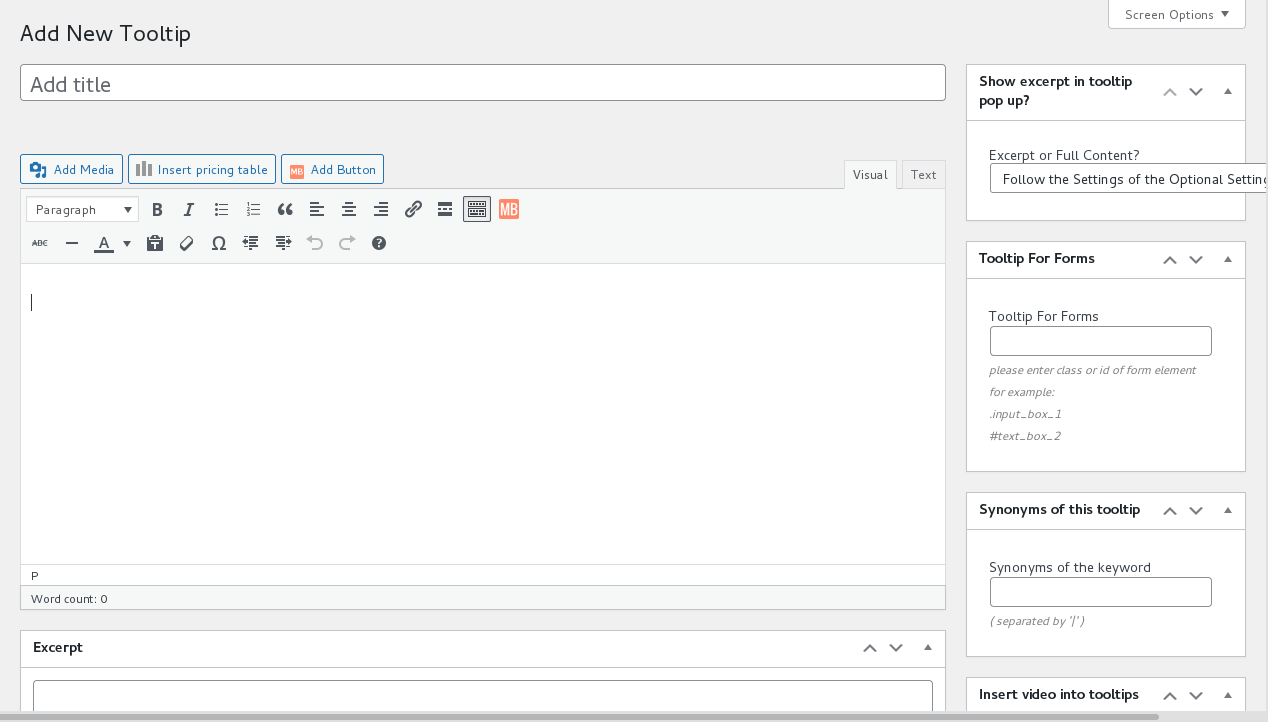
12: Then in the right hand of the wordpress tooltip editor, you will find a metabox “Show excerpt in tooltip popup?” It looks like this:


wordpress tooltips edtior in wordpress tooltips plugin 15.0.4

wordpress tooltips edtior in wordpress tooltips plugin 15.0.4

13: In the “Show excerpt in tooltip popup?” metabox, you will find 3 options:

a: ” Follow the Settings of the Optional Settings Panel” — this is the default option, if you select this option, we will follow your settings in the wordpress tooltips optional settings — you can set up it by click the “Optional Settings” sub menu item, the wordpress tooltips optional settings panel looks like this:

Wordpress Tooltip Plugin 14.6.6 Optional Settings

WordPress Tooltip Plugin 14.6.6 Optional Settings

As you can see, in the screenshot of wordpress optional settings panel,  there are an option “Show excerpt or full content in tooltips popup box?” — this settings will effect globally tooltip terms, but you can custom a specific tooltip term to use excerpt or full content in tooltip popup box in the “Show excerpt in tooltip popup?” metabox in tooltip editor. If you select  ” Follow the Settings of the Optional Settings Panel” in the “Show excerpt in tooltip popup?” metabox, then wordpress tooltips plugin will use your wordpress excerpt settings in the “Optional Settings” panel 🙂

b: ” Use Full Tooltip Content In Pop Up Box” — this means you decide to use full tooltip content in the wordpress tooltip pop-up window

c: ” Use Tooltip Excerpt In Pop Up Box” — this means you decide to use wordpress tooltip excerpt in the wordpress tooltip pop-up window

14: Okay, now, you can decide to enter excerpt in the wordpress tooltips excerpt metabox or not, if you did not enter any text in the wordpress tooltips excerpt metabox, wordpress tooltips plugin will generate a wordpress tooltips excerpt for this wordpress tooltip term automatically — based on the content you entered in the tooltip content textarea, words length is 55

15: Please remember to click “Publish” blue button in wordpress tooltips editor

16: Then in the front end, you will find in the wordpress tooltips pop-up window, we will display tooltip excerpt of tooltip full content for users, based on your settings 🙂

Please note, from our introduction above, you can find there are two places to setup the “tooltip excerpt” or “tooltip content” in the wordpress tooltips popup window, one is tooltips optional settings panel, and one is in the sparate tooltips editor, rememberm the metabox option in the separate tooltip post has the highest priority

Hope this will have a little help 🙂

Thanks for the great feedback to us, and thanks for the video screenshot for us, that make the wordpress tooltips plugin better and better for wordpress tooltip users, if you have any more question or feature request to wordpress tooltip plugin, please don’t hesitate to contact us, we are very happy to help you solve any problem of wordpress tooltip plugin 🙂

Thanks, have a blessed day with your family 🙂

Best Regards,
WordPress Tooltip Support Team

Tagged with: , , ,

WordPress Tooltip Tips: How to solve the problem of “The words are underlined but no pop-ups appear”?

Dear WordPress Tooltip Users, hope you are doing well and have happy weekend with your family.  We got a wordpress tooltip ticket from a new wordpress tooltip user, he said he have installed wordpress tooltips pro plugin, and he found all tooltip terms have underline, but when mouse hover the tooltip term, there are no tooltip box pop-up. We think may be more users have the same problem, we’d like write a document in here to help users to avoid similar problem 🙂

The original ticket from the amazing user:

Not sure what’s going on with the plugin but I can’t get any tooltips to show up. The words are underlined but no pop-ups appear.

For example:
his site url
Both have content and excerpt filled in.

In general, there are a 3 may be reason will caused this kind of problem, and all of them is very easy to solve, please just follow our step by step document, you will find the reason and solve problems quickly 🙂

At first, please ensure you are using the latest version of wordpress tooltip plugin, in the current time — 2021-08-09, it is version 15.0.2, because old version do not support many new functions about speed up your site and support more cache plugin… and so on. So please login tooltips.org to download the newest version of wordpress tooltip plugin and install it, if you have downloaded and installed wordpress glossary plugin, please jump to step #9 directly 🙂

1: Login our site: wordpress tooltip plugin

2: Please click the “download”  link on the top menu bar

3: Please download latest wordpress tooltip pro plus plugin — it is a wordpress plugin “.zip” file.

3: Login your wordpress site

4: After logged in wordpress dashboard, please click “Plugins” menu.

5: If you have installed wordpress tooltips glossary free plugin or old wordpress tooltips pro version or wordpress tooltips pro plugin version, please deactivate it and delete the old wordpress tooltip plugin

6: At the top of the wordpress “Plugins” panel, you will find the “add new” link, in which you can upload the .zip file of the wordpress tooltip pro plugin ,please upload the wordpress tooltip plugin .zip file via the add new link in plugin dashboard

7: Please activate the newest wordpress tooltip glossary plugin version which you uploaded via plugins menu

8: Then open your site URL in your browser, and right click on your wordpress page front end, you will find “view page source” link in browser pop-up window

9: Click “view page source” link in browser pop-up window, you will open a new tab in the browser, the url looks like this:

view-source:https ://tooltips.org/

10: Then enter “Ctrl + F”, you will find a search box, just enter “jquery.js”, if there are no jquery.js in your page source, then it will caused many plugin cannot works well on your wordpress site

11: To solve the problem of lack “jquery.js”, you can solve this problem by inserting a script in the head of your Theme / Theme Editor : functions.php:

<script src=”https://code.jquery.com/jquery-migrate-3.0.0.min.js”></script>

12: Then clear your cache in the browser and your cache plugin, then you will find wordpress tooltips box pop-up with tooltips content 🙂

13: Okay, from step #8 to step #12, you will solve the problem of “not loaded jquery.js”, in general, this can be caused by error settings in the theme option, or caused by a 3rd wordpress plugin, if you can find an option in your wordpress theme option, which told you enable or disable jquery, then enable it, and you can ignore actions from step #8 to #step 12

14: If your site have loaded jquery.js correctly, and still can not find tooltip popup window, then it may caused by a cache plugin conflict, wordpress tooltips pro have modules to optimize site loading speed to support wordpress cache plugins, and the module will avoid confliction with many cache plugins, you can do it by this way:

15: Please click “Tooltips” menu item in the wordpress dashboard menu

16: Click “Global Settings” sub menu item

17: You will open “Global Settings” panel, it looks like this:


custom unique tooltip style for the wordpress tooltip term

If you want to custom a dedicated & pretty style this the specific wordpress tooltip term, then please select “YES”, else please select “NO”, if you select “NO”, then the specific wordpress tooltip term will use default settings from wordpress tooltip global style.

12: Then under the “Enable / Disable Custom Unique Style Functionality for this Tooltip”, you will find “Tooltip Box Customize Setting” panel, it looks like this:

13: As you can see, in tooltips global settings panel, there are “load tooltip javascript in wordpress header or wordpress footer” option,
please select “load tooltip javascript in wordpress footer” option and click “update now” blue button, in the current time, in your front end pages, we found you are load tooltip js codes in the wordpress header 🙂

14: This will solve many cache plugin conflicts, and in wordpress front end, when you mouse hover the wordpress tooltip term, you will find tooltips box pop-up and works well 🙂

15: If this still not work, then may be it caused by your cache plugin, it means you need set up it in your wordpress cache plugins, we have a few documents about how to set up wordpress cache plugins to make it works well with wordpress tooltip plugin, would you please do a check at our document:

How to let wordpress tooltips works well with autoptimize plugin

How to let wordpress tooltips works well with SG Optimizer plugin

After replied our client with these suggestions, we got reply from the user:

Thanks for the assistance. Problem solved!

For reference:
JS was turned off in my theme so I just had to enable it (I’m using the
Acabado theme).

Placed JS <script src=”https://code.jquery.com/jquery-migrate-3.0.0.min.js
“></script>

Thanks for the quick response. Enjoy the rest of your day.

Our reply:

Hi

Thanks for the message, it is great to know it solved! 🙂

Should you require any further assistance, please do not hesitate to contact us. We’re always ready to assist you the best we can. 🙂

Thanks, have a blessed day with your family 🙂

Best Regards,
WordPress Tooltip Support Team


Basically, if you find wordpress tooltip box did not pop-up, then it will caused by something related with javascript codes, just follow our detailed steps by steps document, you will solve this kind of problem quickly 🙂 Iif you have more question or feature request, please don’t hesitate to contact us, we are very happy to help you solve any problem of wordpress tooltip plugin 🙂

Thanks, have a blessed day with your family 🙂

Best Regards,
WordPress Tooltip Support Team

Tagged with: , , ,

Improved Tooltip Style for Dedicated WordPress Tooltip Terms, WordPress Tooltips Plugin 15.0.2

Hey dear users of WordPress Tooltip plugin, hope you are doing well and having happy weekend with your family 🙂 We get a wordpress tooltip ticket from a new wordpress tooltip user:

Good morning,

I have set the settings in the tooltip template but i’m going issues. Here is a video of my settings.

Basically I want the text white not black. I have set this in the settings but it is not working.

I also do not want a boarder around my gif. I have set the settings to 0 but it does not let me save that setting as you can see if in the video.

Our wordpress tooltip developer checked the user’s video and site URL, and we replied:

Hi,

Hope you are doing well and having happy weekend with your family 🙂

our developer have checked your great video 🙂

Please note, at the top of the tooltips box customize settings panel, we have added a red note “all fields are required”. 🙂

The problem is because all option is “required field”, when you set up border width as “0”, the value 0 will not be accepted, actually you can set up it as 1, and then select border color as the same color of tooltip window background 🙂

We will try to develop a new version to allow users enter 0 in the future version 🙂

Thanks, have a blessed day with your family 🙂

Best Regards,
WordPress Tooltip Plugin Support Team

And then the user said:

I plan on having some kind of pattern in the background of my image so setting the color doesn’t really work unfortunately… Is there a way to remove it with CSS? It seems silly you cannot set the value to 0.

We have offer a solution, but it is a little strange why it cannot works, we know the amazing users is new user of wordpress tooltips plugin, we want to know more details about the reason:

Hi Trevor,

Thanks for the reply 🙂

I am assign our developer to check the css code 🙂

Would you please tell us why you can not use the method to “select border color as the same color of tooltip window background” for “I plan on having some kind of pattern in the background of my image so setting the color doesn’t really work”? 🙂

Just like we said we will develop new version to allow user set up the value as 0 🙂

Thanks, have a blessed day with your family 🙂

Best Regards,
WordPerss Tooltip Plugin Support Team

Then the user replied:

Thank you for assigning to the developer,

The background of the section is going to be multi colors. I do not want the boarder around the gifs seeing it looks tacky.

When are you planning on having the new version?

Our wordpress tooltip developer checked carefully, and he think we need help users use wordpress tooltips plugin easier, we decide realize the user’s feature request first, we will change our code to allow wordpress tooltip editor change the Tooltip Box border width as 0, set Tooltip Border Radius  as 0 and set Tooltip Box Padding value as 0, so we replied:

Hi,

Thanks for the reply 🙂

Understood, we will develop the new version today, I hope you can see it not more than 3 days 🙂

Thanks for the URL, it is a great site to show issue videos, is the loom.com need a phone number to register and publish a video?

Thanks, have a blessed day with your family 🙂

Best Regards,
WordPress Tooltip Plugin Support Team

That’s why we developed wordpress tooltip pro plus version 15.0.2 and wordpress tooltip pro plugin version 15.0.2 🙂

How to set up wordpress tooltip box border width as 0?

WordPress Tooltip Plugin  is a very easy to use tool that comes with seven already designed and beautiful tooltip templates, all you need to do is just “two clicks” of the mouse and you can start building a beautiful wordpress tooltip website. WordPress tooltip has a powerful template customization function, you can customize nearly all elements of tooltip, for example, Tooltip Box Background, Tooltip Font Color, Tooltip Box Position, Tooltip Box Width, Tooltip Border Color, Opacity, Tooltips Underline Style, Tooltip Underline Color, Tooltips Shadow, Tooltips Popup Animation, Tooltip Term Hover Color…, in wordpress tooltip global style settings panel, you can customize the style of more than 42 components of the wordpress tooltip box. 🙂

WordPress tooltip global style settings panel looks like this:

tooltip style panel -- change color of links for tooltip content in the tooltip box option

tooltip style panel — change color of links for tooltip content in the tooltip box option, this is a screenshot of an old version

As you can see, you can select 7 preset pretty tooltip template from tooltip box style panel, of customize style of more than 42 tooltip components in Tooltip Box Customize Setting panel 🙂

Also, wordpress tooltip pro plus plugin allow wordpress tooltip editor customize dedicated style for each wordpress tooltip term, that means, each wordpress tooltip box will be able to have a unique unique and beautiful style, it looks like this:

unique pretty style for each tooltip term

unique pretty style for each tooltip term

When you edit a wordpress tooltip term in wordpress tooltip editor, in the metabox, you will find this tooltip customize style settings panel, just a few clicks, you will own a unique & pretty wordpress tooltip template for the specific wordpress tooltip term 🙂

It is very easy to use, so how to customize tooltip border value? Let’s start, at first, what you need to do is download the latest wordpress tooltip version, if you have downloaded and installed wordpress glossary plugin, please jump to step #9 directly 🙂

1: Login our site: wordpress tooltip plugin

2: Then you will find the “download”  menu item at the top menu bar,

3: Please download latest wordpress tooltip pro plus plugin — it is a wordpress plugin “.zip” file.

3: Login your wordpress site admin area

4: In wordpress dashboard, please click “Plugins” menu.

5: If you have installed wordpress tooltips glossary free plugin or old wordpress tooltips pro version or wordpress tooltips pro plugin version, please deactivate it and delete the old wordpress tooltip plugin

6: Then in the wordpress “Plugins” panel, please click “add new” link at the top of the plugins panel to install the wordpress tooltip pro plugin which downloaded from tooltips.org

7: Upload the wordpress tooltip plugin .zip file which you downloaded from wordpress tooltip glossary pro plus plugin site

8: Activate the new wordpress tooltip glossary plugin version which you uploaded via plugins menu

9: Click “Tooltips” menu item

10: Click “Add new” sub menu item, or edit a tooltip term via the All tooltip sub menu item

11: You will open wordpress editor, and you will find custom unique tooltip customize style settings panel, it looks like this:

custom unique tooltip style for the wordpress tooltip term

custom unique tooltip style for the wordpress tooltip term

If you want to custom a dedicated & pretty style this the specific wordpress tooltip term, then please select “YES”, else please select “NO”, if you select “NO”, then the specific wordpress tooltip term will use default settings from wordpress tooltip global style.

12: Then under the “Enable / Disable Custom Unique Style Functionality for this Tooltip”, you will find “Tooltip Box Customize Setting” panel, it looks like this:

unique pretty style for each tooltip term

13: As you can see, you can customize unique style in this metabox just via a few clicks, and it accept the value 0 for the option “Tooltip Box border width”, and the option “Tooltip Border Radius” and the option “Tooltip Box Padding”. 🙂

14: After customized the tooltip color and tooltip component’s  value for the specific tooltip,  in the front end, you will find wordpress tooltip pop-up box border will works like what you customized in tooltip style settings panel.

Thanks for the great feedback of the wordpress tooltip plugin, we don’t know users have this kind of requirement,  if you have more question or feature request, please don’t hesitate to contact us, we are very happy to improve wordpress tooltip plugin to help wordpress tooltip users use wordpress tooltip plugin easier 🙂

Related Tips:
Thanks, have a blessed day with your family 🙂

Best Regards,

WordPress Glossary Plugin Support Team

Tagged with: , , ,

How to Customize WordPress Tooltip Border Width and Border Color?

Hi dear WordPress Tooltip users, hope you are doing well and have happy day with your family 🙂 An new wordpress tooltip user asked us a question about set up wordpress tooltip border:

Hello,

I managed to get it to work after changing the url. Thanks you for your help with that.

I have a couple of questions about the styling now. I have tried setting the boarder width and radius to 0 but it won’t allow in the settings

I think may be there are more new wordpress tooltip users have similar question, I’d like write a document with detailed step by step text and images to help you do this easier 🙂

How to Customize WordPress Tooltip Border Width and Border Color?

With WordPress Tooltip Plugin, it is very easy to customize each elements of wordpress tooltip, at first, what you need to do is download the latest wordpress tooltip version, if you have downloaded and installed wordpress glossary plugin, please jump to step #9 directly 🙂

1: Login wordpress tooltip glossary plugin site

2: Click “download”  menu item to download newest wordpress tooltip plugin, please note, it is a wordpress plugin .zip file.

3: Login your wordpress site admin area as wordpress admin user.

4: In your wordpress dashboard, click “Plugins” menu.

5: If you have installed wordpress tooltips glossary free plugin or old wordpress tooltips pro version or wordpress tooltips pro plugin version, please deactivate it and delete the old wordpress tooltip plugin

6: Then in the wordpress “Plugins” panel, please click “add new” link at the top of the plugins panel to install the wordpress tooltip pro plugin which downloaded from tooltips.org

7: Upload the wordpress tooltip plugin .zip file which you downloaded from wordpress tooltip glossary pro plus plugin site

8: Activate the new wordpress tooltip glossary plugin version which you uploaded via plugins menu

9: Click “Tooltips” menu item

10: Click “Tooltips Style” sub menu item

11: You will open “Tooltip Style Settings” panel, it looks like this:

wordpress tooltip style panel 14.8.0

wordpress tooltip style panel 14.8.0

12: In the “Tooltip Bx Style” option panel, please select the option “Customized” option and click “Update Now” blue button

13: Then in the “Tooltip Box Customize Setting” panel, you will find “Tooltip Border Radius”, “Border Width”, “Tooltip Border Color” options, please just set up it to match your site style and design

14: In the front end, you will find wordpress tooltip pop-up box border will works like what you customized in tooltip style settings panel.

Also wordpress tooltip plugin support customize unique tooltip style for each wordpress tooltip term

From the step #1 to step #14 at the above, you can see it is very easy to set up wordpress tooltip box border, actually, it is tooltip style global settings, you can customize a unique tooltip style for eech wordpress tooltip term very easy 🙂

If you want to set up a different tooltip style for specific tooltip term, please:

1: Login your wordpress site admin area as wordpress admin user.

2: Click tooltips menu item and then click add new sub menu item

3: You will open the wordpress tooltip editor, and at the bottom of the wordpress tooltip editor, you will find tooltip box customize setting panel which only works for this tooltip term, it looks like this:

unique pretty style for each tooltip term

unique pretty style for each tooltip term

Just change your tooltip border radius, border color, border width, and enter your tooltip title and tooltip content, then click publish button

4: In the front end, just mouse hover this tooltip term in your wordpress post, you will find this tooltip term have dedicated tooltip border color and border width 🙂

Thanks for the question about tooltips border, if you have any more question or feature request of wordpress tooltip glossary plugin, please don’t hesitate to contact us, we are happy to help you use wordpress tooltip plugin easier and realize more amazing features for the wordrpess tooltip plugin 🙂

Thanks, have a blessed day with your family 🙂

Best Regards,

WordPress Glossary Plugin Support Team

Tagged with: , , , ,

how can I disable the Superscript numbers on the Navigation of the Glossary?

Hey dear users of  WordPress Tooltip plugin, hope you are doing well and have happy weekend with your family 🙂 We got a ticket from an amazing wordpress tooltips user, in which he ask us:

Hello, can you tell me how can I disable the Superscript numbers on the Navigation of the shortcode. Is there any setting to disable that?

If you are using wordpress tooltips pro plugin, then the answer is yet, we have this feature in glossary settings panel already, what you need to do is just enable / disable the superscript numbers via once click 🙂

How can I disable the Superscript numbers on the Navigation of the Glossary?

If you have downloaded ans installed wordpress glossary plugin, please jump to step #9 directly 🙂

1: Login wordpress glossary plugin site

2: Click “download”  menu item to download wordpress glossary plugin, it will be a wordpress plugin zip file.

3: Login your wordpress site admin area

4: In your wordpress backend, click “Plugins” menu please

5: If you installed wordpress glossary free plugin or old wordpress glossary pro plugin, please deactivate it and delete the old wordpress glossary plugin

6: Then in the wordpress “Plugins” panel, please click “add new” link at the top of the plugins panel to install the wordpress glossary pro plugin which downloaded from tooltips.org

7: Upload the wordpress glossary plugin zip file which you downloaded from wordpress tooltip glossary pro plus plugin site

8: Activate the new wordpress tooltip glossary plugin version which you installed via plugins menu

9: Click “Tooltips” menu item

10: Click “Glossary Settings” sub menu item

11: You will open wordpress “Glossary Settings” panel, it looks like this:

glosasry global settings panel in wordpress glossary plugin 15.0.0

glosasry global settings panel in wordpress glossary plugin 15.0.0

12: At the bottom of the wordpress glossary settings panel, you will find the option “Hide count number of glossary item?”, please just select “YES” and click “Save changes” blue button

13: In the front end, you will find wordpress tooltip glossary plugin has removed the superscript numbers on the navigation of the glossary 🙂

If you want to add the superscript numbers on the navigation of the glossary in glossary page again, please just click “NO” and click “Save Changes” blue button, then you will find it comes back, it looks like this:

wordpress glossary frontend

wordpress glossary frontend

Please note, wordpress tooltip glossary plugin have more related option about the superscript numbers, for example: “Significant Display of Digital Superscripts on Navigation Bar”, ” Show Numbers in Nav bar”… and so on, please set up based on your requirement 🙂

You can find more wordpress glossary features at: features of wordpress tooltip glossary plugin.

Thanks for the great ticket,if you have any more question or feature request of wordpress tooltip glossary plugin, please don’t hesitate to contact us, we are happy to help you use wordpress glossary plugin easier and realize more amazing features for the wordrpess glossary plugin 🙂


Thanks, have a blessed day with your family 🙂

Best Regards,

WordPress Glossary Plugin Support Team

Tagged with: , , ,

WordPress Tooltips Pro Single Site License Version 15.0.0 Released, New Core Algorithm

Hi Dear WordPress Tooltip plugin users, hope you are doing well and have happy weekend with your family 🙂

We get a lot of feature requests, some of them is amazing, but it is hard to realized in our current wordpress tooltip version, our wordpress tooltips plugin developer check our codes, and decide change the core algorithm of the wordpress tooltip plugin, for make it possible to add more amazing wordpress tooltip functions for wordpress tooltip users 🙂

We are happy to report you, today we have released a new wordpress tooltips plugin 15.0.0 for you 🙂

From the front end, you will not find any changes, but this is a very important version in the backbone of the wordpress tooltip plugins, and this change effected wordpress main program, bbpress tooltip addon, buddypress tooltip addon, table tooltip addon, contact form 7 wordpress tooltip addon, woocommerce tooltip addon, woocommerce glossary addon, tooltip language addon, ACF tooltip addon, OceanWP tooltip addon, Tooltips for Custom Product Tabs for WooCommerce addon … and so on, so please upgrade to the wordpress tooltip plugin 15.0.0 asap you can 🙂

If you have any feature request or question for wordpress tooltip plugin, please don’t hesitate to contact us 🙂

Thanks, have a blessed day with your family 🙂

Best Regards,

WordPress Tooltip Plugin Support Team

Tagged with: ,

How to Create WordPress Tooltip for Contact Form 7?

How to use contact form 7 tooltip addon to create tooltip on contact form 7? We got a user’s ticket, in which he asked: “Cannot understand how to implement into Contact Form 7?  Please assist I am struggling to understand how to implement into Contact Form 7”. I think may be more contact form 7 tooltip users have the same question, we’d like write a detailed document for help wordpress tooltip users add wordpress tooltip for contact form 7 easily, here is a quick description walk through on how you can add wordpress tooltip for contact form 7:

What is Contact Form 7 Plugin?

Contact Form 7 can manage multiple contact forms, plus you can customize the form and the mail contents flexibly with simple markup. The form supports Ajax-powered submitting, CAPTCHA, Akismet spam filtering and so on.

What is WordPress Tooltip Plugin?

WordPress tooltip pro is a tooltips plugin for wordpress, which be designed to help you create colorful, varied and graceful tooltip styles to present the content to your users, with lively and elegant animation effects, and save your valuable screen space.

When the users hover over an item, the colorful tooltip popup box will display with the animation effect. You can add video, audio, image, and even other content which generated by 3rd wordpress plugins like QR code, Amazon AD, Google Map in tooltip popup box via wordpress standard editor, it is very easy to use.

What is WordPress Tooltip Contact Form 7 Addon?

WordPress tooltip contact form 7 addon is an addon included in wordpress tooltip plugin,  wordpress tooltip contact form 7 addon will help wordpress tooltip suers add tooltips to the contact form 7 fields easily, once you enabled wordpress tooltip contact form 7 addon, wordpress tooltip plugin will scan contact form 7 elements and add tooltip effects on contact form 7 automatically 🙂

How to Add WordPress Tooltip Effect on Contact Form 7?

It is very easy to add tooltips for contact form 7, you do not need to add css codes manually, you do not need any codes manually, what you need is just a few clicks in the wordpress tooltips plugin and you can create tooltips for contact form 7 in 2 minutes:

1: Login wordpress tooltip plugin site

2: Click “download”  menu item to download wordpress tooltip plugin, it will be a wordpress plugin zip file.

3: Login your wordpress site admin area

4: In your wordpress backend, click “Plugins” menu please

5: If you installed wordpress tooltips free plugin or old wordpress pro plugin, please deactivate it and delete the old wordpress tooltip plugin

6: Then in the wordpress “Plugins” panel, please click “add new” link at the top of the plugins panel to install the wordpress gif tooltip plugin which downloaded from tooltips.org

7: Upload the wordpress tooltips plugin zip file which you downloaded from wordpress tooltip pro plus plugin site

8: Activate the new wordpress tooltip plugin version which you installed via plugins menu

9: Then ensure you have created a form via contact form 7 plugin,if you did not use contact form 7 to create a contact form yet, you can do it quickly:

How to create a contact form via contact form 7?

9.1 in your wordpress admin area, click plugins menu, search  and install contact form 7 plugin

9.2 click contact menu item in admin area, and then click contact forms sub menu item

9.3 then change the contact form title, and add a few contact form 7 fields in “Edit Contact Form” panel, it looks like this:

build a contact form via contact form 7 plugin

build a contact form via contact form 7 plugin and add tooltips on contact form 7

9.4 click “save” blue button to publish the contact form

9.5 in front end, just copy the contact form 7 shortcode in any wordpress post

10: okay, now you have a contact form which build by the contact form 7 plugin, let’s show you how to add tooltip on contact form 7 on wordpress tooltip plugin side, actually, it is just need one click
11: please click tooltips menu item in wordpress admin area
12: please click “addons” sub menu item
13: you will find tooltip for contact form 7 addon in the wordpress tooltips addons panel, it looks like this:

wordpress tooltip plugin for contact form

wordpress tooltip for contact form

14: Please click “enable tooltip contact form 7” option, then click blue “update now” button

15: Please ensure you have created wordpress tooltip terms already, if you did not created wordpress tooltip terms yet, please:

15.1 click tooltips menu item

15.2 click add new sub menu item

15.3 you will open tooltips editor — it is a standard wordpress editor, you can insert text, video, audio, map… and any thing in this wordpress tooltip editor. Please just enter tooltip title and tooltip content, for example, enter the tooltip title “Name” — in general, this is a default field in contact form 7, this tooltip title will be the tooltip term, then enter any thing in tooltip content text area

15.4 click publish blue button to save the tooltip term

16: Please check your contact form 7 page, you will find when mouse hover the contact form field “Name”, a popup window will pop up with wordpress tooltip content 🙂

So basically, what you need to do in wordpress tooltip plugin side is just a few clicks,  then you will add tooltips on contact form 7 fields automatically 🙂

You can check our demo at:

WordPress tooltip for contact form 7 demo

We make a screenshot for the contact form 7 tooltip page like this:

add wordpress tooltip for contact forms which created by contact form 7 plugin

add wordpress tooltip for contact forms which created by contact form 7 plugin

You can find we have added tooltips effect for the field in “Your Name”… and more contact form 7 labels, actually, you can add tooltips effect for each input text fields, you can check our demo at:

Tooltips for each input text field in contact form

Please note, when you mouse hover the contact form 7 fields, you can find for each contact form 7 field, we made a different tooltips color, tooltips font family, tooltips underline style, tooltips popup animation…etc, you can custom unique pretty tooltips for each tooltips in wordpress tooltip style panel — it looks like this:

tooltip style panel in wordpress tooltip plugin 14.5.4

tooltip style panel in wordpress tooltip plugin 14.5.4

You can see, in wordpress tooltip style panel, what you need to do is just a few clicks to customize nearly all tooltips elements and click then save changes blue button to save it, then you will own a pretty tooltip effect for each contact form 7 fields. And when you edit a tooltip terms, you will find the same wordpress tooltip style metabox in tooltip editor, that means you can customize unique pretty style for each tooltip for your contact form 7 tooltips 🙂

More detailed document which can help you control each element for contact form 7, from contact form 7 label, to contact form 7 input box, contact form 7 options…etc:

Tooltips for anything

WordPress Tooltip Video Tutorials

WordPress Tooltips Video Tutorial 6: custom tooltip box color, font, underline, Shadow… and more

By this way, you can add unique pretty wordpress tooltip effects to each contact form 7 elements, hope this have a little help 🙂

(updated 2024-09-27)

Tagged with: , , ,
Top


