Category: Wordpress Tooltip Plugin Document

How to Insert Image Tooltip Shortcode Inline in Gutenberg? Supported by WordPress Tooltips Pro Plus Plugin 16.3.4

Dear  WordPress tooltip plugin users, hope this message find you are doing well and have happy days with your family 🙂  Our wordpress tooltip developer have released wordpress tooltips pro plus plugin 16.3.4, to support enter wordpress image tooltip shortcode inline in Gutenberg 🙂

We got a ticket from a wordpress tooltip user:

Hello,
I’m trying to implement an image tooltip in the Gutenberg editor with this inline shortcode,
[tooltips keyword="Walnut" content="<img src='https://www.mydomain.com/wp-content/uploads/2021/06/Photo-1024x700.jpg'>"]]
and it looks like this “Walnut” and no image pops up and it says:

Proper Shortcode Usage is:
[[tooltips keyword='wordpress' content = 'hello, wp']]
or
[[tooltips content = 'hello, wp']]wordpress[[/tooltips]

All with single quotation marks ?

Your example here
https://tooltips.org/how-to-use-wordpress-tooltip-shortcode-tooltips-to-add-tooltips-manually/ says this:
[tooltips keyword="lovely girls" content="<img src='https://mydomain.com/wp-content/uploads/2017/02/screenshot.png'>"]
That’s not the same…is the keyword with single or double quotation mark?

On your site you don’t mention if you have must use Classic Editor (old) or if you can use Gutenberg Block editor (Paragraph/HTML) or the Classis editor block from Gutenberg which only has text possibility? It supposed to work inline in all these editors right?

It seems the Gutenberg editor doesn’t accept the single quotation marks before and after the image because they transform automatically in “
Is this the reason it doesn’t work?

Than there’s the overall question about the single and double quotation marks, I’ve tried every combination with “your” marks see  below above the line and “mine” below the line.
They vary also (is this important?), how do I replicate yours besides copying them? I’ve tried them all btw.


Is the Tooltips plugin actually compatible with Gutenberg editor or must I have to use the old editor?

I’d rather want to use this shortcode method for such a simple code than the tooltip editor with use of [Tooltip For Forms Demo - Message Field ]
(this works btw) because it’s more flexible with the term you want to use and quicker if it works right away. 🙂 And if you delete a tooltip in the editor your text/term in the post is gone also.

I’ve read https://tooltips.org/how-to-easily-add-a-powerful-pretty-wordpress-tooltips-in-wordpress-via-wordpress-shortcode-very-fast/

Could you explain under which conditions this might be going to work?
Is there a workaround?

Our wordpress tooltip plugin developer checked this question, yes, Gutenberg will change something in your content, for example, add the tag <p> automatically, replace with automatically….etc. If you are using a tooltip text shortcode , there are no any problem, but if you are using a wordpress image tooltip shortcode, because Gutenberg will change to automatically, if you did not entered image tooltip with correct format( the format is: In the shortcode, after the tag content, please use , and after the tag img src, use , please check description of the correct format at below), image tooltip shortcode will not works well, that’s why we develop a new version — wordpress tooltips pro plus 16.3.4 to solve this kind of problem 🙂

How to Insert Image Tooltip Shortcode Inline in Gutenberg?

1: Download newest wordpress tooltips plugin

2: Login your wordpress admin area, delete old version of wordpress tooltips pro plus plugin

3: upload / activate the newest version of wordpress tooltips pro plus plugin

4: in Gutenberg block, just copy and past the tooltips image shortcode directly, the real result in your block will looks like this: lovely girls

Actually the code of image tooltip shortcode looks like this:

 [tooltips keyword="lovely girls" content='<img src="https://tooltips.org/wp-content/uploads/2014/03/ben-white-179058.png">']

please note: a few user said their shortcode cannot works in Gutenberg, that is because they use the error format like this:

1 [tooltips keyword=”lovely girls” content=”<img src=’https://tooltips.org/wp-content/uploads/2014/03/ben-white-179058.png’>”]

This will not work, because Gutenberg will replace the in shortocode to format automatically like this:

2 [tooltips keyword=”lovely girls” content=”<img src=”https://tooltips.org/wp-content/uploads/2014/03/ben-white-179058.png”>”]

User have no way to stop Gutenberg replace the to , even you update the format manually, once Gutenburg saved the post, Gutenberg will replace the to again — automatically, so editor must use the correct format like this:

[tooltips keyword=”lovely girls” content=’<img src=”https://tooltips.org/wp-content/uploads/2014/03/ben-white-179058.png”>’]

The rule is: In the shortcode, after the tag content, please use ‘, and after the tag img src, use “

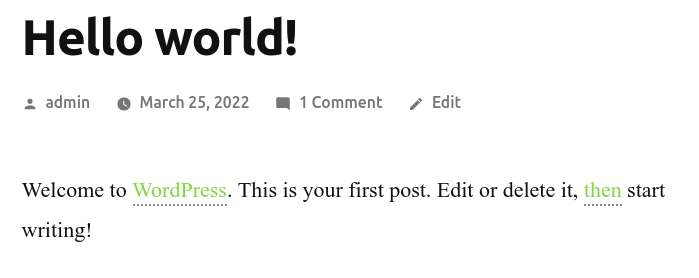
When you enter the wordpress image tooltip shortcode inline Gutenberg, Gutenberg will display the image directly in Gutenberg editor, we make the screenshot of our current post, it looks like this:

When you publish the post, all things will works well in front end automatically 🙂

5: Please note, At the right hand of Gutenberg, we have a metabox “Tooltip Settings for this page”, please remember checked the option “Enable Advance Tooltips Shortcode” 🙂

Does image tooltip shortcode works in Guternberg code editor?

Yes, just insert the tooltip shortcode with the correct format, all things works well in Guternberg code editor too.

The rule of the format of Gutenberg is: In the shortcode, after the tag content, please use ‘, and after the tag img src, use “

We make the screenshot of Gutenberg code editor for users too, it looks like this:

As you can see, we insert a tooltip popup window picture in the image tooltip shortcode, in front end, when mouse hover the tooltip term Walnut, the tooltip window looks like this:

If you have any more question or feature request to wordpress tooltip plugin, please don’t hesitate to contact us, we are very happy realize it for you 🙂

Thanks, have a blessed day with your family 🙂

Best Regards,

WordPress Tooltips Plugin Support

Tagged with: , ,

How to Add Tooltip Glossary Category under Glossary Term? Supported in WordPress Tooltip Glossary Plugin Pro Plus16.2.8 Released

Hi, Dear  users of WordPress tooltip plugin , hope this message find you are doing well and have happy days with your family 🙂  We are happy to report you, we just released wordpress tooltips pro plus plugin 16.2.8, based on a wordpress tooltip plugin user’s ticket 🙂

We got a ticket from a wordpress tooltip user:

Subject:
> Glossary: Name of categorie above title
>
> Message:
> Hi, thank you for such an incredible plugin 🙂
>
> I would like to be able to display the category/ categories of a
> glossary item in the overview page.

Our wordpress tooltip plugin author developed a new wordpress tooltips glossary pro plus plugin to do it 🙂

How to Add Tooltip Glossary Category under Glossary Term?

1: Download latest wordpress tooltips glossary pro plus plugin via download wordpress tooltip glossary plugin

2: Install and activate the wordpress tooltip glossary plugin in your site

3: Click tooltips menu item

4: Click Glossary settings sub menu item

5: You will open Glossary settings panel, at the bottom of Glossary settings panel, you will see the new option “Display Glossary Category Name in Glossary List?” Just click to enable it or disable it

6: If you enable the option, at the bottom of the glossary terms in glossary page, you will see the category name under the glossary terms

Tagged with: , ,

Better Case Sensitive Support in WordPress Tooltip Pro 15.9.8 and Tooltips Pro Plus 16.2.4

Hey, Dear  WordPress tooltip plugin users, hope this message find you are doing well and have happy days with your family 🙂  We have released wordpress tooltips pro plugin 15.9.8 and wordpress tooltips pro plus 16.2.4, for clear some question from a coder, to make case sensitive tooltip better. 🙂

We got a support ticket from a wordpress tooltip user:

Hi,
>
> I have noticed something that happens quite often
>
> Lets sat you have two tooltips
>
> 1. interest
> 2. interest rate
>
> If a sentence has the word interest rate in it, it will show TWO
> overlapping tooltips, which is not ideal.
>
> It would be great to havea rule that says, in cadse of overlap,
> display the longer tooltip only.
>
> Thanks

Our support replied

Hi,
>
> Thanks for the message 🙂
>
> We are very happy to help you 🙂
>
> I think this version should not existed in tooltips pro version or
> tooltips pro plus version? I guess the problem existed in free
> version
> I am assign our developer to check it, if the issue existed, we will
> fix it and we will reply you again 🙂
>
> Thanks, have a blessed day with your family 🙂
>
> Best Regards,
> Support Team

The client replied:

Hi there.
>
> I definitely have the premium version.
> You can see it in action here.
>
> https://www.mybudget.com.au/blog/property-talk/what-does-the-recent-interest-rate-rise-in-australian-mean-for-your-budget/
>
> The term is interest rate.
>

Our wordpress tooltip support replied:

Hi,

Thanks for the reply 🙂

I am assign our developer to check it, we will reply you again 🙂

Thanks, have a blessed day with your family 🙂

Best Regards,
Support Team

And the client replied again:

Hi,
>
> I believe the blog has been updated, so only one shows now, as the other word has been excluded, but it was there until not long ago.
>
> Thanks for reply.

Our developer checked the user’s question carefully, the problem existed in wordpress free plugin version, we re-developed wordpress tooltip free plugin to fix it,  and in wordpress tooltips pro plugin and in wordpress tooltip pro plus plugin, all things works well, so we replied:

Hi,

Hope you are doing well and having happy weekend with your family 🙂

Thanks for the great URL, our developer have checked it 🙂

Yes, it works well, no problem be found on your page, so our developer tried to follow your description to insert the same terms in our site, and after checked many times, we cannot replay this kind error, all things works well, and we asked a few other users, they did not have this kind of problem too 🙂

If the problem be found again, would you please tell us again, we are very happy to solve it for you 🙂

Thanks, have a blessed sunday with your family 🙂

Best Regards,
Support Team

The client replied again:

> > Hi There,
> > >
> > > Thanks for your reply.
> > > The issue is definitely still there, perhaps your other customers have Case sensitive enabled?

It is strange, we did a test of case sensitive tooltip, with some thing like interest, Interest, interest rate, Interest rate…etc, and enable / disabled case sensitive option with all kinds of sentence, everytime it works well, finally, our developer checked our code carefully, we ensure all things works well, but in our case sensitive module, there are a code line which using “/s” option in preg_replace function, we know in coder’s mind it should be “/is”, but because before this code line, we have other code lines to deal with case sensitive, so we do not need to add “/is” in here, but our developer said keep a good style in code line to help other coders read our code better — is welcome by other coders, so we re-developed our wordpress tooltips pro and wordpress tooltips pro plus to make the coders more clear to clean the question 🙂

Actually, you do not need to upgrade to this version, what you need is upgrade to wordpress tooltips pro plus 16.2.4, in which we support tooltip PDF viewer in a few days before, and we are developing soundcloud tooltip addon in new wordpress tooltips pro plus version, so you can add some pretty music in a small tooltips pop-up box to let your reader release their soul for a while 🙂

Thanks for the great question, if you have any more question or feature request, please do not hesitate to contact us, we are always happy to improve our wordpress tooltip plugin for you 🙂

Thanks, have a blessed day with your family 🙂

Best Regards,

WordPress Tooltips Plugin Support

Tagged with: , ,

How to Easily and Quickly Display the PDF in Tooltip Pop-up Box on the WordPress Page, Supported by WordPress Tooltips PDF Viewer Addon in WordPress Tooltips Pro Plus 16.1.8

What is PDF

The PDF format an open standard, standardized as ISO 32000, developed by Adobe in 1992{{initiated by Adobe co-founder John Warnock in 1991}}. PDF can include text, image, audio, video, link, button, form fields…etc.

What is WordPress Tooltip

WordPress tooltip plugin is a tooltip plugin for wordpress, which be designed to help you create colorful, varied and graceful tooltip styles to present the content to your users, with lively and elegant animation effects, and save your valuable screen space.When the users hover over an item, the colorful tooltip popup box will display with the animation effect. You can add video, audio, image, and even other content which generated by 3rd wordpress plugins like QR code, Amazon AD, Google Map in tooltip popup box via wordpress standard editor, it is very easy to use.

What is WordPress Tooltips PDF Viewer Addon

In Windows / Linux / MacOS, there are a few free PDF Reader software. But on websites, for example, WordPress CMS, there are not many solutions, based on an amazing wordpress tooltip user’s feature request, to develop a wordpress tooltip pdf viewer addon:The amazing user asked a question:
Hi,How can I open a pdf document within a tooltip ?
This is the first time we heard this kind of question, we requested a few more details, the user replied:
Thank you for asking.Is not really an issue of the software, is a question. I just want to create a tooltip that opens this URL https://www.un.org/sustainabledevelopment/wp-content/uploads/2018/09/Goal-1.pdf
with a scroll within the tooltipThank you,
Our wordpress tooltip develope did a few research, and then we decide to develop a wordpress tooltip pdf viewer addon for the user:
Thanks for the message, in the current time, PDF reader is not a function in our wordpress tooltip plugin. 🙂Although we never said we support PDF viewer, but our developer have did a few research, and we will try to develop a new addon for the tooltips pro plus 🙂Thanks, have a blessed day with your family 🙂Best Regards, Support Team
Yes, it is worth to develop a new worpress tooltip pdf viewer addon, because we found in the current time, a few wordpress users embed pdf iframe in wordpress pages, a problem is, in general, pdf document is large, so it will used a lot of space in the screen, a better method is put pdf document in the tooltip popup box, so the wordpress article will keep clean but with many powerful tooltip to load these PDF, video, audio…etc, the amazing user is super smart! 🙂

How to Easily and Quickly Display the PDF in Tooltip Pop-up Box on the WordPress Page

1: Download tooltip from wordpress tooltips plugin site2: Login your wordpress site as admin and install the latest wordpress tooltips pro plus plugin3: Click tooltips menu item in the wordpress dashboard4: Click addons sub menu item to open addons panel, it looks like this:

WordPress Tooltips Addon Settings Panel in Version 16.1.8

as you can see, at the bottom of the wordpress tooltip addon panel, there are Enable / Disable Tooltips PDF Viewer option, please just enable it6 Now it is time to write the first pdf tooltip term, please click tooltips menu item and click add new sub-menu item to create a new tooltip term7 In the tooltip editor, you will find in the right hand of tooltip editor, there are metabox “insert PDF viewer to tooltip”, it looks like this:

insert PDF viewer to tooltip

In the “insert PDF viewer to tooltip” metabix, please enter the URL of the PDF in the PDF URL fieldThen please custom the PDF viewer height and viewer width in tooltip pop-up box, for example, height:400px, width:800px8 Now custom the tooltip pop-up box for this tooltip PDF viewer, at the bottom of this tooltip editor, you will find the metabox “Enable Customize Style”, please select the option yesThen in the tooltip box custom setting panel, please custom the tooltip pop-up box, for example, in the tooltip width option, enter :800It looks like this:

custom tooltip pop-up window

After enter the tooltip title and tooltip content, please click publish to save the tooltip term9 Now create a wordpress post, insert the tooltip term in the wordpress post and mouse hover the tooltip term, now you can read PDF content in the pop-up window, it looks like this:

read PDF content in wordpress tooltip pop-up box

As you can see, when you mouse hover the tooltip term, PDF content be loaded in the tooltip pop-up window, in the PDF tooltip box, you can use browser PDF function to read PDF easily, for example, you can scroll down, scroll up, you can click search to find words in the PDF, you can click next page / last page buttons to read PDF content, you can click toggle sidebar to read PDF content faster, you can download the PDF, you can print the PDF, or rotate clockwise, hand tool, zoom, go to last page, vertical scrolling, horizontal scrolling…etc. 🙂Please note, if you want to move into the tooltip pop-up box to scroll down the PDF document, you need go to tooltip style menu item and set “Tooltip hides when” option as “Stay Open a While”

Conclusion:

Based on a smart user’s feature request, wordpress tooltip developer developed a new addon for wordpress tooltips pro plus plugin — wordpress tooltip PDF viewer addon, with wordpress tooltip PDF viewer, wordpress author do not need to use a lot of rare space on the screen to embed PDF with iframe manually, wordpress editor can insert PDF in wordpress tooltip popup box just with a few clicks, and keep the wordpress pages clean and pretty 🙂 
Tagged with: , , ,

How to Clear Customized Color of Letters in WordPress Glossary Navigation Bar? WordPress Tooltips Pro Plus 16.1.2 Released

Dear users of  WordPress Tooltip plugin , hope this message find you are doing well and have happy days with your family 🙂   We get a ticket from a user of wordpress tooltips pro plus plugin, he hope “Clear Customized Color of Letters in WordPress Glossary Navigation Bar”, our wordpress tooltip developer  have developed wordpress tooltips pro plus  16.1.2 to realize this feature for wordpress tooltip editor 🙂

How to Clear Customized Color of Letters in WordPress Glossary Navigation Bar?

1: Download the latest version of wordpress tooltips pro plus version >= 16.1.2

2: After downloaded the wordpress tooltips pro plus zip file, please login your wordpress site as wordpress admin

3: In plugins panel,delete the old version of wordpress tooltips pro plugin and then click “add new” button at the top of plugin panel to upload the zip file of the wordpress tooltip glossary plugin , then activate the wordpress tooltips pro plus plugin

4: In wordpress dashboard, click “Tooltips” menu item, and then click “Glossary Settings” sub menu item

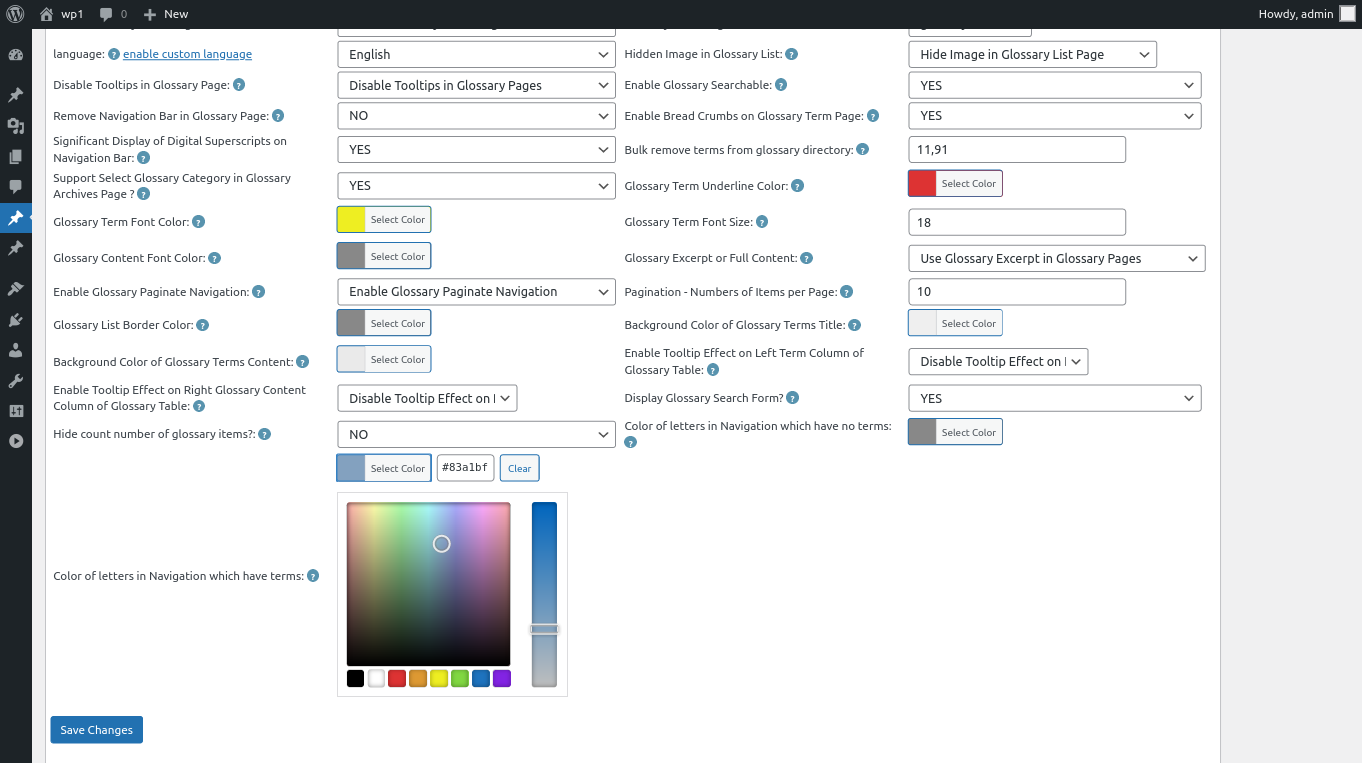
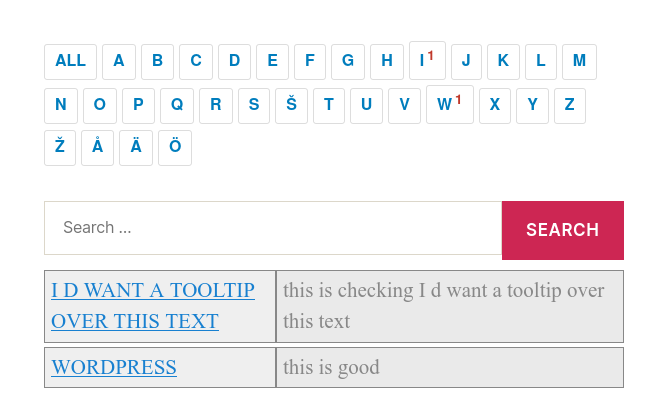
5:Move to the the bottom of the “Glossary Settings” panel, you will find the new option “Color of Letters in Glossary Navigation Bar Which Have Terms”, please just click the color picker, it looks like this:

changing color of letters in Navigation which have terms

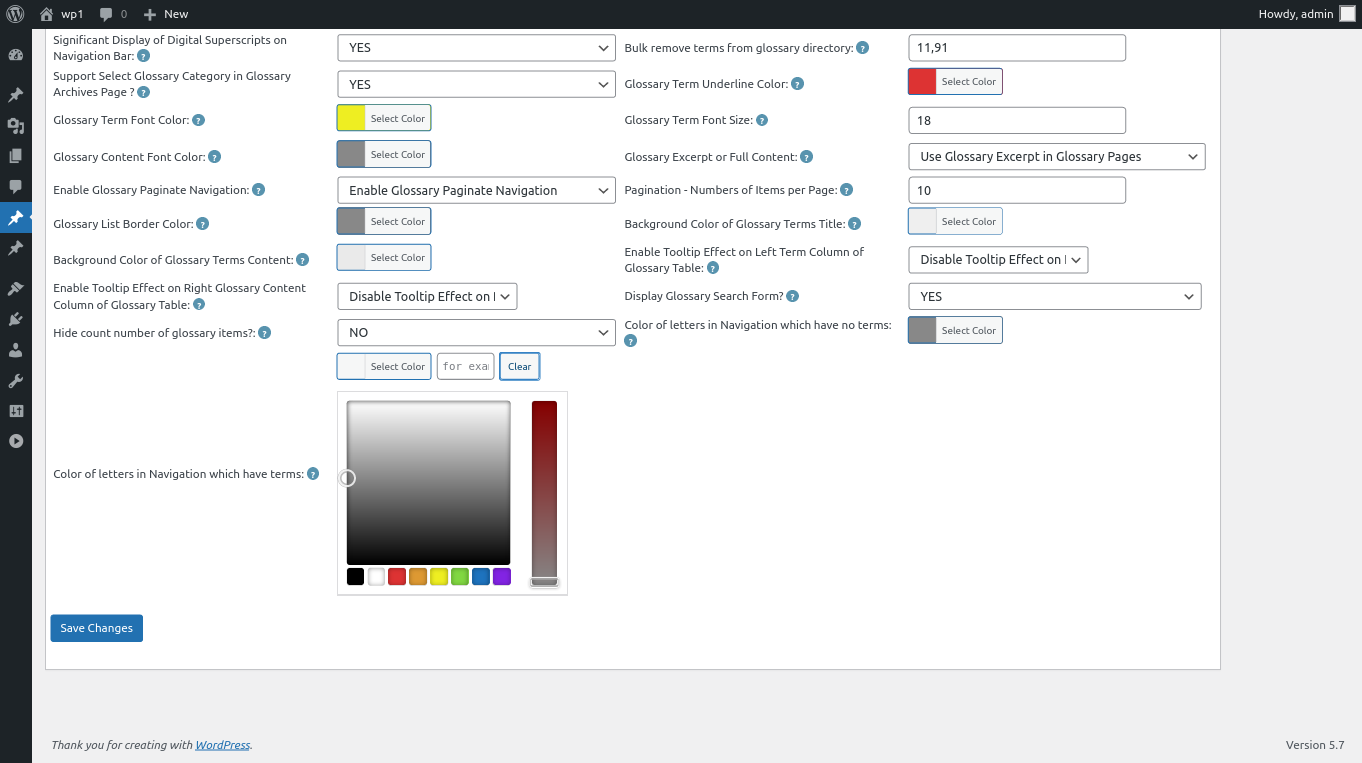
6: In the color picker, you will find the button “Clear”, once click the “Clear” button, you can remove the customized color of letters in glossary navigation bar, it looks like this:

clear color of letters in wordpress glossary navigation bar

clear color of letters in wordpress glossary navigation bar

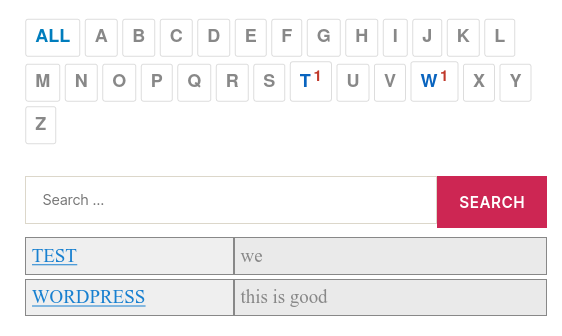
7: After clear the color of glossary letters, please remember to click “Save Changes” button at the bottom of the glossary settings panel, then in front end the “Color of Letters in Glossary Navigation Bar Which Have Terms” will be changed as you modified in here :):

Thanks for the great feature request, if you have any more question about wordpress tooltip plugin, please don’t hesitate to contact us, we are happy to help you solve it 🙂


Thanks, have a blessed weekend with your family 🙂

WordPress Tooltip Support

Tagged with: , , , ,

How to Change Color of Letters in Glossary Navigation Bar Which Have Terms. WordPress Tooltips Pro Plus 16.0.8 Released

Hi Dear  WordPress Tooltip plugin users, hope this message find you are doing well and have happy weekend with your family 🙂   We have released wordpress tooltips pro plus  16.0.8, to allow wordpress glossary admin to change color of letters which have terms in glossary Nav bar,   based on an amazing users’ feature request  🙂

How to Change Color of Letters in Glossary Navigation Bar Which Have Terms?

1: Login your account in wordpress tooltip plugin site

2: Click download link in top menu bar at wordpress tooltip site

3: In my account panel download newest version of wordpress tooltip plugin

4: Login your wordpress site as wordpress admin

5: In plugins panel,delete the old version of wordpress tooltips pro plugin

6: Then click “add new” button at the top of plugin panel to upload the zip file of the wordpress tooltip glossary plugin

7: Activate the wordpress tooltips pro plus plugin

8: In wordpress dashboard, click “Tooltips” menu item

9: Click “Glossary Settings” sub menu item

10: At the bottom of the “Glossary Settings” panel, you will find the new option “Color of Letters in Glossary Navigation Bar Which Have Terms”, it looks like this:

glossary custom panel in wordpress glossary 16.0.8

11: In the option “Color of Letters in Glossary Navigation Bar Which Have Terms”, you can click the color picker to change the color,it looks like this:

changing color of letters in Navigation which have terms

then just click “Save Changes” button, in front end the “Color of Letters in Glossary Navigation Bar Which Have Terms” will be changed as you modified in here :):

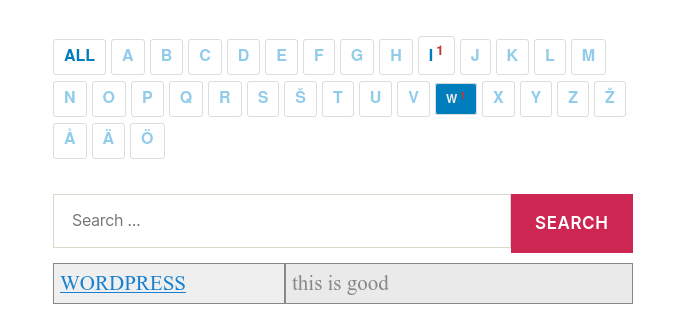
12: For example, the result in front end of  the step #11 will looks like this:

customized color of glossary terms which have items

Thanks for the feature request, if you have any more requirement, please don’t hesitate to contact us, we are happy to do it for you 🙂

Thanks, have a blessed weekend with your family 🙂

WordPress Tooltip Support

Tagged with: , ,

WordPress Tooltips Pro Plus Plugin 16.0.4, Enhanced Separator Function

Hi Dear  WordPress Tooltip plugin users, hope this message find you are doing well and have happy weekend with your family 🙂 We just released wordpress tooltips pro plus  16.0.4 and wordpress tooltips pro version 15.9.4, to enhanced separator function — based on an amazing wordpress tooltip user’s feedback, in the ticket, he said:

Hi Support,

FYI – Had a strange problem with weird characters showing on the
front end (see image links).

It was caused by having an OR symbol in the Synonyms text box without  an accompanying word.

Maybe you could check for this and strip it out?
Kind Regards

Our wordpress tooltip developer checked his screenshot and we replied:

Hi

Hope you are doing well and having happy weekend with your family 🙂

Thanks for the great screenshots 🙂

Our developer have tried copy your words in our site and checked it carefully, sorry we cannot re-play the error on our side, we will  try  our best to help you solve all problems 🙂
2: About “accompanying word” — would you please tell us which one is  the “accompanying word”, we just see the synonyms is  “polypeptides”,  but in your another screenshot, there are no tooltip term  “polypeptides”? It seems these screenshot and message is not  related  with each other? It is a little to understand, sorry, would you please  tell us the whole problem clearly? We are happy to help you solve the  problem…, also we do not know how did you entered this “accompanying  word”? Maybe via another math plugin? There are lack of some important  information in this point 🙂

If I lost any more question, sorry for it, please let me know, we are  happy to help you solve it 🙂

Thanks, have a blessed day with your family 🙂

Best Regards,
Support Team

The user told us the problem is something like this: In wordpress tooltip editor, there are ” Synonyms of the keyword ” metabox, it looks like this:

synonyms tooltip demo

synonyms tooltip demo

In general, we will enter synonyms tooltips like this way: “test1|test2”, but the user just enter something like “test1|”, then he found in his site there are some tooltip terms don’t work properly — and the problem happens randomly 🙂

Our tooltip developer checked our code carefully, we do found if user add synonyms tooltip like “test1|”, our code split “|” to make an array of synonyms tooltip, because after “|”, the synonyms term is empty,  then in our side, we will have an empty element in the array, although we think it seems this should not caused the problems in the screenshot, but we do need enhance the function to avoid the empty element in the array, honestly, we never expected users will enter synonyms tooltips in this way, so we use a new function to filter the empty element in the array, that’s why we decide to released a new wordpress tooltips pro and wordpress tooltips pro plus version 🙂

We replied the user:

Hi,

Thanks for the detailed reply 🙂

At first, we are developing a new version to enhance the functions which splits terms via “|”, because are many modules use the same  functions, so we need a lot of test, once finish the test, we will release it soon 🙂

This change will affect many modules, include woocommerce tooltip, buddypress tooltip, bbpress tooltip…etc, and a few more options for example “Disable Tooltips in HTML Tags Like h1, h2…, a” and “Disable Your Classes and IDs, split with comma “,” “… etc, we have did a lot of hard work on test for ensure new codes will works well 🙂

Thanks for the great suggestion for find the bug, we’d like offer a 10% discount for any product, we will send the coupon code to the amazing tooltip user 🙂

If you have any more feature request or ideas, please don’t hesitate to contact us, we have got a lot of suggestion from amazing users, and we are try out best to realize it for wordpress tooltip users, you will see it soon 🙂

Thanks, have a blessed weekend with your family 🙂

Best Regards,

WordPress Tooltips Plugin Support Team


Tagged with: ,

How to Change the Colour of Letters that don’t Have Terms, Rather Than Hide Them? Supported by WordPress Tooltips Pro Plus 16.0.0

Hi Dear  WordPress Tooltip plugin users, hope this message find you are doing well and have happy weekend with your family 🙂 Just like we reported in last wordpress tooltips version, we got an amazing request from an amazing wordpress tooltip user, in which he hope we can solve a js conflict with wordpress ninja form. That why we release the wordpress tooltips pro plus 15.9.6, not only support add tooltips effects on the content which generated by ninja form dynamically, but also support a few more 3rd plugins which generate their content dynamically, this is improve wordpress tooltips plugin fucntcion to support more wordpress plugins. 🙂 After solved the problem in wordpress tooltips pro plus 15.9.6, we get a great feature request  from this amazing tooltip user, in which he said:

It’s working well, thank you.

Quick question: with the glossary, is there a way we can change the colour of letters that don’t have terms, rather than hide them?

Thank you

A few hours later, our developer replied:

Hi,,

I have developed wordpress tooltips pro plus 16.0.0 to support your feature request:”with the glossary, is there a way we can change the colour of letters that don’t have terms, rather than hide them?” 🙂

If you want to upgrade to tooltips pro plus, I’d like offer a 25% discount for your great feature request, please just let me know 🙂

Thanks, have a blessed day with your family 🙂

Best Wishes,
Tomas

Yes, the user offered many great suggestions for wordpress tooltips plugin, this helped all users of wordpress tooltip, we always offer discount for really great suggestions to amazing wordpress tooltip users 🙂

How to Change the Colour of Letters that don’t Have Terms, Rather Than Hide Them? Supported by WordPress Tooltips Pro Plus 16.0.0

1: Please upgrade to wordpress tooltips pro plugin 16.0.0, if you did not upgrade to the latest wordpress tooltips pro plus please, please login  wordpress tooltip site, then click “download” menu item at home page of wordpress tooltip to download the wordpress tooltips pro plugin 16.0.0, this is a zip file

2: After downloaded wordpress-tooltips pro plus 16.0.0 plugin, please login your wordpress site as admin, then in your wordpress site dashboard, please click “Plugins” menu item and then deactivated the old tooltips plugin version

3: Then please click the “Delete” link to delete the old version of wordpress tooltip and in “Plugins” menu item, click “add new” link which at the top of the plugins panel, in here you can upload the tooltips plugin zip file that you downloaded from wordpress glossary plugin site

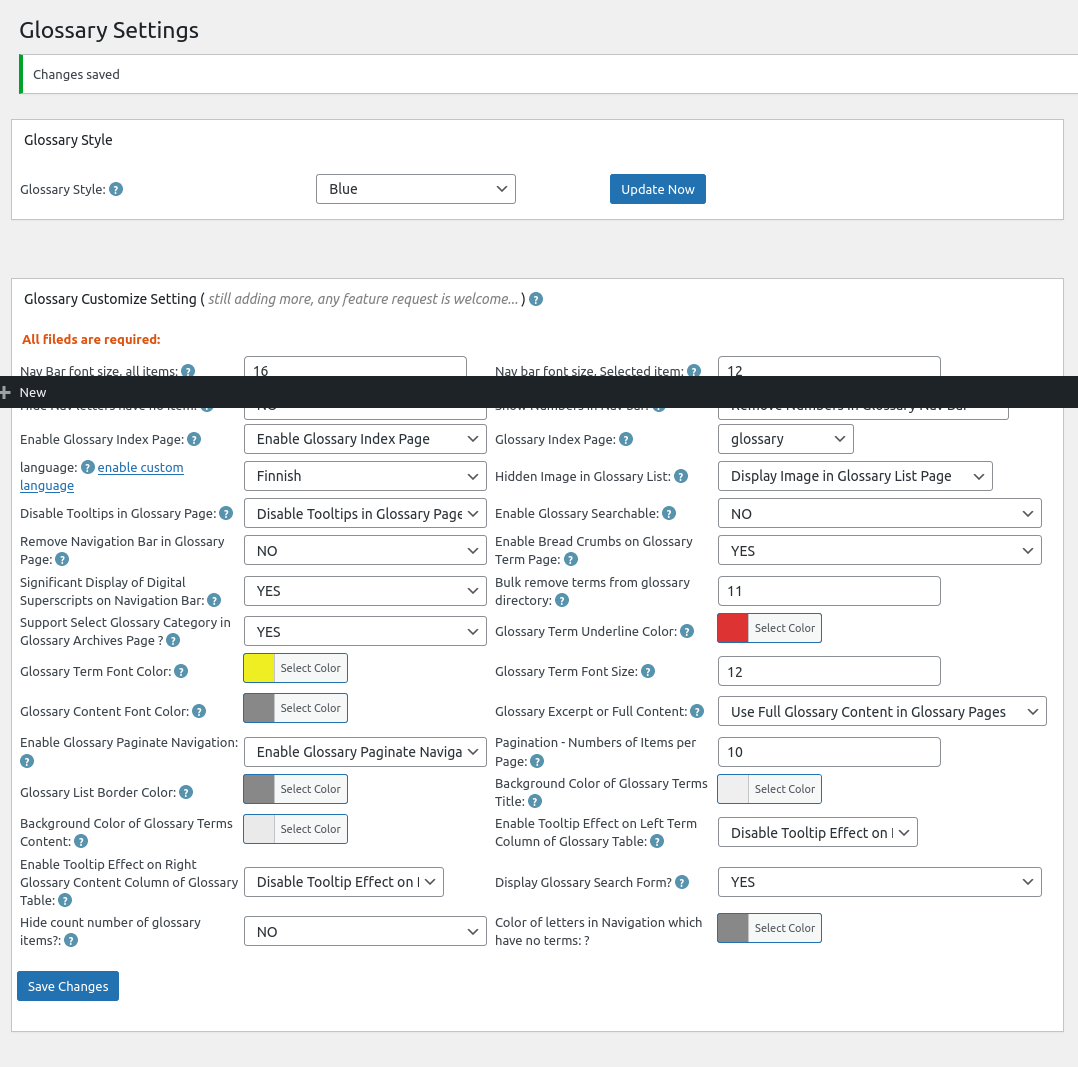
4:After activated wordpress glossary plugin 16.0.0, please Click “Tooltips” menu item in wordpress dashboard,  now please click “Glossary Settings” sub menu item, you will open “Glossary Settings”  panel in wordpress glossary pluigin 16.0.0, it looks like this:

Glossary Settings panel in wordpress tooltips glossary plugin 16.0.0

Glossary Settings panel in wordpress tooltips glossary plugin 16.0.0

Please note, because my screenshot tooltip have some problem, in the screenshot of glossary settings panel, you will find there are a black bar on the screenshot, in the real glossary settings panel, you will not see this black bar 🙂

5: At the bottom of the glossary settings panel, you will see “there are a new option: color of letters in navigation which have no items”, please just click the color picker to select the color for the color of letters in navigation which have no items and click “save changes” button 🙂

also the admin tooltip did not displayed because we make this screenshot after function verified, in the real version of wordpress tooltips pro plus, the “?” is a real admin tooltip in which you can get guide of how to use the option  🙂

6:Before: In front end, before you changed the settings of the option “color of letters in navigation which have no items”, color of letters in navigation which have no items looks like this:

wordpress glossary default blue template

wordpress glossary default blue template

You can see in here I selected blue template for my wordpress glossary page, we have 5 pretty wordpress glossary template: blue , blonde, dark, green ,  red, once you clicked to select a glossary theme, the color and style has been set up by default good-designed wordpress glossary template, in general, what you need just one-click, no other works need to do 🙂

After:  after changed “color of letters in navigation which have no items”, it looks like this:

wordpress glossary customized color of letter color in blue template

wordpress glossary customized color of letter color in blue template

You can see I selected another blue color for “color of letters in navigation which have no items”, so user will focus on the letters which have items 🙂

You can chose another pretty color for your “color of letters in navigation which have no items”,  I believe you will do better work for me, I just focus on develop work, this is just a sample 🙂

Conclusion:

An amazing wordpress tooltips user gave us a few great suggestions, for example, he suggested us to add an option to re-set “color of letters in navigation which have no items”, our wordpress tooltip developer think this is a great suggestion to improve user experience, so we realized the great feature request asap we can in a few hours. Based on user’s suggestion in last 12 years, wordpress glossary plugin has been build as a powerful wordpress glossary tool for users. If you have any amazing suggestion, please don’t hesitate to contact us, we are happy to realize it, we’d like offer discount for you if your idea is helpful for wordpress tooltip users 🙂

Tagged with: , , , , , , ,

WordPress tooltips pro plus 15.9.6, Support tooltips for ninja form and support add tooltips effect for more plugins which generate content dynamically

Hi Dear Users of WordPress Tooltip , hope this message find you are doing well and have happy weekend with your family 🙂 We get an amazing tooltip user’s ticket, in which he said:

Hey there.

I’m getting the following on some page pages with ninja forms, when tooltips is enabled: and the ninja form doesn’t appear.

SyntaxError: Unexpected identifier ‘tooltipsall’. Expected ‘}’ to end an object literal.

Any ideas what might cause this?

We actually just want to use the glossary, is there a way to disable the tooltips but have the glossary enabled?

and

If I enable tooltips, the form on the page does not appear, and I see “SyntaxError: Unexpected identifier ‘tooltipsall’. Expected ‘}’ to end > an object literal.” in the console.

I’ve attached a screen video demonstrating the issue. This is their covid screening form (the client runs seniors centres), so we can’t really leave it on. I would like to use your plugin though, its great.

Our wordpress tooltips developer checked code of ninja form and we found in their code, there are a javascription section will include some codes which generated by wordpress tooltips plugin, and they did not change the js format when re-use our codes, our developer fixed this problem 🙂

Then we found wordpress tooltips plugin cannot works in the content which generated by ninja form, after read many codes of ninja form, finally we found ninja form use a javascript html template to generate content, in the template there are some javascript codes, in this kind of plugins, it seems we have no method to find an API to hook the content because it will be generated by javascript codes, no in some wordpress standard API “the_content”, our developer tried many methods to solve this kind of problem, finally, after many many times, we found a way to add tooltips effects in content which generated by ninja form javascript codes dynamically 🙂

So in WordPress tooltips plugin pro plus 15.9.6, we support wordpress tooltips for ninja form and support add tooltips effect for a few more plugins which generate content dynamically — please note, this do not means we will All kinds of content which generate dynamically, because there are too many methods to generate content dynamically, but we tested on a few plugin which generate content dynamically, in the current time, wordpress tooltips pro plus works well with them 🙂


Tagged with: , , ,

How to construct a colorful and lovely attention-grabbing wordpress post by adding different color tooltip terms? WordPress Tooltip Pro Plus 15.9.4 Released

An amazing wordpress tooltips pro plus user submitted a ticket to us, he asked a question to our wordpress tooltip plugin: “Hi, In the tooltip style menu I can define the color of the text using “Tooltip Term Color in Post”. If I create a tooltip with customized style I cannot define this color and always get the color defined in the global setting. Where can I fix this?”, this is a good question 🙂

If you are wordpress tooltips pro plus plugin user, may be you know, in wordpress tooltips pro plus 14.8.0, we added a new option “Tooltip Term Color in Post” in tooltip style panel, to solve another amazing user’s feature request:”Does the Pro plugin allow me to change the format of the term on the page? For instance, of the term being underlined, could I instead change the color of the term text in the post?”

The option “Tooltip Term Color in Post” in tooltip pro plus style panel looks like this:

As you can see, at the bottom of the wordpress tooltip style panel, there are a new option “Tooltip Term Color in Post”, you can just click to custom the color of wordpress tooltip term in wordpress post via wordpress color picker, If you changed the tooltip term color in here, then in front end, you can choose a color different from the default font color of the wordpress theme to make the tooltip more visible on the page and easier for your wordpress readers to find and activate the tooltip pop-up 🙂

How every, if wordpress tooltip plugin support customize color wordpress tooltip term for each wordpress tooltip term, then that means, in your wordpress posts, you can use some wordpress tooltip term rich in various colors to beautify the style of your wordpress pages, making your page lively and full of spirit, rather than dull only a black font 🙂

How to construct a colorful and lovely attention-grabbing wordpress post by adding different color tooltip terms?

1: Please login  wordpress tooltip plugin site, if you have installed  wordpress tooltip plugin 15.9.4, then please move to step #11 directly

2: In tooltips.org top menu bar, please click “download” menu item

3: You will be requested enter your user name and password to download wordpress tooltip pro plus plugin version 15.9.4

4: After logged in tooltips.org, you will be redirect to my account panel, in here you will find the newest version of wordpress tooltips pro plus, it is a .zip file

5: After downloaded wordpress-tooltips pro plus plugin, please login your wordpress site.

6: Then in wordpress dashboard, please click “Plugins” menu item and then deactivated the old tooltips plugin version

7: Then please click the “Delete” link to delete the old version of wordpress tooltip

8: In “Plugins” menu item, please click “add new” link which at the top of the plugins panel

9: Please upload the tooltips plugin zip file that you downloaded from wordpress glossary plugin site

10:Please activate wordpress tooltip glossary plugin 15.9.4

11: Then please Click “Tooltips” menu item

12: Now you will find all tooltip terms which you entered, just select a wordpress tooltip term and click edit link to edit it

13: Now you will open wordpress tooltip editor, please move to the bottom of the wordpress tooltip editor, you will find “Enable / Disable Custom Unique Style Functionality for this tooltip” panel, please select “Yes,I will customized a unique style for this tooltip at below”, it looks like this:

14: Then in the bottom of the tooltip box customize setting panel, you will find a new option “Tooltip term color in post”

15: Via the tooltip term color picker, you can select a lovely color for this wordpress tooltip term

16: Also you will find there are a enable / disable option under the “wordpress tooltip term color in post” option. if you do not want display a colorful wordpress tooltip effects for this tooltip term, you can just select “disable the option”, else just keep it as “enable the option”

17: If you do not enable this option, wordpress tooltip pro plus plugin will use global settings which in wordpress tooltip style panel, for example, let’s day in the front end, you have set up default global tooltip style looks like this:

As you can see, all tooltip term have the same tooltip term color

18: Now if you set up to display different color for each wordpress tooltip terms, then it looks colorful in your wordpress post, for example, looks like this:

frontend of customized unique style of this tooltip term

It looks better, right? 🙂

Conclusion:

WordPress tooltips pro plus plugin has many sweet little tools that allow wordpress editor to decorate your wordprss post with colorful tooltip styles, you can use different lovely tooltip term colors to add some lovely and eye-catching spices to your carefully cooked thoughtful delicacies. You can add various videos, music, sounds, maps, payment QR codes… etc in your wordpress tooltip popup-window, saving you space in wordpress tooltip,  and making it fun for users to keep discovering your thoughtful restaurant of thoughtful delicacies.


Tagged with: , ,
Top