Category: Wordpress Tooltip Plugin Document

Optimize Your Glossary Layout: Tips for Better Spacing on Mobile, WordPress Tooltips Pro Plus 34.4.8

Creating Clarity: The Importance of Proper Spacing in Your Glossary — WordPress Tooltips Pro Plus 34.4.8

Hi, dear users of  WordPress Tooltips plugin, I  hop this message finds that you are doing well and having wonderful days with your family    We received a ticket from a WordPress Tooltips user who mentioned: “I have a question regarding the spacing between the glossary entries. Is there any possibility to adjust the spacing? Especially in the mobile version, it doesn’t look good. I wish you a happy new year!” . Our WordPress tooltips plugin developer has reviewed the user’s ticket, and we have  released the WordPress Tooltips Pro Plus 34.4.8 to implement this feature for WordPress tooltip users. 🙂


Enhancing Your Glossary: Adjusting Entry Spacing for Optimal Readability in WordPress Tooltips Plugin

1: Please open tooltips.org, then  click the download wordpress tooltip  menu item in the top menu bar  to download the lastest version of the  wordpress tooltip pro plus plugin (version 33.4.8 or higher).

2: Please login your wordpress site as administrator

3: In wordpress dashboard, navigate to “Tooltips” menu item, then click “Glossary Settings” sub-menu item

4: Now, you will open “Glossary Settings” panel, it looks like this:

Glossary entry top and bottom margin

5: As you can see, at the bottom of the “Glossary Settings” panel, there are new options: “Glossary entry top margin” and “Glossary entry bottom margin”, you can adjust the spacing between the glossary entries in here 🙂

Conclusion:

This change enhance readability and improve the overall aesthetic of the mobile version of their content:

Readability Concerns: On smaller screens, excessive spacing can make it difficult for users to engage with the content effectively. Users might find it harder to scan through glossary entries if they feel too spaced out.

Aesthetic Appeal: A well-designed layout is crucial for user experience. Users may notice that the current spacing looks unbalanced or cluttered, prompting them to seek a more visually appealing arrangement.

User Experience (UX): Mobile users often prefer concise layouts that allow them to access information quickly without excessive scrolling. The user might be seeking to optimize UX by minimizing unnecessary space.

Consistency: Maintaining consistent spacing in design elements can help create a cohesive look throughout the application or website. Users may want to ensure that glossary entries align neatly with other content.

Benefits of Adjusting Margins

Improved Readability: By fine-tuning the top and bottom margins, glossary entries can become easier to read and navigate, especially on mobile devices where screen real estate is limited.

Enhanced Visual Flow: Properly adjusted spacing can lead to a more harmonious layout, allowing users to move smoothly from one entry to another without visual distractions.

Better User Engagement: When content is easy to read and visually appealing, users are more likely to engage with it, leading to a better understanding of the terms and concepts presented.

Increased Accessibility: Adequate spacing helps accommodate users with visual impairments or those who may struggle with dense text layouts, promoting inclusivity.

Professional Appearance: Adjusting spacing contributes to a polished and professional look, which can build trust and credibility with users.

In summary, users may question spacing issues due to concerns about readability, aesthetics, and overall user experience, and adjusting glossary entry margins can significantly improve these aspects.

The wordpress tooltip glossary looks like this:

The ideals which have lighted my way, and time after time have given me new courage to face life cheerfully, have been Kindness, Beauty, and Truth. The trite subjects of human efforts, possessions, outward success, luxury have always seemed to me contemptible.
Do something wonderful, people may imitate it.
To follow, without halt, one aim: There is the secret of success.
Reflect on your present blessings, of which every man has many; not on your past misfortunes, of which all men have some.
True happiness means forging a strong spirit that is undefeated, no matter how trying our circumstances.
Love is the flower you've got to let grow.
We shall never know all the good that a simple smile can do.
In order to succeed, we must first believe that we can.
The best way to pay for a lovely moment is to enjoy it.
There is no duty we so underrate as the duty of being happy. By being happy we sow anonymous benefits upon the world.
Tagged with: , , ,

Never Lose Your Place: How to Use New Window Links in Your Glossary, WordPress Tooltip Free 10.5.3 Released

Enhancing User Experience: The Importance of Opening Links in a New Window for Your Tooltip Glossary

Hi, dear WordPress Tooltips plugin users, I  hop this message finds that you are doing well and having wonderful days with your family 🙂  We received a ticket from a WordPress Tooltips user. He mentioned that when he is viewing the glossary table, he wants to open links in a new window to allow users to keep their current page open while exploring additional content. This is particularly useful in a glossary context, where users may want to refer back to the glossary terms without losing their place. 🙂

It is a great suggestion! Our WordPress tooltips plugin developer has released the WordPress Tooltips Free Plugin 10.5.3 to implement this feature for WordPress tooltip users. 🙂

Stay on Track: Utilizing New Window Links in Your WordPress Tooltip Glossary

1: in wordpress back-end, please upgrade to wordpress tooltips free plugin 10.5.3

2: Then click “Tooltips” menu item in the wordpress dashboard:

tooltips menu in wordpress tooltips pro plus 27.5.8

tooltips menu in wordpress tooltips pro plus 27.5.8

3: Now,  click on the “Glossary Settings” sub-menu item

4: Okay, in the glossary settings panel, you will now see a new option labeled ‘Open Read-More in New Window.  Here’s what it looks like:

Open Read-More in New Window in wordpress tooltips glossry settings panel

5: While the screenshot is from the Tooltips Pro plugin, the functionality of the “Open Read-More in New Window” option is identical. To enable this feature, simply select “YES” for the “Open Read-More in New Window” option. This will ensure that when you click on the “read more” link in the glossary excerpt on the glossary page, it will open in a new window. If you choose “NO,” the link will open in the same window.

Our glossary looks like this:

The ideals which have lighted my way, and time after time have given me new courage to face life cheerfully, have been Kindness, Beauty, and Truth. The trite subjects of human efforts, possessions, outward success, luxury have always seemed to me contemptible.
Do something wonderful, people may imitate it.
To follow, without halt, one aim: There is the secret of success.
Reflect on your present blessings, of which every man has many; not on your past misfortunes, of which all men have some.
True happiness means forging a strong spirit that is undefeated, no matter how trying our circumstances.
Love is the flower you've got to let grow.
We shall never know all the good that a simple smile can do.
In order to succeed, we must first believe that we can.
The best way to pay for a lovely moment is to enjoy it.
There is no duty we so underrate as the duty of being happy. By being happy we sow anonymous benefits upon the world.

The Benefits of Opening Glossary Links in a New Window

The request to open ‘Read More’ links of glossary items in a new window can be attributed to several user experience considerations. Here are some reasons why a user might prefer this change, along with how it can benefit users:
Reasons for the Request

Maintaining Context:
Opening links in a new window allows users to keep their place in the glossary table. They can refer back easily without losing track of where they were.

Enhanced Exploration:
Users often want to explore definitions or related content without interrupting their current reading flow. New windows facilitate this exploration.

Reduced Frustration:
When users navigate away from a page, they might feel frustrated if they have to backtrack to find their original spot. A new window helps avoid this issue.

Multi-tasking:
Users may want to compare the glossary content with other information or resources. Multiple windows enable easier multitasking.

Better User Engagement:
Providing an option that aligns with user preferences can enhance overall satisfaction and engagement with the site.

Conclusion:

Benefits of This Change

Improved User Experience: Users will likely appreciate the flexibility to choose how to view additional content without disrupting their main task.

Higher Retention Rates: By making it easier to return to the glossary, users may spend more time exploring and engaging with the content.

Increased Interaction: Users might be more willing to click on more links when they know it won’t take them away from their current page.


Tagged with: ,

How to Implement the WordPress Tooltips Shortcode on Your Elementor Pages

Using WordPress Tooltips Shortcodes in Elementor: A Guide to the WordPress Tooltips Plugin Shortcode

Hello, esteemed users of WordPress Tooltip! I trust this note reaches you in good spirits and that you are having delightful moments with your loved ones. We received a request in the support forum for the WordPress Tooltips plugin from a fantastic user. They mentioned:

I see lots of help if its a Post page which may have a class and other ID but this doesn’t seem to appear for ordinary page. Your help suggests “wordpress page directory shortcode [ pagedirectory ] in the page” but what is and where to put shortcode in an Elementor page?

We’re thrilled to assist the WordPress Tooltips user in tackling their issue, and we think there are plenty of others out there with similar inquiries. We’d love to put together a comprehensive guide for all WordPress Tooltips plugin users to share right here.

Maximize Your Elementor Pages: Where to Place the WordPress Tooltips Shortcode

With the wordpress tooltips pro plugin, you can effortlessly enhance your WordPress posts by automatically adding tooltip effects to specific terms. This plugin is packed with fantastic features, like glossary support, directory capabilities, and even a bullet screen option! Plus, WordPress tooltip users can easily integrate these effects into their posts and Elementor pages using shortcodes. It’s a breeze!

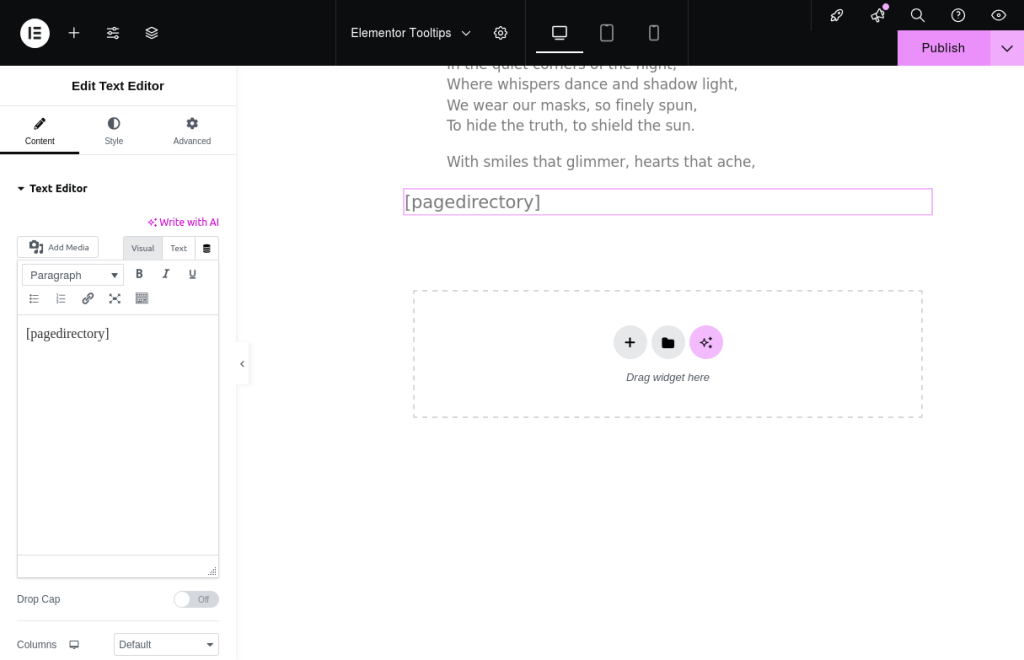
 How to Add a Shortcode in the WordPress Elementor Page Builder:

  1. Open Your Page with Elementor:

    • Head over to the page or post where you’d like to add your shortcode.
    • Hit the “Edit with Elementor” button to get started.
  2. Add a New Section or Choose an Existing One:

    • You can create a fresh section by clicking the “+” icon, or simply pick an existing section where you want to drop your shortcode.
  3. Drag and Drop the Shortcode Widget:

    • In the Elementor panel on the left, look for the “Shortcode” widget.
    • Just drag it over and drop it into the section you’ve chosen.
  4. Enter Your Shortcode:

    • Once the Shortcode widget is in place, you’ll see a spot to enter your shortcode.
    • Go ahead and type or paste your shortcode right there.
    • insert-tooltip-shortcode-in-elementor-text-edit-widget
      insert-tooltip-shortcode-in-elementor-shortcode-widget

      insert-tooltip-shortcode-in-elementor-shortcode-widget

      or:

    • insert-tooltip-shortcode-in-elementor-text-edit-widget
  5. Preview and Save:

    • After you’ve added your shortcode, take a moment to preview how it looks on the page.
    • If everything seems just right, click the “Update” button to save your changes.

Everything will run smoothly! We’ve put together a demo just for Elementor tooltip users.

If your shortcode is [ postdirectory ], just pop that right into the Shortcode widget.

Feel free to check out our guide here: https://demos.tooltips.org/elementor-tooltips/.

a: We’ve even included a handy screenshot to show you how to insert a wordpress tooltips shortcode in Elementor.

b: On the demo page, you’ll see that the shortcode works like a charm! 🙂

Explanation of Elementor Terms:

  1. Elementor Builder: Elementor is a popular drag-and-drop page builder for WordPress that allows users to create beautiful and responsive websites without needing to write any code. It provides a user-friendly interface where you can design your pages visually.

  2. Elementor Widget: Widgets are the building blocks of Elementor. They are individual elements that you can add to your pages, such as text boxes, images, buttons, and more. Each widget comes with its own set of customization options, allowing you to tailor the look and feel of your site.

  3. Elementor Shortcode Widget: The Shortcode widget in Elementor allows you to insert shortcodes into your pages. Shortcodes are small snippets of code that can execute specific functions or display content dynamically. By using the Shortcode widget, you can easily integrate various functionalities or features into your Elementor designs.

Why Elementor Tooltips Help Readers

Elementor tooltips are small informational boxes that appear when a user hovers over an element on the page. They can provide additional context, explanations, or tips related to specific content. Here are a few reasons why wordpress tooltips can be beneficial for readers:

    1. Enhanced Understanding: Tooltips can clarify complex terms or concepts, helping readers grasp the content better without cluttering the page with excessive text.

    2. Improved User Experience: By providing instant information, tooltips can make navigation smoother and more intuitive, allowing users to find what they need quickly.

    3. Reduced Cognitive Load: Tooltips can help keep the main content clean and focused while still offering supplementary information, reducing the cognitive load on readers.

    4. Engagement: Interactive elements like tooltips can make the content more engaging, encouraging users to explore and learn more about the topic.

Overall, Elementor tooltips can significantly enhance the usability and accessibility of a website, making it easier for readers to interact with the content.

What is the AnyThing Directory in WordPress Tooltips Plugin?

Okay, dear WordPress enthusiasts! If you’re diving into the world of WordPress, you probably know that managing different types of content can be quite the adventure. From FAQs and portfolios to testimonials, events, and reviews, there’s a lot to keep track of. That’s where the magic of directories comes in!

A directory, in this context, is essentially a well-organized listing that helps you present various posts or custom content types in a neat and accessible way. Think of it as a digital filing cabinet where everything is categorized and easy to find.

With the Pro Plus version of the WordPress Tooltips Plugin, you can effortlessly create a directory from any of these custom post types using a simple shortcode. For instance, the AnyThing Directory showcases all posts from the “tooltips” custom post type in one convenient location.

What’s great about the WordPress Tooltip Directory is that it not only displays the titles with links to each post but also provides a brief overview or the full content right there in the listing. Plus, you can enhance your directory by including images or videos for each entry, making it visually appealing and engaging for your readers. You have the flexibility to customize these settings through the options in the settings panel, ensuring that your directory fits your unique style and needs.

So, whether you’re looking to streamline your content or create a vibrant showcase of your work, the AnyThing Directory is a fantastic tool to help you connect with your audience!

It is very easy to make a Elementor Directory via wordpress tooltips plugin (check AnyThing Directory),  It looks like this:

The ideals which have lighted my way, and time after time have given me new courage to face life cheerfully, have been Kindness, Beauty, and Truth. The trite subjects of human efforts, possessions, outward success, luxury have always seemed to me contemptible.
Do something wonderful, people may imitate it.
To follow, without halt, one aim: There is the secret of success.
Reflect on your present blessings, of which every man has many; not on your past misfortunes, of which all men have some.
True happiness means forging a strong spirit that is undefeated, no matter how trying our circumstances.
Love is the flower you've got to let grow.
We shall never know all the good that a simple smile can do.
In order to succeed, we must first believe that we can.
The best way to pay for a lovely moment is to enjoy it.
There is no duty we so underrate as the duty of being happy. By being happy we sow anonymous benefits upon the world.

Please check the wordpress elementor tooltips at https://tooltips.org/product/tooltips-pro-mutil-site-license/

Tagged with: , , , ,

How to Identify the Page and Word for WordPress Tooltip Placement While Editing with Elementor?

Need Help: Starting Point for Adding WordPress Tooltips in Elementor

Hi, Dear  WordPress Tooltip users, I hope this message finds you well and that you are enjoying wonderful days with your family. 🙂 We received a ticket in the wordpress tooltips plugin support forum,  from an amazing wordpress tooltips users, he said:

I’m a novice at building websites, have started with WordPress and building pages with free version of Elementor and trying to use Tooltips Pro Plus. I want to add tooltips to words within paragraphs of text on pages (not . How do I even start identifying the page and the word while editing with Elementor to put the tooltip in?

We are very happy to help the WordPress Tooltips user resolve the issue, and we believe there are more users who have similar questions. We would like to rewrite a detailed document for the WordPress Tooltips plugin users to publish here. 🙂

What is Elementor?

Elementor is a popular WordPress page builder plugin that allows users to create and design custom web pages using a drag-and-drop interface. Here are some key points related to Elementor:

  1. User-Friendly Interface: Elementor provides an intuitive and easy-to-use interface, making it accessible for users with little to no coding experience.

  2. Drag-and-Drop Functionality: Users can simply drag and drop elements (widgets) onto their pages, allowing for real-time editing and design.

  3. Widgets and Elements: Elementor offers a wide range of widgets, including text boxes, images, buttons, sliders, forms, and more, which can be customized to fit the user’s needs.

  4. Responsive Design: Elementor allows users to create responsive designs that look good on all devices, including desktops, tablets, and smartphones.

  5. Templates and Blocks: The plugin comes with pre-designed templates and blocks that users can import and customize, speeding up the design process.

  6. Theme Builder: With Elementor Pro (the premium version), users can design their entire website, including headers, footers, and archive pages, using the theme builder feature.

  7. WooCommerce Support: Elementor integrates seamlessly with WooCommerce, allowing users to create custom product pages and shop layouts.

  8. Global Widgets: Users can create widgets that can be reused across multiple pages, ensuring consistency in design and saving time.

  9. Custom CSS: For advanced users, Elementor allows the addition of custom CSS for more precise styling of elements.

  10. Third-Party Add-Ons: There are numerous third-party add-ons available that extend Elementor’s functionality with additional widgets and features.

  11. SEO Friendly: Elementor is designed with SEO best practices in mind, helping users create optimized web pages.

  12. Regular Updates: The Elementor team frequently updates the plugin to add new features, improve performance, and enhance security.

  13. Community and Support: Elementor has a large community and extensive documentation, making it easy for users to find help and resources.

  14. Integration with Other Tools: Elementor integrates with various marketing and design tools, such as Mailchimp, HubSpot, and more, enhancing its functionality for users.

Overall, Elementor is a powerful tool for anyone looking to design and build custom websites on WordPress without needing extensive coding knowledge.

What is Tooltip?

Tooltips are small, informative pop-up boxes that appear when a user hovers over or clicks on an element on a webpage. They are commonly used in web design to provide additional information about a specific item without cluttering the interface. Here are some key points about tooltips, especially in the context of WordPress:

What are Tooltips?

  • Definition: Tooltips are UI elements that display brief, contextual information about a specific item when a user interacts with it.
  • Purpose: They help enhance user experience by providing explanations or additional details without requiring users to navigate away from the current page.

Key Features of Tooltips

  1. Hover or Click Activation: Tooltips can be triggered by hovering over an element or clicking on it.
  2. Customizable Content: You can include text, images, or even HTML content within tooltips.
  3. Positioning: Tooltips can be positioned in various ways (top, bottom, left, right) relative to the element they describe.
  4. Styling Options: Tooltips can be styled using CSS to match the overall design of your website.

Using Tooltips in WordPress

  • Plugins: There are several WordPress plugins available that make it easy to add tooltips to your site, such as:
    • Tooltips Pro: A more advanced plugin with additional features like animations and custom styling.
    • Tooltips Free: If you are using the Elementor page builder, wordpress tooltips free and wordpress tooltips pro support creating tooltips in elementor pages automatically.

How to Add Tooltips in WordPress

  1. Install a Tooltip Plugin: Choose a plugin that suits your needs and install it from the WordPress plugin repository.
  2. Create Tooltips: Use the plugin’s interface to create tooltips, specifying the content and trigger method.
  3. Insert Tooltips: Depending on the plugin, you may need to use shortcodes or a visual editor to insert tooltips into your posts or pages. If you are using wordpress tooltips pro plugin, it will automatically add tooltips effect to tooltip terms in wordpress posts.
  4. ustomize Appearance: Use CSS or the plugin’s settings to customize the look and feel of your tooltips. With wordpress tooltips pro plus, the style settings panel looks like this:

    Tooltips Style Panel in wordpress tooltips pro plus 28.2.8

    Tooltips Style Panel in wordpress tooltips pro plus 28.2.8

We have created a demo page for Elementor tooltips at:

https://demos.tooltips.org/elementor-tooltips/

WordPress tooltips pro plugin automatically supports Elementor tooltip. All you need to do is enter the tooltip terms in Elementor text editor widget, wordpress tooltip plugin will apply tooltips effect on tooltip term in wordpress posts automatically

On the elementor tooltips demo at https://demos.tooltips.org/elementor-tooltips/  , you will see that tooltips function automatically in the sentence “In shadows we dissimulare”

Best Practices

  • Keep it Concise: Tooltips should provide brief information; avoid overwhelming users with too much text.
  • Use Clear Triggers: Ensure that the elements that trigger tooltips are easily identifiable.
  • Test for Usability: Make sure tooltips work well on both desktop and mobile devices.

Conclusion

Tooltips are a valuable tool for enhancing user experience on your WordPress site by providing additional context and information. By using tooltip plugins in page builders like Elementor, you can easily implement tooltips to improve the interactivity and usability of your website.

Tagged with: , ,

The issue of function name conflict between the wordpress tooltips pro version and the free version has been resolved — wordpress tooltips pro plus 34.3.8 and tooltips pro 20.6.4

New version: wordpress tooltips pro plus 34.3.8 and tooltips pro 20.6.4 , the issue of function name conflict between the wordpress tooltips pro version and the free version has been resolved

Greetings, valued users of the WordPress Tooltips plugin. I hope this message finds you well and enjoying meaningful moments with your family.   We received a ticket from a new WordPress Tooltips user who reported a fatal error:

Purchased a while back. Moving to a new hosting. Pro plugin won’t activate; triggering a fatal error. I uninstalled, downloaded pro reinstalled, still no soap.

Our wordpress tooltips plugin support replied:

Hi,

I hope you are doing well and having happy days with your family 🙂

Thanks for the message. 🙂

We are very happy to help you 🙂

Sorry this is the first time we heard this kind of issue, would you please give us a little more details to tell us the “fatal error”? Screenshot or text?

If you are using CPanel, you can find error.log in your CPanel, if you are using LAMP, then you can find error.log at /var/log/apache2, would you please share the error.log with us, so we can find reason and resolve the issue for you? 🙂

Thanks, have a blessed day with your family 🙂

Best Regards,

WordPress tooltips plugin support team

The wordpress tooltip user replied:

The fatal error happens when I try to activate the pro plugin

and

“I fixed it, read your setup instructions. All I had to do was disable the free version and activate the pro version”

Our wordpress tooltips plugin developer reviewed his ticket, and we tested it on our server, we re-deveoped new version: wordpress tooltips pro plus 34.3.8 and tooltips pro 20.6.4 to resolve the issue 🙂


Tagged with: ,

New option: ‘Enable Alternating Row Colors’ in the glossary settings panel. WordPress tooltips pro plus 34.2.8 Released

Guide to Toggle Alternating Row Colors in WordPress Tooltips Glossary

HEY, dear wordpress tooltip users, I hope this message find you are doing well and having wonderful days with your family A few days before, we received a ticket from a wordpress tooltip users, in which he said he is a financial investment website that uses the WordPress Tooltips plugin for displaying an extensive glossary of terms and data related to securities analysis. They appreciate the plugin but have identified confusion among their analysts due to similar or repetitive information in the glossary. To improve readability and navigation, they are requesting the addition of a zebra-striping design feature to help distinguish between entries, enhance user experience, and reduce errors in data analysis. 🙂

Our WordPress Tooltips plugin developer has developed WordPress Tooltips Pro Plus 34.1.8 to implement the feature of alternating zebra-striping backgrounds in the glossary to enhance readability and improve user experience for the WordPress Tooltips users. 🙂

Following the release of WordPress Tooltips Pro Plus version 34.1.8, we received feedback from a user who operates a yoga school. He expressed a desire to maintain a simple and minimalist aesthetic for his website, indicating that he prefers to avoid the zebra-striping design currently applied to the glossary.

Sorry for the problem, we developed wordpress tooltips pro plus 34.2.8, in this tooltip version, the WordPress tooltips editor can enable or disable alternating row colors in both the glossary table. 🙂

How to Use Alternating Row Colors in the WordPress Tooltips Glossary Settings

1. Please visit the official wordpress tooltips plugin  site tooltips.org,  click “download wordpress tooltip”  menu item to download the latest version of wordpress tooltip  plugin (version  34.2.8 or higher)

2: Please login your wordpress as admin, in the wordpress dashboard, please upload wordpress tooltips zip file via wordpress plugins panel and activate the tooltip plugin.

3. In wordpress dashboard, navigate to “Tooltips” menu item. Then, please click on the “Glossary Settings” sub-menu item, this will open the “Glossart Settings” panel,  it looks like this:

Enable alternating row colors in wordpress tooltip glossary

4: As you can see, at the bottom of the wordpress glossary settings panel, there is a new option: “Enable alternating row colors”, if you enable this option, wordpress tooltips plugin will use zebra striping (alternating background colors) in the wordpress tooltips glossary on the front-end 🙂

If you prefer not to have alternating background colors in the glossary, simply disable the “Enable alternating row colors” option. 🙂

In version 34.2.8 of WordPress Tooltips Pro Plus, you can enable or disable alternating row colors in the wordpress tooltip directory using the ‘Enable Alternating Row Colors’ option as well. 🙂

Tagged with: , , ,

WordPress Tooltips 34.1.8 supports alternating row colors in the glossary table, allowing users to browse long lists more easily, quickly identify the content of each entry, and improve lookup efficiency

Implementing alternating zebra-striping backgrounds in the glossary to enhance readability and improve user experience, supported by WordPress tooltips pro plus 31.4.8

Hi, Dear  WordPress Tooltip users, I hope this message finds you are doing well and enjoying a wonderful day with your family. 🙂    We received an email from a wordpress tooltips user:

Subject: Feature Request for WordPress Tooltip Plugin Enhancement

Hello,

I hope you’re doing well!

We are a financial investment website offering securities analysis services to our clients. We absolutely love your WordPress Tooltips plugin and have been using it to display a large glossary of terms, data tables, financial reports, and economic indicators. Our glossary is quite extensive, and we aim to provide our users with quick, accurate access to a wealth of information, such as industry classifications and financial metrics.

However, our financial analysts have pointed out that when reading through the lengthy glossary, they sometimes get confused by similar or repetitive information, especially with common industry classifications and other shared data points across different companies. To help our users better navigate and distinguish between these entries, we were hoping you could consider adding a zebra-striping design feature. This would make it easier to read complex financial reports, reduce errors, and ultimately improve the efficiency of data analysis.

We truly appreciate the work you’ve done on this plugin and believe this feature could be a great addition to enhance the user experience.

Thank you so much for your time and consideration!

Warm regards,

Our wordpress tooltips plugin developer review this ticket, we believe this is a fantastic idea:

Using Alternating Light and Dark Backgrounds in Glossary Lists to Differentiate Rows or Items:

We are confident that implementing alternating backgrounds in the Glossary will have several important benefits for users, particularly for those interacting with WordPress tooltips. It will make it easier for users to read and process information quickly. Here are the key benefits:

  1. Improved Readability
    Alternating zebra-striped backgrounds can help users distinguish between different rows or items, making it easier to quickly scan and read the content. This is especially useful in tables with large amounts of data, allowing users to track each row’s content more intuitively and reduce eye strain.
  2. Enhanced Visual Hierarchy
    The alternating color backgrounds create a visual distinction between sections, making the content clearer and more structured. This helps users better understand the table or list’s organization, which is crucial when dealing with complex information.
  3. Better User Experience
    Zebra-striping helps reduce visual distractions and confusion, making the browsing experience more comfortable. In data-heavy applications, good layout and design not only improve readability but also ensure that users don’t feel fatigued or confused after prolonged use.
  4. Faster Information Lookup
    The alternating background design aids users in quickly finding rows or items they need to focus on, especially when comparing data. The color variation allows users to easily compare two rows or items.
  5. Easier Data Entry or Review
    For users entering or reviewing data, zebra-striping helps reduce errors by clearly demarcating each row or entry, thereby improving efficiency.

Conclusion
In summary, alternating zebra-striped backgrounds in glossaries (or other data tables) primarily enhance readability, improve visual effects, and boost the user experience. In scenarios with large amounts of data or frequent reference needs, it helps users process information more easily.

We re-developed our wordpress tooltips pro plus plugin to support this amazing feature request, we believe this design will not only help users of financial and investment websites, but we also think the following types of websites will particularly benefit from this design:

  1. Knowledge Base and Document Management WebsitesFeatures: These websites typically contain a large number of terms, definitions, technical specifications, and reference materials. Users often need to look up the definitions of terms or compare the meanings of different terms. Need: The zebra stripe alternating background can help users navigate long lists more easily, quickly identify the content of each entry, and improve browsing efficiency. Examples: Technical documentation, API documentation, developer documentation, etc.
  2. Online Learning Platforms and Educational WebsitesFeatures: Online learning platforms usually provide courses, learning materials, as well as glossaries or knowledge point indexes. On these platforms, users (especially students) need to look up and understand a large number of concepts and definitions. Need:The zebra stripe background helps students and learners reduce eye strain while browsing terms, definitions, or course outlines, improving learning efficiency. Examples: Online education platforms such as Coursera, Udemy, or school and university knowledge bases.
  3. Enterprise Internal Knowledge Management PlatformsFeatures: Enterprise internal knowledge management platforms contain a large number of glossaries, business processes, technical specifications, and other professional documents. These pieces of information often need to be quickly accessed and understood by employees. Need: The zebra stripe background allows employees to more efficiently look up and compare related terms or steps, reducing search time and improving work efficiency. Examples: Internal wikis or knowledge bases in large enterprises.
  4. Legal Websites and Legal Document LibrariesFeatures: Legal websites usually contain a large number of legal articles, case analyses, term explanations, and legal definitions. Since legal documents are often complex and full of specialized terms, using a zebra stripe background can effectively improve readability. Need: The zebra stripe design helps lawyers, law students, or general users more easily distinguish and understand content while looking up legal clauses and terms. Examples: Legal consultation websites, legal resource libraries, etc.
  5. Dictionary and Translation WebsitesFeatures: In online dictionaries, translation tools, or language learning websites, glossaries and word explanations are the main content, especially in bilingual or multilingual environments, where users often need to look up a large number of words and expressions. Need: The zebra stripe background helps users quickly identify and compare different words or translations. Especially when displaying multilingual translations, the visual differentiation helps reduce confusion. Examples: Translation platforms like WordReference, Linguee, etc.
  6. E-Commerce Product Terminology or Specification TablesFeatures: For some products (especially electronics, home goods, etc.), detailed product specifications and terminology often need to be presented in tables. To help users find information, tables typically include data across multiple dimensions. Need: The zebra stripe background helps customers more easily compare different product specifications, especially when reviewing the technical parameters of multiple products, as the clear visual differentiation improves the shopping experience. Examples: E-commerce websites like Amazon, JD etc., product comparison pages.
  7. Healthcare and Medical WebsitesFeatures: Healthcare websites often need to display a large amount of medical terminology, treatment methods, disease classifications, drug ingredients, etc. Users often need to quickly find relevant information in professional literature and glossaries.Need: The zebra stripe background helps healthcare professionals or ordinary patients more quickly browse and understand complex medical terms or treatment plans. Examples: Websites like WebMD, health encyclopedias, etc.

Overall, any website that needs to display a large amount of data, terminology, definitions, or information comparison may benefit from using a zebra stripe alternating background to improve the user browsing experience. This design is especially important for knowledge-intensive websites with abundant terminology or long data tables, as it can effectively improve readability, reduce eye strain, and increase the efficiency of information retrieval.

Thanks for the amazing suggestion, if you have any more feature request to wordpress tooltips plugin, please don’t hesitate to contact us, we are very happy to realize it for you 🙂

Thanks, have a blessed day with your family 🙂

Best Regards,

WordPress tooltips plugin support

Tagged with: , , ,

Simple Ways to Add WordPress Tooltips to Your Elementor Design — Elementor Tooltip

Step-by-step guide to adding wordpress tooltips in elementor

Hi, Dear  WordPress Tooltip users, I hope this message finds you are doing well and enjoying happy days with your family.    We received an amazing wordpress tooltips users’ ticket, in which he asked: I want to be able to use this wordpress tooltips plugin with in a block of text by highlighting maybe a single word or small group of words then have a text tooltip popup. I’m using elementor to build the pages and entering text, I don’t get on with the gutenberg editor. Can this be done?

Our WordPress tooltips plugin developer reviewed the ticket. Yes, we have many users of the WordPress tooltips plugin utilizing tooltip effects in the Elementor builder. We believe that more users may have similar questions, so we’d like to write a detailed document for WordPress tooltip users to publish publicly. 🙂

What is WordPress Elementor?

WordPress Elementor is a popular page builder plugin for WordPress that allows users to create and design websites using a drag-and-drop interface. Elementor provides a wide range of customizable templates and widgets, enabling users to build visually appealing and responsive web pages without needing to write code.

Key features of Elementor include:

  1. Drag-and-Drop Editor: Users can easily add and arrange elements on their pages by dragging and dropping them into place.

  2. Pre-designed Templates: Elementor offers a library of pre-designed templates that users can customize to fit their needs.

  3. Responsive Design: Users can design pages that look great on all devices, including desktops, tablets, and smartphones.

  4. Widgets and Elements: Elementor includes a variety of widgets, such as text boxes, images, buttons, sliders, and more, which can be customized and styled.

  5. Theme Builder: With Elementor Pro (the premium version), users can design and customize their entire WordPress theme, including headers, footers, and archive pages.

  6. Live Editing: Changes can be viewed in real-time, allowing users to see how their edits will look on the front end.

  7. Integration: Elementor integrates with other WordPress plugins and tools, enhancing its functionality and allowing for more complex designs.

What are WordPress Tooltips?

Tooltips are small pop-up boxes that provide additional information, such as videos, audio clips, images, Google Maps, QR codes, Wikipedia links, text, and more. In WordPress, these tooltip boxes appear when users hover over an element on your pages. This element could be a word in your post, an input field in a search form, an image, a widget in your sidebar, and various other components. The WordPress tooltip plugin allows you to add tooltip effects to any element within your WordPress posts, as well as on menus, comments, contact forms, WooCommerce products, bbPress forums, BuddyPress activities, and more. It comes with attractive effects and numerous additional features, including components like a Bullets Screen.

What is the WordPress Tooltip Plugin?

The WordPress Tooltip Plugin is a plugin designed specifically for WordPress that enables you to create vibrant, diverse, and elegant tooltip styles to present content to your users. With dynamic and graceful animation effects, this plugin helps you utilize your screen space effectively.

When users hover over an item, a colorful tooltip box will pop up with an engaging animation. You can include videos, audio, images, and even content generated by other WordPress plugins, such as QR codes, Amazon ads, and Google Maps, all within the tooltip box using the standard WordPress editor. It’s incredibly user-friendly.

How to create interactive wordpress tooltips in elementor?

Creating interactive tooltips in WordPress using Elementor is a straightforward process. Here’s a step-by-step guide to help you set up tooltips effectively:

Step 1: Install and Activate Elementor

1. **Install Elementor**: If you haven’t already, install the Elementor plugin from the WordPress repository.
2. **Activate the Plugin**: Once installed, activate the plugin from the Plugins menu in your WordPress dashboard.

Step 2: Create or Edit a Page, Edit with Elementor

1. **Go to Pages**: Navigate to the “Pages” section of your WordPress dashboard.
2. **Add New or Edit Existing Page**:

3. **Edit with Elementor**: Click the “Edit with Elementor” button to enter the Elementor page builder interface.

Step 3: Add Tooltip Content

1. **Download and install  the wordpress tooltips plugin**: Please click “download wordpress tooltip”  menu item to download wordpress tooltip  plugin  , upload wordpress tooltips zip file via wordpress plugins panel and activate it.

2. **Create your first tooltip**:  In wordpress dashboard, navigate to “Tooltips” menu item. Then, please click “Add New” sub-menu item to add a new tooltip terms, you will open wordpress tooltips editor

Click on “Add New” to create a new page or select an existing page to edit.

add new wordpress tooltip

add new wordpress tooltip

In the tooltip editor, you have the flexibility to include various HTML elements such as images, links, and text directly within your WordPress post editor.

Add new wordpress toolip

You’ve now successfully created a WordPress tooltip! When you hover over the specified keyword, the tooltip will appear.

Step 4: Insert Tooltip Trem in WordPress Post via Elenemtor

1. **Select an Element**: Choose the element (text, image, button, etc.) where you want to add the tooltip.
2. **Add Tooltip Terms**: Simple enter the tooltip term in the text editor and publish the post

In front-end, when mouse hover the tooltip term in the wordpress post, you will find tooltip box popup with tooltip content, all things works well 🙂

You can also customize the appearance of your tooltips, our wordpress tooltip plugin provides more awesome configuration options, like text color, background, font size, width, shadow, opacity, trigger method and more. If you prefer, please read how to customize your tooltips.

Conclusion

By following these steps, you can create interactive wordpress tooltips in Elementor that enhance user experience and provide additional information without cluttering your page. Customize the tooltips further with wordpress tooltip plugin for more advanced options.

Tagged with: , ,

Fixed a bug related to case sensitivity — WordPress Tooltips Pro 20.5.4 and Tooltips Pro 34.0.8

Fixed a bug related to case sensitivity in wordpress tooltips plugin

Hi, dear wordpress tooltips plugin users, I hope this message finds you well and that you’re having wonderful days with your family   We are happy to inform you, we have released WordPress Tooltips Pro  20.5.4  to fix a bug related to case sensitivity,  based on the feedback from a wordpress tooltips user, in the ticket he mentioned:

Hello,
I created a tooltip called Mod. Since the creation of the tooltip called Mod capitalizes all the first letters of words  starting with Mod….. Question: I have my tooltip called Mod (In my articles, Mod = the name of a variable), how can I make the word  modifier, or modification or model… in short, all the words starting like the same tooltip do not see their first letter capitalized?

Our wordpress tooltip plugin developer conducted numerous tests on various options, and we finally identified the bug that occurs when setting a specific combination of options. 🙂

The bug only existed in the wordpress tooltips pro version, and we have fixed the bug in the wordpress tooltips pro plugin 20.5.4 🙂

At the same time, although the bug did not exist in wordpress tooltips pro plus version, we synchronized the code in wordpress tooltips pro plus version 34.0.8 🙂

Thank you for the bug report, if you have any more questions, please don’t hesitate to contact us, we are very happy to improve the wordpress tooltips plugin for you 🙂

Thanks, have a blessed day with your family 🙂

Best Regards,

WordPress Tooltips Plugin Suport

Tagged with: ,

How to resolve the conflicts between WordPress tooltips and JetElements line chart?

Troubleshooting Tooltip Issues in WordPress and JetElements Line Charts

Hi, Greetings to the amazing users of WordPress Tooltip plugin! I hope this message brings a smile to your face and finds you having enjoying happy days with your family 🙂 We received a ticket from a wonderful wordpress tooltip user who reported  a conflict between the JetElements line chart and the wordpress tooltips plugin:

Tooltips broke my line-chart of JetElements

Hello, do you have any Idea how I can fix this? In the middle of the following page is a line-chart. Tooltips brakes all legend with the colored boxes.

Our wordpress tooltips plugin reviewed his ticket and replied:

Hi,

Hope you are doing well and having happy days with your family 🙂

Sir, Thanks for the URL, we have checked it, yes, we do found the issue in your page, we guess this is due to a plugin on your site causing a conflict with code? We are very happy to resolve the issue for you 🙂

Sir, Can I provide a zero-risk suggestion that would allow us to check and reproduce this issue ?

Thanks, have a blessed day with your family 🙂

Best Regards,
Wordpress Tooltips Support

The wonderful tooltip user replied:

Hello, do you have any Idea how I can fix this? In the middle of the following page is a line-chart. Tooltips brakes all legend with the colored boxes.


Finally we found it is because the conflict between WordPress tooltips and JetElements line chart plugin, we checked JetElements careflly, we found wordpress JetElements is a premium add-on for the Elementor page builder in WordPress, designed to enhance the functionality and design capabilities of websites built with Elementor. One of the features included in JetElements is the line chart widget, which allows wordpress users to create and display line charts on their wordpress pages.

Key Features of the JetElements Line Chart:

  1. Data Visualization: The line chart widget helps in visualizing data trends over time, making it easier for users to understand patterns and insights.

  2. Customization Options: Users can customize various aspects of the line chart, such as colors, labels, and styles, to match the overall design of their website.

  3. Responsive Design: The line charts created with JetElements are typically responsive, ensuring they look good on different devices, including desktops, tablets, and smartphones.

  4. User-Friendly Interface: The widget is designed to be user-friendly, allowing users to easily input their data and configure the chart without needing extensive technical knowledge.

  5. Integration with Other Widgets: JetElements can work seamlessly with other Elementor widgets, allowing for more complex layouts and designs.

  6. Dynamic Data: Some versions of the widget may allow for dynamic data input, meaning the charts can update based on real-time data sources.

After tested the JetElements line chart addon, yes it is really a a powerful tool for anyone looking to present data visually on their Elementor-built website, providing both functionality and aesthetic appeal. 🙂

What is WordPress Tooltips?

Tooltips are small popup box with more information like video /  audio / image / google maps / QR code / wiki / text… and so. WordPress Tooltips box will pop up when users hover over an element in your pages, the element can be a word in your post, a search form input box, an image in your page, a widget on your sidebar.. and so on. WordPress tooltip plugin supports add tooltip effect on any element on the wordpress posts, or display on wordperss menu, comment, contact form, woocmmerce product, bbpress forum, buddypress activity…etc, with pretty effects and many more little amazing components and addons, for example, Bullets Screen

What is WordPress Tooltip Plugin:

WordPress tooltip pro is a tooltips plugin for wordpress, which be designed to help you create colorful, varied and graceful tooltip styles to present the content to your users, with lively and elegant animation effects, and save your valuable screen space.

When the users hover over an item, the colorful tooltip popup box will display with the animation effect. You can add video, audio, image, and even other content which generated by 3rd wordpress plugins like QR code, Amazon AD, Google Map in tooltip popup box via wordpress standard editor, it is very easy to use.

Solutions for Conflicting Tooltips in WordPress and JetElements Charts

If you are using wordpress tooltips pro latest version, when you edit a post in the Gutenberg editor, you will find a metabox on the right-hand side of the editor labeled:”Disable specific tooltips”.

Please enter the tooltip terms like this:
————–
Joomla,Drupal,Shopify,Magento,Typo3
————–

Then, the issue will be resolved on the front end 🙂


Tagged with: , ,
Top