Hey Dear users of WordPress Tooltip plugin 🙂 Hope this message find you are doing well and having happy weekend 🙂 A wordpress tooltip user submitted a feature request, he said he is reading our wordpress tooltip documentation, and he followed our document “How to Custom Tooltip Term Background in WordPress Post? Support by WordPress Tooltips Pro Plus 17.6.8” to customized a pretty background for wordpress tooltip keyword, and it is really attracting readers’ attention, and then he asked us, how to allow wordpress tooltip editor customize background color for each wordpress tooltip term? If each wordpress tooltip keyword can have a different and beautiful background color, the whole wordpress post will much more colorful , and readers will have a good reading experience, and readers will feel fresh and visual impact, so as to better accept the author’s views, and will be more willing to stay on this page to participate in the interaction with the author 🙂
Yes, our wordpress tooltip developer said the user’s suggestion is absolutely correct, this feature request is very worthwhile for us to quickly develop a new version so that wordpress editor can have a new and powerful tool to attract their audience 🙂
So one day later, we released a new wordpress tooltips plugin for the great user — wordpress tooltips pro plus 18.1.8
How to different background colors for each wordpress tooltip keyword?
2: login your wordpress site and click tooltips menu item
3: try to add a new tooltip term or edit your existed tooltip term, you will open wordpress tooltip editor
4: at the bottom of the content editor, you will find tooltip box customize settings panel, it looks like this:
Tooltip Term Background in Post in tooltips pro plus 18.1.8
5: as you can see in the picture above, at the bottom of tooltip box customize settings panel, we added a new option “Tooltip Term Background in Post”, in the option, you will find the color picker and the select box “disable the option”, if you want to add background for this wordpress tooltip term, please select “enable the option” and chose the color you like from the color picker
6: above the “tooltip box customize settings panel”, you will find another panel “Custom unique style for this tooltip”, please select “yes, I will customize a unique style for this tooltip”
7: Enter wordpress tooltip title and content in tooltip editor and publish the wordpress tooltip
8: insert the tooltip keyword in any wordpress post, then in front end, you will find the background color of the wordpress tooltip term has been changed as you settings in wordpress tooltip editor
9: just custom beautiful background for other wordpress tooltip keyword, then you will have a colorful wordpress post which let users stay on your page longer 🙂
Conclusion:
WordPress tooltips pro + plugin support customize unique style for each wordpress tooltip term, by customize different background color for each wordpress tooltip keyword in wordpress tooltip editor, in front end, users will get a colorful and pleasing to the eye wordpress post 🙂
Hi, dear users of wordpress tooltip , hope this message find you are doing well and have happy weekend with your family 🙂 We just released a new version of wordpress tooltips plugin 16.1.6 to support use wordpress tooltip shortcode tooltip_by_id in woocommerce product variant better 🙂
An amazing user of wordperss tooltip pro plugin told us he using wordpress tooltip shortcode tooltip_by_id in his wordpress site, and there are a few problem, after several rounds of communication, we found out that the amazing user was inserting wordpress tooltip shortcode tooltip_by_id in woocommerce product variant area, this is the first time we heard of this usage, as author of wordpress tooltip plugin, we developed an advance woocommerce tooltips addon in wordpress tooltips pro plus version to support add wordpress tooltip effect in woocommerce product description, woocommerce product short description, woocommerce product title, woocommerce product bundles…etc and support add tooltips effects in woocommerce variant automatically, we have a detailed document at: How to Add Custom WooCommerce Tooltip Effects to WooCommerce Variations in WooCommerce Variable Products? But we never thought we could use wordpress tooltip shortcode in woocommerce product variant area, the amazing user taught us a lesson about how to add woocommerce tooltip , we was think woocommerce product variant function will not support shortcode! 🙂
Okay, our developer checked our codes of wordpress tooltip plugin and find the problem, we have released a new version wordpress tooltip pro plugin 16.1.6 to ensure all things works well 🙂
Thanks for the great bug report, we’d like offer the amazing user 15% discount for any product on our site 🙂 If you have any more question, please don’t hesitate tel tell us, we are very happy to help you solve the problem 🙂
Hi, dear wordpress tooltip users, hope this message find you are doing well and have happy days with your family 🙂 An amazing wordperss tooltip user told us he don’t want to tooltip shows up in menus, we’d like write a detailed step by step document with screenshot to help the user and other wordpress tooltip user who have similar needs 🙂
At present, we usually talk about two kinds of menus:
1: Menus that generated by wordpress theme, in general, it is at the top of wordpress site.
2: “Menus” or “Navigation” which created by a wordpress plugin or a wordpress editor, it may inserted in a wordpress post, wordpress page, or be placed on a wordpress widget…etc
Of course, may be some theme or plugin can get menu items and add it on the wordpress widget or wordpress footer, we also think that this rare situation has been included in the the first and second situations, because wordpress tooltip support enable / disable tooltip effects in all these situations 🙂
Okay, let’s start 🙂
How to Disable the WordPress Tooltips Effect on Menus Items in the First Case?
1: Login your wordpress site as wordpress administrator
2: Click Tooltips menu item
3: Click Optional settings sub menu item, by default, it looks like this:
wordpress tooltip menus 14.3.6
4 You will open optional settings panel, it looks like this:
Tooltips Optional Settings in wordpress tooltips plugin 14.5.8
5: At top of the optional settings panel, you will find option “Add Tooltips to Menu Items: “, please select “remove tooltips from menu items”, then click the blue “update now” button
6: Now please check “Tooltips for Post Title” option, and select “disable tooltips for post title”, then click the blue “update now” button to update the settings, in general, in front end, tooltips in your menu items which created by wordpress theme should be removed
7: please check your front end, if you find wordpress tooltip still displayed on menu items, please clear your cache plugin and clear your browser cache
Please note, just like we motioned at “add tooltips to menu item” option: “Note: May not work with some themes” — based on how the wordpress theme menu be developed by the author 🙂
How to Disable the WordPress Tooltips Effect on Menus Items in the Second Case?
1: Login your wordpress site as wordpress administrator
2: Click Tooltips menu item
3: Click Optional settings sub menu item
4 You will open optional settings panel, it looks like this:
4: Please check the option: “Disable Tooltips for Selected Classes and IDs”, it looks like this:
Disable Tooltips for Selected Classes and IDs
You can enter the css Class or css ID in here to disable tooltips effects on components of your wordpress post / page.
5: How to find a css Class or css ID of component in wordpress page?
Okay, let’s say if you using the browser firefox to view your wordpress post,a official document from firefox can be found at: Debugging CSS , please use a few minutes to read it, then:
5.1 please enter F12, then select “Inspector” tab at the bottom of the firefox browser
5.2 then press CTRL+SHIFT+C
5.3 move mouse to over any component in your wordpress post, you will find you can get all HTML code and CSS Class / ID of any element in your wordpress page.
For example,in our home page of wordpress tooltip plugin site, there are a menu item “menu tooltips demo”, when you mouse hover the menu item, you will find a rotate tooltip window pop up, let’s try to disable tooltip effect on menu:
enter f12, enter CTRL + SHIFT + C, move mouse to the menu item “menu tooltip demo” and click the menu item, you will find in the firefox “Inspector” tab, you can see HTML codes of this menu component, you will find HTML looks like this:
You can use CSS Class “menu-item” to disable tooltips effect for all menu items, or use CSS ID “menu-item-5454” to disable tooltip effect for this menu item “menus tooltip demo”, and keep tooltip effect displayed on other menu items yet 🙂
In our course, we just want to disable tooltip effect on the menu item “menus tooltip demo”, so we can use use CSS ID “menu-item-5454” to stop tooltip effect on this menu item by this way:
5.4 open wordpress tooltip optional settings panel, and in the option: “Disable Tooltips for Selected Classes and IDs”, enter the CSS ID #menu-item-5454 in the input box, it looks like this:
Disable Tooltips for Selected ID of component in wordpress page
5.5 Click update now blue button, then in front end, tooltip effects will be removed from then menu item “menus tooltip demo”, I’d like offer before / after screenshot for you:
Before
enabled tooltip effect on wordpress menu item
After
disabled tooltip effect on wordpress menu item
Conclusion:
WordPress tooltip plugin can add tooltip effect on components of wordpress pages, for example you can add tooltip effect to wordpress menu, Post Title, wordpress content, wordpress tag, wordpress widget, image in wordpress, video in wordpress…etc, in backend of wordpress tooltip plugin, you can enable / disable via a few clicks, and you can disable / enable tooltip effect on component in wordpress post via CSS class or CSS id of component in wordpress pages
Hi, Dear users of wordpress tooltip plugin, hope this message find you are doing well and have happy weekend with your family 🙂 We just released wordpress tooltips free plugin 8.1.5 to improved wordpress tooltip shortcode, based on the feedback of amazing wordpress tooltip 🙂
A few days before we got a ticket from an amazing wordpress tooltip user:
Hey support,
I was wondering if you could help me. My company is using your plugin for an internal e-learning platform. For this we are
utilizing another plugin called LearnPress. After updating LearnPress, your plugin is no longer working inside the e-learning courses. Outside of it(we have a Knowledge Base attached) everything is working fine.
“Not working” means that all tooltips I included via Shortcodes are still seen (dotted lines under the words), but if you hover over it, nothing is popping up.
I already tried different global settings with your plugin(Z-Index Value, Hook Priority Value, J-Query Migrate…) but then the
plugin wasn’t working outside of LearnPress as well 😀
I am using the plugin to give solutions/help for assignments in the courses. I am not able to use global glossary settings,because of this.
Can you help me fix this problem?
Thank you very much. 🙂
Our developer installed the 3rd plugin and created a few wordpress tooltip terms, then we created a few courses and insert wordpress tooltip keyword in these courses, after published courses, in front end, we found all things works well, we did not find the problem. So we replied the user:
Hi,
> >
> > Thanks for the reply 🙂
> >On our side, we have installed learnpress and we tested it with tooltip, tooltips works well in learnpress course, I am not sure is it just a problem caused by settings in learnpress side or may be your content in the course is generated by another 3rd plugin or addon…etc, I believe there are a few more easier way to share the screen with us to understand the problem better.
For example, a video or screenshot images that shared with our dropbox or your google cloud or your ms cloud with a download link, so we can understand better of the problem? 🙂
> >
> > Thanks, have a great day with your family 🙂
> >
> > Best Regards,
> > WordPress Tooltip Support
and
Thanks for the reply 🙂
Yes, we do not want to login the backend of your site because it is safe to you, the security is most important thing on the internet in the current time, Let’s try to do it with a few easier way 🙂
We have list a few methods in last reply, I guess you do not want to use google cloud or dropbox or ms cloud to share the video or screenshot of the problem on your site, in this case, would you please share the screenshot via https://screenshot.net or
https://paste.pics/ ?
Thanks, have a happy day with your family 🙂
Best Regards,
Wordpress Tooltip Support
Then the amazing user told us:
Hey support,
ok, I made some screenshots for you that might help you determine, what is not working.
You can download the screenshots from my company’s download center
Then our wordpress tooltip developer checked their screenshot, we found they are using wordpress tooltip shortcode to build the tooltip in their course page, and we did a few checks in our site again and reply the user:
Hi,
Thank you very mich for the great screenshots 🙂
Our developer build a development platform and follow your screenshots, at first we create a new tooltip and insert tooltip term in learnpress course, and it works well, and then we tried to insert tooltip shortcode in course editor, then in front end, we found the problem in learnpress course page, we found tooltip shortcode in tooltips pro plus works well with learnpress and tooltip free not working good, we are try to compare two version and we will try to fix this in new version 🙂
Thanks, have a happy day with your family 🙂
Best Regards,
Wordpress Tooltip Support
Finally, we found our wordpress tooltip free plugin is build many many years before(12 years) , and our wordpress tooltip shortcode is created in many years before, in recent years, javascript and wordpress have upgraded a few times, our wordpress tooltip developer re-developed our wordpress tooltip shortcode functions, and it works well with these 3rd plugins now. We are checking other shortcode functions to ensure all shortcode functions can works well with 3rd wordpress plugins and themes too, you will see the new version soon 🙂
Thanks for the great report, that really help wordpress tooltips better for all users of wordpress tooltip plugin, we’d like offer a 15% discount for the user because this great feedback 🙂
If you have any more question or feature request, please don’t hesitate to contact us, we are very happy to build a better and better wordpress tooltip plugin for you 🙂
Hi dear users of WordPress Tooltip, hope this message find you are doing well and having happy days with your family 🙂 We got a wordpress tooltip user’s feature request a few days before, in which he said he love the functions of wordpress tooltip plugin, and it is pretty good to insert youtube video into wordpress tooltip window in tooltip editor metabox, but he is using vimeo as his video hosting, he hopes to be able to quickly insert vimeo videos into wordpress tooltip window, just like the function of inserting youtube videos that we now realize, our developer lost his weekend to realize this feature of vimeo tooltip asap we can, this function supported in wordpress tooltips pro plus 17.9.8 🙂
What is Vimeo?
Vimeo is a video sharing platform that have 90 million creators worldwide. Vimeo is lunched in 2004 by filmmakers and users can upload / share / like / promote / rent videos via Vimeo.
What is WordPress Tooltip?
WordPress tooltip pro plus is a tooltips plugin for wordpress, which be designed to help you create colorful, varied and graceful tooltip styles to present the content to your users, with lively and elegant animation effects, and save your valuable screen space.
When the users hover over an item, the colorful tooltip popup box will display with the animation effect. You can add video, audio, image, and even other content which generated by 3rd wordpress plugins like QR code, Amazon AD, Google Map in tooltip popup box via wordpress standard editor, it is very easy to use.
WordPress tooltip pro plus support all functions included wordpress tooltip pro and wordpress tooltip free, and wordpress tooltip pro + added more amazing tooltip functionality based on user’s suggestion, also wordpress tooltips pro + plugin have 18 advanced wordpress tooltip addon, for example, tooltips PDF viewer,SVG tooltips, WikiPedia tooltips, Advanced WooCommerce tooltips, WooCommerce Glossary, Advanced Glossary, Comment Tooltip, Vimeo Tooltip, Category Tooltip, Bullets Screen , and we are adding more and more advanced functions and advanced wordpress tooltip addon, for example, a developing version will support display tiktok video in wordpress tooltip easily 🙂
How to insert vimeo videos into wordpress tooltip pop-up window quickly?
2 Login your wordpress site, then deactivate and delete old version of wordpress tooltip plugin
3 Click “Plugin ” menu to Upload and activate the wordpress tooltip pro plus plugin which >=17.9.8 — it is a .zip file
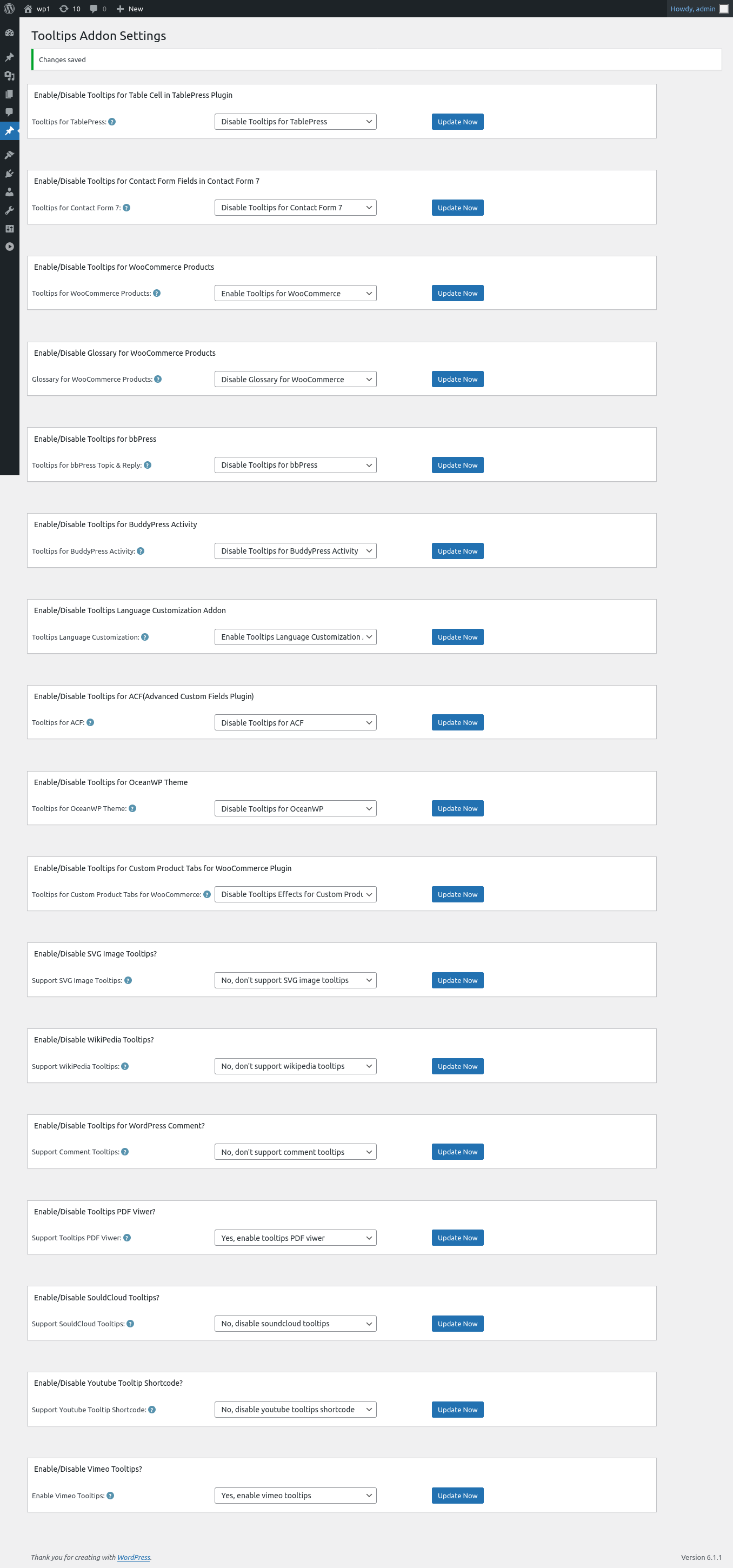
4 Click tooltips menu item, and then click “Addons” sub menu item, you will open wordpress tooltip addons panel, it looks like this:
vimeo addon optin wordpress tooltip addon panel
5: As you can see, at the bottom of the wordpress tooltip addon settings panel, there are a new option “Enable / Disable Vimeo Tooltips”, if you want to insert vimeo videos in wordpress tooltip easily, just select “Yes, enable vimeo tooltips” option and click “Update Now” blue button
6: Then in wordpress dashboard, please click “Tooltips” menu item and then click “Add New” tooltips sub menu item, you will open wordpress tooltips editor, then you will find “insert vimeo video into tooltips” metabox at the right hand of wordpress tooltips editor, it looks like this:
insert vimeo video in tooltip
7: In Vimeo Video URL, please enter the vimeo URL in here, the vimeo video url looks this player.vimeo.com/video/239822819 — this url is our wordpress tooltip glossary video which hosed on vimeo
and then you can customized vimeo video height and vimeo video width
After enter tooltip title and added wordpress tooltip contet(you can pass this section if you just want to insert vimeo video without any text), then click “Plublish” to publish the wordpress tooltip term
8: In front end, when user hover the wordpress tooltip term in wordpress post, they will see a vimeo video in wordpress tooltip pop-up window
That’s all
Conclusion:
WordPress tooltip pro + plugin is a powerful tooltip plugin used to help wordpress editor insert rich multimedia content and colorful text content, with wordpress tooltips pro +, you can insert video tooltips like vimeo video , youtube video, local video, and audio tooltips by a few clicks and paste in 1 minutes, also we are developing more amazing features based on amazing users suggestion, for example tiktok tooltip 🙂
Hi dear WordPress Tooltip plugin users, hope this message find you are doing well and having happy days with your family 🙂 We have developed a new version of wordpress tooltips pro plus plugin 17.8.8, to add new option “change tooltip term margin in post” — based on an amazing wordpress tooltip user’s feedback 🙂
Maybe you known, yesterday we released wordpress tooltips pro plugin 17.7.8 to support padding of customized tooltip keyword in wordpress posts, based on a wordpress tooltip user’s suggestion, he want to custom the background of wordpress tooltip keyword in wordpress post, and change the padding of the tooltip term to make a striking effect to attract tooltip user’s attention, then we released it in wordpress tooltips pro + 17.7.8, in front end, we created a demo quickly and it looks like this:
tooltip term background padding in wordpress post
Yes, this wordpress tooltip user’s suggestion made us realized that by adjusting the background color and padding of wordpress tooltip keyword in wordpress post, the user may obtain a new tooltip display method, that’s really good 🙂
After we reported to the wordpress tooltip user that we have finished his feature request, he said” I love wordpress tooltip plugin and this makes my work easier”, then he said: “Since the new version can customize padding of tooltip term, why not allow users to customize margin of tooltip term?”, okay, we do not know why user need custom the margin of tooltip keyword in wordpress post, but our developer developed new version WordPress Tooltips Pro Plus 17.8.8 to realize his feature request, now if you upgrade to wordpress tooltips pro plus, in wordpress tooltip style settings panel, you will find a new option “Tooltip Term Margin in Post” at the bottom of wordpress tooltip style panel, it looks like this:
wordpress tooltip style panel in wordpress tooltips pro plus 17.8.8
Thanks for the great suggestion to wordpress tooltip plugin, if you have any more feature request to wordpress tooltip plugin, please don’t hesitate to tell us. In the current time, we are working hard to develop a new wordpress tooltip version to allow wordpress editor display vimeo videos in wordpress tooltip window easily, vimeo is world’s leading all-in-one video platform that upload / view / share videos, a wordpress tooltip pro plus plugin user told us he like our youtube tooltip addon, but he is using vimeo as his video hosting, he asked us can we find a way to insert vimeo video in wordpress tooltip pop-up window easily? We searched vimeo and we believe the answer is yes, you will see the new version soon 🙂
Happy New Year! Dear WordPress Tooltip plugin users 🙂 Hope this message find you are doing well and having happy new year holiday with your family 🙂 Our wordpress tooltip developer developed a new wordpress tooltip pro plus plugin to allow wordpress tooltip admin custom the tooltip term background in wordpress post 🙂
An amazing wordpress tooltip user told us, he love functions of wordpress tooltip pro plus, because there are many pretty method to customize a pretty style for wordpress tooltip terms and content in wordpress tooltip window, in last years, he using Tooltips Underline Style “Dotted” with a pretty green color to beautify wordpress tooltip effect, and capturing the appeal of wordpress users. Now he start to build a movie site, he want to add background color for wordpress tooltip terms in wordpress post, in order to leave a deeper impression on users 🙂
We have no this kind of function before, our wordpress tooltip developer decide develop a new version to realize this amazing tooltip feature request, that’s why we released wordpress tooltips pro plus 17.6.8 🙂
How to Custom Tooltip Term Background in WordPress Post?
1: Download latest version of wordpress tooltip pro plus plugin
2 Login wordpress dashboard as wordpress admin user, delete old version of wordpress tooltip plugin and install wordpress tooltips pro plus version >= 17.6.8
3: Click tooltips menu item in wordpress dashboard
4: Click tooltips style sub menu item, you will open wordpress tooltip style settings panel, it looks like this:
Tooltip Term Background in Post option in tooltips pro plus 17.6.8
5: At the bottom of wordpress tooltip style panel, you can see there are a new option: “Tooltip Term Background in Post“. you can click wordpress color picker to custom the background color of the wordpress tooltip term in wordpress post 🙂
6: Please note, after the option “Tooltip Term Background in Post”, there are an option “enable the option / disable the option”, we designed this option is because we think by default, wordpress tooltip editor do not need settings Tooltip Term Background color always, we believe there are just a few wordpress tooltip editor need this option, so by default, the default option is ” disable the option”, so wordpress tooltip admin do not click twice to disable the option if they do not need settings tooltip term background color. 🙂
Also this means, if you want to settings tooltip term background color, you need select the “enable the option” in select dropdown box 🙂
7: After finish the settings, please remember to click the blue “save changes” button
Then in the front end, when wordpress user read your wordpress post, they will find in tooltip terms, we have added the customized background color for wordpress tooltip terms in your wordpress post 🙂
Also, when we design the new function of “Tooltip Term Background in Post”, our wordpress tooltip developer decide re-develop the function of “tooltip Term Color in Post” in wordpress tooltip style panel, because the default settings is “enable the option”, but we believe this is an infrequently used functions, this means when wordpress editor settings tooltip style, they need click twice to select “disable the option”, although this is one-time work, because their settings will be stored in database and they do not need settings it again, but a better method is use “disable the option” as default option, so in this version, we put “disable the option” as the first option and put the “enable the option” as the second option
Similarly, wordpress tooltips plugin support design an unique pretty style for each wordpress tooltip terms, when wordpress tooltip editor edit a wordperss tooltip term, they will find “tooltip box customize settings” panel — you can customize unique style for the editing tooltip term
it looks like this:
Tooltip Term Color in Post in tooltips pro plus 17.6.8
As you can see, at the bottom of “tooltip box customize settings” panel, there are option “tooltip Term Color in Post” too, we re-develop the option to put “disable the option” as default option, so wordpress tooltip editor do not need click the option twice — if they do not want to customize tooltip term color in wordpress post 🙂
Thanks for the great feature request for wordpress tooltip plugin, we’d like offer 10% discount as a gift to this amazing wordpress tooltip user 🙂
We are working hard to add new wordpress tooltip functions now, please note, our developer go out help weak people which facing covid-19 and then our developer got covid-19 too — in a few days before, he still need time to recovery of health, our support and develop work will have a little delay 🙂
Hi, Dear WordPress Tooltip plugin users, hope this message find you are doing well and having happy weekend with your family 🙂 We got an amazing wordpress tooltip users’ ticket, in which he told us he want to insert youtube videos in wordpress tooltip pop-up window via wordpress tooltip shortcode:
Hi,
I could not find the tooltip shortcode for youtube videos in your documentation.
Could you provide me with a template for the WordPress text editor?
I only found the template for hosted videos in general:
[tooltips keyword = "This is Video Tooltip" content = "Your browser does not support the HTML5 Video element."]
Thanks in advance
WordPress tooltip plugin have supported insert youtube video in wordpress tooltip window in many years before, and we have a detailed youtube tooltip document and we have built a detailed video demo for youtube tooltip users, it is very easy to make a youtube tooltip in wordpress tooltip editor, by this way:
1. Log in your wordpress as wordpress admin
2. In wordpress dashboard , please click Tooltips menu item
3. Then click “Add New” sub menu item
4. You will open wordpress tooltip editor, at the right hand of wordpress tooltip editor, you can find “insert video into tooltips” metabox, if you want to insert a video file into wordpress tooltip window, just copy the video URL of the video file into the text field “Video URL” , it looks like this:
5. And you can insert youtube videos in wordpress tooltips very easy, just input YouTube Video Id in “Youtube video id” filed. What is “Youtube video id”? Let’s say you have a youtube video URL, for example www.youtube.com/watch?v=xxxxxxx, please copy “xxxxxxx” into the text field “Youtube Video ID”. That’s all 🙂 please note, “Video URL” field has higher priority, if you entered URL in the field “Video URL”, “Youtube Video ID” field will be ignored.
And we have more youtube video options to help users custom youtube video height, youtube video width…etc, we think insert youtube video into wordpress tooltips pop-up is not a problem already, so our support replied the user:
Hi,
>
> Hope you are doing well and having happy days with your family 🙂
>
> Thanks for the message 🙂
>
> We are very happy to help you 🙂
>
> Would you please do a check at our video tooltip document:
> https://tooltips.org/wordpress-video-tooltips-demo/
>
> Is this what you want? 🙂
>
> Thanks, have a blessed day with your family 🙂
>
> Best Regards,
> WordPress Tooltip Support
But the wordpress tooltip user told us this is not what he want, he want a youtube tooltip shortcode:
Hi ?
Thanks for your reply.
No, I already saw this video tooltip document.
I want to show a youtube video tooltip when hovering with the mouse over a word or text.
This is your shortcode example for hovering an image with a somewhere hosted mp4-video:
“[tooltips keyword = "<img src='https://tooltips.org/wp-content/uploads/2018/08/girl.png' />" content = "<video controls='controls'><source src='https://tooltips.org/wp-content/uploads/2018/08/002.mp4' type='video/mp4'>Your browser does not support the HTML5 Video element.</video><h3>Multimedia Tooltip</h3>"]”
I need an shortcode example for a youtube video when hovering a text.
I hope it is more understandable now.
Best regards,
So we understand what the tooltip user want, but we have no this function yet, so we replied the tooltip user:
Hi,
Hope this message find you are doing well and have happy days with your family 🙂
Our developer will develop a new youtube tooltip shortcode for you, like this:
[youtubetooltip id=”A9062HGS”]
In the current time, we nearly finished a soundcloud tooltip version, we will try to finish it asap then we need many tests for it, and then is your version youtube tooltip, we will finish your version asap we can, we will reply you again, once we released youtube tooltip version 🙂
Thanks, have a blessed day with your family 🙂
Best Regards,
Support Team
And then we start to develop a new wordpress tooltip version to support embed youtube videos in wordpress post via a tooltip shortcode easily, that’s why we developed wordpress tooltips pro plus plugin 17.5.8 🙂
This is detailed document to embed youtube videos via wordpress tooltip shortcode for the great tooltip user:
What is youtube?
YouTube is a free video sharing platform that allow users upload their videos and share their videos easily to their friends, uses can watch online videos and related videos easily. Youtube created in 2005, and after 17 years, YouTube is the most popular video platform on the world, a research report said: 2.6 billion visitors watching around 6 billion hours of video every month. 🙂
Why you need youtube tooltip plugin?
Youtube have offered many methods to help youtube users share their videos, wordpress users use these shared links to embed youtube video in their wordpress sites, many heavy youtube-wordpress users want have a simple way to display many youtube videos in their wordpress post, via our youtube tooltip addon in wordpress tooltip plugin, you can insert youtube video in wordpress post just 1 minute, wordpress tooltips plugin will help you display many youtube videos in wordpress post and make your wordpress post still keep a simple and pretty style 🙂
What it WordPress Youtbe Tooltip Plugin:
Tooltips are small popup box with more information like video / audio / image / google maps / QR code / wiki / text… and so, tooltips box will pop up when users hover over an element in your pages, the element can be a word in your post, a search form input box, an image in your page, a widget on your sidebar.. and so on, that means you can display multiple-media content in many elements of your wordpress site, from wordpress header, wordpress menu item, words in wordpress posts, wordpress tag, wordpress title, wordpress image….etc.
WordPress tooltip pro plus is a tooltips plugin for wordpress, which be designed to help you create colorful, varied and graceful tooltip styles to present the content to your users, with lively and elegant animation effects, and save your valuable screen space.
When the users hover over an item, the colorful tooltip popup box will display with the animation effect. You can add video, audio, image, and even other content which generated by 3rd wordpress plugins like QR code, Amazon AD, Google Map in tooltip popup box via wordpress standard editor, it is very easy to use.
In wordpress tooltip pro plugin, you can insert youtube video in wordpress popup window easily, just copy youtube id in wordpress tooltip editor, also since wordpress tooltips pro plus 17.5.8, you can embed youtube video via wordpress youtube tooltip addon easily 🙂
How to insert youtube videos in tooltip pop-up via shortcode easily?
1: Login wordpress as admin
2: In wordpress admin dashboard, click tooltips menu item
3: click addons sub menu item, it looks like this:
WordPress Tooltips Addon Settings Panel in Version 16.1.8
4: At the bottom of the tooltip addons panel, you will find a new “Enable / Disable Youtube Tooltip Shortcode” panel, please just select “Yes, Enable Youtube Tooltip Shortcode”, then click blue “Update Now” button
5: In wordpress dashboard, click posts menu item, and then click create new to create a new wordpress post
6: In wordpress editor, insert youtube tooltip shortcode like this:
[youtube_tooltip youtube_id='3PFnHXl1h34']
In font end, it looks like this:
7: You can custom embed youtube video height and width in youtube tooltip shortcode like this way:
WordPress tooltips pro plus plugin support insert youtube video in wordpress tooltip post by two methods:
1. Copy youtube video id in wordpress tooltip editor, and youtube tooltip will works well in wordpress post automatically
2. Embed youtube video in wordpress post via wordpress tooltip youtube shortcode
It is very easy to use wordpress tooltips pro plus plugin to build youtube tooltip, video tooltip, audio tooltip, map tooltip, image tooltip,SoundCloud Tooltip…etc, via wordpress tooltips plugin, you can crate a rich-media wordpress site via a few minutes 🙂
This document help wordpress music fans to build a SoundCloud Tooltip to insert pretty soundcloud songs / music / track / playlist / user …etc in wordperss posts in 2 minutes via wordpress tooltip plugin
What is Soundcloud?
Soundcloud is a social network that allow users to upload / stream their music / song / music / audio / podcasts…etc, and share / promote music file in any website. Soundcloud is founded in 2007 and now it is one of the largest music streaming platform in the world.
Now Soundcloud have 80 million activate monthly users and many of them want to share their music in their own site, for example wordpress blogs 🙂
What it Tooltip?
Tooltips are small popup box include more information like video / audio / music / song / image / movie / wiki / text…etc and so, wordpress editor can insert multiple-media-information in these small popup window to keep a clean wordpress post style, users will find tooltip terms that have colorful underline in wordpress posts, and when user mouse hover tooltip term, tooltips box will pop up. 🙂
What it WordPress Tooltip Plugin:
WordPress tooltip is a tooltips plugin for wordpress, developed by wordpress tooltip author Tomas in 2010, wordpress tooltip plugin will help wordpress editor create colorful, varied and graceful tooltip styles to present the content to your users, with lively and elegant animation effects, and save your valuable screen space.
wordpress tooltip plugin supports add tooltip effect on any element on the wordpress posts, or display on wordperss menu, comment, contact form, woocmmerce product, bbpress forum, buddypress activity…etc, with pretty effects and many more little amazing components and addons, for example, Bullets Screen 🙂
What is SoundCloud Tooltips?
SoundCloud Tooltip is an addon that included in wordpress tooltips pro plus plugin, after activated SoundCloud Tooltip addon, you can add pretty soundcloud songs / music / track / playlist / user …etc in wordperss post just in 2 minutes 🙂
How to Add SoundCloud Player with Pretty Songs in WordPress Post Easily via WordPress Tooltip Plugin?
2: login your wordpress site, delete old version of wordpress tooltip plugin, then upload and activate wordpress tooltip pro plus plugin
3: in wordpress dashboard, click tooltips menu item, it looks like this:
wordpress tooltip menus 14.3.6
4: In the screenshot, you can see there are “Addons” sub menu item, please click addons sub menu item to open wordpress tooltip addons management page.
5: At the bottom of wordpress tooltip addons management panel, you will find “Enable / Disable SoundCloud Tooltips” panel, please select “yes, enable soundcloud tooltip” option, and click the blue “Update Now” button to activate soundcloud tooltip addon
6: Now back to wordpress dasoboard and click tooltips menu, then click add new to open wordpress tooltip editor, at right hand of the wordpress editor, you will find there are new soundcloud tooltips metabox, it looks like this:
soundcloud tooltip metabox in wordpress tooltip editor
7: in “soundcloud tooltips metabox”, please enter your lovely songs URL in “soundcloud url” input text filed, actually in here, you can enter any kind of soundcloud url of songs / music / track / playlist / user …etc in here, our wordpress soundcloud tooltip support all these kind of url and display them in wordpress soundcloud tooltip popup window 🙂
8: You can custom the soundcloud player height in “soundcloud player height” input text field, for example, 200px.
9: You can custom the soundcloud player width in “soundcloud player width” input text field, for example, 360px. Please note, by default, wordpress tooltip plugin will setting 400px as width of wordpress tooltip popup window, if you want a larger soundcloud tooltip popup window, you can custom it in wordpress tooltip style panel.
WordPress tooltip style panel looks like this:
wordpress tooltip pro plus style settings panel 17.3.8
10: As you can see, there are many amazing options to customize a pretty tooltip box and help users using tooltip easier. For help users listen your lovely songs easier, Our suggestion is, in “tooltip box custom setting” option, please setting “Tooltip hides when” as “Stay Open A While”, so when users hover tooltip term and found the tooltip box pop-up, they can mouse in tooltip box and click soundcloud button in tooltip window 🙂
11: In front end, when user hover the tooltip term which have a underline(you can custom color / style..etc) in your wordpress blog, they will find soundcloud tooltip box pop-up, and they can click to play or click to open orginal music in soundcloud.com…etc 🙂
There are a simple soundcloud tooltip demo, we will add more and more detailed document in this demo. 🙂
Conclusion:
WordPress Tooltip plugin support display unlimited soundcloud songs / music / track / playlist / user …etc in tooltip popup window, wordpress blogger can insert their lovely songs in small tooltip box and keep their wordpress clean and speed up your page load speed, you can custom soundcloud tooltip box style and actiions to with Tons of options, wordpress tooltip developer is adding more and more functionality of soundcloud tooltip in new version 🙂
* 16 Years. Industry Benchmark. Defines the Tooltip Standard
* 688 Versions Released
* 1,000+ multilingual docs and videos, legacy support excellence
* 20,000+ websites trust us
* Ticket Support, Detailed Video Tutorials and Document
* Preset beautiful color schemes & stylesheet, Customize wordpress tooltip plugin style via a few mouse clicks, Multi language, positioning, trigger method, Multi browsers / Mobile devices supported, supports tooltips for many popular wordpress plugins
* Join Our Diverse Community of Users: Our plugin is loved by teachers, writers, manga artists, analysts, engineers, financial experts, and professionals from universities, banks, finance, aerospace, the internet, and beyond!