Category: Wordpress Tooltip Plugin Document

Step-by-Step Guide: Implementing WordPress Tooltips on WooCommerce Product Titles

How to Use Tooltips Pro to Enrich WooCommerce Product Titles

please check our our online demo of this article  here

Hi, Dear WordPress Tooltip users, I hope this message finds that you are having wonderful days with your family. 🙂 We received a ticket from an amazing wordpress tooltips user’s ticket, in which he said:

I created a ToolTip for “Brie & Tomato Sandwich” Text is “Creamy Brie Cheese, Dill Pickle, Tomato, Cucumber, Lettuce & Mustard Dressing.”

But I cannot get it to work. That is a Woocommerce Product title. I also tried it with a Post title and just regular text on a page.

Why isn’t it working? Thank you.

We are happy to help the user to revolve the issue of woocommerce tooltips, we built a demo of the woocommerce tooltips and we wrote a detailed step by step document with screenshots for the users who have similar question 🙂

How to Use Tooltips Pro to Enrich WooCommerce Product Titles

1. Begin by downloading, installing, and activating the WordPress Tooltip Pro Plus plugin from the official WordPress Tooltips page: download wordpress tooltip

2. Log in to your WordPress site as an administrator.

3. Navigate to the Tooltips menu located in the WordPress dashboard.

4. Click on the “Addons” submenu item, which should appear as follows:

wordpress tooltip menus 14.3.6

5. In the WordPress Tooltips Addon settings panel, activate the option labeled “Tooltips for WooCommerce Products,” and then refresh the page:

6. After refreshing, you will notice a new submenu item under the Tooltips menu called “Woo Tooltips.” Click on it to access the advanced settings for the WooCommerce tooltips addon, which should look like this:

advanced woocommerce tooltips addon settings

7. In the advanced WooCommerce tooltips settings panel, enable each option individually.

8. Next, in WordPress dashboard,  find the “Optional Settings” submenu item within the Tooltips menu and click it to open the “Tooltips Optional Settings” panel, which should appear as follows:

tip description with links in Optional Settings in wordpress tooltips pro plus 23.9.8 by tooltips.org

9. In the “Tooltips Optional Settings” panel, activate the “Tooltips for Post Title” option and click the blue “Update Now” button.

10. Finally, visit your WooCommerce shop page and product pages. When you hover over the tooltip keywords on these pages, a tooltip popup window will appear, displaying the tooltip content.


How to Create a WooCommerce Product Directory in 2 Minutes?

Additional gifts — We found that this wordpress tooltips plugin user created a woocommerce product list, in wordpress tooltips pro plus our user can use the built-in woocommerce product list shortcode [productdirectory] to quickly Create a woocommerce product directory, it looks like this:

❤️ Made with Love since 2008, trusted by 20,000 websitesOne Time Payment, Lifetime Upgrades , Unlimited Download , Unlimited Domain , Multiple-Site license, Ticket Support, Video Tutorial, Detailed Document.Add colorful tooltip popup box on AnyThing in your site, transform any ordinary web page into a vibrant multimedia knowledge hub, interactive museum, or powerful marketing center. Join thousands of Happy Users 🙂Easily Create Beautiful Tooltips in Just a Few Clicks:   Image Tooltip, Video Tooltip, Audio Tooltip, QR-Code Tooltips, Multilingual Tooltips, WooCommerce Tooltip, Youtube Tooltip, Contact Form Tooltips, Table Tooltips, ACF tooltips, PDF Tooltips , WikiPedia tooltips , Tooltips on Menu / Title / Tag / Comment / Category, SVG / Gif / Gallery Tooltips, Button Tooltips, Pricing Table Tooltips, SoundCloud Music Tooltips, Vimeo video Tooltip , Polylang Tooltips , Font Awesome Icon Tooltips , TTS (text to speech) Tooltips,  AI Tooltips -- AI generate content for wordpress post / page / tooltip automatically, reuse any post as tooltips...,add Tooltips to Anything on your Site,... and much moreAdditionally, enjoy features like Powerful Glossary, Pretty Directory, Bullets Screen ...and much more! There are countless amazing features packed into this plugin, but we can't list them all here! Explore and experience the full range of functionalities for yourself 🙂Note: You can Buy Tooltips Plugin Via Credit Card or Debit Card Without Paypal Account, if you do not want to use paypal, please contact us to get other payment method
Smart Content Links with Tooltip ( 3.2.0 )
Price: $6.10

Category: Smart Content Links
Smart content links are a powerful tool for enhancing your website’s content and improving the user experience. By embedding links to related content within your wordpress blog posts, you can provide valuable context, information, and resources to your readers without disrupting their flow or distracting them from your main message. These smart links are designed to provide readers with quick access to related resources and information, making it easier for them to learn more about the topic at hand.Smart content links using AI NLP(Natural Language Processing) to help you build best internal links -- it is important to improve your SEO quickly, you can enter a keyword in back-end, Smart content links will ranking posts based on the best match with keywords using AI calculationsTry it out today and see how smart links can enhance your content!
WooCommerce Product Tabs Plugin
Price: $0.00

Category: WooCommerce Product Tabs Plugin
You can insert videos, audios, screenshots, reviews, pricing tables... and so on in woocommerce product tabs, to increase sales of your amazing products,  also  you can enter any shortcodes in woocommerce product tabs to expand  functions of woocommerce product tabs via other 3rd wordpress plugins, to build an awesome and funny and user-friendly and powerful woocommerce product page 🙂
WooCommerce Tooltip Demo
Price: $0.00

Category: WordPress Tooltips Plugins WooCommerce Tooltip
❤️ Made with Love since 2008, trusted by 20,000 websitesGive Your Products the Power to Explain, Inspire, and Sell ThemselvesWooCommerce Tooltip are your store’s new secret selling superpower. In today’s crowded eCommerce world, customers click away fast—so your product pages need to capture attention instantly.With this plugin, you can add beautiful, interactive tooltip popups anywhere on your WooCommerce products. Inside each tooltip, you can include:- Videos & Audio Clips: Bring your products to life. - Images & Detailed Descriptions: Offer comprehensive insights. - Payment QR Codes & Shipping Info: Streamline the purchase process. … and so much more✅ Solve a pain point: You have a great product, but users never click through to the product page. ✅ Solve a pain point: You're selling products but don't know which ones users prefer. ✅ Solve a pain point: You're selling a product but don't know which features users find most appealing. … and so much more**Want to see it in action? Scroll through this demo and test the interactive examples.This page is a DEMO, to obtain the WooCommerce Tooltip plugin, please visit product page of WooCommerce Tooltip Plugin
WordPress 404s Plugin(version 3.5.9)
Price: $0.00

Category: WordPress 404s Plugin
WordPress 404s Plugin is a All in One 404 solution, fix 404 pages, automatically log each 404 pages, referrers URL, IP, browser..., opt to mail to admin, redirect 404 to home page or any url using 301..., help you fix broken links and stop 404 Page Not Found happen again.
WordPress Catalogs with Tooltip Plugin
Price: $5.00

Category: wordpress catalogs plugin WordPress Tooltips Plugins
Add wordpress catalogs for your services, goods, documents, important posts, knowledge base, woocommerce products..... and so on, easy and pretty 🙂Ask a Pre-Sales Question?Note: You can Buy Tooltips Plugin Via Credit Card or Debit Card Without Paypal Account, if you do not want to use paypal, please contact us to get other payment method
WordPress Email Blacklist Plugin
Price: $4.00

Category: WordPress Email Blacklist Plugin
WordPress Spam Email Blacklist Plugin is a wordpress plugin which allow you build a spam email blacklist to prevent spammers register as your users, also you can import spam email blacklist from our csv file via import blacklist menu item, we will add this spam email domain blacklist once we find new spam email domains
WordPress FAQ Plugin -- WordPress Frequently Asked Questions
Price: $0.00

Category: WordPress FAQ Plugin Wordpress Plugin Download Free
WordPress FAQ, WooCommerce Product FAQ, Responsive FAQ, Multiple FAQ Templates, FAQs grouped by category, specified number of FAQ items for each FAQ... and moreOpen Source License: GPLv3 or laterTested up to: Wordpress 6.8.3Wordpress FAQ Versions: 3.8.5
WordPress FAQ Pro Plugin With Wordpress Tooltips (version 4.8.6)
Price: $5.20

Category: WordPress FAQ Plugin
Lifetime Upgrades, Unlimited Download, one domain, Ticket SupportPowerful WordPress FAQ plugin, easy to use, select pretty FAQ templates from pre-designed template, custom FAQ style in back-end via a few clicks, Support use OpenAI ChatGPT to generate high-quality content for WordPress F.A.Q and wordpress post automatically, support WooCommerce Product FAQ, Responsive FAQ, Multiple FAQ Templates, FAQs grouped by category, specified number of FAQ items for each FAQ… and more and more
Wordpress Footnote with Tooltip Plugin
Price: $5.00

Category: WordPress Tooltips Plugins WordPress Footnote Plugin
Wordpress footnote plugin will add foonote in your wordpress post automatically, Our wordpress footnote plugin will replace your footnote with numbers and link numbers to references lists automatically, references lists will generated by wordpress foonote pugin automatically too, support add tooltips on wordpress footnote items to help users understand footnote items faster and better 🙂

More details please check our detailed document How to Create WooCommerce Product Directory in 2 Minutes?

Also we have more woocommerce tooltips functions, for example:

How to Add WordPress Tooltips Effect to WooCommerce Product Attribute Names

How to display wordpress tooltip in woocommerce product tab?

How to use woocommerce glossary?

Detailed woocommerce tooltip shortcode document

Woocommerce Tooltips Demo on tooltips.org

Thank You

We sincerely appreciate the outstanding feedback we’ve received from our incredible WordPress Tooltip users. As a token of our gratitude, we’re excited to offer you a complimentary license for WordPress FAQ Pro with Tooltip.

The WordPress FAQ plugin is an exceptionally powerful tool for bloggers, streamlining the process of creating, managing, and editing FAQs with ease. Users can select from a variety of visually appealing default FAQ templates and customize the styles with just a few clicks, allowing for the creation of stunning accordion-style FAQs.

This plugin also supports the categorization of FAQs and includes features for WooCommerce Product FAQs, responsive design, multiple FAQ templates, and grouped FAQs by category. Plus, you have the flexibility to specify the number of FAQ items displayed in each category.

With the added capability of utilizing OpenAI’s ChatGPT, you can generate high-quality content for your WordPress FAQs and posts automatically. By leveraging the WordPress FAQ plugin, managing your FAQs transforms into a seamless and effortless experience.

And there’s so much more to explore! We are truly grateful for your insights and are thrilled to enhance your experience with this powerful tool.


Background for new users of woocommerce tooltips

WooCommerce is a powerful and popular open-source e-commerce plugin designed for WordPress. It enables users to create and manage online stores with ease. Launched in 2011, WooCommerce has quickly become one of the most widely used e-commerce solutions globally, thanks to its flexibility, scalability, and extensive range of features.

Key features of WooCommerce include:

  1. Product Management: Users can easily add, edit, and manage products, including physical goods, digital downloads, and variable products with different attributes.

  2. Customization: WooCommerce offers a variety of themes and templates, allowing users to customize the look and feel of their online store to match their brand.

  3. Payment Options: It supports a wide range of payment gateways, including credit cards, PayPal, bank transfers, and various other payment methods, making it easy for customers to complete transactions.

  4. Shipping Options: Users can configure shipping methods, rates, and zones, as well as offer free shipping or local pickup options.

  5. Inventory Management: WooCommerce provides tools for tracking stock levels, managing inventory, and sending notifications for low stock.

  6. Analytics and Reporting: The plugin offers built-in analytics and reporting features, allowing store owners to track sales, customer behavior, and product performance.

  7. Extensions and Integrations: WooCommerce has a vast library of extensions and plugins that can enhance functionality, such as SEO tools, marketing automation, and membership systems.

  8. Community Support: Being open-source, WooCommerce has a large community of developers and users who contribute to its ongoing development and provide support through forums and documentation.

Overall,  is an excellent choice for anyone looking to establish an online store, whether they are small businesses, entrepreneurs, or larger enterprises. Its integration with WordPress makes it a user-friendly option for those already familiar with the platform.

What is Tooltip?

A  is a user interface element that provides additional information about a specific item when a user hovers over or clicks on it. Typically, tooltips appear as small pop-up boxes that display brief descriptions, instructions, or context-sensitive help related to the item in question. They are commonly used in software applications, websites, and online platforms to enhance user experience by offering guidance without cluttering the interface. Tooltips help users understand features, functions, or data points more clearly, making navigation and interaction more intuitive.

The WordPress tooltip plugin enables you to add tooltip effects to any element within your WordPress posts, as well as to items in the WordPress menu, comments, contact forms, WooCommerce products, bbPress forums, BuddyPress activities, and more, all with attractive effects and various amazing components and add-ons, such as Bullets Screen.

Tagged with: , , , ,

Creating a Seamless Learning Experience — Linking Glossary Terms to Categories, WordPress Tooltips Free Plugin 10.6.3 Released

Enhancing the WordPress Tooltip Glossary: User Suggestions and Benefits

In the realm of educational websites, providing users with intuitive and informative tools is essential for enhancing the learning experience. Recently, a user of a WordPress tooltips glossary plugin expressed a desire to display the glossary category name beneath each glossary term. This request opens up a discussion about the potential benefits of such a feature and how it can significantly improve user engagement and navigation.

Why Display the Glossary Category Name?

Displaying the glossary category name under each term can serve several important purposes:

1. **Contextual Information**: By showing the category name, users can quickly grasp the context of the term. This is particularly beneficial in glossaries that cover a wide range of topics, allowing users to understand the relevance of each term.

2. **Improved Navigation**: Users interested in specific categories can navigate the glossary more efficiently. Seeing the category name helps them identify related terms and explore the category further without unnecessary clicks.

3. **Enhanced Organization**: Displaying category names organizes the glossary, making it easier for users to find terms related to specific subject areas. This organization can reduce cognitive load and streamline the learning process.

4. **User Engagement**: Providing additional information, such as category names, can keep users engaged. They may click on the category to see more related terms, increasing the time spent on the site and improving overall user satisfaction.

5. **SEO Benefits**: Including category names can enhance the site’s SEO by providing more keywords and context for search engines, potentially helping users find the glossary when searching for terms related to specific categories.

6. **Visual Clarity**: Adding category names improves visual clarity, helping users distinguish between terms that may have similar names but belong to different categories.

7. **Educational Value**: For educational glossaries, knowing the category can help users understand the broader subject matter, making it a more effective learning tool.

WordPress Tooltip User Feedback and Suggestions

The user, an administrator of an wordpress educational website offering courses in subjects like biology, chemistry, and history, highlighted the importance of this feature. They noted that displaying the glossary category directly beneath each glossary item title would allow students to quickly identify the subject associated with each term. This enhancement would enable users to grasp the meaning of each term without needing to click through to another page, facilitating easier navigation through the glossary.

We implemented the function in the free WordPress tooltips plugin version 10.5.9. 🙂

Linking Glossary Category Names

In addition to displaying category names, the wordpress tooltips user has proposed linking these names to the actual glossary category pages. This request is grounded in several compelling reasons:

1. **Enhanced Navigation**: Linking category names allows users to easily navigate to the category page for more detailed information, enabling them to explore related terms and concepts within the same subject area.

2. **Contextual Learning**: When students see a glossary term along with its category, they may want to learn more about that category. Linking to the category page provides broader context and additional resources that can deepen their understanding.

3. **User Engagement**: Direct links can increase user engagement on the site, encouraging students to explore additional terms and concepts, leading to a richer learning experience.

4. **Streamlined Experience**: Linking category names streamlines the learning process, allowing students to quickly jump to relevant categories without navigating through multiple pages.

5. **Improved Accessibility**: For users unfamiliar with the glossary or the website’s structure, linked categories can make it easier to find what they are looking for, enhancing overall usability.

We developed the free WordPress tooltips plugin version 10.6.3 to provide new features for WordPress tooltip users. 🙂

How to link the wordpress tooltips category names to the actual glossary category pages

1: Upgrade to wordpress tooltips free plugin 10.6.3

2: In wordpress dashboard, please click the “Tooltips” menu item

3: Then,  click on the “Glossary settings” sub menu item

4: Now, you will open “Glossary settings” panel, please locate  the  option “Display Glossary Category Name in Glossary List?” and  enable it to display the category name under the glossary terms in glossary list

It looks like this:

glossary settings in tt plus 30.4.8

glossary settings in tt plus 30.4.8

6: Then please locate “Glossary Category Linking” option in glossary settings panel, and enable this option

7: On the front end, you will find there are category name with the category link under each glossary term in the the glossary list

if you have any more feature request about wordpress tooltips plugin, please don’t hesitate to tell us, we are very happy to realize it for you

Conclusion

Incorporating the feature to display glossary category names and linking them to their respective pages would significantly enhance the functionality of the WordPress tooltip glossary plugin. This user-driven suggestion not only improves clarity and navigation but also fosters a more engaging and educational experience for students. As educational platforms continue to evolve, prioritizing user feedback and implementing such enhancements will be crucial in providing effective learning tools.

Tagged with: ,

Visual Tooltips: Adding Unsplash Images to Enhance User Experience, WordPress Tooltips Plugin Pro Plus 35.2.8 Released

Upgrade Your WordPress Tooltips: Show Random Images from Unsplash Based on Keywords

Hi, Dear  WordPress Tooltip plugin users, I hope this message finds that you are doing well and enjoying wonderful weekend with your family.    We received a request for new features from the webmaster of an online dictionary website:

Hi there!

I run an online dictionary site, and I’m looking to enhance the user experience by displaying a random image from Unsplash that relates to the keywords. I think it would be great to give a little extra context or clarification. For instance, if someone searches for “ocean,” it would be awesome to show them a stunning ocean image to help bring the word to life. What do you think?

Thanks so much!

Our WordPress tooltips plugin developer reviewed the feature request, and we understand that including a random image from Unsplash related to the keyword can make the tooltip pop-up more visually appealing. Visual content often captures attention better than text alone, which can enhance user engagement. We believe this feature will be beneficial for many WordPress tooltip webmasters, especially those running online dictionaries or online schools. 🙂

What is Unsplash?

Unsplash is a popular online platform that provides a vast library of high-quality, royalty-free images and photographs. It allows photographers to share their work and offers users the ability to download and use these images for free, even for commercial purposes, without needing to give credit (though crediting the photographer is appreciated). Unsplash is widely used by designers, bloggers, marketers, and anyone in need of visual content for their projects, websites, or social media. The platform features a wide range of categories and tags, making it easy for users to find images that suit their specific needs.

What are WordPress Tooltips?

Tooltips are small pop-up boxes that provide additional information, which can include videos, audio files, images, Google Maps, QR codes, Wikipedia links, text, and more. In WordPress, tooltip boxes appear when users hover over specific elements on your pages. These elements can be words in your posts, input fields in search forms, images on your site, or widgets in your sidebar, among others.

Our WordPress tooltip plugin allows you to add tooltip effects to any element within your posts. It can also display tooltips on the WordPress menu, comments, contact forms, WooCommerce products, bbPress forums, BuddyPress activities, and more. With a variety of attractive effects and numerous amazing components and addons—such as Bullets Screen—this plugin enhances user engagement in a fun and interactive way.

Step-by-Step Guide: Displaying Random Unsplash Images in WordPress Tooltips

1: Please download the WordPress Tooltip Pro Plus plugin, version 34.9.4 or higher, from the WordPress Tooltips page at: download wordpress tooltip

2: Simply log in to your WordPress dashboard and head over to the Plugins section. Look for the WordPress Tooltips Pro Plus plugin.

3: Remove the old version and upload the latest version of the WordPress Tooltips plugin. Once uploaded, activate it from the Plugins panel, and you’ll be ready to enjoy all the new features and improvements!

4: In the wordpress dashboard, click on the Tooltips menu item, it looks like this:

tooltips menu in wordpress tooltips pro plus 27.5.8

5: Next, click on the Addons sub-menu item, this will open the “Tooltips Addons Settings” panel, which looks like this:

6: Then, scroll to the bottom of the “Tooltips Addons Settings” page and enable unsplash tooltips in the “enable/disable unsplash tooltips” option. After that, please refresh the page

7: Now, in the wordpress dashboard, you will see a new sub menu item called “unsplash tooltips” in the wordpress tooltips menu, it looks like this:

wordpress tooltips menu

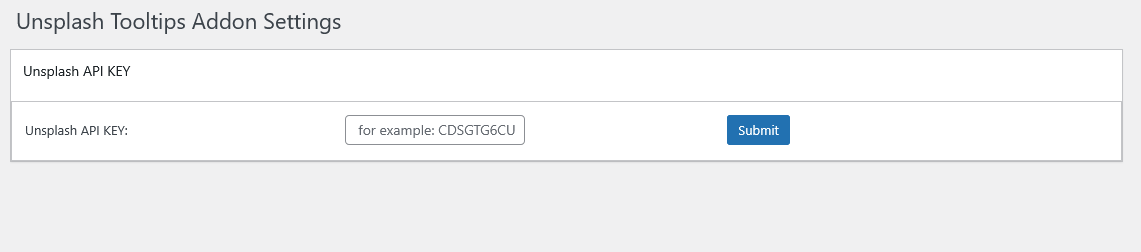
8: Please click on the “unsplash tooltips” sub menu item, This will open “Unsplash Tooltips Addon Settings” panel, enter your Unsplash API Key in the “Unsplash API Key” input box, the “Unsplash Tooltips ” panel looks like this:

Unsplash Tooltips Addon Settings-wordpress-tooltips

9: Now, simply click the tooltips menu item to create a new tooltip term,  in the right hand of the tooltips editor, you will find a new metabox “Unsplash Title”, just enter the keyword in here, for example “pretty sea”, it looks like this:

unsplash tooltips keyword metabox in wordpress tooltips

10: After publishing the tooltip term, on the front-end, when you hover your mouse over the tooltip term in a WordPress post, a random Unsplash image will automatically be displayed at the top of the tooltip pop-up window. 🙂

Conclusion:

Thank you for the fantastic idea of incorporating visuals with Unsplash images in the WordPress tooltips plugin. We understand that by integrating random images based on keywords, WordPress tooltips can create a more engaging and informative experience for visitors on WordPress sites:

Visual Engagement: Including a random image from Unsplash related to the keyword can make the tooltip pop-up more visually appealing. Visual content often captures attention better than text alone, which can enhance user engagement.

Contextual Relevance: Displaying an image that is relevant to the keyword can provide additional context or clarification. For example, if the keyword is “ocean,” showing a beautiful ocean image can help users better understand the term and its significance.

Enhanced Learning: For educational or informative content, images can aid in comprehension and retention. Users may find it easier to remember terms when they are associated with relevant visuals.

Dynamic Content: Random images can make the tooltips feel more dynamic and less static. This can encourage users to interact more with the content, as they may be curious about what image will appear next.

Aesthetic Appeal: A well-designed tooltip that includes images can improve the overall aesthetic of the wordpress website, making it look more professional and polished.


Tagged with: , , ,

Enhanced WordPress Tooltip Plugin’s Click Statistics module — WordPress Tooltips Pro Plus 35.0.8 released

Solution Implemented: 400 Bad Request Alert in Browser Console for WordPress Tooltip Plugin Stats in WordPress

Greetings to our valued WordPress Tooltip Plugin users! I trust this message finds you thriving and making the most of quality time with your loved ones. We’ve recently received an inquiry from a webmaster managing an online school website:

“this isn’t a major issee, but is has been present since I first install the plugin years ago….
Evert tooltip generates a warning in the browser on console…,  … returns a 400 (bad request) “

Our wordpress tooltips plugin team has diligently reviewed the issue and worked tirelessly to resolve it. The problem arises in the WordPress Tooltips Pro Plus plugin, where the AJAX module captures click statistics when users hover over tooltips. This data is then sent to the back-end, enabling WordPress administrators to monitor the number of clicks for each tooltip term in the backend panel:

WordPress Tooltip Term Click Statistics

WordPress Tooltip Term Click Statistics

This functionality operates smoothly when the tooltip administrator enables the ‘Enable / Disable Tooltip Term Click Statistics’ option in the global settings panel. However, if the administrator chooses to disable this option, the backend will cease to receive AJAX data. While this will not disrupt any other functionalities, users may encounter a 400 warning in their browser console.

Once we got the ticket, our wordpress tooltip plugin developer stayed up all night to solve this issue for the tooltip user, finally we resolved this issue and released wordpress tooltips pro plus 35.0.8

On user-end, simply upgrade to the wordpress tooltips pro plus 35.0.8,  you do not need to do anything, all things will works well automatically. 🙂


Conclusion:

We apologize for not identifying this issue earlier. We added the WordPress Tooltip statistics function many years ago. Generally, WordPress tooltip administrators will enable this AJAX Tooltip statistics function. The click statistics function was added to the WordPress Tooltip Plugin for several important reasons, providing various benefits for administrators:

  1. User Engagement Insights: By tracking how often tooltips are clicked, administrators can gauge user interest and engagement with specific content. This helps in understanding which terms or topics resonate most with users.
  2. Content Optimization: The data collected enables admins to identify popular tooltip terms. This information can be used to optimize existing content or create new content that aligns with user interests, enhancing the overall user experience.
  3. Improved Decision-Making: With access to detailed statistics, admins can make informed decisions about which tooltips to emphasize or modify. This can lead to more effective communication of key concepts or terms.
  4. Performance Monitoring: Admins can monitor the effectiveness of tooltips over time. If certain tooltips receive little to no clicks, it may indicate a need for revision or removal, ensuring that the site remains relevant and informative.
  5. Enhanced User Experience: Understanding which tooltips are frequently accessed allows admins to improve or expand tooltip content based on user needs, leading to a more satisfying browsing experience.
  6. A/B Testing Opportunities: With click statistics, admins can conduct A/B tests to compare different tooltip styles or placements, helping to determine what works best for their audience.

Overall, these benefits contribute to a more effective and user-friendly website, allowing administrators to better serve their audience and enhance content delivery.

Tagged with: , ,

Customizing Your Glossary: Adding WordPress Tooltip Categories Under Item Titles – WordPress Tooltips Free Plugin 10.5.9 Released

Display Tooltip Categories Under Glossary Titles for Improved Navigation — WordPress Tooltips Free Plugin 10.5.9 Released

Hi, Dear users of  WordPress Tooltip plugin, I hope this message finds that you are doing well and enjoying wonderful days with your family.  🙂  We received a ticket from a webmaster of an online school website:

Hello

As the administrator of an educational website that offers courses across various subjects—such as biology, chemistry, and history— we have implemented specific glossary categories tailored to each subject. This feature allows students to hover over terms in their course materials to see definitions or explanations, enhancing their understanding of complex concepts without leaving the page. It’s a fantastic tool for online learning!

I wish to improve this experience further by displaying the glossary category directly beneath each glossary item title. This way, students can quickly identify the subject associated with each glossary term, allowing them to skip over items that are not relevant to their current studies.

Additionally, this change would enable users to grasp the meaning of each term without needing to click through to another page or section. By presenting the categories at a glance, users may find it easier to navigate through the glossary and decide which terms they want to explore further.

Our WordPress tooltips plugin developer has reviewed the ticket, and we believe this is a great suggestion. We implemented this feature a few years ago and would like to make it available to users in the WordPress Tooltips Free Plugin. 🙂

How to Show WordPress Tooltip Categories Below Glossary Item Titles in WordPress

Step 1: Log in to Your WordPress Admin Dashboard

  • Open your web browser and navigate to your WordPress login page (usually yourwebsite.com/wp-admin).
  • Enter your username and password, then click the Log In button.

Step 2: Navigate to the Plugins Panel

  • Once you are logged in, look for the Plugins option in the left-hand menu of the dashboard.
  • Click on Plugins to open the plugins management page.

Step 3: Check for Available Updates

  • On the WordPress Plugins page, you will see a list of all the plugins currently installed on your site, include wordpress tooltips free plugin
  • If there is an update available for any plugin, you will see a notification below the plugin name indicating that a new version is available.

Step 4: Update the Plugin

  • To update the plugin, locate the wordpress tooltips free plugin.
  • Click on the Update Now link that appears below the plugin name. This will initiate the update process.

Step 5: Wait for the Update to Complete

  • After clicking the update link, WordPress will automatically download and install the latest version of the plugin.
  • You will see a progress indicator, and once the update is complete, a success message will appear.

Step 6: Verify the Update

  • After the update is complete, it’s a good practice to verify that the plugin is functioning correctly.
  • You can do this by navigating to the relevant section of your website where the plugin is used and checking for any issues.

Step 7: Clear Cache (if applicable)

  • If you are using a caching plugin, it’s advisable to clear your cache after updating plugins to ensure that the latest changes are reflected on your site.
  • You can usually find the option to clear the cache in the settings of your caching plugin.

Step 8: Open Glossary Panel

  • In wordpress dashboard, click Toltips menu item, it looks like this:

    tooltips menu in wordpress tooltips pro plus 27.5.8

    tooltips menu in wordpress tooltips pro plus 27.5.8

  • Now, click on the Glossary Settings sub-menu item,  you will open glossary settings panel:

    WordPress Tooltips Glossary Settings 33.1.8


  • As you can see, there is a new option : “Show category name in Glossary list”, simply choose “Yes”, and wordpress tooltips plugin will display the wordpress glossary category directly beneath each glossary item title in the wordpress glossary table 🙂

Conclusion

Congratulations! You have successfully upgraded to the latest version of WordPress Tooltips plugin. In the wordpress tooltips free plugin 10.5.9. We added a new option “Show category name in Glossary list”, enable this option will display the wordpress glossary category directly beneath each glossary item title in the wordpress glossary table.

The wordpress glossary looks like this in wordpress tooltips pro plus version:

The ideals which have lighted my way, and time after time have given me new courage to face life cheerfully, have been Kindness, Beauty, and Truth. The trite subjects of human efforts, possessions, outward success, luxury have always seemed to me contemptible.
Do something wonderful, people may imitate it.
To follow, without halt, one aim: There is the secret of success.
Reflect on your present blessings, of which every man has many; not on your past misfortunes, of which all men have some.
True happiness means forging a strong spirit that is undefeated, no matter how trying our circumstances.
Love is the flower you've got to let grow.
We shall never know all the good that a simple smile can do.
In order to succeed, we must first believe that we can.
The best way to pay for a lovely moment is to enjoy it.
There is no duty we so underrate as the duty of being happy. By being happy we sow anonymous benefits upon the world.

Tagged with: , , , ,

Improved Security and User-Friendly Label in Glossary List — WordPress Tooltips Pro PLus 34.9.4 Has Been Released

WordPress Tooltips Pro PLus 34.9.4 Has Been Released: Revamped Label and Enhanced Security for Glossary Categories

Hi, Dear  WordPress Tooltip users, I hope this message finds that you are doing well and enjoying a wonderful weekend with your family.  🙂  We are thrilled to announce the release of WordPress Tooltips Pro Plus version 34.9.4! This update brings significant enhancements that improve both functionality and security, ensuring a better user experience for all our valued customers. Let’s dive into the exciting new features and improvements you can expect from this latest version.

1. Improved Label for Glossary Category Display

In our continuous effort to enhance usability, we have updated the label for the feature that displays glossary category names in the glossary list, based on the feedback from an amazing wordpress tooltips plugin user. The previous label, “Display Glossary Category Name in Glossary List,” has been changed to a more user-friendly question: “Show category name in Glossary list?”

This change aims to provide clearer guidance to users, making it easier to understand the functionality of this feature. With this simple yet effective update, you can now easily configure whether or not to display category names in your glossary, helping to streamline your content presentation.

2. Enhanced Security Features

Security is a top priority for us, and we are committed to ensuring that our plugins are safe and secure for all users. In this latest version, we have enhanced the security functions related to the “Show category name in Glossary list” feature.

These improvements include:

  • Stronger Data Validation: We have implemented more robust validation checks to prevent any potential vulnerabilities associated with displaying category names. This ensures that your site remains protected against common security threats.
  • Improved Code Security: Our development team has reviewed and refined the code to eliminate any potential security loopholes, providing you with peace of mind as you use the plugin.
  • Regular Security Updates: We are dedicated to keeping the plugin secure over time. With this release, we are committed to providing regular updates that address any emerging security concerns.

Why Upgrade to Version 34.9.4?

Upgrading to the latest version of WordPress Tooltips Pro Plus not only provides you with the latest features but also ensures that your website benefits from the most up-to-date security measures. By taking advantage of these enhancements, you can improve your site’s functionality while keeping your data safe.

How to Update

Updating to the new version is easy!

1: Please open tooltips.org, click on the “download wordpress tooltip”  menu item to download wordpress tooltip pro plus plugin which version >= 34.9.4

2: Simply log in to your WordPress dashboard, navigate to the plugins section, and look for the WordPress Tooltips Pro Plus plugin.

3: Delete the old one and upload wordpress tooltips plugin, then activate it in “plugins” panel  and you’ll be all set to enjoy the new features and improvements.

The ideals which have lighted my way, and time after time have given me new courage to face life cheerfully, have been Kindness, Beauty, and Truth. The trite subjects of human efforts, possessions, outward success, luxury have always seemed to me contemptible.
Do something wonderful, people may imitate it.
To follow, without halt, one aim: There is the secret of success.
Reflect on your present blessings, of which every man has many; not on your past misfortunes, of which all men have some.
True happiness means forging a strong spirit that is undefeated, no matter how trying our circumstances.
Love is the flower you've got to let grow.
We shall never know all the good that a simple smile can do.
In order to succeed, we must first believe that we can.
The best way to pay for a lovely moment is to enjoy it.
There is no duty we so underrate as the duty of being happy. By being happy we sow anonymous benefits upon the world.

Conclusion

We are excited about the enhancements in version 34.9.4 and believe they will significantly improve your experience with the WordPress Tooltips Pro Plus plugin. As always, we value your feedback and encourage you to share your thoughts on the new features. If you encounter any issues or have suggestions for future updates, please do not hesitate to reach out to our support team.

Thank you for being a part of our community, and happy updating!


Tagged with: , , ,

How to utilize the Bootstrap table glossary template within the WordPress Tooltips plugin to create an attractive glossary — WordPress Tooltips Pro version 34.8.8

Creating Stunning Glossaries: Using the Bootstrap Table Template in WordPress Tooltips

Hi, Dear  WordPress Tooltip users, I hope this message finds that you are doing well and enjoying a wonderful weekend with your family.    We recently received an overwhelming amount of positive feedback from a dedicated user of our WordPress tooltips plugin. This user, an avid movie enthusiast, has successfully built an impressive movie website that showcases a vast collection of films.

One of the standout features of his site is the extensive use of tooltips. By creating thousands of tooltip terms related to various movies, he has significantly improved the user experience. When visitors hover their mouse over a movie title, a convenient tooltip pop-up window appears, providing them with essential information about the film. This feature not only enriches the browsing experience but also helps users quickly grasp the context of each movie without navigating away from the main page.

In addition to individual movie tooltips, our user has leveraged the capabilities of our plugin to develop a comprehensive glossary. This glossary contains a vast number of terms, serving as a valuable resource for movie fans. It guides them in discovering their favorite films more efficiently, making the site not just a platform for viewing movies but also an interactive hub for film knowledge.

The integration of our WordPress tooltips plugin has transformed his website into a user-friendly destination for movie lovers. By providing quick access to information and enhancing the overall navigation experience, he has created a site that stands out in the crowded online movie landscape.

We are thrilled to see how our tool has empowered users to create engaging and informative content. This success story is a testament to the potential of our WordPress tooltips plugin in enhancing website functionality and user engagement.

The user has also shared various tooltip and glossary styles they discovered across the internet. They expressed a desire for our WordPress tooltip glossary plugin to offer even more vibrant and diverse effects. This feedback is invaluable as it guides our development team in enhancing the plugin’s features, ensuring that it meets the creative needs of our users.

We are committed to continuously improving our plugin and providing our users with the tools they need to create engaging and informative websites. Stay tuned for upcoming updates that will introduce new styles and effects, making your tooltip and glossary experience even more dynamic! 🙂

Today, we are thrilled to share some exciting news with our wonderful wordpress tooltip users! We have just launched our first innovative Glossary styles. In the glossary settings panel, you will now discover a brand-new template called “Bootstrap Table” in the Glossary styles section. This new feature is designed to enhance the visual appeal and functionality of your glossaries, making it easier for users to navigate and find their favorite movie terms.

The “Bootstrap Table” template offers a sleek and modern design, ensuring that your glossary not only looks great but also provides an intuitive user experience. With this new style, you can present your glossary terms in a structured table format, allowing for better organization and readability.

We believe that this addition will significantly improve how movie fans interact with your site, making it even more engaging and user-friendly. We are committed to continuously enhancing our WordPress tooltip plugin based on user feedback, and we can’t wait to see how you implement these new styles in your projects! Stay tuned for more updates and features coming your way!

Step-by-Step Guide: Crafting a Beautiful Glossary with Bootstrap Tables in WordPress Tooltips Pro 34.8.8

1: Please open tooltips.org, click on the “download wordpress tooltip”  menu item to download wordpress tooltip pro plus plugin which version >= 34.8.8

2: Login your wordpress site  as admin, upload tooltips plugin and activate it in “plugins” panel

3: In wordpress dashboard, click on Tooltips menu item, it looks like this:

tooltips menu in wordpress tooltips pro plus 27.5.8

tooltips menu in wordpress tooltips pro plus 27.5.8

4, Now,  click  the “Glossary Settings” sub-menu item, you will open the “Glossary Settings” panel, it looks like this:

traditional Glossary classic style and innovative Glossary styles

5: In the glossary settings panel, you will now find a brand-new template called ‘Bootstrap Table’ in the Glossary Styles section. This new feature is designed to enhance the visual appeal and functionality of your glossaries, making it easier for users to navigate and find their favorite movie terms. We are working hard to add new features to this Bootstrap Table glossary panel.

6: Currently, if you selected ‘Bootstrap Table’ template in the ‘Glossary Style’ panel, you can also use the shortcode <b>[ glossary_bootstrap ]</b> to display a Bootstrap table style Glossary in front-end

**Notes:

1: The traditional Glossary classic style:

You can use the shortcode [ glossary ] to display the traditional Glossary classic style, with five templates available: red, blue, green, black, and blonde in the ‘Glossary Style’ panel

You can also customize the features and appearance of Glossary classic style in the Glossary customization settings panel.

2: The innovative Glossary styles:

Additionally, we are developing more innovative Glossary styles to meet the needs of different users. Please note that we will try to make the Glossary customization settings panel’s features and appearance compatible with these new styles, but not all options may be supported.

The shortcode [glossary_bootstrap]:

Currently, if you selected ‘Bootstrap Table’ template in the ‘Glossary Style’ panel, you can also use the shortcode [glossary_bootstrap] to display a Bootstrap table style Glossary.

We have been developing the traditional Glossary classic style for over 10 years, while the innovative Glossary styles has only been in development for one day. Currently, the innovative Glossary styles is not yet mature, so please use it with caution. We are willing to continuously add new features based on user feedback.

Tagged with: , , ,

Re-developed “Republish All Tooltips” module to avoid conflicts with other plugins / themes , WordPress Tooltips Pro Plus 34.7.8 Released

Re-developed “Republish All Tooltips” module to avoid conflicts with other wordpress plugins / themes

Hi, dear users of  WordPress Tooltips plugin , I  hope this message finds that you are doing well and having wonderful weekend with your family   Yesterday, we released wordpress tooltips plugin 34.6.8, based on an amazing  wordpress tooltips user’s feature request, he hope “there was a way to re-post tooltips in bulk rather than one by one…” 🙂

Today, we got another user’s feedback, he said in his wordpress site, he found the “Republish All Tooltips” function only updated about 50 tooltip terms in his site. Our wordpress tooltips plugin developer lost sleep to check the issue for the tooltip user as soon as possible. Finally we found it is because we are using wordpress standard function get_posts() in this module, get_posts() can indded be affected by other plugins or themes, especially those that modify wordpress queries or filter content. Since get_posts() is based on WP_QUERY, it uses the default query parameters internally, and these paramters may  be modified by hooks in other plugins or themes (such as pre_get_posts ), which can limit the number of results returned by the query. 🙂

We re-developed the “Republish All Tooltips” function asap we can, now we use wordpress SQL function to get all tooltip terms to avoid conflicts with other wordpress plugins / themes 🙂

Thanks for the report, if you have any more question, it is very welcome to contact us, we are very happy to help you 🙂

Have a blessed day with your family 🙂

Best Regards,

WordPress Tooltips Plugin Support

Tagged with: ,

A Step-by-Step Guide to Bulk Republishing All WordPress Tooltips, WordPress Tooltips 34.6.8 Released

Effortlessly Bulk Republish Your WordPress Tooltips: Here’s How

Hi, Greetings to the amazing users of WordPress Tooltip plugin! I hope this message brings a smile to your face and finds you having enjoying happy days with your family We received a ticket from a wonderful wordpress tooltip user who reported  the file format issue on the server, he said:

Hi
I just purchased your plugin although all my website is in Hebrew language and import option doesnt seem to work in Hebrew. I imported the file and only text in English works for publishing a new post  via
import cvs file. If your plugin doesnt support Hebrew….etc

Our wordpress tooltip plugin support replied:

Hi,

I hope this message finds you are doing well and having happy weekend with your family 🙂

Thanks for the message, we are very happy to help you 🙂

We have some users who using tooltips on their Hebrew site, and it works well 🙂

Would you please tell us:
1 the URL related with the problem
2 a little more details to tell us how to find the problem in  the URL
3 would you please share the csv file with us

Thanks, have a blessed day with your family 🙂

Best Regards,
WordPress Tooltips Support

The amazing wordpress tooltip user replied:

Got it to work
Great plugin.
Thank you!

And a few days later, we got another message:

 Hi
For some reason the tooltips are not working for keywords in this
website example.com/
the toolips only pop up when hovering over images
this is the glossary page
https://example.com/glossary/

Thank you!

Our wordpress tooltip plugin checked his site, we replied:

Hi Avraham,

Thanks for the reply 🙂

We have checked your pretty site, we found in console browser, there are many errors come from:
https://cdn-cdn.example.com/TJVW/assets/static/optimized/rev-7462f14s/example.com/wp-content/plugins …

It seems this CDN / cache plugin changed many javascript codes?

Because we cannot check your backend, we’d like guide you to resolve the issue step by step. 🙂

At first, would you please:

a: make sure your site will in zero-risk always by install a backup plugin like “all in one wp migration” or “duplicator” — it just need 3 minutes

b: fully backup your site via backup plugin

c: temporarily disable this CDN / cache plugin , clean browser cache, close the browser, then open the page again

tell us does tooltips works on this page?

Then we will know the next step 🙂

Thanks, have a blessed day with your family 🙂

Best Regards,
WordPress Tooltips Support


The wordpress tooltip user replied:

Hi
I disable this CDN / cache plugin , clean browser cache,
close the browser, then open the page again
Although it still doesn’t work

Our wordpress tooltip plugin developer reviewed the ticket , and we replied:

Hi

Thanks for reply 🙂

In general you can resolve the issue by following these
steps:
1: log into wordpress back-end as admin

2: click on the tooltips menu item

3: click on the global settings sub-menu item, where you will find various options

4: please enable jquery-migrate option in global settings panel

5: try the option of loading the tooltips js code in the wordpress footer, if that doesn’t work, then try the option loading tooltipss js file from wordpress header

6: if it still doesn’t work, it may be caused by a cache plugin, please check our document:

a: https://tooltips.org/how-to-let-wordpress-tooltips-plugin-works-well-with-a-few-cache-plugin/
and

b: https://tooltips.org/how-to-let-wordpress-tooltips-free-plugin-works-well-with-autoptimize-plugin/

Would you please perform a check so we can know how to assist you in the next step?

7: sometimes, we found a few other plugins use the same js code with our plugin, in this case, it is very easy to find which plugin cause the conflicts:
a: make sure your site will in zero-risk always by install a backup plugin like “all in one wp migration” or “duplicator” — it just need 3 minutes
b: deactivate plugins one by one, change the theme to default wordpress theme
c: Tell us which plugin or theme is causing the conflict. We will check it and resolve it for you 🙂

Thanks, have a blessed weekend with your family 🙂

Best Regards,
WordPress Tooltips Plugin Support

The wordpress tooltip user replied:

Hi Support Team,
Thank you for your detailed instructions and guidance. I truly  appreciate the effort your team is putting into resolving this issue.
I followed all the steps you outlined, including:

Enabling the jQuery-migrate option in the global settings.
Trying both options of loading the tooltips JavaScript code (in the footer and the header).
Verifying that cache plugins are not causing the issue.
Testing the setup with all plugins deactivated and switching to the  default WordPress Twenty Twenty-Five theme.
I discovered that the keywords only became linkable to the dictionary  after disabling Elementor. However, even then, the tooltips still do  not display as expected.
Looking forward to your assistance and guidance.
Best regards,

Our wordpress tooltip developer checked the issue carefully, finally we found the reason, and we replied:

Hi,


I hope this message finds that you are doing well and having happy days with your family 🙂

Sir, we have thoroughly checked all the codes, but we found no issues with it. Eventually, we discovered that the problem seems to oriinate from an issue with the file storage on your server? You can easily  resolve the issue by this way:

1: in wordpress dashboard, click tooltips menu item

2: in wordpress tooltips panel, simply select any tooltips term and click “edit” to edit it

3: Now you will open “edit tooltip” page, simply click the “Update” button in the tooltip editor to re-publish the term, you do not need to change anything in the tooltip editor. 🙂

4: then , the tooltip will works well in the front-end

Would you please do a check?

Thanks, have a blessed day with your family 🙂

Best Regards,

WordPress Tooltips Support

The wordpress tooltip user said it works:

Hi

It works! Thank you!

I wish there was a way to repost in bulk rather than one by one…

Our wordpress tooltip support replied”:

Hi,

Thanks for the reply 🙂

It is great to know it works well 🙂

About :I wish there was a way to repost in bulk rather than one by one…”

Okay, we will try to develop a new version to help you re-publish all tooltips automatically, but I am not sure will it works well or not, because it seems the issue is caused by file format on your server side? Once we released the new version we will report you again, we wish it will works well for you 🙂

Thanks, have  a blessed day with your loved ones 🙂

Best Regards,

WordPress tooltips plugin support

Then our wordpress tooltips plugin developer released wordpress tooltips tooltips pro plus 34.6.8 to resolve the issue for the user. 🙂

How to Quickly Bulk Republish All Your WordPress Tooltips

1: Please click “download wordpress tooltip”  menu item to download wordpress tooltip pro plus plugin which version >= 33.6.8

2: Login wordpress  as admin

3: Click on Tooltips menu item and then click  the “Reset Tooltips” sub-menu item, you will open the “Reset Tooltips” panel, it looks like this:

wordpress tooltips republish all tooltips

As you can see, at the bottom of the reset tooltips panel, we added a new option: “Republish All Tooltips”, with how to use it tips:

“Some users have reported an issue with the file format on their servers, which is causing problems. This operation will batch-add a space after each tooltip term and update the content of the tooltip term. Before click the ‘Republish All Tooltips’ button, please click ‘Export Tooltips’ menu item to export all tooltip terms “

Just follow our how to use it tips and click the Republish All Tooltips button, you can bBulk republishing all WordPress Tooltips in one time 🙂

Thanks

Thank you very much for the great feature request, we have added a wordpress FAQ pro plugin license to the amazing user’s account,

WordPress FAQ plugin is a powerful & fast jQuery FAQ solution to help wordpress blodder create / manage / edit FAQs easily, select default pretty FAQ template and custom FAQ style in back-end via a few clicks. With wordpress faq plugin, it is very easy to create and show accordion FAQs, display FAQs grouped by category…etc

If you have any more question about wordpress tooltips plugin, please don’t hesitate to contact us, we are very happy to realize your feature request 🙂

Thanks, have a blessed day with your family 🙂

Best Regards,

WordPress Tooltips Plugin Support

Tagged with: ,

Enhancing the Glossary: Introducing Tag-Based Filtering for Tooltips, WordPress Tooltips Pro Plus 34.5.8 Released

New Feature: Filter Your Glossary by Tags with the [ glossary ] Shortcode

Hi, dear  WordPress Tooltips plugin users, I  hope this message finds that you are doing well and having happy days with your family 🙂  We received a ticket from an amazing WordPress Tooltips user, he told us:  “ May I have a question, is it possible to list only specific tooltips using [ glossary ] shortcode, e.g. coresponding to specific tags?   Something e.g. [ glossary tag=#specifictag# ] ?    Thank you ” .

Our WordPress tooltips plugin developer checked this ticket, we believe this is a great feature request, we understand, if a wordpress user is interested in a specific topic, the ability to filter glossary terms by tags can significantly enhance their experience. It allows them to focus on relevant terms without being overwhelmed by unrelated entries.  🙂

We believe for wordpress blogs which have a large number of wordpress glossary terms, filtering by tags can help in delivering targeted content. This can be particularly beneficial for educational websites, blogs, or any site where users might be looking for specific information. 🙂

So we  released the WordPress Tooltips Pro Plus 34.5.8 to implement the feature for WordPress tooltip users.

Organize Your Glossary: Introducing Tag Filtering for Enhanced WordPress Tooltip Management

1: Please open tooltips.org, then  click the download wordpress tooltip  menu item in the top menu bar  to download the lastest version of the  wordpress tooltip pro plus plugin (version 33.5.8 or higher).

2: Please login your wordpress site as administrator

3: Click on Tooltips menu item and then click  the “All Tooltips” sub-menu item, edit a existed tooltip term to add tags in it

4: In the WordPress Tooltips Pro Plus plugin, we have added support for the [ glossary ] shortcode. In the new version, we support filtering glossary entries by tag name or tag ID.

4.1 Filtering glossary entries by tag name

To filter glossary entries by tag name, write a new WordPress post and simply insert the glossary shortcode like this:

[ glossary tagname=’foodtag’ ]

Then, the WordPress Tooltips Glossary will list all glossary items that are associated with the tag ‘foodtag.

4.2 Filtering glossary entries by tag id

To filter glossary entries by tag id, write a new WordPress post and simply insert the glossary shortcode like this:

[ glossary tagid=’12655,12656,12622,12634′ ]

This will enable the WordPress Tooltips Glossary to display all glossary items with tag IDs of 12655, 12656, 12622, or 12634.

This function will help the wordpress tooltips editor improve glossary organization: By allowing users to display glossary terms based on specific tags, it helps in organizing content more effectively. Users can categorize terms into different topics or themes, making it easier for visitors to find related information.

SEO Benefits: Tagging and filtering content can also have positive implications for SEO. By organizing glossary terms with relevant tags, it may improve the chances of those terms being indexed and ranked for specific search queries.

Conclusion:

WordPress tooltip admin often want more control over how content is displayed on their site. Adding tag support to the [ glossary ] shortcode provides more customization options, allowing users to tailor the glossary to fit their specific needs and preferences.

Thanks

Thank you very much for the great feature request, we have added a wordpress FAQ pro plugin license to the amazing user’s account,

WordPress FAQ plugin is a powerful & fast jQuery FAQ solution to help wordpress blodder create / manage / edit FAQs easily, select default pretty FAQ template and custom FAQ style in back-end via a few clicks. With wordpress faq plugin, it is very easy to create and show accordion FAQs, display FAQs grouped by category…etc

The ideals which have lighted my way, and time after time have given me new courage to face life cheerfully, have been Kindness, Beauty, and Truth. The trite subjects of human efforts, possessions, outward success, luxury have always seemed to me contemptible.
Do something wonderful, people may imitate it.
To follow, without halt, one aim: There is the secret of success.
Reflect on your present blessings, of which every man has many; not on your past misfortunes, of which all men have some.
True happiness means forging a strong spirit that is undefeated, no matter how trying our circumstances.
Love is the flower you've got to let grow.
We shall never know all the good that a simple smile can do.
In order to succeed, we must first believe that we can.
The best way to pay for a lovely moment is to enjoy it.
There is no duty we so underrate as the duty of being happy. By being happy we sow anonymous benefits upon the world.
Tagged with: , , ,
Top