
Hi dear WordPress tooltip users, I hope this message finds you well and that you’re enjoying a happy weekend with your family 🙂 We received an amazing support ticket from a WordPress Tooltip user. They mentioned that they purchased the WordPress Tooltips Pro plugin and would like to create a member directory for their school. After reading our WordPress Tooltips documentation, they discovered that the specific member directory functions they were looking for are only available in the WordPress Tooltips Pro Plus version. They asked if it would be possible to incorporate these fantastic member directory functionalities into the WordPress Tooltips Pro plugin as well. Absolutely! We are delighted to add the member directory functions requested by the WordPress Tooltip user into the WordPress Tooltips Pro plugin 🙂
What are the new member directory features that have been added to the WordPress Tooltips Pro plugin version 20.2.4?
Feature A: How to list specific type of users using fuzzy search in member directory of wordpress tooltip plugin?
1: WordPress Tooltip Pro Plus plugin customers can simply click on the “Download WordPress Tooltip” button to directly download the latest version. New users are kindly requested to purchase a license for WordPress Tooltip Pro Plus.
2: Once you have downloaded and installed WordPress Tooltip Pro+ plugin version 29.5.8 or higher, please proceed with the following steps.
3: For newcomers, we highly recommend watching our comprehensive video tutorial series titled “WordPress Tooltips Video Tutorial.” The third video in this series, titled “How to Upload and Activate WordPress Tooltips Pro Plugin,” provides detailed instructions.
4: Create a new WordPress post and insert the shortcode
[ member_directory search=’*class_president*’ ]
5: After completing the above steps, please check the member directory in the front-end. You will notice that it displays all class president in the member directory
Feature B: How do I display only users with specific user roles from a specified list of user IDs in the Member Directory?
1: Users of WordPress tooltip pro plus plugin please click download wordpress tooltip to download the new version directly, new user please purchase a license of wordpress tooltip pro plus
2: Downloaded and install wordpress tooltip pro + plugin which version >= 29.3.8
New users please check our detailed video tutorials at WordPress Tooltips Video Tutorial 3: How to upload and activate wordpress tooltips pro plugin
3: Crete a new wordpres post and insert the wordpress tooltip member directory shortcode :
[ member_directory role=’PTA’ include=’6,96,236,1151’ ]
4: Then please check member directory in front-end, you’ll find that the member directory will display users who have the role “PTA”, and user IDs in (6,96,236,1151)
Feature C: How to only display users with a specific role in the member directory and hide users from the specified user ID list?
1: Customer of WordPress tooltip pro plus plugin please click download wordpress tooltip to download the new version directly, new user please purchase a license of wordpress tooltip pro plus
2: Downloaded and install wordpress tooltip pro + plugin which version >= 29.1.8
New users please check our detailed video tutorials at WordPress Tooltips Video Tutorial 3: How to upload and activate wordpress tooltips pro plugin
3: Crete a new wordpres post and insert the wordpress tooltip member directory shortcode :
[ member_directory role=’teacher’ exclude=’1,581,68,41’ ]
4: Then please check member directory in front-end, you’ll find that the member directory will display all users have the role “teacher”, but exclude users with user IDs 1,581,68, and 41
Feature D: How to disable specified users from appearing in the member directory?
1: Customer of WordPress tooltip pro plus plugin please click download wordpress tooltip to download the new version directly, new user please purchase a license of wordpress tooltip pro plus
2: Downloaded and install wordpress tooltip pro + plugin which version >= 29.0.8
New users please check our detailed video tutorials at WordPress Tooltips Video Tutorial 3: How to upload and activate wordpress tooltips pro plugin
3: Crete a new wordpres post and insert the wordpress tooltip member directory shortcode :
[ member_directory exclude=’1,581,68,41’ ]
4: Then please check member directory in front-end, you’ll find that the member directory will display all users, but exclude users with user IDs 1,581,68, and 41
Feature E:How to bulk remove user from member directory in wordpress tooltip plugin
1: login wordpress tooltip site download wordpress tooltips pro plus 21.9.8 or tooltips pro 16.8.6.
2: upload ans activate wordpress tooltip plugin in your wordpress site
3: click tooltips menu in wordpress admin area and click directory settings panel, it looks like this:

directory settings panel in wordpress tooltips pro plus 19.2.8
This is directory panel in wordpress tooltip pro plus version 19.2.8, some features is not existed in tooltips pro version and more features is not included in wordpress tooltip free plugin, but member directory addon have same functions.
In the new version wordpress tooltips pro 20.9.8. you will find there are a new option “Bulk remove user from member directory by user id in wordpress tooltip”, it looks like this:
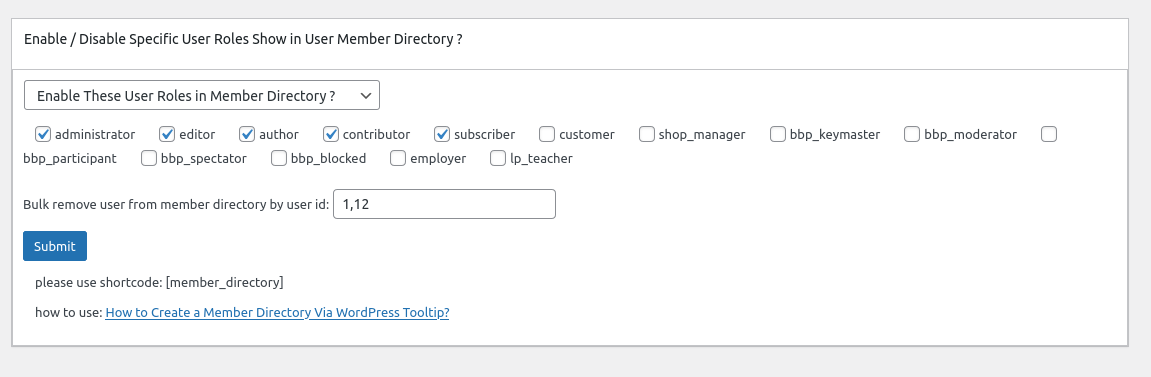
In here you can bulk enter user ids to exclude specific users from wordpress member directory in one time.
4: In front end, users which added in the “Bulk remove user from member directory by user id in wordpress tooltip” option, will be removed from wordpress member directory
If you have any more feature request or question for wordpress tooltip plugin, please don’t hesitate to contact us, we are happy to improve wordpress tooltip for you always, and we will give you a few license of our amazing wordpress plugins too




