What is Member Directory ?
A member directory is a list of individuals or organizations who are members of a particular group, association, or community. It typically includes contact information such as names, addresses, phone numbers, and email addresses. Member directories are often used by organizations to facilitate communication and networking among members, as well as to promote their membership base. They may be available in print or online formats, and may be accessible only to members or to the public.
What is WordPress Member Directory Plugin?
WordPress Member Directory Plugin is a tool that allows you to create a directory of members on your WordPress website. It enables you to display member profiles, contact information, and other relevant details in an organized and searchable format. With this plugin, you can create a membership site, a business directory, or a community directory. This can be useful for websites that have a large number of users or members, such as community websites, membership sites, or online directories.
Use case of WordPress Member Directory Plugin?
A member directory is a tool that organizations can use to manage and organize information about their members. Here are some use cases for a member directory:
1. Contact information: A member directory can be used to store and manage contact information for all members of an organization. This can include names, addresses, phone numbers, and email addresses.
2. Membership management: A member directory can help organizations keep track of their members’ status, such as whether they are active or inactive, and when their membership expires.
3. Networking: A member directory can facilitate networking among members by allowing them to search for and connect with other members who share similar interests or backgrounds.
4. Communication: A member directory can be used to send targeted communications to specific groups of members, such as newsletters or event invitations.
5. Resource sharing: A member directory can be used to share resources among members, such as job postings, volunteer opportunities, or educational materials.
A wordpress tooltip user told us he using our wordpress tooltip member directory addon to create the directory of members, he added wordpress tooltip effect on each user’s username in the member directory, to show their selfie video, which greatly helps all members quickly understand each other, enhances member relationships, and strengthens the overall group’s activity and trust, and all users like it the tooltip function for member directory.
Overall, a member directory can help organizations better understand and engage with their members, and can facilitate communication and collaboration among members.
How to Use WordPress Member Directory Plugin
Member directory plugin is very easy to use, just inser wordpress Member directory shortcode “member_directory” in any page or post, you will get a member directory with pretty member directory template quickly
How to build a member directory quickly?
1: click download wordpress tooltip to download latest version of wordpress tooltip lugin
2: upload the wordpress tooltip zip file into your wordpress site via wordpress plugins panel
3: activate wordpress tooltip plugin and click Tooltips menu item in wordpress dashboard
4: click member directory sub menu item, it looks like this:

member directory global settings in wordpress tooltip plugin
5: As you can see, you will open member directory global settings panel, in which you can enable member directory or disable functions of member directory, also you can decide which user roles will be added into the member directory list, for example, you can just add authors into member directory to build a wordpress authro wall for your site, or you can just add teachers directory of your LMS system for your students…etc
6: In front-end, you can just insert the shortcode “member_directory” in any wordpress post, then you will find member directory which looks like this:

member directory orange style via wordpress tooltip
As you can see, users can click the letter on the Navigation bar to open the list of users starting with that letter.
In the left column of the directory, we display the user name, in the right column of the member directory, we display user information and details of the user information, the user information is come from the biographical info field in wordpress user profile panel, it looks like this:

user profile of wordpress tooltip user
Once user change their information in wordpress user profile, wordpress tooltip will display the new user information in member directory too
How to exclude specific user from wordpress member directrory?
1: login wordpress tooltip site download wordpress tooltips pro plus 21.9.8 or tooltips pro 16.8.6.
2: upload ans activate wordpress tooltip plugin in your wordpress site
3: click tooltips menu in wordpress admin area and click directory settings panel, it looks like this:

directory settings panel in wordpress tooltips pro plus 19.2.8
This is directory panel in wordpress tooltip pro plus version 19.2.8, some features is not existed in tooltips pro version and more features is not included in wordpress tooltip free plugin, but member directory addon have same functions.
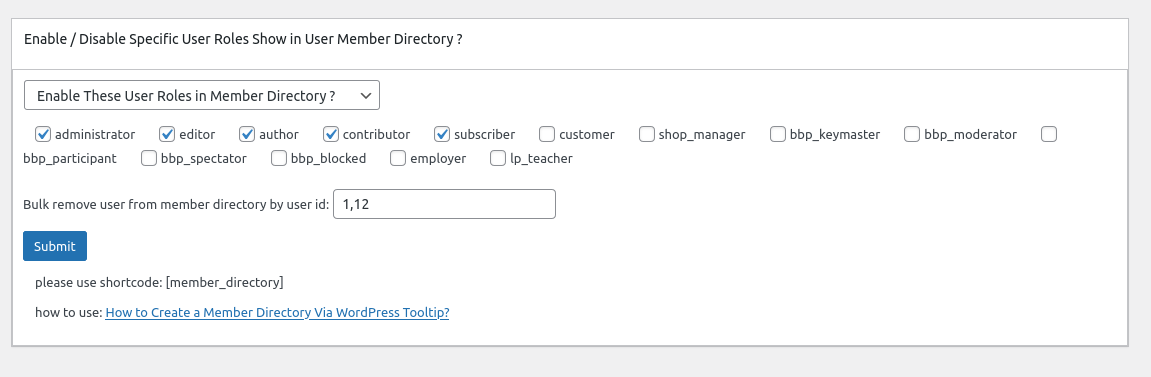
In the new version wordpress tooltips pro 20.9.8. you will find there are a new option “Bulk remove user from member directory by user id in wordpress tooltip”, it looks like this:

In here you can bulk enter user ids to exclude specific users from wordpress member directory in one time.
4: In front end, users which added in the “Bulk remove user from member directory by user id in wordpress tooltip” option, will be removed from wordpress member directory
Change Log of Member Directory Plugin
= Member Directory for WordPress Version 2.1.4 =
new option Bulk remove user from member directory by user id
Price changed to 2.2
= Member Directory for WordPress Version 2.1.2 =
Support wordpress post directory, please use shortcode: “postdirectory”
added wordpress post directory panel in back-end
Price changed to 2.1
= Member Directory for WordPress Version 2.0.2 =
New option to set up user roles of member directory
new menu item Member Directory Settings, you can:
opt to custom Nav Bar font size
opt to custom member directory term font size
opt to hide count number of member directoryitems
opt to significant display of digital superscripts on navigation bar
Price changed to 2.0
= Member Directory for WordPress Version 1.3.1 =
In wordpress member directory list, display user’s “Biographical Info” filed
Price changed to 1.4
= Member Directory Version 1.3.0 =
Added “Member Directory” menu item
If you click “Member Directory” menu item, you will open “Member Directory Global Settings” panel
In “Member Directory Global Settings” panel, you will find “Enable / Disable Specific User Roles Show in User Member Directory” option box
In Enable / Disable Specific User Roles Show in User Member Directory option box,
you can select multiple user roles from user roles lists and select to enable or disable specific user roles listed in member directory
Price changed to 1.3
= Member Directory Version 1.2.0 =
Added navigation bar at the top of the members directory page.
By default, we will list all users in the members directory page, in navigation bar, you can click A to view all users start A, click T to view all users start T
Also in the navigation bar, we will show user counts in the digital superscripts of the ‘A’, ‘B’, ‘C’… and so on
Price changed to 1.2
= Member Directory Version 1.0.0 =
* Spell out that the license is GPLv3
* Finished the first version
* General code clean up
Price 1.0
== Installation ==
1:Upload the Member Directory plugin to your blog
2:Activate it
3:Inser shortcode “member_directory” in any page or post
1, 2, 3: You’re done!
== Frequently Asked Questions ==
FAQs can be found here: https://tooltips.org/