Category: Blog

WordPress Dark Mode Plugin with WordPress Tooltip

Dark mode plugin is a light wordpress plugin to enable dark mode on wordpress front-end for your readers, after activated wordpress dark mode plugin, wordpress users will find a floating switch button in the bottom-right of the wordpress pages, you can one click to turn on / turn off dark mode at any time.

Enable dark mode on wordpress site will improve user experience and accessibility for your wordpress site:

Reduced eye strain: Dark mode can help to reduce eye fatigue caused by staring at bright screens for long periods of time, which can be particularly beneficial for users who spend a lot of time browsing a website.

Improved visibility: Using dark text on a light background can create a stark contrast that can be difficult to read for some users, particularly those with visual impairments. Dark mode can help to improve the visibility of text and other content by using lighter text on a dark background.

Better readability: By reducing the amount of blue light emitted by a screen, dark mode can help to improve readability, particularly in low-light environments.

Aesthetics: Some users simply prefer the look of dark mode over the traditional light mode. By providing a dark mode option, sites can cater to these users and improve their overall experience.

Improved user experience: By offering a dark mode option, a website can cater to users who prefer a darker color scheme. This can improve the overall user experience and keep users engaged with the site for longer periods of time.

Enhanced accessibility: Dark mode can make it easier for users with visual impairments or sensitivity to bright light to use a website. It can also help to reduce eye strain and fatigue, making it more comfortable to read content for extended periods of time.

Energy efficiency: When using a device with an OLED or AMOLED display, dark mode can help to extend battery life by reducing the amount of power needed to display black pixels.

Overall, enabling dark mode on a WordPress site can help to improve user experience, accessibility, aesthetics, and energy efficiency.


Tagged with: , ,

WordPress Tooltip Free 8.4.5 Released

Hi Dear  wordpress tooltip plugin users, hope this message find you are doing well and having happy weekend with your family 🙂

We got a ticket from a wordpress tooltip free plugin user, he said he renamed the folder of wordpress tooltip plugin, and then he found in the wordpress tooltip settings panel,  the logo of worddpress tooltip lost, he think this is not a problem but he think it is better to tell us 🙂

We did a check of our code, yes, our code using hard-code to display tooltip logo on wordperss tooltip settings panel, sorry for this, we developed the plugin about 12 years before…., we have fixed this problem asap we can, now if you changed the fold name of wordpress tooltip plugin, the tooltip logo will still displayed in the settings panel 🙂

Thank you so much for tell us the bug, you make the wordpress tooltip plugin better for all tooltip users, we sent a license of our wordpress smart content link plugin to the amazing user as a gift, we will add more and more function in this little plugin, for example, find the best post in your wordpress site which related with a keyword by a great AI algorithms…etc, it will works automatically, a tooltip user told us  internal link is important for SEO, that’s why we developed such functions for user,   also in wordpress tooltip plugin, we are adding more and more functions for tooltip user, in tooltip pro plus, we have added opanAI chatgpt function to generate tooltip and wordperss post automatically for tooltip users, also we are try to add an Image AI to add pretty image automatically for wordpress tooltip users too 🙂

In last 12 years, WordPress tooltips plugin is driven by tooltip users, we got Tons of feedback and we’d like try our best to realize these feature request, we always sent a little gift to the amazing wordpress tooltip user 🙂

Thanks for the great suggestion you make the wordperss tooltips  better for tooltip users, if you have any more question or feature request, please don’t hesitate to tell us 🙂

Tagged with:

WordPress Easy SSL plugin

What is SSL?

SSL is a security protocol that encrypts data sent between a user’s web browser and the server hosting the wordpress. When SSL is enabled, all traffic between the user and the server is encrypted, making it more difficult for third parties to intercept or access sensitive information such as login credentials or credit card details.

Why wordpress webmaster might enable force SSL on their WordPress site

Security: SSL encryption makes it more difficult for hackers to intercept sensitive information exchanged between a user’s browser and the website’s server. This is particularly important for sites that handle sensitive information, such as e-commerce sites or sites that require users to enter personal information.

SEO: In 2014, Google announced that it would use HTTPS (Hypertext Transfer Protocol Secure, which relies on SSL encryption) as a ranking signal in its search algorithm. Enabling SSL on a WordPress site can help improve its search engine ranking and visibility.

User confidence: When users see the green padlock icon in their browser’s address bar indicating that a site is using SSL encryption, they are more likely to trust the site and feel confident that their information is secure.

Enabling force SSL on a WordPress site involves configuring the site to always use HTTPS URLs instead of HTTP URLs. This can be done by modifying the site’s .htaccess file or by using a plugin such as Really Simple SSL. Once SSL is enabled, visitors to the site will automatically be directed to the HTTPS version of the site, which provides a more secure browsing experience.

Some wordpress product like buddypress will look HTTP page and HTTPS  page as different sites, other  plugins based on user roles will not works well if your site did not enabled SSL and have HTTP pages, easy SSL plugin will force SSL for your HTTP pages to HTTPS pages, this will help you avoid this kind of problem 🙂

Overall, enabling force SSL on a WordPress site is a good security practice that can help protect user data and improve search engine rankings.

How to use Easy SSL plugin?

Easy SSL plugin will redirect non-SSL HTTP pages to HTTPS pages automatically. With Easy  SSL expiration plugin, the wordpress webmaster will receive reminders of upcoming SSL certificate expirations well in advance. This allows them to plan and take the necessary steps to renew or replace the certificate before it expires, reducing the risk of downtime and security issues.

Easy SSL expiration plugin simplifies the process of monitoring SSL certificate expiration dates by automatically checking the certificates and notifying the webmaster of any upcoming expirations. This saves time and effort compared to manually monitoring certificate expiration dates.

Easy SSL expiration monitor will check SSL status of your wordpress site one time one day,  you can find SSL expiration status in wordpres dashboard widget and Easy SSL plugin will send you a reminder before the SSL expired.

It is very easy to use easy SSL plugin:

1: Download easy SSL plugin from wordpress tooltip site and upload the easy SSL plugin to your wordpress

2:Activate it, the plugin will works automatically, Easy SSL plugin will redirect all non-SSL HTTP pages to HTTPS pages automatically.

3: 30 days before your wordpress SSL is about to expire , our plugin will send you mail notification “SSL certificate will expire in 30 days.” You will get the one notification every day, until the SSL expiration days > 30 days.

You can enable / disable it at “Easy SSL settings panel” in easy SSL settings panel. The SSL settings panel looks like this:

easy SSL expiration monitoring settings

easy SSL expiration monitoring settings

If you disabled You can  SSL expiration monitoring in Easy SSL settings panel, easy SSL plugin will not check your SSL expiration status and will not send SSL expiration notification to you again

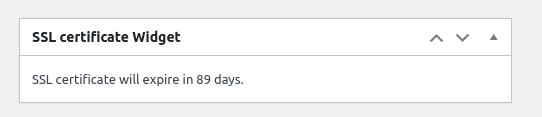
4:You can enable SSL expiration widget in wordpress dashboard widget, it looks like this:

easy SSL certificate widget in wordpress dashboard

easy SSL certificate widget in wordpress dashboard

What’s the benefits to use Easy SSL plugin for the bPress webmaser?

Site Availability: If the SSL certificate on wordpress expires, users may be unable to access the site or see warning messages in the browser, resulting in lost traffic and revenue for the site owner. With an SSL expiration plugin, the webmaster can take action to renew the certificate before it expires, ensuring the continued availability of the site.

Security Compliance: Many industry standards and regulations require valid SSL certificates, so an SSL expiration plugin can help ensure compliance with these requirements. By receiving notifications of upcoming SSL certificate expirations, the webmaster can proactively renew the certificate, helping to maintain the site’s security and compliance.

Overall, easy SSL expiration plugin can save time, simplify maintenance, and help ensure the security and compliance of your wordpress site.

Our wordpress tooltip plugin author is still adding new feature for Easy SSL plugin, if you have any feature request or question, please don’t hesitate to tell us 🙂


Tagged with: , , , , ,

WordPress Smart Content Links Plugin with WordPress Tooltip 1.5 Released

Hi dear users of wordpress tooltip, hope this message find you are doing well and having happy days with your family 🙂 We are happy to report you, WordPress Smart Content Links Plugin with WordPress Tooltip 1.5 Released 🙂

WordPress Smart Content Links Plugin is a powerful tool for enhancing your website’s content and improving the user experience. By embedding links to related content within your articles and wordpress blog posts, you can provide valuable context, information, and resources to your readers without disrupting their flow or distracting them from your main message. And wordpress smart content links plugin  will improve SEO for your wordpress site 🙂

After released wotdpress smart content links plugin, we get a few feedback from wordpress tooltip users, a wordpress glossary user said he do not want smart content link displayed in glossary shortcode, our wordpress tooltip developer checked his site and we added a new function to stop display smart content link in wordpress glossary items, that’s why we released wordpress smart content link 1.5.0 for smart content link users 🙂

Also we are adding more features for wordpress smart content link plugin, for example, allow wordpress admin use pretty font awesome icons in wordpress smart content link…etc 🙂

If you have any more question of feature request, please don’t hesitate to contact us! 🙂


Thanks, have a blessed day with your family 🙂

WordPress Tooltip Plugin Support


Tagged with: , ,

How to Custom WordPress FAQ Title Color? WordPress FAQ Pro Plugin With WordPress Tooltips 3.9.6 Released

What’s new in wordpress FAQ with tooltip plugin 3.9.6?

Hi, Dear  users of WordPress Tooltip plugin, hope this message find you are doing well and having happy weekend with your family 🙂 Two days before we released wordpress FAQ plugin with tooltip 3.8.6, in that version wordpress faq with tooltip plugin support customize FAQ title background color, based on an user’s suggestion. Then our wordpress tooltip author decide to develop  a new wordpress faq with tooltip version to allow wordpress admin customize wordpress FAQ title font color, this is why we released wordpress faq with tooltip plugin 3.9.6 🙂

WordPress FAQ plugin is a fast & powerful &  easy to use jQuery FAQ solution to help wordpress blodder create / manage / edit FAQs easily,  in last 9 years,  our wordpress faq with tooltip plugin is a high-level-customizable plugin, based on users feedback, with wordpress faq plugin, it is very easy to create and show accordion FAQs, display FAQs grouped by category…etc, although in wordpress FAQ with tooltip plugin, we have included a few pretty FAQ template for users, but some users told us they still need custom style for their wordpress FAQ because they need make the style match better with their wordpress theme, we get more and more customize style request from users, this drive us focus on improve wordpress FAQ UI and make it more easier to custom style via a few clicks for wordpress FAQ users 🙂

How to customize the color of wordpress FAQ title?

1: Login wordpress tooltip and  click downloads , download latest version of wordpress FAQ with tooltip plugin, it is a zip file

2: After downloaded wordpress FAQ plugin, please login your wordpress site, and click plugins menu in wordpress dashboard, then in plugin panel, please remove the old version of wordpress FAQ plugin, then click “New” button in wordpress plugin panel to upload wordpress FAQ plugin and activate the new wordpress FAQ with tooltip plugin

3: Click FAQ menu item in wordpress dashboard , then click “global settings” sub menu item to open wordpress faq global settings panel. it looks like this:

Wordpress FAQ plugin FAQ Global Settings 3.9.6

WordPress FAQ plugin FAQ Global Settings 3.9.6

4:In the screenshot, you can find there are a new option “Custom F.A.Q Bar Font Color” to allow admin to customize the color of FAQ bar title font , what you need is click the wordpress color picker to choose a color for the title of your wordpress FAQ, then click “submit” button to save the changes.

5: In front-end, you will find the title of wordpress FAQ plugin has been changed as you want 🙂

Conclusion:

With wordpress FAQ plugin, it is very easy to select pretty FAQ templates via a few seconds, after selected the pretty FAQ theme, you can still customize the style for elements of your wordpress FAQ. If you want more powerful wordpress FAQ function, please don’t hesitate to contact us 🙂


Tagged with: , , , ,

Quick and Easy Responsive Tabs with Tooltips Plugin

Quick and Easy Responsive Tabs Plugin:

WordPress Quick and Easy Responsive Tabs Plugin is a bootstrap responsive tabs for wordpress, wordpress admin can create tabs super easy, just use the tab shortcode like this:

[[tabs postids=’2457,20,1224′]]

You can use post ID from any existed wordpress post, custom type post, pages as tab tile and content.

It looks like this:

demo of wordperss tabs plugin

demo of wordperss tabs plugin

Please tell us more about what WordPress Tabs is?

WordPress Tabs are a design feature that allow for the organization and presentation of content in a user-friendly way. WordPress Tabs are typically used to group together similar types of content or to break down a larger amount of information into more manageable sections.

A tabbed interface usually consists of a horizontal or vertical row of clickable tabs, each corresponding to a different section of content. When a user clicks on a wordpress tab, it activates the corresponding section of content while hiding the others. This allows users to easily switch between sections of content without having to navigate away from the page or scroll through a long list.

WordPress Tabs can be found on a wide range of wordpress sites, from music and entertainment sites  that provide guitar and bass tabs, to news and information wordpress sites that organize articles by topic or category.

In summary, wordpress tabs are a design feature commonly found on wordpress sites that assist with organization and navigation of content, and provide a better user experience by making it easier for users to access and interact with different sections of a wordpress sites’s content.

What is the benefits of using tabs on wordpress site?

I’d be happy to explain the benefits of using tabs on wordpress blog 🙂

Firstly, using wordpress tabs can help organize content and make it easier for users to navigate through a wordpress site. When there is a lot of information or different categories of content on a page, wordpress tabs  can break that content down into smaller and more manageable sections. This can prevent the page from becoming cluttered and overwhelming, allowing users to quickly find the content they are looking for.

Secondly, using wordpress tabs can also save space on the page. Instead of having multiple pages or sections on the same page that take up a lot of room, wordpress tabs allow multiple sections to be condensed into a smaller space. This can be particularly useful for mobile devices or smaller screens where space is limited.

Another benefit of using tabs is that they provide a better user experience. By grouping similar content together, it’s easier for users to find what they’re looking for, which can ultimately increase engagement and keep users on the site for longer periods of time. Additionally, because wordpress tabs are commonly used and familiar to most internet users, they can make navigating a website feel more intuitive and accessible.

In summary, using tabs on wordpress site offers many benefits such as organizing content, saving space, and providing a better user experience. I hope this explanation helps you understand why many wordpress blodder  choose to incorporate wordpress tabs into their design.

What is bootstrap?

WordPress Tabs plugin using bootstrap to create responsive tabs for wordpress tooltip users. Bootstrap is a popular front-end framework that is used to design and develop responsive wordpress site and web applications. It was originally created by a designer and developer at Twitter, but is now maintained by a community of developers on GitHub.

WordPress Tabs plugin using Bootstrap 5 which is the latest version of Bootstrap, and it is continually evolving with each release to better utilize CSS variables for global theme styles, individual components, and even utilities. This version provides dozens of variables for colors, font styles, and more at a :root level for use anywhere. On components and utilities, CSS variables are scoped to the relevant class and can easily be modified.

In summary, WordPress Tabs plugin using Bootstrap 5 as a front-end framework that provides a collection of web design components to build responsive, mobile-first wordpress tabs plugin. 🙂

How to Install WordPress Quick and Easy Responsive Tabs Plugin?

1. Download the plugin (.zip file) from wordpress tooltip site
2. Login your wordpress as admin and click the menu Plugins
3. click “add” button
4. Then click “Upload” button
5. Upload the .zip file that you downloaded from wordpress tooltip plugin site
5. Activate the plugin WordPress Quick and Easy Responsive Tabs

How to Use WordPress Quick and Easy Responsive Tabs Plugin?

It is very easy to create a wordpress tab quickly, just use the tab shortcode like this:

[[tabs postids=’1,82,84,92′]]

You can use post ID from any existed wordpress post, custom type post, pages as tab tile and content.

Why We Develop the WordPress Quick and Easy Responsive Tabs Plugin?

Our wordpress tooltip developer tied to create a few tabs for our wordpress tooltip plugin document, after installed a few tabs, we found we need to create tabs like this:

[sometab framework]

[sometab title]

[sometab content]

[sometab title]

[sometab content]

[sometab title]

[sometab content]

[/sometab framework]

Our wordpress tooltip developer find we need create many HTML content manually with a very complex structs, and when we want to insert videos/ audios / images / google maps / woocommerce products in tabs, we had to write many codes manually, for our support or wordpress users who are not good at CSS / HTML — it is a hard work and it need a lot of time.

So our wordpress tooltip developer decided to develop a quick and easy and responsive wordpress tab plugin for our wordpress tooltip support and wordpress blogger. We work hard to fins a fast and easy solution to create wordpress tabs and we got it now. 🙂

If you have any suggestion or feature request, please don’t hesitate to contact us, we will improve our wordpress tabs with tooltip plugin for wordpress users 🙂

Change log of WordPress Quick and Easy Responsive Tabs Plugin

==  Version 1.0.2 ==

A better UI for wordpress tab with tooltip plugin

price : $1.8

==  Version 1.0.0 ==
Initial version, price: $1.2

Open the plugin page (https://tooltips.org/) to check the change log and documents

Tagged with: , ,

WordPress FAQ Pro Plugin With WordPress Tooltips Released

What is WordPress FAQ Plugin?

WordPress FAQ plugin is a fast & powerful &  easy to use jQuery FAQ solution to help wordpress blodder create / manage / edit FAQs easily, select default pretty FAQ template and custom FAQ style in back-end via a few clicks. With wordpress faq plugin, it is very easy to create and show accordion FAQs, display FAQs grouped by category…etc

Features in WordPress FAQ Plugin

* Lightweight & load fast & easy to use, just 3 minutes, you can build your own wordpress FAQ lists via wordpress custom post type editor and manage with wordpress custom post type manager

wordpress FAQ posts

wordpress FAQ posts

* Responsive FAQ design

* Add / Edit / Delete / Manage FAQ in Frequently Asked Questions via WYSIWYG wordpress standard editor

adding new wordpress FAQ plugin

adding new wordpress FAQ plugin

* Using any existed post or even custom post as FAQ:  WordPress blogger can use any eixted wordpress posts / pages / custom post type / ….etc as content of a wordperss faq item, it help you build FAQ page every fast and super easy, you do not need to re-write duplicated content in FAQ — that is not good for SEO,  we will reuse the post title as FAQ title, and reuse the post content as FAQ content  

Using existed post as wordpress FAQ post

Using existed post as wordpress FAQ post

* One click to change wordpress FAQ template and wordpress FAQ schema

By default, we have included a few pretty pre-designed faq template for you, what you need just select a pre-designed template via a few clicks:

In back end of WordPress FAQ Plugin:

wordpress faq preset templates

wordpress faq preset templates

In front end, a sample of wordpress FAQ  plugin Blue-Yellow template:

using different templates for wordpress FAQ plugin

using different templates for wordpress FAQ plugin

* Custom FAQ Color from wordpress color picker:

If you want to custom wordpress faq style, you do not need to add CSS manually, what you need to do  is just select color from color picker:

wordpres faq pro custom faq title background color

wordpres faq pro custom faq title background color

* Create FAQ categories and assign FAQ posts to categories

WordPress FAQ Categories

WordPress FAQ Categories

* Support display FAQs grouped by category, you can use You can use shortocde

to show FAQs by categories, in the case you have multiple products, you can build multiple faq lists which grouped by FAQ categories

* Support create multiple FAQs for different usage

* Support all morden browser

* Works great with wordpress tooltips plugin, you can display video / audio / image / maps / woocommerce products  / QR codes…etc in wordpress tooltip window

* Unlimited FAQs

* Unlimited FAQ categories

* In frontend, you can use shortocde [faq] to show all accordion faq in any wordpess post or page

* In frontend, users can toggle between hiding and showing large amount of faq content via a few clicks
and more…

Do You Have a Demo Page of WordPress FAQ Plugin?

Yes, we do have demo of wordpress FAQ plugin, please check WordPress Tooltips Plugin FAQ Page

How to Install WordPress Frequently Asked Questions Plugin

1:Upload the Frequently Asked Questions to your blog
2:Activate it
3:You will find FAQ menu item in admin area, you can add new faq posts in wordpress custom post editor.
And you can add/edit/delete faq posts just like wordpress standard posts.
1, 2, 3: You’re done!

Frequently Asked Questions

= Can I Add category for FAQ posts? =
Yes, you can add / edit / delete categories in “FAQ” category menu item

= Responsive? =
Yes, FAQ pages is responsive

Change log of WordPress Frequently Asked Questions Plugin

Added faq link for each faq term, for help your site to get a better SEO rank
It looks like this: https://tooltips.org/faq/

In FAQ editor, you can edit / custom the permalink of FAQ post

= WordPress Frequently Asked Questions Plugin Version 3.8.6 =

New option to allow admin to custom faq bar background color

= WordPress Frequently Asked Questions Plugin Version 3.7.3 =

added two filter for developer to add specific effects on F.A.Q title or F.A.Q content:
You can use filter_faq_item_title to change content of faq title or something more, for example, add tooltip effects on faq title
apply_filters( ‘filter_faq_item_title’, $ffw_faq_for_wp_how_to_bar_title);
You can use filter_faq_item_content to change content of faq item content or something more, for example, add tooltip effects on faq content
apply_filters( ‘filter_faq_item_content’, $ffw_faq_for_wp_how_to_bar_content);

= WordPress Frequently Asked Questions Plugin Version 3.7.1 =

Opt to add No Index meta for any FAQ post to tell google do not index this FAQ post
You can enable faq archive in the page yourdomain.com/faqs, also you can one click to disable faq archive in faq settings panel

= WordPress Frequently Asked Questions Plugin Version 3.6.7 =
Support woocommerce FAQ
In “FAQ Global Settings” panel, you will find new option “Enable Woocomemrce F.A.Q Tab”
You can display / hide F.A.Q tab in woocommerce product tabs

= WordPress Frequently Asked Questions Plugin Version 3.6.5 =

Support to display only the specified number of FAQ items
Just use wordpress FAQ shortcode parameters like this:
[faq limit='20']
If you want to display all faq items, use shortcode [faq] directly

= WordPress Frequently Asked Questions Plugin Version 3.6.3 =
Support wordpress F.A.Q Index / Archive Page
In wordpress faq global settings page, support opt to enable or disable faq archive page, opt to enable or disable faq permalinks

= WordPress Frequently Asked Questions Plugin Version 3.5.9 =
Added a new Black Blue F.A.Q Template

= WordPress Frequently Asked Questions Plugin Version 3.5.3 =
You can use any existed post or even custom post as FAQ, so you will not need re-write duplicated content in FAQ, we will reuse the post title as FAQ title, and reuse the post content as FAQ content.
For example, if you have a bbpress topic, and you think that is helpful for users, you can just add post id in FAQ editor, and we will use the specified bbpress topic title as FAQ title and use bbPress topic content as FAQ content… and so on
When you edit a FAQ term, in the right hand of the FAQ editor, you will find “Use existed post as FAQ post?” metabox, just enter the existed post id in the input box, then the title and content of this FAQ will be replaced with your specificed post

= WordPress Frequently Asked Questions Plugin Version 3.4.3 =
Added a new Pretty Yellow faq Template, in “FAQ Global Settings” panel, in “Select FAQ Template” option,
you will find the new pretty yellow faq template

= WordPress Frequently Asked Questions Plugin Version 2.4.3 =
Added faq link for each faq term, for help your site to get a better SEO rank
It looks like this: https://tooltips.org/faq/wordpress

In FAQ editor, you can edit / custom the permalink of faq post

= WordPress Frequently Asked Questions Plugin Version 2.1.3 =
Added FAQ demo Url in readme

= WordPress Frequently Asked Questions Plugin Version 2.1.1 =
Support FAQ temeplate
In FAQ admin area, you will find new menu “Global Settings”
In “Global Settings” panel, you will find “Select FAQ Template” option
In “Select FAQ Template” option, you can select different FAQ template
Also we build a demo at: https://tooltips.org/faq/

= WordPress Frequently Asked Questions Plugin Version 1.2.3 =
Load jQuery-UI.js for more functions

= WordPress Frequently Asked Questions Plugin Version 1.1.3 =
Support display FAQs grouped by category
You can use shortocde

to show faq which
In faq categories manage panel, Updated label to “Add New FAQ Categories”
In faq categories manage panel, Updated label to “Parent FAQ Categories”
In faq categories manage panel, change button to “Add New FAQ Categories”

= WordPress Frequently Asked Questions Plugin Version 1.0.3 =
Add icons for faq items
Upgrade jquery UI theme
Add images

= WordPress Frequently Asked Questions Plugin Version 1.0.0 =
* Spell out that the license is GPLv3
* Finished the first version
* General code clean up

Tagged with: , ,

Smart Content Links by WordPress Tooltips 1.4.0 Released

Two days before, we reported to wordpress tooltip users that we have developed a new wordpress plugin — smart content links, based on an user’s feature request.

The webmaster told wordpress tooltip plugin support that  he would like to add links to related articles at the top of the post, he want improve the user experience by providing visitors with easy access to relevant and additional information that they may find useful. By providing users with quick access to more content, he said webmasters can encourage them to stay on their website longer and explore more pages, which can ultimately reduce bounce rates and increase engagement.

Then our wordpress tooltip developer said this is a great idea to help wordpress blogger to improve user experience, we should develop a smart content links for wordpress tooltip users, and we lost our sleep from day to night finished this new wordpress plugin asap we can 🙂

Today the user told us, the plugin smart content link it is exactly the plugin he dreams of, and he said if we can add a few placeholder for margin input text filed and padding input text filed, it is easier to help users use the smart content link plugin, he reminded us that most users do not have CSS knowledge, he used a few minutes to understand CSS 🙂

Sorry, yes, it is right, as a wordpress plugin developer , we overlook this point, our wordpress tooltip developer lost sleep again to finish the version asap we can , we just released wordpress smart content links 1.4.0 to help wordpress blogger to use the smart content link plugin easier, now when you click into the smart content link settings panel, you will find we have added placeholder to tell wordpress blogger how to margin for each link, actually we provided CSS code to achieve the best design solution, what webmaster need to do is just copy our placeholder and all things will works well with a pretty UI in the front-end 🙂

Thanks for the great suggestion, our wordpress tooltip developer offered a discount for the great user, if you have any more suggestion or question to our wordpress tooltip plugin, please don’t hesitate to contact us, and we are very happy to help you to make your dream to the truth 🙂

Moreover, adding internal links to related articles is a great idea, we didn’t know this kind of requirement, now we use our smart content link plugin to add import guide links for our wordpress tooltip users, when wordpress tooltip users open our document, they will find links of wordpress tooltip support forum,  wordpress tooltip ticket, wordpress tooltip document, wordpress tooltip demo…etc,  also this will boost SEO rankings by indicating to search engines that the website is providing valuable and in-depth content on a particular topic. When search engines crawl a website and find a series of related articles on the same topic, it can understand that the website is an authority on that topic and rank it higher in search results.

Overall, adding links to related articles at the top of the post can benefit both the user experience and SEO, making it a common practice among many webmasters. 🙂


Tagged with:

Smart Content Links Plugin by WordPress Tooltip Released

Hi, We’ve added a new feature to our WordPress posts that allows you to easily add contextual content links within the body of your article. These smart content links are designed to provide readers with quick access to related resources and information, making it easier for them to learn more about the topic at hand. Try it out today and see how smart links can enhance your content!”

Why you need smart content links plugin?

Smart content links are a powerful tool for enhancing your website’s content and improving the user experience. By embedding links to related content within your articles and wordpress blog posts, you can provide valuable context, information, and resources to your readers without disrupting their flow or distracting them from your main message.

At their core, smart content links are designed to provide users with quick acc

smart content link

smart content link

ess to additional information and resources that are relevant to the topic at hand. For example, if you’re writing an article about content marketing, you might include related smart links to other articles or resources about SEO, email marketing, or social media marketing. By doing so, you’re not only providing your readers with more information about the topic, but you’re also helping them discover other relevant content on your site.

But that’s not all smart content links can do. They can also help to improve your site’s SEO by providing search engines with more context about the content on your wordpress. By linking to other relevant content, you’re signaling to search engines that your site is a valuable resource for users who are interested in that particular topic. This can help to increase your site’s visibility in search results and drive more traffic to your site.

Overall,  smart content links are a powerful tool for improving the user experience on your site, providing valuable context and resources to your readers, and improving your site’s SEO. Whether you’re a wordpress blogger, content marketer, or website owner, smart content links are a must-have tool for enhancing your wordpress content and growing your audience.

How smart content links plugin works?

It is very easy to use smear content links plugin:

1: download wordpress smart content links plugin or purchase a license from wordpress tooltip shop

2: upload smart content link plugin into your wordpress site and activate it in plugins panel

3: activate wordpress smart content link plugin, it looks like this:

smart content link settings panel

smart content link settings panel

4: At first, you will find in Item settings panel, you can can dynamically add links and link properties, such as link name, URL address, margin, padding, you can select the color of the link from the color picker.

5: Once you added a link, you can click “Add New” button to add a new link and link properties, if you do not want a link, just click the gray “remove” button to remove the link

6: After insert / edit / delete all links, you can click the green “Save Settings” button to save all changes of links

7:In front end, we will display all links in the information bar,  you can custom the information bar settings, for example, change the smart content link information bar width,  select background color from the wordpress standard color picker, decide add the links at the head of a wordpress post or add links at the bottom of the wordpress post.

8: After setting the “information bar settings”, please remember to click the blue “Save Settings” button

Then in the front end, it looks like this:

smart content link

smart content link

Also you can find smart content link demo at wordpress tooltips feature page

Change Log of Smart Content Link plugin:

= 1.1 =
A better UI for users of smart content link, price changed to $2.0

= 1.0 =
Initial Release. Uploaded to wordpress tooltip shop, price:$1.5

Tagged with: , ,

SoundCloud Tooltips Demo

SoundCloud Tooltip

please check our detailed document: Build Stunning SoundCloud Tooltips for Your WordPress Posts in Just 2 Minutes!

please check our detailed document “How to Add SoundCloud Player with Pretty Songs in WordPress Post Easily via WordPress Tooltip Plugin?

Top