Come sostituire il link “Glossario” nelle briciole di pane del glossario nel plugin WordPress Tooltips?

Ciao, cari utenti del plugin WordPress Tooltip, spero che questo messaggio vi trovi bene e che stiate trascorrendo un felice fine settimana con la vostra famiglia. Recentemente abbiamo rilasciato la versione 31.0.8 del plugin WordPress Tooltips Pro Plus in risposta ai feedback degli utenti. Un utente ha contattato inizialmente per ricevere aiuto con la configurazione della propria pagina del glossario, esprimendo difficoltà nel farla apparire come desiderato. Il nostro team di supporto li ha guidati con i passaggi per creare una nuova pagina e inserire uno shortcode. Dopo alcuni scambi, l’utente ha configurato con successo il proprio indice del glossario, ma desidera sostituire i link delle categorie del glossario nei breadcrumb con link a un’altra pagina SEO.

Per affrontare questo, il nostro team di supporto ha informato l’utente che stiamo lavorando a un aggiornamento per consentire la personalizzazione dei link dei breadcrumb. Di conseguenza, abbiamo sviluppato la nuova versione per implementare questa funzionalità richiesta dall’utente.

Questo rilascio mira a migliorare l’esperienza dell’utente e a risolvere le richieste specifiche fatte durante l’interazione di supporto. Grazie ai nostri utenti per il loro prezioso contributo!

Inoltre, il nostro sviluppatore del plugin WordPress Tooltip ha detto che è una grande idea supportare la personalizzazione del link del glossario nei breadcrumb, consentendo di portare a un’altra pagina. Così abbiamo sviluppato la versione 31.2.8 di WordPress Tooltips Pro Plus per dare vita a questa idea per gli utenti di WordPress Tooltip.

### Come sostituire il link “Glossario” nei breadcrumb del glossario nel plugin WordPress Tooltips?

Per utenti esistenti: Per scaricare l’ultima versione del plugin WordPress Tooltip Pro Plus, clicca sul link etichettato “scarica wordpress tooltip”. Assicurati che il numero della versione sia 31.0.8 o superiore. I nuovi utenti dovranno ottenere una licenza per il plugin WordPress Tooltip Pro Plus prima di procedere.
Accesso amministratore: Accedi al tuo sito WordPress con privilegi da amministratore.

Gestione plugin: Nel pannello di controllo del tuo sito, trova la sezione “Plugin”.

Rimuovi la vecchia versione: Disattiva ed elimina completamente eventuali versioni precedenti del plugin WordPress Tooltip dalla lista dei plugin.

Carica la nuova versione: Per installare il plugin aggiornato, clicca sul pulsante “Aggiungi Nuovo” e seleziona il file zip del nuovo plugin WordPress Tooltip.

Attiva il plugin: Dopo aver caricato, assicurati di attivare il plugin dal pannello dei plugin per accedere alle sue funzionalità.

Per utenti alla prima esperienza: Sei nuovo nel plugin WordPress Tooltip? Dai un’occhiata al nostro video tutorial sull’installazione: WordPress Tooltips Video Tutorial 3: Come caricare e attivare il plugin WordPress Tooltips Pro.

Accedi alle impostazioni: Nel tuo dashboard WordPress, vai al menu “Tooltips” e clicca sull’opzione “Impostazioni Glossario”. Il menu dovrebbe apparire come segue:

  • tooltips menu in wordpress tooltips pro plus 27.5.8

tooltips menu in wordpress tooltips pro plus 27.5.8

Personalizza i link dei breadcrumb: All’interno del pannello delle impostazioni del glossario, cerca l’opzione etichettata “Personalizza il link del glossario nei breadcrumb del glossario.” Ecco come appare:


Alla fine del pannello delle impostazioni, troverai un menu a discesa dove puoi scegliere tra varie pagine di WordPress. Seleziona semplicemente un’altra pagina per sostituire il link della categoria del glossario esistente nei breadcrumb.

Nota importante: Se preferisci non cambiare il link del glossario nei breadcrumb, scegli semplicemente “Nessuno” dal menu a discesa.

Nell’area delle impostazioni del glossario di WordPress, troverai l’opzione “Personalizza il link del glossario nei breadcrumb del glossario”, e appare così:

Come puoi vedere in fondo al pannello delle impostazioni del Glossario di WordPress, abbiamo aggiunto una nuova opzione chiamata ‘Personalizza il link del glossario nei breadcrumb del glossario’. In questa opzione, c’è una casella a discesa con l’elenco di tutte le pagine di WordPress. Puoi semplicemente selezionare un’altra pagina da questo menu a discesa per sostituire il link della categoria del glossario nei breadcrumb.
Ti preghiamo di notare:
Se non vuoi sostituire il link del glossario nei breadcrumb del glossario, seleziona semplicemente l’opzione “Nessuno” nella casella a discesa.
Apprezziamo davvero il tuo fantastico suggerimento! Se hai ulteriori idee per funzionalità, non esitare a contattarci. Siamo entusiasti di assisterti nel realizzare la tua visione!
Ti auguriamo una giornata meravigliosa, piena di gioia insieme ai tuoi cari!
Cordiali saluti,
Il team di supporto del plugin WordPress Tooltip

Tagged with: , , ,

Wie man Groß- oder Kleinschreibung in der spezifischen Glossartitel-Spalte im WordPress Tooltip Plugin anzeigen kann, unterstützt von WordPress Tooltips Pro Plus 30.9.

Liebe WordPress Tooltip Plugin-Benutzer,

ich hoffe, diese Nachricht findet Sie gut und Sie haben einen schönen Tag mit Ihrer Familie
Wir haben ein Support-Ticket von einem Benutzer des WordPress Tooltip Plugins erhalten, der um die Option zur Anzeige von Groß- oder Kleinschreibung in der spezifischen WordPress-Glossartitel-Spalte gebeten hat. Er sagte:

Hallo,
Ich schätze das von Ihnen entwickelte WordPress Tooltip Plugin sehr und habe beim Verwenden eine kleine Problem festgestellt. Nachdem ich einen Glossarbegriff eingegeben habe, wird dieser automatisch in der Glossartitelspalte auf der Website in Großbuchstaben umgewandelt. Ich würde jedoch gerne die Option haben, ob der Glossarbegriff in Großbuchstaben oder Kleinbuchstaben in der Titelspalte angezeigt werden soll, um meinen Anforderungen besser gerecht zu werden.
Ich persönlich glaube, dass eine solche Wahl den Benutzern mehr Flexibilität bieten würde. Wenn möglich, würde ich es sehr begrüßen, wenn Sie diese Option in einem zukünftigen Update hinzufügen könnten, um den Benutzern die freie Wahl zu lassen, ob der Glossarbegriff als Titel in Groß- oder Kleinbuchstaben angezeigt werden soll.
Vielen Dank für die Entwicklung dieses Plugins und danke, dass Sie sich die Zeit nehmen, meinen Vorschlag zu lesen und in Betracht zu ziehen. Ich freue mich auf Ihre Antwort und zukünftige Updates.
Beste Grüße,

Unser Support-Team für das WordPress Tooltip Plugin hat geantwortet:

Hallo,
ich hoffe, es geht Ihnen gut und Sie haben glückliche Tage mit Ihrer Familie
Vielen Dank für Ihre Nachricht
Wir helfen Ihnen sehr gerne weiter
Unser Entwickler hat Ihre Funktionsanfrage überprüft und ja, wir werden eine neue Version entwickeln, um Ihre Funktionsanfrage so schnell wie möglich umzusetzen. Wir werden Ihnen erneut antworten
Vielen Dank und haben Sie einen gesegneten Tag mit Ihrer Familie
Beste Grüße,
WordPress Tooltips Support Team

Dann hat unser Entwickler des WordPress-Tooltips-Plugins eine neue Version namens WordPress Tooltips Pro Plus 30.9.8 fertiggestellt, um die Funktionsanfrage des großartigen Benutzers so schnell wie möglich umzusetzen

Wie man Groß- oder Kleinschreibung in der spezifischen Glossarbegriff-Titel-Spalte im WordPress Tooltip Plugin anzeigt:

  1. Als Kunde des WordPress Tooltip Pro Plus Plugins klicken Sie bitte auf “Download WordPress Tooltip”, um die neue Version des WordPress Tooltip Pro+ Plugins herunterzuladen, die Version >= 30.9.8 ist. Neue Benutzer sollten bitte eine Lizenz für WordPress Tooltip Pro Plus erwerben.
  2. Melden Sie sich in Ihrem WordPress-Website als Administrator an und klicken Sie auf das Menü “Plugins”. Deaktivieren und löschen Sie dann die aktuelle Version des WordPress Tooltip Plugins im Plugin-Bereich. Laden Sie anschließend die neue Version des WordPress Tooltip Plugins (ZIP-Datei) hoch und aktivieren Sie es im Plugin-Bereich.
  3. Wenn Sie ein neuer Benutzer des WordPress Tooltip Plugins sind, schauen Sie sich bitte unser Video zur Installation des WordPress Tooltip an: WordPress Tooltips Video-Tutorial 3: So laden Sie das WordPress Tooltips Pro Plugin hoch und aktivieren es.
  4. Im WordPress-Dashboard navigieren Sie zum “Tooltips” -Menüpunkt und wählen dann den Untermenüpunkt “Glossary settings” aus. Das WordPress Tooltip Menü sieht wie folgt aus: Tooltips-Menü in WordPress Tooltips Pro Plus 27.5.8
  5. In den WordPress-Glossareinstellungen finden Sie die Option “Glossary Term Capitalization”. Hier können Sie “Großbuchstabenanzeige für Glossarbegriffe in der Titelspalte des Glossars” oder “Kleinbuchstabenanzeige für Glossarbegriffe in der Titelspalte des Glossars” auswählen, um Groß- oder Kleinschreibung in der angegebenen Glossarbegriff-Titelspalte im WordPress Tooltip Plugin anzuzeigen.

Vielen Dank für die großartige Funktionsanfrage. Wenn Sie weitere Fragen haben, zögern Sie bitte nicht, uns zu kontaktieren. Wir helfen Ihnen gerne weiter

Vielen Dank und haben Sie einen gesegneten Tag mit Ihrer Familie.

Beste Grüße,

Das Support-Team des WordPress Tooltips Plugins

Tagged with: , , , ,

Wie verknüpfe oder ordne ich eine WordPress-Tooltip zu einem bestimmten Element zu?

Liebe Benutzer des WordPress Tooltip Plugins,

wir hoffen, dass es Ihnen gut geht und Sie einen schönen Tag mit Ihrer Familie verbringen.
Wir haben ein Support-Ticket von einem Benutzer des WordPress Tooltip-Plugins erhalten. Der Benutzer sagt:

“Entschuldigung, ich bin neu hier. Ich bekomme immer noch nicht heraus, wie ich eine Tooltip mit einem bestimmten Element verknüpfen oder zuordnen kann. Also habe ich eine Tooltip erstellt und möchte, dass sie erscheint, wenn der Benutzer über ein Schaltflächenelement (mit der Bezeichnung ‘Person hinzufügen’ und der ID ‘add-person’) auf meiner Seite fährt. Wie gehe ich dabei vor? Wie ordne ich die gerade erstellte Tooltip diesem Schaltflächenelement zu?”

Wir glauben, dass es möglicherweise mehrere Benutzer mit einer ähnlichen Fragestellung gibt. Daher möchten wir unsere Antwort offen für alle Benutzer des WordPress Tooltip-Plugins verteilen.

Was ist der Zweck von Tooltips?

Tooltips sind kompakte Popup-Fenster, die zusätzliche Informationen wie Videos, Audios, Bilder, Google Maps, QR-Codes, Wikipedia-Artikel und Texte bereitstellen. Wenn Benutzer über ein Element auf Ihren Webseiten fahren, wie zum Beispiel ein Wort in einem Beitrag, ein Eingabefeld einer Suchform, ein Bild oder ein Widget in der Seitenleiste, erscheinen Tooltips nahtlos, um interessante Details anzubieten. Das WordPress Tooltip-Plugin ermöglicht es, Tooltip-Effekte auf jedes Element innerhalb von WordPress-Beiträgen, Menüs, Kommentaren, Kontaktformularen, WooCommerce-Produkten, bbPress-Foren, BuddyPress-Aktivitäten und vielem mehr anzuwenden. Dieses Plugin bietet eine Vielzahl von fesselnden Komponenten und Addons, einschließlich der ansprechenden “Bullets Screen”-Funktion.
Vorstellung des WordPress Tooltip-Plugins
Das WordPress Tooltip Pro ist ein Plugin, das speziell entwickelt wurde, um Ihre WordPress-Website mit optisch ansprechenden und vielseitigen Tooltips zu verbessern. Es ermöglicht Ihnen, fesselnde Tooltip-Stile zu erstellen, die Inhalte auf schöne Weise präsentieren und dabei den Bildschirmplatz optimal nutzen.
Wenn ein Benutzer über ein Element fährt, wird eine lebendige und animierte Tooltip-Popup-Box angezeigt. Sie haben die Möglichkeit, verschiedene Formen von Inhalten einzufügen, einschließlich Videos, Audios, Bildern und sogar von Drittanbieter-Plugins generierten Inhalten wie QR-Codes, Amazon-Anzeigen und Google Maps. All dies kann mühelos über den Standard-WordPress-Editor hinzugefügt werden, was ihn unglaublich benutzerfreundlich macht.


Als Anfänger lernen Sie den Prozess der Erstellung Ihrer ersten Tooltips mit dem WordPress Tooltips Pro Plugin

WordPress Tooltip ermöglicht die mühelose Erstellung von Tooltips. Wir werden Sie Schritt für Schritt durch den Prozess des Hinzufügens von Tooltips führen.

Melden Sie sich auf der Website des WordPress Tooltip Plugin in Ihrem Konto an.
Wenn Sie das WordPress Tooltip Plugin noch nicht installiert haben, melden Sie sich bitte auf der Website des WordPress Glossary Tooltip Plugin in Ihrem Konto an. Wenn Sie das WordPress Tooltip Plugin bereits installiert haben, können Sie direkt zum Schritt #10 übergehen.
Suchen Sie den Link “Herunterladen” in der oberen Menüleiste oder klicken Sie einfach auf diesen Link: [Link zum WordPress Glossary Tooltip Plugin], um das WordPress Tooltips Pro Plugin herunterzuladen.
Greifen Sie auf den Administrationsbereich Ihrer WordPress-Website zu und melden Sie sich an.
Navigieren Sie zum Menüpunkt “Plugins”.
Deaktivieren Sie die vorherige Version des Tooltip-Plugins.
Löschen Sie das alte WordPress Tooltip Plugin.
Klicken Sie im Menüpunkt “Plugins” auf “Neu hinzufügen” oben im Plugin-Panel.
Laden Sie die Zip-Datei des Tooltip-Plugins hoch, die Sie von der Website des WordPress Glossary Plugin heruntergeladen haben.
Aktivieren Sie die neueste Version des WordPress Tooltip Pro Plugin.
Navigieren Sie zur WordPress-Administrator-Seitenleiste. Klicken Sie auf “Tooltips” und dann auf “Neu hinzufügen”, um die Hinzufügung eines neuen WordPress-Tooltips zu starten.
Fügen Sie im WordPress-Beitrag-Texteditor verschiedene HTML-Elemente in den Tooltip ein. Diese Elemente können Bilder, Links und Text enthalten.
Herzlichen Glückwunsch! Sie haben erfolgreich einen WordPress-Tooltip eingefügt. Wenn Sie über das festgelegte Stichwort fahren, wird der Tooltip ausgelöst. Darüber hinaus bietet unser WordPress Tooltip Plugin eine Vielzahl von Anpassungsoptionen, um das Erscheinungsbild Ihrer Tooltips zu verbessern. Diese Optionen umfassen Parameter wie Textfarbe, Hintergrund, Schriftgröße, Breite, Schatten, Transparenz, Auslösemethode und mehr.
Video-Tutorial:

Wie verknüpft oder verbindet man einen WordPress-Tooltip mit einem bestimmten Element?

  1. Erstellen Sie bitte einen neuen WordPress-Tooltip-Begriff. Im WordPress-Dashboard können Sie auf den Untermenüpunkt “Neu hinzufügen” klicken, um den Tooltip-Ersteller zu öffnen. Die Benutzeroberfläche ähnelt dem unten gezeigten Tooltip-Editor:


    tooltips editor


    Tooltip-Editor

  2. In obigem Diagramm sehen Sie eine Metabox mit der Beschriftung “Tooltips für Formulare”. Sie sollte jedoch eigentlich “Tooltips für Klassen” heißen. Diese Änderung haben wir vorgenommen, da die häufigsten Anwendungsfälle das Hinzufügen von Tooltips zu Formularelementen oder -feldern mit CSS-Klassen oder -IDs umfassten. Diese Änderung soll den Benutzern helfen, den Zweck der Metabox als Tooltips für Formulare zu verstehen.
  3. Geben Sie einfach die CSS-Klasse oder CSS-ID in das Eingabefeld “Tooltip für Formulare” ein, auf das Sie den Tooltip-Effekt anwenden möchten: Zum Beispiel, Tooltips für Klasse: .input_box_1 oder Tooltips für ID: #text_box_2

    Wenn Sie sich nicht sicher sind, wie Sie die CSS-Klasse oder CSS-ID für ein bestimmtes Komponente in WordPress finden können, lesen Sie bitte den Leitfaden mit dem Titel “Wie finde ich eine CSS-Klasse oder CSS-ID einer Komponente auf einer WordPress-Seite?”.

  4. Stellen Sie sicher, dass Sie den Tooltip-Titel und den Inhalt im Tooltip-Editor eingegeben haben, und klicken Sie dann auf die Schaltfläche “Veröffentlichen”.
  5. Auf der Website, wenn Sie eine Seite besuchen, die die angegebene CSS-Klasse oder CSS-ID enthält, wird das Schweben über dem Klassenelement den Tooltip-Inhalt in einem Tooltip-Fenster anzeigen.
  6. Hier können Sie DEMO der Tooltips für Klassen überprüfen. Dort können Sie eine Demonstration von WordPress-Tooltips für Klassen sehen. Wenn Sie über jedes Feld schweben, wird ein dediziertes Tooltip-Fenster angezeigt. Auf diese Weise können Sie Tooltips für verschiedene CSS-Klassen oder IDs auf der Website hinzufügen. Zum Beispiel können Sie Tooltips für Kontaktformulare, Bilder, Videos, Schaltflächen, Menüpunkte, Karten, Texte und mehr haben.
  7. Beachten Sie bitte, dass Sie im Tooltip-Editor einzigartige und optisch ansprechende Tooltip-Stile für jeden Tooltip-Begriff anpassen können. Außerdem können Sie unterschiedliche Animationen für einzelne Tooltips anwenden.

Fazit:

Mit WordPress Tooltips können Benutzer Tooltips zu bestimmten Elementen auf ihrer WordPress-Website hinzufügen, wie z.B. Formularfelder, Formularbeschriftungen, Menüpunkte, Schaltflächen oder andere interaktive Elemente. Indem sie Tooltips mit diesen Elementen verknüpfen oder ihnen zuordnen, können sie zusätzliche Informationen, Anweisungen oder Erläuterungen für Benutzer bereitstellen, wenn sie mit diesen Elementen interagieren. Zum Beispiel:
In einem Formularfeld kann ein Tooltip eine Anleitung zum erwarteten Format geben oder eine kurze Beschreibung der erforderlichen Eingabe liefern.
In einer Formularbeschriftung kann ein Tooltip weitere Erläuterungen oder Beispiele für den Zweck der Beschriftung bieten.
In einem Menüpunkt kann ein Tooltip eine kurze Beschreibung liefern oder die Funktion des Elements anzeigen, wenn der Mauszeiger darüber schwebt. Die Anforderung des Benutzers zielt darauf ab, die Benutzererfahrung zu verbessern, indem Unklarheiten reduziert werden, hilfreiche Hinweise gegeben werden oder den Benutzern mehr Informationen zu bestimmten Elementen zur Verfügung gestellt werden. Dies kann zu einer besseren Benutzerfreundlichkeit und einem besseren Verständnis der Funktionen oder Eingabeanforderungen der Website führen.
…etc
Die Funktion “Tooltips für alles” kann die Benutzererfahrung verbessern, indem Unklarheiten reduziert werden, hilfreiche Hinweise gegeben werden oder den Benutzern mehr Informationen zu bestimmten Elementen zur Verfügung gestellt werden. Dies kann zu einer besseren Benutzerfreundlichkeit und einem besseren Verständnis der Funktionen oder Eingabeanforderungen der Website führen.


Tagged with: , ,

How to update wordpress tooltips pro plugin?

Hi dear wordpress tooltips plugin users, I hope this message find you are doing well and having wonderful days with your family 🙂 We got an Italian wordpress tooltips user’s ticket, in which he asked:

Aggiornamento Plugin Pro

Come aggiornare il plugin della version pro?

We understand what the user asking is: How to update wordpress tooltips pro plugin?

Our wordpress tooltip plugin support reported:

Hi,

Hope you are doing well and having happy days with your family 🙂

Thanks for the message 🙂

We are very happy to help you 🙂

How to update wordpress tooltips pro plugin?

1:  if you are using wordpress tooltips free plugin, then you can upgrade to wordpress tooltips pro plus plugin via: https://tooltips.org/product/tooltips-pro-mutil-site-license/  or upgrade to wordpress tooltips pro  plugin via: https://tooltips.org/product/tooltips-pro-single-site/

2: then you can download wordpress tooltips pro plugin via download panel — https://tooltips.org/my-account/downloads/ , please check our video tutorial: WordPress Tooltips Video Tutorial 1: Download wordpress tooltips pro plugin

3: then please deactivate and delete wordpress tooltips free plugin in wordpress plugin panel, please check our video tutorial: WordPress Tooltips Video Tutorial 2: Deactivate tooltips free plugin

4: then you can upload and activate wordpress tooltips pro plugin to your wordpress site, please check our video tutorial at:WordPress Tooltips Video Tutorial 3: How to upload and activate wordpress tooltips pro plugin

5: if you are using wordpress tooltips pro plugin, when new version be released, you will get new version update notification bar at the top of the wordpress admin area

6: please deactivate current wordpress tooltips pro plugin and delete it in wordpress plugin panel

7: then you can login tooltips.org and download tooltips pro plugin, please check our detailed video tutorial at: WordPress Tooltips Video Tutorial 1: Download wordpress tooltips pro plugin

8: now you can start to create your tooltip terms and set up tooltips, you can find more detailed video wordpress tooltips plugin tutorial at: https://tooltips.org/wordpress-tooltip-plugin/wordpress-tooltip-plugin-document/wordpress-tooltips-video-tutorials/

Hope this have a little help 🙂

Thanks,  have a blessed day with your family 🙂

Best Regards,

WordPress tooltips plugin support

Tagged with: , ,

Beautified Bullet Screen Settings panel, improved code security of Bullet Screen module, wordpress tooltips pro plus 29.9.8 released

Hey, esteemed users of WordPress Tooltip! I hope this message finds you well and enjoying joyful moments with your loved ones!  Yesterday, we got a feedback from a WordPress Tooltip plugin, he praised the functionality of our Bullet Screen, noting that it was the only WordPress Bullet Screen plugin he could find 🙂

What is Bullets-Screen?

Bullets Screen is a feature that displays a barrage effect of user comments, real-time messages, or other text content on a website in a scrolling or floating manner. The benefits of supporting Bullets Screen functionality for a website include:

  1. Increased User Engagement: Bullets allow wordpress content to be displayed on the page intuitively and in real-time, encouraging user interaction.
  2. Attention-Grabbing: The dynamic nature of the bullet screen effect can attract user attention, increasing focus on website content.
  3. Social Aspect: Bullets create a social environment where users feel engaged and involved, enhancing interaction and communication among users.
  4. Entertainment Value: Bullets add an element of fun and entertainment, making the user experience more engaging and diverse. Overall, the Bullets Screen feature can add a dynamic interactive way for websites to enhance user experience and engagement.

Starting from the release of wordpress tooltips pro 5.9.2 back in 2018 (the latest version being 29.9.8 in 2024), we initiated the development of the bullet screen effect for our wordpress tooltip users. The feedback from many users has been overwhelmingly positive, expressing their appreciation for this new feature. 🙂

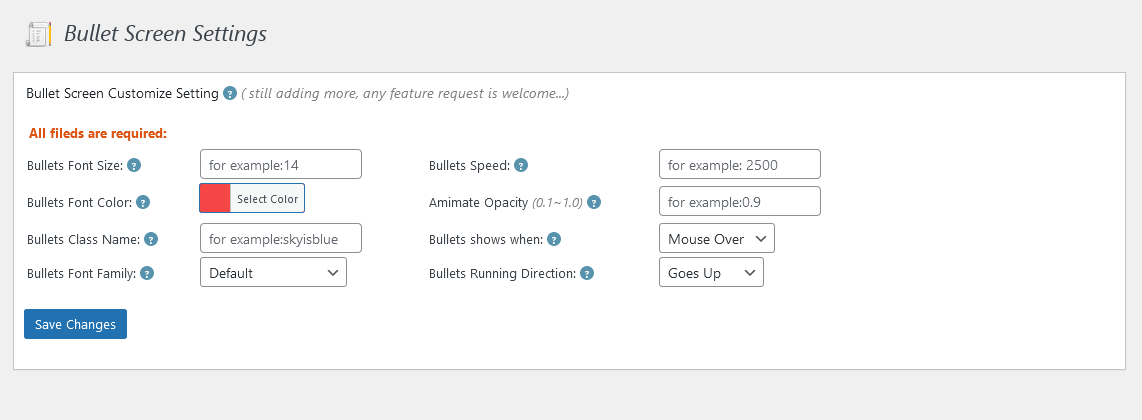
Today, we developed a new version of wordpress tooltips pro plus 29.9.8, in this version, we improved UI of Bullet Screen Settings panel, the new Bullets Screen Settings panel looks like this:

Bullet Screen Settings in wordpress tooltips pro plus 29.8.8

From the screenshot, you can see that the Bullets Screen Settings panel now looks much more lively. 🙂

Also we have improved code security of WordPress Bullets Screen module 🙂

If you have any more question of feature request, please don’t hesitate to contact us 🙂

Best Regards,

WordPress Tooltips Plugin Support

Tagged with: , ,

Step 5 Toward Displaying Tooltips in the Administrator Control Panel, wordpress tooltips pro plus 29.2.8 released

Hi, Dear WordPress Tooltip users, hope this message find you are doing well and having happy days with your loved ones  🙂 A couple of days back, we received an incredibly uplifting plea from a devoted patron of our WordPress tooltips extension. This user ardently wished for our plugin to incorporate tooltip capabilities within the administrative control panel of the WordPress dashboard. The user disclosed their extensive utilization of the WordPress backend, where a number of editors tirelessly toil. As a swift response, we expeditiously unleashed numerous iterations, with an unwavering emphasis on bolstering the impregnability of our WordPress tooltips extension Following the fortification of all our code, we’ll be enabling the wordpress tooltip effect within the WordPress backend for any text therein.

Today our wordpress tooltips plugin developer re-developed our wordpress tooltips pro plus addon panel to enhance code security 🙂

What is wordpress tooltip?

WordPress tooltip pro is a tooltips plugin for wordpress, which be designed to help you create colorful, varied and graceful tooltip styles to present the content to your users, with lively and elegant animation effects, and save your valuable screen space.

When the users hover over an item, the colorful tooltip popup box will display with the animation effect. You can add video, audio, image, and even other content which generated by 3rd wordpress plugins like QR code, Amazon AD, Google Map in tooltip popup box via wordpress standard editor, it is very easy to use.

What does the “WordPress tooltip plugin addon” mean?

In the realm of WordPress, an “addon” for a plugin typically refers to an supplementary extension or feature that enhances the existing functionality of a WordPress plugin. It serves as a means to expand the capabilities of a core plugin by incorporating additional features, tools, or integrations.
When you encounter a menu item labeled “Addon” within a WordPress plugin, it generally signifies that the plugin developer has purposely designed the plugin to be easily extended or customized through these addons. These addons can furnish supplementary functionality that may not be encompassed by the plugin’s core features.
For instance, envision having a WordPress plugin dedicated to managing a contact form on your website. The core functionality could encompass the creation and administration of basic contact forms. However, the plugin developer might offer addons that facilitate integration with third-party email marketing services, provide additional form field types, or enrich the styling options of the form. These addons permit users to tailor the plugin to their precise requirements without burdening the core plugin with every conceivable feature.
To sum up, a WordPress plugin addon denotes an auxiliary component that expands the capabilities of a plugin, granting users the flexibility to customize and enhance the plugin’s functionality based on their specific needs.

Which wordpress tooltip addons do we presently include in the pro plus version?

Within the pro plus version of wordpress tooltips, we presently offer the following wordpress addons:

  • Tooltips for TablePress Addon
  • Tooltips for Contact Form 7 Addon
  • Tooltips for WooCommerce Products Addon
  • Glossary for WooCommerce Products Addon
  • Tooltips for bbPress Topic & Reply Addon
  • Tooltips for BuddyPress Activity Addon
  • Tooltips Language Customization Addon
  • Tooltips for ACF Addon
  • Tooltips for OceanWP Theme Addon
  • Tooltips for Custom Product Tabs for WooCommerce Addon
  • SVG Image Tooltips Addon
  • WikiPedia Tooltips Addon
  • WordPress Comment Tooltips Addon
  • Tooltips PDF Viwer Addon
  • SouldCloud Tooltips Addon
  • Youtube Tooltip Shortcode Addon
  • Vimeo Tooltips Addon
  • Smart Content Link Tooltips Addon

How can I locate the wordpress tooltip addons?

Finding the wordpress tooltip addons is quite straightforward:

  1. Log in to your wordpress site as an administrator. Normally, you can log in to your wordpress site by visiting yourdomain.com/wp-admin (replace yourdomain.com with your actual domain).
  2. Once logged in, you will be redirected to the wordpress dashboard. On the left-hand side of the dashboard, you will spot a tooltips menu item. Click on it if you have already downloaded and installed the wordpress tooltips pro plus plugin.
  3. You will come across additional submenu items. Towards the bottom of the tooltips menu item, you will find the addons submenu item. Here is how it appears:

wordpress tooltip menus 14.3.6


4. Click on the addons submenu item, and you will access the tooltips addon settings panel. It will resemble the following:

Within this panel, you will find all the available wordpress tooltip addons. You can enable or disable your desired wordpress tooltip addons here We are in the process of preparing a more comprehensive documentation on how to utilize these wordpress tooltip addons, and you can expect to see it soon


Thanks, have a blessed day with your family

Best Regards,

WordPress tooltip plugin support


Tagged with: , ,

Support job board directory, wordpress tooltips free 9.4.3 released

Greetings, valued WordPress Tooltip users! May this message reach you in high spirits, as you relish a joyous weekend and create wonderful memories with your cherished family. 🙂 We’ve received a truly remarkable support ticket from a WordPress Tooltip user today:

Hello,
I hope this message finds you well. I wanted to reach out because I am in the process of setting up a job board for our company. After experimenting with a few plugins, I have found that WordPress Job Manager aligns well with our requirements. However, there are a few minor issues I have encountered.

During my search, I came across your plugin, WordPress Tooltips Pro Plus, which states that it supports the job board directory. One of your users suggested a feature that I am also interested in. They mentioned the need to display the job content or at least a summary directly in the job listings, to save job seekers from having to open each post individually. Unfortunately, this option is not available in the “Job Board Plugin,” which is the same problem I am currently facing.

I gave your free WordPress Tooltips plugin a try, and I must say that I really appreciate its tooltips and glossary features. They are excellent! However, I noticed that it only supports the WordPress post directory, user member directory, and WooCommerce product directory. I was wondering if the job board directory feature is unique to the Tooltips Pro Plus version. If so, would it be possible to add this feature to the free version of WordPress Tooltips?
I appreciate your time and consideration. Thank you in advance for your help, and I look forward to hearing from you soon.

Yours sincerely

Yes, in wordpress tooltips pro plus plugin, we support create job board directory for wordpress job manager.

What is wordpress job manager?

WP Job Manager is a **lightweight** job listing plugin for adding job-board like functionality to your WordPress site. Being shortcode based, it can work with any theme (given a bit of CSS styling) and is really simple to setup. Created by automattic 🙂

= Features =

* Add, manage, and categorize job listings using the familiar WordPress UI.
* Post jobs on your own site, then promote them across a worldwide job network — on LinkedIn, Indeed and more.
* Searchable & filterable ajax powered job listings added to your pages via shortcodes.
* Frontend forms for guests and registered users to submit & manage job listings.
* Allow job listers to preview their listing before it goes live. The preview matches the appearance of a live job listing.
* Each listing can be tied to an email or website address so that job seekers can apply to the jobs.
* Searches also display RSS links to allow job seekers to be alerted to new jobs matching their search.
* Allow logged in employers to view, edit, mark filled, or delete their active job listings.
* Developer friendly code – Custom Post Types, endpoints & template files.

The plugin comes with several shortcodes to output jobs in various formats, and since its built with Custom Post Types you are free to extend it further through themes.

What are tooltips?

Tooltips are small popup box with more information like video /  audio / image / google maps / QR code / wiki / text… and so, tooltips box will pop up when users hover over an element in your pages, the element can be a word in your post, a search form input box, an image in your page, a widget on your sidebar.. and so on, wordpress tooltip plugin supports add tooltip effect on any element on the wordpress posts, or display on wordperss menu, comment, contact form, woocmmerce product, bbpress forum, buddypress activity…etc, with pretty effects and many more little amazing components and addons, for example, Bullets Screen

What it WordPress Tooltip Plugin:

WordPress tooltip pro is a tooltips plugin for wordpress, which be designed to help you create colorful, varied and graceful tooltip styles to present the content to your users, with lively and elegant animation effects, and save your valuable screen space.

When the users hover over an item, the colorful tooltip popup box will display with the animation effect. You can add video, audio, image, and even other content which generated by 3rd wordpress plugins like QR code, Amazon AD, Google Map in tooltip popup box via wordpress standard editor, it is very easy to use.

Job board directory for wordpress job manager?

In March 3 2023, wordpress tooltips plugin start to support job board directory for wordpress job manager, users can create a job board directory in 2 minutes. Based on a wordpress job manager user’s feature request : ” job seekers told him that they want to display the job content in the recruitment list, or at least the excerpt of the job position”, he using our directory modules in wordpress tooltips pro plus plugin, so he hope we create a job board directory for wordpress job manager too.

Now we added this function to wordpress tooltips free plugin, this is our description copied from wordpress tooltips pro plus version:

How to create a wordpress job board directory quickly?

WordPress tooltip plugin support create a job board directory from job listings that generated by wordpress job manager, and wordpress tooltip support add tooltip effect on keywords in wordpress job board directory too, so job site employer can insert advertisements, videos, audios, google map, pdf documents, woocommerce payment QR, images, text…etc in wordpress tooltip popup windown, when users mouse hover keyword in job title or job content, or job excerpt, job seekers will find a pop=up window with these important information of jobs

Via wordpress tooltips pro + plugin, it is very easy to set up a wordpress job baord directory in 2 minutes.

1: Customer of WordPress tooltip pro plus  plugin can click download wordpress tooltip to download the new version directly, new user please purchase a license of wordpress tooltip pro plus

2: Downloaded and install  wordpress tooltip pro + plugin which version >= 18.8.8

New users please check our detailed video tutorail at WordPress Tooltips Video Tutorial 3: How to upload and activate wordpress tooltips pro plugin

3: Crete a new wordpres post and insert the wordpress tooltip job board directory shortcode :

in the content of wordpress post, publish the job board directory post

4: Please check the front end of wordpress tooltip job board directory page, you will find the we have listed all job title and job content with navigator bar and search box and page links like #1, #2…etc

5: In the backend of wordpress tooltip plugin, you can setup the wordpress listing directory  via wordpress glossary settings panel, it looks like this:

glossary custom panel in wordpress glossary 16.0.8

wordpress glossary custom panel in wordpress glossary 16.0.8

In here, you can custom the font size in the job board directory, enable / disable wordpress job board directory search box,  select job board directory color template via default built-in pretty templates, or custom each element via customize settings panel, there are many more functions, for example,  enable / disable tooltip effect on job title or job content in the job board directory, custom letters in job board directory navigation bar…etc, just a few click, very easy

Now you can use the same functions in wordpress tooltips free plugin 9.4.3 🙂

What’s different in wordpress tooltips free plugin  and tooltips pro plus plugin? wordpress tooltips free plugin can create wordpress job board direcoty / woocommerce directory / wordpress post directory / woocommerce product directory with basic functions. Tooltips pro plus plugin support more advanced function, for example, only include posts in a specific category id or category name, specify how many records to display in a directory, exclude items from a specified diretory exclude records viaids,customize color, background color of directory…etc, support more kinds of directory…etc

If you have any feature request to wordpress tooltips plugin, please don’t hesitate to tell us, we are very happy to realize it for you 🙂

Thanks, have a blessed day with your family 🙂

Best Regards,

WordPress tooltips plugin support


Tagged with: , , , ,

Adding advanced features to the wordpress tooltips AI, wordpress tooltips pro plus 27.7.8

Hi, Dear users of WordPress Tooltip plugin, hope this message find you are doing well and having wonderful holiday with your family:)  A wordpress tooltip user told us, he is using AI  tooltip to generate content for wordpress post automatically, but he need more functions:

Hi, I am currently using your WordPress tooltips plugin, and it’s been a great tool for me. I utilize the Tooltip AI to automate the creation of tooltip terms and content. However, I recently discovered that Tooltip AI can also generate WordPress posts automatically, which is fantastic. The generated content is accurate and provides a broader perspective. This feature has helped me save a significant amount of time and enhance the quality of my posts.
Now, I have installed an LMS plugin, and I am interested in using your AI Tooltip feature to automatically generate course content. Could you please provide me with some tips on how to fulfill this requirement?

In addition, the layout of the AI TOOLTIP panel is a bit confusing, which doesn’t detract from the use, but if it could be a bit neater, then this would be a perfect and enjoyable experience to use!

Thank you!

Yes, our wordpress tooltips pro plus plugin using OpenAI ChatGPT as AI writer to generate high quality content for wordpress automatically, in the current time, wordpress tooltips plugin can generate wordpress tooltips automatically, and support write  posts / wordpress pages via CHATGPT,  by this way, wordpress tooltips plugin turn your wordpress site into an auto-blog.

We checked the user’s LMS plugin, we found the great LMS plugin do not generate wordpress standard post, it generate custom post type, so we need add the new custom post type via wordpress tooltip AI writer. For help blogger use Tooltips AI easier, we need design a settings panel  for the user, and our developer said we will add more AI write functions in tooltips AI, not only support wordpress custom type post, but also support more functions like schedule post in wordpress and so on. If we add a new sub-menu item in tooltips menu, it is not good for users, we want to use bootstrap tabs in tooltips AI panel, users can set up AI writer in the panel and can use AI content generator to write wordpress posts in the panel directly. We have start to develop the bootstrap tabs and settings panel now.

In the current time, we re-designed the UI of AI tooltips, it looks like this:

AI tooltip settings panel in wordpress tooltips pro plus 27.7.8

AI tooltip settings panel in wordpress tooltips pro plus 27.7.8

Please note, the black bar is come from my screenshot plugin in my browser, it do not existed in the plugin 🙂

Thanks for the great suggestion, if you have any more feature request or question, please don’t hesitate to contact us

Thanks, have a blessed day with your family

Best Regards,

WordPress tooltips plugin support

Tagged with: , , , ,

Unterstützung für den TTS (Text-to-Speech)-Dienst für den Inhalt im Tooltip-Popup-Fenster, WordPress Tooltips Pro Plus 25.9.8 veröffentlicht

Hi, liebe WordPress Tooltip-Plugin-Benutzer,

ich hoffe, diese Nachricht erreicht Sie in wohl und Sie haben wundervolle Tage mit Ihrer Familie. Wir freuen uns, Ihnen mitteilen zu können, dass wir einen fantastischen Vorschlag von einer unserer beeindruckenden WordPress Tooltip-Benutzerinnen erhalten haben. Sie hat eine Rezepte-Website erstellt, auf der tausende Rezepte aus der ganzen Welt gesammelt werden, und viele Benutzer verlassen sich mittlerweile auf ihre Seite, insbesondere an Wochenenden, wenn sie Küchen mieten, um zu kochen und feiern. Diese Benutzer loben ihre Rezepte als exzellent und detailliert. Allerdings sind sie oft beschäftigt, wenn es darum geht, eine große Menge an Essen zuzubereiten. Daher haben sie vorgeschlagen, dass es großartig wäre, wenn die Rezepte automatisch vorgelesen werden könnten. Um diesen Vorschlag umzusetzen, hat sie unser WordPress Tooltip-Plugin auf ihrer Rezepte-Website verwendet. Durch einfaches Klicken auf den Namen eines Gerichts auf ihrem Handy öffnet sich ein Tooltip-Fenster, das ein detailliertes Rezept anzeigt. Nun möchte sie es ihren Benutzern noch leichter machen, indem sie einen Sprach-Autobroadcast-Button zum Tooltip-Fenster hinzufügt. Mit diesem Button könnte der Inhalt des Rezepts automatisch vorgelesen werden. Wir freuen uns, ankündigen zu können, dass wir eine neue Version des WordPress Tooltip Pro Plus-Plugins, Version 25.9.8, entwickelt haben, das den TTS (Text-to-Speech)-Dienst für den Inhalt in den Tooltip-Popup-Fenstern unterstützt. Wir sind begeistert, unseren Benutzern TTS-Tooltips anzubieten und arbeiten hart daran, immer mehr Funktionen hinzuzufügen, um die Tooltips noch besser zu machen. Bald werden Sie auswählen können, ob eine männliche oder weibliche Stimme verwendet wird, die Sprechgeschwindigkeit anpassen und vieles mehr!

Was ist TTS?

TTS steht für Text-to-Speech und bezeichnet den Prozess, geschriebenen Text in gesprochene Worte umzuwandeln. Die Aktivierung des TTS-Dienstes für den Inhalt in den Tooltip-Popup-Fenstern kann das Benutzererlebnis verbessern, indem eine alternative Möglichkeit zur Informationsaufnahme geboten wird. Außerdem macht es Ihre Website für diejenigen zugänglicher, die Schwierigkeiten beim Lesen haben oder es bevorzugen, den Inhalt zu hören.

Was ist Text-to-Speech?

Text-to-Speech (TTS) ist ein Dienst, der geschriebenen oder gesprochenen Text in ein Audioformat umwandelt, das abgespielt werden kann. Er ermöglicht es Personen, die nicht lesen können oder eine Sehbehinderung haben, den Text auf einer Website oder einer anderen Plattform zu nutzen. TTS-Systeme können in verschiedene Websites und Anwendungen integriert werden, um Audio-Versionen des Textes anzubieten. Das ist insbesondere für Benutzer hilfreich, die nicht lesen können oder barrierefreien Content benötigen, der vorgelesen wird. Durch die Implementierung von TTS wird Ihre Website für Benutzer mit Behinderungen zugänglicher gemacht und insgesamt ein besseres Benutzererlebnis geschaffen. Wir hoffen, dass Ihnen diese neue Funktion gefällt und Sie Freude daran haben, das verbesserte WordPress Tooltip Pro Plus-Plugin zu verwenden. Wir schätzen Ihre Unterstützung und Ihr Feedback, während wir weiterhin unsere Produkte verbessern.

Wie aktiviert man Text-to-Speech-ToolTips?

1: Wenn Sie das WordPress ToolTips Pro Plus Plugin verwenden, klicken Sie bitte auf den Link WordPress ToolTip Download, um die neueste Version des WordPress ToolTips Pro + Plugins herunterzuladen. Wir werden später versuchen, diese Funktion in der WordPress ToolTips Pro Version und der WordPress ToolTips Free Version zu unterstützen. Was ist der Unterschied zwischen der Pro Version und der Free Version? Das WordPress ToolTips Pro Plus Plugin bietet mehr Funktionen und Optionen, wie z.B. die Auswahl zwischen männlicher Stimme, weiblicher Stimme, Sprechgeschwindigkeit usw., immer mehr

2: Laden Sie das WordPress ToolTips Plugin (ZIP-Datei) über das Plugin-Panel in Ihrem WordPress-Dashboard hoch. Wenn Sie ein neuer Benutzer von WordPress ToolTips sind, überprüfen Sie bitte unser Video zur Installation von WordPress ToolTips auf: WordPress ToolTips Video Tutorial 3: Wie man WordPress ToolTips Pro Plugin hochlädt und aktiviert

3: Melden Sie sich auf Ihrer WordPress-Website an, im WordPress-Dashboard klicken Sie bitte auf den Menüpunkt ToolTips, dann auf den Untermenüpunkt “Globale Einstellungen”. Sie öffnen dann das globale Einstellungsfenster von WordPress, das wie folgt aussieht:


Wie Sie sehen können, haben wir am unteren Rand des globalen Einstellungsfensters von WordPress ToolTips eine neue Option hinzugefügt: “Text-to-Speech-ToolTips aktivieren/deaktivieren (ToolTip-Inhalt für Ihre Benutzer vorlesen)”. Bitte aktivieren Sie diese TTS-Option. Dann werden die Benutzer in der Front-End-Version einen “Klicken Sie, um zuzuhören”-Button unten rechts im WordPress ToolTips Pop-up-Fenster finden. Es sieht so aus:


Wie Sie sehen können, wenn Benutzer mit der Maus über den ToolTip-Begriff “Wie man Erdbeereis herstellt” fahren, öffnet sich das ToolTip-Fenster mit dem ausführlichen Rezept für Erdbeereis. Unten rechts im Erdbeereis-Rezept finden Sie den grünen Button “Klicken Sie, um zuzuhören”.
Wenn Sie auf den “Klicken Sie, um zuzuhören”-Button klicken, beginnt das WordPress ToolTip, das gesamte Erdbeereis-Rezept laut vorzulesen! Der Text auf dem Button ändert sich dann von “Klicken Sie, um zuzuhören” zu “Klicken Sie, um anzuhalten”. Durch Klicken auf “Klicken Sie, um anzuhalten” können Sie die Wiedergabe pausieren, und der Text auf dem Button ändert sich wieder von “Klicken Sie, um anzuhalten” zu “Klicken Sie, um zuzuhören”. Sie können erneut auf den Button klicken, um mit den gesprochenen ToolTips fortzufahren

Vielen Dank für den großartigen Vorschlag, wir arbeiten hart daran, immer mehr erstaunliche Funktionen hinzuzufügen, um die TTS-ToolTips zu verbessern. Wenn Sie weitere Fragen oder Anregungen haben, zögern Sie bitte nicht, uns zu kontaktieren. Wir freuen uns sehr, sie für Sie umzusetzen

Vielen Dank und ein gesegnetes Wochenende mit Ihrer Familie

Mit freundlichen Grüßen,
Unterstützung des WordPress ToolTips-Plugins

Tagged with: , , ,

How to add tooltips effect for fields in easy pricing tables plugin

Hi,

We get a wordpress tooltip user’s ticket, in which he said that on our wordpress tooltip plugin demo page, he found the demo of tooltips for easy pricing tables plugin page not works well, he found the tooltip shortcode is not works good in fields of easy pricing tables, he request us to check does wordpress tooltips pro support easy pricing tables plugin or not.

Our developer did a check of easy pricing tables plugin, we found it is because the easy pricing tables plugin has upgraded their plugin codes, and their pricing tables do not support add shortcode effect in fields of pricing table, they just support insert shortcode in button text, if wordpress users insert shortcode in other kinds of fields in easy pricing tables, in front end they just displayed messed javascript codes.  But wordpress tooltips pro new version support add tooltips effects on fields of easy pricing tables automatically, so we do not need use wordpress tooltip shortcode in easy pricing tables any more 🙂

This is the screenshot of our wordpress tooltips for easy pricing table:

You can check our demo of wordpress tooltips for easy pricing table directly, just mouse hover each fields, you will find wordpress tooltips can add text, images… and so on for each fields in easy pricing table, so admins can save the space and add more description for each fields in pricing table 🙂


This is the screenshot of our easy pricing table, you can see we are using two methods of wordpress tooltips for easy pricing tables

You can find we are using two methods of wordpress tooltip plugin for easy pricing tables, the first method is just enter tooltip terms in any field in the easy pricing tables, another method is use wordpress tooltip shortcode in button text filed 🙂

Thanks for the note, if you have any more question or feature request for wordpress tooltips plugin, please don’t hesitate to contact us 🙂

Thanks, have a blessed day with your family 🙂

WordPress tooltips support team


Tagged with: , , , ,
Top


