Tag: wordpress tooltip

How to Enable / Disable Glossary Search Bar on WordPress Tooltip Glossary Page?

Hey dear WordPress tooltip users, hope this message find you are doing well and have happy days with your family. 🙂 We get a ticket from a wordpress tooltip glossary user, in which he asked us a question, how can I disable search bar on glossary page? He said he is using a four-column wordpress theme, and the wordpress page was already full of widgets and lots of ads, and he didn’t want to display so many widgets in the main content area that users wouldn’t be able to find the core content — which is the life and revenue source of the site, so he wanted to keep the wordpress glossary page as simple as possible, For example, turning off the glossary search box 🙂

Okay, we have added this function for another wordpress glossary user based on another reason, in a very old version Support Display or Hide Glossary Search Bar in Glossary Page, WordPress Tooltip Glossary Plugin 14.3.2, wordpress glossary plugin editor can hide glossary search bar via one click, this is our answer:

How to Enable / Disable Glossary Search Bar on WordPress Tooltip Glossary Page?

1: Please login your wordpress site  as wordpress admin

2: In wordpress dashboard page, please click tooltips menu item, we have a screenshot which made by very old version, it looks like this:

tooltips menu items

tooltips menu items

3: You can see there are sub-menu item “Glossary Settings”, just click it

4: Then you will open “Glossary Settings” panel, it looks like this:

wordpress glossary settings panel in wordpress glossary plugin 15.6.8

wordpress glossary settings panel in wordpress glossary plugin 15.6.8

5: at the bottom of the glossary settings panel , you will find the option “display glossary search form?”, if you chose the value “YES”, that means the glossary search form will be displayed at the top of the wordpress glossary table, else if you chose the value “NO”, then in the front end of the wordpress glossary page, the glossary search form will be hide in the wordpress glossary page 🙂

6: so please just click “NO”, then please click the blue “save changes” button

Conclusions

Via wordpress tooltip plugin, it is very easy to enable or disable wordpress glossary search form in wordpress glossary page, just login and click the select-box “display glossary search form?”, then you can enable / disable glossary form via one click, you can check the result at the wordpress glossary demo 🙂

Tagged with: , , , ,

WordPress Tooltips Pro Plus Plugin 15.6.8 Released

Hey  dear Users of WordPress Tooltip,  hope this message find you are doing well and have happy weekend with your family 🙂  We just released wordpress tooltips pro plus plugin version 15.6.8, based on an amazing wordpress tooltip user’s suggestion. The wordpress tooltip user said he love functions of wordpress tooltips pro plus plugin, he is enjoy the function of  tooltip style panel. in which wordpress tooltip users can custom a pretty and unique tooltip style quickly, just a few clicks. Now he is using option ” Tooltip Term Color in Post” in tooltip style panel to change the colors of tooltip term in his template, and he enabled wordpress tooltips for wordpress menus. The problem is, in his wordpress  custom theme, the font color of top menu item in the theme is — white, and the sub-menu item in the wordpress template is — black, so if he select white as the font color of tooltip term, some tooltip term will be hidden in the sub-menu item, because the font color of sub-menu item is white, if he select black as the font color of tooltip term, then some tooltip terms will be hidden in the top menu item…, we suggested the user chose another color as font color of tooltip term, but he said he tried and it is not pretty, now he would like find a method to disable option ” Tooltip Term Color in Post” in tooltip style panel, he hope use original font color in the wordpress theme as font color of tooltip term 🙂

Okay, just like we reported at our wordpress tooltip plugin document “How to Custom WordPress Tooltip Term Color in WordPress Post? Supported by WordPress Tooltip Plugin 14.8.0“:

A few days before, we get a pre-sale question from a wordpress tooltip free plugin user, he asked:
“1. Does the Pro plugin allow me to change the format of the term on the page? For instance, of the term being underlined, could I instead change the color of the term text in the post?”

Yes wordpress tooltip pro plugin do allow wordpress tooltip editor to change the format of wordpress tooltip term in the wordpress pages, you can decide the underline color or underline style of wordpress tooltip term in back end, but in last wordpress tooltip plugin version, we do not support change the color of the wordpress tooltip term in the post directly, we do supported customize the color of the term when user mouse hover the tooltip term , after replied this ticket, our developer decide develop a new wordpress tooltip plugin version to allow wordpress tooltip editor change the color of the wordpress tooltip term in wordpress posts directly, not only change the mouse hover color of the term 🙂

So we developed wordpress tooltips plugin 14.8.0 for the user’s amazing feature request, at that time, we did not know some users have requirement to disable the font color of tooltip terms, after check the new user’s ticket, our developer decide developed a new wordpress tooltip pro plus plugin to solve the problem for wordpress tooltip users, that’s why we released wordpress tooltip pro plus 15.6.8. 🙂

Now if you upgraded to the wordpress tooltip pro plus 15.6.8, in wordpress tooltip style panel, you will find we have added a new select-box  behind the option ” Tooltip Term Color in Post”, it looks like this:

enable the option Tooltip Term Color in Post

If you want to enable enable the option Tooltip Term Color in Post, please select “enable the option”,then in the front end of wordpress post, you will find the color of tooltip terms has been changed as you settings in tooltip style, for example:

front end after enabled the option Tooltip Term Color in Post

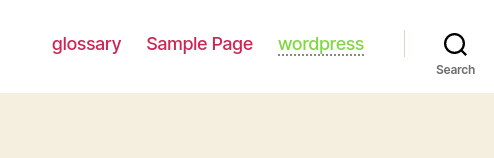
You can see the original font color of wordpress menu item is red, but font color of tooltip terms in the wordpress menu has been changed as green — followed settings in wordpress tooltip style 🙂

If you do not want the font color of tooltip term be changes, and if you want to use the original font color in your wordpress themes,  please select “disable the option” — it looks like this:

disable the option Tooltip Term Color in Post

Then in the front end, we will not change the font color of tooltip term, for example:

front end after disabled the option Tooltip Term Color in Post

Thanks for the great suggestion to wordpress tooltip plugin, if you have any question or feature request, please don’t hesitate to tell us, we are very happy to realize it for wordpress tooltip users 🙂

Hope you have a blessed weekend with your family 🙂

WordPress Tooltip Plugin Support Team

Tagged with: , , ,

WordPress Tooltips Plugin 15.6.6 Released

Hi Dear WordPress Tooltip Users,  hope this message find you are doing well and have happy weekend with your family 🙂 We get an amazing users’ ticket, in which he give us a feedback, he said in the wordpress tooltip editor, there are a metabox “Show excerpt in tooltip pop up?”, he found in option ” Excerpt or Full Content? “, the value of the option is too long, so some words is our of screen, he said this is not good, he suggest us fix this problem, our wordpress tooltip plugin author did a check, yes, he is right, we have re-developed wordpress tooltip to use shorter words to replace the value in the option “Excerpt or Full Content? “, now it looks well. 🙂

Please upgrade to the wordpress tooltips plugin 15.6.6 asap you can, also we get another amazing feedback from another user, we are working hard to improve UI of wordpress tooltips plugin based on user’s feature request, you will see it soon 🙂

Thanks for the great feedback, if you have any more feature request or question, please don’t hesitate to contact us, we are very happy to improve our wordpress tooltip plugin for wordpress tooltip users   🙂

Thanks, have a blessed day with your family 🙂

WordPress Tooltips Plugin Support Team

Tagged with: ,

WordPress Tooltips Free Plugin 7.7.7, Support Custom Font Size for Glossary Terms

Hi Dear users of WordPress Tooltip Glossary Plugin , hope this message find you are doing well and have happy days with your family 🙂  An amazing wordpress tooltip plugin user asked as a question “How can I change font size of glossary term?”, he said his theme have a very little font size, and in his theme there are no theme option to custom the font size, so he have no way to make the font size of glossary term lager, but his user said the font size is too little to read a lot of tool information in his glossary list, that’s why we developed wordpress tooltips free plugin 7.7.7 to solve this problem 🙂

After upgraded to the wordpress tooltips free plugin 7.7.7, you can do it by this way:

How can I change font size of glossary term?

1: please login your wordpress site admin area as wordpress admin

2: after login in wordpress dashboard, please click “Plugins” menu, then upgrade to the wordpress tooltips free version 7.7.7

3: in wordpress dashboard, click tooltips menu item

4: then click “glossary settings panel”, it looks like this:

Please note, this screenshot is made for wordpress tooltips pro version, but the option “new option Glossary Term Font Size” in the wordpress tooltips free version have the same function and UI with wordpress tooltips pro plugin

5: if you want to change the font size of glossary term in the glossary page, please just enter the font number in this option, for example, just enter 16 in the text box and click the blue “save changes” button

6: in the front end of wordpress glossary page, you will find the font size of glossary term have been changed as you want 🙂

Another change is — we fixed the bug in the ” Nav Bar font size” option 🙂

Please upgrade your wordpress tooltips version to 7.7.7 asap you can 🙂

If you have any question or feature request, please don’t hesitate to contact us 🙂

Thanks, have a happy day with your family 🙂

Best Regards,

WordPress Tooltip Plugin Support Team

Tagged with: , , , ,

We Added Cash on delivery Payment Gateway for WordPress Tooltip Users

Hi Dear users of wordpress tooltip, we got a few user’s feedback, in which they told us they cannot use paypal in their country(for example Turkey), but they want to buy wordpress tooltip plugins, a few days before, some user told us they want to pay wordpress tooltip plugin via cryptocurrency, then we did a research and we find the method to accept cryptocurrency(for example bitcoin, ETH… and so on)  🙂

Then yesterday we get another user’s message, he said he have no credit card, he want to pay with his debit card, we replied to him, we have a detailed document about how to pay with debit card at “How to Pay Tooltips Plugin Via Credit Card or Debit Card Without Paypal Account” , but he said he tried on paypal and failed, we try to find a solution from woocommerce official site, finally we find we can added Cash on delivery Payment Gateway for WordPress tooltip users, in checkout page, you can just place the order via “Cash on delivery” option, and then we will contact you to finish the “Cash on delivery” manually, then we will add license for you manually, you can download and install tooltips pro plugin on your site and update from tooltips.org 🙂

Hope this have a little help 🙂


Thanks, have a blessed day with your family 🙂

Best Regards,

WordPress Tooltip Support Team

Tagged with: ,

Can I buy wordpress tooltip with cryptocurrency?

Hi Dear WordPress Tooltip Glossary Plugin users, hope this message find you are doing well and have happy weekend with your family 🙂  A new user of wordpress tooltip told us he cannot pay with paypal because paypal do not support their area, and he tried to purchase wordpress tooltip plugin via his credit cart, but he cannot finish the payment progress process, after tried a few times,  he wrote to us:

How can I buy wordpress tooltip with cryptocurrency?

Yes, we do accept cryptocurrency manually, we replied with the user:

Thanks for the message 🙂

We are very happy to help you 🙂

In the current time, we accept paypal, we cannot accept credit card directly yet, sorry for heard you cannot buy our plugin via paypal, in this case, yes, we accept cryptocurrency manually,  we did a research, it is very easy to use cryptocurrency to finish the payment, for example, we can accept Bitcoin or ETH or many other kinds of coins — many coins is very cheap. you can find there are many platform support purchase cryptocurrency, for example coinbase.com or just search purchase cryptocurrency in google.com, then just tell us which cryptocurrency you prefer, we will download and create a coin address of your cryptocurrency,  then you can just send coins to our cryptocurrency address, and we will add license for your account manually, then you can download the plugin and install it in your sites 🙂

We did a search on google, it is very easy to use cryptocurrency to purchase digit-products now, from hosting to NFT to plugins, themes… and so on, it just need a few minutes to finish the payment, we found a detailed document on coinbase at here:
https://help.coinbase.com/en/coinbase/trading-and-funding/cryptocurrency-trading-pairs/how-to-send-and-receive-cryptocurrency
Just download and install coinbase app, you can purchase coins via your card directly, then send coins to our address,  then wrote to us to tell us a little information about the coin that you sent to us and the plugin you want, then we will add license to you and report you again, it is very easy to use. 🙂

Hope this have a little help 🙂

Thanks, have a happy weekend with your family 🙂

Best Regards,
Support Team


Tagged with: , , ,

WordPress Tooltips Pro 15.6.4 Released

Hi Good Evening, dear  WordPress Tooltip glossary plugin users, hope this message find you are doing well and have happy day with your family! 🙂  Our wordpress tooltip developer checked our plugin and he found a php warning problem,  this will not caused any problem in user side, but our developer fixed this problem already, please upgrade to wordpress tooltips pro 15.6.4 asap you can 🙂

Thanks, have a blessed day with your family 🙂

Best Regards,

WordPress Tooltips Support Team

Tagged with:

How can I ensure that “normal” main glossary page displays correctly?

Hi Dear Users of WordPress Tooltip Glossary Plugin, hope this message find you are doing well and have happy day with your family! 🙂  We got an amazing wordpress tooltip user’s ticket, in which he asked our a question “How can I ensure that “normal” main glossary page displays correctly?”:

Hello,
I face an issue with glossary page. If I call glossary through a shortcode in a page it works well, but when reaching “normal” glossary page (through breadcrumb for instance), it does not display correctly.

How can I ensure that “normal” main glossary page displays correctly?
Many thanks in advance for your help.

We did a check for the user,  I think the user miss-understanding the glossary page and glossary index page, the URL which user told us is a glossary index page — which created automatically when the user activate the wordpress tooltips plugin,we developed the function of glossary index page is based on another wordpress tooltip user’s suggestion — he said each glossary item should have their own link, and all these links should listed in wordpress glossary index page automatically, so google can index these glossary terms easier and improve SEO rank of tooltip sites 🙂

We make a screenshot of glossary settings panel, in the screenshot, you can see what we said in the glossary settings panel is “Glossary Index Page” — it will list all glossary terms in here for improve SEO of your glossary site:

glossary settings panel

By default, wordpress tooltip plugin will create a “glossary” page automatically, when you activate wordpress tooltips plugin, some users hope use “glossary” page to display glossary list, they do not want to use “glossary” page as a glossary category archive page, okay,  as the admin of wordpress tooltip site, you can change the glossary index page in glossary global settings panel by this way:

1: login wordpress as admin

2: in wordpress pages panel, you can created a new page in wordpress page editor, for example “glossary terms”

3:click tooltips menu item in wordpress dashboard

4: click glossary settings sub menu item

5: then you will open glossary settings panel:

glosasry global settings panel in wordpress glossary plugin 15.0.0

glosasry global settings panel in wordpress glossary plugin 15.0.0

6: In glossary settings panel, check the option “glossary index page”, and change it as your new page “glossary terms”

7: click save changes button

Then you will use  the new glossary terms page as glossary index page, and you can use your old “glossary” page to build the glossary by this way:

1: in the wordpress dashboard, please click pages menu

2: in pages panel, click to edit the glossary page

3: in the glossary page, please insert glossary shortcode [glossary]

4:save the page and click publish

5: in the front end, you will find the glossary page looks like this:

wordpress glossary demo page

wordpress glossary demo page

Please check our wordpress glossary demo

Then it will works well 🙂

Hope this have a little help, Any more feature request is welcome 🙂


Thanks, have a blessed day with your family 🙂

Best Regards,

WordPress Tooltips Support Team

Tagged with: , , , ,

How to Add WordPress Tooltips on Fast Secure Contact Form?

We get a ticket from an amazing wordpress tooltip users which using Fast Secure Contact Form plugin, he said he read our document How to Create WordPress Tooltip for Contact Form 7?  He want to add wordpress tooltips effect for each input text field in the Fast Secure Contact Form, so users will know which kind of message with which kind of format will be accepted by his support. He do not know how to add tooltips popup box in his contact form input text field, he hope us write a document of How to Add WordPress tooltip plugin on Fast Secure Contact Form for him.  🙂

We are happy to help more wordpress tooltips uers who using other amazing wordpress form plugins, our wordpress tooltips support nearly all wordpress form plugins, for example: Contact Form 7, WPForm, GF form, Fast Secure Contact Form… and so on 🙂

How to Add WordPress Tooltips on Fast Secure Contact Form?

With wordpress tooltip plugin, it is very easy to add tooltips effect for each input box field in fast secure contact form:

1: Because this function just be included in wordpress tooltips pro and wordpress tooltips pro plus plugin, so if you do not have wordpress tooltips pro plugin yet, please login your account in wordpress tooltip plugin site.

2: After logged in your account, please click “download”  menu item to download wordpress tooltip plugin zip file.

3: After downloaded wordpress tooltips pro zip file, please login your wordpress site admin area as wordpress admin

4: Then in wordpress dashboard, please “Plugins” menu, you will open wordpress official plugin management panel.

5: If you installed wordpress tooltips free plugin or old version of wordpress tooltip pro plugin, please delete the old version of wordpress tooltip plugin

Then in “Plugins” management panel, please click “add new” link at the top of the plugins panel, in here you can upload the wordpress tooltips plugin zip file

6: After installed wordpress tooltip plugin, please remember to activate the new wordpress tooltip plugin

7: Now in fast secure contact form, please create a contact form, it is simple and fast:

7.1 In wordpress dashboard, click settings menu item

7.2 Then click FS Contact Form sub menu item

7.3 You will open “Fast Secure Contact Form Settings” panel

7.4 In here you can create a new contact form, we make a screenshot for you:

…., and then create fields in fields tab in fast secure contact form, after entered all fields, just click publish to save your contact form 🙂

7.5 After publish the contact form, in front end, it looks like this:

Okay, now what you need to do is — when user mouse hover the input text field in contact form, a wordpress tooltips window will pop-up, and display tooltips content in the tooltip window, how can we do this? 🙂

It is very simple.

7.6: In your browser, for example firefox, just click F12, and then check the css class or css id  for the input text box, for example, in my site, the input text box which under the label “name”, have a id “#fscf_name1”, just remember this, we will use it to add tooltips effect on this input text field at next steps soon.

8: In wordpress dashboard, click tooltips menu item

9: Then click “Add new” sub menu item

10: Add wordpress tooltip content in wordpress tooltips editor, it looks like this:

add new wordpress tooltips for input field in contact form

add new wordpress tooltips for input field in contact form

11: Then in the right hand of the tooltip editor, you will find  metabox “Tooltip For Forms “,  in here just enter the css id of the input text filed “#fscf_name1”, it looks like this:

That’s all, very simple? Yes!

In the front end, when mouse hover the input text box “Name”, you will find tooltip popup window. You can find demo for this document at: Tooltip for anything.

Conclusion:

With wordpress tooltip plugin, wordpress admin can add tooltip effect in any contact form, just a few clicks and input the css class or css id of any component in the contact form, you can show awesome tooltips effect for any component in any wordpress contact form 🙂


Tagged with: , ,

WordPress Tooltip 15.6.2 Released, Support Case Sensitive Tooltips

Hi, Good evening, dear WordPress Tooltip Plugin users,  hope this message find you are doing well and having happy days with your family 🙂  We are happy to report you, we released wordpress tooltips pro plugin 15.6.2, based on an amazing tooltip user’s ticket, to support case sensitive for wordpress tooltips, that means, for example, in wordpress tooltips editor,  you can add tooltip effect for tooltip term “wordpress”, and you can add another tooltip effect for the tooltip term “WordPress” 🙂

The ticket from the amazing tooltip user:

How to switch off case sensitivity?

Our wordpress tooltip support replied:

Hi,

Thanks for the message 🙂

We will develop a new version to support this 🙂

Once finished this version we will reply you again 🙂

Thanks, have a blessed weekend with your family 🙂

Best Regards,
WordPress Tooltips Support Team

That’s why our wordpress tooltip developer developed a new version: wordpress tooltips pro plugin 15.6.2, once you upgrade to the wordpress tooltip 15.6.2 🙂

How to switch off case sensitivity?

1: login wordpress tooltips  plugin site.

2: click my account menu in the top menu bar, please download newset wordrpess tooltips pro and tooltips pro plus version 15.6.2, it is a wordpress zip file

3: after downloaded wordpress tooltips zip file, login your wordpress as admin

4: in wordpress dashboard, please click plugins menu item

5: then deactivate old version of wordpress tooltips pro plugin, then please ensure click the “delete” link to remove the old version of wordpress tooltips pro plus plugin

6: upload the latest version of  wordpress tooltips pro plugin zip file, it is tooltips-pro-15.6.2.zip, then please remember to activate new tooltips pro plugin in your wordpress plugin panel

7: after installed new tooltips pro plugin, please click “tooltips” menu in wordpress dashboard,  then please click “Optional Settings” sub menu item

8: then you will open tooltips “Optional Settings” Panel,  you will find “Enable Tooltips Case Sensitive” option, in which you can Enable or Disable Tooltips Case Sensitive, we make a screenshot for you at below:

Wordpress Tooltips Case Sensitive

WordPress Tooltips Case Sensitive

9: if you need turn off case sensitive for tooltip terms, please select “disable tooltips case sensitive”

10: in front end of wordpress page , you will find your tooltip terms, for example wordpress and WordPress, will have the same content in tooltip popup box

11: if you need turn on case sensitive for tooltip terms, please select “enable tooltips case sensitive”, then in front end, you will find wordpress and WordPress will have different tooltip terms 🙂

By the way, it is recommend to enable tooltips case sensitive 🙂

Thanks for the great suggestion for wordpress tooltip plugin, if you have any feature request or question, please don’t hesitate to contact us 🙂


Thanks, have a happy day with your family 🙂

Best Regards,

WordPress tooltip support term

Tagged with: , ,
Top