Tag: wordpress tooltip

WordPress FAQ with tooltips pro 4.7.6 Released

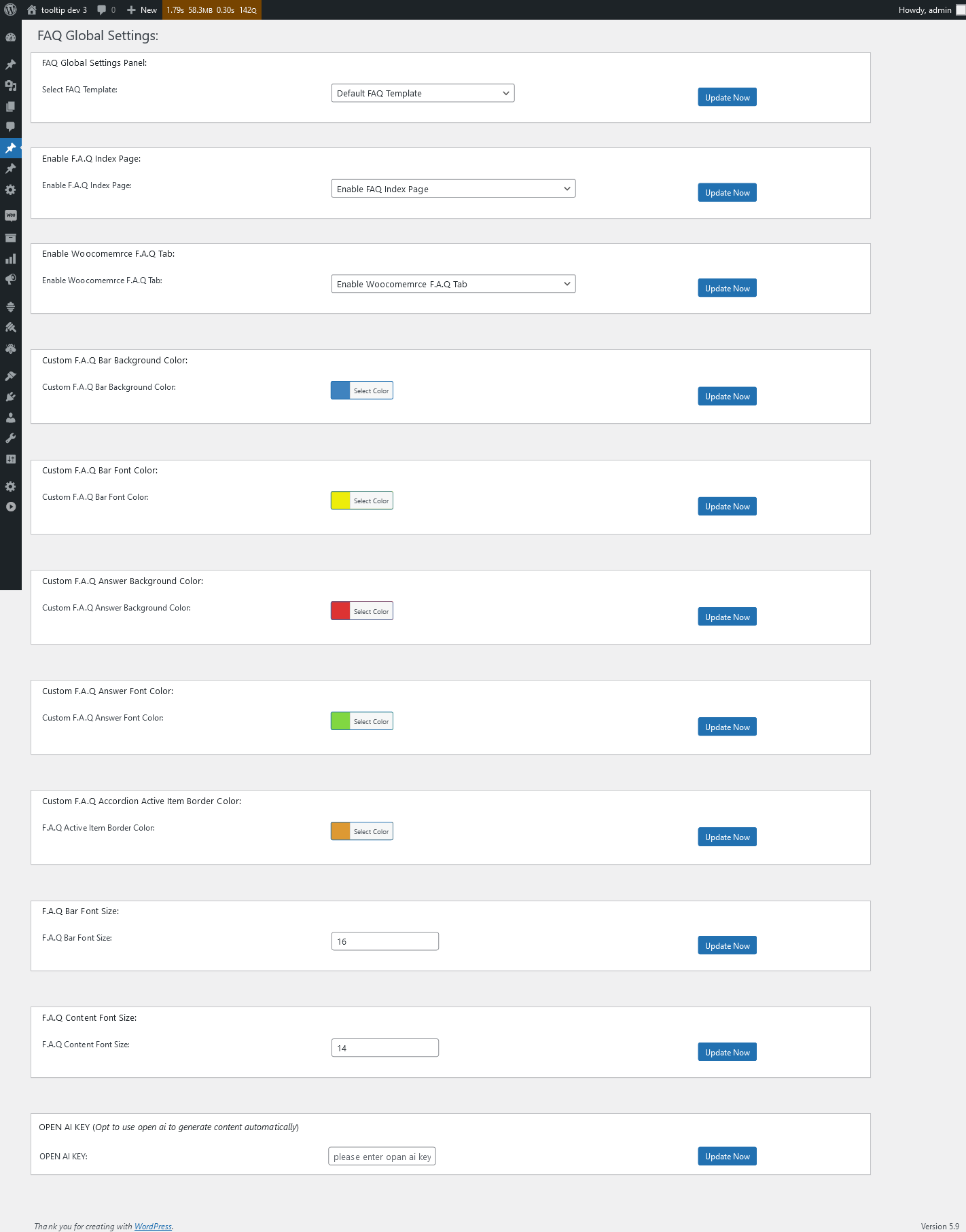
Hi, Dear   WordPress Tooltip plugin users, hope this message find you are doing well and having wonderful weekend with your family:) We just released wordpress faq with tooltips pro 5.7.6,in this version, we re-designed our WordPress FAQ global settings panel, the new WordPress FAQ global settings panel looks like this:

wordpress faq global settings panel in 4.7.6

As you can see, the new wordpress FAQ plugin interface is more colorful and powerful, you can select the pre-designed FAQ template through the FAQ TEMPLATE of wordpress FAQ with tooltip pro, you can also select the color through the wordpress color You can customize the color and background of all components of wordpress FAQ with tooltip pro, including wordpress faq with tooltip pro FAQ answer, FAQ question, FAQ bolder…etc. You can also customize the color and background of all components of wordpress FAQ with tooltip pro. .etc, you can also customize fonts for all wordpress faq with tooltip pro components, you can also allow WOOCOMMERCE FAQ TAB to add FAQ TAB to your WOOCOMMERCE products, or allow the use of FAQ AI WRITER to automatically write FAQ content or automatically write WordPress posts…. .etc

The WordPress FAQ Pro plugin seamlessly integrates with the WordPress Tooltips plugin, offering a comprehensive solution. The FAQ editor allows you to enrich your FAQ questions and answers by incorporating various media elements such as videos, audios, images, texts, links, music, YouTube videos, films, and more into the tooltip terms. We are adding more and more amazing features into wordpress FAQ with tooltips plugin, based on user’s feedback,  If you have any further questions or suggestions for new features, please feel free to reach out to us. We are dedicated to continuously improving the functionality of the WordPress FAQ plugin to better serve your needs.


Thanks, have a blessed day with your family

Best Regards,

WordPress tooltips plugin support

Tagged with: , , ,

Improved the UI design of the tooltip global settings panel of the WordPress tooltip plugin, WordPress tooltip plugin pro plus 27.4.8 released

Hi, Dear   WordPress Tooltip plugin users, hope this message find you are doing well and having wonderful days with your family:) We got a feedback from an UI designer:

Hello,
I hope this message finds you well. First of all, let me express my appreciation for your WordPress Tooltips Pro Plus plugin. I am a loyal user and I truly enjoy its powerful and outstanding features. I use WordPress Tooltips to showcase my design portfolio, including design illustrations, videos, and the final website effects.

Recently, I upgraded to a newer version of the WordPress Tooltips plugin and as a UI designer, it is in my nature to provide feedback. My job involves understanding user requirements, coming up with creative ideas, and creating design solutions, including interface design, color palettes, and layout arrangements. Based on prototypes and design plans, I work on detailed interface designs, including design illustrations, icons, buttons, as well as page layout, color schemes, and visual effects.

I noticed a minor issue in the Tooltips Global Settings panel of the WordPress Tooltips plugin. The titles and content in each panel are not aligned to the left. There seems to be a 5px difference in the padding-left. Would it be possible to address this issue?

Thank you for your attention and I look forward to your response. Your dedication to providing users with an exceptional experience is truly commendable.
Best regards,


Our wordpress tooltip developer checked this ticket and we tried our best to fixed it asap we can ( in one hour ), please upgrade to wordpress tooltips pro plus 27.4.8 to check the new UI of global settings panel, we are checking other panel and we will fix this UI problem asap we can  🙂

We appreciate your suggestion and our developers sent you a license for the WordPress live link preview plugin with tooltip plugin because you mentioned “I use WordPress Tooltips to showcase my design portfolio, including design illustrations, videos, and the final website effects. I use WordPress Tooltips to showcase my design portfolio, including design illustrations, videos, and the final website effects.”, our developers thought it might be a good way to impress your clients if you could show them how your website looks in real time 🙂   Live link preview is a light and fast and powerful plugin to display live link preview for your wordpress users.  when users mouse hover a link on your wordpress post, WordPress live link preview plugin will display the live preview screenshot of the site in a wordperss tooltip popup window, users will see where you are sending them.

If you have any more question or feature request, please don’t hesitate to contact us, we are very happy to improve wordpress tooltips plugin for you, and we always offer gift as THANKS for your suggestion

Thanks, have a blessed day with your family

Best Regards,

WordPress tooltips plugin support

Tagged with: , , ,

Customize FAQ question font size, wordpress faq pro with tooltips 4.6.6 released

Hi Dear users of  WordPress Tooltip plugin, hope this message find you are doing well and having wonderful days with your family:) A user of the wordpress faq pro plugin reported a problem to us:

Hi there!
I hope this message finds you well. I just wanted to take a moment to express my utmost gratitude for developing the incredible . It has become an essential tool for me, and I truly appreciate all the hard work and dedication you’ve put into creating such a fantastic plugin.

One of the aspects that I absolutely adore about your FAQ plugin is the flexibility it offers. I’m thrilled that it allows me to utilize any pre-existing WordPress post, or even a custom type post, as FAQ content. This feature has been a game-changer for me, particularly when I’m creating FAQs for my yoga class. I can easily quote my LMS plugin content directly as FAQ content, saving me a significant amount of time.

Moreover, I wanted to commend you on the integration of AI for writing FAQ questions and answers directly. The quality of the generated content is exceptional, and it has truly expanded my creative horizons while enhancing the overall quality of my posts. I couldn’t be happier with how well it works!

However, I’ve encountered a minor issue regarding the font size of the FAQ questions. Occasionally, when I attempt to set the font size, it doesn’t seem to work as expected. I was wondering if you could kindly assist me in resolving this matter. Your guidance and support would be immensely appreciated.

Once again, thank you from the bottom of my heart for developing such a remarkable plugin. I look forward to your kind assistance and remain forever grateful.
Warmest regards,

We build a development platform to re-play the issue for the amazing user, finally we found the problem and we fixed this problem in wordpress faq with tooltip plugin 4.6.6, please upgrade to the latest version asap you can 🙂

Yes,  based on many wordpress tooltips user’s feedback, we have added many amazing functions to realize user’s feature request, now wordpress faq with tooltip plugin support use OpenAI ChatGPT to write FAQ question and answer and wordpress post automatically, it looks like this:

Generate FAQ via OpenAI

WordPress faq pro plugin also works well with wordpress tooltips plugin, FAQ editor can add video / audio / image / text / links / music / youtube / films …etc on tooltip terms in FAQ question / answer.  If you have any more question of feature request,  please don’t hesitate to contact us, we are very happy to improve functions of wordpress faq plugin for you

Thanks, have a blessed day with your family

Best Regards,

WordPress tooltips plugin support

Tagged with: , , , ,

Cómo solucionar el problema de caracteres especiales al importar un término de información sobre herramientas de WordPress tooltips

Hola estimados usuarios del complemento WordPress Tooltip, espero que este mensaje les encuentre bien y que estén pasando días maravillosos con su familia 🙂 Un increíble usuario de wordpress tooltip creó un ticket, él dijo:

Hola, estoy tratando de usar su complemento para un sitio web de tutores de idiomas. Una cosa que me gustaría hacer es importar múltiples tooltips para usar en el sitio. Sin embargo, no puedo hacer esto con ciertos caracteres como é. Un ejemplo de esto es cuando quiero agregar el tooltip, no creo tener -_ no créo tener. Estoy utilizando el formato CSV que se sugiere y he probado diferentes iteraciones utilizando comillas, etc., sin éxito. Cualquier ayuda sería muy apreciada.

Nuestro equipo de soporte de WordPress Tooltip Plugin respondió:

Hola,
Espero que estén bien y que estén teniendo un maravilloso fin de semana con su familia 🙂
Gracias por el mensaje 🙂
Estamos muy felices de ayudarte 🙂
Lo siento, esta es la primera vez que escuchamos este tipo de problema. Debido a que tenemos muchas versiones de complemento con funciones diferentes, ¿podrías decirnos por favor?:
1. la versión del complemento que estás utilizando
2. la URL relacionada con el problema
3. un poco más de detalles sobre el contenido del archivo, si puedes compartir el archivo CSV con nosotros, intentaremos probarlo en nuestro sitio para resolverlo para ti 🙂
Gracias, que tengas un bendecido día con tu familia 🙂
Atentamente,
Equipo de soporte del complemento WordPress Tooltip

El usuario del complemento de WordPress Tooltip respondió:

Por supuesto,
versión 9.3.1
Sin URL, ya que no puedo importar, y aquí adjunto el ejemplo de CSV que estoy usando.
Saludos cordiales

Nuestro desarrollador de herramientas de información sobre herramientas de WordPress descargó el archivo CSV de información sobre herramientas y realizó una prueba en nuestro sitio de herramientas de información sobre herramientas. Sí, descubrimos que no podemos importar registros desde el archivo CSV a las herramientas de información sobre herramientas de WordPress. Luego revisamos cuidadosamente los códigos en nuestro módulo de importación de herramientas de información sobre herramientas de WordPress, pero no encontramos ningún error en las funciones. Finalmente, después de muchas pruebas, descubrimos que el archivo CSV del usuario no está codificado en UTF-8, sino en ANSI. Nuestro desarrollador de complementos de herramientas de información sobre herramientas de WordPress dijo que, al trabajar con archivos CSV, es importante asegurarse de que la codificación del archivo coincida con la codificación utilizada en el código. De lo contrario, es posible que encuentres texto ilegible o tengas problemas para reconocer ciertos caracteres. Si tu código está utilizando la codificación UTF-9, debes asegurarte de que el archivo CSV cargado también esté codificado en UTF-8. Puedes verificar la codificación del archivo antes de cargarlo.

¿Cómo convertir tu archivo a un archivo codificado en UTF-8?

Para convertir un archivo codificado en ANSI a un archivo codificado en UTF-8 en Windows, puedes usar el Bloc de notas o cualquier otro editor de texto. Por ejemplo, para un archivo codificado en ANSI, sigue estos pasos:

  1. Abre el Bloc de notas.
  2. Abre el archivo codificado en ANSI en el Bloc de notas.
  3. Ve al menú archivo y selecciona “Guardar como”.
  4. En el menú desplegable “Guardar como tipo”, elige “Todos los archivos”.
  5. Dale al archivo un nuevo nombre y añade la extensión “.csv”, por ejemplo, tt.csv.
  6. En el menú desplegable “Codificación”, selecciona “UTF-8”.
  7. Haz clic en el botón “Guardar”.

El bloc de notas guardará el archivo utilizando la codificación UTF-8. Ten en cuenta que si el archivo contiene caracteres no ASCII, se convertirán en secuencias de múltiples bytes en lugar de bytes individuales.
También puedes utilizar otras herramientas como Notepad++, Visual Studio Code, etc., para convertir un archivo codificado en ANSI a UTF-8. Estas herramientas brindan opciones más avanzadas y un mejor manejo de diferentes tipos de archivo y conjuntos de caracteres.
Para ayudar a más usuarios a evitar cometer este error, nuestro desarrollador de tooltips de WordPress agregó este consejo en el panel de “importar tooltips” en WordPress tooltips pro plus 27.3.8, WordPress tooltips pro 19.4.6, WordPress tooltips free 9.3.9

Agradecemos enormemente el fantástico feedback que recibimos del increíble usuario de WordPress tooltips. Como muestra de nuestra gratitud, nos complace ofrecer al increíble usuario una licencia para WordPress FAQ Pro con Tooltip. El plugin WordPress FAQ es una solución verdaderamente efectiva y eficiente para bloggers de WordPress, que les permite crear, gestionar y editar preguntas frecuentes sin esfuerzo. Con este plugin, los usuarios pueden elegir fácilmente atractivas plantillas predeterminadas de preguntas frecuentes, personalizar los estilos de las preguntas frecuentes en unos pocos clics y crear hermosas preguntas frecuentes tipo acordeón. También permite la categorización de las preguntas frecuentes y ofrece soporte para WooCommerce Product FAQ, Responsive FAQ, múltiples plantillas de preguntas frecuentes y preguntas frecuentes agrupadas por categoría. Además, tienes la flexibilidad de especificar el número de elementos de preguntas frecuentes para cada categoría. Al utilizar el plugin WordPress FAQ, la gestión de preguntas frecuentes se convierte en una experiencia sin esfuerzo y fluida. ¡Y hay aún más por descubrir! Estamos muy agradecidos por tu informe y estamos encantados de compartir esta experiencia mejorada contigo.
Si tienes alguna otra pregunta o solicitud de funciones, no dudes en contactarnos. Estaremos encantados de mejorar las funciones del plugin de tooltips de WordPress para ti.
Gracias, que tengas un día bendecido junto a tu familia.
Atentamente,
Soporte del plugin de tooltips de WordPress

Tagged with: , ,

Comment résoudre le problème des caractères spatiaux lors de l’importation de wordpress tooltip term ?

Bonjour chers utilisateurs du plugin WordPress Tooltip, j’espère que ce message vous trouvera en bonne santé et que vous passerez de merveilleuses journées avec votre famille 🙂 Un utilisateur de wordpress tooltip a créé un ticket, il a dit : “J’essaie d’utiliser votre plugin pour un site de cours de langue :

J’essaie d’utiliser votre plugin pour un site web de cours de langue. Une chose que j’aimerais faire est d’importer plusieurs infobulles pour les utiliser dans le site, mais je ne peux pas le faire avec certains caractères tels que é… Je ne peux cependant pas le faire avec certains caractères comme é .
Un exemple de ceci est lorsque je veux ajouter l’infobulle , je ne pense pas que j’ai -_ no créo tener. J’utilise le format CSV suggéré et j’ai essayé différentes itérations d’utilisation de citations, etc. sans succès.

Notre plugin wordpress tooltip support a répondu :

Bonjour,

J’espère que vous allez bien et que vous passez un merveilleux week-end en famille .

Merci pour votre message Nous sommes très heureux de pouvoir vous aider.

Nous sommes très heureux de pouvoir vous aider .

Désolé, c’est la première fois que nous entendons ce genre de problème. Parce que nous avons plusieurs versions de plugin avec des fonctions différentes, Pourriez-vous nous dire :
1 la version du plugin que vous utilisez
2 l’URL liée au problème
3 un peu plus de détails sur le contenu du fichier, si vous pouvez partager le fichier csv avec nous, nous essaierons de le tester sur notre site pour le résoudre pour vous Merci, bonne journée à tous.

Merci, passez une bonne journée en famille .

Meilleures salutations,
Wordpress tooltip plugin support

L’utilisateur de wordpress tooltip a répondu :

Bien entendu
version 9.3.1
Pas d’Url car je ne peux pas importer et voici l’exemple de CSV que j’utilise en pièce jointe.
Je vous prie d’agréer, Madame, Monsieur, l’expression de mes salutations distinguées.

Notre développeur d’infobulles wordpress a téléchargé le fichier csv d’infobulles, et a fait un test sur notre site d’infobulles, oui, nous avons trouvé que nous ne pouvions pas importer les enregistrements du fichier csv dans les infobulles wordpress. Ensuite, nous avons lu attentivement les codes dans notre module d’importation wordpress tooltip, mais nous n’avons trouvé aucun bug dans les fonctions, finalement, après de nombreux tests, nous avons trouvé que le fichier csv de l’utilisateur n’est pas encodé en UTF-8, mais en ANSI, notre développeur de plugin wordpress tooltip a dit, lorsque vous travaillez avec des fichiers csv, il est important de s’assurer que l’encodage du fichier correspond à l’encodage utilisé dans le code. Dans le cas contraire, vous risquez d’obtenir un texte tronqué ou d’avoir des difficultés à reconnaître certains caractères. Si votre code utilise l’encodage UTF-9, vous devez vous assurer que le fichier CSV téléchargé est également encodé en UTF-8. Vous pouvez vérifier l’encodage du fichier avant de le télécharger .

Comment convertir votre fichier en un fichier codé en UTF-8 ?

Pour convertir un fichier codé ANSI en fichier codé UTF-8 sous Windows, vous pouvez utiliser le Bloc-notes ou tout autre éditeur de texte. Par exemple, pour un fichier codé ANSI, voici les étapes à suivre :

1 Ouvrez Notepad.

2 Ouvrez le fichier codé ANSI dans Notepad.

3 aller dans le menu fichier et sélectionner enregistrer sous

4 dans le menu déroulant “enregistrer sous”, choisir “tous les fichiers”.

5 donnez un nouveau nom au fichier et ajoutez l’extension “.csv”, par exemple, tt.csv

6 dans le menu déroulant “Encodage”, sélectionnez “UTF-8”

7 cliquez sur le bouton “enregistrer

Le Bloc-notes enregistre le fichier en utilisant le codage UTF-8. Notez que si le fichier contient des caractères non ASCII, ils seront convertis en séquences de plusieurs octets au lieu d’octets uniques.

Vous pouvez également utiliser d’autres outils tels que notepad++, visual studio code, etc, pour convertir un fichier codé ANSI en UTF-8. Ces outils offrent des options plus avancées et une meilleure gestion des différents types de fichiers et jeux de caractères.

Pour aider plus d’utilisateurs à éviter de faire cette erreur, notre développeur d’infobulles WordPress a ajouté cette astuce dans le panneau “importer des infobulles” dans WordPress tooltips pro plus 27.3.8, WordPress tooltips pro 19.4.6, WordPress tooltips free 9.3.9 .

Nous apprécions grandement les commentaires fantastiques que nous avons reçus de l’incroyable utilisateur de WordPress Tooltip. En guise de remerciement, nous sommes ravis de lui offrir une licence pour WordPress FAQ Pro with Tooltip. Le plugin WordPress FAQ est une solution efficace pour les blogueurs WordPress, leur permettant de créer, gérer et éditer des FAQ sans effort. Avec ce plugin, les utilisateurs peuvent facilement choisir des modèles de FAQ par défaut visuellement attrayants, personnaliser les styles de FAQ en quelques clics, et créer de magnifiques FAQ en accordéon. Il permet également de catégoriser les FAQ et prend en charge les FAQ de produits WooCommerce, les FAQ réactives, les modèles de FAQ multiples et les FAQ regroupées par catégorie. En outre, vous avez la possibilité de spécifier le nombre d’éléments de FAQ pour chaque catégorie. Le support utilise OpenAI ChatGPT pour générer un contenu de haute qualité pour WordPress F.A.Q et wordpress post automatiquement. En utilisant le plugin WordPress FAQ, la gestion des FAQ devient une expérience facile et transparente. Et il y a encore plus à découvrir ! Nous vous remercions pour votre rapport et sommes ravis de partager avec vous cette expérience améliorée .

If you have any more question of feature request,  please don’t hesitate to contact us, we are very happy to improve functions of wordpress tooltip plugin for you

Thanks, have a blessed day with your family

Best Regards,

WordPress tooltips plugin support
Tagged with: , ,

Wie löst man das Problem der Leerzeichen beim Import von WordPress Tooltip Begriffen?

Hi liebe Benutzer des WordPress Tooltip Plugins, ich hoffe, diese Nachricht erreicht euch in bester Verfassung und dass ihr wundervolle Tage mit eurer Familie verbringt 🙂 Ein fantastischer WordPress Tooltip-Benutzer hat ein Ticket erstellt und sagt folgendes:

Hey,

ich versuche dein Plugin für eine Website von Sprachlehrern zu verwenden.  Eine Sache, die ich gerne tun würde, ist, mehrere Tooltips für die Verwendung auf der Website zu importieren. Allerdings kann ich dies nicht mit bestimmten Zeichen wie é tun. Ein Beispiel dafür ist, wenn ich den Tooltip hinzufügen möchte, ich glaube, ich habe -_ no créo tener. Ich verwende das empfohlene CSV-Format und habe verschiedene Varianten mit Anführungszeichen usw. ausprobiert, aber ohne Erfolg. Ich wäre sehr dankbar für jegliche Unterstützung.

Unser Support für das WordPress Tooltip Plugin antwortete wie folgt:

Hallo, Ich hoffe, es geht dir gut und du verbringst ein wundervolles Wochenende mit deiner Familie 🙂

Vielen Dank für die Nachricht 🙂

Wir helfen dir gerne weiter 🙂

Es tut uns leid, dass wir dieses Problem zum ersten Mal hören. Da wir viele verschiedene Plugin-Versionen mit unterschiedlichen Funktionen haben, könntest du uns bitte Folgendes mitteilen:

  1. Die von dir verwendete Plugin-Version
  2. Die URL, die mit dem Problem zusammenhängt
  3. Ein paar weitere Details zum Inhalt der Datei. Wenn du die CSV-Datei mit uns teilen kannst, werden wir versuchen, sie auf unserer Website zu testen und das Problem für dich zu lösen 🙂 Danke und einen gesegneten Tag mit deiner Familie 🙂 Mit freundlichen Grüßen, Support für das WordPress Tooltip-Plugin” Der WordPress Tooltip-Benutzer antwortete: Natürlich, Version 9.3.1 Keine URL, da ich nicht importieren kann. Hier ist die beigefügte Beispiel-CSV, die ich verwende. Mit freundlichen Grüßen

Unsere wordpress tooltip Entwickler heruntergeladen die tooltip csv-Datei, und hat einen Test auf unserer tooltip Website, ja, wir fanden wir können nicht importieren Datensätze aus der csv-Datei in wordpress tooltips. Dann lesen wir Codes in unserem WordPress-Tooltip-Import-Modul, sorgfältig, aber wir können keinen Fehler in Funktionen zu finden, schließlich, nach vielen Tests, fanden wir den Benutzer csv-Datei ist nicht UTF-8-Kodierung, es ist ANSI-Kodierung, unsere WordPress-Tooltip-Plugin-Entwickler sagte, bei der Arbeit mit csv-Dateien, ist es wichtig, um sicherzustellen, dass die Datei-Codierung entspricht der Kodierung im Code verwendet. Andernfalls kann es passieren, dass der Text verstümmelt ist oder bestimmte Zeichen nicht erkannt werden. Wenn Ihr Code die Kodierung UTF-9 verwendet, müssen Sie sicherstellen, dass die hochgeladene CSV-Datei auch in UTF-8 kodiert ist. Sie können die Kodierung der Datei vor dem Hochladen überprüfen.

Wie konvertiert man eine Datei in eine UTF-8 kodierte Datei?

Um eine ANSI-kodierte Datei in eine UTF-8-kodierte Datei unter Windows zu konvertieren, können Sie Notepad oder einen anderen Texteditor verwenden. Für eine ANSI-kodierte Datei zum Beispiel sind folgende Schritte erforderlich:

1 Öffnen Sie Notepad.

2 Öffnen Sie die ANSI-kodierte Datei in Notepad

3 Gehen Sie zum Menü Datei und wählen Sie Speichern unter

4 Wählen Sie in der Dropdown-Liste “Speichern unter” die Option “Alle Dateien”.

5 geben Sie der Datei einen neuen Namen und fügen Sie die Erweiterung “.csv” hinzu, z. B. tt.csv

6 Wählen Sie in der Dropdown-Liste “Kodierung” die Option “UTF-8”.

7 Klicken Sie auf die Schaltfläche “Speichern”.

Notepad speichert die Datei in der Kodierung UTF-8.Wenn die Datei Nicht-ASCII-Zeichen enthält, werden diese in Multi-Byte-Sequenzen anstelle von einzelnen Bytes konvertiert.Sie können auch andere Tools wie Notepad++, Visual Studio Code usw. verwenden, um eine ANSI-kodierte Datei in eine UTF-8-Datei zu konvertieren. Diese Tools bieten mehr erweiterte Optionen und eine bessere Handhabung verschiedener Dateitypen und Zeichensätze.Um mehr Benutzern zu helfen, diesen Fehler zu vermeiden, hat unser WordPress Tooltip-Entwickler diesen Tipp in das Panel “Tooltips importieren” in WordPress Tooltips pro plus 27.3.8, WordPress Tooltips pro 19.4.6, WordPress Tooltips free 9.3.9 aufgenommen.

Wir schätzen das fantastische Feedback, das wir von dem erstaunlichen WordPress Tooltip-Benutzer erhalten haben, sehr.Als Zeichen unserer Dankbarkeit freuen wir uns, dem erstaunlichen Benutzer eine Lizenz für WordPress FAQ Pro mit Tooltip anzubieten. Das WordPress FAQ-Plugin ist eine wirklich effektive und effiziente Lösung für WordPress-Blogger, mit der sie mühelos FAQs erstellen, verwalten und bearbeiten können.Mit diesem Plugin können Benutzer optisch ansprechende Standard-FAQ-Vorlagen auswählen, FAQ-Stile mit ein paar einfachen Klicks anpassen und schöne FAQs im Akkordeon-Stil erstellen. Es ermöglicht auch die Kategorisierung von FAQs und bietet Unterstützung für WooCommerce Product FAQ, Responsive FAQ, mehrere FAQ-Vorlagen und nach Kategorien gruppierte FAQs. Zusätzlich haben Sie die Möglichkeit, die Anzahl der FAQ-Elemente für jede Kategorie festzulegen. Unterstützung von OpenAI ChatGPT zur automatischen Generierung hochwertiger Inhalte für WordPress-FAQ und WordPress-Posts. Durch die Verwendung des WordPress FAQ-Plugins wird die Verwaltung von FAQs zu einer mühelosen und nahtlosen Erfahrung. Und es gibt noch mehr zu entdecken! Wir sind so dankbar für Ihren Bericht und freuen uns, diese verbesserte Erfahrung mit Ihnen zu teilen .

Wenn Sie weitere Fragen oder Funktionswünsche haben, zögern Sie bitte nicht, uns zu kontaktieren, wir sind sehr glücklich, die Funktionen des WordPress Tooltip Plugins für Sie zu verbessern

Danke, haben Sie einen gesegneten Tag mit Ihrer Familie

Mit freundlichen Grüßen,

WordPress Tooltips Plugin Unterstützung


Tagged with: , ,

How to solve the problem of spacial characters on import when importing wordpress tooltip term? WordPress tooltips pro plus 27.3.8, tooltips pro 19.4.6, tooltips free 9.3.9 released

Hi Dear users of  WordPress Tooltip plugin, hope this message find you are doing well and having wonderful days with your family:) An amazing wordpress tooltip user created a ticket, he said:

Hey im trying to use your plugin for a language tutors website.One thing I would like to do is import multiple tooltips for use in the site, However I cant do this with certain characters such as é . An
example of this is when I want to add the tooltip , I dont think I have -_ no créo tener. I am using the CSV format that is suggested and I have tried different iterations of using quotations etc to no success, any support would be greatly appreciated

Our wordpress tooltip plugin support replied:

Hi,

Hope you are doing well and having wonderful weekend with your family 🙂

Thanks for the message 🙂

We are very happy to help you 🙂

Sorry this is the first time we heard this kind of problem. Because we have many plugin versions with different functions, Would you please tell us:
1 the plugin version you are using
2 the URL related with the problem
3 a little more details about the content of the file, if you can share the csv file with us, we will try to test in our site to solve it for you 🙂

Thanks, have a blessed day with your family 🙂

Best Regards,
Wordpress tooltip plugin support

The wordpress tooltip user replied:

Of course
version 9.3.1
No Url as I can’t import  and here is the example CSV I am using attached.
Best regards

Our wordpress tooltip developer downloaded the tooltip csv file, and did a test on our tooltip site, yes, we found we can not import records from the csv file into wordpress tooltips.  Then we read codes in our wordpress tooltip import module, carefully, but we can not find any bug in functions, finally, after many tests, we found the user’s csv file is not UTF-8 encoding, it is ANSI encoding, our wordpress tooltip plugin developer said, when working with csv files, it is important to ensure that the file encoding matches the encoding used in the code. Otherwise, you may encounter garbled text or have trouble recognize certain characters. If your code is using UTF-9 encoding, you need to make sure that the uploaded CSV file is also encoded in UTF-8. You can check the encoding of the file before uploading it. 🙂

How to convert your file to a UTF-8 encoded file?

To convert an ANSI-encoded file to a UTF-8 encoded file in Windows, you can use Notepad or any other text editor. For example, for ANSI-encoded file, here are steps :

1 Open notepad.

2 open the ANSI-encoded file in notepad

3 go to the file menu and select save as

4 in the save as type dropdown, choose “all files”

5 give the file a new name and add the “.csv” extension, for example, tt.csv

6 in the “Encoding” dropdown, select “UTF-8”

7 click the “save” button

Notepad will save the file using UTF-8 encoding. Note that if the file contains non-ASCII characters, they will be converted to multi-byte sequences instead of single bytes.

You can also use other tools like notepad++, visual studio code,etc, to convert ANSI-encoded file to a UTF-8. These tools provide more advanced options and better handing of different file type and character sets.

To help more users avoid making this make this mistake, our wordpress tooltip developer added this tip into  “import tooltips” panel in WordPress tooltips pro plus 27.3.8, WordPress tooltips pro 19.4.6, WordPress tooltips free 9.3.9 🙂

We greatly appreciate the fantastic feedback we received from the amazing WordPress tooltip user. As a token of our gratitude, we are delighted to offer the amazing user a license for WordPress FAQ Pro with Tooltip. The WordPress FAQ plugin is a truly effective and efficient solution for WordPress bloggers, enabling them to effortlessly create, manage, and edit FAQs. With this plugin, users can easily choose visually appealing default FAQ templates, customize FAQ styles in a few simple clicks, and create beautiful accordion-style FAQs. It also allows for the categorization of FAQs and offers support for WooCommerce Product FAQ, Responsive FAQ, multiple FAQ templates, and FAQs grouped by category. Additionally, you have the flexibility to specify the number of FAQ items for each category. Support use OpenAI ChatGPT to generate high-quality content for WordPress F.A.Q and wordpress post automatically. By utilizing the WordPress FAQ plugin, the management of FAQs becomes an effortless and seamless experience. And there’s even more to discover! We are so grateful for your report and are thrilled to share this enhanced experience with you. 🙂

If you have any more question of feature request,  please don’t hesitate to contact us, we are very happy to improve functions of wordpress tooltip plugin for you 🙂

Thanks, have a blessed day with your family 🙂

Best Regards,

WordPress tooltips plugin support


Tagged with: , ,

Comment résoudre le problème des caractères spéciaux lors de l’importation du terme de l’infobulle de WordPress ?

Bonjour chers utilisateurs du plugin WordPress Tooltip, j’espère que ce message vous trouve en bonne santé et que vous passez de merveilleuses journées en famille 🙂 Un utilisateur incroyable du plugin WordPress Tooltip a créé un ticket, il a dit :

Bonjour, j’essaie d’utiliser votre plugin pour un site web de professeurs de langues. Une chose que j’aimerais faire est d’importer plusieurs info-bulles pour les utiliser sur le site. Cependant, je ne peux pas le faire avec certains caractères tels que é. Un exemple en est lorsque je veux ajouter l’info-bulle, je ne pense pas avoir -_ no créo tener. J’utilise le format CSV qui est suggéré et j’ai essayé différentes itérations en utilisant des guillemets, etc., sans succès. Toute aide serait grandement appréciée.

Notre support du plugin WordPress Tooltip a répondu :

Bonjour, J’espère que vous allez bien et que vous passez un merveilleux week-end en famille 🙂

Merci pour le message 🙂

Nous sommes très heureux de vous aider 🙂

Désolé, c’est la première fois que nous entendons parler de ce genre de problème. Parce que nous avons de nombreuses versions de plugins avec différentes fonctions, pourriez-vous nous indiquer :

  1. la version du plugin que vous utilisez
  2. l’URL liée au problème
  3. un peu plus de détails sur le contenu du fichier, si vous pouvez partager le fichier CSV avec nous, nous essaierons de le tester sur notre site pour le résoudre pour vous 🙂 Merci, passez une journée bénie en famille 🙂 Cordialement, Le support du plugin WordPress Tooltip

L’utilisateur du plugin WordPress Tooltip a répondu :

Bien sûr, version 9.3.1 Aucune URL car je ne peux pas importer, et voici l’exemple de CSV que j’utilise en pièce jointe. Cordialement

Notre développeur de tooltip WordPress a téléchargé le fichier CSV pour les tooltips et a effectué un test sur notre site de tooltips. Oui, nous nous sommes rendu compte que nous ne pouvons pas importer les enregistrements du fichier CSV dans les tooltips WordPress. Ensuite, nous avons examiné attentivement le code dans notre module d’importation de tooltip WordPress, mais nous n’avons trouvé aucun bug dans les fonctions. Finalement, après de nombreux tests, nous avons découvert que le fichier CSV de l’utilisateur n’était pas encodé en UTF-8, mais plutôt en ANSI. Notre développeur de plugin de tooltip WordPress a déclaré qu’il était important de s’assurer que l’encodage du fichier correspond à l’encodage utilisé dans le code lors de la manipulation de fichiers CSV. Sinon, vous risquez de rencontrer du texte illisible ou d’avoir des difficultés à reconnaître certains caractères. Si votre code utilise l’encodage UTF-9, vous devez vous assurer que le fichier CSV téléchargé est également encodé en UTF-8. Vous pouvez vérifier l’encodage du fichier avant de le télécharger.

Comment convertir votre fichier en un fichier encodé en UTF-8 ?

Pour convertir un fichier encodé en ANSI en un fichier encodé en UTF-8 sous Windows, vous pouvez utiliser le Bloc-notes ou tout autre éditeur de texte. Par exemple, voici les étapes à suivre pour un fichier encodé en ANSI :

  1. Ouvrez le Bloc-notes.
  2. Ouvrez le fichier encodé en ANSI dans le Bloc-notes.
  3. Accédez au menu Fichier puis sélectionnez “Enregistrer sous”.
  4. Dans la liste déroulante “Type”, choisissez “Tous les fichiers”.
  5. Donnez un nouveau nom au fichier et ajoutez l’extension “.csv”, par exemple, tt.csv.
  6. Dans la liste déroulante “Encodage”, sélectionnez “UTF-8”.
  7. Cliquez sur le bouton “Enregistrer”.

Notepad wird die Datei mit der UTF-8-Kodierung speichern. Beachten Sie jedoch, dass, wenn die Datei nicht-ASCII-Zeichen enthält, sie anstelle von einzelnen Bytes in Mehrbyte-Sequenzen umgewandelt werden.
Sie können auch andere Tools wie Notepad++, Visual Studio Code usw. verwenden, um eine in ANSI-codierten Datei in UTF-8 zu konvertieren. Diese Tools bieten erweiterte Optionen und eine bessere Handhabung verschiedener Dateitypen und Zeichensätze.
Um mehr Benutzern dabei zu helfen, diesen Fehler zu vermeiden, hat unser WordPress-Tooltipp-Entwickler diesen Tipp in das “Import-Tooltipp”-Panel in WordPress Tooltips Pro Plus 27.3.8, WordPress Tooltips Pro 19.4.6 und WordPress Tooltips Free 9.3.9 hinzugefügt
Wir schätzen das fantastische Feedback, das wir von dem erstaunlichen WordPress-Tooltipp-Benutzer erhalten haben, sehr. Als Dankeschön möchten wir dem erstaunlichen Benutzer gerne eine Lizenz für WordPress FAQ Pro mit Tooltip anbieten. Das WordPress FAQ Plugin ist eine wirklich effektive und effiziente Lösung für WordPress-Blogger, die ihnen ermöglicht, FAQs mühelos zu erstellen, zu verwalten und zu bearbeiten. Mit diesem Plugin können Benutzer einfach optisch ansprechende Standard-FAQ-Vorlagen auswählen, FAQ-Stile mit wenigen Klicks anpassen und schöne Akkordeon-Style FAQs erstellen. Es ermöglicht auch die Kategorisierung von FAQs und bietet Unterstützung für WooCommerce Product FAQ, Responsive FAQ, mehrere FAQ-Vorlagen und FAQs, die nach Kategorien gruppiert sind. Darüber hinaus haben Sie die Flexibilität, die Anzahl der FAQ-Elemente für jede Kategorie festzulegen. Durch die Verwendung des WordPress FAQ Plugins wird das Management von FAQs zu einer mühelosen und nahtlosen Erfahrung. Und es gibt noch viel mehr zu entdecken! Wir sind so dankbar für Ihren Bericht und freuen uns, diese verbesserte Erfahrung mit Ihnen teilen zu können.
Wenn Sie weitere Fragen oder Funktionserweiterungswünsche haben, zögern Sie bitte nicht, uns zu kontaktieren. Wir freuen uns sehr, die Funktionen des WordPress-Tooltipp-Plugins für Sie zu verbessern
Vielen Dank und hab einen gesegneten Tag mit deiner Familie

Herzliche Grüße,
Support für WordPress-Tooltipp-Plugin

Tagged with: , ,

Wie löse ich das Problem der Sonderzeichen beim Importieren des WordPress Tooltip Begriffs?

Hallo liebe Nutzer des WordPress Tooltip Plugins, ich hoffe, diese Nachricht erreicht euch gut und ihr habt wundervolle Tage mit eurer Familie. Ein erstaunlicher Benutzer des WordPress-Tooltip-Plugins hat ein Ticket erstellt und schrieb:

Hallo, ich versuche, euer Plugin für eine Sprachlehrer-Website zu verwenden. Eine Sache, die ich gerne tun würde, ist das Importieren mehrerer Tooltips für die Verwendung auf der Website. Allerdings kann ich dies mit bestimmten Zeichen wie é nicht tun. Ein Beispiel hierfür ist, wenn ich den Tooltip hinzufügen möchte, denke ich, dass ich -_ no créo tener nicht habe. Ich verwende das empfohlene CSV-Format und habe verschiedene Variationen mit Anführungszeichen ausprobiert, bisher aber ohne Erfolg. Jede Unterstützung wäre sehr dankbar.

Unser WordPress Tooltip Plugin Support antwortete:

Hallo,
Ich hoffe, es geht dir gut und du hast ein wundervolles Wochenende mit deiner Familie
Vielen Dank für die Nachricht
Wir helfen dir gerne
Es tut uns leid, dass wir zum ersten Mal von diesem Problem hören. Da wir viele Plugin-Versionen mit verschiedenen Funktionen haben, könntest du uns bitte mitteilen:
1. die Plugin-Version, die du verwendest
2. die URL in Verbindung mit dem Problem
3. ein paar weitere Details zum Inhalt der Datei. Wenn du die CSV-Datei mit uns teilen könntest, werden wir versuchen, sie in unserer eigenen Webseite zu testen und das Problem für dich zu lösen
Danke und hab einen gesegneten Tag mit deiner Familie
Beste Grüße,
WordPress Tooltip Plugin-Support

Der WordPress-Tooltip-Benutzer antwortete:

Natürlich.
Version 9.3.1.
Keine URL, da ich nicht importieren kann, und hier ist das beigefügte Beispiel-CSV, das ich verwende.
Beste Grüße

Unser WordPress-Tooltip-Entwickler hat die CSV-Datei für den Tooltip heruntergeladen und einen Test auf unserer Tooltip-Website durchgeführt. Leider konnten wir feststellen, dass wir die Datensätze nicht aus der CSV-Datei in die WordPress Tooltips importieren können. Daraufhin haben wir den Code in unserem WordPress Tooltip-Importmodul sorgfältig durchgesehen, aber keine Fehler in den Funktionen gefunden. Schließlich haben wir nach vielen Tests festgestellt, dass die CSV-Datei des Benutzers nicht in UTF-8, sondern in ANSI codiert ist. Unser WordPress-Tooltip-Plugin-Entwickler sagte, dass es beim Arbeiten mit CSV-Dateien wichtig ist, sicherzustellen, dass die Dateicodierung mit der Codierung im Code übereinstimmt. Andernfalls kann es zu unlesbarem Text oder Problemen bei der Erkennung bestimmter Zeichen kommen. Wenn Ihr Code UTF-8-Codierung verwendet, müssen Sie sicherstellen, dass die hochgeladene CSV-Datei auch in UTF-8 codiert ist. Sie können vor dem Hochladen die Codierung der Datei überprüfen.

Wie konvertieren Sie Ihre Datei in eine UTF-8-codierte Datei?

Um eine ANSI-codierte Datei in eine UTF-8-codierte Datei in Windows zu konvertieren, können Sie Notepad oder einen anderen Texteditor verwenden. Hier sind beispielsweise die Schritte für eine ANSI-codierte Datei:

  1. Öffnen Sie Notepad.
  2. Öffnen Sie die ANSI-codierte Datei in Notepad.
  3. Gehen Sie zum Dateimenü und wählen Sie “Speichern unter”.
  4. Wählen Sie im Dropdown-Menü “Dateityp” die Option “Alle Dateien”.
  5. Geben Sie der Datei einen neuen Namen und fügen Sie die Dateierweiterung “.csv” hinzu, z. B. tt.csv.
  6. Wählen Sie im Dropdown-Menü “Codierung” die Option “UTF-8”.
  7. Klicken Sie auf die Schaltfläche “Speichern”.

Notepad speichert die Datei mit der UTF-8-Kodierung. Beachten Sie jedoch, dass, wenn die Datei nicht-ASCII-Zeichen enthält, sie in Mehrbyte-Sequenzen anstelle von Einzelbytes umgewandelt werden.
Sie können auch andere Tools wie Notepad++, Visual Studio Code usw. verwenden, um eine ANSI-codierte Datei in UTF-8 zu konvertieren. Diese Tools bieten erweiterte Optionen und eine bessere Handhabung verschiedener Dateitypen und Zeichensätze.

Um mehr Benutzer davor zu bewahren, diesen Fehler zu machen, hat unser WordPress Tooltipp Entwickler diesen Tipp im “Import-Tooltipp-Panel” in WordPress Tooltips Pro Plus 27.3.8, WordPress Tooltips Pro 19.4.6 und WordPress Tooltips Free 9.3.9 hinzugefügt
Wir schätzen das fantastische Feedback, das wir von den erstaunlichen WordPress-Tooltipp-Benutzern erhalten haben, sehr. Als Dankeschön möchten wir dem großartigen Benutzer eine Lizenz für WordPress FAQ Pro mit Tooltip anbieten. Das WordPress-FAQ-Plugin ist eine wirklich effektive und effiziente Lösung für WordPress-Blogger, die ihnen ermöglicht, FAQs mühelos zu erstellen, zu verwalten und zu bearbeiten. Mit diesem Plugin können Benutzer problemlos optisch ansprechende Standard-FAQ-Vorlagen auswählen, FAQ-Stile in wenigen Klicks anpassen und schöne Akkordeon-FAQs erstellen. Es ermöglicht auch die Kategorisierung von FAQs und unterstützt WooCommerce Product FAQ, Responsive FAQ, mehrere FAQ-Vorlagen und FAQ-Gruppierung nach Kategorie. Darüber hinaus haben Sie die Flexibilität, die Anzahl der FAQ-Elemente für jede Kategorie festzulegen. Durch die Nutzung des WordPress-FAQ-Plugins wird die Verwaltung von FAQs zu einer mühelosen und nahtlosen Erfahrung. Und es gibt noch vieles mehr zu entdecken! Wir sind so dankbar für Ihren Bericht und freuen uns, diese verbesserte Erfahrung mit Ihnen teilen zu können.
Wenn Sie weitere Fragen oder Funktionsanfragen haben, zögern Sie bitte nicht, uns zu kontaktieren. Wir freuen uns sehr, die Funktionen des WordPress-Tooltipp-Plugins für Sie zu verbessern
Vielen Dank und genießen Sie einen gesegneten Tag mit Ihrer Familie
Mit freundlichen Grüßen,
Support für das WordPress-Tooltipp-Plugin

Tagged with: , ,

How to add wordpress tooltip effect to woowommerce product title? WordPress tooltips pro plus 27.2.8 released

Hi Dear  WordPress Tooltip plugin users,  hope this message find you are doing well and having wonderful days with your family:) We got a feedback from an amazing wordperss tooltip user, he said:

Tooltip dont show in woocommerce catalog page

Hi,
I set a tool description for the info keyword, but it does not appear on the woocommerce catalog page and on a single product page

Why?

Please solve the problem.

Regards

Thanks for the page URL and screenshots, our developer checked it carefully and checked our codes carefully, we found the problem and solved it in the new version of wordpress tooltips plugin version 27.2.8. 🙂

How to add tooltip effect to woowommerce product title?

1: login wordpress as admin

2: click tooltips menu in wordpress dashboard

3: click addons sub menu item, it looks like this:

wordpress tooltip menus 14.3.6

wordpress tooltip menus 14.3.6

4: in tooltips addon settings panel, enable the option “tooltips for woocommerce products”, and then fresh the page

5: then in tooltips menu, you will find a new sub menu item: woo tooltips, please click it to open advanced woocommerce tooltips addon settings, it looks like this:

advanced woocommerce tooltips addon settings

advanced woocommerce tooltips addon settings

6: in advanced woocommerce tooltips addon settings panel, please enable each options one by one

7: In tooltips menu, locate “optional settings” sub menu item, click it to open “Tooltips Optional Settings” panel, it looks like this:

tip description with links in Optional Settings in wordpress tooltips pro plus 23.9.8 by tooltips.org

tip description with links in Optional Settings in wordpress tooltips pro plus 23.9.8 by tooltips.org

8: in “Tooltips Optional Settings” panel, please enable “Tooltips for Post Title” and click “Update Now” blue button

9: then in your woocommerce shop page and product page, when mouse hover the tooltip keyword in these page, you will find tooltips popup window with tooltip content

We greatly appreciate the fantastic feedback we received from the amazing WordPress tooltip user. As a token of our gratitude, we are delighted to offer the amazing user a license for WordPress FAQ Pro with Tooltip. The WordPress FAQ plugin is a truly effective and efficient solution for WordPress bloggers, enabling them to effortlessly create, manage, and edit FAQs. With this plugin, users can easily choose visually appealing default FAQ templates, customize FAQ styles in a few simple clicks, and create beautiful accordion-style FAQs. It also allows for the categorization of FAQs and offers support for WooCommerce Product FAQ, Responsive FAQ, multiple FAQ templates, and FAQs grouped by category. Additionally, you have the flexibility to specify the number of FAQ items for each category. Support use OpenAI ChatGPT to generate high-quality content for WordPress F.A.Q and wordpress post automatically. By utilizing the WordPress FAQ plugin, the management of FAQs becomes an effortless and seamless experience. And there’s even more to discover! We are so grateful for your report and are thrilled to share this enhanced experience with you. 🙂

Also about the question

Hi,
you have demo with this plugin?
Best Regards

Yes,  please check woocommerce tooltip, you will find demo of woocommerce tooltip

If you have any more question or feature request, please don’t hesitate to contact us, we are very happy to improve wordpress tooltips plugin for you, and we always offer gift as THANKS for your suggestion

Thanks, have a blessed day with your family

Best Regards,

WordPress tooltips plugin support


Tagged with: , ,
Top


