Tag: wordpress tooltip

How to only display users with a specific role in the member directory and hide users from the specified user ID list? WordPress tooltips pro plus 29.1.8 released

Hello, esteemed users of WordPress Tooltip! I hope this message finds you well and enjoying joyful moments with your loved ones. Recently, we received some valuable feedback from a user of the WordPress Tooltip plugin. They shared a suggestion regarding the member directory feature.
This user has been utilizing the WordPress Tooltip plugin’s member directory to create a dedicated directory for teachers. However, they encountered a challenge wherein they only wanted to display users with the role of “teacher,” while the member directory was showing all users. To address this issue, our diligent WordPress Tooltip developer has come up with a solution in the latest version, WordPress Tooltip Pro Plus 28.8.8.

The user expressed their satisfaction with the solved problem and also shared another suggestion. Currently, they are working on a class page and need to list both teachers and administrators using the member directory functionality. They were curious if there was a way to achieve this. In response to their suggestion and to show our appreciation, our dedicated WordPress Tooltip plugin developer has released WordPress Tooltip Pro Plus 28.9.8. This new version includes a feature that allows the display of user information in the member directory based on a specified list of user IDs.

The user commended the WordPress Tooltip plugin as the best they have ever used, emphasizing the excellent support we provide. We said we are grateful for their feedback and continuously strive to enhance the user experience. Then we received a response from the teacher, the teacher responded with appreciation for the recent version update. They acknowledged the team’s excellent work in addressing their previous request and expressed their admiration for the WordPress Tooltip plugin.  They then presented another requirement: to create a member directory using the WordPress Tooltip plugin, but with the capability to exclude specific users, including those who are no longer part of the organization or administrators. They requested guidance on achieving this functionality and expressed their gratitude in advance for any assistance provided. Our diligent WordPress Tooltip plugin developer reviewed this new feature request, and we are thrilled to announce the release of WordPress Tooltip Pro Plus 29.0.8. This version allows administrators to selectively remove specified users from appearing in the member directory.

Then yesterday the user thanked us again and said he wanted to go further, he wanted to be able to show all users with the role of teacher in the member directory, and at the same time be able to disable specific users from being shown in the member directory. Our wordpress tooltips plugin developer re-developed a new version 29.1.8 to realize the function for the user 🙂

How to only display users with a specific role in the member directory and hide users from the specified user ID list?

1: Customer of WordPress tooltip pro plus plugin please click download wordpress tooltip to download the new version directly, new user please purchase a license of wordpress tooltip pro plus

2: Downloaded and install wordpress tooltip pro + plugin which version >= 29.1.8

New users please check our detailed video tutorials at WordPress Tooltips Video Tutorial 3: How to upload and activate wordpress tooltips pro plugin

3: Crete a new wordpres post and insert the wordpress tooltip member directory shortcode :

[ member_directory role=’teacher’  exclude=’1,581,68,41’ ]

4: Then please check member directory in front-end, you’ll find that the member directory will display all users have the role “teacher”, but exclude users with user IDs 1,581,68, and 41

Thanks for the great feature request, If you have any more question or feature request, please don’t hesitate to contact us

Thanks, have a blessed day with your family

Best Regards,

WordPress tooltips plugin support
Tagged with: , ,

How to disable a specified user from appearing in the member directory? wordpress tooltip tooltips pro plus 29.0.8 released

Hi, Dear WordPress Tooltip users, hope this message find you are doing well and having happy days with your loved ones   We got a valuable tip from a wordpress tooltips plugin user, he told us he has a suggestion. He is using the WordPress tooltips plugin’s member directory to create a teacher’s member directory. His trouble is that he only wants to show the user role as the teacher’s user, but the member directory currently displays all users. Therefore, he is utilizing the WordPress tooltips plugin to create a teacher’s member directory. He wonders if it is possible to allow him to enter a specific user role in the member directory shortcode and only display the users for the specified user role. Our wordpress tooltips developer solved the problem for him in wordpress tooltips pro plus 28.8.8. 🙂

Then the teacher said it works well and he would like to offer another suggestion. He is currently working on a class page and needs to list the teachers and administrators of the class using the member directory. He is wondering if there is a way to accomplish this. He expresses gratitude by mentioning that the WordPress tooltips plugin is the best he has ever used and also commends the excellent support provided.  Then our wordpress tooltips plugin developer released wordpress tooltips pro plus 28.9.8 to help him realize the feature: display user information in the member directory based on a specified list of user IDs .

Today the teacher replied to us:

Hi there! Thanks for the new version update, you guys did a great job in fulfilling my previous request! I must say, the WordPress tooltip plugin rocks!
Now, I have one more request. I used the WordPress tooltip plugin to create a member directory with all the members. However, I need the ability to delete certain users, like staff members who have left the organization or administrators. Is there any way to achieve this? Appreciate your help! Thanks!

Our wordpress tooltips plugin developer checked this new feature request, and we released wordpress tooltips pro plus 29.0.8 to allow admin remove specified users from appearing in the member directory. 🙂

How to disable specified users from appearing in the member directory?

1: Customer of WordPress tooltip pro plus plugin please click download wordpress tooltip to download the new version directly, new user please purchase a license of wordpress tooltip pro plus

2: Downloaded and install wordpress tooltip pro + plugin which version >= 29.0.8

New users please check our detailed video tutorials at WordPress Tooltips Video Tutorial 3: How to upload and activate wordpress tooltips pro plugin

3: Crete a new wordpres post and insert the wordpress tooltip member directory shortcode :

[ member_directory  exclude=’1,581,68,41’ ]

4: Then please check member directory in front-end, you’ll find that the member directory will display all users, but exclude users with user IDs 1,581,68, and 41

Thanks for the great feature request, If you have any more question or feature request, please don’t hesitate to contact us 🙂

Thanks, have a blessed day with your family

Best Regards,

WordPress tooltips plugin support

Tagged with: , , ,

How to display only the users in a specified user ID list in the member directory? wordpress tooltip tooltips pro plus 28.9.8 released

Hi, greetings to all the devoted users of the WordPress Tooltip plugin! I hope this message finds each and every one of you in high spirits, enjoying your weekend to the fullest with your dear family. 🙂  Yesterday an online school teacher told us he needed to create member directory based on user roles:

I have a suggestion, I am using the wordpress tooltips plugin’s member directory to create a teacher’s member directory, now my trouble is that I only want to show the user role as the teacher’s user, but now the member directory shows all the users, so I am using the wordpress tooltips plugin to create a teacher’s member directory. Is it possible to allow me to enter a specific user role in the shortcode and only display the users for the specified user role?

Our wordpress tooltip developer released wordpress tooltip pro plus plugin  28.8.8 to realized the requirement, and today we get the feedback from the teacher:

Hi, thank you so much for your quick response and help, I was so excited to upload the new version of the wordpress tooltips plugin, and after following your documentation, I entered the user role of TEACHER, and everything worked just fine! Very great!
I’m working on a class page, and inside this page I need to list the teachers and administrators of this class using the member directory, is there any way to do this please? Thanks, wordpress tooltip is the best tooltip plugin I’ve ever used, your support is the best!

After some further communication, the user provided more details, and it looks like the issue is that this teacher wants to display user information in the member directory based on a specified list of user IDs, our wordpress tooltips developer developed a new version wordpress tooltip pro plus plugin  28.9.8 to realize the feature for the amazing teacher 🙂

How to display only the users in a specified user ID list in the member directory?

1: Customer of WordPress tooltip pro plus  plugin can click download wordpress tooltip to download the new version directly, new user please purchase a license of wordpress tooltip pro plus

2: Downloaded and install  wordpress tooltip pro + plugin which version >= 28.9.8

New users please check our detailed video tutorail at WordPress Tooltips Video Tutorial 3: How to upload and activate wordpress tooltips pro plugin

3: Crete a new wordpres post and insert the wordpress tooltip member directory shortcode :

[ member_directory  include=’653,5,864’]

4: Inside the front-end page, you’ll see that the member directory will only display information about users with user IDs 653, 5, and 865.

Thanks for the great feature request, If you have any more question or feature request, please don’t hesitate to contact us


Thanks, have a blessed day with your family

Best Regards,

WordPress tooltips plugin support

Tagged with: , ,

How to display only specified wordpress users in the members directory according to their user roles? wordpress tooltip tooltips pro plus 28.8.8 released

Hi, Dear WordPress Tooltip users, hope this message find you are doing well and having happy weekend with your family 🙂  We got a valuable tip from a wordpress tooltips plugin user:

Hi, I’m a user of the wordpress tooltips pro plus plugin, we are a language school and the functionality of your wordpress glossary has greatly enhanced our vocabulary lists, while the functionality of the wordpress tooltips has allowed us to add movies and episodes to phrases, thus allowing students to learn the Motivation and efficiency have been greatly mentioned, this is the best wordpress tooltips plugin I have ever used.

I have a suggestion, I am using the wordpress tooltips plugin’s member directory to create a teacher’s member directory, now my trouble is that I only want to show the user role as the teacher’s user, but now the member directory shows all the users, so I am using the wordpress tooltips plugin to create a teacher’s member directory. Is it possible to allow me to enter a specific user role in the shortcode and only display the users for the specified user role?

Our wordpress tooltips pro plus plugin developer checked the ticket, and we developed wordpress tooltips pro plus 28.8.8 to realize this amazing feature request for the wordpress tooltip user 🙂

How to display only specified wordpress users in the members directory according to their user roles?

1: Customer of WordPress tooltip pro plus  plugin can click download wordpress tooltip to download the new version directly, new user please purchase a license of wordpress tooltip pro plus

2: Downloaded and install  wordpress tooltip pro + plugin which version >= 28.8.8

New users please check our detailed video tutorail at WordPress Tooltips Video Tutorial 3: How to upload and activate wordpress tooltips pro plugin

3: Crete a new wordpres post and insert the wordpress tooltip member directory shortcode :

[ member_directory  role=’teacher’]

4: Then in front end, you will find a member directory that only display all teachers  in the member list 🙂

Thanks for the great feature request, If you have any more question or feature request, please don’t hesitate to contact us 🙂

Thanks, have a blessed day with your family 🙂

Best Regards,

WordPress tooltips plugin support

Tagged with: , ,

Advancing Towards the Fourth Step of Displaying Tooltips in the Administrator Control Panel, wordpress tooltips pro plus 28.7.8 and wordpress tooltips pro 19.8.6 released

Hello, valued users of the WordPress Tooltip plugin! We sincerely hope that this message reaches you during a time of joy and togetherness with your dear ones. 🙂   A few days ago, we were delighted to receive a heartwarming request from a WordPress tooltips user expressing a strong desire for our plugin to include tooltip functionality in the admin control panel of the WordPress dashboard. The user mentioned that they have multiple editors who work extensively in the WordPress backend. In response, we promptly released several versions, focusing on enhancing the security of our WordPress tooltips plugin 🙂 After enhancing the security of all the code, we will support the wordpress tooltip effect in the wordpress backend on any text in the backend. 🙂

Today our wordpress tooltip plugin developers re-audited the post directory module of wordpress tooltip, we found some code snippets that could enhance security and modified the post directory module to improve it, for this reason we released wordpress tooltips pro plus 28.7.8 and wordpress tooltips pro 19.8.6, please upgrade to the latest version as soon as possible 🙂

What is wordpress post directory?

A post directory refers to a feature in WordPress that displays all the posts on a website in a single directory. It functions as an index page or a list of articles, providing a streamlined way for visitors to browse, search, and access all the posts on the website. WordPress users may want to utilize a post directory for several reasons:

  1. Website navigation: A post directory can serve as a primary navigation page on the website, allowing visitors to quickly find the articles they are interested in, without relying solely on the site’s navigation menu or search functionality.
  2. Improved accessibility: For some visitors, using a simple article directory page might be easier to browse and access articles, especially when the website has a large number of articles.
  3. SEO optimization: Creating a post directory page can help search engines better index and understand the article structure on the website, potentially improving the site’s search engine optimization (SEO) performance.
  4. Facilitating sharing and referencing: A post directory provides a centralized page that makes it convenient for users to share, reference, or link to all the articles on the website, which can be valuable for content creators or social media activities. Please note that the specific method of creating and configuring a post directory page may vary depending on individual needs and the WordPress theme or plugins used. Users can search for relevant WordPress plugins or explore the theme settings to find options for implementing the post directory functionality.

What is wordpress tooltip?

WordPress Tooltip is a plugin designed for websites built on the WordPress platform. It provides a convenient way to add tooltips to various elements on a website. A tooltip is a small pop-up box that appears when a user hovers over or clicks on a specific element, such as a link or image. The tooltip displays additional information or a description related to that element, making it helpful for providing additional context or explanations for website content. The WordPress Tooltip plugin allows website owners and administrators to easily create and customize tooltips without requiring any coding knowledge.

Hope this have a little help 🙂

Thanks, have a blessed day with your family 🙂
Best Regards,
WordPress tooltips plugin support

Tagged with: , , ,

WordPress smart content link with tooltips 3.5.0 released

Hi Dear  WordPress Tooltip plugin users, hope this message find you are doing well and having wonderful days with your loved ones 🙂 We have received a ticket from a user of the WordPress Smart Content Link with Tooltips plugin, who informed us:

Hello, I am both a user of the WordPress Tooltips Pro and the Smart Content Link plugins. I received an update notification for WordPress Tooltips Pro, and when I downloaded the latest version from my account, I discovered that the Smart Content Link plugin had also been updated with several new versions. I was wondering if it is feasible to receive notifications for new version updates in the Smart Content Link plugin, similar to the notifications I receive for WordPress Tooltips Pro updates.

Our developer for the WordPress Tooltips plugin has recently created a new version of the Smart Content Link plugin, specifically version 3.5.0, to accommodate this feature request. By upgrading to Smart Content Link 3.5.0, you will receive notifications whenever a new version of the plugin is released.

Smart content links offer a dynamic solution to enhance your website’s content and elevate the user experience. By seamlessly incorporating links to relevant resources within your WordPress blog posts, you can effortlessly provide valuable context, information, and references to your readers, without disrupting their reading flow or diverting their attention from your primary message. These intelligent links are purposely crafted to grant readers expedient access to associated materials and insights, facilitating their exploration of the subject matter at hand. Leveraging AI NLP (Natural Language Processing), smart content links aid in the creation of optimal internal links. This process holds paramount importance in swiftly improving your SEO. By inputting a keyword in the backend, smart content links harness the power of AI calculations to rank posts based on their alignment with the designated keyword. This functionality ensures that the linkage between content and keywords is optimized, leading to a more refined and effective search engine optimization strategy. We developed this plugin based on wordpress tooltip user’s feedback, if you have any more requirement, please don’t hesitate to tell us,we are very happy to add more useful function for you 🙂

Smart content link plugin support add tooltips effect on each links, you can add video / audio / screenshot / text / image / maps in wordpress tooltip popup window

what is wordpress tooltip?

A tooltip is a graphical user interface element that provides additional information or context about a specific item or feature on a website or software application. When a user hovers over or clicks on the item, a small box or bubble pops up near it, displaying the tooltip text.
Tooltips are commonly used to enhance the user experience by providing brief explanations, descriptions, or instructions for various elements such as buttons, icons, links, or images. They serve as a way to offer additional details about the purpose or functionality of the item, helping users understand its meaning or how to interact with it.
The content of a tooltip can vary depending on the specific context and purpose. It can include plain text, formatted text, images, or even interactive elements like hyperlinks or buttons. The tooltip is usually displayed near the item it pertains to, often positioned dynamically to avoid obscuring the underlying content.
Tooltips can be found in a wide range of digital interfaces, including websites, web applications, desktop applications, and mobile apps. They are particularly useful in situations where the available space for text or labels is limited, allowing for a more streamlined and intuitive design.
By providing relevant and contextual information, tooltips can help improve user engagement, reduce confusion, and guide users in effectively using an application or navigating a website. They are a valuable tool for delivering additional information at the point of need, enhancing the overall usability and accessibility of a digital interface. 🙂

We greatly appreciate your valuable suggestion, which has been acknowledged with great gratitude by our WordPress tooltip developer. As a token of our appreciation, we would like to extend to you a license for the WordPress FAQ Pro Plugin.

The WordPress FAQ  Plugin is a robust tool specifically designed to simplify and streamline the creation and management of FAQs on your WordPress website. It offers an extensive range of features, including ready-made FAQ templates, a user-friendly interface for customizing FAQ styles, AI-generated high-quality content for FAQs and WordPress posts, support for WooCommerce Product FAQs, responsive design for optimal display across various devices, multiple FAQ templates to choose from, categorized FAQs, and the flexibility to specify the number of FAQ items per page, among many other impressive features.

Furthermore, our WordPress Tooltips Pro Plus version also includes an AI autoblog writer feature, which enables you to generate unique and top-notch content and titles for your WordPress website effortlessly. This innovative feature significantly enhances the quality and distinctiveness of your website’s content.
We sincerely believe that this plugin will greatly benefit your WordPress endeavors. If you have any further inquiries or require any assistance, please feel free to contact us without hesitation.

Thanks, have a blessed day with your family 🙂

Best Regards,

WordPress tooltip plugin support

Tagged with: , ,

WordPress AI Smart Content Link 3.4.0 With Tooltips Released

Hi dear cherished  WordPress Tooltip users,  I hope this message finds you in high spirits, enjoying a wonderful weekend with your loved ones. 🙂

We developed smart content link based on an amazing wordpress tooltips plugin user’s feedback, and we integrated wordpress tooltips functions with smart content link plugin, you can enable / disable wordpress tooltips effect on each smart link in the smart content link bar, by this way, users can get more related information about the link / document in wordpress tooltip popup window, you can insert video / link / audio / image / link living preview / google map / QR codes / Payment links……etc in wordpress tooltips pop-up, wordpress tooltips with smart content link enhanced the function of a internet link 🙂

As you known,  we have released many versions of  AI smart content link plugin for wordpres tooltips users, embedding smart content links in your wordpress content can greatly enhance the user experience and boost the overall quality of your blog posts. These dynamic links, carefully integrated within your WordPress articles, offer valuable context, information, and resources to your readers, all while seamlessly blending in with the main message you’re conveying. By utilizing smart links, you can effortlessly provide your audience with quick access to related content and additional information, empowering them to delve deeper into the topic at hand. AI-powered Natural Language Processing (NLP) is at the core of smart content links, ensuring optimal internal linking and immediate SEO improvement. By simply entering a keyword in the backend, Smart content links employ advanced AI algorithms to rank your posts based on the closest match to the keyword, expediting the process of enhancing your website’s SEO performance. This innovative approach enables you to optimize your content effortlessly and efficiently, ultimately boosting your website’s visibility and online presence.  🙂

Today our wordpress tooltips plugin developer conducted a code audit, and we followed wordpress security standard to enhance the security of codes in smart content link, please upgrade to 3.4.0  🙂

Thanks, have a blessed day with your loved ones 🙂

Best Regards,

WordPress tooltips plugin support

 

Tagged with: , , ,

We have added a separate plugin update notification source for the wordpress tooltips pro plus plugin, wordpress tooltips pro plus 28.6.8 released

Hi, Dear WordPress Tooltip users, hope this message find you are doing well and having happy days with your family 🙂 We got a feedback from a wordpress tooltips pro plus user, he suggested we use a a separate plugin update notification source for the wordpress tooltips pro plus:

Hello, I’m a user of the wordpress tooltips pro plus plugin and every time you post a new plugin update notice, I go to tooltips.org to check for new plugins. But I found that your plugin update notification includes both tooltips pro version and tooltips pro plus version? So sometimes, after I logged in to tooltips.org, I found that tooltips pro plus version is not updated, I suggest to add tooltips pro version plugin update notification and tooltips pro plus version plugin update notification to tooltips.org. I suggest to separate the tooltips pro plus version plugin update notification from the tooltips pro plus version plugin update notification so that there is no confusion, thanks!

Based on the user’s suggestion, our wordpress tooltips plugin developer have released wordpress tooltips pro plus 28.6.8 to add a dedicated plugin update notification source for tooltips pro plus version 🙂

Thanks for the great suggestion, if you have any more feature request or question, please don’t hesitate to contact us

Thanks, have a blessed weekend with your loved ones

Best Regards,

WordPress tooltips plugin support

Tagged with: ,

Support displaying job type under the job title for recruitment jobs, WordPress tooltips pro plus 28.5.8 Released

Hi, dear cherished  WordPress Tooltip users,

I hope this message finds you in high spirits, enjoying a wonderful weekend with your loved ones. Yesterday, we reported that we released wordpress tooltips pro plus 28.4.8 to implement a feature requested by a wordpress tooltip job directory user —  Support banning specific IDs from displaying jobs in the wordpress job directory , today he mentioned that it works well but he has a new feature in mind:

Hi there,
Thank you for the new version! It has successfully resolved the issue of disallowed job ads with specific JOB IDs appearing in the job directory.
However, I have a challenging problem that needs to be addressed. I was wondering if you could assist me with it. In WordPress Job Manager, employers can specify the type of job when posting job ads, such as internship, full time, freelancer, temporary, and so on. My users have expressed the desire to display these job types alongside the job title in the job directory. This way, job seekers looking for full time positions wouldn’t have to open job ads with job types like freelancer or temporary. It will not only save their time but also optimize my site’s resources by avoiding mismatches between candidates and job types.
I understand that developing this new functionality will be required, and I would greatly appreciate your help in solving this problem. Thank you!

Our developer of wordpress tooltips plugin checked this ticket, and we realized this amazing feature request in wordpress tooltips pro plus 28.5.8.

How to display job type under the job title for recruitment jobs in job directory?

1: Customer of WordPress tooltip pro plus  plugin can click download wordpress tooltip to download the new version directly, new user please purchase a license of wordpress tooltip pro plus

2: Downloaded and install  wordpress tooltip pro + plugin which version >= 28.5.8

New users please check our detailed video tutorail at WordPress Tooltips Video Tutorial 3: How to upload and activate wordpress tooltips pro plugin

3: Crete a new wordpres post and insert the wordpress tooltip job board directory shortcode :

[ jobmanagerdirectory  ]

4: in wordpress dashboard, click tooltips menu item, then click glossary sub menu item

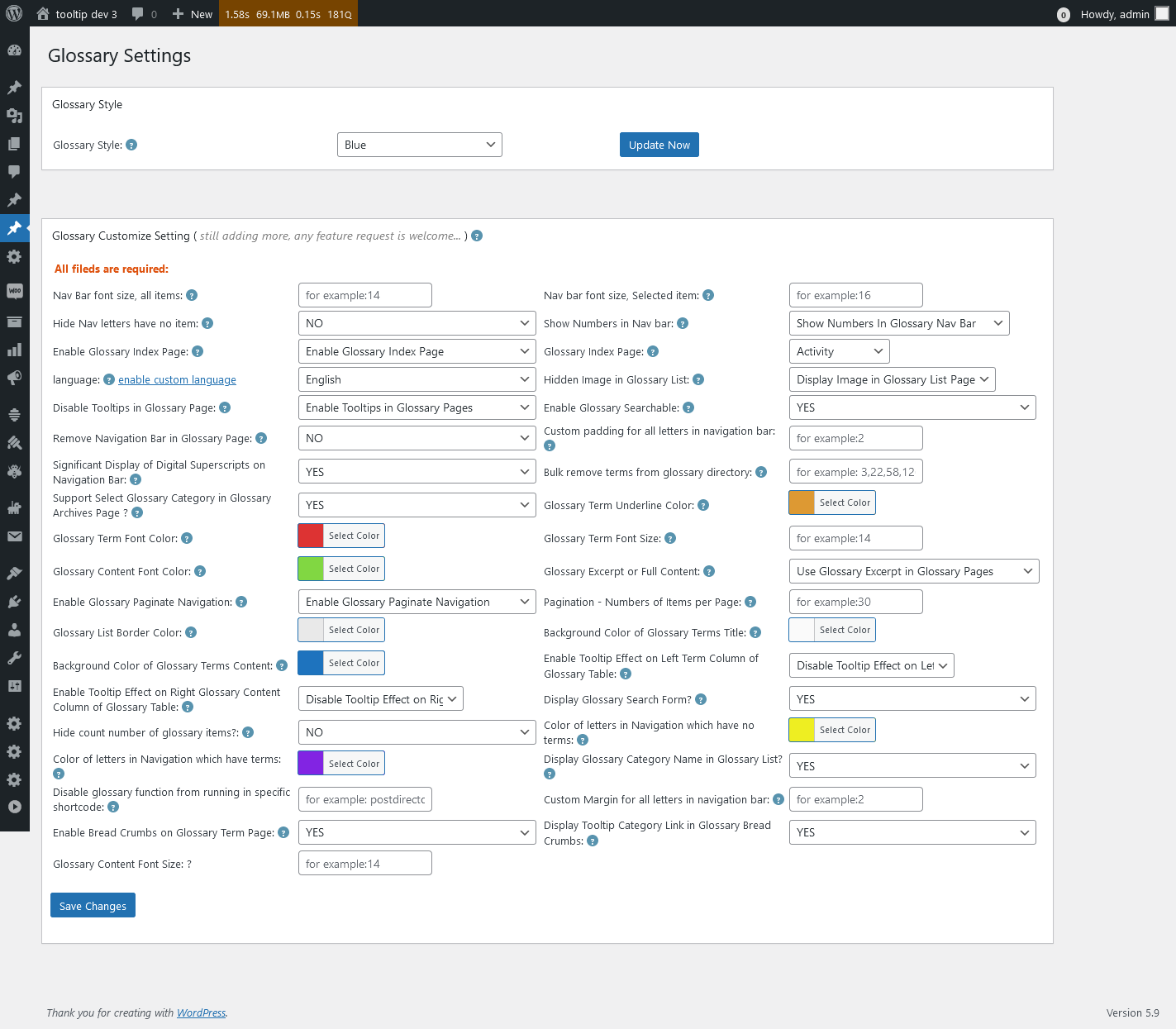
5 you will open glossary settings panel, it looks like this:

Glossary Settings in wordpress tooltips pro plus 27.5.8

Glossary Settings in wordpress tooltips pro plus 27.5.8

In the screenshot, you will find the option “Display glossary category name in glossary list?”, please select “Yes”, then click “save changes” button

In front-end of Job board directory, you will find the job type displayed under the job type 🙂

Thanks for the great suggestion, if you have any more feature request or question, please don’t hesitate to contact us 🙂

Thanks, have a blessed weekend with your loved ones 🙂

Best Regards,

WordPress tooltips plugin support

Tagged with: , , ,

Support banning specific IDs from displaying jobs in the wordpress job directory, WordPress tooltips pro plus 28.4.8 Released

Hi, Dear WordPress Tooltip users, hope this message find you are doing well and having happy weekend with your family A wordpress tooltips plugin user said he built a Job listings directory via our job directory addon in wordpress tooltips pro plus plugin, and he need a few more functions:

Hi there,

I hope this message finds you well. I wanted to reach out to express how impressed I am with your WordPress Tooltips Pro Plus Job Directory plugin, which I’m currently using alongside the official WordPress Job Manager for my small Career portal. The seamless integration and enhanced functionality provided by your plugin have greatly improved the overall user experience.

While the combination of these two plugins has been fantastic for my website, I have encountered a specific challenge that I haven’t been able to resolve. You see, on my online job marketplace, there are certain types of users who post special jobs that I would prefer not to display in the Career directory. I was wondering if there is a possibility to exclude these specific job listings from appearing in the directory?

I understand that you must receive numerous feature requests, but I genuinely believe that implementing this exclusion feature would greatly enhance the customization options for your plugin and provide even more value to your users, including myself. I value your expertise and would greatly appreciate any guidance or assistance you could provide in this matter.

Thank you so much for your attention and considering my request. I look forward to hearing from you.
Best regards,

Our wordpress tooltips plusin developer checked this ticket, and we developed wordpress tooltips pro plus 28.4.8 to support banning specific IDs from displaying jobs in the wordpress job directory. 🙂

How to banning specific IDs from displaying jobs in the wordpress job directory?

1: Customer of WordPress tooltip pro plus  plugin can click download wordpress tooltip to directly download the latest version, if you are new user,  please purchase a license of wordpress tooltip pro plus

2: Downloaded and install  wordpress tooltip pro + plugin, ensure that the version is equal or greater then  28.4.8

New users can refer to our detailed video tutorail at WordPress Tooltips Video Tutorial 3: How to upload and activate wordpress tooltips pro plugin

3: Crete a new wordpres post and insert the wordpress tooltip job board directory shortcode :

[ jobmanagerdirectory exclude_id=’144′ ]

By doing so, the job with id 144 will not be displayed in the job directory

4: In the wordpress editor, click the publish button to publish the job board directory post ,  then please check the front end of wordpress tooltip job board directory page, you will notice the wordpress tooltips plugin has listed all job title and job content, and added a  navigator bar , search box, and job directory page links like #1, #2…etc, importantly, the job with id 144 will not be displayed in the job directory

I hope this information is helpful. Thank you! 🙂

Thanks, have a blessed day with your family 🙂

Best Regards,

WordPress tooltips plugin support

Tagged with: , ,
Top