Tag: wordpress tooltip plugin

How to use the wordpress post name “glossary” as glossary index page in wordpress tooltip plugin?

Hey, Dear users of  WordPress Tooltip plugin , hope this message find you are doing well and having happy weekend with your family 🙂 We get a wordpress user’s ticket, in which he told us he want to use wordpress page “glossary” as “glossary index page”, in the ticket he told us:

> > Hi there,
> > >
> > > I’m having trouble with my glossary page. Rather than the styled
> > > glossary that I see in your demos, I’m getting an ‘archive’ page
> > > which looks really messy. What am I doing wrong?
> > > Thank you!

Our wordpress tooltip support replied

> Hi,
> >
> > Thanks for the message 🙂
> >
> > We are very happy to help you 🙂
> >
> > Because we have many plugin versions with different functions, Would you please tell us:
> > 1 the plugin version you are using
> > 2 the URL related with the problem
> > 3 a little more details to tell us how to find the problem in the
> > URL
> >
> > Thanks, have a blessed day with your family 🙂
> >
> > Best Regards,
> > Support Team

The wordpress tooltip user replied us with more details:

Hi there,
>
> Thanks for getting back to me.
>
> Plugin version: Tooltips Pro 16.0.06
> URL: hidden in here
> Problem:
>
> When I created a glossary index page through the Glossary Settings section, it set it as a ‘tooltips archive’ page which I can’t  customise in any way. It’s just a list of terms and excerpts like a blog page, with no clickable alphabet at the top.
>
> Here’s what I would like it to look like:
> url hidden in here
> This is a page I’ve created myself using the shortcode. But instead I get this:
> url hidden in here
>
> I wouldn’t mind if I could just use the style page (/glossary) but all of the terms come with breadcrumbs that link back to that archive page (currently called Glossary3).
>
> Am I doing something wrong?
>
> Many thanks,

Thanks for this detailed description of the question, we understood it, yes, we can solve it by a few simple steps in wordpress tooltips plugin and wordpress site,    I think may be more wordpress tooltip users have similar requirement, I’d like write a detailed step by step document with screenshot to help all users to do this easily 🙂

How to use the wordpress post name “glossary” as glossary index page in wordpress tooltip plugin?

I believe the what the wordpress tooltip user want is let wordpress page “glossary” https://www.tooltips.org/glossary/ — by default, it is a wordpress glossary category archive page,   it looks like this:

wordpress tooltip glossary archive page

wordpress tooltip glossary archive page

looks like this — https://tooltips.org/glossary-demo/  — a wordpress glossary page with full functionality, it looks like this:
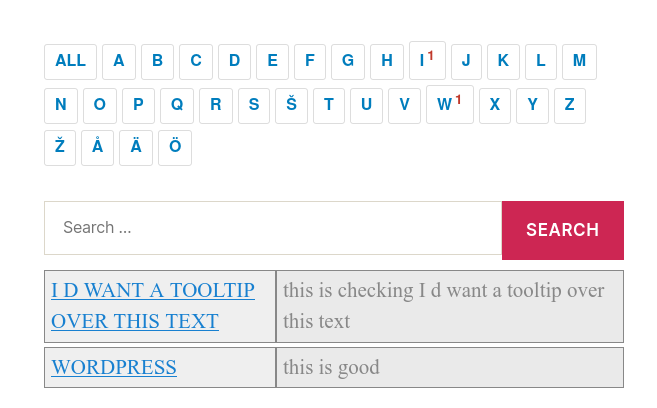
wordpress glossary default blue template

wordpress glossary default blue template

if so, yes you can do it by this way:
1: login wordpress as admin
2: click tooltips menu item
3: click “glossary settings” sub menu item
4: you will open “glossary settings” page, it looks like this:

glossary custom panel in wordpress glossary 16.0.8

glossary custom panel in wordpress glossary 16.0.8

5: as you can see,  in the “glossary customize settings” panel, you will find the option “glossary index page” is set as “glossary” — the “glossary” page is a wordpress page which created automatically by wordpress tooltips plugin, as wordpress tooltip glossary archive page to list all glossary items and link back to each glossary item — for improve SEO rank of your wordpress glossary site in google,  you can change it by this way:

5.1: please create a New page in wordpress editor, for example, create a  new wordpress post using the title “glossaryindexpage” or any other title you want in wordpress post editor, you do not need enter any content in wordpress editor, wordpress glossary plugin will  generate all content in this glossary archive page automatically,  so what you need to do is just give the wordpress post a title and then publish this page directory. 🙂

5.2 back to “glossary customize settings” panel, in your browser for example firefox, refresh this page to let the new wordpress post show in the the option “glossary index page”

5.3 then in “glossary customize settings” panel, click the select box in the option “glossary index page”, you will find the new page “glossaryindexpage” that created in the step #5.1, has been added into the select box, just select “glossaryindexpage” as your “glossary index page” and click the blue “save changes” button

5.4 okay, now the “glossary” page is free,   you can edit page “glossary” in wordpress editor, what you need to do is just insert glossary shortcode in the content — [glossary], and publish it

5.5 in front end when you open the page https://www.tooltips.org/glossary again, you will find it works like:

Glossary Demo

5.6 then in the new page glossaryindexpage, it will works like your old “glossary” page — a wordpress glossary archive, now it will display a list of terms and excerpts 🙂

I guess may be this is what you want? 🙂

Conclusion:

With wordpress tooltip glossary plugin, you will owned glossary archive page automatically which is a real wordpress page that created by wordpress tooltip plugin automatically, and you can release the wordpress page “glossary” to add other functions in the “glossary” page, for example, insert wordpress tooltip shortcodes, for example — insert [glossary] shortcode to let it works like a full wordpress glossary functionality page which looks like this: wordpress glossary

Best Regards,
Support

Tagged with: , , , , ,

WordPress Tooltips Pro Plus Plugin 17.3.4 and WordPress Tooltips Pro Plugin 16.1.2 Released

Hi, Dear users of  WordPress Tooltip plugin , hope this message find you are doing well and having happy weekend with your family 🙂 We are happy to report you, our wordpress tooltip developer have released  wordpress tooltips pro plus plugin 17.3.4 and wordpress tooltips pro plugin 16.1.2 to solve a image bug which find by an amazing wordpress tooltip plugin user  🙂

We got a ticket form the amazing wordpress tooltip user, in which he told us, his image did not works well,  we asked a few question and try to re-play the problem on our site, but all things works well, it is strange, but on user’s site, he ensure there are problem. Our wordpress tooltip developer used a long time to checked all options in our wordpress tooltip plugin, now we have huge options in wordpress tooltip backend, just see this screenshot wordpress tooltip menu in our very old version — it is just enabled part of wordpress tooltip functions / addons, in our wordpress tooltip plugin, there are many options, that means everytime when we try to find a problem or before we released a new version, we need to huge tests! 🙂

wordpress tooltip menus 14.3.6

wordpress tooltip menus 14.3.6

finally, we found when there are a bug when disabled a wordpress tooltip option, then our wordpress tooltips developer lost his sleep in the full night to fixed the bug asap for wordpress tooltip users, that why we released wordpress tooltips pro plus plugin 17.3.4 and wordpress tooltips pro plugin 16.1.2 🙂

Please upgrade to the latest version of wordpress tooltips plugin asap you can 🙂

Also we will offer the amazing wordpress tooltip user 20% discount for find the bug 🙂

If you have any more question or feature request, please don’t hesitate to contact us, we are very happy to improve wordpress tooltip functions for wordpress tooltip user always 🙂

Thanks, have a blessed day with your family 🙂

Best Regards,

WordPress Tooltips Plugin Support

Tagged with: ,

WordPress Tooltips Free 8.0.9 Released, Start Support Bullet Screen on WordPress Tooltip Term

Hi, Dear users of  WordPress Tooltip plugin , hope this message find you are doing well and having happy weekend with your family 🙂  Since 2018, we start to added bullets screen effect for wordpress tooltip terms, and then we got more and more feature request on bullet screen. What is  Bullets Screen? Please check our detailed bullet screen document with detailed step by step guide (might have pro plus function too).

In recent days, based on wordpress tooltip user’s suggestion, we released a few bullet screen functions for wordpress tooltip users, and then a wordpress tooltip user checked our document of wordpress bullet screen for tooltip, he said he want this function and he asked us can we add this function in wordpress tooltip free plugin too ?  Yes, of course, our developer added bullet screen function for wordpress tooltip free plugin too 🙂

After upgraded to the wordpress tooltips free plugin 8.0.9, at the right hand of wordpress tooltip editor  you will find ” Bullet Screen of this tooltip ” metabox, it looks like this:

Bullet Screen Metabox

please note, the black bar is created by my screenshot software, in real tooltip UI, you will not see this black bar

Once you entered words in the ” Bullet Screen Words ” metabox, when users mouse hover tooltip term in wordpress post, we will pop-up tooltip window with tooltip description, and users will find bullet screen words goes up slowly, please just check our detailed how to use bullet screen for wordpress tooltip document. 🙂

Also we have added bullet demo at the top section of our wordpress tooltip feature page too. If you have any feature request or suggestion or any question, please don’t hesitate to contact us 🙂

Thanks, have a happy day with your family 🙂

Best Regards,

WordPress Tooltip Support

Tagged with: , , , , ,

How to make the bullets screen follow the specified direction? Supported by WordPress tooltip pro plus 17.2.4

Hi, Dear  WordPress Tooltip plugin users, hope this message find you are doing well and having happy weekend with your family 🙂 In recent days, we developed a few new wordpress tooltip version to enhance function of wordpress bullet screen, based on a few amazing wordpress tooltip user’s suggestions 🙂  Today, our wordpress tooltip developer developed a new wordpress tooltips pro plus 17.2.4 to allow wordpress tooltip admin to settings the direction of bullet screen running 🙂

We received an amazing wordpress tooltip user’s feedback, in which he told us, he love the bullet screen functions in wordpress tooltip plugin, but he do not want the bullet screen GIF images rise up, because he have many advertiser in the right sidebar of his wordpresss site, so if the bullet screen GIF images goes right to his advertiser, that will improve revenue from his advertiser 🙂

Sure, great reason, we’d like realize the function for the amazing wordpress tooltip bullet screen user to improve his revenue from advertise 🙂

How to make the bullets screen follow the specified direction?

1: login wordpress tooltip site to download wordpress tooltip pro + plugin that >=17.2.4

2: upload and activate latest wordpress tooltip pro plus plugin via your wordpress plugin panel

3: in wordpress dashboard, click tooltips menu item

4: then click bullet screen sub menu item, you will open “Bullet Screen Settings” panel, it looks like this:

Bullets Running Direction option in Bullet Screen Settings

Bullets Running Direction option in Bullet Screen Settings

5: as you can see, at the bottom of the bullet screen panel, there are new option “bullet screen direction”, you can select “goes up”, “goes down”, “goes left”, “goes right” option in “bullet screen direction” select box, if you want the bullet screen GIF images go to the right sidebar which have many advertise, just select “goes right”. Then when users mouse hover your wordpress tooltip term, they will see the tooltip content pop-up in the tooltip window and he will see the lovely Gif images goes right to your advertise in the right sidebar 🙂

6: after click the blue “save changes”, in front end, you will see wordpress bullet screen direction changed as you settings in “bullet screen direction” option  🙂

Conclusion:

With wordpress tooltip pro plus plugin, you can easily to make pretty bullet screen to ATTRACT the user’s attention to your designated area in your wordpress post, and you can use text, jpeg image, gif image…etc as bullet screen in wordpress tooltip and goes up or goes down / goes right / goes left in wordpress site. With wordpress tooltips pro plus, we help you build a lively wordpress site, give your cold wordpress a lively and interesting interface, increase user ratention and engagement, and increase potential revenue in  your wordpress site 🙂

Tagged with: , , , ,

WordPress Tooltips Pro Plus Plugin 17.1.8, Fix the Problem of “Tooltip Term Color in Post” Option in Unique Style for Each Tooltip Term

Hey, Dear users of  WordPress Tooltip plugin , hope this message find you are doing well and having happy weekend with your family 🙂 Our wordpress tooltip developer just released a new wordpress tooltips pro + plugin version 17.1.8, in this version, we fix problem of “Tooltip Term Color in Post” option( in tooltip box customize settings metabox in tooltip editor) in unique tooltip style for each tooltip term fucntion

We got a wordpress tooltips plugin user’s ticket:

I have been working on my site, and we’re very keen for a tooltip solution that will allow us to customise the tooltip colours by
category, or at least individually!

Your time is appreciated, and thank you for your help!

Cheers,

In wordpress tooltips pro plugin version, we have realized custom wordpress tooltip term color for each tooltip term in tooltip editor already, it looks like this:

To custom tooltip term color for each tooltip term, what you need to do is:

1: login wordpress dashboard and click tooltip menu item, and then you can edit any wordpress tooltip term

2: when you edit a wordpress tooltip term,  at the bottom of tooltip editor, you will find “tooltip box customize setting panel”

3: Then in the bottom of the tooltip box customize setting panel, you will find the option “Tooltip term color in post”, just select a pretty color from wordpress tooltip term color picker.

4: Opt to enable this option under the “wordpress tooltip term color in post” option.

5: in front end, you will find the color of this tooltip term in your wordpress post has been changed as you settings in back-end 🙂

Because we have Tons of feature request in the current time already, we are working hard to realize these features for wordpress tooltip users, you can see we are release new wordpress tooltip plugin one day one version, we will realize the feature of custom tooltip color based on tooltip category in the future 🙂

Thanks for the great feedback, if you have any more question or feature request, please don’t hesitate to contact us 🙂

Thanks, hope you have a blessed weekend with your family 🙂

WordPress Tooltip Plugin Support Team

Tagged with: , ,

How to Insert Images in Bullet Screen to Make a Pretty & Lovely Bullet Screen? Supported by WordPress Tooltip Pro Plus Plugin 17.1.4 (Update: Support bbPress Tooltip too)

Hi, Dear  WordPress Tooltip plugin users, hope this message find you are doing well and having happy weekend with your family 🙂 In recent days we focus on improve Bullets Screen functions for wordpress tooltip users. Yesterday we released wordpress tooltip pro + 17.0.8 to help wordpress tooltip users Set Up WordPress Bullet Screen Font Family for WordPress Tooltip Terms  Our wordpress tooltip plugin , today our wordpress tooltip developer released a new wordpress tooltips pro + plugin version 17.1.4, to help wordpress tooltip editors add lovely images in bullets screen to get a stunning result for wordpress tooltip users 🙂

A few years before, since wordpress tooltips pro 5.9.2 (the current version is 17.1.4), we start to build bullets screen effect for wordpress tooltip users, and many users told us they like bullet screen feature.  what is Bullets Screen? In some countries, for example Korean, China… and so on, a few site start to allows show text messages fly across the screen like bullets, we call it bullet screen, a example site which USA / EU / CN users like is viki.com. Basically Bullet Screen is a new function that add your scrolling comments / the mood at the moment / slogans / quotations / famous sayings / aphorism / news title / quick tips…etc to any section in content of wordpress posts, it provides a very special experience for users, if you know how to use the tool correctly, you can provider your users with stunning results 🙂

In recent days we decide improve functions of wordpress bullet screen for wordpress tooltip users, we believe if we can allow wordpress tooltip user insert GIF / SVG / PNG / JPEG …etc images in bullet screen, it will help wordpress tooltip users build more stunning effect for their reader, for example, if you are writing some religion articles, when you told users about a hero, when users hover the name of the hero, a tooltip window pop-up with his story, and then an image of his portrait pops up and move slowly upwards, then popup with the prayer, then display flowers, popup image of the landscape of his hometown…etc, it will provide an immersive experience for your readers 🙂

We are happy that we are the first product to offer this kind of immersive experience effects in wordpress 🙂

How to Insert Images in Bullet Screen to Make a Pretty & Lovely Bullet Screen?

1: login wordpress tooltip plugin site and click download link in the top menu bar in tooltips.org, download the zip file of tooltips pro plus 17.1.4 — it is a open source wordpress plugin

2: upload and install wordpress tooltips pro + plugin 17.1.4 on via your wordpress plugins panel

3: in  wordpress dashboard, click tooltips menu item

4:Create a new wordpress tooltip term  or edit any existed wordpres tooltip term

5: In the right hand of wordpress tooltip editor, you will find ” Bullet Screen Words ” metabox, it looks like this:

Bullet Screen Metabox

Please note, the black bar is caused by my screenshot software, you will not see it  in real tooltip editor

As you can see I have inputted my image bullet screen codes in the metabox, the code looks like this:

<img src=’https://tooltips.org/wp-content/uploads/2022/10/bear-134_128.gif’ />

6: in the  “Bullet Screen Words ” metabox, you can enter more text or images, just separated by comma

For example:

<img src=’https://tooltips.org/wp-content/uploads/2022/10/bear-134_128.gif’ />, <img src=’https://tooltips.org/wp-content/uploads/2022/10/cat-133_128.gif’ />, <img src=’https://tooltips.org/wp-content/uploads/2022/10/new-years-day-1134_256.gif’ />, thanks

7: after publish the tooltip, in front end, when user hover the tooltip term in your wordpress post or anywhere you enabled tooltip function in backend — for example  wordpress menu item, you will see the lovely gif / svg / png images displayed on the tooltip term and goes up slowly.   Please check our demo of wordpress bullet screen effect , you will understand what we saying 🙂


You can use it to promote your woocommerce product too, show more features of your woocommerce product to buyer, or popup a discount coupon code that slowly goes up and fades out, or build a more colorful online reading library for your readers…etc 🙂

You can insert the bullet screen effect anywhere on your wordpress, for example, please try to mouse hover top menu bar  -> try demo menu item -> bullet screen sub menu item, you will find description of bullet screen popup in the wodpress tooltip window, and then a lovely bear will goes up slowly and then a lovely read heart… 🙂

Update: an bbpress user asked us does this tooltip bullets screen function support bbpress forums or not? We build a tooltip bullets screen at this bbPress forum too, you can check demo in the bbpress bullet screen demo topic


Thanks, have a blessings day with your family. 🙂

Best Regards,
Wordpress Tooltip Plugin Support

Tagged with: , , , , ,

How to Set Up WordPress Bullets Screen Font Family for WordPress Tooltip Terms? Supported by WordPress Tooltips Pro Plus Plugin 17.0.8

Hi, Dear users of WordPress Tooltip plugin , hope this message find you are doing well and having happy weekend with your family 🙂 We got an amazing user’s feedback of wordpress bullet screen for wordpress tooltip function,  in which he told us:

I really like your wordpress tooltip plugin, your plugin save me a lot of time, and makes my screen content elegant and rich, I especially like the bullets screen feature. My question is, how can I setup font family for my bullets screen?

This is great feedback, yes! Our wordpress tooltip developer developed  a new wordpress tooltips pro plus new version 17.0.8 to support custom the font family for wordpress bullets screen function for wordpress tooltip users 🙂

Also we get a few users’ question to ask us, what is bullet screen? We’d like make a simple screenshot for our wordpress bullet screen function:

What is “Bullet Screen”

Bullets Screen is a new function that add your scrolling comments / the mood at the moment / slogans / quotations / famous sayings / aphorism / news title / quick tips…etc to any section in content of wordpress posts, it provides a very special experience for users, if you know how to use the tool correctly, you can provider your users with stunning results 🙂

How to Set Up WordPress Bullets Screen Font Family for WordPress Tooltip Terms?

1: login wordpress tooltip site

2:download wordpress tooltips pro plus plugin which version > 17.0.8

3: install wordpress tooltips pro + plugin

4: login your wordpress, click tooltips menu item

5: click “Bullet Screen” sub menu item

6:then you will open “Bullet Screen Settings” panel, it looks like this in wordpress tooltips pro + 17.0.8:

Bullets Font Family for wordpress tooltips plugin

Bullets Font Family for wordpress tooltips plugin

As you can see in here, at the bottom of the bullets screen settings panel, we added a new option “Bullets Font Family”, in here, we added many popular font family for you:

Andale Mono

Arial

Arial Black

Book Antiqua

Comic Sans MS

Courier New

Georgia

Helvetica

Impact

Symbol

Tahoma

Terminal

Times New Roman

Trebuchet MS

Verdana

Webdings

…

If you need any more font family that we did not listed in here, please tell us, we are happy to add new font family for you 🙂

7: please just select any font family from 17 font family we listed above, and click the blue “Save Changes” button

8: In front end when users mouse hover a wordpress tooltip term, the font family of the bullet screenshot will changed as you settings in “Bullet Screen Settings” option

Thanks for the great feature request to wordpress tooltips plugin, if you have any more question or feature request for wordpress tooltip plugin, please don’t hesitate to contact us 🙂

Thanks, have a blessed day with your family 🙂

Best Regards,

WordPress tooltips support team

Tagged with: , , , , , ,

How to Change Cursor Style in WordPress Tooltip Popup Window, Supported by WordPress Tooltips Pro Plus 17.0.4

Hey, Dear WordPress Tooltip plugin users, hope this message find you are doing well and having happy weekend with your family 🙂 We are happy to report you, we developed  a new wordpress tooltips pro plus new version. 🙂

May be you know in last version of wordpress tooltips pro plus plugin, based on an amazing wordpress tooltip user’s question, our wordpress tooltip developer developed wordpress tooltip 16.9.4 to help wordpress tooltip admin custom the cursor style on wordpress tooltip terms, you can decide which kind of cursor style will be displayed when user mouse hover a tooltip term 🙂

After finished the latest version, our wordpress tooltip developer think it is better to allow wordpress tooltip editor custom the cursor style in wordpress tooltip pop-up window too, this is why we developed wordpress tooltip 17.0.4 🙂

How to Change Cursor Style in WordPress Tooltip Popup Window

1: Download wordpress tooltips plugin that version >=17.0.4, it should be a zip file

2: login your wordpress as admin and upload and install the wordpress tooltips pro plus plugin zip file on your site

3: in wordpress dashboard, click tooltips menu item and then click tooltip style sub menu item to open tooltip style panel

4: in the tooltip style panel, please move to the bottom of the wordpress tooltip style panel, you will find new option custom “cursor in tooltip popup”

5: you will select cursor style from cursor style selectbox, in the current time, we support 7 cursor style for wordpress tooltip window:

default
wait
help
move
auto
not-allowed
progress

Please just select your cursor style and click save changes button

If you do not want to custom cursor style in wordpress tooltip pop-up window, just select “default” in the “cursor in tooltip popup” option

6: after change the cursor style in the “cursor in tooltip popup”,  when users mouse hover tooltip term in front end, in the tooltip window, they will find the cursor style has been changed as you set in the “cursor in tooltip popup” option

If you have any more question or feature request for wordpress tooltip plugin, please don’t hesitate to contact us 🙂

Thanks, have a blessed day with your family 🙂

Best Regards,

WordPress tooltips support team

Tagged with: , , ,

How to Change Cursor Style on WordPress Tooltip Terms, Supported by WordPress Tooltips Pro Plus 16.9.4

Hi, Dear users WordPress Tooltip plugin, hope this message find you are doing well and having happy weekend with your family 🙂 Our wordpress tooltip developer just released wordpress tooltips pro plus new version — 16.9.4, to allow wordpress tooltip editor change the cursor style for wordpress tooltip terms, based on an amazing wordpress tooltip user 🙂

Last time, we received a great feature request from an amazing wordpress tooltip user, our wordpress tooltip developer realized the function for him, and then the wordpress tooltip user asked us another question:

Anyway, I am very satisfied with this solution.

While we are chatting, I should mention that I have another (small) problem.

I added
.tooltipsall {
cursor:pointer !important;

to the customer css section. That worked with the free tooltips but does not work with the pro version. I don’t see where the problem is.
perhaps you can give me a fix?

Thank you for your help

Our wordpress tooltip developer checked this question, and he think this is a great suggestion, we can realize this for the user and support with more style in backend, so wordpress editors can custom cursor style just via a click 🙂

What is Cursor?

A cursor is a special symbol that is used to indicate the current position for a button or an input box…etc, on the screen, to help users understand where the next words will be displayed or help users to darg-drop, click to on elements on the screen, users can move cursor in screen of wordpress posts to input wordpres in contact form, or select a woocommerce product and add to card…etc 🙂

How to Change Cursor Style on WordPress Tooltip Terms?

1: login wordpress tooltip site

2: download the latest version of wordpress tooltip pro plus plugin

3: upload and activate the newest wordpress tooltips pro plus plugin to your site

4: click tooltips menu item

5: click tooltip style sub menu item

6: you will open the tooltip style panel, at the bottom of the tooltip style panel, you will find new option custom cursor on tooltip term

7: in the Cursor style on Tooltip Term option, you will find we support 8 cursor style for wordpress tooltip suers:

default
wait
help
move
auto
not-allowed
progress

You can select a cursor style and save the changes of the tooltip style panel.

8: in the front end, when mouse hover a tooltip term, you will find the cursor style has been changed as you set in the backend option 🙂

Thanks for the great feature suggestion, if you have any more question of feature suggestion, please don’t hesitate to contact us, we are very happy to realize it for you 🙂

We have get Tons of feature request for wordpress tooltip plugin, our wordpress tooltip developer is working hard to realize them for wordpress tooltip users, you will see the next version very soon 🙂

Thanks, have a blessed day with your family 🙂

Best Regards,

WordPress tooltips support team

Tagged with: , , ,

WordPress Tooltips Pro Plus 16.8.8 Released, Solve Problems caused by Error Formats Which Import From Other System

Hi, Dear  WordPress Tooltip plugin users, hope this message find you are doing well and have happy weekend with your family 🙂 We are very happy to report to you, we just released a new wordpress tooltip pro plus version — 16.8.8 🙂

We got a ticket which submitted from a wordpress tooltip user, in which he told us that in his wordpress post, he can see the tooltip underline under tooltip term in wordpress post,  but there are no tooltip popup window with tooltip ctonent, we was think this is caused by a cache plugin, but after checked his front page carefully, we found a few javascript errors, it is strange, we requested the amazing user export tooltips terms, and we built a development platform to check it carefully, finally, we found in his tooltip terms, there are a few things should not generated by wordpress tooltip editors, he use other system to created these terms and  imported into wordpress tooltip with other import tools 🙂

Our wordpress tooltip developer checked each term carefully, and re-developed the wordpress tooltips pro plus to support with these error format 🙂  If you find this kind of problem, you can:

1: login wordpress as admin

2: click tooltips menu item

3: click optional settings panel

4: in the option “Enable or Disable WPautoP function and Related Functions in Backend”, select enable WPautoP and related functions

Thanks for the great report, we are very happy to improve wordpress tooltip plugin for you 🙂 If you have any question or feature request, please don;t hesitate to tell us, our wordpress tooltip developer got Tons of feature request, and we are developing a new version which wordpress tooltip editor can change cursor in tooltip terms, you will see it soon 🙂

Thanks, have a blessed day with your family 🙂

Best Regards,

WordPress tooltips support team


Tagged with: ,
Top