Tag: wordpress tooltip plugin

Die Demo und Lösung für „einen WordPress-Tooltip, der für ein Wort mit einer hochgestellten Zahl am Ende angezeigt wird“

colour1

Vor ein paar Tagen erhielten wir ein Ticket von einem beeindruckenden Tooltip-Nutzer: Betreff: Tooltips mit Hochzahlen Nachricht: Ist es möglich (derzeit oder mit einer Erweiterung), dass ein Tooltip für ein Wort angezeigt wird, das am Ende eine hochgestellte Zahl hat? Dann schrieb der Support für das WordPress Tooltip Plugin ein Dokument: „Ist es möglich, dass ein WordPress-Tooltip für ein Wort angezeigt wird, das am Ende eine hochgestellte Zahl hat?“ für einen beeindruckenden WordPress-Tooltip-Nutzer. Bitte versuchen Sie Folgendes:

  1. Melden Sie sich als Admin bei WordPress an.
  2. Klicken Sie im WordPress-Dashboard auf den Menüpunkt Tooltips.
  3. Erstellen Sie einen neuen Tooltip.
  4. Geben Sie „colour1“ als Tooltip-Titel ein und „test“ als Tooltip-Inhalt.
  5. Fügen Sie in Ihrem Beitrag „colour1“ (1 ist hochgestellt) in Ihren WordPress-Beitrag ein. Wenn Sie mit der Maus über „colour1“ fahren, wird der Tooltip angezeigt und funktioniert gut. Bitte beachten Sie, dass es in einigen spezifischen Themes möglicherweise nicht funktionieren wird, da deren Code HTML in Post-Titeln nicht unterstützt… Und der beeindruckende Tooltip-Nutzer antwortete uns: Danke für Ihre E-Mail unten, sie ist sehr hilfreich. Ja, ich kann Tooltips „rot“ und „grün“ erstellen. Ich habe versucht, einen neuen Tooltip mit dem Titel colour1 zu erstellen, aber er wird einfach als „colour1“ aufgezeichnet, d.h. die Hochzahlen werden nicht angewendet. Ich bin jedoch kein Administrator für die WordPress-Seite. Ich bin nur ein Teammitglied. Kann die Hochzahlen-Funktionalität für Tooltips bitte für alle Benutzer der WordPress-Seite verfügbar gemacht werden? Unser Entwickler für das WordPress-Tooltip-Plugin hat zahlreiche Tests durchgeführt, und wir haben schließlich entdeckt, dass das Problem in einigen WordPress -Themes liegt, da deren Code… colour1 als colour<sup>1</sup> ersetzt. Wenn Sie das Problem haben, dass die Eingabe von „colour1“ im Gutenberg-Editor dazu führt, dass es in „colour<sup>1</sup>“ umgewandelt wird, liegt das normalerweise an den Sicherheitsmaßnahmen von WordPress, um XSS-Angriffe zu verhindern. Hier sind einige Möglichkeiten, dies zu vermeiden:
  6. Verwenden Sie einen HTML-Block: In Gutenberg können Sie einen benutzerdefinierten HTML-Block einfügen. Dies ermöglicht es Ihnen, HTML-Tags einzugeben, ohne dass sie escaped werden.
  7. Plugins: Erwägen Sie die Verwendung von Plugins, die benutzerdefinierten Code behandeln, wie „Code Snippets“ oder „Insert Headers and Footers“. Diese Plugins ermöglichen es Ihnen, HTML-Code direkt in Ihre WordPress-Seiten einzufügen.
  8. Bearbeiten Sie functions.php: Möglicherweise können Sie anpassen, wie Sonderzeichen behandelt werden, indem Sie Code zu Ihrer theme’s functions.php-Datei hinzufügen, aber dies erfordert einige Kenntnisse in der WordPress-Entwicklung Sir, wir verwenden ein Editor-Konto, um diese Demo zu erstellen. Wie Sie sehen können, funktionieren die Hochzahlen gut. Als Mitglied der WordPress-Seite können Sie Hochzahlen erstellen, und sie werden ordnungsgemäß funktionieren. Bitte folgen Sie unserer Anleitung, um es erneut zu überprüfen. Wir helfen Ihnen gerne weiter, das Problem zu lösen Sir, vielen Dank für das großartige Ticket. Ich freue mich, Ihnen als DANKESCHÖN eine Lizenz für das „WordPress-Fußnoten“-Plugin zu geben. Das WordPress-Fußnoten-Plugin fügt automatisch Fußnoten in Ihrem WordPress-Beitrag hinzu. Unser WordPress-Fußnoten-Plugin ersetzt Ihre Fußnote durch Zahlen und verlinkt Zahlen automatisch mit den Referenzlisten. Die Referenzlisten werden ebenfalls automatisch vom WordPress-Fußnoten-Plugin generiert und unterstützen das Hinzufügen von Tooltips zu WordPress-Fußnotenelementen, um den Benutzern zu helfen, Fußnotenelemente schneller und besser zu verstehen. Wie verwendet man das WordPress-Fußnoten-Plugin mit dem Tooltip-Plugin? Das WordPress-Fußnoten-Plugin ist sehr einfach zu verwenden. Wenn Sie Ihren WordPress-Beitrag bearbeiten, fügen Sie einfach eine Syntax wie diese hinzu: {{Hi, ich bin die Fußnote}}, und das ist alles, was Sie tun müssen. Unser WordPress-Fußnoten-Plugin ersetzt Ihre Fußnote automatisch durch Zahlen und verlinkt diese mit den Referenzlisten. Die Referenzlisten werden ebenfalls automatisch vom WordPress-Fußnoten-Plugin generiert. Wenn Sie mit der Maus über Fußnotennummern wie [1], [2] fahren, wird ein Popup-Fenster angezeigt, in dem der Fußnoteninhalt „Hi, ich bin die Fußnote“ angezeigt wird. Auch wenn Sie auf die Fußnotennummern klicken, gelangen Sie zu den Referenzlisten am Ende der Seite. In den Referenzlisten, wenn Sie auf die Referenznummern klicken, werden die Benutzer zurück zu den entsprechenden Fußnoten im Beitrag weitergeleitet. Alles geschieht automatisch. Zum Beispiel müssen Sie die Anzahl der Fußnoten [1], [2]… usw. nicht manuell hinzufügen/bearbeiten/löschen. Wir berechnen das automatisch für Sie. Was Sie tun müssen, ist sich darauf zu konzentrieren, Ihre Fußnoten mit dem Tag {{das ist mein Fußnotenbeispiel}} hinzuzufügen. Unser Plugin spart Ihnen Zeit und hilft Ihnen, alles automatisch schön aussehen zu lassen. Der WordPress-Fußnoten-Editor sieht so aus:
    WordPress-Fußnoten-Editor WordPress-Fußnoten-Editor So richten Sie WordPress-Fußnoten mit dem Tooltip-Plugin ein: Im Fußnoten-Global-Einstellungsbereich können Sie „Fußnoteninhalt im Popup-Fenster anzeigen, wenn Sie über den Fußnotenlink fahren“ aktivieren/deaktivieren, den Stil der Fußnotenbox auswählen, benutzerdefinierte Fußnotentag-Einstellungen, das Aktivieren/Deaktivieren des Referenzlabels vor der Referenzliste und den benutzerdefinierten Referenzlabelnamen in Ihrer Sprache festlegen. Das ist alles. Es ist sehr einfach zu bedienen. Alles, was Sie tun müssen, ist, sich auf Ihre Arbeit zu konzentrieren, und unser Fußnoten-Plugin erledigt alles für Sie. Das WordPress-Fußnoten-Einstellungsmenü sieht so aus: WordPress Fußnoten Global Einstellungsmenü WordPress Fußnoten Global Einstellungsmenü Könnten Sie mir bitte Ihr Konto geben, damit ich das Plugin in Ihrem Konto hinzufügen kann? Danke, ich wünsche Ihnen und Ihrer Familie einen gesegneten Tag.
Tagged with: , ,

How to Hide Letters Without Items in Glossary — WordPress Tooltips Free 10.2.3”

Why and How to Hide Letters Without Items in Your WordPress Glossary

— New Features in WordPress Tooltips Free 10.2.3

Hi, Dear  WordPress Tooltip users, I hope this message find you are doing well and enjoying happy days with your family.  🙂  We received an amazing wordpress tooltips users’ ticket, in which he asked:

Subject:

tooltips with superscripts

Message:
Is it possible (currently, or with an enhancement) for a tooltip to be displayed for a word that has a superscript number at the end of it?

Our wordpress tooltips plugin support replied:

Hi,

Thanks for the question 🙂

I guess what you’re looking for might be:
In glossary page (https://tooltips.org/glossary-demo/) , only display glossary items that has a superscript number at the end of it? 🙂

If so in tooltips pro version we have an option: “Hide Nav letters have no item” , just enable it and we will only display glossary items that has a superscript number at the end of it 🙂

Currently we have no this feature in free version, but our developer is developing a new version to add this function from pro version to free version for you, you will see it soon 🙂

Sorry if I misunderstood, please tell me more details or provide a screenshot or page? 🙂

Thanks, have a blessed day with your family 🙂

Best Regards,
WordPress Tooltips Plugin Support

We then released the WordPress Tooltips Free plugin 10.2.3 for tooltip users to resolve the issue! 🙂

A Step-by-Step Guide to Hiding Letters Without Items in WordPress Glossary

1: Please login your wordpess as administrator

2: Click on the “Tooltips” menu item

3: Click on the “Glossary Settings” sub-menu item

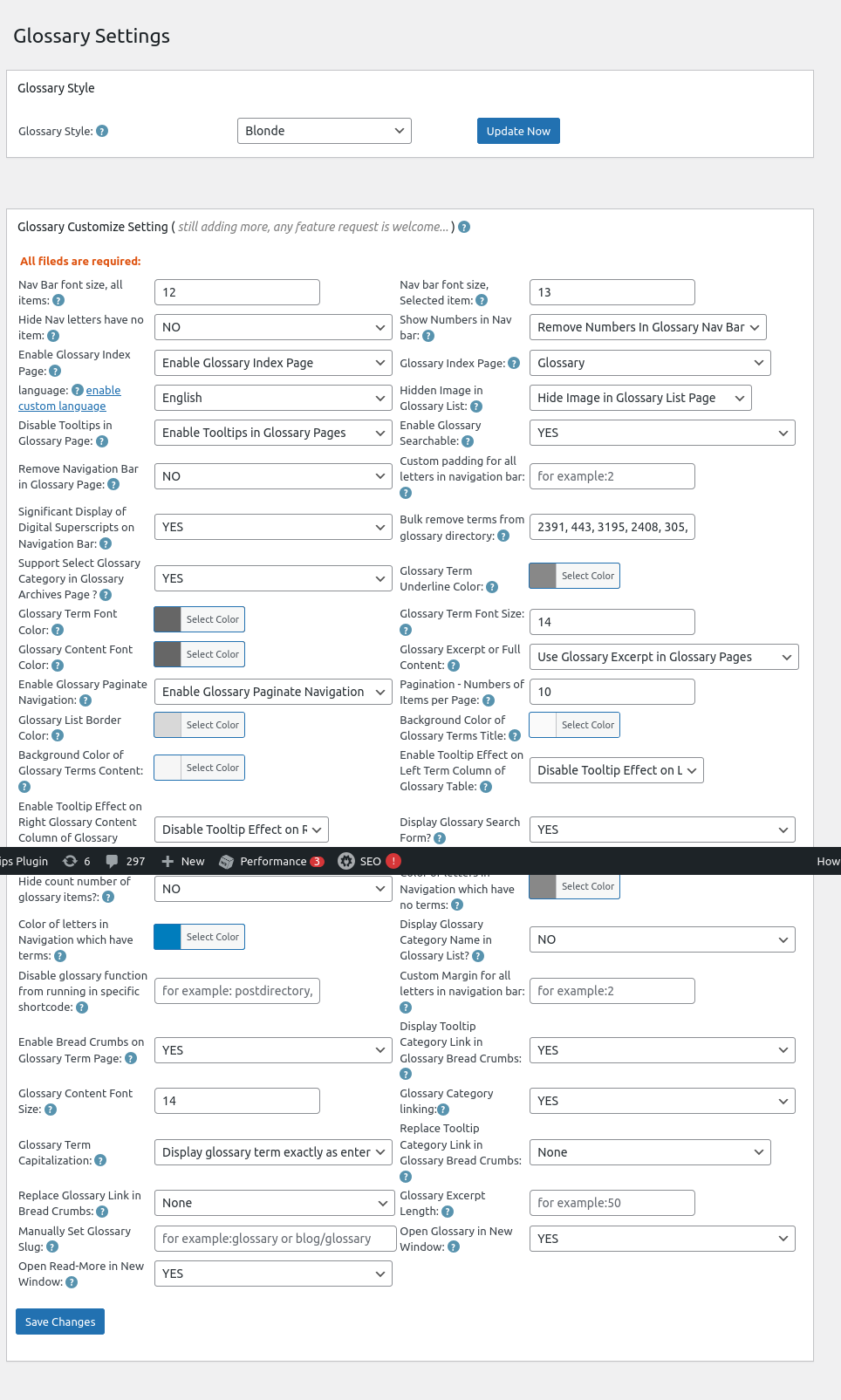
4: Now, you will open “Glossary Settings” panel, I make a screenshot of wordpress tooltips 33.6.8 which using on tooltips.org, but there are a few options is the same with wordpress tooltips free, for instance,  “Hide Nav letters have no item”

Glossary Settings in wordpress tooltips 33.6.8

Glossary Settings in wordpress tooltips 33.6.8

5: If you select “Yes” in the option Glossary Settings in wordpress tooltips 33.6.8, then in front-end, we will hide letters without items in wordpress glossary page

If you select “No” in the option Glossary Settings in wordpress tooltips 33.6.8, then in front-end, we will display all letters in wordpress glossary page, include letters which have no items

what is wordpress glossary?

A WordPress glossary is a compilation of terms and definitions related to WordPress, which helps users (especially beginners) understand the various concepts, features, and terminology associated with the platform. It serves as a reference guide to facilitate better comprehension of WordPress functionalities, themes, plugins, and best practices. It looks like this:

The ideals which have lighted my way, and time after time have given me new courage to face life cheerfully, have been Kindness, Beauty, and Truth. The trite subjects of human efforts, possessions, outward success, luxury have always seemed to me contemptible.
Do something wonderful, people may imitate it.
To follow, without halt, one aim: There is the secret of success.
Reflect on your present blessings, of which every man has many; not on your past misfortunes, of which all men have some.
True happiness means forging a strong spirit that is undefeated, no matter how trying our circumstances.
Love is the flower you've got to let grow.
We shall never know all the good that a simple smile can do.
In order to succeed, we must first believe that we can.
The best way to pay for a lovely moment is to enjoy it.
There is no duty we so underrate as the duty of being happy. By being happy we sow anonymous benefits upon the world.

Conclusion:

WordPress tooltip glossary plugin  allows tooltips users to hide letters (sections of the glossary) that do not contain any glossary items. Glossary users can find this option within the settings of the plugin, labeled “Hide Nav letters have no item”. By utilizing this feature, the glossary can be presented in a more streamlined manner, which may be visually appealing to some users.

Enhanced User Experience: By removing empty sections, the glossary becomes less cluttered, making it easier for readers to find relevant terms without distractions.

Improved Navigation: A cleaner layout can help users navigate the glossary more efficiently, as they won’t encounter irrelevant letters.

Customization: This option gives site administrators more flexibility in designing their glossary according to the needs and preferences of their reader base.

Overall, this feature aims to create a more user-friendly and aesthetically pleasing glossary, which can lead to higher engagement and satisfaction among users.

You can find change log of wordpress tooltips free plugin at:

Change Log for the WordPress Tooltips Free Plugin

Tagged with: , , ,

Jak zobrazit obrázek s WordPress Tooltip při najetí myší na odkaz

Krok za krokem: Použití WordPress Tooltip pro efekty obrázků při najetí myší na odkazy

Pozdravy našim úžasným uživatelům pluginu WordPress Tooltip! Doufám, že vám tato zpráva vykouzlí úsměv na tváři a najde vás v přítomnosti vašich blízkých, jak sdílíte nádherné chvíle plné radosti. Obdrželi jsme skvělý tiket od uživatele WordPress Tooltip, který chce použít WordPress Tooltip k zobrazení obrázku při najetí myší na odkaz:

Ahoj!
Zkouším váš plugin tooltip ve volné verzi (verze 9.9.9) na jednom ze svých webů.
Chci, aby se při najetí myší na odkaz zobrazil obrázek.
Protože jsem vytvořil tooltip obsahující pouze tento obrázek, nazval jsem ho ‚test‘ a přidal tento kód do odkazu:
Test tooltipu
Myslím, že kód je správný, ale nefunguje. Zdá se, že to je velmi základní funkce, a pokud je kód správný, mám pochybnosti: je to možná funkce, která funguje pouze s pro verzí pluginu?
Oceňuji vaši pomoc.
Děkuji.

Ano, plugin WordPress Tooltip podporuje zobrazování obrázku v okně tooltipu, když najedete myší na odkaz:
1. Přihlaste se do WordPress jako administrátor.
2. Klikněte na položku menu „Tooltips“ v ovládacím panelu WordPress.
3. Klikněte na podmenu „Přidat nový“ pro vytvoření nového termínu tooltipu.
4. V editoru tooltipů WordPress zadejte název tooltipu a přidejte obrázek do oblasti obsahu tooltipu, vypadá to takto:


Odkaz s obrázkem tooltipu WordPress
5. Dále vytvořte nový příspěvek / stránku WordPress.
a. Zadejte termín tooltipu jako obsah stránky.
b. Přidejte odkaz na termín tooltipu.
c. Publikujte stránku WordPress.
Vezměte prosím na vědomí, že některé WordPress šablony zobrazují pouze úryvek jako obsah. V tomto případě musíte aktivovat tooltipy pro úryvek v bezplatném pluginu WordPress Tooltips. Pokud používáte verzi pro / pro plus pluginu WordPress Tooltips, povolte možnost: „použít celý obsah tooltipu v pop-up okně“.
Například jsem vytvořil demo na stránce Nové testovací demo pro vás, zjistíte, že to funguje dobře.
Pokud máte další otázky, neváhejte nás kontaktovat, rádi vám pomůžeme.
Děkuji, mějte požehnaný den se svou rodinou.
S pozdravem,
Podpora pluginu WordPress Tooltips

Tagged with: ,

Comment afficher une image avec un infobulle WordPress lorsque l’on survole un lien — wordpress tooltips

Étape par étape : Utiliser WordPress Tooltip pour des effets d’image au survol des liens Salutations à nos utilisateurs incroyables du plugin WordPress Tooltip ! J’espère que ce message apportera un sourire à votre visage et vous trouvera en compagnie de vos proches, partageant des moments merveilleux remplis de joie. Nous avons reçu un ticket d’un utilisateur du WordPress Tooltip incroyable, qui souhaite utiliser WordPress Tooltip pour afficher une image lorsqu’il survole un lien :

Bonjour !
J’essaie votre plugin d’infobulle dans la version gratuite (Version 9.9.9) sur l’un de mes sites Web.
Je veux simplement qu’une image apparaisse lorsque je survole un lien.
J’ai donc créé un infobulle contenant uniquement cette image, l’ai intitulée ‘test’ et ajouté ce code au lien : Test de Tooltip
Je pense que le code est correct, mais cela ne fonctionne pas. Cela semble être une fonction très basique et si le code est correct, j’ai un doute : est-ce peut-être une fonction qui ne fonctionne qu’avec la version pro du plugin ?
J’apprécie votre aide.
Merci

Oui, le plugin WordPress Tooltip prend en charge l’affichage d’une image dans la fenêtre d’infobulle lorsque vous survolez un lien : 1. Veuillez vous connecter à WordPress en tant qu’administrateur.
2. Cliquez sur l’élément de menu « Tooltips » dans le tableau de bord WordPress.
3. Cliquez sur l’élément de sous-menu « Ajouter nouveau » pour créer un nouveau terme d’infobulle.
4. Dans l’éditeur d’infobulles WordPress, entrez le titre de l’infobulle et ajoutez une image dans la zone de contenu de l’infobulle, cela ressemble à ceci :


Lien avec une image d’infobulle WordPress
5. Ensuite, créez un nouveau billet / une nouvelle page WordPress.
a. Entrez le terme d’infobulle comme contenu de la page.
b. Ajoutez un lien vers le terme d’infobulle.
c. Publiez la page WordPress.
Veuillez noter que certains thèmes WordPress n’affichent que l’extrait comme contenu, dans ce cas, vous devez activer les infobulles pour l’extrait dans le plugin gratuit WordPress Tooltips. Si vous utilisez la version pro / pro plus des WordPress Tooltips, veuillez activer l’option : « utiliser le contenu complet de l’infobulle dans la boîte popup ».
Par exemple, j’ai créé une démo à la Nouvelle Démo de Test pour vous, vous verrez que cela fonctionne bien.
Si vous avez d’autres questions, n’hésitez pas à nous contacter, nous sommes très heureux de vous aider.
Merci, passez une journée bénie avec votre famille.
Cordialement,
Support du plugin WordPress Tooltips

Tagged with: ,

Wie man ein Bild mit einem WordPress-Tooltip anzeigt, wenn man über einen Link fährt

Grüße an unsere großartigen Benutzer des WordPress Tooltip Plugins! Ich hoffe, diese Nachricht bringt ein Lächeln auf dein Gesicht und findet dich in der Gesellschaft deiner Lieben, die wunderbare Momente voller Freude teilen. Wir haben ein tolles Ticket von einem Benutzer des WordPress Tooltips erhalten, der den WordPress Tooltip verwenden möchte, um ein Bild beim Überfahren eines Links anzuzeigen:

Hallo!
Ich teste dein Tooltip-Plugin in der kostenlosen Version (Version 9.9.9) auf einer meiner Webseiten.
Ich möchte einfach, dass ein Bild erscheint, wenn ich mit der Maus über einen Link fahre.
Ich habe daher einen Tooltip erstellt, der nur dieses Bild enthält, ihn ‘Test’ genannt und diesen Code dem Link hinzugefügt:
Tooltip-Test
Ich denke, der Code ist korrekt, aber er funktioniert nicht. Es scheint eine sehr grundlegende Funktion zu sein, und wenn der Code korrekt ist, habe ich einen Zweifel: Ist das vielleicht eine Funktion, die nur mit der Pro-Version des Plugins funktioniert?
Ich schätze deine Hilfe.
Danke

Ja, das WordPress Tooltip-Plugin unterstützt die Anzeige eines Bildes im Tooltip-Fenster, wenn du über einen Link fährst:
1. Bitte melde dich als Administrator bei WordPress an.
2. Klicke im WordPress-Dashboard auf das Menüelement „Tooltips“.
3. Klicke auf das Untermenüelement „Neu hinzufügen“, um einen neuen Tooltip-Begriff zu erstellen.
4. Im WordPress Tooltip-Editor gibst du den Tooltip-Titel ein und fügst ein Bild im Inhaltsbereich des Tooltips hinzu, es sieht so aus:


Link mit WordPress Tooltip-Bild.
5. Als Nächstes erstellst du einen neuen WordPress-Beitrag/eine neue Seite.
a. Gib den Tooltip-Begriff als Seiteninhalt ein.
b. Füge einen Link zum Tooltip-Begriff hinzu.
c. Veröffentliche die WordPress-Seite.
Bitte beachte, dass einige WordPress-Themen nur den Auszug als Inhalt anzeigen; in diesem Fall musst du die Tooltips für den Auszug im kostenlosen Plugin für WordPress Tooltips aktivieren. Wenn du die Pro- oder Pro Plus-Version des WordPress Tooltips verwendest, aktiviere bitte die Option: “Vollständigen Tooltip-Inhalt im Popup-Fenster verwenden”.
Zum Beispiel habe ich eine Demo unter „Neue Testdemo“ für dich erstellt. Du wirst feststellen, dass es gut funktioniert.
Wenn du weitere Fragen hast, zögere bitte nicht, uns zu kontaktieren, wir helfen dir sehr gerne.
Danke, wünsche dir einen gesegneten Tag mit deiner Familie.
Mit freundlichen Grüßen,
Support für das WordPress Tooltip-Plugin

Tagged with: ,

Come mostrare un’immagine con il tooltip di WordPress quando si passa il mouse su un link — wordpress tooltip plugin

Passo dopo passo: Utilizzo del WordPress tooltip  per effetti di immagine al passaggio del mouse sui link
Saluti ai nostri incredibili utenti del plugin Tooltip di WordPress! Spero che questo messaggio susciti un sorriso sul tuo volto e ti trovi in compagnia dei tuoi cari, condividendo momenti meravigliosi pieni di gioia. Abbiamo ricevuto un ticket da un fantastico utente del tooltip di WordPress, il quale desidera utilizzare il Tooltip di WordPress per visualizzare un’immagine al passaggio del mouse su un link:

Ciao!
Sto provando il tuo plugin di tooltip nella versione gratuita (Versione 9.9.9) su uno dei miei siti web.
Voglio semplicemente che un’immagine appaia quando si passa il mouse su un link.
Ho quindi creato un tooltip contenente solo quell’immagine, l’ho intitolato ‘test’ e ho aggiunto questo codice al link:

Credo che il codice sia corretto, ma non funziona. Sembra una funzione molto di base e se il codice è corretto, ho un dubbio: è forse una funzione che funziona solo con la versione pro del plugin?
Apprezzo il tuo aiuto.
Grazie

Sì, il plugin di tooltip di WordPress supporta la visualizzazione di un’immagine nella finestra del tooltip quando passi il mouse su un link:
1: Accedi a WordPress come amministratore
2: Clicca sull’elemento di menu “Tooltips” nel dashboard di WordPress
3: Clicca sull’elemento di sottomenù “Aggiungi Nuovo” per creare un nuovo termine tooltip
4: Nell’editor di tooltip di WordPress, inserisci il titolo del tooltip e aggiungi un’immagine nell’area di contenuto del tooltip, dovrebbe apparire così:


link con immagine di tooltips di WordPress
5: Successivamente, crea un nuovo post/pagina di WordPress
a: Inserisci il termine del tooltip come contenuto della pagina
b: Aggiungi un link al termine del tooltip
c: Pubblica la pagina di WordPress
Nota che alcuni temi di WordPress visualizzano solo l’estratto come contenuto; in questo caso, devi abilitare i tooltip per l’estratto nel plugin gratuito di tooltip di WordPress. Se stai utilizzando la versione pro / pro plus del plugin di tooltip di WordPress, attiva l’opzione: “usa il contenuto completo del tooltip nella finestra popup”.
Ad esempio, ho creato una demo in Nuova Demo di Test per te, troverai che funziona bene
Se hai altre domande, non esitare a contattarci, saremo molto felici di aiutarti
Grazie, ti auguro una giornata benedetta con la tua famiglia
Cordiali saluti,
Supporto del plugin di tooltips di WordPress

Tagged with: ,

¿Cómo mostrar una imagen con un tooltip de WordPress al pasar el ratón sobre un enlace?

Paso a Paso: Usando el WordPress Tooltip para Efectos de Imagen al Pasar el Ratón sobre Enlaces
¡Saludos a nuestros increíbles usuarios del plugin de Tooltip de WordPress! Espero que este mensaje te saque una sonrisa y te encuentre en compañía de tus seres queridos, compartiendo momentos maravillosos llenos de alegría. Recibimos un ticket de un increíble usuario de tooltip de WordPress, quien quiere usar el Tooltip de WordPress para mostrar una imagen al pasar el ratón sobre un enlace:

¡Hola!
Estoy probando su plugin de tooltip en la versión gratuita (Versión 9.9.9) en uno de mis sitios web.
Simplemente quiero que aparezca una imagen al pasar el ratón sobre un enlace.
Por lo tanto, he creado un tooltip que contiene solo esa imagen, lo titulé ‘test’ y añadí este código al enlace:
Tooltip test
Creo que el código es correcto, pero no funciona. Parece una función muy básica y si el código es correcto, entonces tengo una duda: ¿es quizás una función que solo funciona con la versión pro del plugin?
Agradezco tu ayuda.
gracias

Sí, el plugin de tooltip de WordPress admite mostrar una imagen en la ventana del tooltip cuando pasas el ratón sobre un enlace:

1. Por favor, inicia sesión en WordPress como administrador.
2. Haz clic en el elemento del menú “Tooltips” en el panel de WordPress.
3. Haz clic en el submenú “Añadir Nuevo” para crear un nuevo término de tooltip.
4. En el editor de tooltips de WordPress, ingresa el título del tooltip y añade una imagen en el área de contenido del tooltip, debe verse así:


enlace con imagen de tooltips de WordPress
5. A continuación, crea una nueva publicación/página en WordPress.
a. Ingresa el término del tooltip como contenido de la página.
b. Añade un enlace al término del tooltip.
c. Publica la página de WordPress.Ten en cuenta que algunos temas de WordPress solo muestran el extracto como contenido; en este caso, necesitas habilitar tooltips para el extracto en el plugin gratuito de tooltips de WordPress. Si estás usando la versión pro / pro plus del plugin de tooltips de WordPress, por favor habilita la opción: “usar contenido completo del tooltip en el cuadro emergente”.
Por ejemplo, he creado una demostración en Nueva Demostración de Prueba para ti, encontrarás que funciona bien

For example , I created a demo at New Test Demo for you,  you will find it works well

Si tienes más preguntas, no dudes en contactarnos, estaremos muy felices de ayudarte
Gracias, que tengas un día bendecido con tu familia
Saludos cordiales,
Soporte del plugin de tooltips de WordPress

Tagged with: ,

How to Show an Image with WordPress Tooltip When Hovering Over a Link

Step-by-Step: Using WordPress Tooltip for Image Hover Effects on Links

Greetings to our amazing WordPress Tooltip plugin users! I hope this message brings a smile to your face and finds you in the company of your dear ones, sharing wonderful moments filled with joy. 🙂 We received an amazing wordpress tooltip user’s ticket, he want to use WordPress Tooltip to display an image on hover over a link:

Hi!
I am trying out your tooltip plugin in the free version (Version 9.9.9 ) on one of my websites.
I simply want an image to appear when hovering the mouse over a link.

I have therefore created a tooltip containing only that image, titled it ‘test’ and added this code to the link:

Tooltip test

I think the code is correct but it doesn’t work. It seems like a very basic function and if the code is correct then I have a doubt: is that perhaps a function that only works with the pro version of the plugin?

I appreciate you help.

thanks

Yes, the wordpress tooltip plugin supports displaying an image in tooltip window when you hover over a link:

1: Please login wordpress as admin

2: click on the “Tooltips” menu item in wordpress dashboard

3: click on the “Add New” sub-menu item to create a new tooltip term

4: In the wordpress tooltip editor, enter the tooltip title and add an image in the tooltip content area, it looks like this:

link with wordpress tooltips image

5: Next, create a new wordpress post / page

a: enter the tooltip term as the page content

b: add a link to the tooltip term

c: publish the wordpress page

Please note,some wordpress themes only display the excerpt as content, in this case, you need to enable tooltips for excerpt in the  wordpress tooltips free plugin. If you are using the wordpress tooltips pro / wordpress tooltips pro plus version, please enable the option: “use full tooltip content in popup box”

For example , I created a demo at New Test Demo for you,  you will find it works well 🙂

If you have any more question, please don’t hesitate to contact us, we are very happy to help you 🙂

Thanks, have a blessed day with your family 🙂

Best Regards,

WordPress tooltips plugin support

Tagged with: ,

Asignación de Tooltips de WordPress a Categorías: Una Guía Práctica — WordPress Tooltips

Optimización de tus Tooltips de WordPress: Cómo Asignar Categorías

¡Saludos a nuestros increíbles usuarios del plugin WordPress Tooltip! Espero que este mensaje te saque una sonrisa y te encuentre en compañía de tus seres queridos, compartiendo momentos maravillosos llenos de alegría. Recibimos un ticket de un fantástico usuario de WordPress Tooltip:

“Quiero seleccionar muchos tooltips para una categoría. Después de seleccionar ‘todos los tooltips’, luego seleccionando muchos tooltips, después ‘Acción masiva = Editar’, luego ‘Aplicar’, luego seleccionar ‘categoría’ y luego ‘Actualizar’, parece que no sucede nada. Abro la pantalla de ‘Categorías’ y los tooltips seleccionados no se han asignado a la categoría. ¿Estoy haciendo algo mal o hay otra forma en la que puedo asignar muchos tooltips a una categoría de manera simple? Gracias por tu ayuda.”

Hemos realizado algunas pruebas y descubrimos que funciona bien de nuestra parte. Nos gustaría escribir un documento para los usuarios del plugin WordPress Tooltips.

1. Inicia sesión en WordPress como administrador.

2. Haz clic en el menú de tooltips en el panel de control de WordPress.

3. Selecciona el elemento de submenú ‘Categorías’, esto abrirá el panel de control ‘Categorías’, que se ve así:

categorías de tooltips de WordPress Como puedes ver, hemos creado una categoría de tooltip llamada ‘test’. Actualmente, el conteo para la categoría de tooltip ‘test’ es 0.

4. A continuación, haz clic en el elemento de submenú ‘todos los tooltips’, esto abrirá el panel de control ‘Tooltips’, que se ve así:

todos los tooltips

5. Selecciona múltiples tooltips y elige ‘Editar’ en el menú desplegable ‘Acciones masivas’, luego haz clic en el botón ‘Aplicar’ para abrir el panel de EDICIÓN MASIVA, que se ve así:

edición masiva de tooltips de WordPress

6. Haz clic en el botón ‘Actualizar’ para enviar tus cambios, después de esto, vuelve a ir al panel ‘Categorías’, encontrarás que todos los nueve términos de tooltips han sido asignados a la categoría ‘test’, como se muestra aquí: asignar tooltips en la categoría ¿

Podrías seguir nuestra guía para asignar términos de tooltips a una categoría nuevamente? Si tienes alguna pregunta, ¡no dudes en contactarnos! Estamos muy felices de ayudarte a resolver cualquier problema.

Gracias, que tengas un día bendecido con tus seres queridos.

Atentamente,

Soporte del Plugin WordPress Tooltips

Tagged with: ,

Assegnazione delle Infobox di WordPress alle Categorie: Una Guida Pratica — WordPress Tooltips

Ottimizzare le tue Infobox di WordPress: Come Assegnare Categorie

Saluti ai nostri straordinari utenti del plugin WordPress Tooltip! Spero che questo messaggio porti un sorriso sul vostro volto e vi trovi in compagnia dei vostri cari, condividendo momenti meravigliosi pieni di gioia. Abbiamo ricevuto un ticket da un fantastico utente di WordPress Tooltip:

“Voglio selezionare molte infobox per una categoria. Dopo aver selezionato ‘tutte le infobox’, quindi selezionato molte infobox, poi ‘Azione di gruppo = Modifica’, poi ‘Applica’, quindi selezionare ‘categoria’, poi ‘Aggiorna’, sembra che nulla accada. Apro lo schermo ‘Categorie’ e le infobox selezionate non sono state assegnate alla categoria. Sto facendo qualcosa di sbagliato, o c’è un altro modo in cui posso assegnare molte infobox a una categoria in modo semplice? Grazie per il vostro aiuto.”

Abbiamo condotto alcuni test e abbiamo scoperto che funziona bene da parte nostra. Vorremmo scrivere un documento per gli utenti del plugin WordPress Tooltips.

1. Accedi a WordPress come amministratore.

2. Clicca sul menu delle infobox nel dashboard di WordPress.

3. Seleziona l’elemento di sottomenu ‘Categorie’, si aprirà il pannello di controllo ‘Categorie’, che appare così: categorie delle infobox di WordPress Come puoi vedere, abbiamo creato una categoria di infobox chiamata ‘test’. Attualmente, il conteggio per la categoria di infobox ‘test’ è 0.

4. Successivamente, clicca sull’elemento di sottomenu ‘tutte le infobox’, si aprirà il pannello di controllo ‘Infobox’, che appare così: tutte le infobox

5. Seleziona più infobox e scegli ‘Modifica’ dal menu a discesa ‘Azioni di gruppo’, quindi clicca sul pulsante ‘Applica’ per aprire il pannello di MODIFICA IN MASSE, che appare così:

modifica in massa delle infobox di WordPress

6. Clicca sul pulsante ‘Aggiorna’ per inviare le tue modifiche, dopo di che, torna di nuovo al pannello ‘Categorie’, troverai che tutti e nove i termini delle infobox sono stati assegnati alla categoria ‘test’, come mostrato qui:

assegnazione in massa delle infobox nella categoria

Puoi seguire nuovamente la nostra guida per assegnare i termini delle infobox a una categoria? Se hai domande, non esitare a contattarci! Siamo molto felici di aiutarti a risolvere qualsiasi problema. Grazie, passa una giornata benedetta con i tuoi cari. Cordiali saluti, Supporto Plugin WordPress Tooltips

Tagged with: , ,
Top


