Tag: wordpress glossary

WordPress Tooltip Glossary 12.2.4, Opt to Show Excerpt or Full Content of Glossary Content in Glossary Index Page

Dear Users of WordPress Tooltip Glossary Plugin,
We have released new wordpress tooltip glossary plugin version 12.2.4, in this wordpress glossary tooltip plugin, you can opt to show Glossary excerpt or full Content in glossary index page 🙂

How to Show Excerpt or Full Content of Glossary Term Content in Glossary Index Page?

1: Login your account at wordpress glossary plugin site

2: Download wordpress glossary plugin via “My account”

3: Login your wordpress admin on your site

4: Click “Plugins” menu item in your wordpress admin area

5: Deactivated old tooltips version in plugins panel

6: Delete the old wordpress tooltip plugin in wordpress plugins panel

7: In WordPress “Plugins” menu item, please click “add new” link at the top of the plugins panel

8: Upload the wordpress glossary plugin zip file which you downloaded from wordpress glossary  site

9: Activate latest version of wordpress glossary plugin 12.2.4

10: In WordPress admin area, click “Tooltips” menu

11: Click “Glossary Settings” sub menu item in wordpress admin area,  open “Glossary Settings” panel

12: You will find “Glossary Excerpt or Full Content” option box, just select excerpt option or full content option,  it looks like this:

glossary settings panel in wordpress tooltip glossary plugin 12.2.4

glossary settings panel in wordpress tooltip glossary plugin 12.2.4

13 Please remember to click “Save Changes” blue button

14 Check glossary index page in front end, you will find the content of glossary terms column has been changed as you settings in back end

Thanks for the great feature request for our wordpress glossary plugin! If you have any question or request of wordpress glossary plugin, please don’t hesitate to contact us 🙂
Thanks, have a blessed day with your family 🙂
Best Regards,

WordPress Glossary Plugin Support Team

Tagged with: , ,

WordPress Tooltip Glossary 12.2.0 Released

Hi WordPress Tooltip Users,

Hope this message find you are doing well and have happy days with your family! 🙂
We are happy to report you, we just finished wordpress tooltip glossary 12.2.0, we get a ticket, in which told us, the color of tooltip support link is a little too “gray”, he hope can change the color of the tooltip support link to looks better in his theme,  in the wordpress tooltip version 12.2.0, you can custom color of tooltip support link in tooltip pop box. 🙂

How to Change the Color of WordPress Tooltip Support Link?

1: Login your account at wordpress tooltip plugin site

2: Download wordpress tooltip plugin 12.2.0 via “My account” page

3: Login your site admin area

4: In wordpress admin, click “Plugins” menu item

5: Deactivated old version of wordpress tooltips plugin

6: Delete the prev version of wordpress tooltip plugin

7: In “Plugins” menu item, click add new at the top of the plugins panel

8: Upload the wordpress tooltips plugin 12.2.0 zip file which you downloaded from wordpress plugin plugin site

9: Activate latest version of wordpress tooltip plugin 12.2.0

10: Click “Tooltips” menu item

11: Then Click “Tooltips Style” sub menu item, you will open “Tooltips Style Settings” panel

12: You will find the new option: “Color of Tooltip Support Link” at the bottom of the “Tooltip Box Customize Setting” panel, please just select the color for your wordpress support link by wordpress color picker.

13 Click blue “Save Changes”  button in custom tooltip style settings panel

14 In front end, if you enabled wordpress tooltip support in wordpress tooltip optional settings panel, you will find the color of wordpress tooltip support link has been changed

If you have any question or feature request of wordpress tooltip plugin, please don’t hesitate to tell us 🙂
Thanks, have a blessed day with your family 🙂
Best Regards,
WordPress Tooltip Glossary Plugin Support
Tagged with: , , , , ,

Update: We have updated WordPress Glossary Plugin Demo

Hi Dear WordPress Glossary Plugin Client,

We just updated Glossary Demo page, in this wordpress glossary demo page, we have added new links of glossary functions description, and we have use glossary option “Bulk remove terms from glossary directory” to show how to bulk disable glossary items in glossary directory, it looks like this:

wordpress glossary setting panel demo for build remove items from glossary directory

wordpress glossary setting panel demo for build remove items from glossary directory

You can see in “bulk remove terms from glossary directory” option, we have added a few glossary IDs, these glossary item will not show in WordPress Glossary Demo page, also we tweaked a little glossary colors in the wordpress glossary demo page. Also in here you can see,  if you do not want to change glossary term font size, when you click “Save Changes” button,  you can just enter 0 in the “glossary term font size” option box 🙂

As you can see, we are upgrade our wordpress glossary functionality quickly now, we upgrade our wordpress glossary plugin nearly one version per day, we have Tons of feature request about wordpress glossary section, we will finish them asap we can, in recent days, we are focus on improve wordpress glossary plugin functions for users,  if you need more glossary functions or any question, please  contat us 🙂

Thanks, have a blessed day with your family 🙂
Best Regards,
WordPress Tooltip Glossary Plugin Support Team
Tagged with: , , ,

Update: WordPress Tooltip Plugin Support Team Have Re-write Documents of WordPress Tooltip Plugin

Hey WordPress Tooltip Plugin Users,

Update: WordPress Tooltip Plugin Support Team Have Re-write Documents of WordPress Tooltip Plugin, we have added more instruction on the use of wordpress tooltips plugin, we added more description of what is tooltips, what is wordpress tooltips plugin, added change log of wordpress glossary tooltip plugin 12.1.6, and added new features content in  wordpress tooltip single license product and wordpress glossary tooltip plugin multi-license product, added new document of wordpress tooltip glossary plugin new versions, and we have uploaded source code of new version of wordpress tooltip glossary plugin,   please check these updated wordpress tooltip glossary document to get latest informations, and download newest wordpress tooltip plugin to install on your site 🙂

Thanks, have a blessed day with your family 🙂
Best Regards,
WordPress Tooltip Glossary Plugin Support Team
Tagged with: , , ,

WordPress Tooltip Glossary Plugin 12.1.6, Support Custom Glossary Term Font Size in WordPress Glossary Index Page

Dear WordPress Glossary Plugin Users,

We just released wordpress glossary plugin 12.1.6, in this version, based on user’s requested, wordpress tooltip glossary plugin support custom glossary term font size in wordpress glossary index page 🙂

How to Custom WordPress Glossary Term Font Size?

step 1: Please login wordpress glossary plugin

step 2: Download wordpress glossary plugin in tooltips.org

step 3: Then sign in your site’s wordpress as wordpress administrator user role

step 4: In admin area, open “Plugins” menu item

step 5: Deactivated wordpress glossary plugin

step 6: Delete the old wordpress glossary plugin

step 7: In “Plugins” menu item,  please click add new at the top of the plugins panel

step 8: In here you can upload the glossary plugin zip file

step 9: After uploaded wordpress glossary tooltip plugin 12.1.6,  activate the new wordpress glossary tooltip plugin in wordpress plugins panel

step 10: Then Click “Tooltips” menu item

step 11: Then Click “Glossary Settings” sub menu item, you will open “Glossary Settings” panel

step 12: You will find the new option: “Glossary Term Font Size” at the bottom of the “Glossary Setting” panel, you can change the wordpress glossary font size in here, it looks like this:

wordpress tooltip glossary plugin 12.1.6 glossary setting panel

wordpress tooltip glossary plugin 12.1.6 glossary setting panel

step 13 Click “Save Changes” button

step 14 Now in front end of wordpress glossary index page, all glossary content font color has been changed as you specified in glossary settings panel

We are developing wordpress glossary version 12.1.8, you will see it very soon, any question of wordpress tooltip plugin, or any more feature request, don’t hesitate to contact us 🙂
Thanks, have a blessed day with your family 🙂
Best Regards,
WordPress Tooltip Glossary Plugin
Tagged with: , ,

WordPress Tooltip Glossary Plugin 12.1.2, Support Custom Glossary Content Font Color

Hey WordPress Glossary Tooltip Plugin Customers,

Hope you are enjoy your weekend  with your family! 🙂

New WordPress Glossary Tooltip Plugin version 12.1.2 hase been released, we received requests from  wordpress glossary plugin user, to allow wordpress tooltip user to change font color of glossary content in glossary index page, in this wordpress glossary version, we start to support custom glossary content font color. 🙂

How to Setup WordPress Glossary Tooltip Plugin to Custom Glossary Content Font Color?

It is vert easy to custom wordpress glossary content font color:

1: Please login your account at wordpress glossary plugin

2: Please download wordpress glossary tooltip plugin zip file

3: Please login your site’s wordpress admin

4: Please open “Plugins” menu item

5: Deactivated old version of wordpress glossary plugin

6: Delete the old wordpress tooltip plugin

7: Then in “Plugins” menu item,  please click add new at the top of the plugins panel

8: In here you can upload the glossary plugin zip file

9: Then activate the new wordpress glossary tooltip plugin

10: Click “Tooltips” menu item

11: Click “Glossary Settings” sub menu item, you will open “Glossary Settings” panel

12: You will find the new option: “Glossary Content Font Color” at the bottom of the “Glossary Setting” panel, you will find the color picker in here, just select the color for your glossary content color, it looks like this:

WordPress Glossary Tooltip Plugin Glossary Settings Panel 12.1.2

WordPress Glossary Tooltip Plugin Glossary Settings Panel 12.1.2

13 Click “Save Changes” button

14 Now in front end of wordpress glossary index page, all glossary content font color has been changed as you specified in glossary settings panel

Thanks for suggestion, any question of wordpress tooltip plugin, or any more feature request, don’t hesitate to contact us 🙂
Thanks, have a blessed weekend with your family 🙂
Best Regards,
WordPress Glossary Plugin Support Team
Tagged with: , , , ,

WordPress Tooltip Glossary Plugin 12.0.8, Support Custom Glossary Term Font Color

Hi Dear WordPress Glossary Tooltip Plugin Users,

Hope this message find you are doing well and have happy days with your family! 🙂 We have released WordPress Glossary Tooltip Plugin 12.0.8, based on wordpress glossary plugin user’s suggestion: “although wordpress glossary tooltip plugin have 5 pretty preset wordpress glossary template, but it is better to allow users custom glossary font color”, our WordPress Glossary Tooltip Plugin support custom glossary term font color now. 🙂

How to Custom Glossary Term Font Color in WordPress Glossary Tooltip Plugin?

1: Login your wordpress glossary plugin account

2: Download wordpress glossary tooltip plugin via “My account”

3: Login wordpress admin

4: Click “Plugins” menu item in wordpress admin

5: Deactivated old version of wordpress tooltips plugin

6: Delete the old wordpress tooltip plugin

7: In “Plugins” menu item, click add new at the top of the plugins panel

8: Upload the tooltips plugin zip file which you downloaded from wordpress glossary tooltip plugin site

9: Activate latest version of wordpress glossary tooltip plugin

10: Click “Tooltips” menu item

11: Click “Glossary Settings” sub menu item, you will open “Glossary Settings” panel

12: You will find the new option: “Glossary Term Font Color” at the bottom of the “Glossary Term Font Color” panel, please just select the color for your wordpress glossary term via wordpress color picker, it looks like this:

glossary settings panel version 12.0.8

glossary settings panel version 12.0.8

13 Click “Save Changes” blue button

14 In front end, if you open glossary index page, you will find the glossary terms font color has been changed

If you have any question or suggestion of wordpress tooltip plugin, please don’t hesitate to tell us 🙂
Thanks, have a blessed day with your family 🙂
Best Regards,
WordPress Glossary Tooltip  Plugin Team
Tagged with: ,

WordPress Tooltip Glossary Plugin 12.0.4 Released, Support Custom Glossary Term Underline Color

Hey WordPress Tooltip Glossary Users,

We just released WordPress Tooltip Glossary Plugin 12.0.4, in this wordpress glossary plugin version, based on user’s wordpress glossary feature request:

WordPress Tooltip Glossary Plugin Support Custom Glossary Term Underline Color

We get a ticket from the amazing user, he told us, he build a glossary page via our glossary shortcode, he like it and he love our glossary preset template, it it pretty, and he love our function of one click to change glossary template,  but he hope change glossary term underline color, so glossary underline style will looks like similar with his theme, in this version, we are happy to report you, we realized this function, you can change the glossary term underline color by this way:

1: Login your account at wordpress glossary tooltip plugin site

2: Download wordpress glossary tooltip plugin at “My account” page

3: Login wordpress admin area

4: Click “Plugins” menu item

5: Deactivated old tooltips verion

6: Delete the old wordpress tooltip plugin

7: In “Plugins” menu item, click add new at the top of the plugins panel

8: Upload the tooltips plugin zip file which you downloaded from wordpress glossary plugin site

9: Activate latest version of wordpress tooltip glossary plugin

10: Click “Tooltips” menu item

11: Click “Glossary Settings” sub menu item, you will open “Glossary Settings” panel

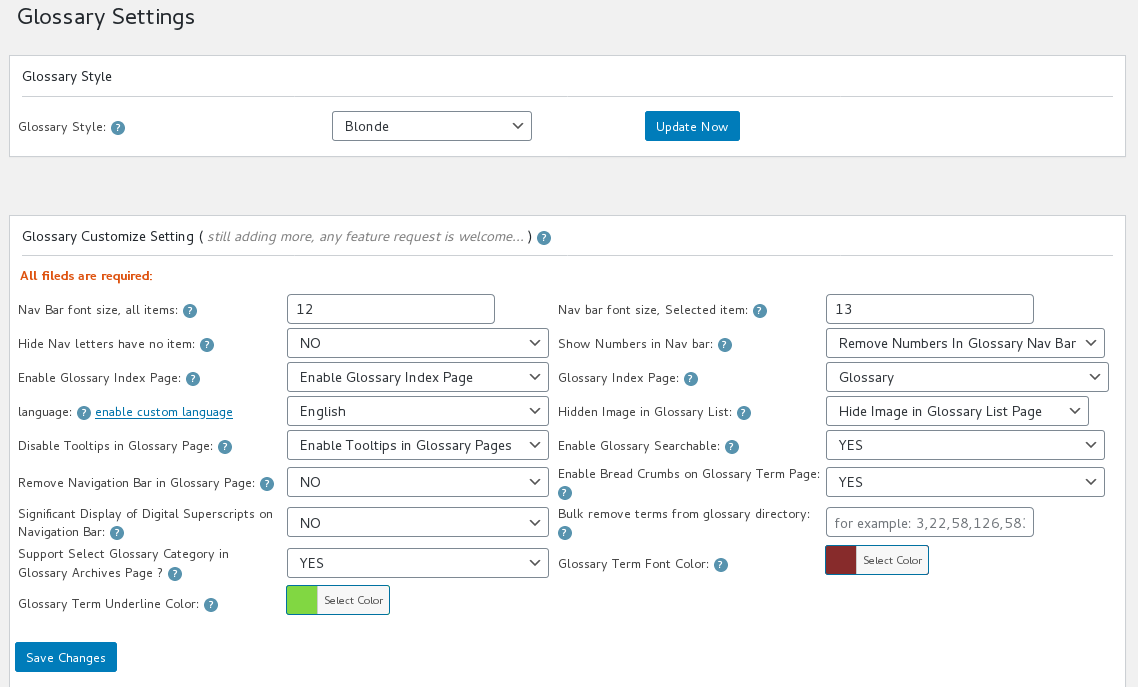
12: You will find the new option: “Glossary Term Underline Color” at the bottom of the “Glossary Customize Setting” panel, please just select the color for your wordpress glossary term via color picker, it looks like this:

Glossary Settings Panel in WordPress Tooltip Plugin 12.0.4

Glossary Settings Panel in WordPress Tooltip Plugin 12.0.4

13 Click “Save Changes” blue button

14 In front end, if you open glossary index page, you will find the underline color of glossary terms has been changed

Thanks for the feature request, if you have any question or requirement of wordpress tooltip glossary plugin, please contact us, we are happy to realize it for you 🙂

Thanks, have a blessed day with your family 🙂
Best Regards,
WordPress Tooltip Glossary Support
Tagged with: , , , ,

WordPress Tooltip Glossary Plugin 12.0.0 Released, Op to Enable / Disable “Select Glossary Category” in Glossary Archives Page

Hi Dear WordPress Tooltip Glossary Plugin Users,

Hope this message find you are doing well and have happy days with your family 🙂

Based on user’s amazing feature request, we have released wordpress tooltip glossary plugin 12.0.0, in this version, wordpress tooltip plugin support enable / disable “Select Glossary Category” dropbox in glossary archives page, if you upgrade to wordpress tooltip glossary plugin 12.0.0, in “Glossary Settings” panel, you will find we have added new option “Support Select Glossary Category in Glossary Archives Page” in here, it looks like this:

glossary settings panel

glossary settings panel

If you enabled the option “Support Select Glossary Category in Glossary Archives Page”, we will show a “select glossary category” select box at  the top of the glossary archives page, you can select glossary category to filter the result of glossary terms, it looks like this:

glossary category

glossary category

If you disabled the option “Support Select Glossary Category in Glossary Archives Page”, we will not show the “Glossary Categoty” select box, please note, this is the default option, the front end looks like this:

glossary archinve page without glossary category select box

glossary archinve page without glossary category select box

Thanks for the amazing feature request, if you have more amazing idea or any question about wordpress tooltip plugin, please  contact us 🙂

Thanks, have a blessed day with your family 🙂
Best Regards,
WordPress Tooltip Glossary Plugin Support Team
Tagged with: , , , ,

WordPress Tooltip Glossary Plugin 11.9.6 Released, You can Setup to Allow Tooltip Always Show in WordPress Posts

Hi WordPress Tooltip Glossary Users,

Hope this message find you are doing well! 🙂

I am happy to report you, we just released wordpress tooltip glossary plugin 11.9.6, changes in this version:

WordPress Tooltip Glossary  Support Setup to Allow Tooltip Always Show in WordPress Posts

Based on amazing user’s feature request, we have released wordpress tooltip 11.9.6, in this version, wordpress tooltip plugin support always show tooltip box in your wordpress posts, you can set up to  do not allow hide tooltip box, it is very easy to do this:

1 Please login wordpress admin area

2: Please download our wordpress tooltip plugin 11.9.6 from wordpress tooltip,

3: In WordPress admin area, the “plugins” menu item

4: Deactivated old version of wordpress tooltip plugin and delete it in plugins lists

5: In plugins panel, click and upload the zip file via plugins -> add new panel, then activated it

6: Click “Tooltips” Menu item

7: Click “Tooltips Style” sub menu item

8: Then you will open ‘Tooltips Style Settings’ panel, in ‘Tooltip hides when’ option box, we was support 10 hide tooltip methods, for example, mouse over, click, mouse level… and so on, now you will find a new option “Never”, you can try to select “Never” in ‘Tooltip hides when’ option box, it looks like this:

load tooltip automatically after page loaded

load tooltip automatically after page loaded

9: Then  in front end,you will find opened tooltip box will always show in the page, and never be closed

We received Tons of feature requests, we are try our best to realize them asap we can, I believe you will see the new version soon, if you have any feature request of question of wordpress tooltip plugin, please don’t hesitate to contact us 🙂

Thanks, have a blessed day with your family 🙂
Best Regards,
WordPress Tooltip Plugin Support


Tagged with: , , ,
Top