Tag: wordpress glossary

How to Exclude Titles from WordPress Tooltip?

Dear wordpress tooltip users, hope this message find you are doing well and have happy days with your family! 🙂  We get an amazing user’s ticket, in which he asked us a question: “Possible to exclude titles from tooltip?”, I think may be more users have the same question, I’d like reply in here publicly 🙂

How to Exclude Titles from WordPress Tooltip?

We have two method to disable or enable tooltips for wordpress post title:

1: If you didn’t installed wordpress tooltip, please login your account at wordpress tooltip plugin site, if you have installed wordpress tooltip plugin, please jump to step #10 directly 🙂

2: Download wordpress tooltip plugin via “My account” page

3: Login wordpress admin area

4: Click “Plugins” menu item

5: Deactivated old tooltips version

6: Delete the old wordpress tooltip plugin

7: In “Plugins” menu item, click add new at the top of the plugins panel

8: Upload the tooltips plugin zip file which you downloaded from wordpress glossary plugin site

9: Activate latest version of wordpress tooltip glossary plugin

10: Click “Tooltips” menu item

11: Click “Optional Settings” sub menu item, you will open “Optional Settings” panel

Method one of exclude titles from wordpress tooltip:

12: You will find the option: “Tooltips for Post Title” ,it looks like this:

enable disable tooltips for title of wordpress post

enable disable tooltips for title of wordpress post

Please select “Disable Tooltips for Post Title”

13 Click “Update Now” blue button

14 In front end, tooltips will be excluded from the title of wordpress post

Method second of exclude titles from wordpress tooltip:

12: You will find the option: “Disable tooltips in H1,H2…” ,it looks like this:

enable disable tooltips for title of wordpress post

enable disable tooltips for title of wordpress post

In general, wordpress theme use H2 wrap wordpress title, in this case, please just enter the “h2” in the option “Disable tooltips in H1,H2…”, if your theme using h3, then just input h3… and so on

13 Click “Update Now” blue button

14 In front end, tooltips will be excluded from the title of wordpress post

If you have any question or suggestion of wordpress tooltip plugin, please don’t hesitate to tell us 🙂
Thanks, have a blessed day with your family 🙂
Best Regards,
WordPress Tooltip Glossary Plugin Support Team
Tagged with: , , , ,

How to choose from the preset wordpress glossary templates?

WordPress Tooltip Glossary Users,

Hope this message find you are doing well and have happy new year 🙂

What is preset wordpress glossary templates?

To facilitate wordpress glossary users to quickly create their own glossary / directory / glossary / dictionary for their wordpress site, our developer  of wordpress glossary plugin designed a few pretty preset glossary templates, include Blonde glossary template, blue glossary template, Dark glossary template, Red glossary template, Green glossary template 🙂

How to choose preset wordpress glossary template?

It is very easy to set up a pretty preset wordpress glossary template, just one click, wordpress glossary users will have a pretty wordpress glossary theme in the front end of wordpress site 🙂

1: If you didn’t installed wordpress tooltip plugin yet, please login your account at wordpress glossary plugin site, if you have installed wordpress tooltip plugin, please jump to step #10 directly 🙂

2: Download wordpress glossary plugin via “My account” page, you will find this menu at the top bar of wordpress tooltip site

3: Login as admin in your wordpress admin area

4: Click “Plugins” menu item in your wordpress admin area

5: Deactivated old version of wordpress glossary plugin

6: Delete the old wordpress tooltip plugin

7: In “Plugins” menu item, click blue “add new” button at the top of the wordpress plugins panel

8: Upload the wordpress glossary plugin zip file which you downloaded from wordpress glossary plugin site

9: Activate latest version of wordpress tooltip glossary plugin

10: Click “Tooltips” menu item

11: Click “Glossary Settings” sub menu item, you will open “Glossary Settings” panel

12: At the top of the “Glossary Settings” panel, you will find the “Glossary Style” option box, and in here you will find options: Blonde glossary template, blue glossary template, Dark glossary template, Red glossary template, Green glossary template:)

It looks like this:

glossary settings panel in wordpress glossary plugin 14.0.4

glossary settings panel in wordpress glossary plugin 14.0.4


13 Just select the glossary template from the template select box

14: Please remember to  click “Update now” blue button

15 In front end, your glossary / directory / glossary / dictionary will have a pretty template immediately, for example, from our wordpress glossary page, you will find it looks like this:

wordpress glossary frontend

This is our blonde glossary template

You can try changing a few more preset templates while adapting to your theme’s style 🙂

Also we have developed many wordpress free plugins for wordpress glossary plugin users too, you can find these wordpress free plugins in our wordpress plugin shop page and you can download them free of charge 🙂

Thanks, have a blessed day with your family 🙂

Best Regards,
Wordpress Tooltip Glossary Plugin Support Team

Tagged with: , , , , ,

WordPress Tooltip Pro Plugin 14.1.0 Released

Hi Dear WordPress Tooltip Glossary Users,
Hope this message find you are doing well and have happy new year with your family! 🙂

What’s new of this version of wordpress tooltip plugin?

We get an wordpress tooltip user’s feedback, he hope our wordpress glossary works better with his wordpress advanced theme, we checked it site and codes of his wordpress advance theme, and we tweak codes on our wordpress tooltips plugin side, to improve the compatibility of the wordpress tooltip plugin with his wordpress advance theme 🙂
Our wordpress glossary front end looks like this:

wordpress glossary frontend

As you can see, our wordpress glossary supports displaying text, voice, video, maps, qrcode, icons, youtube, tables, animations… etc in glossary.
If you have any question or suggestion of wordpress tooltip plugin, please don’t hesitate to tell us 🙂
Thanks, have a blessed day with your family 🙂
Best Regards,
WordPress Tooltip Glossary Plugin Support Team
Tagged with: ,

WordPress Tooltips Free Plugin 7.3.1 Released

Dear WordPress Tooltip Plugin Users, Happy New Year!
Hope this message find you are doing well and have happy holiday with your family! 🙂
We are happy to report you, we have released wordpress tooltips free plugin 7.3.1 🙂

Why we released wordpress tooltips free plugin 7.3.1

In general, our glossary page looks like the screenshot at below, you can see in the header of the wordpress glossary page, we have a glossary navigation bar with all the letters and numbers in your language, which allows the user to filter and select words or phrases that start with a specific letter or number by clicking on those letters or numbers, it look like this:
Show wordpress tooltip in wordpress glossary page

We get an amazing user’s ticket, in which he told us, he read our feature description of wordpress tooltips pro plugin, he found our wordpress tooltips pro plugin have a function to allow wordpress tooltip users to decide display or hide numbers in glossary navigation bar, he hope we add this function into wordpress tooltips free plugin too, because he just use our wordpress tooltip glossary plugin to build the glossary of industrial terms, he do not need numbers in the navigation bar 🙂

What’s the changes in the wordpress tooltips free plugin 7.3.1

This is why we released the wordpress tooltips free plugin 7.3.1, after upgraded your wordpress tooltip free plugin to the version 7.3.1, please click the “Tooltips” Menu item, then please click the “Glossary Settings” sub menu item, you will open the “Glossary Settings” panel, then you will find in the WordPress glossary settings panel, we added an new option “Show Numbers in Nav Bar”, via the option “Show Numbers in Nav Bar”, you can select the option “Show Numbers in Glossary Nav Bar” or the option “Remove Numbers in Glossary Nav Bar”, to display or hide the numbers in the glossary navigation bar 🙂
Please upgrade to the wordpress tooltips free plugin 7.3.1 asap you can,also we have many free wordpress plugins for wordpress tooltip plugin users, you can download these wordpress plugin free of charge.
If you have any question or suggestion of wordpress tooltip plugin, please don’t hesitate to tell us 🙂
Thanks, have a happy new year with your family 🙂
Best Regards,
WordPress Tooltip Glossary Plugin Support
Tagged with: , , , ,

WordPress Tooltip Plugin 14.0.8 Released

Dear Users of WordPress Tooltip Glossary Plugin,
Hope this message find you are doing well and have happy holidays with your family! 🙂
We have just developed a new version of the wordpress tooltip glossary plugin, wordpress glossary 14.0.8 🙂

What’s changes in the new version of wordpress tooltip plugin 13.0.8?

In some previous releases, we reported that a user requested to disable tooltip effect in the glossary term left column in the glossary table, and we developed  a new version to allow users enable / disable tooltips effect via the option “Enable Tooltip Effect on Left Term Column of Glossary Table” 🙂
We guess there may be other users who have the need to disable the display of the glossary content column in the glossary table for tooltip? So we developed the wordpress glossary plugin 14.0.8 to allow users enable disable tooltip effect in the glossary content column via the new option “Glossary Content Column of Glossary Table”, it looks like this:

glossary settings panel in wordpress glossary plugin 13.0.8

glossary settings panel in wordpress glossary plugin 13.0.8

What you need to do is just select “Disable tooltip effect on glossary content column” or “Enable Disable tooltip effect on glossary content column” and click “Save changes” blue button, then in front end,tooltip effect will be enabled or disabled in glossary list page 🙂

What we are doing for the wordpress tooltip plugin now?

We are develop a new version, we are working hard to make wordpress tooltip glossary plugin to support wordpress new editor: gutenberg, and we are add new tooltips features based on a few other users’ suggestion, if you have any question or suggestion of wordpress tooltip plugin, please don’t hesitate to tell us, we are very happy to offer the best wordpress tooltip glossary plugin for you 🙂
Also we have many free wordpress plugins at our free wordpress plugin shop, free for wordpress tooltip users, please download it and give us feedback, we are happy to improve functions of these free plugin too 🙂
Thanks, have a blessed holiday with your family! 🙂
Best Regards,
WordPress Tooltip Glossary Plugin Support Team
Tagged with: , , ,

How to Hide ALL Tab in Tooltips Nav Bar?

Hi Dear WordPress Tooltip Glossary Users,
Hope this message find you are doing well and have happy days with your family! 🙂
We get a ticket from an wordpress tooltip user, he asked a question: “how to hide all tab in tooltips nav bar?”
Please follow our step by step tutorial below, you can easily implement this function:

1: If you have not yet downloaded and installed our latest wordpress tooltip plugin., please login your account at wordpress glossary tooltip plugin site, if you have installed latest wordpress tooltip plugin, please jump to step #10 directly 🙂

2: Download wordpress glossary tooltip plugin via “My account” page

3: Login wordpress admin area in your wordpress site

4: Click “Plugins” menu item

5: Deactivated old version of wordpress tooltips plugin

6: Delete the old version of wordpress tooltip plugin

7: In “Plugins” menu item, please click “add new” link at the top of the plugins panel

8: Upload the tooltips plugin zip file which you downloaded from wordpress glossary plugin site

9: Activate latest version of wordpress tooltip glossary plugin

10: Click “Tooltips” menu item

11: Click “Glossary Settings” sub menu item, you will open “Glossary Settings” panel

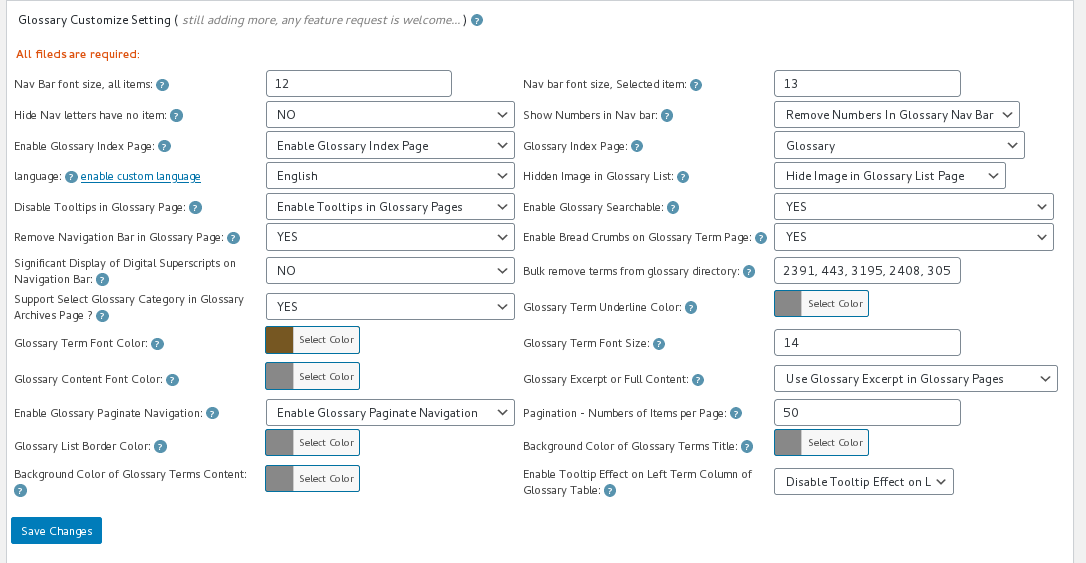
12: You will find the option: “Remove Navigation Bar in Glossary Page” in the “Glossary Customize Setting” panel, please just select the “Yes”,it looks like this:

wordpress glossary settings panel 14.0.6

wordpress glossary settings panel 14.0.6

13: Please remember to click “Save Changes” blue button

14 In front end, if you open glossary index page, you will find tabs have be removed from glossary page 🙂

If you have any question or suggestion of wordpress tooltip plugin, please don’t hesitate to tell us 🙂
Thanks, have a blessed day with your family 🙂
Best Regards,
WordPress Tooltip Glossary Plugin Support Team
Tagged with: , , ,

WordPress Tooltip Glossary 14.0.6 Released, Support wordpress glossary categories filter better, support wordpress tooltip excerpt better for some custimized advance wordpress themes

Hi Dear WordPress Tooltip Glossary Users,
Hope this message find you are doing well and have happy days with your family! 🙂
We have released wordpress tooltip glossary 14.0.6, in this version, we improved a glossary feature:
1: Support glossary categories filter better: A few months before, we got a ticket from a user, he said the glossary category selector is not works well on his advanced theme, we did a check and we developed a version to let glossary categories filter support his theme, this week we got another user’s report, for solve this kind of problem, we developed the current wordpress glossary plugin version to detect glossary URLs and now glossary categories filter can works for all these theme automatically 🙂
2: In the feedback submitted by wordpress tooltip users, we found that some wordpress themes do not provide the summary function, in this case, when the user selects the “Support Select Glossary Category in Glossary Archives Page ?” option, in the glossary table, the glossary content column on the right will not show the summary content of the glossary term, because these themes do not support the wordpress post excerpt function, so the wordpress glossary content column will be displayed as an empty column. Based on this kind of problem, we developed the new wordpress glossary version to generate wordpress post excerpt by our wordpress glossary plugin, so no matter the theme support wordpress post excerpt function or not, we will always show glossary content for the glossary terms 🙂
We are developing a new wordpress tooltip plugin based on user’s feedback, if you have any question or suggestion of wordpress tooltip plugin, please don’t hesitate to tell us 🙂
Thanks, have a blessed weekend with your family 🙂
Best Regards,
WordPress Tooltip Glossary Plugin Support Team
Tagged with: , , ,

WordPress Tooltip 14.0.4 Released, Users Can Enable / Disable Tooltips Effect for the Glossary Term in the Glossary List

Hi Dear WordPress Tooltip Glossary Users,
Hope this message find you are doing well and have happy weekend with your family! 🙂
In the feedback submitted by wordpress tooltip users, We found that some users want to add the effect of tooltip for glossary terms in the first column of the glossary table -> that is -> the glossary terms column, so in the earlier version of wordpress tooltip, we added this function for users.
But we got another user’s feedback, in which he told us, in his opinion, the content of glossary term is already shown in the glossary content column on the right, so he thinks that the effect of tooltip should not be added to the glossary term column…

Both are true, I understand that some users use longer glossary terms to build the glossary, so in these longer glossary terms, some technical terms are more difficult to understand, so users want to add the effect of tooltip to the terms in these glossary terms. A few other users use the wordpress glossary plugin to build dictionaries, so the content of these glossary terms is relatively short and do not need to add the effect of tooltip to the terms in the glossary terms of the dictionary

These user needs conflict with each other, I think a better way is to add a new option that allows tooltip users to choose in the background to open or close the effect of glosasry term tooltip, so we developed wordpress tooltip plugin 14.0.4, to solve this problem.

If you upgraded wordpress glossary 14.0.1, in glossary settings panel, you will find we have a new option: “Enable Tooltip Effect on Left Term Column of Glossary Table”, you can enable / disable tooltips effect on glossary term column via one click, it looks like this:

glossary settings panel in wordpress glossary plugin 14.0.4

glossary settings panel in wordpress glossary plugin 14.0.4

Please check  our wordpress glossary demo page 🙂

Please upgrade to the new wordpress tooltip glossary 14.0.4, if you have any question or suggestion of wordpress tooltip plugin, please don’t hesitate to tell us 🙂

Thanks, have a blessed day with your family 🙂
Best Regards,
WordPress Tooltip Glossary Plugin Support Team
Tagged with: , , , , ,

WordPress Tooltip 14.0.0 Released, WordPress Glossary Table Will Work Automatically

Hi Dear WordPress Tooltip Glossary Users,
Hope this message find you are doing well and have happy days with your family! 🙂
We just released WordPress Tooltip version 14.0.0 🙂
We did many tests when we developing a new function for the wordpress tooltips plugin, and we found in wordpress glossary section, we have many glossary options in back end, by default, users need to finish a few set up works to make glossary start working, our developer said this is not good enough, by default, glossary should start working automatically, If the user needs more glossary functionality, or if the user needs to beautify the glossary page, for example, enable / disable glossary navigator bar, customize glossary font size, select glossary language, specify wordpress glossary page, enable / disable glossary searchable, support select glossary category in glossary archives page, select pretty glossary templates, custom glossary templates… and so on, users can set up these options in glossary settings panel, it looks like this:
glossary settings panel in wordpress tooltip glossary 13.8.4

glossary settings panel in wordpress tooltip glossary 13.8.4

So we developed a new version of wordpress glossary plugin, in this version, when you installed and activated wordpress glossary plugin 14.0.0, you do not need to set up glossary options first, it will start work automatically, and you can enable / disable functions in glossary global settings panel latter 🙂
If you have any question or suggestion of wordpress glossary plugin, please don’t hesitate to tell us 🙂
Thanks, have a blessed day with your family 🙂
Best Regards,
WordPress Tooltip Glossary Plugin Support Team
Tagged with: , , ,

How to Add Tooltip Effect to a Term in WordPress Post, and DO not show the Term in Glossary Page?

Hi Dear WordPress Tooltip Glossary Users,
Hope this message find you are doing well and have happy days with your family! 🙂
We get a ticket from an amazing user of wordpress tooltip plugin, he said he wanted to add the effect of tooltips to the words in some wordpress posts, but he didn’t want the tooltip terms to show up in the wordpress glossary list.
In the current time, we have two methods can realize this feature, I am happy to reply in here publicly 🙂

How to Add Tooltip Effect to a Term in WordPress Post, and DO not show the Term in Glossary Page?

Method 1:

1: Login your wordpress site as wordpress admin

2: Edit your wordpress glossary page

3: Change your glossary shortcode to just display glossary terms from specified glossary categories, please use glossary shortcode like this:

[glossary catid='1']:  only show glossary terms which in the wordpress glossary category id = 1,

Or if you hope show glossary terms from multiple glossary categories, use wordpress glossary shortcode like this:

[glossary catid='5,10,12'] to show glossary terms of specified glossary categories in wordpress tooltip category, by category id ‘5’, ’10’, ’12’

4: It is hard to remember glossary category id?  Easy, you can use category name, do it like this:

use [glossary catname='classmate,family,school'] to display glossary terms of specified categories ‘classmate’ ,’ family’ , ‘school’ in glossary page, by category name ‘classmate’ , ‘family’, ‘school’

By this way, you can assign the tooltip terms that you don’t want to display in the glossary to a special tooltip category, and then filter them out with cat id or cat name.

Method 2:

Use wordpress synonyms tooltip :

1: Login your wordpress site

2: Click WordPress “Tooltips” menu item

3: Click “Add New” sub menu item, which under the “Tooltip” menu item,

4: Then you will open WordPress Tooltip WYSIWYG Editor

5: In the right hand of the wordpress tooltip editor, you will find the “Synonms of this tooltip” metabox, it looks like this:

synonyms tooltip
synonyms tooltip

6:In the “Synonms of this tooltip” metabox, you can enter all synonyms of this glossary term in one time, for example, for wordpress tooltip glossary term “this”, you can input “This”, “tHis”, “THIS”… and so on in wordpress tooltip “Synonms of this tooltip” metabox, please separated by “|”

In front end,wordpress tooltips glossary plugin will scan your wordpress posts, and add tooltip effect to these synonyms tooltip  automatically. But in the wordpress glossary page, these synonyms tooltip will not displayed in glossary directory 🙂

We are working hard to add an important feature for tooltips, which is wanted by many users, but it is a hard work, still need many days hard work, so we decide release another new version, you will see it soon 🙂
If you have any question or suggestion of wordpress tooltip plugin, please don’t hesitate to tell us 🙂
Thanks, have a blessed day with your family 🙂
Best Regards,
WordPress Tooltip Glossary Plugin Support Team
Tagged with: , ,
Top