Tag: wordpress glossary

Recent Works in WordPress Tooltips Plugin Site Until 2022-09-16

Hi,  hope this message find you are doing well and having happy weekend with your family 🙂 In recent days, we released 15 wordpress tooltip plugin, and 3 wordpress footnote with tooltip plugin and build new demos for wordpress footnote plugin, and we improved UI in wordpress tooltip site to build a more friendly site for wordpress tooltip uers 🙂

Change Log of WordPress Tooltips Plugin Versions in Recent Days:

1: New wordpress tooltips free plugin solved JS conflicts with wordpress ninja form

2: WordPress Tooltips Free Plugin 7.8.7 follow wordress security standard to use wordress security functions to check and filter data submitted by admin in wordpress tooltip language addon

3: WordPress Tooltips Pro Plus 16.0.0, allow users  to change the color of letters which don’t have glossary term yet

4: WordPress Tooltips Pro Plus Plugin 16.0.4, Enhanced Separator Function for Synonyms Tooltip

5: WordPress Tooltips Free Plugin 7.9.3, use wordpress security function sanitize_textarea_field and esc_attr to check all contents which generated by wordpress tooltip editor and admin

6: Support to change color of letters in Glossary gavigation bar that have terms too , supported in WordPress Tooltips Pro Plus 16.0.8

7: New option to clear customized color of letters in WordPress Glossary Navigation Bar — WordPress Tooltips Pro Plus 16.1.2

8:  New tooltip PDF viewer addon, allow wordpress tooltip editor to display PDF documents in Tooltip window in WordPress posts, Supported by WordPress Tooltips PDF Viewer Addon in WordPress Tooltips Pro Plus 16.1.8

9: In WordPress tooltips free plugin 7.9.5, new function to avoid Show duplicated overlapping tooltips in the same tooltip term

10: In the version WordPress Tooltip Pro 15.9.8 and Tooltips Pro Plus 16.2.4, we build better Case Sensitive function for wordpress tooltip users

11: In WordPress tooltip glossary Plugin Pro Plus16.2.8, we support add  Glossary Category under Glossary term, based on user’s suggestion

12: Since WordPress Tooltips Pro Plus Plugin 16.3.4 version, we support Gutenberg Tooltip, wordpress tooltip users can insert Image Tooltip Shortcode inline in Gutenberg now

13: In WordPress Tooltips Plus Plugin 16.3.8 ,  we fixed UI problem in WordPress Tooltips Knowledge Base

14: Based on a wordpress tooltip user’s feedback, we added a new option “Do not Remove WPautop Function and Related Functions in WordPress Editor” in tooltip optional panel, in WordPress Tooltips Pro Plus Plugin 16.4.4 version


Change Log of WordPress Footnote with Tooltip Plugin:

1: Allow wordpress footnote with tooltip editor to add links in footnote items, supported in WordPress Footnote with Tooltip plugin 1.4.2

2: Fixed a bug of Footnotes label display wordpress footnote label in other wordpress posts, in WordPress Footnote with Tooltip plugin 1.4.8

3: WordPress Footnote with Tooltips Plugin 1.5.8 Released, Support a WordPress Theme Better

4: We build the demo of wordpress footnote with tooltip plugin

Also we re-write our description for wordpress tooltip plugin features document, and we added new change logs to our wordpress tooltips pro plugin plugin.

We have changed the menu items of wordpress tooltip site, because an amazing user told us, we should just focus do better works for wordpress tooltip section, do not need add other free plugins in our wordpress tooltip site and menu, because they have not many users yet. We think about this, finally we think his suggestion is right, we try our best to build a better wordpress tooltip plugin for users, and other free wordpress tooltip plugins have no many users install them, so we do not need list it in the top menu bar and we do not need list it in our wordpress tooltips plugin shop, we just do the right thing for our users, yes this is right, we removed these wordpress free plugins from our site 🙂

And another user told us, when he read our document of wordpress tooltip tips, he found in the sidebar, there are a widget named another recent posts, he told us, this is not good, we should just named it as tooltip recent news — this is the correctly content which we added in wordpress tooltip sidebar, yes, we changed the name of wordpress tooltip news widget.

And a user said when he mouse hover our wordpress menu tooltip demo at top menu bar, he found the link is the same of the wordpress tooltip demo, he said this is waste the link and it is not good for users, so we change the link of wordpress menu tooltip demo.

A wordpress tooltip user told us he leave the comment in our wordpress tooltip feature and faq posts, but did not got response, so he submit ticket to us, we checked comments, yes, there are many comments to wordpress tooltip plugin, we replied them one by one and allowed these comments 🙂

Thanks for so many kindly feedback of wordpress tooltip plugin and wordpress tooltip site, that’s good suggestions of how to service for wordpress tooltip users better, thank you so much 🙂

We are developing new wordpress tooltip plugin for users, actually we get many suggestion, sometimes, we lost our whole night to finish these great suggestion for users, we are try our best to finish them asap we can 🙂



Tagged with: , ,

How to Add Tooltip Glossary Category under Glossary Term? Supported in WordPress Tooltip Glossary Plugin Pro Plus16.2.8 Released

Hi, Dear  users of WordPress tooltip plugin , hope this message find you are doing well and have happy days with your family 🙂  We are happy to report you, we just released wordpress tooltips pro plus plugin 16.2.8, based on a wordpress tooltip plugin user’s ticket 🙂

We got a ticket from a wordpress tooltip user:

Subject:
> Glossary: Name of categorie above title
>
> Message:
> Hi, thank you for such an incredible plugin 🙂
>
> I would like to be able to display the category/ categories of a
> glossary item in the overview page.

Our wordpress tooltip plugin author developed a new wordpress tooltips glossary pro plus plugin to do it 🙂

How to Add Tooltip Glossary Category under Glossary Term?

1: Download latest wordpress tooltips glossary pro plus plugin via download wordpress tooltip glossary plugin

2: Install and activate the wordpress tooltip glossary plugin in your site

3: Click tooltips menu item

4: Click Glossary settings sub menu item

5: You will open Glossary settings panel, at the bottom of Glossary settings panel, you will see the new option “Display Glossary Category Name in Glossary List?” Just click to enable it or disable it

6: If you enable the option, at the bottom of the glossary terms in glossary page, you will see the category name under the glossary terms

Tagged with: , ,

How to Change Color of Letters in Glossary Navigation Bar Which Have Terms. WordPress Tooltips Pro Plus 16.0.8 Released

Hi Dear  WordPress Tooltip plugin users, hope this message find you are doing well and have happy weekend with your family 🙂   We have released wordpress tooltips pro plus  16.0.8, to allow wordpress glossary admin to change color of letters which have terms in glossary Nav bar,   based on an amazing users’ feature request  🙂

How to Change Color of Letters in Glossary Navigation Bar Which Have Terms?

1: Login your account in wordpress tooltip plugin site

2: Click download link in top menu bar at wordpress tooltip site

3: In my account panel download newest version of wordpress tooltip plugin

4: Login your wordpress site as wordpress admin

5: In plugins panel,delete the old version of wordpress tooltips pro plugin

6: Then click “add new” button at the top of plugin panel to upload the zip file of the wordpress tooltip glossary plugin

7: Activate the wordpress tooltips pro plus plugin

8: In wordpress dashboard, click “Tooltips” menu item

9: Click “Glossary Settings” sub menu item

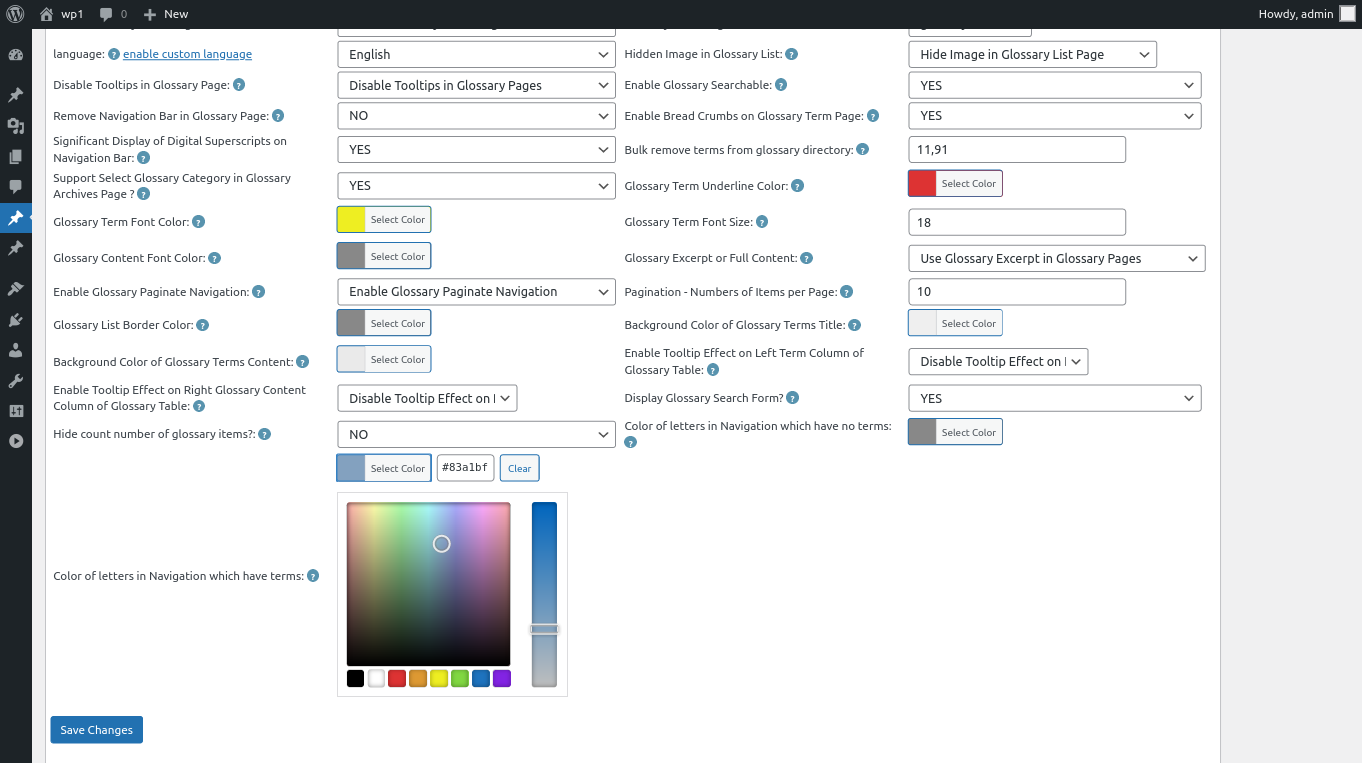
10: At the bottom of the “Glossary Settings” panel, you will find the new option “Color of Letters in Glossary Navigation Bar Which Have Terms”, it looks like this:

glossary custom panel in wordpress glossary 16.0.8

11: In the option “Color of Letters in Glossary Navigation Bar Which Have Terms”, you can click the color picker to change the color,it looks like this:

changing color of letters in Navigation which have terms

then just click “Save Changes” button, in front end the “Color of Letters in Glossary Navigation Bar Which Have Terms” will be changed as you modified in here :):

12: For example, the result in front end of  the step #11 will looks like this:

customized color of glossary terms which have items

Thanks for the feature request, if you have any more requirement, please don’t hesitate to contact us, we are happy to do it for you 🙂

Thanks, have a blessed weekend with your family 🙂

WordPress Tooltip Support

Tagged with: , ,

How to Change the Colour of Letters that don’t Have Terms, Rather Than Hide Them? Supported by WordPress Tooltips Pro Plus 16.0.0

Hi Dear  WordPress Tooltip plugin users, hope this message find you are doing well and have happy weekend with your family 🙂 Just like we reported in last wordpress tooltips version, we got an amazing request from an amazing wordpress tooltip user, in which he hope we can solve a js conflict with wordpress ninja form. That why we release the wordpress tooltips pro plus 15.9.6, not only support add tooltips effects on the content which generated by ninja form dynamically, but also support a few more 3rd plugins which generate their content dynamically, this is improve wordpress tooltips plugin fucntcion to support more wordpress plugins. 🙂 After solved the problem in wordpress tooltips pro plus 15.9.6, we get a great feature request  from this amazing tooltip user, in which he said:

It’s working well, thank you.

Quick question: with the glossary, is there a way we can change the colour of letters that don’t have terms, rather than hide them?

Thank you

A few hours later, our developer replied:

Hi,,

I have developed wordpress tooltips pro plus 16.0.0 to support your feature request:”with the glossary, is there a way we can change the colour of letters that don’t have terms, rather than hide them?” 🙂

If you want to upgrade to tooltips pro plus, I’d like offer a 25% discount for your great feature request, please just let me know 🙂

Thanks, have a blessed day with your family 🙂

Best Wishes,
Tomas

Yes, the user offered many great suggestions for wordpress tooltips plugin, this helped all users of wordpress tooltip, we always offer discount for really great suggestions to amazing wordpress tooltip users 🙂

How to Change the Colour of Letters that don’t Have Terms, Rather Than Hide Them? Supported by WordPress Tooltips Pro Plus 16.0.0

1: Please upgrade to wordpress tooltips pro plugin 16.0.0, if you did not upgrade to the latest wordpress tooltips pro plus please, please login  wordpress tooltip site, then click “download” menu item at home page of wordpress tooltip to download the wordpress tooltips pro plugin 16.0.0, this is a zip file

2: After downloaded wordpress-tooltips pro plus 16.0.0 plugin, please login your wordpress site as admin, then in your wordpress site dashboard, please click “Plugins” menu item and then deactivated the old tooltips plugin version

3: Then please click the “Delete” link to delete the old version of wordpress tooltip and in “Plugins” menu item, click “add new” link which at the top of the plugins panel, in here you can upload the tooltips plugin zip file that you downloaded from wordpress glossary plugin site

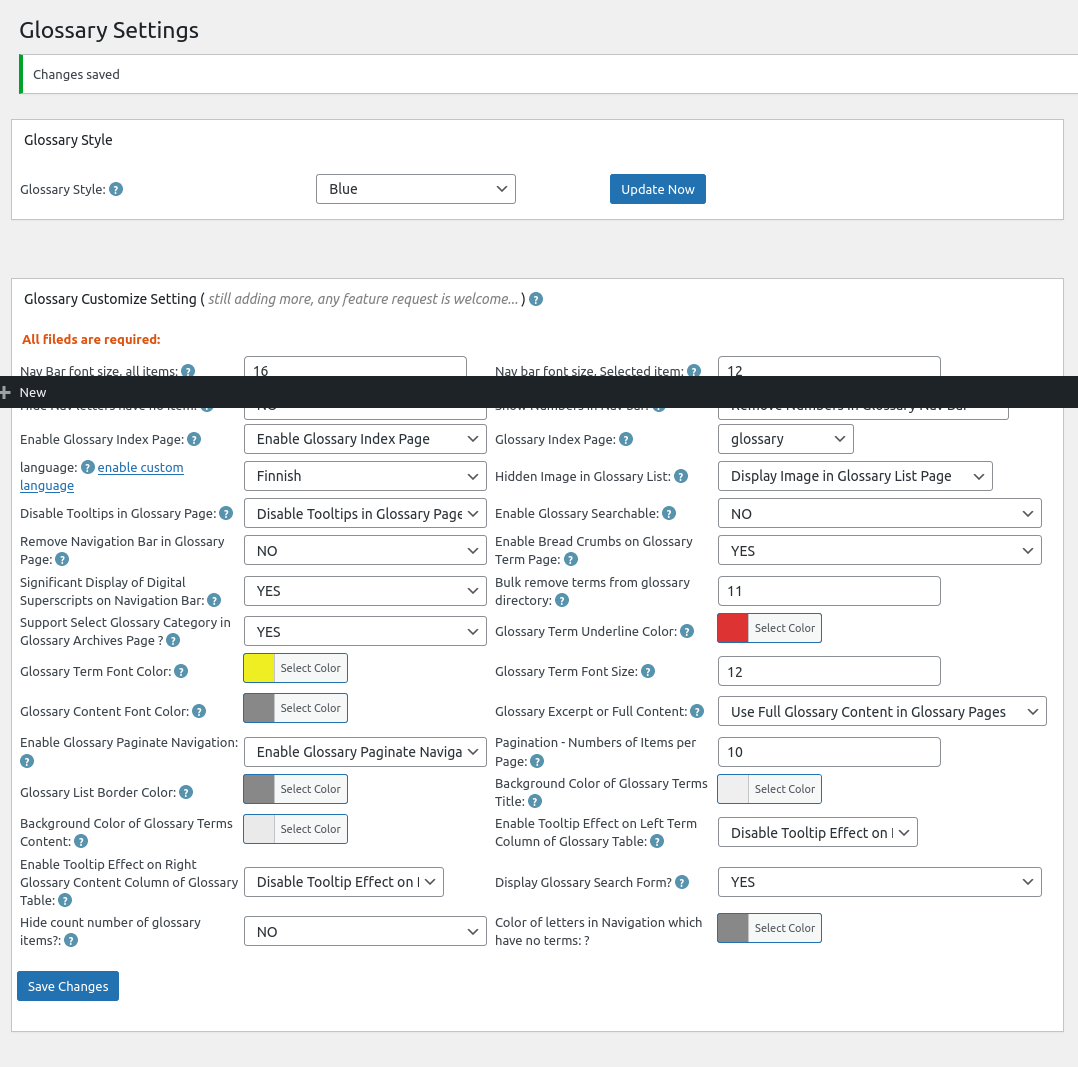
4:After activated wordpress glossary plugin 16.0.0, please Click “Tooltips” menu item in wordpress dashboard,  now please click “Glossary Settings” sub menu item, you will open “Glossary Settings”  panel in wordpress glossary pluigin 16.0.0, it looks like this:

Glossary Settings panel in wordpress tooltips glossary plugin 16.0.0

Glossary Settings panel in wordpress tooltips glossary plugin 16.0.0

Please note, because my screenshot tooltip have some problem, in the screenshot of glossary settings panel, you will find there are a black bar on the screenshot, in the real glossary settings panel, you will not see this black bar 🙂

5: At the bottom of the glossary settings panel, you will see “there are a new option: color of letters in navigation which have no items”, please just click the color picker to select the color for the color of letters in navigation which have no items and click “save changes” button 🙂

also the admin tooltip did not displayed because we make this screenshot after function verified, in the real version of wordpress tooltips pro plus, the “?” is a real admin tooltip in which you can get guide of how to use the option  🙂

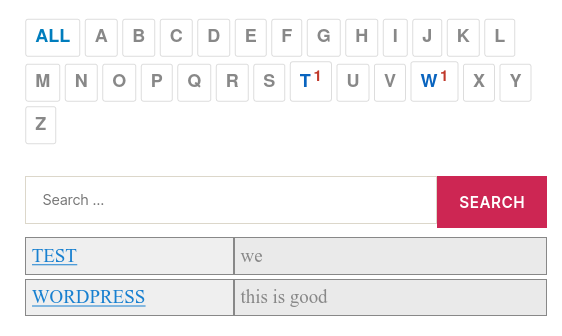
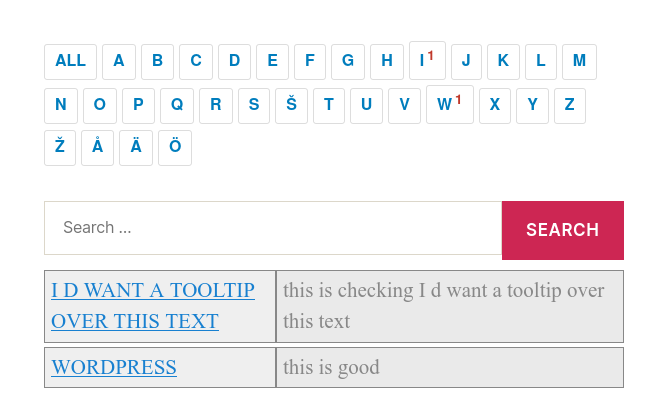
6:Before: In front end, before you changed the settings of the option “color of letters in navigation which have no items”, color of letters in navigation which have no items looks like this:

wordpress glossary default blue template

wordpress glossary default blue template

You can see in here I selected blue template for my wordpress glossary page, we have 5 pretty wordpress glossary template: blue , blonde, dark, green ,  red, once you clicked to select a glossary theme, the color and style has been set up by default good-designed wordpress glossary template, in general, what you need just one-click, no other works need to do 🙂

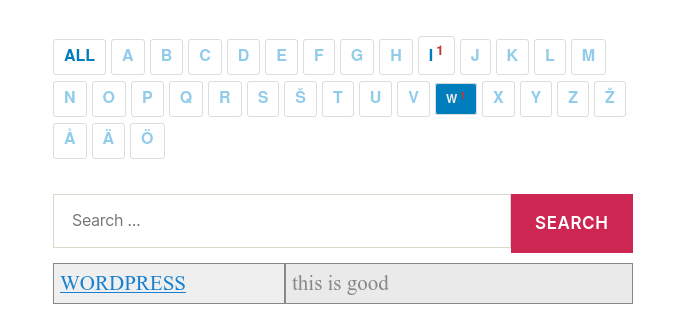
After:  after changed “color of letters in navigation which have no items”, it looks like this:

wordpress glossary customized color of letter color in blue template

wordpress glossary customized color of letter color in blue template

You can see I selected another blue color for “color of letters in navigation which have no items”, so user will focus on the letters which have items 🙂

You can chose another pretty color for your “color of letters in navigation which have no items”,  I believe you will do better work for me, I just focus on develop work, this is just a sample 🙂

Conclusion:

An amazing wordpress tooltips user gave us a few great suggestions, for example, he suggested us to add an option to re-set “color of letters in navigation which have no items”, our wordpress tooltip developer think this is a great suggestion to improve user experience, so we realized the great feature request asap we can in a few hours. Based on user’s suggestion in last 12 years, wordpress glossary plugin has been build as a powerful wordpress glossary tool for users. If you have any amazing suggestion, please don’t hesitate to contact us, we are happy to realize it, we’d like offer discount for you if your idea is helpful for wordpress tooltip users 🙂

Tagged with: , , , , , , ,

WordPress Tooltips Free Plugin 7.8.7 Releases

Hi Dear Users of WordPress Tooltip plugin, hope this message find you are doing well and having happy weekend with your family, we are happy to report you, we have released wordpress tooltips free plugin 7.8.7 🙂

As some long-time users of the wordpress tooltip plugin may know, our plugin was designed almost 12 years ago, and over the past 12 years, we have developed more than 400 versions of the wordpress tooltip free plugin and wordpress tooltip pro plugin and wordpress tooltip pro plus plugin have been developed in more than 400 versions in order to meet the new needs of our users. At the same time, wordpress has been upgraded many times, and some of the code we designed more than 10 years ago is quite old, so we regularly check our code against the latest wordpess code and update our code to keep up with wordpress updates.

In WordPress Tooltips free plugin 7.8.7, our wordpress tooltip plugin developer followed wordpress security to enhanced our code to check and  filter the data submitted by the wordpress admin in the wordpress tooltip management panel, to ensure all data is safe 🙂

Changes in wordpress tooltip 7.8.7:

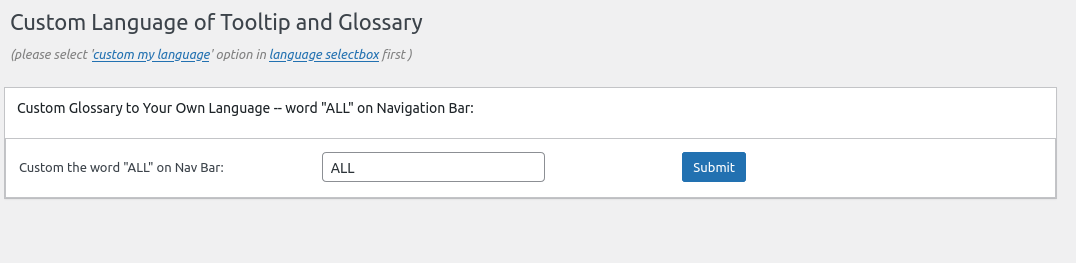
1: Enhanced code to check and filter data submitted by admin in wordpress tooltip language addon, the wordpress tooltip language addon panel looks like this:

custom language for wordpress tooltip glossary panel

If you want to use wordpress tooltips language addon, you need enable the it in wordpress tooltips addon panel, it looks like this:

addon settings panel in wordpress tooltips free.png

With wordpress tooltips pro plus version, we developed many more addons for wordpress tooltip users, this is a screenshot for a old version of wordpress tooltips pro plus plugin, because my screenshot software has some problems, so the screenshot shows my WP bar, in the real panel, there are no this WP bar:

tooltip addons in tooltip multisite license version

tooltip addons in tooltip multisite license version

2: Check and filter data submitted by admin in wordpress tooltip glossary settings panel, the wordpress tooltip glossary settings panel looks like this:

wordpress glossary panel in wordpress tootips free plugin 7.8.7

This is a screenshot of an earlier wordpress tooltips pro version of the glossary settings panel, because my screenshot software has some problems, so the screenshot shows my PC bar

wordpress glossary settings panel in wordpress glossary plugin 15.6.8

wordpress glossary settings panel in wordpress glossary plugin 15.6.8

Conclusion:

In wordpress tooltips plugin 7.8.7, wordpress tooltip developer followed wordpress standard to use wordpress security function sanitize_textarea_field to check and filter data be submitted by admin in wordpress glossary settings panel and wordpress tooltip language addon panel, to enhance wordpress security for wordpress tooltip admins 🙂


Thanks, have a happy weekend with your family 🙂

Best Regards,

WordPress Tooltip Plugin Support

Tagged with: , , ,

How to hide count number of glossary items? WordPress Tooltips plugin free 7.8.1 released

Hey, Dear users of WordPress tooltip plugin, hope this message find you are doing well and have happy weekend with your family 🙂 We get a wordpress tooltip user’s ticket, in which he said he found our wordpress tooltips pro version have an option to disable number for each letter in the navigation bar of Glossary, he hope we can add this feature in wordpress tooltips free version, because his glossary is just have a little glossary items, so he do not want to display number for letters on the glossary navigation bar 🙂

How to hide count number of glossary items?

It is very easy, wordpress tooltip admin can enable / disable number of letters in the glossary navigation just via a few clicks,

1 please login your wordpress site as wordpress admin

2 in wordpress admin, please click “tooltips” menu

3 then please click glossary settings sub menu item

4 then you will open wordpress glossary settings panel, we have a screenshot of pro version, but wordpress tooltip free and tooltip pro version have the same  “enable / disable number of letters in the glossary navigation ” option

wordpress glossary settings panel of wordpress tooltip 14.4.4

wordpress glossary settings panel of wordpress tooltip 14.4.4

As you can see, there are a new option “Hide count number of glossary items” at the bottom of the wordpress glossary setting panel, if you select the option “Yes”,  then in the front end, we will hide count number of letters in glossary  navigation bar , if you select “No” (this is default value), then in font end , we will display count number on each glossary items, it looks like this:

woocommerce glossary tab with full items

woocommerce glossary tab with full items

If you have any question of feature request, please don’t hesitate to contact us, we are happy to build the best wordpress tooltip glossary plugin for you 🙂

Thanks, have a happy weekend with your family 🙂

Best Regards,

WordPress Tooltip Plugins Support Team

Tagged with: , , , ,

Recent Works of WordPress Tooltips Plugin Until 2022-04-30

Hola,, dear users of WordPress Tooltip Plugin ,  hope this message find you are doing well and having happy weekend with your family 🙂

1: In recent days, we have released 10 WordPress tooltip versions:

  1.  WordPress Tooltips Pro Plugin 15.5.4 Released , support ACF Tooltip better
  2. WordPress Tooltips Pro 15.5.6 Released, support oceanwp tooltip, menu tooltip better, you can check menu tooltip demo at here
  3. WordPress Tooltips Free Plugin 7.7.3 Released, new option to enable / disable jquery-migrate for new version of wordpress
  4. WordPress Tooltips Plugin 15.6.0 Released, Display Tooltips Title in Tooltip Shortcode
  5. WordPress Tooltip 15.6.2 Released, Support Case Sensitive Tooltips
  6. WordPress Tooltips Pro 15.6.4 Released, fixed a bug of php warning
  7. WordPress Tooltips Free Plugin 7.7.7, now wordpress tooltip user can customize Font Size for Glossary Terms in WordPress Glossary Plugin Settings panel
  8. WordPress Tooltips Plugin 15.6.6 Released, make the tooltip UI pretty a little more
  9. WordPress Tooltips Pro Plus Plugin 15.6.8 Released,based on a user’s feedback,  if wordpress tooltip editor do not want to customize the font color of tooltip term, you can use our new option:“disable the option” to keep the original font color in your wordpress theme

    disable the option Tooltip Term Color in Post

  10. WordPress Tooltip Plugin 15.7.0 Released,  now you can stop display wordpress tooltips effects on wordpress tooltip terms in posts automatically, and just allow user to use wordpress tooltip shortcode to display WordPress tooltip popup in wordpress posts, you can enable / disabled it in  “wordpress tooltips global settings” panel, via new option “Only Allow Tooltip Shortcode and Stop Automatically Places the Tooltips on Words in WordPress Post?” 🙂

2: We wrote 7 document for help wordpress tooltip users use wordpress tooltip plugin eaiser:

3: We added a few more payment gateway for users which cannot pay via paypal in their country

4: We customized top menu bar in wordpress tooltip site

5: We re-wrote wordpress tooltip faq

We are developing a new version of wordpress tooltip plugin, based on a few amazing wordpress users feedback. Thanks for the great suggestions, if you have any feature request to wordpress tooltip plugin, please don’t hesitate to contact us 🙂

Thanks, have a blessed day with your family 🙂
Best Regards,
WordPress Tooltip Glossary Support Team

Tagged with: , , ,

How to Enable / Disable Glossary Search Bar on WordPress Tooltip Glossary Page?

Hey dear WordPress tooltip users, hope this message find you are doing well and have happy days with your family. 🙂 We get a ticket from a wordpress tooltip glossary user, in which he asked us a question, how can I disable search bar on glossary page? He said he is using a four-column wordpress theme, and the wordpress page was already full of widgets and lots of ads, and he didn’t want to display so many widgets in the main content area that users wouldn’t be able to find the core content — which is the life and revenue source of the site, so he wanted to keep the wordpress glossary page as simple as possible, For example, turning off the glossary search box 🙂

Okay, we have added this function for another wordpress glossary user based on another reason, in a very old version Support Display or Hide Glossary Search Bar in Glossary Page, WordPress Tooltip Glossary Plugin 14.3.2, wordpress glossary plugin editor can hide glossary search bar via one click, this is our answer:

How to Enable / Disable Glossary Search Bar on WordPress Tooltip Glossary Page?

1: Please login your wordpress site  as wordpress admin

2: In wordpress dashboard page, please click tooltips menu item, we have a screenshot which made by very old version, it looks like this:

tooltips menu items

tooltips menu items

3: You can see there are sub-menu item “Glossary Settings”, just click it

4: Then you will open “Glossary Settings” panel, it looks like this:

wordpress glossary settings panel in wordpress glossary plugin 15.6.8

wordpress glossary settings panel in wordpress glossary plugin 15.6.8

5: at the bottom of the glossary settings panel , you will find the option “display glossary search form?”, if you chose the value “YES”, that means the glossary search form will be displayed at the top of the wordpress glossary table, else if you chose the value “NO”, then in the front end of the wordpress glossary page, the glossary search form will be hide in the wordpress glossary page 🙂

6: so please just click “NO”, then please click the blue “save changes” button

Conclusions

Via wordpress tooltip plugin, it is very easy to enable or disable wordpress glossary search form in wordpress glossary page, just login and click the select-box “display glossary search form?”, then you can enable / disable glossary form via one click, you can check the result at the wordpress glossary demo 🙂

Tagged with: , , , ,

WordPress Tooltips Free Plugin 7.7.7, Support Custom Font Size for Glossary Terms

Hi Dear users of WordPress Tooltip Glossary Plugin , hope this message find you are doing well and have happy days with your family 🙂  An amazing wordpress tooltip plugin user asked as a question “How can I change font size of glossary term?”, he said his theme have a very little font size, and in his theme there are no theme option to custom the font size, so he have no way to make the font size of glossary term lager, but his user said the font size is too little to read a lot of tool information in his glossary list, that’s why we developed wordpress tooltips free plugin 7.7.7 to solve this problem 🙂

After upgraded to the wordpress tooltips free plugin 7.7.7, you can do it by this way:

How can I change font size of glossary term?

1: please login your wordpress site admin area as wordpress admin

2: after login in wordpress dashboard, please click “Plugins” menu, then upgrade to the wordpress tooltips free version 7.7.7

3: in wordpress dashboard, click tooltips menu item

4: then click “glossary settings panel”, it looks like this:

Please note, this screenshot is made for wordpress tooltips pro version, but the option “new option Glossary Term Font Size” in the wordpress tooltips free version have the same function and UI with wordpress tooltips pro plugin

5: if you want to change the font size of glossary term in the glossary page, please just enter the font number in this option, for example, just enter 16 in the text box and click the blue “save changes” button

6: in the front end of wordpress glossary page, you will find the font size of glossary term have been changed as you want 🙂

Another change is — we fixed the bug in the ” Nav Bar font size” option 🙂

Please upgrade your wordpress tooltips version to 7.7.7 asap you can 🙂

If you have any question or feature request, please don’t hesitate to contact us 🙂

Thanks, have a happy day with your family 🙂

Best Regards,

WordPress Tooltip Plugin Support Team

Tagged with: , , , ,

How can I ensure that “normal” main glossary page displays correctly?

Hi Dear Users of WordPress Tooltip Glossary Plugin, hope this message find you are doing well and have happy day with your family! 🙂  We got an amazing wordpress tooltip user’s ticket, in which he asked our a question “How can I ensure that “normal” main glossary page displays correctly?”:

Hello,
I face an issue with glossary page. If I call glossary through a shortcode in a page it works well, but when reaching “normal” glossary page (through breadcrumb for instance), it does not display correctly.

How can I ensure that “normal” main glossary page displays correctly?
Many thanks in advance for your help.

We did a check for the user,  I think the user miss-understanding the glossary page and glossary index page, the URL which user told us is a glossary index page — which created automatically when the user activate the wordpress tooltips plugin,we developed the function of glossary index page is based on another wordpress tooltip user’s suggestion — he said each glossary item should have their own link, and all these links should listed in wordpress glossary index page automatically, so google can index these glossary terms easier and improve SEO rank of tooltip sites 🙂

We make a screenshot of glossary settings panel, in the screenshot, you can see what we said in the glossary settings panel is “Glossary Index Page” — it will list all glossary terms in here for improve SEO of your glossary site:

glossary settings panel

By default, wordpress tooltip plugin will create a “glossary” page automatically, when you activate wordpress tooltips plugin, some users hope use “glossary” page to display glossary list, they do not want to use “glossary” page as a glossary category archive page, okay,  as the admin of wordpress tooltip site, you can change the glossary index page in glossary global settings panel by this way:

1: login wordpress as admin

2: in wordpress pages panel, you can created a new page in wordpress page editor, for example “glossary terms”

3:click tooltips menu item in wordpress dashboard

4: click glossary settings sub menu item

5: then you will open glossary settings panel:

glosasry global settings panel in wordpress glossary plugin 15.0.0

glosasry global settings panel in wordpress glossary plugin 15.0.0

6: In glossary settings panel, check the option “glossary index page”, and change it as your new page “glossary terms”

7: click save changes button

Then you will use  the new glossary terms page as glossary index page, and you can use your old “glossary” page to build the glossary by this way:

1: in the wordpress dashboard, please click pages menu

2: in pages panel, click to edit the glossary page

3: in the glossary page, please insert glossary shortcode [glossary]

4:save the page and click publish

5: in the front end, you will find the glossary page looks like this:

wordpress glossary demo page

wordpress glossary demo page

Please check our wordpress glossary demo

Then it will works well 🙂

Hope this have a little help, Any more feature request is welcome 🙂


Thanks, have a blessed day with your family 🙂

Best Regards,

WordPress Tooltips Support Team

Tagged with: , , , ,
Top