Tag: wordpress glossary plugin

WordPress Tooltip Plugin 14.0.8 Released

Dear Users of WordPress Tooltip Glossary Plugin,
Hope this message find you are doing well and have happy holidays with your family! 🙂
We have just developed a new version of the wordpress tooltip glossary plugin, wordpress glossary 14.0.8 🙂

What’s changes in the new version of wordpress tooltip plugin 13.0.8?

In some previous releases, we reported that a user requested to disable tooltip effect in the glossary term left column in the glossary table, and we developed  a new version to allow users enable / disable tooltips effect via the option “Enable Tooltip Effect on Left Term Column of Glossary Table” 🙂
We guess there may be other users who have the need to disable the display of the glossary content column in the glossary table for tooltip? So we developed the wordpress glossary plugin 14.0.8 to allow users enable disable tooltip effect in the glossary content column via the new option “Glossary Content Column of Glossary Table”, it looks like this:

glossary settings panel in wordpress glossary plugin 13.0.8

glossary settings panel in wordpress glossary plugin 13.0.8

What you need to do is just select “Disable tooltip effect on glossary content column” or “Enable Disable tooltip effect on glossary content column” and click “Save changes” blue button, then in front end,tooltip effect will be enabled or disabled in glossary list page 🙂

What we are doing for the wordpress tooltip plugin now?

We are develop a new version, we are working hard to make wordpress tooltip glossary plugin to support wordpress new editor: gutenberg, and we are add new tooltips features based on a few other users’ suggestion, if you have any question or suggestion of wordpress tooltip plugin, please don’t hesitate to tell us, we are very happy to offer the best wordpress tooltip glossary plugin for you 🙂
Also we have many free wordpress plugins at our free wordpress plugin shop, free for wordpress tooltip users, please download it and give us feedback, we are happy to improve functions of these free plugin too 🙂
Thanks, have a blessed holiday with your family! 🙂
Best Regards,
WordPress Tooltip Glossary Plugin Support Team
Tagged with: , , ,

How to Hide ALL Tab in Tooltips Nav Bar?

Hi Dear WordPress Tooltip Glossary Users,
Hope this message find you are doing well and have happy days with your family! 🙂
We get a ticket from an wordpress tooltip user, he asked a question: “how to hide all tab in tooltips nav bar?”
Please follow our step by step tutorial below, you can easily implement this function:

1: If you have not yet downloaded and installed our latest wordpress tooltip plugin., please login your account at wordpress glossary tooltip plugin site, if you have installed latest wordpress tooltip plugin, please jump to step #10 directly 🙂

2: Download wordpress glossary tooltip plugin via “My account” page

3: Login wordpress admin area in your wordpress site

4: Click “Plugins” menu item

5: Deactivated old version of wordpress tooltips plugin

6: Delete the old version of wordpress tooltip plugin

7: In “Plugins” menu item, please click “add new” link at the top of the plugins panel

8: Upload the tooltips plugin zip file which you downloaded from wordpress glossary plugin site

9: Activate latest version of wordpress tooltip glossary plugin

10: Click “Tooltips” menu item

11: Click “Glossary Settings” sub menu item, you will open “Glossary Settings” panel

12: You will find the option: “Remove Navigation Bar in Glossary Page” in the “Glossary Customize Setting” panel, please just select the “Yes”,it looks like this:

wordpress glossary settings panel 14.0.6

wordpress glossary settings panel 14.0.6

13: Please remember to click “Save Changes” blue button

14 In front end, if you open glossary index page, you will find tabs have be removed from glossary page 🙂

If you have any question or suggestion of wordpress tooltip plugin, please don’t hesitate to tell us 🙂
Thanks, have a blessed day with your family 🙂
Best Regards,
WordPress Tooltip Glossary Plugin Support Team
Tagged with: , , ,

WordPress Tooltip Glossary 14.0.6 Released, Support wordpress glossary categories filter better, support wordpress tooltip excerpt better for some custimized advance wordpress themes

Hi Dear WordPress Tooltip Glossary Users,
Hope this message find you are doing well and have happy days with your family! 🙂
We have released wordpress tooltip glossary 14.0.6, in this version, we improved a glossary feature:
1: Support glossary categories filter better: A few months before, we got a ticket from a user, he said the glossary category selector is not works well on his advanced theme, we did a check and we developed a version to let glossary categories filter support his theme, this week we got another user’s report, for solve this kind of problem, we developed the current wordpress glossary plugin version to detect glossary URLs and now glossary categories filter can works for all these theme automatically 🙂
2: In the feedback submitted by wordpress tooltip users, we found that some wordpress themes do not provide the summary function, in this case, when the user selects the “Support Select Glossary Category in Glossary Archives Page ?” option, in the glossary table, the glossary content column on the right will not show the summary content of the glossary term, because these themes do not support the wordpress post excerpt function, so the wordpress glossary content column will be displayed as an empty column. Based on this kind of problem, we developed the new wordpress glossary version to generate wordpress post excerpt by our wordpress glossary plugin, so no matter the theme support wordpress post excerpt function or not, we will always show glossary content for the glossary terms 🙂
We are developing a new wordpress tooltip plugin based on user’s feedback, if you have any question or suggestion of wordpress tooltip plugin, please don’t hesitate to tell us 🙂
Thanks, have a blessed weekend with your family 🙂
Best Regards,
WordPress Tooltip Glossary Plugin Support Team
Tagged with: , , ,

WordPress Tooltip 14.0.4 Released, Users Can Enable / Disable Tooltips Effect for the Glossary Term in the Glossary List

Hi Dear WordPress Tooltip Glossary Users,
Hope this message find you are doing well and have happy weekend with your family! 🙂
In the feedback submitted by wordpress tooltip users, We found that some users want to add the effect of tooltip for glossary terms in the first column of the glossary table -> that is -> the glossary terms column, so in the earlier version of wordpress tooltip, we added this function for users.
But we got another user’s feedback, in which he told us, in his opinion, the content of glossary term is already shown in the glossary content column on the right, so he thinks that the effect of tooltip should not be added to the glossary term column…

Both are true, I understand that some users use longer glossary terms to build the glossary, so in these longer glossary terms, some technical terms are more difficult to understand, so users want to add the effect of tooltip to the terms in these glossary terms. A few other users use the wordpress glossary plugin to build dictionaries, so the content of these glossary terms is relatively short and do not need to add the effect of tooltip to the terms in the glossary terms of the dictionary

These user needs conflict with each other, I think a better way is to add a new option that allows tooltip users to choose in the background to open or close the effect of glosasry term tooltip, so we developed wordpress tooltip plugin 14.0.4, to solve this problem.

If you upgraded wordpress glossary 14.0.1, in glossary settings panel, you will find we have a new option: “Enable Tooltip Effect on Left Term Column of Glossary Table”, you can enable / disable tooltips effect on glossary term column via one click, it looks like this:

glossary settings panel in wordpress glossary plugin 14.0.4

glossary settings panel in wordpress glossary plugin 14.0.4

Please check  our wordpress glossary demo page 🙂

Please upgrade to the new wordpress tooltip glossary 14.0.4, if you have any question or suggestion of wordpress tooltip plugin, please don’t hesitate to tell us 🙂

Thanks, have a blessed day with your family 🙂
Best Regards,
WordPress Tooltip Glossary Plugin Support Team
Tagged with: , , , , ,

WordPress Tooltip 14.0.0 Released, WordPress Glossary Table Will Work Automatically

Hi Dear WordPress Tooltip Glossary Users,
Hope this message find you are doing well and have happy days with your family! 🙂
We just released WordPress Tooltip version 14.0.0 🙂
We did many tests when we developing a new function for the wordpress tooltips plugin, and we found in wordpress glossary section, we have many glossary options in back end, by default, users need to finish a few set up works to make glossary start working, our developer said this is not good enough, by default, glossary should start working automatically, If the user needs more glossary functionality, or if the user needs to beautify the glossary page, for example, enable / disable glossary navigator bar, customize glossary font size, select glossary language, specify wordpress glossary page, enable / disable glossary searchable, support select glossary category in glossary archives page, select pretty glossary templates, custom glossary templates… and so on, users can set up these options in glossary settings panel, it looks like this:
glossary settings panel in wordpress tooltip glossary 13.8.4

glossary settings panel in wordpress tooltip glossary 13.8.4

So we developed a new version of wordpress glossary plugin, in this version, when you installed and activated wordpress glossary plugin 14.0.0, you do not need to set up glossary options first, it will start work automatically, and you can enable / disable functions in glossary global settings panel latter 🙂
If you have any question or suggestion of wordpress glossary plugin, please don’t hesitate to tell us 🙂
Thanks, have a blessed day with your family 🙂
Best Regards,
WordPress Tooltip Glossary Plugin Support Team
Tagged with: , , ,

WordPress Tooltip Glossary 13.8.6 Released, Tooltips Users can Change Glossary Term Content Background Color

Hi Dear WordPress Tooltip Glossary Users,

Hope this message find you are doing well and have happy weekend with your family! 🙂

Last time when we released WordPress Tooltip Glossary plugin version 13.8.4, we said in wordpress glossary plugin 13.8.4, we support custom background color of glossary terms title, and we said we are developing a new wordpress tooltip plugin, and we will release it soon, sorry because there are a few important events, It’s only now that we can free our hands to finish the job. 🙂

Just like we reported, an amazing user told us:

On the glossary page I cannot find a setting for the box border colour or the background colour for each box. Is it possible to customize them?

We have realized feature request of setting the tooltip box border color, and we have realized feature of change the background color of wordpress glossary terms title, in this wordpress tooltip plugin version 13.8.6. we have added a new option to allow wordpress tooltip editors to custom the glossary term content background color 🙂

If you upgrade to wordpress glossary plugin 13.8.6, you will find in “Glossary Settings” panel, we have added a new option “Background Color of Glossary Terms Content”, it looks like this:

glossary settings panel in wordpress tooltip glossary 13.8.4

Via the option “Background Color of Glossary Terms Content”, you can pick up specific color from the wordpress tooltip color picker, which in the right hand of the option “Background Color of Glossary Terms Content”,  once you change the background color of glossary term content, and clicked save changes blue submit button,   in front end of glossary page, for example,  in wordpress glossary page, you will find the background color of glossary item content has been changed as the color that you pick up in “Background Color of Glossary Terms Title” option 🙂

Thanks for the great suggestion, we have received Tons of wordpress tooltip feature requests, we are trying our best to finish them asap we can,  if you have any question or suggestion of wordpress tooltip plugin, please don’t hesitate to tell us, we are very happy to realize your feature request to offer a better and better wordpress glossary plugin for users  🙂

Thanks, have a blessed day with your family 🙂

Best Regards,
Wordpress Tooltip Glossary Plugin Support Team

Tagged with: , , , ,

WordPress Tooltip Glossary 13.8.4 Released, Support Custom Background Color of Glossary Terms Title

Hi Dear WordPress Tooltip Glossary Users,

Hope this message find you are doing well and have happy days with your family! 🙂

We are happy to report you, we have released WordPress Tooltip Glossary plugin version 13.8.4 🙂

We get an amazing user’s feature request of wordpress glossary:

On the glossary page I cannot find a setting for the box border colour or the background colour for each box. Is it possible to customize them?

In our wordpress glossary plugin, we have no this function to custom the background color of glossary items, but we are very happy to realize it for users, this is a good feature request, that’s why we developed a new version of wordpress tooltip glossary plugin 🙂

If you upgrade to wordpress tooltip plugin 13.8.4, you will find in “Glossary Settings” panel, we have added a new option “Background Color of Glossary Terms Title”, it looks like this:

glossary settings panel in wordpress tooltip glossary 13.8.4

glossary settings panel in wordpress tooltip glossary 13.8.4

Via the option “Background Color of Glossary Terms Title”, you can select color from the wordpress color picker, and in front end, in wordpress glossary page, you will find the background color of each glossary item has been changed as the color that you set up in “Background Color of Glossary Terms Title” option 🙂

We are developing a new version to support custom “Background Color of Glossary Terms Content”, you will see it very soon 🙂

Thanks for the great suggestion, if you have any question or suggestion of wordpress tooltip plugin, please don’t hesitate to tell us, we are very happy to realize your feature request to offer a better and better wordpress glossary plugin for users  🙂

Thanks, have a blessed day with your family 🙂

Best Regards,
Wordpress Tooltip Glossary Plugin Support Team

Tagged with: , , , ,

WordPress Tooltip Glossary Plugin 13.7.8 Released, Support Customize Color of Glossary List Border, This is the 312th version of WordPress Tooltip Glossary Plugin

Dear WordPress Tooltip Glossary Plugin Users,

Hope this message find you are doing well and having happy weekend with your family! 🙂

Based on user’s feature request, we have released WordPress Glossary Plugin 13.7.8 today, and this is the 312th version of WordPress Tooltip Glossary Plugin 🙂

We get an amazing wordpress tooltip plugin user’s ticket, in his ticket, he told us:

“On the glossary page I cannot find a setting for the box border colour or the background colour for each box. Is it possible to customise them?”

We was think what he want is change wordpress tooltip terms box border color, we replied him:

if you are wanting change the tooltip color, please:

1 login your wordpress admin area
2 click tooltips menu item in admin
3 click tooltips style sub menu
4 in tooltip box customize settings panel, you will find “tooltip box color” option, just click to change the colour

But the user’s replied us:

I am referring to the boxes on the Glossary page – please see attached screen shot – they are grey with grey borders and the text is light grey. I would like to change the colour of the background and border colour.

On our wordpress glossary plugin, we have no this function, that’s why we developed wordpress glossay 13.7.8, now if you want to change the color of glossary list border, you can just:

1: Login your wordpress admin area

2: Click “Tooltips” Menu item

3: Click “Glossary Settings” sub menu item

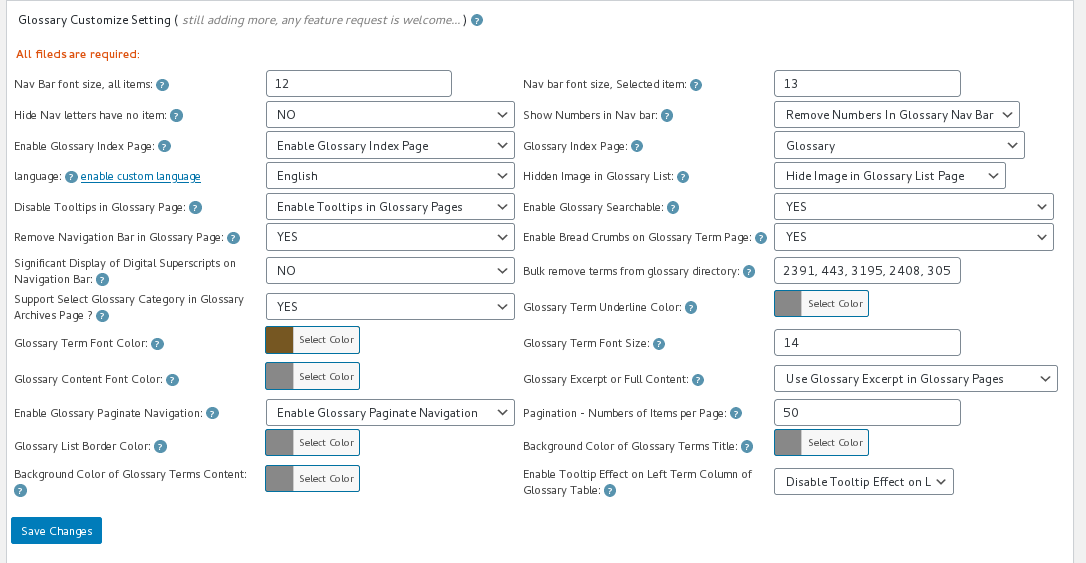
4: You will open Glossary Settings panel, and in “Glossary Customize Settings” Panel, you will find the “Glossary List Border Color” at the bottom of the “Glossary Customize Settings” Panel, it looks like this:

You will find you can just select the color from the glossary list border color picker 🙂

Please don’t forget to click the  blue “Save Changes” button 🙂

Thanks for the feature request of wordpress tooltip glossary plugin.  If you have any question or suggestion of wordpress tooltip plugin, please don’t hesitate to tell us, we are happy to develop new version to realize your feature request  🙂


We are develop a new version, you will see it soon 🙂


Thanks, have a blessed day with your family 🙂
Best Regards,
WordPress Tooltip Glossary Plugin Support Team

Tagged with: , , , , ,

How to Get Search Engines to Read Tooltip’s Content?

Hi Dear WordPress Tooltip Glossary Users,

Hope this message find you are doing well and have happy days with your family! 🙂

Question: Can Search Engines Read the Text in Tooltip?

We get an amazing wordpress tooltip user’s ticket, he asked us a question:

Hi,

I want to know if the search Engines will read tool tip text. I *Think* I read somewhere that display:none will be disregared by Search Engines. Will text written with this plugin get read?

Tnx

We are developers, we are always focused on how to provide more and better features of tooltip to wordpess users, we are not familiar with the field of SEO, so this question is really a bit difficult for us, we have downloaded and read some SEO tutorials, finally we can give you a positive answer! 🙂

With WordPress Tooltip Plugin, we give you the right to choose whether or not to allow search engines to read the content of wordpress tooltip. You can decide whether or not to allow search engines to read the text of wordpress tooltip by selecting the “Enable Glossary Index Page”. 🙂

How to Allow Search Engines to Read the Text of WordPress Tooltip?

It is very easy to make a SEO-Friendy Tooltip site, please just follow our step by step detailed guide at below, you will find you just need about 1 minute to allow search engines to read the text of wordpress tooltip 🙂

1: If you didn’t installed wordpress tooltip yet, please login your account at wordpress glossary tooltip plugin site, if you have installed wordpress tooltip plugin, please jump to step #10 directly 🙂

2: Download wordpress glossary tooltip plugin at “My account” page

3: Login wordpress admin area

4: Click “Plugins” menu item

5: Deactivated old tooltips version

6: Delete the old wordpress tooltip plugin

7: In “Plugins” menu item, click add new at the top of the plugins panel

8: Upload the tooltips plugin zip file which you downloaded from wordpress glossary plugin site

9: Activate latest version of wordpress tooltip glossary plugin

10: Click “Tooltips” menu item

11: Click “Glossary Settings” sub menu item, you will open “Glossary Settings” panel

12: You will find in the “Glossary Customize Settings” panel, there are an option: “Enable Glossary Index Page”, it looks like this:

glossary settings panel in wordpress tooltip glossary plugin 12.8.2

glossary settings panel in wordpress tooltip glossary plugin 12.8.2

please just select the color for your wordpress glossary term via color picker, it looks like this:

13 Please just select ” Enable Glossary Index Page” in “Enable Glossary Index Page” select box

14 Click “Save Changes” blue button

15 In front end, if you open glossary index page, you will find all tooltip terms have their own links and tooltip term page, please check our wordpress glossary demo page

16 Search engines will start to index your tooltip term pages, for example, open google, type “Encyclopedia site:tooltips.org” in google search form, you will find google indexed our tooltip term page Encyclopedia, and in google search result page,  you will find the text of wordpress tooltip term Encyclopedia can be read by google.

Conclusion

WordPress Tooltip Plugin is a search engines friendly wordpress plugin, with wordpress tooltips, you can opt to allow search engines to read the text of wordpress tootlip terms or not, if you enable glossary index page, you can improve your site SEO rank in google, if you want to build a private glossary site or paid content membership site, just 1 minute, you can turn on / turn off wordpress glossary index page and tooltip term pages, just 1 click needed. WordPress tooltip plugin is an admin friendly wordpress plugin, many users wrote to us — wordpress tooltip is a time saver 🙂

If you have any question or suggestion of wordpress tooltip plugin, please don’t hesitate to tell us 🙂

That’s all, hope this have a little help to answer your question 🙂


Thanks, have a blessed day with your family 🙂

Best Regards,
Wordpress Tooltip Glossary Plugin Support Team

Tagged with: , , , , , ,

WordPress Tooltip Glossary Plugin 13.6.0 Released, Custom Font Size and Underline Color for Glossary Terms

Dear Users of WordPress Tooltip Glossary Plugin,
Hope this message find you are doing well and have happy days with your family! 🙂
As a user of the wordpress glossary plugin, you probably know that the wordpress glossary plugin has five beautiful glossary templates: Blue, Blonde, Dark, Red, Green, you can find one of our wordpress glossary page template at wordpress glossary demo
In general, what you need to do is just select a pretty glossary template from our glossary design examples via glossary builder, just one minute, you will own a pretty glossary page. 🙂
But two days before, just like we reported that “WordPress Tooltip Glossary Plugin 13.5.8 Released, Glossary Users can Better Customize the Colors for Glossary of Terms“, and we reported that “We got a request from a user of the wordpress glossary plugin who told us that he is an author, he’s writing a glossary of book , he would like to be able to customize the font color of glossary even after turning off the ‘Enable Glossary Index Page’ option”, after get this support request, our developer developed wordpress tooltip 13.5.8 to fix it asap we can, then we have checked all other glossary options to make sure that they always work properly when the user disables the ‘Enable Glossary Index Page’ option. 🙂
After many tests, we found the option “Glossary Term Font Size” and option “Glossary Term Underline Color” have the same problem. Our wordpress tooltip plugin developer have lost his night to fix these options asap too. 🙂
Now no matter you enabled ‘Enable Glossary Index Page’ option or disabled ‘Enable Glossary Index Page’ option, all glossary options will works well, include: navigation Bar font size, navigation bar numbers, Glossary Index Page, multiple-language glossary settings, Hidden Image in Glossary List, Disable Tooltips in Glossary Page, Enable Glossary Searchable, Remove Navigation Bar in Glossary Page, Enable Bread Crumbs on Glossary Term Page, Significant Display of Digital Superscripts on Navigation Bar, Bulk remove terms from glossary directory, Support Select Glossary Category in Glossary Archives Page, Glossary Term Underline Color, Glossary Term Font Color, Glossary Term Font Size, Glossary Content Font Color, Glossary Excerpt or Full Content, Enable Glossary Paginate Navigation, Pagination – Numbers of Items per Page…, we tested for more than 22 glossary options, in wordpress tooltip single-site-license version and wordpress multiple-site-license version, I had to say that is a very hard work, after hundreds of tests, finally, we are happy to report you, all glossary options works well in our glossary html templates, it looks like this:
glossary settings panel in wordpress tooltip glossary plugin 12.8.2

glossary settings panel in wordpress tooltip glossary plugin 12.8.2

🙂
Please download wordpress tooltip glossary plugin 13.6.0 asap you can, over the past decade, we have concentrated on creating and discovering the needs of our customers and continuously improving our products., this is the 304th version of wordpress tooltip glossary plugin. If you have any question or suggestion of wordpress tooltip plugin, please don’t hesitate to tell us 🙂
Thanks, have a blessed day with your family 🙂
Best Regards,
WordPress Tooltip Glossary Plugin Support Team

 

Tagged with: , , , ,
Top