Tag: wordpress glossary plugin

Wie WordPress Tooltip Kategorie Link im Glossar Bread Crumbs anzeigen?

Hallo, liebe WordPress Tooltip Plugin Benutzer, hoffen, dass diese Nachricht finden Sie sind gut und mit glücklichen Wochenende mit Ihrer Familie Wir haben eine erstaunliche Benutzer-Funktion Anfrage, sagte er:

“Hallo,

ich habe die Breadcrumbs in den Glossareinstellungen aktiviert, und ich habe Kategorien. Aber für jeden Begriff in der Kategorie “Hochzeit” gibt es auf der Seite mit den Glossarbegriffen keinen Breadcrumb zurück zur Kategorie “Hochzeit”.

Jeder Begriff, unabhängig von der Kategorie, verweist auf das “Glossar” zurück.

Vielen Dank für Ihre Hilfe

Unsere wordpress tooltip Entwickler haben diesen großartigen Vorschlag geprüft und wir haben entwickelt, um das Problem für den großen Benutzer auf diese Weise zu lösen:

Wie zeigt man einen Tooltip-Kategorie-Link in den Glossar-Brotkrümeln an?

1: Loggen Sie sich auf der WordPress-Tooltip-Plugin-Seite ein und laden Sie Tooltips Pro Plus in der Version >=22.7.8 herunter.

2: Loggen Sie sich in das Dashboard Ihrer WordPress Website ein und laden Sie eine neue Version des WordPress Tooltip-Plugins hoch.

3: Klicken Sie auf den Menüpunkt tooltips und dann auf den Untermenüpunkt glossary settings, in der Version wordpress tooltips pro plugin 22.7.8 sieht es so aus:

Glossary Settings panel in wordpress tooltips pro plus 22.7.8

4: Wie Sie sehen können, gibt es am unteren Rand der WordPress-Glossar-Einstellungen eine neue Option “Display Tooltip Category Link in Glossary Bread Crumbs”, wenn Sie diese Option aktivieren, dann in der Front-End, finden Sie die Breadcrumbs sieht wie folgt Glossar Link > Glossar Kategorie Link > Glossar Begriff .

Bitte beachten Sie, dass das WordPress-Tooltip-Plugin nicht versucht, die Glossar-Kategorie in den Breadcrumbs anzuzeigen, wenn das Glossar keiner Tooltip-Kategorie zugeordnet wurde.

Wenn Sie die Glossar-Kategorie nicht in den Brotkrümeln des Glossars anzeigen möchten, wählen Sie einfach “Nein” in der Option “Tooltip-Kategorie-Link in den Brotkrümeln des Glossars anzeigen” im Glossar-Einstellungsfenster.

Damit die Benutzer die Funktion der Brotkrümel im Glossar leichter nutzen können, haben wir eine weitere Brotkrümel-Option an den unteren Rand des Einstellungsfelds für das Glossar verschoben, so dass Sie die Brotkrümel im Glossar hier schnell verwalten können .

Wir schätzen diesen Vorschlag des Benutzers sehr, wir belohnen den großartigen WordPress-Tooltip-Benutzer mit einem Premium-Plugin von Realtime WordPress Monitor, Realtime WordPress Monitor ist ein AJAX-Performance-Monitoring-Plugin für WordPress-Administrator Realtime WordPress Monitor-Plugin kann helfen, WordPress-Site-Besitzer verstehen, Informationen wie CPU-Last, Speicherauslastung, Festplattennutzung, Datenbankgröße … etc, die wiederum hilft ihnen zu optimieren und passen ihre WordPress.

Wenn Sie weitere Funktionswünsche haben, zögern Sie bitte nicht, uns zu kontaktieren, wir helfen Ihnen gerne bei der Umsetzung

Danke, ich wünsche Ihnen ein gesegnetes Wochenende mit Ihrer Familie.

Mit freundlichen Grüßen,

Wordpres tooltip plugin support

Tagged with: , , ,

WordPress Glossary category compatibility with a few advanced themes, wordpress tooltip pro plugin 22.4.8 and pro 16.9.6 released

Hi, Dear users of  wordpress tooltip ,  hope this message find you are doing well and having happy days with your family.    An amazing wordpress tooltip user submit a ticket to tell us:

I want to remove all the TT itemsin the navbar

On my glossary page URL, you can see that the tool tips are filling the nav bar, the user must page down to see the list of too tips with excerpts, I don’t want the tool tips at the top there.

How can I remove those, please?

Thank you

Our wordpress tooltip developer checked his site, we found he is using a pretty wordpress advanced theme, we read codes of a few wordpress themes, finally we found we can book an API to avoid glossary item displayed on nav bar of glossary category archive page in a few advanced wordpress theme, so we developed a new version wordpress tooltips pro plus 22.4.8 and wordpress tooltips 16.9.6 to solve the problem for wordpress tooltip users 🙂

Thanks for the great report, we give the amazing wordpress tooltip user a license of smart content link pro plugin as a THANKS — https://tooltips.org/product/smart-content-links/ , Smart content links are a powerful tool for enhancing your website’s content and improving the user experience. By embedding links to related content within your articles and wordpress blog posts, you can provide valuable context, information, and resources to your readers without disrupting their flow or distracting them from your main message.

If you have any more great requirement  or question to wordpress tooltip plugin, please don’t hesitate to tell us, we are very happy to realize it for you, and we always offer gift for you 🙂

Thanks, have a blessed day with your family 🙂

Best Regards,

WordPress tooltip support

Tagged with: , , , ,

How to custom padding for all letters in wordpress glossary navigation bar control the length of the navigation bar? WordPress tooltips pro plus 22.1.8

Hi dear WordPress tooltip users, hope this message find you are doing well and have happy days with your family:) Yesterday we released wordpress tooltips pro plus 22.0.8 to support “How to custom margin for all letters in wordpress glossary navigation bar control the length of the navigation bar“, because medical blogger want the glossary navigation bar to be displayed in one line, and we said today we will add new feature to allow wordpress tooltip user to custom padding of each letters in wordpress glossary navigation bar to control the length of the navigation bar, and today we finished wordpress tooltips pro plus 22.1.8 and we realized this feature  for wordpress tooltip users   🙂

How to custom padding for all letters in wordpress glossary navigation bar control the length of the navigation bar?

By default, when you activate wordpress tooltip plugin, and insert a [glossary] shortcode to display a glossary page, it will looks like this:

Significant Display of Digital Superscripts on Navigation Bar


Actually,  when you want to control control the length of the navigation bar, modifying PADDING of all letters in wordpress glossary navigation bar can achieve better results 🙂

1: login wordpress tooltip site to download wordpress tooltips pro plus 22.0.8, it is a zip file which have open source code of wordpress tooltip plugin

2: login your wordpress site as admin in backend,  then upload tooltip zip file and activate wordpress tooltip plugin in your wordpress plugin panel .

3: in wordpress dashboard, click tooltips menu and then click glossary sub-menu item, at the bottom of the glossary settings panel, you will find the new option “Custom padding for all letters in navigation bar”, it looks like this:

Glossary Settings panel 22.2.8

at the bottom of the glossary settings panel, you will find the “Custom padding for all letters in navigation bar” option, please just enter the padding, for example “1” or “0.001”….etc, you can modify padding from each letter in wordpress glossary navigation bar, and this will help you control the length of the wordpress glossary navigation bar

Thanks for the great feedback to wordpress glossary plugin, we give the user a plugin license “Woocommerce product cart anywhere with tooltip” as a THANKS,  Woocommerce product cart anywhere with tooltip is a Woocommerce plugin to display product information with carts via [[product_anywhere]] shortcode,  by default,  the product image will be displayed on the left hand, then display product name, product price on the right hand, under the product price, we will display “add to cart” button and “view cart button”. Users can add the product to the cart via “add to cart” button, and click view cart button to view the cart and checkout

If you have any more feature request or question to wordpress tooltip plugin, please don’t hesitate to tell us, we are happy to realize it for you and we always offer thanks and gifts for amazing idea of feature request

Thanks, have a blessed day with your family

Best Regards,

WordPress tooltip

Tagged with: , , , ,

How to custom margin for all letters in wordpress glossary navigation bar control the length of the navigation bar? Supported by wordpress tooltips pro plus 22.0.8

Hi dear WordPress tooltip users, hope this message find you are doing well and have happy days with your family:) We got a feature request from an amazing wordpress glossary user, he told us he love wordpress glossary plugin, he used it in medical writing to define medical terms and jargon, making it easier for patients and non-medical professionals to understand, it is a great help for patients and non-medical professionals is that it can help them understand complex medical terms and jargon that may be used by healthcare professionals. WordPress glossary helped to improve communication between patients and healthcare providers, as well as help patients to better understand their medical conditions, treatments, and medications. The only problem is that his medical site uses a wordpress theme with a narrow width, because he wants to keep a simple and compact site structure, and he wants the glossary NAVIGATION BAR to be displayed in one line.

Okay, we understand having access to a medical glossary can empower patients to take a more active role in their healthcare and make more informed decisions about their health. and when we developing wordpress glossary plugin we make many default glossary template, we was think the larger and looser the glossary navigation bar , the easier it is for users to read and navigate / click, by default, when you insert a [glossary] shortcode to display a glossary page, it looks like this:

Significant Display of Digital Superscripts on Navigation Bar


This is the first time we heard a glossary user request a smaller wordpress glossary navigation bar, our wordpress tooltip plugin developer analyzed our glossary navigation bar, we decide to add a few new options to help glossary admin to  control the length of the navigation bar by customizing the MARGIN or padding of the glossary navigation bar letters:)

In the new version of wordpress tooltips pro plus 22.0.8, we added a new wordpress glossary option: “Custom Margin for all letters in navigation bar”, and we are developing a new option to allow glossary editor to custom padding of all letters in glossary navigation bar. 🙂

How to custom margin for all letters in wordpress glossary navigation bar control the length of the wordpress glossary navigation bar?

1: login wordpress tooltip site to download wordpress tooltips pro plus 22.0.8, it is a zip file which have open source code of wordpress tooltip plugin

2: login your wordpress site as admin in backend,  then upload tooltip zip file and activate wordpress tooltip plugin in your wordpress plugin panel .

3: in wordpress dashboard, click tooltips menu and then click glossary sub-menu item, at the bottom of the glossary settings panel, you will find the new option “Custom Margin for all letters in navigation bar”, just follow our tips in the Custom Margin for all letters in navigation bar option to enter the margin, for example “1” or “0.001”….etc, you can remove margin from each letter in wordpress glossary navigation bar, and this will help you control the length of the wordpress glossary navigation bar 🙂

Thanks for the good feature request of wordpress glossary plugin, wordpress glossary is a list of terms and definitions related to a specific subject or field of study. It is often included in textbooks, technical manuals, and other types of reference materials to help readers understand the specialized vocabulary used in that particular area. Glossaries can be arranged alphabetically or thematically, and may include pronunciation guides, examples, and other helpful information. We have many users using wordpress glossary to help their users, as developer, we really need to know the real requirement from the webmaster, we are very happy to realize it for all glossary users, that’s why our wordpress tooltip plugin version is 22.0.8, we always offer gift for any user who offered great requirement, we give the user a license of WordPress FAQ Pro Plugin, WordPress FAQ plugin is a powerful & fast jQuery FAQ solution to help wordpress blodder create / manage / edit FAQs easily, select default pretty FAQ template and custom FAQ style in back-end via a few clicks. With wordpress faq plugin, it is very easy to create and show accordion FAQs, display FAQs grouped by category…etc, we hope this will have a little help for the webmaster of medical site 🙂

If you have any more feature request or question to wordpress tooltip plugin, please don’t hesitate to tell us, we are happy to realize it for you and we always offer thanks and gifts for amazing idea of feature request

Thanks, have a blessed day with your family

Best Regards,

WordPress tooltip

Tagged with: , , , , ,

WordPress tooltip 8.5.5 released, two features to help wordpress tooltip glossary users and 25% discount code for this anniversary celebration

Hi Dear WordPress Tooltip Glossary Users, hope this message find you are doing well and have happy days  with your family!
We just released wordpress tooltips free 8.5.5 and wordpress tooltips pro plus 20.7.8, two changes in this version:
1: We added a new option “Enable Tooltip Effect on Left Term Column of Glossary Table” in wordpress glossary settings panel, we have a screenshot for tooltip pro plus version, the option “Enable Tooltip Effect on Left Term Column of Glossary Table” is the same,  it looks like this:
Enable Tooltip Effect on Left Term Column of Glossary Table

Enable Tooltip Effect on Left Term Column of Glossary Table

For users who have set the cell in the glossary to display only the excerpt, allow tooltip effect on the glossary term in the left term column of glossary table, is a good choice, because In this way, glossary users can visually see the content of the upcoming glossary details page, which can help glossary users to decide whether to click on the relevant glossary details page, which will save glossary users’ valuable time, and at the same time, it will also save the server resources of the glossary website, and more accurately provide more services to the users who really need them.  🙂
After get user’s feedback, we developed another plugin to solve this kind of problem too — WordPress live link preview plugin  — when users mouse hover a link on your wordpress post, WordPress live link preview plugin will display the live preview screenshot of the site in a popup window, users will see where you are sending them , we are trying to integrate it with our wordpress tooltip plugin too
2:  For new user of wordpress tooltip user, we will enable jquery-migrate for wordpress tooltip users, because we get a few feedback 🙂
On the same day last year, we mentioned Since 2010, we have released 404 wordpress tooltip glossary plugin versions(2022-05-10) , today is 2023-05-10, we developed 77 versions for wordpress tooltips plugin, since 2010, we have released 481 wordpress tooltip plugins! Also we have released a few more versions for our other wordpress / buddypress / bbpress plugins, in last year, we released about 152 versions of our  plugins 🙂
To show our appreciation for your years of using wordperss tooltip, we have decided to offer a 25% discount code for the coming week to show our appreciation and to celebrate this anniversary!

25% discount code:

ThankYouSoMuch

Thanks, have a blessed day with your family
Best Regards,
WordPress Tooltip Glossary Plugin Support Team
Tagged with: , ,

How to automatically link the wordpress tooltip keyword inside a wordpress post to the wordperss glossary item page? WordPress tooltip pro plus 19.8.8 released

Hi, Dear WordPress tooltip users , hope this message find you are doing well and having happy day with your family 🙂 We just released wordpress tooltip pro plus 19.8.8, to realize an amazing wordpress tooltip user’s feature request: automatically link the wordpress tooltip keyword inside a wordpress post to the wordperss glossary item page, in the back-end of new version of wordpress tooltips pro + version, you will find a new option to link wordpress glossary keywords in wordpress posts to glossary item page automatically.  🙂

After read the user’s feature request, our wordpress tooltip developer said this is a great requirement, we heard similar request before,

A WordPress admin want to link glossary keywords to their respective glossary item pages he wan to improve the user experience by providing easy access to additional information and context for technical or industry-specific terms used within the content. By linking these keywords to corresponding glossary item pages, visitors can quickly and easily learn the definitions and meaning of these terms without leaving the page they are on.

Another wordpress glossary admin want to link glossary keywords to their respective glossary item pages is to improve search engine optimization (SEO). Linking internally within a website can help search engines crawl and index pages more effectively, which can improve search engine rankings and increase website traffic.

Overall, linking glossary keywords to their respective glossary item pages can enhance the user experience and potentially improve SEO, making it a worthwhile consideration for WordPress admins looking to enhance their website’s functionality and effectiveness. 🙂

How to automatically link the wordpress tooltip keyword inside a wordpress post to the wordperss glossary item page?

1:  download last version of wordpress tooltip pro + 19.8.8 via wordpress tooltip glossary plugin

2: Install latest version of wordpress tooltips pro plus plugin in your wordpress site,  new user please check our  video of how to install wordpress tooltip at:  WordPress Tooltips Video Tutorial 3: How to upload and activate wordpress tooltips pro plugin

3: In wordperss dashboard click “Tooltip” menu , then click “optional settings” sub menu item, you will open “optional settings panel”, it looks like this:

add link on tooltip term to tooltip page in tooltip optional settings panel in tooltips pro plus 19.8.8

add link on tooltip term to tooltip page in tooltip optional settings panel in tooltips pro plus 19.8.8

4:As you can see, at the bottom of optional settings panel, there are new option “link tooltip terms to tooltip page automatically?” if you select “Yes”, then in front-end, all tooltip keyword in wordpress post will be linked to wordpress glossary item page automatically.

If you select “No”, then nothing will be changed 🙂

Please note, we will not add glossary item link in wordpress menu item, wordpress title, because in general, these section in wordpress have important links already, wordpress tooltip plugin will only add links for wordpress tooltip keyword in wordpress post / wordpress pages / wordpress glossary page…etc 🙂

Conclusion:

Thanks for the great suggestion again, one major benefit of linking glossary keywords in WordPress posts to their respective glossary item pages is that it can enhance the user experience. By linking technical or industry-specific terms within a post to their corresponding glossary definitions, readers can quickly and easily learn what these terms mean without having to leave the page they are on. This can improve comprehension and help readers engage with the content more effectively.

Another benefit of linking glossary keywords to their respective glossary item pages is that it can potentially improve search engine optimization (SEO). Internal linking within a website can help search engines crawl and index pages more effectively, which can improve search engine rankings and increase website traffic. By linking glossary keywords to their corresponding glossary item pages, WordPress users can create a more interconnected and optimized website structure.

Overall, linking glossary keywords in WordPress posts to glossary item pages can improve the user experience, potentially boost SEO, and make it easier for visitors to engage with technical or specialized content. It is a useful technique for anyone looking to create an effective and engaging website.

If you have any more feature request or if you have any question about wordpress tooltip plugin, please don’t hesitate to contact us 🙂


Thanks, have a blessed day with your family 🙂

Best Regards,

WordPress tooltip support

Tagged with: , , , , ,

How to build multiple glossaries via difference taxonomy in wordpress tooltips pro plugin?

Hi, Dear  users of WordPress tooltip plugin , hope this message find you are doing well and having happy weekend with your family 🙂  Maybe you known , wordpress tooltips have many amazing  functions — based on amazing users feature request in last 12 years, include tooltip, glossary, directory, AI writer…etc.  many user said they like our glossary function and give us many great suggestion about wordpress glossary (glossary is a list of terms in a special subject, field, or area of usage, with accompanying definitions. In other words, it’s a reference tool that provides definitions for key terms and phrases related to a specific topic or industry. Glossaries are commonly used in academic, technical, and specialized fields to help readers understand the jargon and terminology used in those areas)

Yesterday we get an amazing glossary  user’s ticket in which he asked us how to build multiple glossaries via difference taxonomy in wordpress tooltips pro plugin:

Hi there, is it possible to have multiple glossaries with tooltip pro?

So that for example I would have a certain taxonomy where only tooltips from glossary A are shown, and another taxonomy where tooltips from glossary B are shown, and so on…?

Thanks

This is a great question, we believe many more wordpress tooltip glossary users have similar question, we’d like write a detailed document for wordpress glossary users 🙂

How to build multiple glossaries via difference taxonomy in wordpress tooltips pro plugin?

1: Login your wordpress tooltip account to download wordpress tooltip glossary plugin

2: Login your wordpress site as admin and install latest version of wordpress tooltip plugin via wordpress “Plugins” panel

3: In wordpress dashboard, please click “Posts” menu item to create a new wordpress post or wordpress page

4: In wordpress post editor, you can insert [glossary] shortcode to create wordpress glossary, you can find a glossary demo at here

5: You can create glossary that only display glossary items from a specific category, just do it like this:

a: You can  use [glossary catid='1,2,3'] to just allow tooltips from glossary categories  which category id = 1 or  category id = 2 or category id = 3 to be displayed in glossary list

b: You can  use [glossary catid='4'] to just allow tooltips from glossary categories  which category id = 4 be displayed in glossary list

c: You can  use [glossary catname='classmate,family,school'] to just allow tooltips from glossary categories “classmate”or “family”or”school” to be displayed in glossary list

6: If you want to remove any glossaries from a specific glossary category, just do not insert glossary cat id or glossary cat name in glossary shortcode

7: Then publish the wordpress post, you will find all things will works like you want 🙂

The user asked a great question, we understand It’s possible that the user wants to build multiple glossaries to organize and present information in a more manageable way for their visitors. By categorizing glossary terms into different categories, users can find the specific terms they need more easily without browsing through a long list of terms. This can improve the user experience and make the site more user-friendly.

For example, if a website is related to the medical field, it may have glossary categories for terminology related to various medical specialties, such as cardiology, neurology, and oncology. By separating these categories, users can easily find definitions for terms specific to their area of interest or concern.

Also we understand another reason for building multiple glossaries could be to accommodate different levels of expertise. Some visitors may be experts in a particular field, while others may be beginners. By organizing glossary terms into different categories, the website can cater to the needs of both types of visitors.

Overall, building multiple glossaries can help wordpress admins present their content in a more organized and user-friendly manner, which can enhance the overall experience for their visitors.

Hope this have a little help you to build multiple glossaries via difference taxonomy via wordpress tooltip  plugin 🙂

Tagged with: , , , ,

New Option to Disable Tooltip in Entire Site and Enable Glossary in Entire Site, Supported WordPress Tooltips Free 8.1.1

Hi, Dear users of  wordpress tooltip plugin, hope this message find you are doing well and have happy days with your family  🙂 We just released wordpress tooltips free plugin 8.1.1. An amazing wordpress tooltip user gold us, she like our glossary function and she just used glossary functionality in their hospital, she hope disable wordpress tooltip functionality and only enable wordpress glossary functionality:

Hi there

Just noticed that the glossary nav bar does not show unless we have  the – Global Setting: Disable Tooltip in Entire Site – enabled (so
not disabled).

Is there a way to have it disabled?

We developed this function in wordpress tooltips pro + 16.7.4, and write a document for this function, and another wordpress tooltip free user told us, when he read our wordpress tooltip F.A.Q and wordpress tooltip document, he found this function, and he need this function in his dictionary site, he just want glossary function to build dictionary, but when user mouse hover wordpress tooltip terms in his site, wordpress tooltip window popup and the content of dictionary displayed in tooltip popup, he want to disable tooltip for these dictionary items, he told us he want this function in wordpress tooltip free version too 🙂

How to disable wordpress tooltip functionality and only enable wordpress glossary functionality?

Our wordpress tooltip developer developed a new version wordpress tooltips free 8.1.1, in wordpress tooltips free 8.1.1, we added new panel : “Disable Tooltips Functionality on Front-End and Allow Glossary Functionality”, it looks like this:

option to Disable Tooltips and Enable Glossary in wordpress tooltips free 8.1.1

option to Disable Tooltips and Enable Glossary in wordpress tooltips free 8.1.1

As you can see, at the bottom of wordpress tooltip global settings page, there are new panel “Disable Tooltips Functionality on Front-End and Allow Glossary Functionality”, in the new panel, there are option “Disable Tooltips and Enable Glossary?”, if you want to disable tooltip functionality in front-end, please select “yes, disable tooltip and enable glossary”, then in the front-end of wordpress tooltip site, all tooltips  effects in the content of wordpress post will be stopped, and in wordpress glossary page, you will see glossary list works well. 🙂

By default, wordpress tooltip plugin will enable tooltip functionality and glossary functionality, so in general, you do not need to settings this option 🙂

If you have set up to disable wordpress tooltip function in your wordpress tooltip site, but you want to enable wordpress tooltip functionality again, then go to wordpress tooltip global settings page, then in the panel “Disable Tooltips Functionality on Front-End and Allow Glossary Functionality”, please select the option “no, enable tooltip and enable glossary”, then in wordpress posts, when user mouse hover wordpress keyword, wordpress tooltip popup will works well again 🙂

Conclusion:

A few wordpress tooltip user told us they like our glossary functionality to build their knowledge-base in their hospital or just use our glossary functionality to build a dictionary site, they hope have a method to disable or enable wordpress tooltip functionality in backend, in the version wordpress tooltip free plugin 8.1.1, we realized this function for wordpress tooltip free users 🙂

Tagged with: , , ,

How to use the wordpress post name “glossary” as glossary index page in wordpress tooltip plugin?

Hey, Dear users of  WordPress Tooltip plugin , hope this message find you are doing well and having happy weekend with your family 🙂 We get a wordpress user’s ticket, in which he told us he want to use wordpress page “glossary” as “glossary index page”, in the ticket he told us:

> > Hi there,
> > >
> > > I’m having trouble with my glossary page. Rather than the styled
> > > glossary that I see in your demos, I’m getting an ‘archive’ page
> > > which looks really messy. What am I doing wrong?
> > > Thank you!

Our wordpress tooltip support replied

> Hi,
> >
> > Thanks for the message 🙂
> >
> > We are very happy to help you 🙂
> >
> > Because we have many plugin versions with different functions, Would you please tell us:
> > 1 the plugin version you are using
> > 2 the URL related with the problem
> > 3 a little more details to tell us how to find the problem in the
> > URL
> >
> > Thanks, have a blessed day with your family 🙂
> >
> > Best Regards,
> > Support Team

The wordpress tooltip user replied us with more details:

Hi there,
>
> Thanks for getting back to me.
>
> Plugin version: Tooltips Pro 16.0.06
> URL: hidden in here
> Problem:
>
> When I created a glossary index page through the Glossary Settings section, it set it as a ‘tooltips archive’ page which I can’t  customise in any way. It’s just a list of terms and excerpts like a blog page, with no clickable alphabet at the top.
>
> Here’s what I would like it to look like:
> url hidden in here
> This is a page I’ve created myself using the shortcode. But instead I get this:
> url hidden in here
>
> I wouldn’t mind if I could just use the style page (/glossary) but all of the terms come with breadcrumbs that link back to that archive page (currently called Glossary3).
>
> Am I doing something wrong?
>
> Many thanks,

Thanks for this detailed description of the question, we understood it, yes, we can solve it by a few simple steps in wordpress tooltips plugin and wordpress site,    I think may be more wordpress tooltip users have similar requirement, I’d like write a detailed step by step document with screenshot to help all users to do this easily 🙂

How to use the wordpress post name “glossary” as glossary index page in wordpress tooltip plugin?

I believe the what the wordpress tooltip user want is let wordpress page “glossary” https://www.tooltips.org/glossary/ — by default, it is a wordpress glossary category archive page,   it looks like this:

wordpress tooltip glossary archive page

wordpress tooltip glossary archive page

looks like this — https://tooltips.org/glossary-demo/  — a wordpress glossary page with full functionality, it looks like this:

wordpress glossary default blue template

wordpress glossary default blue template

if so, yes you can do it by this way:
1: login wordpress as admin
2: click tooltips menu item
3: click “glossary settings” sub menu item
4: you will open “glossary settings” page, it looks like this:

glossary custom panel in wordpress glossary 16.0.8

glossary custom panel in wordpress glossary 16.0.8

5: as you can see,  in the “glossary customize settings” panel, you will find the option “glossary index page” is set as “glossary” — the “glossary” page is a wordpress page which created automatically by wordpress tooltips plugin, as wordpress tooltip glossary archive page to list all glossary items and link back to each glossary item — for improve SEO rank of your wordpress glossary site in google,  you can change it by this way:

5.1: please create a New page in wordpress editor, for example, create a  new wordpress post using the title “glossaryindexpage” or any other title you want in wordpress post editor, you do not need enter any content in wordpress editor, wordpress glossary plugin will  generate all content in this glossary archive page automatically,  so what you need to do is just give the wordpress post a title and then publish this page directory. 🙂

5.2 back to “glossary customize settings” panel, in your browser for example firefox, refresh this page to let the new wordpress post show in the the option “glossary index page”

5.3 then in “glossary customize settings” panel, click the select box in the option “glossary index page”, you will find the new page “glossaryindexpage” that created in the step #5.1, has been added into the select box, just select “glossaryindexpage” as your “glossary index page” and click the blue “save changes” button

5.4 okay, now the “glossary” page is free,   you can edit page “glossary” in wordpress editor, what you need to do is just insert glossary shortcode in the content — [glossary], and publish it

5.5 in front end when you open the page https://www.tooltips.org/glossary again, you will find it works like:

Glossary Demo

5.6 then in the new page glossaryindexpage, it will works like your old “glossary” page — a wordpress glossary archive, now it will display a list of terms and excerpts 🙂

I guess may be this is what you want? 🙂

Conclusion:

With wordpress tooltip glossary plugin, you will owned glossary archive page automatically which is a real wordpress page that created by wordpress tooltip plugin automatically, and you can release the wordpress page “glossary” to add other functions in the “glossary” page, for example, insert wordpress tooltip shortcodes, for example — insert [glossary] shortcode to let it works like a full wordpress glossary functionality page which looks like this: wordpress glossary

Best Regards,
Support

Tagged with: , , , , ,

How to Change the Colour of Letters that don’t Have Terms, Rather Than Hide Them? Supported by WordPress Tooltips Pro Plus 16.0.0

Hi Dear  WordPress Tooltip plugin users, hope this message find you are doing well and have happy weekend with your family 🙂 Just like we reported in last wordpress tooltips version, we got an amazing request from an amazing wordpress tooltip user, in which he hope we can solve a js conflict with wordpress ninja form. That why we release the wordpress tooltips pro plus 15.9.6, not only support add tooltips effects on the content which generated by ninja form dynamically, but also support a few more 3rd plugins which generate their content dynamically, this is improve wordpress tooltips plugin fucntcion to support more wordpress plugins. 🙂 After solved the problem in wordpress tooltips pro plus 15.9.6, we get a great feature request  from this amazing tooltip user, in which he said:

It’s working well, thank you.

Quick question: with the glossary, is there a way we can change the colour of letters that don’t have terms, rather than hide them?

Thank you

A few hours later, our developer replied:

Hi,,

I have developed wordpress tooltips pro plus 16.0.0 to support your feature request:”with the glossary, is there a way we can change the colour of letters that don’t have terms, rather than hide them?” 🙂

If you want to upgrade to tooltips pro plus, I’d like offer a 25% discount for your great feature request, please just let me know 🙂

Thanks, have a blessed day with your family 🙂

Best Wishes,
Tomas

Yes, the user offered many great suggestions for wordpress tooltips plugin, this helped all users of wordpress tooltip, we always offer discount for really great suggestions to amazing wordpress tooltip users 🙂

How to Change the Colour of Letters that don’t Have Terms, Rather Than Hide Them? Supported by WordPress Tooltips Pro Plus 16.0.0

1: Please upgrade to wordpress tooltips pro plugin 16.0.0, if you did not upgrade to the latest wordpress tooltips pro plus please, please login  wordpress tooltip site, then click “download” menu item at home page of wordpress tooltip to download the wordpress tooltips pro plugin 16.0.0, this is a zip file

2: After downloaded wordpress-tooltips pro plus 16.0.0 plugin, please login your wordpress site as admin, then in your wordpress site dashboard, please click “Plugins” menu item and then deactivated the old tooltips plugin version

3: Then please click the “Delete” link to delete the old version of wordpress tooltip and in “Plugins” menu item, click “add new” link which at the top of the plugins panel, in here you can upload the tooltips plugin zip file that you downloaded from wordpress glossary plugin site

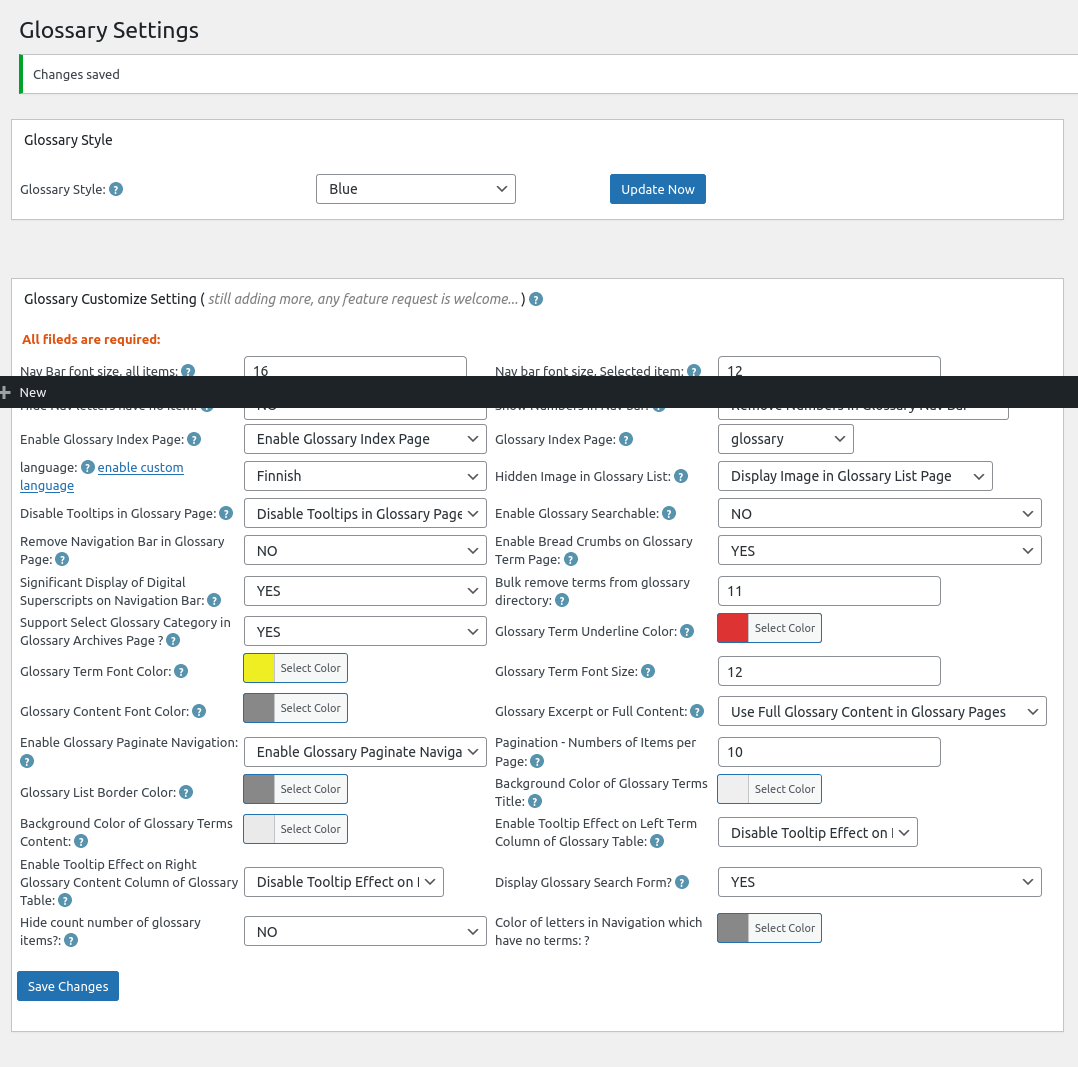
4:After activated wordpress glossary plugin 16.0.0, please Click “Tooltips” menu item in wordpress dashboard,  now please click “Glossary Settings” sub menu item, you will open “Glossary Settings”  panel in wordpress glossary pluigin 16.0.0, it looks like this:

Glossary Settings panel in wordpress tooltips glossary plugin 16.0.0

Glossary Settings panel in wordpress tooltips glossary plugin 16.0.0

Please note, because my screenshot tooltip have some problem, in the screenshot of glossary settings panel, you will find there are a black bar on the screenshot, in the real glossary settings panel, you will not see this black bar 🙂

5: At the bottom of the glossary settings panel, you will see “there are a new option: color of letters in navigation which have no items”, please just click the color picker to select the color for the color of letters in navigation which have no items and click “save changes” button 🙂

also the admin tooltip did not displayed because we make this screenshot after function verified, in the real version of wordpress tooltips pro plus, the “?” is a real admin tooltip in which you can get guide of how to use the option  🙂

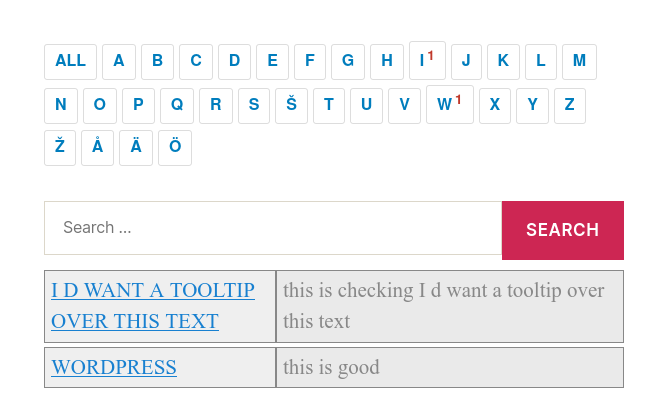
6:Before: In front end, before you changed the settings of the option “color of letters in navigation which have no items”, color of letters in navigation which have no items looks like this:

wordpress glossary default blue template

wordpress glossary default blue template

You can see in here I selected blue template for my wordpress glossary page, we have 5 pretty wordpress glossary template: blue , blonde, dark, green ,  red, once you clicked to select a glossary theme, the color and style has been set up by default good-designed wordpress glossary template, in general, what you need just one-click, no other works need to do 🙂

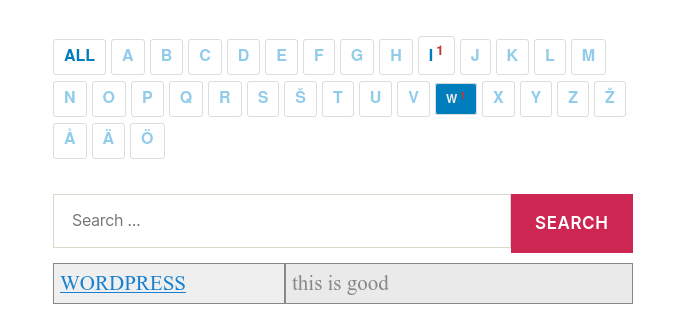
After:  after changed “color of letters in navigation which have no items”, it looks like this:

wordpress glossary customized color of letter color in blue template

wordpress glossary customized color of letter color in blue template

You can see I selected another blue color for “color of letters in navigation which have no items”, so user will focus on the letters which have items 🙂

You can chose another pretty color for your “color of letters in navigation which have no items”,  I believe you will do better work for me, I just focus on develop work, this is just a sample 🙂

Conclusion:

An amazing wordpress tooltips user gave us a few great suggestions, for example, he suggested us to add an option to re-set “color of letters in navigation which have no items”, our wordpress tooltip developer think this is a great suggestion to improve user experience, so we realized the great feature request asap we can in a few hours. Based on user’s suggestion in last 12 years, wordpress glossary plugin has been build as a powerful wordpress glossary tool for users. If you have any amazing suggestion, please don’t hesitate to contact us, we are happy to realize it, we’d like offer discount for you if your idea is helpful for wordpress tooltip users 🙂

Tagged with: , , , , , , ,
Top