Tag: wordpress directory

New Tab Panel for Displaying Directory Types in WordPress Tooltip Control Panel, WordPress Tooltips Free 9.9.9

Hi, dear users of wordpress tooltips plugin, I hope this message finds you in good spirits and that you’re enjoying wonderful times with your family. 🙂

In the WordPress Tooltip directory control panel, we added a tab panel to display different types of directories in separate tabs

A couple of days ago, the instructor reached out to us once more with an exciting new feature suggestion. She began by greeting and expressing their fondness for the WordPress Tooltip plugin. They raised a specific issue regarding the user directory setup in the global settings panel.

The user noted that the settings for the WooCommerce directory appeared first, followed by the job board directory, then the WordPress post directory, and the WordPress page directory, with the user directory settings positioned last. They mentioned that scrolling through this arrangement with their mouse wheel was cumbersome and inquired if there was a more efficient solution to improve usability. 🙂

The developer of our wordpress tooltip plugin expressed that this is an excellent suggestion, leading us to create WordPress Tooltips Pro Plus version 31.8.8 to implement the functionality for tooltip users. 🙂

Then, our developer decide move this function to wordpress tooltips free plugin and wordpress tooltips pro version too 🙂

We integrated a Bootstrap tab panel into the WordPress Tooltip directory control panel to present various types of directories in distinct tabs. We captured some screenshots, and here’s how it looks:

1: Woocommerce product directory tab:

In addition, wordpress tooltips plugin support WooCommerce Tooltips

2:WordPress Job Board directory tabjob directory tab

3:WordPress post directory

4:wordpress page directory tab:

When the instructor accesses the global settings panel for the directory, they just need to click on the “User Directory” tab. From there, they can configure all the settings within that tab. This design is intuitive and enhances the visual appeal for WordPress Tooltip administrators.

Additional changes in WordPress Tooltips Free Plugin 9.9.9

To optimize load speed, we ensure that Bootstrap.js and Bootstrap.css are only loaded in the WordPress Tooltip directory global settings panel. On other pages within the WordPress admin area, these files will not be loaded.

We  also rewrite description of directory 🙂

Thank you for the valuable feature request for the WordPress Tooltip plugin! If you have any more suggestions, please feel free to reach out to us.


Thanks, have a blessed day with your family

Best Regards,

WordPress Tooltips Plugin Support
Tagged with: , , , ,

In the WordPress Tooltip Directory Settings Panel, Load Bootstrap.js and Bootstrap.css Only When Necessary, WordPress Tooltips Plus 31.9.8 Released

Hi, dear wordpress tooltips plugin users, I hope this message finds you well and that you’re having wonderful days with your family.:)  Recently, a teacher reached out with a feature request regarding our WordPress Tooltip plugin. They mentioned that in the directory global settings, the user directory options are hard to find among other settings, making scrolling difficult. In response, our developer created WordPress Tooltips Pro Plus 31.8.8 to address this issue. We implemented a Bootstrap tab panel in the directory control panel, allowing different directory types to be displayed in separate tabs.

Today, the teacher told us that the solution resolved the issue perfectly. However, when he opened the wordpress tooltip directory global settings panel, he noticed that  two bootstrap.min.js were loaded in the wordpress admin area. He request us find the reason.

Our wordpress tooltip plugin developer checked his page and found that another wordpress plugin is also using bootstrap in the wordpress admin panel, we developed WordPress Tooltips tooltips pro plus 31.9.8  to resolve the problem 🙂

In the new version WordPress Tooltips tooltips pro plus 31.9.8, we only load Bootstrap.js and Bootstrap.css in the wordpress tooltip directory global settings panel, in other URLs within wordpress admin area, we will not load Bootstrap.js and Bootstrap.css  🙂

What is bootstrap?

Bootstrap is an open-source front-end framework used for developing responsive and mobile-first websites. Created by Twitter, it provides developers with a collection of tools to build modern web applications quickly and efficiently. Here are some key features and components of Bootstrap:

Key Features of Bootstrap:

  1. Responsive Design: Bootstrap’s grid system allows for fluid layouts that adapt to various screen sizes, ensuring consistent experiences across devices such as smartphones, tablets, and desktops.
  2. Pre-designed Components: It includes a variety of reusable UI components like buttons, forms, navigation bars, alerts, modals, and more, which help speed up the design process.
  3. Customizable: Bootstrap can be easily customized using its built-in Sass variables and mixins, enabling developers to tweak styles and themes to fit their needs.
  4. JavaScript Plugins: It comes with several jQuery plugins that add interactivity to web pages, such as carousels, tooltips, modals, and dropdowns.
  5. Cross-browser Compatibility: Bootstrap is designed to work seamlessly across all modern browsers, ensuring a consistent experience for users.
  6. Extensive Documentation: Bootstrap offers comprehensive documentation that helps developers understand how to implement its features effectively.

Usage:

Bootstrap can be included in a project via:

  • CDN (Content Delivery Network): Linking directly to Bootstrap’s CSS and JavaScript files hosted online.
  • Local Files: Downloading Bootstrap files and hosting them within your project’s directory.

Why Use Bootstrap?

  • Speed of Development: Rapidly create layouts and components without starting from scratch.
  • Consistency: Maintain a consistent design across different pages of a website.
  • Community Support: Being widely adopted, Bootstrap has a large community, numerous resources, and tutorials available online. Bootstrap has become a popular choice among web developers for its ease of use and efficiency in creating responsive and attractive web applications.

By using bootstrap In the wordpress tooltip directory control panel, where different types of directories will be displayed in separate tabs.

It looks like this:

Woocommerce product directory tab:

woocommerce product directory tab

We also updated change log of wordpress tooltips plugin, the change log of wordpress tooltips pro plus plugin, and we updated feature of wordpress tooltips plugin too 🙂

We are enhance the function of wordpress tooltip directory function, you will see the new version very soon 🙂

Thanks, have a blessed day with your family 🙂

Best Regards,

WordPress tooltips plugin suppport

Tagged with: , , , ,

In the wordpress tooltip directory control panel, a tab panel has been added to display different types of directories in separate tabs, supported by wordpress tooltips pro plus 31.8.8

Hi, dear users of wordpress tooltips plugin, I hope this message finds you well and that you’re having wonderful days with your family.:)  We received a wordpress tooltip directory user’s feedback, the teacher has given us many amazing feature request in the past few months, based on his suggestion, we have developed many versions of the wordpress tooltip user directory module:

Enhanced Functionality to Enable/Disable Specific User Roles Display in User Member Directory

A new option has been added to enable/disable the member directory in the WordPress Tooltips Pro Plus plugin

Support reset wordpress tooltips directory settings 

How to list specific type of users using fuzzy search in member directory of wordpress tooltip plugin

How do I display only users with specific user roles from a specified list of user IDs in the Member Directory?

How to only display users with a specific role in the member directory and hide users from the specified user ID list? WordPress tooltips pro plus 29.1.8 released

How to disable a specified user from appearing in the member directory? wordpress tooltip tooltips pro plus 29.0.8 released

How to display only the users in a specified user ID list in the member directory? wordpress tooltip tooltips pro plus 28.9.8 released

How to display only specified wordpress users in the members directory according to their user roles? wordpress tooltip tooltips pro plus 28.8.8 released

… and more

The great wordpress tooltip user helped us improve the functions of directory module rapidly 🙂

A few days ago, the teacher contacted us again with another amazing feature request:

Hello, long time no see. I hope you are all doing well. I really love your WordPress Tooltip plugin. Now there’s one issue: every time I want to set up the user directory, in the directory global settings panel, I see the settings for the WooCommerce directory first, followed by the job board directory, then the WordPress post directory, then the WordPress page directory, and only finally the settings for the user directory. My mouse wheel struggles to scroll through all of this every time. Is there a more mouse-wheel-friendly solution?

Our wordpress tooltip plugin developer checked this ticket, and we developed wordpress tooltips pro plus 31.8.8 to resolve the problem for the amazing user 🙂

Our solution is to create a tab panel using bootstrap In the wordpress tooltip directory control panel, where different types of directories will be displayed in separate tabs.

It looks like this:

Woocommerce product directory tab:

woocommerce product directory tab

WordPress Job Board directory tab

job directory tab

job directory tab

WordPress post directory

wordpress post directory tab

wordpress page directory tab:

wordpress page directory tab

wordpress user directory tab

user directory tab

user directory tab

As you can see, using tab panels to manage different groups of options in the settings panel of the tooltip directory settings panel, instead of listing all the functionality settings together in one panel, offers several benefits:

  1. Improved Readability: Tabs group related settings together, making the interface cleaner and clearer. Users can more easily find the settings they need to adjust without being overwhelmed by a lot of information.
  2. Simplified Navigation: With tabs, users can quickly switch to different functional areas. This structured navigation is more efficient than scrolling through a long page of settings.
  3. Reduced Visual Clutter: Displaying different functionalities separately minimizes the visual complexity of the interface, allowing users to focus more on the options they are currently dealing with.
  4. Ease of Updates and Expansion: If the plugin needs to add more features in the future, using tabs makes it easy to categorize new options without redesigning the entire settings interface.
  5. Enhanced User Experience: Users can quickly locate the required functions within the interface, reducing the time spent on operations and greatly enhancing the overall user experience.
  6. Better Organization: Tabs help to categorize related settings, providing a logical connection between different settings and enhancing the overall structure.
  7. Avoiding Setting Conflicts: Separating options for different functionalities can reduce the likelihood of users accidentally mixing settings, improving configuration accuracy. In summary, using tab panels to manage different functional settings not only enhances user experience but also provides convenience for the maintenance and expansion of the plugin.

So when the teacher opens the directory global settings panel, all they need to do is simply click “User Directory” tab. Then, they can complete all settings in the “User Directory” tab. This design is user-friendly and more visually appealing for wordpress tooltip admins 🙂

Thanks for the great feature request to wordpress tooltip plugin, if you have any more suggestion, please don’t hesitate to contact us 🙂

Thanks, have a blessed day with your family 🙂

Best Regards,

WordPress Tooltips Plugin Support

Tagged with: , , , , ,

A new option has been added to enable/disable the member directory in the WordPress Tooltips Pro Plus plugin. The latest release is version 30.5.

Hi, esteemed users of WordPress Tooltip plugin,  I hope this message finds you are doing well well and enjoying happy days with your family 🙂 We are happy to report you that we just released wordpress tooltips pro plus plugin version 30.5.8, based on a wordpress tooltip user’s feature request.

A user of WordPress Tooltips reached out to us expressing their love for the tooltip plugin but mentioned that they do not need to use the directory functions on their WordPress site. They discovered a few options in the WordPress directory settings panel that allowed them to disable the WooCommerce directory, WordPress post directory, WordPress page directory, and job board directory. By disabling these directory functions, they were able to improve the loading time of their site. However, they couldn’t find an option to disable the member directory and requested that we add a new option to disable the WordPress member directory in order to prevent the loading of related resources on their pages. 🙂

Our wordpress tooltips plugin developer checked the request and we developed new version wordpress tooltips pro plus plugin version 30.5.8 for the wordpress tooltip user.

How to enable / disable member directory in wordpress tooltips plugin?

1: Customer of WordPress tooltip pro plus plugin please click download wordpress tooltip to download the new version directly, new user please purchase a license of wordpress tooltip pro plus

2: Downloaded and install wordpress tooltip pro + plugin which version >= 30.5.8

New users please check our detailed video tutorials at WordPress Tooltips Video Tutorial 3: How to upload and activate wordpress tooltips pro plugin

3: click on the tooltips menu in wordpress dashboard

4: click on the  directory settings sub menu item to  open directory global settings panel

5: in directory global settings panel, locate “enable wordpress member directory” select box, you can enable / disable wordpress member directory here

6: additionally, in the member directory panel, you can choose which user roles should be displayed in the member directory. You can also bulk remove users from the member directory by using their user IDs.

If you disable the member directory, we will not load  any related resources on wordpress pages, starting from the new version, by default, if you do not manually enable wordpress member directory, we will disable member directory

Futhermore, we have re-developed member directory UI for offer an user-friend UI experience for wordpress tooltip users.

Thanks for the great feature request, If you have any more question or feature request, please don’t hesitate to contact us, we are very happy to improve wordpress tooltip functions for you 🙂

Thanks, have a blessed day with your family 🙂

Best Regards,

WordPress tooltip plugin support


Tagged with: , , ,

Support reset wordpress tooltips directory settings too, wordpress tooltips pro plus 30.2.8 released

Hey, esteemed users of WordPress Tooltip ,  I hope this message finds you are doing well well and enjoying happy days  🙂 We are happy to report you, we just released wordpress tooltips pro plus 30.2.8 to support reset all settings in wordpress tooltips directory modules, based on a users’ feedback:

We are a website for a school’s finance and economics department and I am using your wordpress tooltips pro plus plugin, We use tooltip to explain terminology, graphical data, economic indicators, etc. to help users better understand the content. We also use Tooltips to provide users with tips and hints on how to use online tools and interactive charts, reminding them how to fill out forms or applications. We love your tooltip plugin!

Then we were pleasantly surprised to discover the power of your directories. We used the woocommerce directory and the job board directory, as well as the member directory, especially the member directory, which is so powerful that we used it to create the We used it to create a list of faculty members in our department.

Now we are facing a problem, but I want to reset the function of directory, because the wordpress tooltip directory function supports various types of directory, so I need to do quite a lot of functions, I found that you have a reset tooltips panel, can you also support in it I found that you have a reset tooltips panel, can you also support in there to reset all the directory settings at once?

Our developer of wordpress tooltip plugin checked this ticket, and we finished this feature request quickly for the user, now if you want to reset directory settings, please:

1: login wordpress as admin

2: click tooltips menu

3: click reset tooltips sub menu

4: go to the bottom of the reset tooltips panel, click the blue “reset configuration” button

then all things will be reset automatically 🙂

By default, a woocommerce directory looks like this, you can set up all components of the directory easily:

Thanks for the great feedback, if you have any more question of feature request, please don’t hesitate to contact us, we are very happy to help you  🙂


Thanks, have a blessed day with your family 🙂

Best Regards,

WordPress tooltips plugin support


Tagged with: , , , ,

Support displaying job type under the job title for recruitment jobs, WordPress tooltips pro plus 28.5.8 Released

Hi, dear cherished  WordPress Tooltip users,

I hope this message finds you in high spirits, enjoying a wonderful weekend with your loved ones. Yesterday, we reported that we released wordpress tooltips pro plus 28.4.8 to implement a feature requested by a wordpress tooltip job directory user —  Support banning specific IDs from displaying jobs in the wordpress job directory , today he mentioned that it works well but he has a new feature in mind:

Hi there,
Thank you for the new version! It has successfully resolved the issue of disallowed job ads with specific JOB IDs appearing in the job directory.
However, I have a challenging problem that needs to be addressed. I was wondering if you could assist me with it. In WordPress Job Manager, employers can specify the type of job when posting job ads, such as internship, full time, freelancer, temporary, and so on. My users have expressed the desire to display these job types alongside the job title in the job directory. This way, job seekers looking for full time positions wouldn’t have to open job ads with job types like freelancer or temporary. It will not only save their time but also optimize my site’s resources by avoiding mismatches between candidates and job types.
I understand that developing this new functionality will be required, and I would greatly appreciate your help in solving this problem. Thank you!

Our developer of wordpress tooltips plugin checked this ticket, and we realized this amazing feature request in wordpress tooltips pro plus 28.5.8.

How to display job type under the job title for recruitment jobs in job directory?

1: Customer of WordPress tooltip pro plus  plugin can click download wordpress tooltip to download the new version directly, new user please purchase a license of wordpress tooltip pro plus

2: Downloaded and install  wordpress tooltip pro + plugin which version >= 28.5.8

New users please check our detailed video tutorail at WordPress Tooltips Video Tutorial 3: How to upload and activate wordpress tooltips pro plugin

3: Crete a new wordpres post and insert the wordpress tooltip job board directory shortcode :

[ jobmanagerdirectory  ]

4: in wordpress dashboard, click tooltips menu item, then click glossary sub menu item

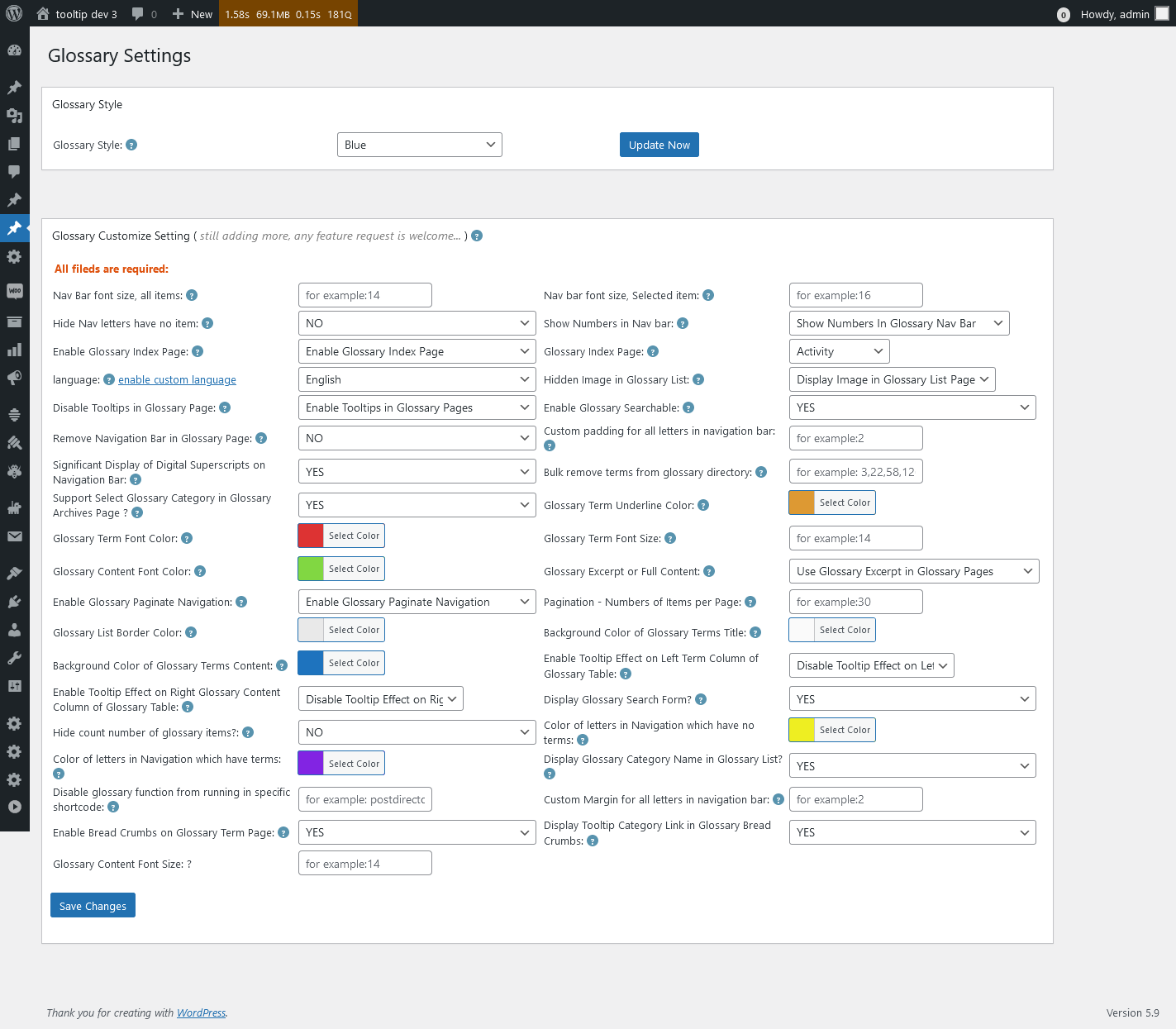
5 you will open glossary settings panel, it looks like this:

Glossary Settings in wordpress tooltips pro plus 27.5.8

Glossary Settings in wordpress tooltips pro plus 27.5.8

In the screenshot, you will find the option “Display glossary category name in glossary list?”, please select “Yes”, then click “save changes” button

In front-end of Job board directory, you will find the job type displayed under the job type 🙂

Thanks for the great suggestion, if you have any more feature request or question, please don’t hesitate to contact us 🙂

Thanks, have a blessed weekend with your loved ones 🙂

Best Regards,

WordPress tooltips plugin support

Tagged with: , , ,

Wie kann man das Jobverzeichnis nach Job Listing ID / Name für WP Job Manager im WordPress Tooltips Plugin anzeigen?

Hi, liebe Benutzer des WordPress Tooltip Plugins, ich hoffe, diese Nachricht erreicht euch in guter Verfassung und ihr habt schöne Tage mit eurer Familie 🙂 Vielleicht wisst ihr schon, dass wir im WordPress Tooltips Pro Plus Plugin die Anzeige des Stellenverzeichnisses des großartigen Job Plugins WP Job Manager unterstützen, um die Funktionalität des WP Job Managers auf Basis der Vorschläge der WordPress Tooltips-Benutzer zu verbessern.

Heute haben wir ein erstaunliches Ticket eines Benutzers des WordPress Tooltips Plugins erhalten. Er sagte:

Hallo,

Ich hoffe es geht Ihnen gut! Ich wollte meine Wertschätzung für die Effektivität des WP Job Manager Plugins von Automattic in Kombination mit Ihrem WordPress Tooltips Pro Plus Plugin für das Job Board Directory zum Ausdruck bringen. Dies hat mein vorheriges Dilemma erfolgreich gelöst. Super Arbeit!

Allerdings stehe ich jetzt vor einer neuen Herausforderung. Ich möchte separate Verzeichnisse für Stellenangebote in der Inneren Medizin und Stellenangebote für Chirurgen haben. Derzeit werden alle Stellenarten in einer einzigen Liste angezeigt, wenn der “jobmanagerdirectory” Shortcode verwendet wird. Dies stellt ein Problem dar, da Stellenangebote in der Inneren Medizin und Stellenangebote für Chirurgen unterschiedlich sind und es ideal wäre, ausschließlich Anzeigen für Stellenangebote in der Inneren Medizin oder ausschließlich Anzeigen für Stellenangebote für Chirurgen in ihren jeweiligen Verzeichnissen anzuzeigen.
Durch diese Änderung müssten Spezialisten nicht mehr unzählige irrelevante Stellenanzeigen durchsuchen, was ihnen wertvolle Zeit erspart, die sie oft nicht übrig haben. Ich wäre Ihnen wirklich dankbar, wenn Sie in dieser Angelegenheit Unterstützung bieten könnten.

Vielen herzlichen Dank für Ihre Unterstützung!

Unser WordPress-Tooltip-Plugin-Entwickler hat das Ticket sorgfältig überprüft, und wir haben uns die ganze Nacht um den neuen WordPress-Tooltip Pro Plus 28.0.8 gekümmert, um das Problem für den Benutzer des WordPress-ToolTip-Jobverzeichnisses zu lösen.

Jetzt können Sie nur noch Jobanzeigen für Innere Medizin anzeigen oder ausschließlich Jobanzeigen für Chirurgen mit zwei Methoden:

1: Nach Jobtypen-ID. Es sieht so aus: [jobmanagerdirectory catid='39']
Sie können die ID der Jobtypen auf folgende Weise finden:
a. Einloggen in WordPress als Administrator
b. Navigieren Sie zum Menüpunkt “Jobanzeigen” im WordPress-Dashboard
c. Klicken Sie auf den Untermenüpunkt “Jobtypen”. Dadurch wird das Jobtypen-Panel geöffnet.
d. Im Jobtypen-Panel finden Sie alle Jobtypen. Bewegen Sie den Mauszeiger über den Bearbeitungslink unter dem Jobtyp-Namen, um die ID der Jobtypen zu finden.

2: Nach Jobtypenname. Es sieht so aus: [jobmanagerdirectory catname='Chirurg']
Hoffentlich war das eine kleine Hilfe
Wenn Sie weitere Funktionserweiterungen oder Fragen haben, zögern Sie bitte nicht, uns zu kontaktieren

Vielen Dank und einen gesegneten Tag mit Ihrer Familie.
Beste Grüße,
WordPress Tooltip Plugin Support

Tagged with: , , , ,

How to limit the total number of posts in post directory using the shortcode, how to display only the posts with a specified post category ID, how to display only the posts with a specified post category name, these new features are supported in wordpress tooltips plus 22.5.8,wordpress tooltips pro 17.0.6,wordpress tooltips free 8.7.9

Hi, Dear  wordpress tooltip plugin users,  hope this message find you are doing well and having happy weekend with your family Several months ago, wordpress tooltip plugin started supporting post directory, since then, we got a few feedback from wordpress post directory users, basically, users have been responding by saying — they said they using post directory function to build:

1: News Aggregator: Create a directory to display latest news articles from various sources.

2: Event Calendar: List upcoming events with details, dates

3: Recipe Collection: Create a directory of recipes

4: Business Listings: Display a directory of local businesses, their contact information, and services offered.

5: Real Estate Listings: List properties for sale or rent with price, location, and property type.

6: Travel Guide: Create a directory of travel destinations, attractions, and recommendations.

…etc

And some users have provided valuable feedback:

1: One possible parameter for the “postdirectory” shortcode could be “limit”, which can be used to restrict the number of post displyes in the post directory. By setting a specific limit, it ensure that not all posts are listed, preventing excessive load time on the page.

In this version we support it by this way:

please use shortcode: “postdirectory limit=30” — this will list 30 posts in post directory.

2: As a blog directory, they need  — showcase popular blogs, categorized by niche or topic.

Actually we have realized function of categorized by category ID or categorized by category Name, we have a detailed document at How to only list posts of specified category in post directory?

Our issue is that we have listed these reference documents, but we haven’t included the explanations of these features in our plugin’s control panel. As a result, many users are unaware of these functionalities because they don’t check our change log  or wordpress tooltip document, starting from this version, we will directly write the usage instructions and features of the plugin in the wordpress tooltip plugin control panel, we will also start listing the plugin’s document directly beneath the relevant settings options.

Now the new directory settings panel looks like this — this is screenshot from the pro plugin version, but the interface of post directory panel are exactly the same:

Directory Settings panel in wordpress tooltips pro plus 22.5.8

Thanks for the great suggestion and feedback, our wordpress tooltip plugin is driven by wordpress tooltip users, you make the plugin better and better, if you have any more feature request, please don’t hesitate to contact us, we are very happy to realize it for you 🙂

We greatly appreciates this user’s suggestion, and we will reward him with a premium plugin of smart content link, Smart content links are a powerful tool for enhancing your website’s content and improving the user experience. By embedding links to related content within your wordpress blog posts, you can provide valuable context, information, and resources to your readers without disrupting their flow or distracting them from your main message. These smart links are designed to provide readers with quick access to related resources and information, making it easier for them to learn more about the topic at hand.

Smart content links using AI NLP(Natural Language Processing) to help you build best internal links — it is important to improve your SEO quickly, you can enter a keyword in back-end, Smart content links will ranking posts based on the best match with keywords using AI calculations. We have developed a few wordpress AI plugins for wordpress tooltip users, we are develop more wordpress AI plugins for you 🙂

Conclusion:

1: Enhanced advanced “postdirectory” shortcode, added new shortcode parameters, include:
“postdirectory limit=30”, this will list 30 posts in post directory
“postdirectory catid=’38′”, this will only list posts in the post categort that id = 38
“postdirectory catname=’lession’”, this will only list posts in the post categort that name = lesson
…etc
2: added index.php in each sub folder to prevent direct access to directory contents and enhance site security
3: follow wordpress security standard to enhance site secutity

Thanks, have a blessed day with your family 🙂

Best Regards,

Wordpres tooltip support

Tagged with: , , , , ,

WordPress Tooltips Pro 16.3.2 Released

Hi, Dear  wordpress tooltip plugin users, hope this message find you are doing well and having happy days with your family 🙂 Our wordpress tooltip developer just finished a new version of tooltip plugin —  wordpress tooltips pro 16.3.2.

Yesterday, we wordpress tooltips pro plug 18.9.8, we changed the UI of wordpress directory settings panel, it looks like this

The new UI of wordperss directory settings panel looks like this:

directory settings panel in wordpress tooltips pro plus 19.2.8

directory settings panel in wordpress tooltips pro plus 19.2.8

Today, In tooltips pro 16.3.2 version, we added wordpress post directory for wordpress tooltip pro users, and we fixed a bug in wordpress tooltip pro plugin.

A user asked us what’s difference between wordpress tooltip pro version and wordpress tooltip pro plus version? In the current time,  in wordpress tooltips pro plus version,  we have finished  wordpress job board directory,  , woocommerce product directory, member directory, wordpress page directory, wordpress post directory,   in wordpress tooltips pro version, wordpress tooltip support member directory and wordpress post directory, with all advanced functions. Free version have basic functions 🙂

Please upgrade to wordpress tooltips pro 16.3.2 asap you can 🙂

Thanks, have a blessed day with your family 🙂

Best Regards,

WordPress tooltip support

Tagged with: ,

New settings panel for woocommerce product directory, job board directory, member directory, post directory, page directory, supported by wordpress tooltips pro plus 19.2.8

Hi, Dear users of wordpress tooltip, hope this message find you are doing well and having happy weekend with your family 🙂  As you known,in recent days, we are working had to add more and more directory functionality for wordpress tooltip plugin, in the current time, in wordpress tooltips pro plus version,  we have finished  wordpress job board directory,  , woocommerce product directory, member directory, wordpress page directory, wordpress post directory,   but there are lack of a management settings panel for all wordpress directories, our developer released wordpress tooltips pro 18.9.8 to add setting panels for each kind of wordpress directory 🙂

In wordpress tooltips pro 18.9.8, we changed the UI of wordpress directory settings panel too, a few users told us they do not know how to use our wordpress directory, we always replied with detailed document URL in our wordpress tooltip document , in the new version,  we added shortcode of each directory and we added details about “how to use” link for each directory,  so users can use wordpress directory easier 🙂

In our old UI, member directory section is a little large, it is a little messed up,  we are adding more and more wordpress directory functions in the settings panel, we’d like offer a simple and clean UI for wordpress tooltip users, so we re-developed the UI of wordpress directory settings panel to make it simple and pretty 🙂

The new UI of wordperss directory settings panel looks like this:

directory settings panel in wordpress tooltips pro plus 19.2.8

directory settings panel in wordpress tooltips pro plus 19.2.8

Also we fixed a bug in wordpress directory menu 🙂

In the current time, our wordpress tooltip developer is working hard to add an  artificial intelligence (AI) system for wordpress tooltip plugin, maybe you know, in our wordpress tooltips plus version, we had integrated a few APIs to generate wordpress tooltip via 3rd big sites, for example, users can just enter a wordpress tooltip title in wordpress tooltip editor and select the option to generate content from wikipedia , and just click public, then wordpress tooltips plug version will generate tooltip content from wikipedia automatically, you can check demo at wikipedia tooltip demo, now we are start to support generate wordpress tooltip content from AI automatically, based on a few heavy tooltip  user’s strong suggestion, they said they want to generate more and more tooltip with best content automatically.  This AIGC tooltip content basic module will be added to all wordpress tooltip users, include wordpress tooltip free, wordpress tooltip pro, and wordpress tooltip pro +, because this can help many heavy blogger generate content automatically, and it is good for SEO, then we will add more and more functions for pro and pro + user, we have got many suggestion on this area, we will realize all these functions asap we can 🙂

Thanks, have a happy day with your family 🙂

Best Regards,

WordPress tooltip support

Tagged with: , , , , ,
Top


