Tag: Video Tooltip

Supporte l’importation par lot de bulles d’aide vidéo et audio : WordPress Tooltips Free 9.8.3 publié

Chers utilisateurs de WordPress Tooltip, J’espère que ce message vous trouve en bonne santé et que vous passez un agréable week-end en famille Nous avons reçu une demande d’assistance d’un utilisateur du plugin WordPress Tooltip qui a besoin d’aide pour l’importation par lot de bulles d’aide vidéo et audio via le panneau d’importation de bulles d’aide.
Le plugin WordPress Tooltips propose de nombreux effets de bulles d’aide incroyables, par exemple des bulles d’aide vidéo, des bulles d’aide d’images :

Qu’est-ce qu’une bulle d’aide vidéo ?

Une bulle d’aide vidéo est une fonctionnalité interactive couramment utilisée sur les sites web et les applications, où une petite fenêtre vidéo apparaît lorsqu’un utilisateur survole ou clique sur un mot, une phrase ou un élément spécifique. Cette bulle d’aide peut fournir des informations supplémentaires ou du contexte de manière visuelle et engageante, améliorant l’expérience utilisateur en offrant un contenu plus dynamique sans naviguer hors de la page actuelle. Les bulles d’aide vidéo peuvent être particulièrement utiles pour les tutoriels, les démonstrations de produits, le contenu éducatif ou tout scénario où une explication visuelle supplémentaire est bénéfique. Cela ressemble à ceci :

Video tooltip -> video demo

Vous pouvez trouver des bulles d’aide d’image ( I am an unique toolip of example 1 ), des bulles d’aide audio, des bulles d’aide de produits Woocommerce, des bulles d’aide audio, des bulles d’aide ACF, des bulles d’aide PDF, des bulles d’aide GIF, des bulles d’aide SVG, des bulles d’aide de bouton, des bulles d’aide de tableau, des bulles d’aide wiki, des bulles d’aide de musique… et bien plus encore dans :

Demo de bulles d’aide WordPress

Nous avons reçu une demande d’assistance d’un utilisateur exceptionnel de tooltips qui a besoin d’aide pour l’importation par lots de tooltips vidéo et audio en utilisant le panneau d’importation de tooltips. Voici l’histoire complète, il y a quelques mois, cet utilisateur exceptionnel nous a écrit :

Caractères spéciaux lors de l’importation
Bonjour, j’essaie d’utiliser votre plugin pour un site de tutorat de langues. Une chose que j’aimerais faire est d’importer plusieurs tooltips pour les utiliser sur le site. Cependant, je ne peux pas le faire avec certains caractères comme é. Par exemple, lorsque je veux ajouter l’tooltip, je ne pense pas avoir -_ no créo tener. J’utilise le format CSV suggéré et j’ai essayé différentes itérations en utilisant des guillemets, etc. sans succès, toute aide serait grandement appréciée.

Notre support du plugin WordPress tooltips a répondu :

Bonjour,
J’espère que vous allez bien et que vous passez un merveilleux week-end avec votre famille
Merci pour votre message
Nous sommes très heureux de vous aider
Désolé, c’est la première fois que nous entendons parler de ce genre de problème. Comme nous avons de nombreuses versions du plugin avec des fonctions différentes, pourriez-vous nous indiquer :
1. La version du plugin que vous utilisez
2. L’URL liée au problème
3. Un peu plus de détails sur le contenu du fichier, si vous pouvez partager le fichier CSV avec nous, nous essaierons de tester sur notre site pour le résoudre pour vous
Merci, passez une bonne journée avec votre famille
Cordialement,
Support du plugin WordPress Tooltips

L’utilisateur de WordPress tooltips a répondu :


Bien sûr
version 9.3.1
Pas d’URL car je ne peux pas importer
et voici l’exemple de CSV que j’utilise en pièce jointe.
Cordialement

Notre support WordPress tooltips a vérifié son fichier CSV et a répondu :


Bonjour,
J’espère que vous allez bien et que vous passez de bons moments avec votre famille
Désolé pour le retard de la réponse, après de nombreux tests, nous avons trouvé la raison, c’est parce que le CSV que vous utilisez est encodé en ANSI. Si vous utilisez l’encodage UTF-8, le mot créo fonctionnera bien. Voici comment faire :
Comment convertir votre fichier en fichier encodé en UTF-8 ?
Pour convertir un fichier encodé en ANSI en fichier encodé en UTF-8 sous Windows, vous pouvez utiliser Notepad ou tout autre éditeur de texte. Par exemple, pour un fichier encodé en ANSI, voici les étapes :
1. Ouvrez Notepad.
2. Ouvrez le fichier encodé en ANSI dans Notepad.
3. Allez dans le menu Fichier et sélectionnez Enregistrer sous.
4. Dans la liste déroulante Type de fichier, choisissez “Tous les fichiers”.
5. Donnez un nouveau nom au fichier et ajoutez l’extension “.csv”, par exemple, tt.csv.
6. Dans la liste déroulante Encodage, sélectionnez “UTF-8”.
7. Cliquez sur le bouton Enregistrer.
Vous pouvez également utiliser d’autres outils comme Notepad++, Visual Studio Code, etc., pour convertir un fichier encodé en ANSI en UTF-8. Ces outils offrent des options plus avancées et une meilleure gestion des différents types de fichiers et jeux de caractères.
Nous avons publié une nouvelle version 9.3.9 pour ajouter ce conseil dans le panneau d’importation de tooltips
Merci pour ce retour génial, nous aimerions vous offrir un cadeau en guise de MERCI, pourriez-vous faire une commande factice à 0 $ sur notre démo :
WooCommerce Tooltip Demo
Et ensuite, nous pourrons ajouter une licence de plugin pro FAQ à votre compte en guise de MERCI
Le plugin WordPress FAQ pro est une solution véritablement efficace et performante pour les blogueurs WordPress, leur permettant de créer, gérer et modifier des FAQ en toute simplicité. Avec ce plugin, les utilisateurs peuvent facilement choisir des modèles de FAQ par défaut attrayants, personnaliser les styles de FAQ en quelques clics simples et créer de magnifiques FAQ en accordéon. Il permet également de catégoriser les FAQ et offre un support pour WooCommerce Product FAQ, Responsive FAQ, plusieurs modèles de FAQ et des FAQ groupées par catégorie. De plus, vous avez la flexibilité de spécifier le nombre d’éléments de FAQ pour chaque catégorie. Le support utilise OpenAI ChatGPT pour générer automatiquement du contenu de haute qualité pour les FAQ WordPress et les publications WordPress. En utilisant le plugin WordPress FAQ, la gestion des FAQ devient une expérience sans effort et fluide. Et il y a encore plus à découvrir ! Nous sommes très reconnaissants pour votre rapport et ravis de partager cette expérience améliorée avec vous.
Si vous avez d’autres questions ou demandes de fonctionnalités, n’hésitez pas à nous contacter, nous sommes très heureux d’améliorer les fonctionnalités du plugin WordPress tooltips pour vous.
Merci, passez une bonne journée avec votre famille.
Cordialement,
Support du plugin WordPress Tooltips

Six mois plus tard, l’utilisateur exceptionnel nous a de nouveau écrit :

Cette fonctionnalité d’importation ne fonctionne plus, voir le fichier joint. Il supprime mes balises de code.

Notre développeur de plugin WordPress tooltips a vérifié son fichier CSV et a découvert qu’il souhaitait importer en masse des tooltips audio via le panneau d’importation de tooltips. Nous avons développé une nouvelle version du plugin WordPress tooltips 9.8.3 pour résoudre ce problème pour l’utilisateur. Vous pouvez désormais ajouter des tooltips vidéo/audio dans le fichier CSV et importer tous les tooltips multimédias en une seule fois via le panneau d’importation de tooltips

Merci pour le rapport, nous aimerions vous offrir un de nos plugins payants avancés en guise de MERCI, pourriez-vous faire une commande factice à 0 $ sur notre démo : WooCommerce Tooltip Demo Et ensuite, nous pourrons ajouter une licence de plugin pro à votre compte en guise de MERCI

Merci, passez un bon week-end avec votre famille

Cordialement, Support du plugin WordPress Tooltips

Tagged with: , , , , , ,

How to show tooltip window on wordpress tags? (wordpress tag tooltip)

A wordpress blogger said he added a feature to his wordpress posts that allows users to add TAGs to the wordpress posts, now he needs to show some ADs on the TAGs, then he search and find wordpress tooltip plugin,  he asked us if it is possible to show the tooltip popup on wordpress post TAGs?

Yes, wordpress tooltip plugin support show tooltip window on wordpress post tags, we developed this feature “wordpress tag tooltip” about 9 years before, we know display tooltips on tags in WordPress posts offer several benefits for wordpress editor:

  1. Provide More Information: Tooltips can display additional information when a user hovers their mouse over a tag. This helps provide more context and meaning about the tag, allowing readers to better understand the content of the post. This is especially useful for readers who may not be familiar with specific topics or industries.
  2. Enhance User Experience: Tooltips can enhance the interactive experience of users on the website. When users encounter unfamiliar tags, they can easily learn about the meaning of the tag without having to leave the current page to search for related information.
  3. Improve Accessibility: Some users may have difficulty reading tags or understanding certain terms. Tooltips can help improve the accessibility of the website, making it easier for more people to access and understand the content.
  4. Increase Page Interactivity: By providing tooltips, bloggers can encourage users to interact with tags by clicking on them to explore more related content. This can increase the interactivity of the page and help users discover more relevant posts.
  5. Boost SEO Value: Tags are also important for search engine optimization (SEO). By providing tooltips, bloggers can better optimize tags, making them easier to understand for both search engines and readers, thereby improving the page’s ranking in search results.

But this is the first time we heard wordpress blogger want to display AD on wordpress post tags via our wordpress tooltip plugin, we copied his code of AD, and we found it works well in wordpress tooltips pro plus plugin 🙂

How to show tooltip window on wordpress tags?

1: Please check wordpress tooltip download  to download  newest  version of wordpress tooltip pro + plugin

2: Upload the wordpress tooltip plugin (zip file) via plugins panel in your wordpress,  if you are new user of wordpress tooltip, please check our  video of how to install wordpress tooltip at:  WordPress Tooltips Video Tutorial 3: How to upload and activate wordpress tooltips pro plugin

3: Log in your wordpress site as admin, in wordpress dashboard, please click on Tooltips menu item, then click “Optional Settings” sub menu item, you will open Optional Settings panel, it looks like this:

Enable Disable access tooltip with tab key in wordpress tooltis pro plus 23.1.8

Enable Disable access tooltip with tab key in wordpress tooltis pro plus 23.1.8

4: As you can see, at the top of  wordpress tooltip optional panel, there are option “Enable / Disable Tooltips for Post Tag”, please select enable tooltips for post tag, then click the blue “update now” button, in front end, when mouse hover wordpress tooltip keyword in wordpress tags, you will find wordpress tooltip popup window 🙂

Conclusion:

In summary, wordpress tooltips on tags can provide more information, enhance user experience, improve accessibility, increase page interactivity, and contribute to the SEO value of a blog. These benefits can help bloggers attract more readers and provide a richer content experience. WordPress tooltip plugin support wordpress tag tooltip at 9 years before, you can enable / disable tag tooltip via one click 🙂

Please check tags of this post, you will find the tag tooltip support display audio tooltip, video tooltip on tags 🙂

Tagged with: , , , , ,

Recent Works on WordPress Tooltips Until 2023-02-02

Hi, dear wordpress tooltip users,  hope this message find you are doing well and having happy weekend with your family 🙂  We are happy to report, you, in recent days, we have developed 26 wordpress tooltip plugin versions for wordpress tooltip users, and we write 6 detailed step by step document for wordpress tooltip users. 🙂

We developed 23 wordpress tooltip plugin versions:

At first, we released a few wordpress tooltip versions to enhance tooltips for wordpress new blocks and support wordpress gutenberg editor:

1: In WordPress Tooltips Free Plugin 7.9.9, wordpress tooltip start to support WordPress Block Theme

2: In WordPress Tooltips Pro Plus 16.5.8, we added a few new faq items in wordpress tooltip plugin knowledge base, and  support Tooltip in Gutenberg Block Theme, and support Gutenberg Editor Better

3: In WordPress Tooltips Pro 16.0.2, we support WordPress Tooltips Shortcode in Gutenberg Editor

4: In WordPress Tooltips Pro Plugin 16.0.6, we support WordPress Gutenberg Block Theme better

Then we released a few versions to add a few new functions and improve functions of wordpress tooltip plugin, based on a few wordpress tooltip users’ suggestion:

5: In WordPress Tooltips Pro Plus 16.7.4, we added a new option to Disable WordPress Tooltips functionality in front-end and still enable WordPress Glossary functionality  at the same time

6: In WordPress Tooltips Pro Plus 16.8.8, we enhanced wordpress tooltip plugin to fix issues which caused by error format which import from other CMS system or 3rd wordpress plugin

7: In WordPress Tooltips Pro Plus 16.9.4, wordpress tooltip editor can change cursor style of WordPress Tooltip keyword 🙂

8: In WordPress Tooltips Pro Plus 17.0.4, wordpress tooltip user can change Cursor Style for tooltip keyword in wordpress post, and wordpress tooltip user can change cursor style  in WordPress Tooltip Popup Window too 🙂

9: In WordPress Tooltips Plugin 17.0.8,  wordpress tooltip user can set up WordPress Bullets Screen Font Family for WordPress Tooltip keyword

10: In WordPress Tooltip Pro Plus Plugin 17.1.4 , wordpress tooltip admin can  insert images in Bullet Screen to Make a Pretty & Lovely Bullet Screen for wordpress tooltip / buddypress tooltip / bbpress tooltip

11: In WordPress Tooltips Pro Plus Plugin 17.1.8, we fixed the issue of “Tooltip Term Color in Post” option in style settings  of  “unique style for each tooltip”

Then we enhanced wordpress bullets screen function for wordpress tooltip plugin, based on a few users’ feedback

12: In WordPress tooltip pro plus 17.2.4, wordpress tooltip user can  make the bullets screen follow the specified direction

13: And we released WordPress Tooltips Free 8.0.9, we added Bullet Screen for WordPress Tooltip Term function for wordpress toottip free user  too

14: Then we fixed a few problem in WordPress Tooltips Pro Plus Plugin 17.3.4 and WordPress Tooltips Pro Plugin 16.1.2

15: In WordPress Tooltips Pro Plus plugin version 17.3.8 ,we fixed a duplicated option in tooltip style panel

16: In WordPress Tooltips Free 8.1.1,  we added a new option to disable tooltip in entire Site but enable glossary in entire wordpress site

17: In WordPress Tooltips Plus 17.5.8, wordpress tooltip user can insert a  youtube videos in tooltip pop-up via tooltip shortcode easyly

18: In WordPress Tooltips Free Plugin 8.1.3, start display tooltip in content which generated by 3rd wordpress plugin’s shortcode

19: In WordPress Tooltips Pro Plus 17.6.8, wordpress tooltip plugin can custom wordpress tooltip keyword background in WordPress post

20: In WordPress Tooltip Pro Plus 17.7.8,  wordpress tooltip admin can change Padding of WordPress Tooltip keyword  in wordPress post too

21: In WordPress Tooltips Pro Plus 17.8.8, wordpress tooltip user can custom Margin of WordPress Tooltip keyword in WordPress Pages 🙂

22: In WordPress Tooltip Pro Plus 17.9.8, wordpress tooltip editor can insert vimeo videos into wordpress tooltip pop-up window easily

23: In WordPress Tooltips Free Plugin 8.1.5, we improved WordPress Tooltips shortcode to support display tooltip in the content that generated by 3rd plugin for example learnpress

24: In wordpress tooltip pro plugin 16.1.6, we enhanced woocommerce tooltip,  wordpress tooltip plugin tooltip_by_id shortcode in Woocommerce product variant

25: In wordpress tooltips pro plus 18.1.8,  wordpress tooltip user can add different background colors for each wordpress tooltip term in specific wordpress post

26: In wordpress tooltip pro plus plugin 18.2.8, wordpress tooltip editor can customize unique WordPress Tooltip Term padding for each WordPress Tooltip Keyword in specific wordPress post

Also we have wrote 6 detailed wordpress tooltip document with screenshot for wordpress tooltip users:

1: How to remove wordpress tooltip dotted lines from Menu?

2: How to use the wordpress post name “glossary” as glossary index page in wordpress tooltip plugin?

3: How to set the display time before the popup vanishes in wordpress tooltips plugin?

4: How to popup different pictures on one wordpress tooltip term like “Family”?

5: How to Add SoundCloud Player with Pretty Songs in WordPress Post Easily via WordPress Tooltip Plugin?

6: How to Disable WordPress Tooltips In Menus?

We are working hard to develop tiktok tooltip based on an amazing wordpress tooltip users’ feature request, you will see it soon 🙂

Thanks, have a blesed weekend with your family 🙂

WordPress tooltip plugin support

Tagged with: , , ,

How to Easily Add a Powerful & Pretty WordPress Tooltips with Video Tooltip and Image Tooltip in WordPress via WordPress Tooltip ShortCode Quickly?

Today we will discuss how to easily add power and pretty wordpress tooltip in wordpress pages via wordpress tooltips shortcode — [tooltip_by_id tooltip_id=’2392′ 🙂

WordPress Tooltips shortcode is an easy way to add dynamic content with video / audio / google map … and so on in your wordpress posts or widgets, many users like use wordpress tooltips shortcode in their wordpress elementor editor or wordpress Visual Composer editor or other advanced wordpress editors.

How to Easily Add a Powerful & Pretty WordPress Tooltips in WordPress via WordPress ShortCode Very Fast?

If you have video tooltip, image tooltip, map tooltip… and so on, and if you want to use wordpress tooltip shortcode to insert video tooltip, image tooltip, svg tooltip… and so onin your wordpress post, just enter your video / image … and so on, please follow this suggestion:

1: login wordpress site as admin

2: click tooltips menu in wordpress dashboard

3: click add new sub menu item in tooltips menu

4:you will open wordpress WYSWYG editor, it looks like this:

tooltips editor

wordpress tooltips WYSWYG editor

Please insert your video, image… and so on in this wordpress tooltips WYSWYG editor, just like use wordpress standard editor, it is very easy to use

5: After entered all content in wordpress tooltips WYSWYG editor, please click “publish” it

6: Then please check the URL in your browser, you will find the post id, for example:

tooltips.org/wp-admin/post.php?post=6880&action=edit&classic-editor

Just copy the post id “6880”

7: Back to your wordpress post which you want to insert wordpress tooltip shortcode, do not use the wordpress tooltip shortcode “tooltips”, please use wordpress tooltip shortcode “tooltip_by_id”, for example:

[tooltip_by_id tooltip_id=’6880′]

And it will works well in your wordpress editor and in the front end of wordpress post, the result looks like the tooltip which generated by wordpress tooltip shortcode “tooltips”

This is an example,

WooCommerce Tooltips

By this way, you will save a lot of time, and it is easy to change and use 🙂

So why use shortcode [tooltip_by_id tooltip_id=’6880′], why do not use shortcode [tooltips] ?

The shortcode [tooltips] works well for most of users, but a few advanced tooltip editor like insert a lot of advanced functions in  the shortcode [tooltips], then this may caused a few problems — if you are not a HTML expert,  let’s say when you use  wordpress shortcode to insert video or image in wordpress post, you need add many html codes manually, sometimes it will caused a few problems — if you are not a HTML expert, for example, in recent days, we get an amazing wordpress tooltips user’s ticket:

Hello,
I had to solve this problem :[[tooltips content = “<video width=’600px’
height=’300′ autoplay=’autoplay’ controls=’controls’> <source
src=’/wp-content/uploads/2022/04/LittleKing.mp4′ /></video>”]<img
class=”alignnone wp-image-11316″
src=”/wp-content/uploads/2022/03/Little-King-5-202×300.jpeg” alt=”” width=”75″
height=”111″ />[/tooltips]]When I switch from the text editor to visual the
apostrophes are replaced by quotes.[[tooltips content = “<video width=”600px”
height=”300″ autoplay=”autoplay” controls=”controls”> <source src=”/
wp-content/uploads/2022/04/LittleKing.mp4″ /></video>”]<img class=”alignnone
wp-image-11316″ src=”/wp-content/uploads/2022/03/Little-King-5-202×300.jpeg”
alt=”” width=”75″ height=”111″ />[/tooltips]]

To solve I publish.[[tooltips content = “&lt;video width=’600px’ height=’300′
autoplay=’autoplay’ controls=’controls’&gt; &lt;source
src=’/wp-content/uploads/2022/04/LittleKing.mp4′ /&gt;&lt;/video&gt;”]&lt;img
class=”alignnone wp-image-11316″
src=”/wp-content/uploads/2022/03/Little-King-5-202×300.jpeg” alt=”” width=”75″
height=”111″ /&gt;[/tooltips]]

This way the editor switch leaves apostrophes intact.

Do you have a better idea?

Best regards.

In this case, the code:

[tooltips content = <video width=600px height=”300″ autoplay=”autoplay” controls=”controls”>…

it not right,  there are too many ‘‘ in the shortcode, it should be:

[tooltips content = <video width=600px height=’300′ autoplay=’autoplay’ controls=’controls’>…

But sometimes wordpress editor will not save your HTML with correct format which you entered in wordpress editor, for avoid this kind of problem we have a detailed how to use wordpress tooltip shortcode ducoment for wordpress tooltip users, in which we have a note to solve this kind of problem:

NOTE:

1. Input the wordpress tootlip shortcode in the wordpress text editor. This editing mode makes you write your wordpress multimedia tooltip content of HTML.

2. Select the option “Enable Advance Tooltips Shortcode” in “Tooltip Settings for this page“, or wordpress tooltip shortcode will not work.

Usage example

Input the wordpress tootlip shortcode in the wordpress text editor.

[tooltips keyword = "<img src='https://tooltips.org/wp-content/uploads/2018/08/girl.png' />" content = "<video controls='controls'><source src='https://tooltips.org/wp-content/uploads/2018/08/002.mp4' type='video/mp4'>Your browser does not support the HTML5 Video element.</video><h3>Multimedia Tooltip</h3>"]


  • Tooltips keyword is the anchor image similar to a hyperlink.
  • Img src specifies the URL of your image.
  • The Content text entered will be shown on the popup tooltip box.

Basically, if you enabled metabox “Enable Advance Tooltips Shortcode” in wordpress tooltip editor, then wordpress editor will not lost your HTML format 🙂

But the amamzing wordpress tooltip user asked us a “better idea?” , Yes, we have better idea for the user, and we found a few more user have the similar problem, this is a ticket in 2022-01-10:

Hi, when I add the following code in ‘shortcode’:

[tooltips keyword = “<img src=”https://tooltips.org/wp-content/uploads/2021/11/Learn-to-play-the-piano-or-keyboard-from-scratch-June-2019.png” />” content = “test”]

It doesn’t show the image. Instead, it shows:

Proper Shortcode Usage is:
[tooltips keyword=’wordpress’ content = ‘hello, wp’]
or
[tooltips content = ‘hello, wp’]wordpress[/tooltips]

WordPress Tooltip Support Replied:

Thanks for the message 🙂

We are very happy to help you 🙂

Because we have many plugin versions with different functions, Would you please tell us:
1 the plugin version you are using
2 the URL related with the problem
3 a little more details to tell us how to find the problem in the URL

If you are using tooltips pro, you can find shortcode document and demo at:

How to use wordpress tooltip shortcode [tooltips] to add tooltips manually?

Thanks, have a blessed day with your family 🙂

Best Regards,
Support Team

The wordpress tooltip user replied:

I put it the next code:

[tooltips keyword = “<img src=”https://www.tooltips.org//wp-content/uploads/2021/11/Learn-to-play-the-piano-or-keyboard-from-scratch-June-2019.png” />” content = “<p style=”text-align: center;”>Very comprehensive piano course for total beginners. Includes 23+ hours of video, articles and lots of worksheets with scales, chords etcetera and with lots of play-along mp3-files. This course includes also <strong>music theory</strong>, <strong>reading music, playing by ear</strong> and the <strong>basics of improvisation</strong>. Learn the scales by playing songs accompanied by a band instead of endlessly running up and down the scale.</p>
<p style=”text-align: left;”><strong>WHEN YOU ENROLL IN THIS COURSE, YOU GET INSTANT ACCESS TO:</strong></p>

<ul style=”text-align: left;”>
<li>Hours of video lessons in HD quality</li>
<li>Access to course resources (play-along mp3’s, summaries, overviews of chords and scales, and more…)</li>
<li>Practical exercises to help you implement what you have learned</li>
<li>Premium instructor support</li>
<li>Lifetime access to course updates</li>
</ul>
<h3><strong>Now with 2 FREE eBooks :</strong></h3>
<img class=”alignnone wp-image-1727″ src=”https://www.tooltips.org/wp-content/uploads/2021/11/hardcoverjacket_747x1076alpha.png” alt=”” width=”226″ height=”326″ /> <img class=”alignnone wp-image-1606″ src=”https://tooltips.org//wp-content/uploads/2020/10/Music-Theory.png” alt=”” width=”260″ height=”323″ /> “]

I put it in a shortcode. I also tried to just put it in a paragraph-field, but WordPress automatically makes it a shortcode-field.

I also tried to put it in the next code in the Tooltips menu in WordPress in “Add New”:
[tooltips keyword = “<img src=”https://www.tooltips.org//wp-content/uploads/2021/11/Learn-to-play-the-piano-or-keyboard-from-scratch-June-2019.png” />” content = “test”>
and when I then look at the page https://www.tooltips.org/glossary/tooltip-pianocourse/ it seems to work and I see the image and when I hover over it I see the tooltip with the text “test”.
But when I add the long code above, it says:
Proper Shortcode Usage is:
[tooltips keyword=’wordpress’ content = ‘hello, wp’]
or
[tooltips content = ‘hello, wp’]wordpress[/tooltips]
So, this works only with the simple code and only on https://tooltips.org//glossary/tooltip-pianocourse/, but I want it to work on https://tooltips.org//music-courses/ …

I’m really completely stuck and don’t know what to do anymore.
I hope you can help me.
Thank you very much in advance,

WordPress Tooltip Support checked the code and we replied:

In your shortcode there are a few errors, for example,
[tooltips keyword = “<img src=”https://www.testsite.testsite/wp-content/uploads/2021/11/Learn-to-play-the-piano-or-keyboard-from-scratch-June-2019.png” />”

In HTML grammar — it is something like:
https://www.w3schools.com/html/html_examples.asp
or
http://trevorjim.com/a-grammar-for-html5/
…and so on

This section should be write as:
[tooltips keyword = ‘<img src=”https://www.pianotheoryexercises.com/wp-content/uploads/2021/11/Learn-to-play-the-piano-or-keyboard-from-scratch-June-2019.png” />’

Based on HTML grammar, you cannot use something like:
“<img src=”
You need use it as:
‘<img src=”

Else wordpress and browser will not work at all….

In your shortcode, there are too many errors and we used many times to fix them one by one, actually, our suggestion is:
1: use shortcode tooltip_by_id, it is some thing looks like:
[tooltip_by_id tooltip_id=’3107′], 3107 is a tooltip post id which you created in tooltips editor 🙂

2: in tooltips editor, create a new tooltip, and move content in tooltips editor, because in the current time, wordpress shortcode mechanism have many flaws yet, if you write content in tooltips editor, you can easily push the limits of the wordpress shortcode. You can achieve many complex effects in wordpress tooltips standard  editor, and then use tooltip_by_id shortcode to reference the content of the tooltip term into any wordpress post or page. 🙂

3: in tooltips editor, after published tooltips posts, you will find tooltips id in browser URL, just copy you new post id to replace 3107, let’s say the post id of the new tooltip is 5001, then you just need write a simple shortcode like this:
[tooltip_by_id tooltip_id=’5001′]
By this way, you will save a lot of time, and it is easy to change and use 🙂

Hope this have a little help 🙂

Thanks, have a blessed day with your family 🙂

Best Regards,
Support Team

The wordpress tooltip user said the answer solved his problem exactly and he saved many hours to write wordpress shortcodes in wordpress editor 🙂


Conclusions

An amazing wordpress tooltip user asked us to give him a better idea to use wordpress tooltip shortcode insert video tooltip easier, we used a few days to write this detailed document for the wordpress tooltip user, yes, in wordpress tooltip plugin toolbox, we have better tool for wordpress tooltip shortcode user, the better idea is enter your video / image / audio / maps… and so on in a new wordpresst tooltip WYSWYG editor, and then keep the post id of this new wordpress tooltip, then insert wordpress tooltip tooltip_by_id in any wordpress post like this way:

[tooltip_by_id tooltip_id=’2392′]

Simple and Easy 🙂


Tagged with: , , , , ,

WordPress Tooltip Glossary Plugin 13.7.4 Released, the 310th version of WordPress Tooltip Glossary Plugin

Dear WordPress Tooltip Glossary Plugin Users,
Hope this message find you are doing well and having happy weekend with your family! 🙂
We just released WordPress Tooltip Glossary Plugin 13.7.4, this is our 310th version of WordPress Tooltip Glossary Plugin 🙂
A few days before, an amazing wordpress tooltip plugin user told us that he really liked our advance tooltips shortcode, because the advance tooltips shortcode can create many tooltip terms, and flexible enough to add images, videos, audio… as the content in the tooltip pop-up.
His problem is that, as a heavy user of the wordpress tooltip plugin, he finds that every time he writes a post, he has to manually enable the enable advance tooltip shortcode in metaobox of in the wordpress editor, he hope we can add a new option to enable advance tooltip shortcode globally.
Our developer said this is a great suggestion, practice makes perfect, the real rare feature is always come from users 🙂 And he lost his holiday to developed a new version wordpress tooltips glossary plugin 13.7.4 to realize the feature for the user 🙂
Now if you upgrade to wordpress tooltip 13.7.4, in optional settings panel, you will find a new option ” Enable advance tooltips shortcode globally”, it looks like this:
 Enable advance tooltips shortcode globally

Enable advance tooltips shortcode globally

If you enabled “Enable advance tooltips shortcode globally” option, when you edit a post, by default the advance tooltips shortcode option will be enabled. Of course, you still can disable “advance tooltips shortcode” in post editor metabox. If you disabled “Enable advance tooltips shortcode globally” option, when you edit a post, advance tooltips shortcode option is disabled, if you did not set up the option “Enable advance tooltips shortcode globally”, by default the advance tooltips shortcode option will be disabled too. 🙂
Thanks for the great suggestion of wordpress tooltip plugin,  If you have any question or suggestion of wordpress tooltip plugin, please don’t hesitate to tell us, we are happy to develop new version to realize your feature request  🙂
Thanks, have a blessed day with your family 🙂
Best Regards,
WordPress Tooltip Glossary Plugin Support Team
Tagged with: , , , , ,

We have Updated Video Tooltip Demo and Description and Fixed Tooltip Faq Links problem

Hi Dears

We have Updated Video Tooltip Demo and Description at WordPress Video Tooltips Demo

Also based on user’s ticket, we have added a new video tooltip guide to help you insert video tooltip in wordpress site via 4 methods

Also a few user’s tell us, our WordPress F.A.Q page is a great help to understand how to use wordpress tooltip faster, however, each wordpress tooltip faq item did not have a dedicated faq link, based on users’ suggestion, we have redeveloped our wordpress faq plugin and fixed tooltip faq links problem now

Please check our new documents 🙂

Thanks, have a happy day 🙂

Regards,

WordPress Tooltip Plugin Support

Tagged with: , , , ,

How to Add Video Tooltips in WordPress

Hi Dear WordPress Tooltip Plugin Users,

We received a user’s ticket, in which he asked us a question:

How to Add Video Tooltips in WordPress

I believe a few more users have the same question, we’d like reply in here publicly. 🙂

In the current time, we have 4 methods to insert video into tooltip terms:
# Method 1:
If you have a video file, for example a mp4 file, you can:
a. Log in your wordpress admin panel, click on Tooltips menu, then click “Add New” sub menu
b. Paste the video URL into the text field “Video URL” in the sidebar, please see the picture below.

Once you public the wordpress tooltip post, we will insert this video tooltip in your tooltip popup window automatically 🙂

#Method 2
If your video hosted on youtube, you can:
a. Log in your wordpress admin panel, click on Tooltips menu, then click “Add New” sub menu
b. Input YouTube Video Id into the text field “Youtube Video ID”, for example, if your youtube id is like www.youtube.com/watch?v=xxxxxxx, then you can copy xxxxxxx in the “Youtube Video ID” meta box, it looks like this:


NOTE: “Video URL” field has higher priority, that means, if you entered URL in the field “Video URL”, “Youtube Video ID” field will be ignored.
Also in the video tooltip metabox, you can change video’s height and width as you want.

#Method 3
If your video hosted on other video platform, you can:
a. In your video platform, click the share button
b. In share video box, copy codes from “Embed” field
c. Insert these codes into your tooltip terms content in tooltip editor

#Method 4

You can use tooltip shortcode to insert Video Tooltip, please check our document at:

How to add Video Tooltip using tooltip shortcode

Also You can find wordpress video tooltip demo  at:
WordPress Video Tooltips Demo

Also based on user’s feature request, we are add new video tooltip functions to allow insert vimeo video to wordpress tooltip more easier, you will see it soon 🙂

If you have any feature request, please don’t hesitate to tell us 🙂

Thanks, have a blessed day with your family 🙂

Regards,

WordPress Tooltip Support

Tagged with: , , ,

Updated the Guide to Add Icon Toolip in “How to use wordpress tooltip shortcode [tooltips] to add tooltips manually”

Dear WordPress Tooltip Glossary Plugin Users,

Happy New Year! 🙂

Hope this message find you are doing well and have happy new year with your family! 🙂

In new version of wordpress tooltip plugin, based on users feature request of wordpress tooltip shortcode, we have added a few functions for icon tooltips, now we have two kinds of wordpress icon tooltip shortcode:

[tooltips keyword='null' content = 'you are very welcome!']:)[/tooltips]

and

[icon_tooltip_by_id tooltip_id='308']your icon here[/icon_tooltip_by_id]

It looks like this:

🙂

We have added description about wordpress icon tooltip in our wordpress tooltip shortcode guide:

How to use wordpress tooltip shortcode ‘tooltips’ to add tooltips manually

Also we re-write other wordpress tooltip shortcode sections for help users understand how to use video tooltip, audio tooltip and image tooltip more easier, Please read our new wordpress shortcode guide 🙂

Thanks, have a blessed day with your family 🙂

Best Regards,
Wordpress Tooltip Glossary Plugin Support

Tagged with: , , , , ,

How Can I Click Links, Play Audios, Play Videos in WordPress Tooltip Box?

Hi Dear WordPress Tooltip Plugin Users,

I get a user’s question, in which he asked us:

I just bought the Tooltips PRO plugin. I’m trying to show an audio tooltip when the mouse hover an image , The problem is that the tooltip disappears when I move the mouse towards the audio, so it doesn’t allow you to hear it. Any way to solve this problem?

I guess maybe a few users have the same question, I will reply in here publicly, it is very easy to solve the problem, would  you please:

#1 Go to wordpress admin area

#2 Click tooltips menu

#3 Click tooltips style sub menu item

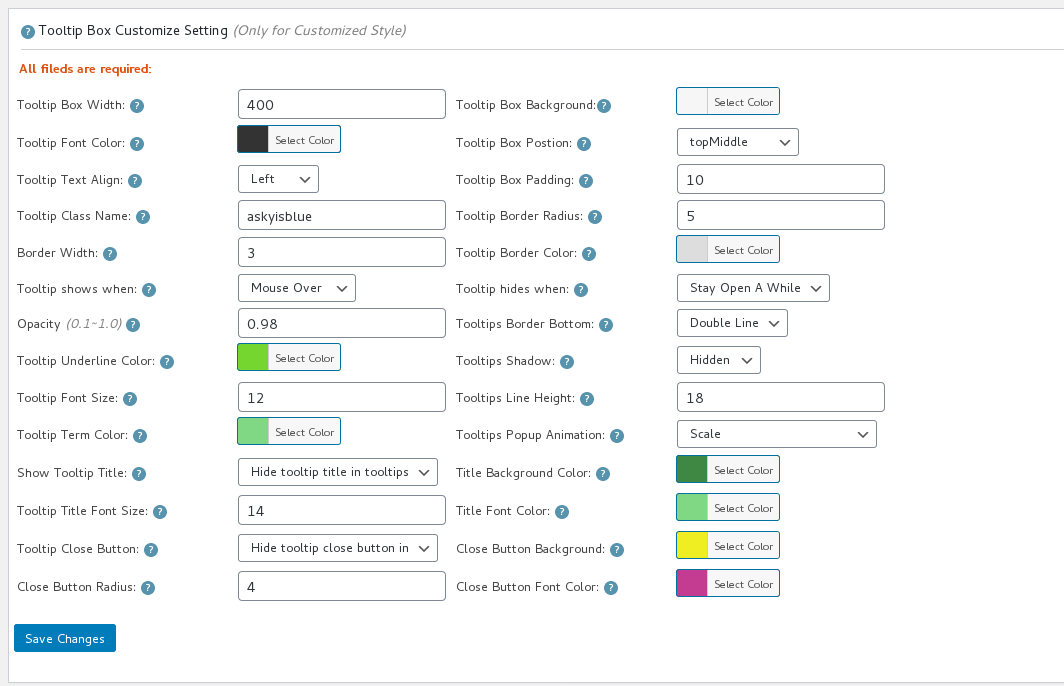
#4 You will open “Tooltips Style Settings” Panel, in “tooltip box cuustomize setting” option panel, you will find “tooltips hides when” option box, please select “stay open a while”

#5 Click “save changes” button.

It looks like this:

tooltip box customize setting

tooltip box customize setting

By this way, when the mouse leaves the tooltip terms, you can click links in the tooltip, or click button to play audio or video in tooltip box 🙂

Hope this have a little help 🙂

Any more question or feature request is welcome 🙂

Thanks, have a blessed day with your family 🙂
WordPress Tooltip Glossary Plugin Support Team
Tagged with: , ,

WordPress Tooltip Plugin 8.9.6, Fixed Video Tooltip Youtube issue

Hi Dears,

We received an amazing users’ report, told us sometimes youtube tooltip have a little problem, we did many tests and finally we found the reason and solved it in this new version, changes in wordpress tooltip 8.9.6

In video tooltips, fixed youtube HTTPS error in video tooltip popup box

The affected sections listed in below:
wordpress tooltips pro
ACF tooltip addon
bbPress tooltip addon
BuddyPress tooltip addon
Contact form 7 tooltip addon
Table tooltip addon
WooCommerce tooltip addon

Thanks give us the rare bug report, if you have any question, please don’t hesitate to contact us, we are very happy to develop a better wordpress tooltip plugin based on your suggestions 🙂

We are developing a new version based on another user’s new feature request, you will see it soon 🙂

Thanks, have a blessed weekend with your family 🙂

Best Regards,

WordPress Tooltip Plugin Support Team

Tagged with: , , ,
Top