Tag: tooltip for menu

How to Disable WordPress Tooltips In Menus?

Hi, dear wordpress tooltip users, hope this message find you are doing well and have happy days with your family 🙂 An amazing wordperss tooltip user told us he don’t want to tooltip shows up in menus, we’d like write a detailed step by step document with screenshot to help the user and other wordpress tooltip user who have similar needs 🙂

At present, we usually talk about two kinds of menus:

1: Menus that generated by wordpress theme, in general, it is at the top of wordpress site.

2: “Menus” or “Navigation” which created by a wordpress plugin or a wordpress editor, it may inserted in a wordpress post, wordpress page, or be placed on a wordpress widget…etc

Of course, may be some theme or plugin can get menu items and add it on the wordpress widget or wordpress footer, we also think that this rare situation has been included in the the first and second situations, because wordpress tooltip support enable / disable tooltip effects in all these situations 🙂

Okay, let’s start 🙂

How to Disable the WordPress Tooltips Effect on Menus Items in the First Case?

1: Login your wordpress site as wordpress administrator

2: Click Tooltips menu item

3: Click Optional settings sub menu item, by default, it looks like this:

wordpress tooltip menus 14.3.6

wordpress tooltip menus 14.3.6

4 You will open optional settings panel, it looks like this:

Tooltips Optional Settings in wordpress tooltips plugin 14.5.8

Tooltips Optional Settings in wordpress tooltips plugin 14.5.8

5: At top of the optional settings panel, you will find option “Add Tooltips to Menu Items:  “, please select “remove tooltips from menu items”, then click the blue “update now” button

6: Now  please check “Tooltips for Post Title” option, and select “disable tooltips for post title”, then click the blue “update now” button to update the settings, in general, in front end, tooltips in your menu items which created by wordpress theme should be removed

7: please check your front end, if you find wordpress tooltip still displayed on menu items, please clear your cache plugin and clear your browser cache

Please note, just like we motioned at “add tooltips to menu item”  option: “Note: May not work with some themes” — based on how the wordpress theme menu be developed by the author 🙂

How to Disable the WordPress Tooltips Effect on Menus Items in the Second Case?

1: Login your wordpress site as wordpress administrator

2: Click Tooltips menu item

3: Click Optional settings sub menu item

4 You will open optional settings panel, it looks like this:

Tooltips Optional Settings in wordpress tooltips plugin 14.5.8

4: Please check the option: “Disable Tooltips for Selected Classes and IDs”, it looks like this:

Disable Tooltips for Selected Classes and IDs

Disable Tooltips for Selected Classes and IDs

You can enter the css Class or css ID in here to disable tooltips effects on components of your wordpress post / page.

Of course, on the contrary, we can also add tooltips to a component in your wordpress post / pages which have a  css Class and css ID, please check our detailed step by step document at: Tooltips for Class and Tooltips for ID, Tooltips can be Attached to Any Elements Which Have a Css Class or Css ID in Front End

5: How to find a css Class or css ID of component in wordpress page?

Okay, let’s say if you using the browser firefox to view your wordpress post,a official document from firefox can be found at: Debugging CSS , please use a few minutes to read it, then:

5.1 please enter F12, then select “Inspector” tab at the bottom of the firefox browser

5.2 then press CTRL+SHIFT+C

5.3 move mouse to over any component in your wordpress post, you will find you can get all HTML code and CSS Class / ID of any element in your wordpress page.

For example,in our home page of wordpress tooltip plugin site, there are a menu item “menu tooltips demo”, when you mouse hover the menu item, you will find a rotate tooltip window pop up, let’s try to disable tooltip effect on menu:

enter f12, enter CTRL + SHIFT + C, move mouse to the menu item “menu tooltip demo” and click the menu item, you will find in the firefox “Inspector” tab, you can see HTML codes of this menu component, you will find HTML looks like this:

<li id=”menu-item-5454″ class=”menu-item menu-item-type-custom menu-item-object-custom menu-item-5454″><a href=”https://tooltips.org/product/tooltips-pro-mutil-site-license/”><span class=”tooltipsall tooltip_post_id_310 classtoolTips310″ data-hasqtip=”13″ aria-describedby=”qtip-13″>Menu Tooltips Demo</span><script type=”text/javascript”>jQuery(“document”).ready(function(){ var tt_store_content = “Enjoy\!”; toolTips(‘.classtoolTips310′,tt_store_content,’310’); });</script></a></li>

In here, what we need is the code:

<li id=”menu-item-5454″ class=”menu-item menu-item-type-custom menu-item-object-custom menu-item-5454″>

You can use CSS Class “menu-item” to disable tooltips effect for all menu items, or use CSS ID “menu-item-5454” to disable tooltip effect for this menu item “menus tooltip demo”, and keep tooltip effect displayed on other menu items yet 🙂

In our course, we just want to disable tooltip effect on the menu item “menus tooltip demo”, so we can use use CSS ID “menu-item-5454” to stop tooltip effect on this menu item by this way:

5.4 open wordpress tooltip optional settings panel, and in the option: “Disable Tooltips for Selected Classes and IDs”, enter the CSS ID #menu-item-5454 in the input box, it looks like this:

Disable Tooltips for Selected ID of component in wordpress page

Disable Tooltips for Selected ID of component in wordpress page

5.5 Click update now blue button, then in front end, tooltip effects will be removed from then menu item “menus tooltip demo”, I’d like offer  before / after screenshot for you:

Before

enabled tooltip effect on wordpress menu item

enabled tooltip effect on wordpress menu item

After

disabled tooltip effect on wordpress menu item

disabled tooltip effect on wordpress menu item

Conclusion:

WordPress tooltip plugin can add tooltip effect on components of wordpress pages, for example you can add tooltip effect to wordpress menu, Post Title, wordpress content, wordpress tag, wordpress widget, image in wordpress, video in wordpress…etc, in backend of wordpress tooltip plugin, you can enable / disable via a few clicks, and you can disable / enable tooltip effect on component in wordpress post via CSS class or CSS id of component in wordpress pages


Tagged with: , , , ,

How to remove wordpress tooltip dotted lines from Menu?

Hi, Dear users of  WordPress Tooltip plugin , hope this message find you are doing well and have happy day with your family 🙂 We got a question in our wordpress tooltip support forum, in which the wordpress tooltip user asked a question:

Is it possible to remove dotted lines from Menu?

Yes, you can. 🙂  I think may be there are more wordpress users have the same question, we’d like write a detailed document with screenshot for wordpress tooltip users to help you hide dotted lines in menu — after enabled wordpress tooltips for menu item 🙂

How to remove wordpress tooltip dotted lines from Menu?

1: Login wordpress tooltip plugin site to download the newest version of wordpress tooltip plugin

2: Upload latest wordpress tooltip plugin to your site

3: After activated wordpress tooltip plugin, please click tooltips menu item in wordpress dashboard

4: Then please click optional settings sub menu item, you will open wordpress tooltips optional settings panel, it looks like this:

enable tooltip for menu

enable tooltip for menu

5: In wordpress tooltips optional panel, please enable the option: “add tooltips to menu items”

6:In wordpress tooltips optional panel, please enable the option: “tooltips for post title”

7: Then in front end, if there are tooltip terms in your menu items, you will see the dotted line under the menu item, and when you mouse hover the tooltip term in wordpress menu bar, you will find tooltip content shown in the popup wordpress tooltip window 🙂

8: Now it is very easy to hide the dotted line under tooltip terms in wordpress menu item 🙂

9: Please click “tooltips style” menu in wordpress tooltip, then you will open wordpress tooltip style settings panel, it looks like this:

tooltips Underline Style

tooltips Underline Style

10: In wordpress tooltip style settings panel, you will find the tooltip box customize setting panel, in tooltip box customize setting panel, you will find “tooltips underline style” option, please select “Hidden”, and click the blue “Save Changes” button at the bottom of the tooltip style settings panel

Then in the front end, you will find the dotted line under the tooltip term in wordpress menu item has been removed 🙂

If you check our wordpress menu item demo, you will find there are more underline style on tooltips for menu 🙂

Thanks for the great question, if you have any more question, please don’t hesitate to contact us 🙂

Thanks, have a blessed day with your family 🙂

Best Regards,

WordPress Tooltip Support

Tagged with: , ,

WordPress Tooltips Pro Plus Plugin 15.6.8 Released

Hey  dear Users of WordPress Tooltip,  hope this message find you are doing well and have happy weekend with your family 🙂  We just released wordpress tooltips pro plus plugin version 15.6.8, based on an amazing wordpress tooltip user’s suggestion. The wordpress tooltip user said he love functions of wordpress tooltips pro plus plugin, he is enjoy the function of  tooltip style panel. in which wordpress tooltip users can custom a pretty and unique tooltip style quickly, just a few clicks. Now he is using option ” Tooltip Term Color in Post” in tooltip style panel to change the colors of tooltip term in his template, and he enabled wordpress tooltips for wordpress menus. The problem is, in his wordpress  custom theme, the font color of top menu item in the theme is — white, and the sub-menu item in the wordpress template is — black, so if he select white as the font color of tooltip term, some tooltip term will be hidden in the sub-menu item, because the font color of sub-menu item is white, if he select black as the font color of tooltip term, then some tooltip terms will be hidden in the top menu item…, we suggested the user chose another color as font color of tooltip term, but he said he tried and it is not pretty, now he would like find a method to disable option ” Tooltip Term Color in Post” in tooltip style panel, he hope use original font color in the wordpress theme as font color of tooltip term 🙂

Okay, just like we reported at our wordpress tooltip plugin document “How to Custom WordPress Tooltip Term Color in WordPress Post? Supported by WordPress Tooltip Plugin 14.8.0“:

A few days before, we get a pre-sale question from a wordpress tooltip free plugin user, he asked:
“1. Does the Pro plugin allow me to change the format of the term on the page? For instance, of the term being underlined, could I instead change the color of the term text in the post?”

Yes wordpress tooltip pro plugin do allow wordpress tooltip editor to change the format of wordpress tooltip term in the wordpress pages, you can decide the underline color or underline style of wordpress tooltip term in back end, but in last wordpress tooltip plugin version, we do not support change the color of the wordpress tooltip term in the post directly, we do supported customize the color of the term when user mouse hover the tooltip term , after replied this ticket, our developer decide develop a new wordpress tooltip plugin version to allow wordpress tooltip editor change the color of the wordpress tooltip term in wordpress posts directly, not only change the mouse hover color of the term 🙂

So we developed wordpress tooltips plugin 14.8.0 for the user’s amazing feature request, at that time, we did not know some users have requirement to disable the font color of tooltip terms, after check the new user’s ticket, our developer decide developed a new wordpress tooltip pro plus plugin to solve the problem for wordpress tooltip users, that’s why we released wordpress tooltip pro plus 15.6.8. 🙂

Now if you upgraded to the wordpress tooltip pro plus 15.6.8, in wordpress tooltip style panel, you will find we have added a new select-box  behind the option ” Tooltip Term Color in Post”, it looks like this:

enable the option Tooltip Term Color in Post

If you want to enable enable the option Tooltip Term Color in Post, please select “enable the option”,then in the front end of wordpress post, you will find the color of tooltip terms has been changed as you settings in tooltip style, for example:

front end after enabled the option Tooltip Term Color in Post

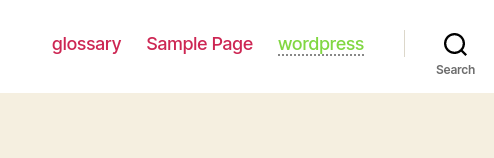
You can see the original font color of wordpress menu item is red, but font color of tooltip terms in the wordpress menu has been changed as green — followed settings in wordpress tooltip style 🙂

If you do not want the font color of tooltip term be changes, and if you want to use the original font color in your wordpress themes,  please select “disable the option” — it looks like this:

disable the option Tooltip Term Color in Post

Then in the front end, we will not change the font color of tooltip term, for example:

front end after disabled the option Tooltip Term Color in Post

Thanks for the great suggestion to wordpress tooltip plugin, if you have any question or feature request, please don’t hesitate to tell us, we are very happy to realize it for wordpress tooltip users 🙂

Hope you have a blessed weekend with your family 🙂

WordPress Tooltip Plugin Support Team

Tagged with: , , ,
Top