
Hey dear WordPress Tooltip Plugin Users, hope you are doing well and have happy weekend with your family! We are happy to report you, we just released wordpress tooltip plugin 15.0.4, in this version, we re-developed wordpress tooltip excerpt module to generate wordpress tooltip excerpt automatically — even when you did not enter tooltip excerpt in tooltip editor 🙂
We get a wordpress tooltip user’s ticket, in which he said:
I am selecting “excerpt” and the plugin is not following the settings, it is still showing the full content without adding the read more link.
It is strange, we replied:
Hi,
Hope you are doing well and having happy days with your family 🙂Thanks for the message 🙂
We are very happy to help you 🙂
Sorry this is the first time we heard this kind of problem, because we have many plugin versions with different functions, Would you please tell us the plugin version you are using? 🙂
Thanks, have a blessed day with your family 🙂
Best Regards,
Support Team
Then the amazing user made a video screenshot to us, we built a development platform to follow users video and check the problem, finally, we find then tooltip users did not enter excerpt in tooltip editor, then tooltip will not return a excpert content in the tooltip pop-up window, this is correctly working method of a wordpress plugin, but our developer said he can do more, then he developed a new version for the user — when the user did not enter anything in the tooltip excerpt text input box, our new function will generate the tooltip excerpt for this wordpress tooltip term based on the tooltip content, automatically. this is why we released wordpress tooltip plugin 15.0.4, this version effected wordpress tooltips pro plus version and wordpress tooltips pro version 🙂
How to Setup to Display Tooltip Excerpt in WordPress Tooltip Box?
At first, please upgrade to the wordpress tooltips pro plus plugin 15.0.4:
1: Login wordpress tooltip plugin site
2: At the top menu bar of the tooltips.org, you will find the download link, just click it
3: Please download wordpress tooltip pro plus plugin 15.0.4
4: Then login your wordpress site as wordpress administrator user
5: After login wordpress, by default, you will open wordpress dashboard, in the left hand of the wordpress dashboard, you will find the “Plugins” menu, please click it 🙂
6: Please note, if you have installed wordpress tooltips glossary free plugin or old wordpress tooltips pro version or wordpress tooltips pro plugin version, please deactivate it and delete the old wordpress tooltip plugin
7: Then, back to the the top of the wordpress “Plugins” panel, you will find the “add new” link, please click the add new link to upload the latest wordpress tooltips pro plus plugin — it is a .zip file which you downloaded from tooltips.org in the step #3 🙂
8: After uploaded the newest wordpress tooltip glossary plugin version, please activate the wordpress tooltip plugin in the plugin panel 🙂
9: Please click Tooltips Menu in the left hand in the wordpress dashboard
10 Please click “Add New” sub link, you will open the tooltips editor
11: In wordpress tooltips editor, please just enter a tooltip term and tooltip content, in general, you need enter wordpress tooltip excerpt in the tooltip editor, but since wordpress tooltips plugin 15.0.4, if you do not enter it, we will generate wordpress tooltip excerpt for you based on wordpress tooltip content in this tooltip term — automatically
12: Then in the right hand of the wordpress tooltip editor, you will find a metabox “Show excerpt in tooltip popup?” It looks like this:
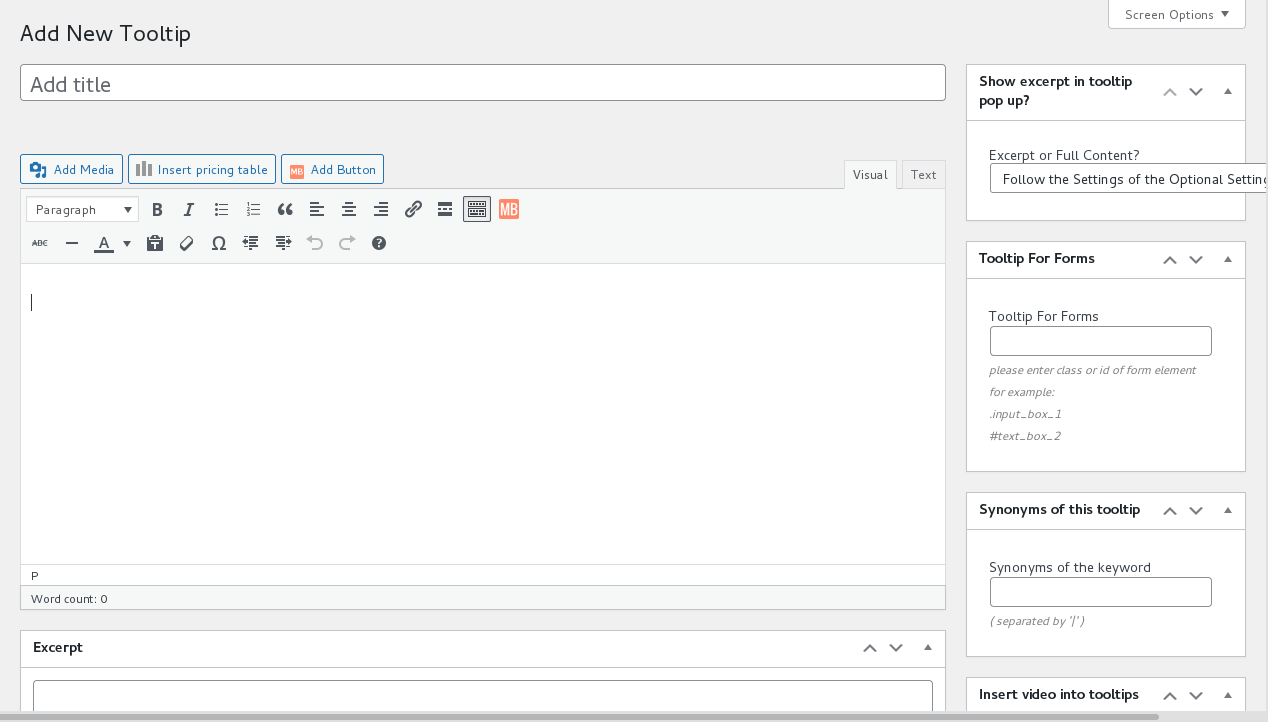
wordpress tooltips edtior in wordpress tooltips plugin 15.0.4
13: In the “Show excerpt in tooltip popup?” metabox, you will find 3 options:
a: ” Follow the Settings of the Optional Settings Panel” — this is the default option, if you select this option, we will follow your settings in the wordpress tooltips optional settings — you can set up it by click the “Optional Settings” sub menu item, the wordpress tooltips optional settings panel looks like this:

WordPress Tooltip Plugin 14.6.6 Optional Settings
As you can see, in the screenshot of wordpress optional settings panel, there are an option “Show excerpt or full content in tooltips popup box?” — this settings will effect globally tooltip terms, but you can custom a specific tooltip term to use excerpt or full content in tooltip popup box in the “Show excerpt in tooltip popup?” metabox in tooltip editor. If you select ” Follow the Settings of the Optional Settings Panel” in the “Show excerpt in tooltip popup?” metabox, then wordpress tooltips plugin will use your wordpress excerpt settings in the “Optional Settings” panel 🙂
b: ” Use Full Tooltip Content In Pop Up Box” — this means you decide to use full tooltip content in the wordpress tooltip pop-up window
c: ” Use Tooltip Excerpt In Pop Up Box” — this means you decide to use wordpress tooltip excerpt in the wordpress tooltip pop-up window
14: Okay, now, you can decide to enter excerpt in the wordpress tooltips excerpt metabox or not, if you did not enter any text in the wordpress tooltips excerpt metabox, wordpress tooltips plugin will generate a wordpress tooltips excerpt for this wordpress tooltip term automatically — based on the content you entered in the tooltip content textarea, words length is 55
15: Please remember to click “Publish” blue button in wordpress tooltips editor
16: Then in the front end, you will find in the wordpress tooltips pop-up window, we will display tooltip excerpt of tooltip full content for users, based on your settings 🙂
Please note, from our introduction above, you can find there are two places to setup the “tooltip excerpt” or “tooltip content” in the wordpress tooltips popup window, one is tooltips optional settings panel, and one is in the sparate tooltips editor, rememberm the metabox option in the separate tooltip post has the highest priority
Hope this will have a little help 🙂
Thanks for the great feedback to us, and thanks for the video screenshot for us, that make the wordpress tooltips plugin better and better for wordpress tooltip users, if you have any more question or feature request to wordpress tooltip plugin, please don’t hesitate to contact us, we are very happy to help you solve any problem of wordpress tooltip plugin 🙂
Thanks, have a blessed day with your family 🙂
Best Regards,
WordPress Tooltip Support Team




