Tag: tooltip display time

How to set the display time before the popup vanishes in wordpress tooltips plugin?

Hi, Dear  WordPress Tooltip plugin user, hope this message find you are doing well and having happy days with your family 🙂 An amazing wordpress tooltip user asked us a few questions, we’d like write a few detailed documents for the wordpress tooltip user — with screenshots and detailed step by step document, for help the user use the wordpress tooltip easier. 🙂 Today the question and answer is:

In the meantime I created a lot of tooltips but they are all from the same type and look. Thus I’m asking you how to achieve the following.

4) How to set the display time before the popup vanishes ?

Okay,  in  wordpress tooltips pro plugin we have the function to allow wordpress tooltip editor to decide how long the wordpress tooltip popup window should stay for a while in screen of a wordpress post, and when wordpress users mouse leave the wordpress tooltip term, the tooltip popup window will not closed instantly,  tooltip plugin will still display wordpress tooltip popup window for a few seconds — you can customized the time in tooltip style  panel.  Okay, let’s star to settings tooltip popup display time now  🙂

How to set the display time before the popup vanishes in wordpress tooltips plugin?

1: Download ans install the latest wordpress tooltip pro or wordpress tooltip plus plugin

2: delete the old version of wordpress tooltip plugin  and upload the new wordpress tooltip plugin into your wordpress site via plugins panel , activate the new tooltip plugin

3:in wordpress dashboard, you will find the new tooltips menu item, it looks like this:

wordpress tooltip menus 14.3.6

wordpress tooltip menus 14.3.6

4: as you can see, in the tooltips menu, there are tooltips style sub menu item, just click “tooltips style” sub menu item

5: you will open “Tooltips Style Settings” panel, in the tooltips box customize settings panel, you will find the option: “tooltips hides when”, please select “Stop Open A While”, it looks like this:
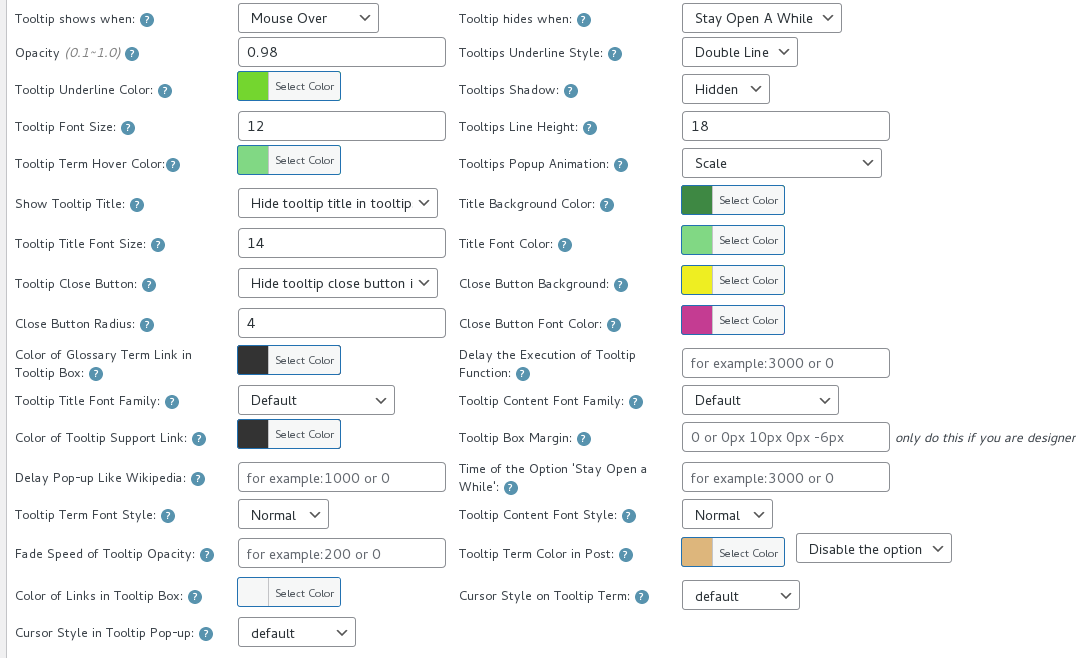
Time of the Option Stay Open a While

Time of the Option Stay Open a While

6: then move to the bottom of tooltip box customize setting panel, you will find the option “Time of the Option ‘Stop Open A While'”, please just enter milliseconds that you hope this tooltip popup displayed in the screen of your wordpress post, for example, you want 3 seconds, then please enter 3000 milliseconds 🙂

7: in front end, when user mouse hover the wordpress tooltip term, he will find the tooltip content window pop-up, when the user mouse leave the tooltip term or tooltip popup, the tooltip popup will not be closed instantly, the tooltip window will still display 3 seconds before vanishes 🙂

Conclusion:

WordPress tooltip plugin is drive by wordpress tooltip users, we have customized many amazing tooltip functions for wordpress tooltip users, based on tooltip user’s feedback and suggestions, for example, you can select wordpress tooltip popup when mouse over, or mouse click, and you can decide tooltip hide when mouse over or double click…etc, and you can custom the display time before the wordpress tooltip popup vanishes …etc, if you have any more feature request to wordpress tooltip plugin, please don’t hesitate to tell us, we will realize it for you 🙂

Tagged with: , , ,

How to Custom the Display Time of Tooltip Window so Tooltip Users can Click links in the Tooltips or Watch Video in Tooltip Popup?

WordPress Tooltip Users,
Hope this message find you are doing well and have happy days with your family! 🙂  we get a user’s ticket, in which he asked us, how to custom the display time of tooltip window so tooltip users can click links in the wordpress tooltip window and watch video in tooltip Popup? I think may be more users have the same question, I’d like reply in here publicly 🙂

How Can I Custom the Display Time of Tooltip Window, So Tooltip Users Can Click links in the Tooltips or Watch Video in Tooltip Popup?

In general, when users mouse hover a wordpress tooltip term in your wordpress post or wordpress page, wordpress tooltip plugin will show a tooltip pop-up window for the user, in the tooltip window, we will show content of the tooltip which admin made in the tooltip advanced editor, in wordpress tooltips editor,

tooltips editor

tooltips editor

As you can see, you can insert text, link, image, video, audio, google map…and so as tooltip content,  in the wordpress tooltip editor 🙂
By default, in front end of your wordpress site, when users mouse hover the tooltip term, we will show tooltip pup window, when user mouse move out from the tooltip popup window, we will hide tooltip pop-up. If you want keep tooltip pop-up display in the front end and allow users click links in the tooltip window, you can just do it by this way:

1: If you didn’t installed wordpress tooltip, please login your account at wordpress glossary tooltip plugin site, if you have installed wordpress tooltip plugin, please jump to step #10 directly 🙂

2: Download wordpress glossary tooltip plugin at “My account” page

3: Login wordpress admin area

4: Click “Plugins” menu item

5: Deactivated old tooltips version

6: Delete the old wordpress tooltip plugin

7: In “Plugins” menu item, click add new at the top of the plugins panel

8: Upload the tooltips plugin zip file which you downloaded from wordpress glossary plugin site

9: Activate latest version of wordpress tooltip glossary plugin

10: Click “Tooltips” menu item

11: Click “Tooltip Style” sub menu item, you will open “Tooltip Style Settings” panel, it looks like this:

wordpress tooltips pro 13.9.4 tooltip style settings panel

wordpress tooltips pro 13.9.4 tooltip style settings panel

12: In the tooltips style settings panel, please find the option: “Tooltip hides when”,  and choose the option “Stay Open A While”, then in the front end of wordpress post, users can click links, video buttons in the tooltip window

13 How to custom display time of tooltip pop up window?

May be a few users want more, because by default, the length of time of the wordpress tooltip popup window stays open is “2 seconds”. So if  the option ‘Stay Open a While’ is selected, wordpress tooltip popup window will remain on the screen about 2 seconds and will close automatically — after the mouse leaves the tooltip popup window. but some users maybe want a bit more display time of the wordpress tooltip window, you can do this in wordpress tooltip style settings panel too. 🙂

Just click into the option “Time of the Option ‘Stay Open a While‘” in the tooltip style settings panel, then enter the length of the time, then in the front end of your wordpress site, when users mouse leaves the tooltip pop-up window, the tooltip window will remain on the screen with x seconds which you typed in this option 🙂

14 After finish the config works,  please remember to click “Save Changes” blue button

We get a lot of tooltip suggestion, we are developing it asap we can, if you have any question or suggestion of wordpress tooltip plugin, please don’t hesitate to tell us 🙂
Thanks, have a blessed day with your family 🙂
Best Regards,
WordPress Tooltip Glossary Plugin Support Team
Tagged with: , , , ,
Top


