Tag: member directory

How to only display users with a specific role in the member directory and hide users from the specified user ID list? WordPress tooltips pro plus 29.1.8 released

Hello, esteemed users of WordPress Tooltip! I hope this message finds you well and enjoying joyful moments with your loved ones. Recently, we received some valuable feedback from a user of the WordPress Tooltip plugin. They shared a suggestion regarding the member directory feature.
This user has been utilizing the WordPress Tooltip plugin’s member directory to create a dedicated directory for teachers. However, they encountered a challenge wherein they only wanted to display users with the role of “teacher,” while the member directory was showing all users. To address this issue, our diligent WordPress Tooltip developer has come up with a solution in the latest version, WordPress Tooltip Pro Plus 28.8.8.

The user expressed their satisfaction with the solved problem and also shared another suggestion. Currently, they are working on a class page and need to list both teachers and administrators using the member directory functionality. They were curious if there was a way to achieve this. In response to their suggestion and to show our appreciation, our dedicated WordPress Tooltip plugin developer has released WordPress Tooltip Pro Plus 28.9.8. This new version includes a feature that allows the display of user information in the member directory based on a specified list of user IDs.

The user commended the WordPress Tooltip plugin as the best they have ever used, emphasizing the excellent support we provide. We said we are grateful for their feedback and continuously strive to enhance the user experience. Then we received a response from the teacher, the teacher responded with appreciation for the recent version update. They acknowledged the team’s excellent work in addressing their previous request and expressed their admiration for the WordPress Tooltip plugin.  They then presented another requirement: to create a member directory using the WordPress Tooltip plugin, but with the capability to exclude specific users, including those who are no longer part of the organization or administrators. They requested guidance on achieving this functionality and expressed their gratitude in advance for any assistance provided. Our diligent WordPress Tooltip plugin developer reviewed this new feature request, and we are thrilled to announce the release of WordPress Tooltip Pro Plus 29.0.8. This version allows administrators to selectively remove specified users from appearing in the member directory.

Then yesterday the user thanked us again and said he wanted to go further, he wanted to be able to show all users with the role of teacher in the member directory, and at the same time be able to disable specific users from being shown in the member directory. Our wordpress tooltips plugin developer re-developed a new version 29.1.8 to realize the function for the user 🙂

How to only display users with a specific role in the member directory and hide users from the specified user ID list?

1: Customer of WordPress tooltip pro plus plugin please click download wordpress tooltip to download the new version directly, new user please purchase a license of wordpress tooltip pro plus

2: Downloaded and install wordpress tooltip pro + plugin which version >= 29.1.8

New users please check our detailed video tutorials at WordPress Tooltips Video Tutorial 3: How to upload and activate wordpress tooltips pro plugin

3: Crete a new wordpres post and insert the wordpress tooltip member directory shortcode :

[ member_directory role=’teacher’  exclude=’1,581,68,41’ ]

4: Then please check member directory in front-end, you’ll find that the member directory will display all users have the role “teacher”, but exclude users with user IDs 1,581,68, and 41

Thanks for the great feature request, If you have any more question or feature request, please don’t hesitate to contact us

Thanks, have a blessed day with your family

Best Regards,

WordPress tooltips plugin support

Tagged with: , ,

How to disable a specified user from appearing in the member directory? wordpress tooltip tooltips pro plus 29.0.8 released

Hi, Dear WordPress Tooltip users, hope this message find you are doing well and having happy days with your loved ones   We got a valuable tip from a wordpress tooltips plugin user, he told us he has a suggestion. He is using the WordPress tooltips plugin’s member directory to create a teacher’s member directory. His trouble is that he only wants to show the user role as the teacher’s user, but the member directory currently displays all users. Therefore, he is utilizing the WordPress tooltips plugin to create a teacher’s member directory. He wonders if it is possible to allow him to enter a specific user role in the member directory shortcode and only display the users for the specified user role. Our wordpress tooltips developer solved the problem for him in wordpress tooltips pro plus 28.8.8. 🙂

Then the teacher said it works well and he would like to offer another suggestion. He is currently working on a class page and needs to list the teachers and administrators of the class using the member directory. He is wondering if there is a way to accomplish this. He expresses gratitude by mentioning that the WordPress tooltips plugin is the best he has ever used and also commends the excellent support provided.  Then our wordpress tooltips plugin developer released wordpress tooltips pro plus 28.9.8 to help him realize the feature: display user information in the member directory based on a specified list of user IDs .

Today the teacher replied to us:

Hi there! Thanks for the new version update, you guys did a great job in fulfilling my previous request! I must say, the WordPress tooltip plugin rocks!
Now, I have one more request. I used the WordPress tooltip plugin to create a member directory with all the members. However, I need the ability to delete certain users, like staff members who have left the organization or administrators. Is there any way to achieve this? Appreciate your help! Thanks!

Our wordpress tooltips plugin developer checked this new feature request, and we released wordpress tooltips pro plus 29.0.8 to allow admin remove specified users from appearing in the member directory. 🙂

How to disable specified users from appearing in the member directory?

1: Customer of WordPress tooltip pro plus plugin please click download wordpress tooltip to download the new version directly, new user please purchase a license of wordpress tooltip pro plus

2: Downloaded and install wordpress tooltip pro + plugin which version >= 29.0.8

New users please check our detailed video tutorials at WordPress Tooltips Video Tutorial 3: How to upload and activate wordpress tooltips pro plugin

3: Crete a new wordpres post and insert the wordpress tooltip member directory shortcode :

[ member_directory  exclude=’1,581,68,41’ ]

4: Then please check member directory in front-end, you’ll find that the member directory will display all users, but exclude users with user IDs 1,581,68, and 41

Thanks for the great feature request, If you have any more question or feature request, please don’t hesitate to contact us 🙂

Thanks, have a blessed day with your family

Best Regards,

WordPress tooltips plugin support

Tagged with: , , ,

How to display only the users in a specified user ID list in the member directory? wordpress tooltip tooltips pro plus 28.9.8 released

Hi, greetings to all the devoted users of the WordPress Tooltip plugin! I hope this message finds each and every one of you in high spirits, enjoying your weekend to the fullest with your dear family. 🙂  Yesterday an online school teacher told us he needed to create member directory based on user roles:

I have a suggestion, I am using the wordpress tooltips plugin’s member directory to create a teacher’s member directory, now my trouble is that I only want to show the user role as the teacher’s user, but now the member directory shows all the users, so I am using the wordpress tooltips plugin to create a teacher’s member directory. Is it possible to allow me to enter a specific user role in the shortcode and only display the users for the specified user role?

Our wordpress tooltip developer released wordpress tooltip pro plus plugin  28.8.8 to realized the requirement, and today we get the feedback from the teacher:

Hi, thank you so much for your quick response and help, I was so excited to upload the new version of the wordpress tooltips plugin, and after following your documentation, I entered the user role of TEACHER, and everything worked just fine! Very great!
I’m working on a class page, and inside this page I need to list the teachers and administrators of this class using the member directory, is there any way to do this please? Thanks, wordpress tooltip is the best tooltip plugin I’ve ever used, your support is the best!

After some further communication, the user provided more details, and it looks like the issue is that this teacher wants to display user information in the member directory based on a specified list of user IDs, our wordpress tooltips developer developed a new version wordpress tooltip pro plus plugin  28.9.8 to realize the feature for the amazing teacher 🙂

How to display only the users in a specified user ID list in the member directory?

1: Customer of WordPress tooltip pro plus  plugin can click download wordpress tooltip to download the new version directly, new user please purchase a license of wordpress tooltip pro plus

2: Downloaded and install  wordpress tooltip pro + plugin which version >= 28.9.8

New users please check our detailed video tutorail at WordPress Tooltips Video Tutorial 3: How to upload and activate wordpress tooltips pro plugin

3: Crete a new wordpres post and insert the wordpress tooltip member directory shortcode :

[ member_directory  include=’653,5,864’]

4: Inside the front-end page, you’ll see that the member directory will only display information about users with user IDs 653, 5, and 865.

Thanks for the great feature request, If you have any more question or feature request, please don’t hesitate to contact us


Thanks, have a blessed day with your family

Best Regards,

WordPress tooltips plugin support
Tagged with: , ,

How to display only specified wordpress users in the members directory according to their user roles? wordpress tooltip tooltips pro plus 28.8.8 released

Hi, Dear WordPress Tooltip users, hope this message find you are doing well and having happy weekend with your family 🙂  We got a valuable tip from a wordpress tooltips plugin user:

Hi, I’m a user of the wordpress tooltips pro plus plugin, we are a language school and the functionality of your wordpress glossary has greatly enhanced our vocabulary lists, while the functionality of the wordpress tooltips has allowed us to add movies and episodes to phrases, thus allowing students to learn the Motivation and efficiency have been greatly mentioned, this is the best wordpress tooltips plugin I have ever used.

I have a suggestion, I am using the wordpress tooltips plugin’s member directory to create a teacher’s member directory, now my trouble is that I only want to show the user role as the teacher’s user, but now the member directory shows all the users, so I am using the wordpress tooltips plugin to create a teacher’s member directory. Is it possible to allow me to enter a specific user role in the shortcode and only display the users for the specified user role?

Our wordpress tooltips pro plus plugin developer checked the ticket, and we developed wordpress tooltips pro plus 28.8.8 to realize this amazing feature request for the wordpress tooltip user 🙂

How to display only specified wordpress users in the members directory according to their user roles?

1: Customer of WordPress tooltip pro plus  plugin can click download wordpress tooltip to download the new version directly, new user please purchase a license of wordpress tooltip pro plus

2: Downloaded and install  wordpress tooltip pro + plugin which version >= 28.8.8

New users please check our detailed video tutorail at WordPress Tooltips Video Tutorial 3: How to upload and activate wordpress tooltips pro plugin

3: Crete a new wordpres post and insert the wordpress tooltip member directory shortcode :

[ member_directory  role=’teacher’]

4: Then in front end, you will find a member directory that only display all teachers  in the member list 🙂

Thanks for the great feature request, If you have any more question or feature request, please don’t hesitate to contact us 🙂

Thanks, have a blessed day with your family 🙂

Best Regards,

WordPress tooltips plugin support

Tagged with: , ,

How to bulk remove user from member directory in wordpress tooltip plugin? Supported by tooltip pro plus 21.9.8 and tooltips pro 16.8.6

Hi dear WordPress tooltip users, hope this message find you are doing well and have happy weekend with your family

A user has submitted a support ticket for wordpress tooltip plugin. He told us he using our member directory addon to create the directory of members, he added wordpress tooltip effect on each user’s username in the member directory, to show their selfie video,  which greatly helps all members quickly understand each other, enhances member relationships, and strengthens the overall group’s activity and trust, and all users like it the tooltip function for member directory. But a few users told him, they do not like their personal information and emails being displayed on the internal member list. They say they want to maintain their privacy and not be disturbed in their daily lives. 🙂

He checked settings in wordpress tooltip member directory addon, he found he can enable / disable specific user roles in member directory, but he had to change user role for each user manually, as an administrator, constantly trying to change user roles simply because some users do not like their personal information and emails being displayed on the internal member list is a tedious and unenjoyable task. He hopes for a simpler solution. 🙂

Okay, it is the first time we heard this kind of requirement, our wordpress tooltip developer tried to find a easily management method to help wordpress admin to exclude specific users from member directory, finally , we found it:

How to exclude specific user from wordpress member directrory?

1: login wordpress tooltip site download wordpress tooltips pro plus 21.9.8 or tooltips pro 16.8.6.

2: upload ans activate wordpress tooltip plugin in your wordpress site

3: click tooltips menu in wordpress admin area and click directory settings panel, it looks like this:

directory settings panel in wordpress tooltips pro plus 19.2.8

directory settings panel in wordpress tooltips pro plus 19.2.8

This is directory panel in wordpress tooltip pro plus version 19.2.8, some features is not existed in tooltips pro version and more features is not included in wordpress tooltip free plugin, but member directory addon have same functions.

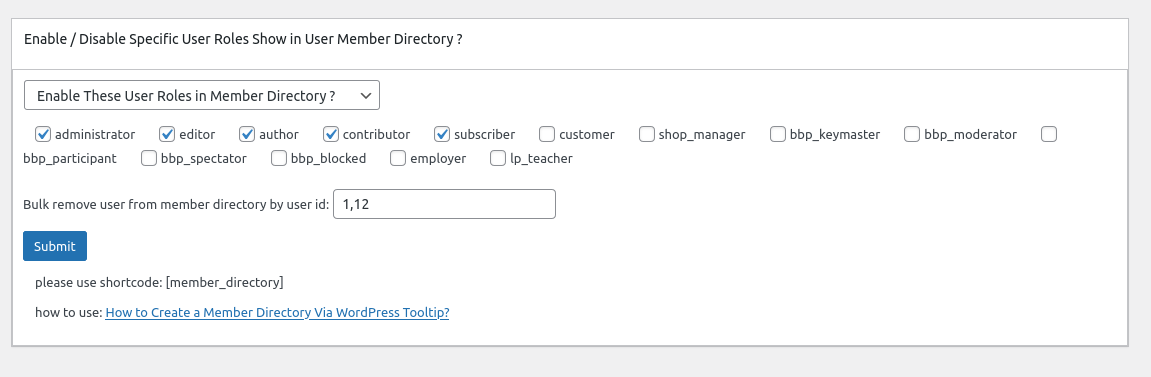
In the new version wordpress tooltips pro 20.9.8. you will find there are a new option “Bulk remove user from member directory by user id in wordpress tooltip”, it looks like this:

In here you can bulk enter user ids to exclude specific users from wordpress member directory in one time.

4: In front end, users which added in the “Bulk remove user from member directory by user id in wordpress tooltip” option, will be removed from wordpress member directory 🙂

Thanks for the great feedback,we give the user a license of “WordPress live link preview plugin with tooltip” plugin as a THANKS, Live link preview is a light and fast and powerful plugin to display live link preview for your wordpress users.

when users mouse hover a link on your wordpress post, WordPress live link preview plugin will display the live preview screenshot of the site in a wordperss tooltip popup window, users will see where you are sending them.

If you have any more feature request or question for wordpress tooltip plugin, please don’t hesitate to contact us, we are happy to improve wordpress tooltip for you always, and we will give you a few license of our amazing wordpress plugins too 🙂


Tagged with: ,

WordPress tooltips free plugin 8.3.3 Released, support wordpress post directory

Hi, Dear WordPress Tooltip plugin users, hope this message find you are doing well and having happy weekend with your family 🙂 Our wordpress tooltip developer just finished a new version of wordpress tooltips plugin — wordpress tooltip 8.3.3. 🙂

In recent months, we start to realize all feature request about wordpress tooltip directory, in recent days, in wordpress tooltips pro plus version,  we have finished  wordpress job board directory,  , woocommerce product directory, member directory, wordpress page directory, wordpress post directory,   today we move the wordpress post directory function to wordpress tooltips free plugin, based on a free user’s request. 🙂

Also we have changed the UI of wordpress directory settings panel, we added shortcode of each directory and we added detailed how to use link for each directory too, and  because the old UI is a little large, so if we add more wordpress directory functions in the settings panel, the UI might messed up, so we re-developed the UI of wordpress directory settings panel to make it simple and pretty 🙂

In the current time, our wordpress tooltip developer is working hard to add an  artificial intelligence (AI) system for wordpress tooltip plugin, maybe you know, in our wordpress tooltips plus version, we had integrated a few APIs to generate wordpress tooltip via 3rd big sites, for example, users can just enter a wordpress tooltip title in wordpress tooltip editor and select the option to generate content from wikipedia , and just click public, then wordpress tooltips plug version will generate tooltip content from wikipedia automatically, you can check demo at wikipedia tooltip demo, now we are start to support generate wordpress tooltip content from AI automatically, based on a few heavy tooltip  user’s strong suggestion, they said they want to generate more and more tooltip with best content automatically.  This AIGC tooltip content basic module will be added to all wordpress tooltip users, include wordpress tooltip free, wordpress tooltip pro, and wordpress tooltip pro +, because this can help many heavy blogger generate content automatically, and it is good for SEO, then we will add more and more functions for pro and pro + user, we have got many suggestion on this area, we will realize all these functions asap we can 🙂

Thanks, have a happy day with your family 🙂

Best Regards,

WordPress tooltip plugin support

Tagged with: , , , , , , ,

How to exclude specified glossary items from glossary page via glossary shortcode? Supported by wordpress tooltips pro plus 18.4.8 and tooltip pro 16.2.6

Hi, Dear  WordPress Tooltip plugin users, hope this message find you are doing well and having happy days with your family 🙂 We just released wordpress tooltips pro plus 18.4.8 and wordpress tooltips pro 16.2.6, based on a few wordpress tooltip users’ feature request and suggestion, there are three improvements in the new version:

1: We added new parameters in [glossary] shortcode to exclude specified glossary items from glossary page

As an old user of wordpress tooltip glosasry plugin, may be you know our plugin support bulk remove terms from glossary directory from glossary settings panel, the option looks like this:

However we got a wordpress tooltip plus user’s ticket, in which he said he is using an advanced wordpress editor, he has been used to using shortcode in that advanced editor, and he used our glossary functions build to created many course glossary for his online school wordpress site, he want to in one glossary page, he can exclude a few specific glossary terms, and in another glossary page, he can exclude other specified glossary keywords, in this case, he found he can not realize this function via bulk remove terms from glossary directory option, he hope wordpress tooltips plus plugin can provide a way to help him realize this function 🙂

Our developer think about this feature request, this user has very flexible requirements, we have no way realize this feature request via glossary global settings panel, the best method to realize this function is expand function of wordpress glossary, so we re-developed our [glossary] shortcode to allow users use new parameters “exclude_id” to exclude specific glossary items from glossary page, the new glossary shortcode looks like this:

[glossary exclude_id='10']

if you want to exclude more glossary items from a glossary page, just insert  ids of glossary item, split with comma “,”

[glossary exclude_id='10,202,550']


2: Avoid duplicated function name with wordpress tooltip free plugin

In recent days, we works hard to add member-directory into wordpress tooltip plugins, and a user just upgraded from wordpress tooltip free to wordpress tooltip plus, he said when he activated the tooltip plus, there are a error report that said a function name of tooltips plus conflicts with wordpress tooltip free plugin, he said he can deactivate the wordpress tooltip free version, then activate wordpress tooltip + version, and it works well, he just want to let us know this problem.

Our developer changed all member-directory functions names in wordpress tooltips pro and wordpress tooltips  pro plus version, the problem solved 🙂

3: Remove member directory menu and add directory settings sub menu item in wordpress tooltips menu item

Just like we said yesterday:

In our development plan, we will not only add member directory functionality for wordpress tooltip user, but also author wall, custom post type directory…etc, and we planed to add new custom post type “directory” for our directory functionality, based on suggestions from many wordpress tooltip users, in last month, we have got many this kind of feature request 🙂

But in the current time, directory add a member directory menu item in menu, it is really easy to make users misunderstand, yes, the user’s feedback is right, we fixed this problem in this version and we will think about how to find a better method to add new directory function for wordpress tooltip users

Conclusion:

Thanks for the great  feature request, this will help more wordpress tooltip user to create multiple glossary easier, and we are working hard to add new functions of directory for wordpress tooltip users, you will see it soon 🙂 🙂

Tagged with: , , ,

How to Create a Member Directory Via WordPress Tooltip?

Hi, Dear users of  WordPress Tooltip , hope this message find you are doing well and having happy days with your family 🙂 In last weeks, we got a lot of request / ticket to ask us can we use wordpress glossary function to build a directory, or a few more tickets tell us they want to use our directory plugin, for example:

Greetings! Back in 2015, our site installed a WP Member Directory for me (that I can see originated from WordPress ToolTips.). The customized it to my settings and interconnected with my Infusionsoft/Keap account (where I house contact details and tags that affect presentation in the Directory).
>
> QUESTION: I have version 1.0 installed, yet 1.3.1 is current – BUT updating to current broke its functioning. IF I buy/acquire the plug in from you, is there further detail I can glean about it’s functioning… that would allow MY tech guy to be able to update/understand HOW it works?
>
> Is there more I can learn about this from you?
>
> Please let me know. Thank you!

Yes, many years before, we do developed a member directory plugin via our original wordpress glossary solution, based on a few user’s request, our plugin are driven by user needs,  we  update it to version 1.3.1, then we did not get more user’s feedback, so we stopped upgrade it, we are happy to know there are users need it, and there are new feature request, we’d like upgrade for the great user. 🙂 Since 2015, our glossary plugin have been upgraded rapidly, so if we move these functions to member directory plugin, that may need many days, so we think about add member directory function to wordpress glossary section.

And then we got a few more user’s request about build directory based on wordpress tooltip and glossary functionality, for example:

“I was wondering if I can embed a directory of the glossary (One category) on a page, too.

For example, I made a category with a name of (Body parts names) I want to embed this specific category, only, to a specific page then to create another category called (Everyday use words)

then embed it to my lesson page related to this category…”

And a few more ticket related with use wordpress glossary functions to build directory in their tooltip site, it seems there are a lot of similar needs in user side , our developer decide add directory functions in wordpress tooltips too, just like we added glossary functions in wordpress tooltip plugin, based on many user’s request, and then many user said they love our glossary function and some of them said it is the best glossary functions they have ever used, we believe we can build good directory functions for wordpress tootltip users too, this version, we just add member directory function first, and then we will add more and more directory functions for wordpress tooltip admins, for example, business directory…etc 🙂

That’s why we released wordpress tooltips pro plugin 18.3.8 and wordpress tooltips plugin 16.2.2 and wordpress tooltip free 8.1.9 🙂

What is member directory?

Member directory is a list of members in your site, along with user name, user description, contact information…etc

How to build a member directory quickly?

1: click download wordpress tooltip to download latest version of wordpress tooltip lugin

2: upload the wordpress tooltip zip file into your wordpress site via wordpress plugins panel

3: activate wordpress tooltip plugin and click Tooltips menu item in wordpress dashboard

4: click member directory sub menu item, it looks like this:

member directory global settings in wordpress tooltip plugin

member directory global settings in wordpress tooltip plugin

5: As you can see, you will open member directory global settings panel, in which you can enable member directory or disable functions of member directory, also you can decide which user roles will be added into the member directory list, for example, you can just add authors into member directory to build a wordpress authro wall for your site, or you can just add teachers directory of your LMS system for your students…etc 🙂

6: In front-end, you can just insert the shortcode “member_directory” in any wordpress post, then you will find member directory which looks like this:

member directory orange style via wordpress tooltip

member directory orange style via wordpress tooltip

As you can see, users can click the  letter on the Navigation bar to open the list of users starting with that letter.

In the left column of the directory, we display the user name, in the right column of the member directory, we display user information and details of the user information, the user information is come from the biographical info field in wordpress user profile panel, it looks like this:

user profile of wordpress tooltip user

user profile of wordpress tooltip user

Once user change their information in wordpress user profile, wordpress tooltip will display the new user information in member directory too 🙂

In next version, we will add more options to help wordpress tooltip admin decide which user fields should be displayed in member directory 🙂

7: You can easily to custom the style from the wordpress glossary settings panel, the glossary settings panel looks like this:

glossary custom panel in wordpress glossary 16.0.8

glossary custom panel in wordpress glossary 16.0.8

As you can see, you can customize member-directory font background, border color, navigation, search form…etc in here, we believe we can re-use the same settings with glossary section, if we need dedicated settings for member-directory, we will build new panel for member-directory in the future 🙂

8: A faster method to change style for member directory is use our built-in template, for example, one click to change from orange template to  gray template, then it looks like this:

member directory gray template in wordpress tooltip

member directory gray template in wordpress tooltip

Conclusion:

WordPress tooltip plugin support build member directory via “member_directory” shortcode, wordpress tooltip admin can decide which user roles will displayed in wordpress member directory, and wordpress tooltip admin can customize memebr directory via glossary settings panel to select a pretty build-in member directory template, or customize a unique style for each elements of the directory. In the next steps, we will add more and more directory into wordpress tooltip glossary plugin, if you have any more feature request, please just tell us, we are happy to realize it and offer a discount for you, thanks, have a blessed day with your family 🙂


Tagged with: , , ,

WordPress Member Directory Plugin 1.3.1 Released, Support Display User Description in the User Directory

Hi Dear WordPress Member Directory Plugin Users,
Hope this message find you are doing well and have happy days with your family! 🙂
We get an amazing user’s feedback, he said he using our wordpress user member directory plugin, he hope in the user member directory list, display user’s description.
We have developed a new wordpress member directory 1.3.1 to support this feature request, in this version we support display user’s “Biographical Info” filed  in the member directory.
Thanks for the great suggestion,  if you have any question or suggestion of wordpress tooltip plugin, please don’t hesitate to tell us 🙂
Thanks, have a blessed day with your family 🙂
Best Regards,
WordPress Member Directory Plugin Support Team
Tagged with: , ,

WordPress Member Directory 1.0.0 Rleased

Hi WordPress Tooltip Users,

We are happy to report you, based on users’ suggestion,  we just developed a new wordpress plugin for users — wordpress member directory plugin, with member directory plugin,we will list members on your site and you can use a shortcode to help users to know each other and contact each other more easier 🙂

We get many suggestion and feature for wordpress member directory plugin, we are try our best to realize these new features asap for users, you will see the new version soon 🙂

If you have any suggestion about wordpress member directory plugin, please don’t hesitate to tell us 🙂

Thanks, have a blessed day with your family 🙂
Best Regards,
WordPress Member Directory Plugin Support Team
Tagged with: , ,
Top


