تلميحات بصرية لـ WordPress Tooltips: إضافة صور من Unsplash لتحسين تجربة المستخدم

ترقية أدوات WordPress الخاصة بك: عرض صور عشوائية من Unsplash بناءً على الكلمات الرئيسية

مرحبًا، عزيزي مستخدمو إضافة أدوات WordPress tooltips، آمل أن تجدوا هذه الرسالة وأنتم بصحة جيدة وتستمتعون بعطلة نهاية أسبوع رائعة مع عائلتكم. تلقينا طلبًا لميزات جديدة من مدير موقع قاموس عبر الإنترنت:

مرحبًا!

أدير موقع قاموس عبر الإنترنت، وأبحث عن تحسين تجربة المستخدم من خلال عرض صورة عشوائية من Unsplash تتعلق بالكلمات الرئيسية. أعتقد أنه سيكون من الرائع تقديم سياق أو توضيح إضافي. على سبيل المثال، إذا بحث شخص ما عن “المحيط”، فسيكون من الرائع أن نعرض له صورة مذهلة للمحيط لمساعدته في تجسيد الكلمة. ماذا تعتقد؟

شكرًا جزيلاً!

راجع مطور إضافة أدوات WordPress لدينا طلب الميزة، ونفهم أن تضمين صورة عشوائية من Unsplash تتعلق بالكلمة الرئيسية يمكن أن يجعل نافذة المنبثقة أكثر جاذبية بصريًا. غالبًا ما تجذب المحتويات المرئية الانتباه بشكل أفضل من النصوص فقط، مما يمكن أن يعزز تفاعل المستخدم. نعتقد أن هذه الميزة ستكون مفيدة للعديد من مديري مواقع أدوات WordPress، خاصة أولئك الذين يديرون قواميس عبر الإنترنت أو مدارس عبر الإنترنت.

ما هو Unsplash؟

Unsplash هو منصة شهيرة عبر الإنترنت توفر مكتبة واسعة من الصور الفوتوغرافية عالية الجودة والمجانية. يسمح Unsplash للمصورين بمشاركة أعمالهم ويتيح للمستخدمين تنزيل واستخدام هذه الصور مجانًا، حتى لأغراض تجارية، دون الحاجة إلى إعطاء الفضل (على الرغم من أن الإشارة إلى المصور محل تقدير). يُستخدم Unsplash على نطاق واسع من قبل المصممين والمدونين والمسوقين وأي شخص يحتاج إلى محتوى مرئي لمشاريعه أو مواقع الويب أو وسائل التواصل الاجتماعي. تحتوي المنصة على مجموعة واسعة من الفئات والعلامات، مما يسهل على المستخدمين العثور على الصور التي تناسب احتياجاتهم الخاصة.

ما هي أدوات WordPress؟

أدوات WordPress هي صناديق منبثقة صغيرة تقدم معلومات إضافية، والتي يمكن أن تشمل مقاطع الفيديو وملفات الصوت والصور وخرائط Google ورموز QR وروابط ويكيبيديا والنصوص والمزيد. في WordPress، تظهر صناديق الأدوات عندما يقوم المستخدمون بالتحويم فوق عناصر معينة على صفحاتك. يمكن أن تكون هذه العناصر كلمات في منشوراتك، أو حقول إدخال في نماذج البحث، أو صور على موقعك، أو أدوات في الشريط الجانبي، من بين أشياء أخرى.

تسمح لك إضافة أدوات WordPress لدينا بإضافة تأثيرات أدوات إلى أي عنصر داخل منشوراتك. يمكنها أيضًا عرض أدوات في قائمة WordPress، والتعليقات، ونماذج الاتصال، ومنتجات WooCommerce، ومنتديات bbPress، وأنشطة BuddyPress، والمزيد. مع مجموعة متنوعة من التأثيرات الجذابة والعديد من المكونات والإضافات الرائعة—مثل شاشة الرصاص—تعزز هذه الإضافة تفاعل المستخدم بطريقة ممتعة وتفاعلية.

دليل خطوة بخطوة: عرض صور عشوائية من Unsplash في أدوات WordPress

  1. يرجى تنزيل إضافة WordPress Tooltip Pro Plus، الإصدار 34.9.4 أو أعلى، من صفحة أدوات WordPress على: [تحميل أدوات WordPress].

  2. ببساطة، قم بتسجيل الدخول إلى لوحة التحكم الخاصة بك في WordPress وانتقل إلى قسم الإضافات. ابحث عن إضافة WordPress Tooltips Pro Plus.

  3. قم بإزالة الإصدار القديم وقم بتحميل أحدث إصدار من إضافة أدوات WordPress. بمجرد التحميل، قم بتفعيلها من لوحة الإضافات، وستكون جاهزًا للاستمتاع بجميع الميزات والتحسينات الجديدة!

  4. في لوحة التحكم الخاصة بـ WordPress، انقر على عنصر القائمة “أدوات”، يبدو هكذا:

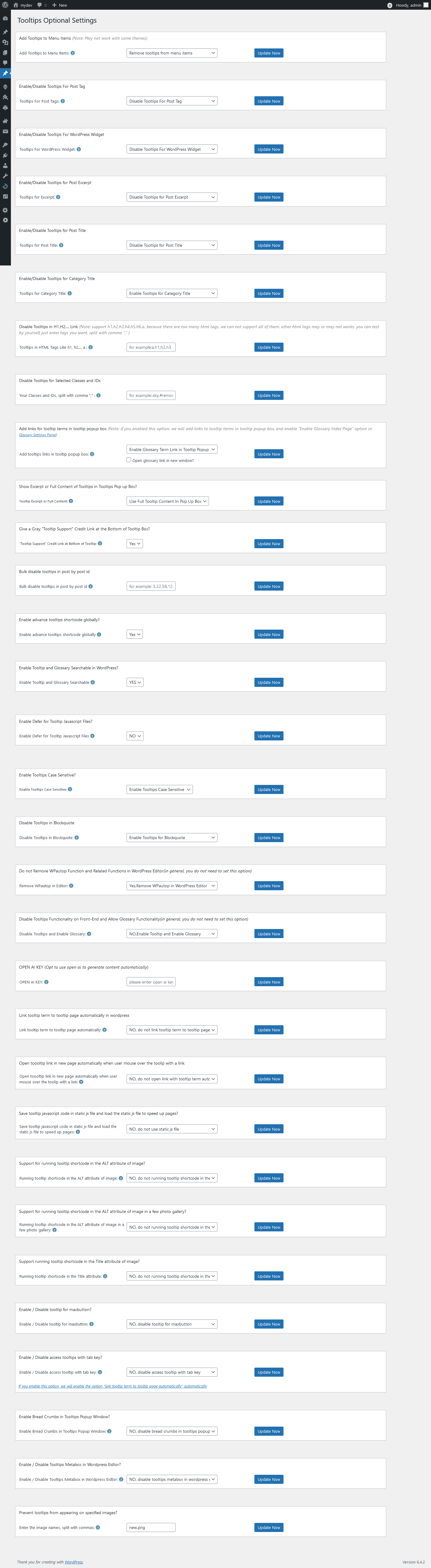
  5. بعد ذلك، انقر على عنصر القائمة الفرعية “الإضافات”، سيفتح ذلك لوحة “إعدادات إضافات الأدوات”، والتي تبدو هكذا:

  6. ثم، انتقل إلى أسفل صفحة “إعدادات إضافات الأدوات” وقم بتمكين أدوات Unsplash في خيار “تمكين/تعطيل أدوات Unsplash”. بعد ذلك، يرجى تحديث الصفحة.

  7. الآن، في لوحة التحكم الخاصة بـ WordPress، سترى عنصر قائمة فرعية جديد يسمى “أدوات Unsplash” في قائمة أدوات WordPress، يبدو هكذا:

  8. يرجى النقر على عنصر القائمة الفرعية “أدوات Unsplash”، سيفتح ذلك لوحة “إعدادات إضافة أدوات Unsplash”، أدخل مفتاح API الخاص بـ Unsplash في مربع إدخال “مفتاح API لـ Unsplash”، تبدو لوحة “أدوات Unsplash” هكذا:

  9. الآن، ببساطة انقر على عنصر قائمة الأدوات لإنشاء مصطلح أداة جديدة، في الجانب الأيمن من محرر الأدوات، ستجد مربع معلومات جديد يسمى “عنوان Unsplash”، فقط أدخل الكلمة الرئيسية هنا، على سبيل المثال “بحر جميل”، تبدو هكذا:

  10. بعد نشر مصطلح الأداة، في الواجهة الأمامية، عندما تحوم الماوس فوق مصطلح الأداة في منشور WordPress، ستظهر صورة عشوائية من Unsplash تلقائيًا في الجزء العلوي من نافذة الأداة المنبثقة.

الخاتمة:

شكرًا لك على الفكرة الرائعة بدمج الصور مع صور Unsplash في إضافة أدوات WordPress. نفهم أنه من خلال دمج الصور العشوائية بناءً على الكلمات الرئيسية، يمكن أن تخلق أدوات WordPress تجربة أكثر تفاعلًا وإعلامًا للزوار على مواقع WordPress:

  • التفاعل البصري: يمكن أن يجعل تضمين صورة عشوائية من Unsplash تتعلق بالكلمة المنبثقة أكثر جاذبية بصريًا. غالبًا ما تجذب المحتويات المرئية الانتباه بشكل أفضل من النصوص فقط، مما يمكن أن يعزز تفاعل المستخدم.

  • الملاءمة السياقية: يمكن أن يوفر عرض صورة ذات صلة بالكلمة الرئيسية سياقًا أو توضيحًا إضافيًا. على سبيل المثال، إذا كانت الكلمة الرئيسية هي “المحيط”، فإن عرض صورة جميلة للمحيط يمكن أن يساعد المستخدمين على فهم المصطلح وأهميته بشكل أفضل.

  • تعزيز التعلم: لمحتوى تعليمي أو معلوماتي، يمكن أن تساعد الصور في الفهم والاحتفاظ. قد يجد المستخدمون أنه من الأسهل تذكر المصطلحات عندما تكون مرتبطة بمحتوى مرئي ذي صلة.

  • محتوى ديناميكي: يمكن أن تجعل الصور العشوائية أدوات المنبثقة تبدو أكثر ديناميكية وأقل ثباتًا. وهذا يمكن أن يشجع المستخدمين على التفاعل أكثر مع المحتوى، حيث قد يكونون فضوليين بشأن الصورة التي ستظهر بعد ذلك.

  • الجاذبية الجمالية: يمكن أن يحسن تصميم الأداة الجيد الذي يتضمن صورًا من الجاذبية العامة لموقع WordPress، مما يجعله يبدو أكثر احترافية وتلميعًا.

Tagged with: , , ,

How to prevent tooltips from appearing on specified image? WordPress tooltips pro plus 31.3.8 released

Hi, dear WordPress Tooltip  users, I hope you are doing well and having happy weekend with your family  🙂  An amazing wordpress tooltip user wrote to us : “Hello, I’d like to remove the tooltip (“home” text) which appears hovering on site logo (every page). I use tooltips for some images on my site so I’d need to remove the tooltip ONLY on the site logo image. Thanks in advance for your help.”

Our wordpress tooltip plugin support team replied:

Hi,

Thanks for the message 🙂

We are very happy to help you 🙂

Sorry for the problem, , would you please try:

1: In wordpress tooltip global settings panel, navigate to “enable tooltips for image” option, then select “I want to disable tooltips for image”

If you want to enable tooltips function for image yet, then you can try:

2: In wordpress tooltip global settings panel, locate to “tooltips for mage setting“ option, select “use rel attribute in img tag as content of tooltips for image”

We have detailed step by step document with screenshot at:
How to Avoid WordPress Tooltip Displayed on the Site Logo and Other Images?

How to Avoid WordPress Tooltip Displayed on the Site Logo and Other Images?

Hope this have a little help 🙂

Thanks, have a blessed day with your family 🙂

Best Regard,

WordPress tooltip plugin support

The wordpress tooltip user replied:

Subject:
remove tooltip from site logo ONLY

Message:
Hello,
I’d like to remove the tooltip (“home” text) which appears hovering on site logo (every page).
I use tooltips for some images on my site so I’d need to remove the tooltip ONLY on the site logo image.
Thanks in advance for your help.

Then our wordpress tooltip developer checked this ticket, and we decided to develop a new version to prevent tooltips from appearing on specified images, because we believe more users have similar requirement and we replied:

Hi,

Thanks for the reply 🙂

In this case, we have another solution, We will write a detailed document for you and we will reply you again 🙂

Thanks, have a blessed day with your family 🙂

Best Regards,
Wordpress tooltip plugin support

That’s why re developed a new version of wordpress tooltips plugin: WordPress tooltips pro plus 31.3.8 🙂

How to prevent tooltips from appearing on specified image?

1:If you are a customer of the WordPress Tooltip Pro Plus plugin, please click on the “download wordpress tooltip” link to get the latest version of the plugin. Make sure the version number is equal to or greater than 31.3.8. If you are a new user, you will need to purchase a license for the WordPress Tooltip Pro Plus plugin.

2: Log in to your WordPress site as wordpress admin and click the “Plugins” menu in the wordpress dashboard.

3: Deactivate and delete the existing version of the WordPress Tooltip pro plus plugin from the wordpress plugin panel.

5: Click the “Add New” button to upload the WordPress Tooltip pro plus plugin version >= 31.3.8 , and activate the plugin.

6: If you are new user of wordpress tooltip plugin, please check our  video of how to install wordpress tooltip at:  WordPress Tooltips Video Tutorial 3: How to upload and activate wordpress tooltips pro plugin

7: In the WordPress dashboard, go to the “Tooltips” menu. Then, click on the “Optional Settings” sub-menu item. The WordPress Tooltip menu appears as follows:

tooltips menu in wordpress tooltips pro plus 27.5.8

tooltips menu in wordpress tooltips pro plus 27.5.8

9: Within the WordPress optional settings panel, you will find we have added a new “Prevent tooltips from appearing on specified image” option. It looks like this:

Prevent tooltips from appearing on specified images

Prevent tooltips from appearing on specified images

As you can see in the ‘Prevent tooltips from appearing on specified images’ option, you can enter the image names. If you have multiple images, separate the names with commas.

In what situations should this setting be used?

Please note that this setting will only take effect when you set the value of ‘tooltips for image keyword matching mode’ to ‘Use ALT attribute in img tag as content of tooltips for image,’ which is the setting requested by the user.”

Hope this have a little help

Thanks for the great feature request, and sorry for the delayed response, our wordpress tooltip plugin developer have added a  license in your account as a Sorry, WordPress FAQ plugin is a powerful & fast jQuery FAQ solution to help wordpress blodder create / manage / edit FAQs easily, select default pretty FAQ template and custom FAQ style in back-end via a few clicks. With wordpress faq plugin, it is very easy to create and show accordion FAQs, display FAQs grouped by category…etc, easy to use, select pretty FAQ templates from pre-designed template, custom FAQ style in back-end via a few clicks, Support use OpenAI ChatGPT to generate high-quality content for WordPress F.A.Q and wordpress post automatically, support WooCommerce Product FAQ, Responsive FAQ, Multiple FAQ Templates, FAQs grouped by category, specified number of FAQ items for each FAQ… and more and more, you can find more details at:

WordPress FAQ Pro Plugin With WordPress Tooltips (version 4.6.6)

Thanks, have a blessed day with your loved ones

Best Regards,
Wordpress Tooltips Plugin Support Team

Tagged with: , ,

Image Tooltips, Solved Problem of Image Dislocation

Image tooltips was have a problem of image dislocation, when you have a large size image in tooltip content, sometimes, when your mouse hover the wordpress tooltip, and if your tooltip have a large size image which load slowly, then maybe there are a little image dislocation, it is hard to find the problem of image tooltip in local development platform, but some amazing users told us the problem and we tried many times to re-play the error and find the reason, now in our image tooltips demo,you can find we have no this kind of problem now, no matter how large a image in image tooltip, we will always show it smoothly and no any image dislocation. 🙂

Thanks for tell us the bug, we are developing a new version which will enhance woocommerce tooltip functionality, based on a few amazing users requests, you will see it soon 🙂

Thanks, have a happy day with your family 🙂

WordPress Tooltips Support Team

Tagged with: , ,

⭐ WordPress Image Tooltips – Beautiful, Flexible & Easy to Use

Bring your images to life with interactive tooltips. Whether you want to show descriptions, add media, or create rich UI effects, our WordPress Tooltips plugin makes it simple — no coding required.Below are the three powerful ways you can use Image Tooltips on your site.

1️⃣ Add a Tooltip to an Image

Hover over any image and instantly reveal a clean, modern tooltip with your content inside.

✨ You can insert almost anything into the tooltip popup box:

  • Images
  • Videos
  • Audio
  • Links
  • Text
  • Shortcodes …and more.
If you prefer step-by-step guidance, check our tutorial: How to Add Tooltips to Images.

2️⃣ Add an Image inside Your Tooltip (from Text)

Want a text link that shows an image on hover? Easy!

Just hover over the phrase image tooltip demo and you’ll see how an image appears in the tooltip popup.

Adding images in the Tooltip Editor works the same as adding an image in a normal WordPress post — simply upload or select the image, and our plugin automatically displays it as an image tooltip on the frontend.

✨ Inside the tooltip, you can also include:

  • Audio (audio demo)
  • Video ( video demo )
  • QR Codes
  • Google Maps
  • Any media or HTML elements

See more in our Live Demo.


3️⃣ Add Tooltips to Images Using ALT, REL, or TITLE Attributes

Looking for an easy and SEO-friendly way to enhance your images? You can effortlessly turn your image attributes into informative tooltips!

 Here’s How to Get Started:

1: Navigate to Your WordPress Admin Panel, Go to the Tooltips menu
tooltips menu in wordpress tooltips pro plus 27.5.8

tooltips menu in wordpress tooltips pro plus 27.5.8

2: Tooltips menu → Global Settings sub-menu item
Tooltips Global Settings in wordpress tooltips pro plus 27.5.8

Tooltips Global Settings in wordpress tooltips pro plus 27.5.8

3: Set Up Your Image Tooltip Options. In the panel below “Tooltips for Image Keyword Matching Mode,” you can choose to use the ALT, REL, or TITLE attributes to create tooltips that appear when users hover over your images.
Tooltips for image Keyword Matching Mode

WordPress Tooltip plugin for image Keyword Matching Mode

Image Tooltip Options:

✔ ALT attribute → Tooltip content
Simply add your desired text in the Alternative Text field, and it will automatically become the tooltip.
✔ REL attribute → Tooltip content
Display the value of the REL attribute as a tooltip when users hover over the image.
How to add a REL attribute to your images?
Simply upload an image into your post, Edit the image details by entering the text in the link rel field:
add a REL attribute to your images

add a REL attribute to your images

Now, when someone hovers over the image, they’ll see the REL text pop up!For WordPress Gutenberg users who might be having trouble finding the REL field, we’ve created a helpful guide: How to Use REL as Image Tooltip Content in Gutenberg
✔ TITLE attribute → Tooltip content
Input your text in the Image Title Attribute field, and it will show as a tooltip on hover.
add a title attribute to your images

add a title attribute to your images

Fill in the Image Title Attribute field, and it appears in the tooltip on hover.Please check wordpress tooltip for image demoOur image tooltip system fully supports all three attributes and operates automatically once you enable it!

Classic 2013 Video Tutorial

We’ve created video tutorials to make using image tooltips even easier for you: Start enhancing your images today with dynamic tooltips that engage your audience!

How to Enable Image Tooltips in WordPress Tooltips

  1. Go to WordPress Admin → Tooltips → Global Settings.
  2. Find “Enable/Disable Tooltips for Image” and select “I want to enable tooltips for image”.
    Enalbe WordPress Tooltip for image setting

    Enalbe WordPress Tooltip for image setting


  3. Image Tooltips with Page Builders

    WordPress Tooltips plugin works smoothly with all major page builders:
    • Elementor
    • Gutenberg
    • Beaver Builder
    • WPBakery / Visual Composer
    • Divi …and more.
    Please check our guide of how to implement image tooltip on elementor page build, thanks 🙂If you need to insert an image tooltip manually, just use our Image Tooltip Shortcode. Guide: How to Add Image Tooltip via Shortcode

    Tooltip for WooCommerce Product Images

    Want tooltips on product images?

    Yes! Our WordPress Tooltips Pro Plus Plugin supports image tooltips for your shop.

    ✨ Show product details when customers hover product images — without cluttering your page.

    ✔ Great for product features ✔ Show material info ✔ Add mini-galleries in tooltips ✔ Improve conversions

    Check the WooCommerce Tooltips Demo.


    Want to Disable Image Tooltips Site-wide?

    One click will disable image tooltips everywhere.

    Guide: How to Disable WordPress Image Tooltip in Your Whole Site


    Have a Feature Request?

    We love helping!

    If you have any ideas for the WordPress Tooltips plugin or need help with image tooltips, just contact us anytime.

    Have fun creating beautiful tooltips!


    ❓ Why Users Love Our Image Tooltips

    ✨ Built in 2009 and continuously improved for 16+ years — now a complete N-in-1 toolkit with tooltips, glossaries, directories, listings, WooCommerce tools, and more.

    ✨ 400+ Configuration Options

    ✨ 600+ releases, trusted long-term stability, and reliable support with over 1,000 multilingual docs and videos

    ✨ Perfect for tutorials, product guides, FAQs, and documentation(1,600+)

    ✨ Lifetime Upgrades, Unlimited Downloads — $9 only, One Time Payment, no subscription

    ✨ Plug & Play Simplicity

    ✨ Create powerful, beautiful tooltips in minutes — no setup required.

    ✨ Tooltips for Everything — Posts, menus, icons, titles, videos, audio, tables, pricing tables, galleries, buttons, forms, social networks… If it’s on your site, you can add a tooltip to it.

    ✨ Endless Content Possibilities — Use videos, audio, charts, images, GIFs, PDFs, galleries, QR codes, or data from external APIs.

    ✨ Smart Integrations — Seamlessly connects with ChatGPT, Wikipedia, WooCommerce, YouTube, SoundCloud, Unsplash, ACF, Polylang, Font Awesome, and many more.

    ✨ AI-Powered Auto Content — Automatically write WordPress posts and tooltip content using OpenAI / ChatGPT — save hours of work.

    ✨ Advanced Tooltip Design Control 50+ design settings:– Fonts, colors, backgrounds, Borders, radius, shadows , Width, position, alignment, Underlines, animations, Padding, margins, Titles, close buttons… And more Plus, each tooltip can have its own unique style.

    WordPress Tooltips Style ‹ WordPress Tooltips Plugin

    ✨ Rich Media Tooltip Types — Create tooltip icons from 2,000+ Font Awesome icons, SVG tooltips, GIF tooltips, Dashicon tooltips, PDF tooltips, gallery image tooltips, and more.

    ✨ Perfect Page-Builder Support — Works beautifully with Elementor, Gutenberg, Beaver Builder, Divi, Brizy, and all major builders.

    ✨ Fast, Clean, Optimized Code — Loads only what’s needed. Supports inline/footer JS, static files, and advanced CSS/JS optimization.

    ✨ Multilingual-Ready — Full support for Polylang and translation of all tooltip content.

    ✨ Instant setup, no coding required

    ✨ Add tooltips to any image in your site

    ✨ SEO-friendly (ALT / REL / TITLE attributes supported)

    ✨ Auto-detect tooltips in posts, pages, tables, sliders, builders

    ✨ Powerful Glossary System — Create beautiful, SEO-friendly glossaries with alphabetical navigation and rich content. Supports key-value glossary styles, stacked list style, Bootstrap glossary, and 50+ customization options.

    ✨ Build Directories From Anything

    ✨ Create glossaries/directories from any custom post type

    ✨ Build directories from any MySQL table with unlimited fields

    ✨ Flexible shortcode system for tooltips, glossaries, and directories

    ✨ Fully Optimized for WooCommerce — Boost Sales With Smart Tooltips. Our tooltip engine is tailored to WooCommerce. Add interactive tooltips to:

    ✅ Product titles

    ✅ Product descriptions

    ✅ Pricing tables

    ✅ Attributes & tags

    ✅ Additional Information tab

    ✅ Product galleries

    ✅ Custom product fields

    ✅ Each tooltip can include video demos, audio previews, QR-code purchase links, size guides, live streams, promo banners, or any HTML — giving shoppers instant context without leaving the page.

    You can even:

    ✅ Show WooCommerce products inside tooltips

    ✅ Add Add to Cart buttons directly in tooltips

    ✅ Display product galleries or quick details

    ✅ Highlight upsells and cross-sells

    ✅ Build Product Directories and Product Glossaries

    ✅ Create tooltip-powered product lists and category directories

    ✨ Too many features to fit here…

Tagged with: , , , , , , , ,
Top


