Tag: elementor directory

Cum să implementați shortcode-ul WordPress Tooltips pe paginile dvs. Elementor

Folosirea shortcode-urilor Tooltip-urilor WordPress în Elementor: Un ghid pentru shortcode-ul pluginului WordPress Tooltips

Bună, stimați utilizatori ai WordPress Tooltip! Sper că acest mesaj vă găsește în stare bună și că aveți momente plăcute alături de cei dragi. Am primit o solicitare în forumul de suport pentru pluginul WordPress Tooltips de la un utilizator fantastic. Aceștia au menționat:

„Văd multe ajutoare dacă este o pagină de postare care poate avea o clasă și alte ID-uri, dar aceasta nu pare să apară pentru o pagină obișnuită. Ajutorul dvs. sugerează „shortcode-ul directorului de pagini wordpress [ pagedirectory ] în pagină”, dar ce este și unde să pun shortcode-ul într-o pagină Elementor?”

Suntem încântați să ajutăm utilizatorul WordPress Tooltips să rezolve problema, și credem că sunt mulți alții care au întrebări similare. Ne-ar plăcea să elaborăm un ghid cuprinzător pentru toți utilizatorii pluginului WordPress Tooltips pentru a-l împărtăși chiar aici.

Maximizați paginile dvs. Elementor: Unde să plasați shortcode-ul WordPress Tooltips

Cu pluginul pro WordPress Tooltips, puteți îmbunătăți cu ușurință postările dvs. WordPress adăugând automat efecte de tooltip la termeni specifici. Acest plugin este plin de caracteristici fantastice, cum ar fi suportul pentru glosar, capabilități de director și chiar o opțiune de ecran cu buline! În plus, utilizatorii WordPress Tooltip pot integra cu ușurință aceste efecte în postările și paginile lor Elementor folosind shortcode-uri. Este foarte simplu!

Cum să adăugați un shortcode în constructorul de pagini Elementor WordPress:

  1. Deschideți pagina dvs. cu Elementor:

    • Accesați pagina sau postarea unde doriți să adăugați shortcode-ul.
    • Apăsați butonul „Editați cu Elementor” pentru a începe.
  2. Adăugați o secțiune nouă sau alegeți una existentă:

    • Puteți crea o secțiune nouă făcând clic pe pictograma „+”, sau pur și simplu alegeți o secțiune existentă unde doriți să plasați shortcode-ul.
  3. Trasați și lăsați widgetul Shortcode:

    • În panoul Elementor din stânga, căutați widgetul „Shortcode”.
    • Pur și simplu trasați-l și lăsați-l în secțiunea pe care ați ales-o.
  4. Introduceți shortcode-ul dvs.:

    • Odată ce widgetul Shortcode este la locul său, veți vedea un loc pentru a introduce shortcode-ul dvs.

    • Mergeți înainte și tastați sau lipiți shortcode-ul dvs. chiar acolo.

    • insert-tooltip-shortcode-in-elementor-shortcode-widget
    • insert-tooltip-shortcode-in-elementor-shortcode-widget

    • sau:
      •  
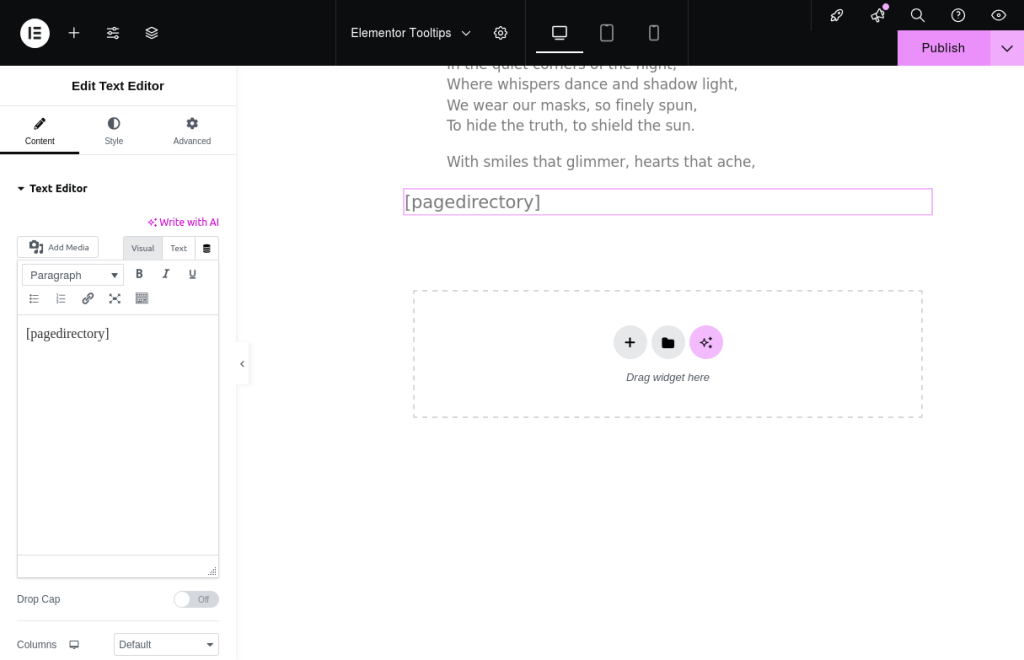
      • insert-tooltip-shortcode-in-elementor-text-edit-widget

      insert-tooltip-shortcode-in-elementor-text-edit-widget

  5. Previzualizați și salvați:

    • După ce ați adăugat shortcode-ul, luați un moment pentru a previzualiza cum arată pe pagină.
    • Dacă totul pare în regulă, faceți clic pe butonul „Actualizați” pentru a salva modificările.
Totul va funcționa fără probleme! Am pregătit o demonstrație special pentru utilizatorii de tooltip-uri Elementor.


Dacă shortcode-ul dvs. este [ postdirectory ], pur și simplu introduceți-l în widgetul Shortcode.

Nu ezitați să consultați ghidul nostru aici: https://demos.tooltips.org/elementor-tooltips/.

a: Am inclus chiar și o captură de ecran utilă pentru a vă arăta cum să inserați un shortcode de tooltips WordPress în Elementor.

b: Pe pagina demo, veți vedea că shortcode-ul funcționează perfect!

Explicația termenilor Elementor:

  • Constructor Elementor: Elementor este un constructor de pagini popular, bazat pe drag-and-drop, pentru WordPress, care permite utilizatorilor să creeze site-uri web frumoase și responsive fără a fi nevoie să scrieți cod. Oferă o interfață prietenoasă cu utilizatorul, unde puteți proiecta paginile vizual.

  • Widget Elementor: Widgeturile sunt blocurile de construcție ale Elementor. Acestea sunt elemente individuale pe care le puteți adăuga pe paginile dvs., cum ar fi casete de text, imagini, butoane și altele. Fiecare widget vine cu propriul set de opțiuni de personalizare, permițându-vă să adaptați aspectul și senzația site-ului dvs.

  • Widgetul Shortcode Elementor: Widgetul Shortcode din Elementor vă permite să inserați shortcode-uri în paginile dvs. Shortcode-urile sunt fragmente mici de cod care pot executa funcții specifice sau afișa conținut dinamic. Folosind widgetul Shortcode, puteți integra cu ușurință diverse funcționalități sau caracteristici în designurile dvs. Elementor.

De ce tooltips Elementor ajută cititorii

Tooltips Elementor sunt mici casete informaționale care apar atunci când un utilizator plasează cursorul deasupra unui element de pe pagină. Acestea pot oferi context suplimentar, explicații sau sfaturi legate de conținutul specific. Iată câteva motive pentru care tooltips-urile WordPress pot fi benefice pentru cititori:

  • Înțelegere îmbunătățită: Tooltips-urile pot clarifica termeni sau concepte complexe, ajutând cititorii să înțeleagă mai bine conținutul fără a aglomera pagina cu text excesiv.

  • Experiență utilizator îmbunătățită: Prin furnizarea de informații instantanee, tooltips-urile pot face navigarea mai fluidă și mai intuitivă, permițând utilizatorilor să găsească rapid ceea ce au nevoie.

  • Reducerea încărcăturii cognitive: Tooltips-urile pot ajuta la menținerea conținutului principal curat și concentrat, oferind în același timp informații suplimentare, reducând astfel încărcătura cognitivă asupra cititorilor.

  • Implicare: Elemente interactive, cum ar fi tooltips-urile, pot face conținutul mai captivant, încurajând utilizatorii să exploreze și să învețe mai multe despre subiect.

În general, tooltips-urile Elementor pot îmbunătăți semnificativ utilizabilitatea și accesibilitatea unui site web, facilitând interacțiunea cititorilor cu conținutul.

Ce este Directorul AnyThing în Pluginul WordPress Tooltips?

Bună, dragi entuziaști WordPress! Dacă vă aventurați în lumea WordPress, probabil știți că gestionarea diferitelor tipuri de conținut poate fi o adevărată aventură. De la întrebări frecvente și portofolii la mărturii, evenimente și recenzii, există multe de urmărit. Aici intervine magia directorilor!

Un director, în acest context, este, în esență, o listă bine organizată care vă ajută să prezentați diverse postări sau tipuri de conținut personalizate într-un mod ordonat și accesibil. Gândiți-vă la el ca la un dulap de fișiere digital în care totul este categorisit și ușor de găsit.

Cu versiunea Pro Plus a Pluginului WordPress Tooltips, puteți crea cu ușurință un director din oricare dintre aceste tipuri de postări personalizate folosind un shortcode simplu. De exemplu, Directorul AnyThing afișează toate postările din tipul de postare personalizată „tooltips” într-o singură locație convenabilă.

Ce este grozav la Directorul WordPress Tooltip este că nu doar că afișează titlurile cu linkuri către fiecare postare, dar oferă și o scurtă prezentare sau conținutul complet chiar acolo în listă. În plus, puteți îmbunătăți directorul dvs. includând imagini sau videoclipuri pentru fiecare intrare, făcându-l atractiv vizual și captivant pentru cititorii dvs. Aveți flexibilitatea de a personaliza aceste setări prin opțiunile din panoul de setări, asigurându-vă că directorul dvs. se potrivește stilului și nevoilor dvs. unice.

Așadar, fie că doriți să simplificați conținutul sau să creați o vitrină vibrantă a muncii dvs., Directorul AnyThing este un instrument fantastic care vă ajută să vă conectați cu publicul!

Este foarte ușor să creați un Director Elementor prin pluginul wordpress tooltips (verificați Directorul AnyThing), arată astfel:

The ideals which have lighted my way, and time after time have given me new courage to face life cheerfully, have been Kindness, Beauty, and Truth. The trite subjects of human efforts, possessions, outward success, luxury have always seemed to me contemptible.
Do something wonderful, people may imitate it.
To follow, without halt, one aim: There is the secret of success.
Reflect on your present blessings, of which every man has many; not on your past misfortunes, of which all men have some.
True happiness means forging a strong spirit that is undefeated, no matter how trying our circumstances.
Love is the flower you've got to let grow.
We shall never know all the good that a simple smile can do.
In order to succeed, we must first believe that we can.
The best way to pay for a lovely moment is to enjoy it.
There is no duty we so underrate as the duty of being happy. By being happy we sow anonymous benefits upon the world.

Vă rugăm să verificați tooltips-urile wordpress elementor la https://tooltips.org/product/tooltips-pro-mutil-site-license/.


Tagged with: , , , ,

Como Implementar o Shortcode de WordPress Tooltips em Suas Páginas do Elementor

Usando Shortcodes de Tooltips do WordPress no Elementor: Um Guia para o Plugin de Tooltips do WordPress

Olá, estimados usuários do WordPress Tooltip! Espero que esta mensagem os encontre bem e que vocês estejam desfrutando de momentos agradáveis com seus entes queridos. Recebemos um pedido no fórum de suporte do plugin WordPress Tooltips de um usuário fantástico. Eles mencionaram:

“Vejo muita ajuda se for uma página de Postagem que pode ter uma classe e outra ID, mas isso não parece aparecer para uma página comum. Sua ajuda sugere ‘shortcode de diretório de página do WordPress [ pagedirectory ]’ na página, mas o que é e onde colocar o shortcode em uma página do Elementor?”

Estamos empolgados em ajudar o usuário do WordPress Tooltips a resolver seu problema, e achamos que há muitos outros por aí com perguntas semelhantes. Adoraríamos reunir um guia abrangente para todos os usuários do plugin WordPress Tooltips para compartilhar aqui.

Maximize suas Páginas do Elementor: Onde Colocar o Shortcode do WordPress Tooltips

Com o plugin pro do WordPress Tooltips, você pode melhorar facilmente suas postagens do WordPress adicionando automaticamente efeitos de tooltip a termos específicos. Este plugin está repleto de recursos fantásticos, como suporte a glossários, capacidades de diretório e até mesmo uma opção de tela de balas! Além disso, os usuários de tooltips do WordPress podem integrar esses efeitos em suas postagens e páginas do Elementor usando shortcodes. É muito fácil!

Como Adicionar um Shortcode no Construtor de Páginas do WordPress Elementor:

  1. Abra sua Página com Elementor:
    • Acesse a página ou postagem onde você gostaria de adicionar seu shortcode.
    • Clique no botão “Editar com Elementor” para começar.
  2. Adicione uma Nova Seção ou Escolha uma Existente:
    • Você pode criar uma nova seção clicando no ícone “+”, ou simplesmente escolher uma seção existente onde deseja inserir seu shortcode.
  3. Arraste e Solte o Widget de Shortcode:
    • No painel do Elementor à esquerda, procure o widget “Shortcode”.
    • Basta arrastá-lo e soltá-lo na seção que você escolheu.
  4. Insira Seu Shortcode:
    • Uma vez que o widget de Shortcode esteja no lugar, você verá um espaço para inserir seu shortcode.
    • Vá em frente e digite ou cole seu shortcode ali.

    insert-tooltip-shortcode-in-elementor-shortcode-widget

    insert-tooltip-shortcode-in-elementor-shortcode-widget

    ou:

    • insert-tooltip-shortcode-in-elementor-text-edit-widget

    insert-tooltip-shortcode-in-elementor-text-edit-widget

  5. Pré-visualizar e Salvar:
    • Depois de adicionar seu shortcode, reserve um momento para visualizar como ele fica na página.
    • Se tudo parecer certo, clique no botão “Atualizar” para salvar suas alterações.

Tudo funcionará perfeitamente! Montamos uma demonstração apenas para usuários de tooltips do Elementor.

Se o seu shortcode for [ postdirectory ], basta colocá-lo no widget de Shortcode.

Sinta-se à vontade para conferir nosso guia aqui: https://demos.tooltips.org/elementor-tooltips/.

a: Incluímos até uma captura de tela útil para mostrar como inserir um shortcode de tooltips do WordPress no Elementor.

b: Na página de demonstração, você verá que o shortcode funciona como um charme!

“Explicação dos Termos do Elementor:

  • Construtor Elementor: O Elementor é um construtor de páginas popular que utiliza o método de arrastar e soltar para WordPress, permitindo que os usuários criem sites bonitos e responsivos sem precisar escrever código. Ele fornece uma interface amigável onde você pode projetar suas páginas visualmente.
  • Widget do Elementor: Os widgets são os blocos de construção do Elementor. Eles são elementos individuais que você pode adicionar às suas páginas, como caixas de texto, imagens, botões e muito mais. Cada widget vem com seu próprio conjunto de opções de personalização, permitindo que você ajuste a aparência e a sensação do seu site.
  • Widget de Shortcode do Elementor: O widget de Shortcode no Elementor permite inserir shortcodes em suas páginas. Shortcodes são pequenas partes de código que podem executar funções específicas ou exibir conteúdo dinamicamente. Ao usar o widget de Shortcode, você pode facilmente integrar várias funcionalidades ou recursos em seus designs do Elementor.

Por que os Tooltips do Elementor Ajudam os Leitores

Os tooltips do Elementor são pequenas caixas informativas que aparecem quando um usuário passa o mouse sobre um elemento na página. Eles podem fornecer contexto adicional, explicações ou dicas relacionadas ao conteúdo específico. Aqui estão algumas razões pelas quais os tooltips do WordPress podem ser benéficos para os leitores:

  • Compreensão Aprimorada: Os tooltips podem esclarecer termos ou conceitos complexos, ajudando os leitores a entender melhor o conteúdo sem poluir a página com texto excessivo.
  • Experiência do Usuário Melhorada: Ao fornecer informações instantâneas, os tooltips podem tornar a navegação mais suave e intuitiva, permitindo que os usuários encontrem rapidamente o que precisam.
  • Redução da Carga Cognitiva: Os tooltips podem ajudar a manter o conteúdo principal limpo e focado enquanto ainda oferecem informações suplementares, reduzindo a carga cognitiva sobre os leitores.
  • Engajamento: Elementos interativos como tooltips podem tornar o conteúdo mais envolvente, incentivando os usuários a explorar e aprender mais sobre o tópico.

No geral, os tooltips do Elementor podem melhorar significativamente a usabilidade e acessibilidade de um site, facilitando a interação dos leitores com o conteúdo.

O que é o Diretório AnyThing no Plugin de Tooltips do WordPress?

Ok, queridos entusiastas do WordPress! Se você está se aventurando no mundo do WordPress, provavelmente sabe que gerenciar diferentes tipos de conteúdo pode ser uma grande aventura. Desde FAQs e portfólios até depoimentos, eventos e avaliações, há muito o que acompanhar. É aí que entra a mágica dos diretórios!

Um diretório, neste contexto, é essencialmente uma listagem bem organizada que ajuda você a apresentar vários posts ou tipos de conteúdo personalizados de maneira ordenada e acessível. Pense nisso como um gabinete de arquivos digital onde tudo está categorizado e fácil de encontrar.

Com a versão Pro Plus do Plugin de Tooltips do WordPress, você pode criar facilmente um diretório de qualquer um desses tipos de postagem personalizada usando um simples shortcode. Por exemplo, o Diretório AnyThing exibe todos os posts do tipo de postagem personalizada “tooltips” em um local conveniente.

O que é ótimo sobre o Diretório Tooltip do WordPress é que ele não apenas exibe os títulos com links para cada post, mas também fornece uma breve visão geral ou o conteúdo completo ali mesmo na listagem. Além disso, você pode aprimorar seu diretório incluindo imagens ou vídeos para cada entrada, tornando-o visualmente atraente e envolvente para seus leitores. Você tem a flexibilidade de personalizar essas configurações por meio das opções no painel de configurações, garantindo que seu diretório se adapte ao seu estilo e necessidades únicos.

Portanto, se você está buscando simplificar seu conteúdo ou criar uma vitrine vibrante do seu trabalho, o Diretório AnyThing é uma ferramenta fantástica para ajudá-lo a se conectar com seu público!

É muito fácil fazer um Diretório Elementor através do plugin de tooltips do WordPress (verifique o Diretório AnyThing), ele fica assim:

The ideals which have lighted my way, and time after time have given me new courage to face life cheerfully, have been Kindness, Beauty, and Truth. The trite subjects of human efforts, possessions, outward success, luxury have always seemed to me contemptible.
Do something wonderful, people may imitate it.
To follow, without halt, one aim: There is the secret of success.
Reflect on your present blessings, of which every man has many; not on your past misfortunes, of which all men have some.
True happiness means forging a strong spirit that is undefeated, no matter how trying our circumstances.
Love is the flower you've got to let grow.
We shall never know all the good that a simple smile can do.
In order to succeed, we must first believe that we can.
The best way to pay for a lovely moment is to enjoy it.
There is no duty we so underrate as the duty of being happy. By being happy we sow anonymous benefits upon the world.

Por favor, verifique os tooltips do WordPress Elementor em https://tooltips.org/product/tooltips-pro

Tagged with: , , , ,

Jak implementovat WordPress Shortcode pro tooltipy na vašich stránkách Elementor

Používání WordPress Tooltips Shortcodes v Elementoru: Průvodce Shortcode pro WordPress Tooltips Plugin

Ahoj, vážení uživatelé WordPress Tooltip! Doufám, že se k vám tato zpráva dostane v dobrém rozmaru a že si užíváte krásné chvíle se svými blízkými. V podpoře jsme obdrželi žádost od skvělého uživatele ohledně pluginu WordPress Tooltips. Uvedli:

Vidím spoustu pomoci, pokud je to stránka příspěvku, která může mít třídu a jiné ID, ale toto se zdá, že neexistuje pro běžnou stránku. Vaše pomoc naznačuje „shortcode [ pagedirectory] pro adresář stránek WordPress“ na stránce, ale co to je a kde umístit shortcode na stránku Elementor?

Jsme nadšeni, že můžeme uživateli WordPress Tooltips pomoci vyřešit jejich problém, a myslíme si, že existuje spousta dalších s podobnými dotazy. Rádi bychom sestavili komplexního průvodce pro všechny uživatele pluginu WordPress Tooltips, abychom jej mohli sdílet právě zde.

Maximalizujte své stránky Elementor: Kde umístit WordPress Tooltips Shortcode

S pluginem WordPress Tooltips Pro můžete bez námahy vylepšit své příspěvky WordPress tím, že automaticky přidáváte tooltip efekty ke specifickým termínům. Tento plugin je nabitý fantastickými funkcemi, jako je podpora glosáře, schopnosti adresářů a dokonce i možnost bullet screenu! Navíc mohou uživatelé WordPress Tooltip snadno integrovat tyto efekty do svých příspěvků a stránek Elementor pomocí shortcode. Je to hračka!

Jak přidat shortcode v nástroji pro tvorbu stránek Elementor:

  1. Otevřete svou stránku v Elementoru:
    • Přesuňte se na stránku nebo příspěvek, kde chcete přidat svůj shortcode.
    • Klikněte na tlačítko „Edit with Elementor“, abyste začali.
  2. Přidejte novou sekci nebo vyberte stávající:
    • Můžete vytvořit novou sekci kliknutím na ikonu „+“, nebo jednoduše vyberte stávající sekci, do které chcete vložit svůj shortcode.
  3. Přetáhněte a pusťte widget Shortcode:
    • V panelu Elementor na levé straně najděte widget „Shortcode“.
    • Stačí jej přetáhnout a umístit do vybrané sekce.
  4. Zadejte svůj shortcode:
    • Jakmile je widget Shortcode na místě, uvidíte místo pro zadání svého shortcode.
    • insert-tooltip-shortcode-in-elementor-shortcode-widget
    •  
    • insert-tooltip-shortcode-in-elementor-text-edit-widget
    • Pokračujte a napište nebo vložte svůj shortcode přímo tam.
  5. Náhled a uložení:
    • Po přidání vašeho shortcode si dejte chvíli na náhled, jak vypadá na stránce.
    • Pokud vypadá vše správně, klikněte na tlačítko „Aktualizovat“, abyste uložili změny.

Vše bude probíhat hladce! Připravili jsme demo speciálně pro uživatele tooltipů Elementor.

Pokud je váš shortcode [ postdirectory], stačí jej vložit přímo do widgetu Shortcode.

Neváhejte se podívat na naši příručku zde: https://demos.tooltips.org/elementor-tooltips/.

a: Dokonce jsme zahrnuli užitečný snímek obrazovky, abychom vám ukázali, jak vložit shortcode pro WordPress tooltips do Elementoru.

b: Na demo stránce uvidíte, že shortcode funguje jako kouzlo!

Vysvětlení pojmů Elementor:

  • Elementor Builder:  Elementor je populární nástroj pro tvorbu stránek metodou „drag-and-drop“ pro WordPress, který umožňuje uživatelům vytvářet krásné a responzivní webové stránky bez nutnosti psaní kódu. Poskytuje uživatelsky přívětivé rozhraní, kde můžete vizuálně navrhovat své stránky.
  • Elementor Widget: Widgety jsou základními stavebními kameny Elementoru. Jsou to jednotlivé prvky, které můžete přidat na své stránky, jako jsou textová pole, obrázky, tlačítka a další. Každý widget má svůj vlastní soubor možností přizpůsobení, což vám umožňuje upravit vzhled a dojem vaší stránky.
  • Elementor Shortcode Widget: Widget Shortcode v Elementoru vám umožňuje vložit shortcody do vašich stránek. Shortcody jsou malé útržky kódu, které mohou vykonávat specifické funkce nebo dynamicky zobrazovat obsah. Použitím widgetu Shortcode můžete snadno integrovat různé funkce nebo vlastnosti do vašich návrhů v Elementoru.

Proč Elementor Tooltips pomáhají čtenářům

Elementor tooltips jsou malé informační boxy, které se zobrazují, když uživatel najede myší na prvek na stránce. Mohou poskytnout další kontext, vysvětlení nebo tipy týkající se specifického obsahu. Zde je několik důvodů, proč mohou být wordpress tooltips pro čtenáře přínosné:

  • Zlepšené pochopení: Tooltips mohou objasnit složité termíny nebo koncepty, což čtenářům pomáhá lépe porozumět obsahu bez zbytečného přeplnění stránky nadbytečným textem.
  • Zlepšená uživatelská zkušenost: Poskytnutím okamžitých informací mohou tooltips učinit navigaci plynulejší a intuitivnější, což uživatelům umožňuje rychle najít, co potřebují.
  • Snížená kognitivní zátěž: Tooltips mohou pomoci udržet hlavní obsah čistý a zaměřený, zatímco stále nabízejí doplňující informace, což snižuje kognitivní zátěž čtenářů.
  • Zapojení: Interaktivní prvky, jako jsou tooltips, mohou učinit obsah více atraktivním, což povzbudí uživatele k prozkoumání a dalšímu učení o daném tématu.

Celkově mohou Elementor tooltips významně zlepšit použitelnost a přístupnost webové stránky, což čtenářům usnadňuje interakci s obsahem.

Co je AnyThing Directory v pluginu WordPress Tooltips?

Dobře, milí nadšenci WordPress! Pokud se ponořujete do světa WordPress, pravděpodobně víte, že správa různých typů obsahu může být docela dobrodružství. Od FAQ a portfolií po reference, akce a recenze, je tu hodně, co musíte sledovat. A zde přichází kouzlo adresářů!

Adresář je v tomto kontextu v podstatě dobře organizovaný seznam, který vám pomáhá prezentovat různé příspěvky nebo vlastní typy obsahu v přehledném a přístupném způsobem. Myslete na to jako na digitální spisovnu, kde je vše kategorizováno a snadno nalezitelné.

S verzí Pro Plus pluginu WordPress Tooltips můžete bez námahy vytvořit adresář z jakéhokoli z těchto vlastních typů příspěvků pomocí jednoduchého shortcode. Například adresář AnyThing zobrazuje všechny příspěvky z vlastního typu příspěvku „tooltips“ na jednom pohodlném místě.

Co je skvělé na adresáři WordPress Tooltip, je to, že nejen zobrazuje názvy s odkazy na každý příspěvek, ale také poskytuje stručný přehled nebo celý obsah přímo v seznamu. Navíc můžete svůj adresář vylepšit zahrnutím obrázků nebo videí pro každou položku, což jej činí vizuálně přitažlivým a zajímavým pro vaše čtenáře. Máte možnost přizpůsobit tato nastavení prostřednictvím voleb v panelu nastavení, což zaručuje, že váš adresář odpovídá vašemu jedinečnému stylu a potřebám.

Takže ať už se snažíte zjednodušit svůj obsah nebo vytvořit živou prezentaci své práce, adresář AnyThing je fantastický nástroj, který vám pomůže spojit se s vaším publikem!

Je velmi snadné vytvořit adresář Elementor pomocí pluginu WordPress Tooltips (podívejte se na adresář AnyThing), vypadá to takto:

The ideals which have lighted my way, and time after time have given me new courage to face life cheerfully, have been Kindness, Beauty, and Truth. The trite subjects of human efforts, possessions, outward success, luxury have always seemed to me contemptible.
Do something wonderful, people may imitate it.
To follow, without halt, one aim: There is the secret of success.
Reflect on your present blessings, of which every man has many; not on your past misfortunes, of which all men have some.
True happiness means forging a strong spirit that is undefeated, no matter how trying our circumstances.
Love is the flower you've got to let grow.
We shall never know all the good that a simple smile can do.
In order to succeed, we must first believe that we can.
The best way to pay for a lovely moment is to enjoy it.
There is no duty we so underrate as the duty of being happy. By being happy we sow anonymous benefits upon the world.

Prosím, zkontrolujte wordpress elementor tooltips na https://tooltips.org/product/tooltips-pro-mutil-site-license/

Tagged with: , , , ,

Hoe de WordPress Tooltips Shortcode te Implementeren op Je Elementor Pagina’s

Gebruik van WordPress Tooltips Shortcodes in Elementor: Een Gids voor de WordPress Tooltips Plugin Shortcode

Hallo, gewaardeerde gebruikers van WordPress Tooltip! Ik hoop dat deze notitie u in goede geest bereikt en dat u heerlijke momenten doorbrengt met uw dierbaren. We hebben een verzoek ontvangen in het ondersteuningsforum voor de WordPress Tooltips-plugin van een fantastische gebruiker. Ze vermeldden:

“Ik zie veel hulp als het een berichtpagina is die mogelijk een klasse en andere ID heeft, maar dit lijkt niet te verschijnen voor een gewone pagina. Uw hulp suggereert ‘wordpress pagina directory shortcode [ pagedirectory ] in de pagina’, maar wat is dat en waar moet ik de shortcode in een Elementor-pagina plaatsen?”

We zijn verheugd om de WordPress Tooltips-gebruiker te helpen bij het aanpakken van hun probleem, en we denken dat er veel anderen zijn met vergelijkbare vragen. We zouden graag een uitgebreide gids samenstellen voor alle gebruikers van de WordPress Tooltips-plugin om hier te delen.

Maximaliseer uw Elementor-pagina’s: Waar de WordPress Tooltips Shortcode te Plaatsen

Met de WordPress Tooltips Pro-plugin kunt u moeiteloos uw WordPress-berichten verbeteren door automatisch tooltip-effecten toe te voegen aan specifieke termen. Deze plugin zit vol met fantastische functies, zoals ondersteuning voor een woordenlijst, directorymogelijkheden en zelfs een bullet screen-optie! Bovendien kunnen WordPress-tooltipgebruikers deze effecten eenvoudig integreren in hun berichten en Elementor-pagina’s met behulp van shortcodes. Het is een fluitje van een cent!

Hoe een Shortcode toe te voegen in de WordPress Elementor Pagina Bouwer:

  1. Open uw pagina met Elementor:

    • Ga naar de pagina of het bericht waar u uw shortcode wilt toevoegen.
    • Klik op de knop “Bewerken met Elementor” om te beginnen.
  2. Voeg een nieuwe sectie toe of kies een bestaande:

    • U kunt een nieuwe sectie maken door op het “+”-pictogram te klikken, of gewoon een bestaande sectie kiezen waar u uw shortcode wilt plaatsen.
  3. Sleep en laat de Shortcode-widget vallen:

    • Zoek in het Elementor-paneel aan de linkerkant naar de “Shortcode”-widget.
    • Sleep deze gewoon over en laat deze vallen in de sectie die u hebt gekozen.
  4. Voer uw Shortcode in:

    • Zodra de Shortcode-widget op zijn plaats is, ziet u een plek om uw shortcode in te voeren.
    • Typ of plak uw shortcode daar.
    • insert-tooltip-shortcode-in-elementor-shortcode-widget
    • insert-tooltip-shortcode-in-elementor-text-edit-widget
  5. Voorbeeld en opslaan:

    • Nadat u uw shortcode hebt toegevoegd, neem even de tijd om te bekijken hoe het eruitziet op de pagina.
    • Als alles goed lijkt, klik dan op de knop “Bijwerken” om uw wijzigingen op te slaan.

Alles zal soepel verlopen! We hebben een demo samengesteld speciaal voor Elementor-tooltipgebruikers.

Als uw shortcode  [ postdirectory ] is, plaatst u deze gewoon in de Shortcode-widget.

Voel je vrij om onze gids hier te bekijken: https://demos.tooltips.org/elementor-tooltips/.

a: We hebben zelfs een handige screenshot toegevoegd om u te laten zien hoe u een WordPress Tooltips shortcode in Elementor kunt invoegen.

b: Op de demopagina ziet u dat de shortcode als een zonnetje werkt!

Uitleg van Elementor-termen:

  • Elementor Builder: Elementor is een populaire drag-and-drop pagina bouwer voor WordPress waarmee gebruikers mooie en responsieve websites kunnen maken zonder dat ze code hoeven te schrijven. Het biedt een gebruiksvriendelijke interface waarin u uw pagina’s visueel kunt ontwerpen.

  • Elementor Widget: Widgets zijn de bouwstenen van Elementor. Het zijn individuele elementen die u aan uw pagina’s kunt toevoegen, zoals tekstvakken, afbeeldingen, knoppen en meer. Elke widget heeft zijn eigen set aan aanpassingsopties, zodat u de uitstraling en het gevoel van uw site kunt afstemmen.

  • Elementor Shortcode Widget: De Shortcode-widget in Elementor stelt u in staat om shortcodes in uw pagina’s in te voegen. Shortcodes zijn kleine stukjes code die specifieke functies kunnen uitvoeren of inhoud dynamisch kunnen weergeven. Door de Shortcode-widget te gebruiken, kunt u eenvoudig verschillende functionaliteiten of functies in uw Elementor-ontwerpen integreren.

Waarom Elementor Tooltips Lezers Helpen

Elementor-tooltips zijn kleine informatieve vakken die verschijnen wanneer een gebruiker met de muis over een element op de pagina beweegt. Ze kunnen extra context, uitleg of tips bieden met betrekking tot specifieke inhoud. Hier zijn een paar redenen waarom WordPress-tooltips nuttig kunnen zijn voor lezers:

  • Verbeterd Begrip: Tooltips kunnen complexe termen of concepten verduidelijken, waardoor lezers de inhoud beter begrijpen zonder de pagina te overladen met overmatige tekst.

  • Verbeterde Gebruikerservaring: Door directe informatie te bieden, kunnen tooltips de navigatie soepeler en intuïtiever maken, zodat gebruikers snel vinden wat ze nodig hebben.

  • Verminderde Cognitieve Last: Tooltips kunnen helpen de hoofdinhoud schoon en gefocust te houden, terwijl ze toch aanvullende informatie bieden, waardoor de cognitieve last voor lezers wordt verminderd.

  • Betrokkenheid: Interactieve elementen zoals tooltips kunnen de inhoud boeiender maken, waardoor gebruikers worden aangemoedigd om meer te verkennen en te leren over het onderwerp.

Over het algemeen kunnen Elementor-tooltips de bruikbaarheid en toegankelijkheid van een website aanzienlijk verbeteren, waardoor het voor lezers gemakkelijker wordt om met de inhoud te interageren.

Wat is de AnyThing Directory in de WordPress Tooltips Plugin?

Oké, beste WordPress-enthousiastelingen! Als u zich in de wereld van WordPress verdiept, weet u waarschijnlijk dat het beheren van verschillende soorten inhoud een behoorlijke uitdaging kan zijn. Van FAQ’s en portfolio’s tot getuigenissen, evenementen en beoordelingen, er is veel om bij te houden. Daar komt de magie van directories om de hoek kijken!

Een directory is in deze context in wezen een goed georganiseerde lijst die u helpt verschillende berichten of aangepaste inhoudstypen op een nette en toegankelijke manier te presenteren. Denk aan een digitale archiefkast waar alles gecategoriseerd en gemakkelijk te vinden is.

Met de Pro Plus-versie van de WordPress Tooltips-plugin kunt u moeiteloos een directory maken van een van deze aangepaste berichttypen met behulp van een eenvoudige shortcode. Bijvoorbeeld, de AnyThing Directory toont alle berichten van het “tooltips” aangepaste berichttype op één handige locatie.

Wat geweldig is aan de WordPress Tooltip Directory, is dat het niet alleen de titels met links naar elk bericht weergeeft, maar ook een kort overzicht of de volledige inhoud daar in de lijst biedt. Bovendien kunt u uw directory verbeteren door afbeeldingen of video’s voor elke vermelding toe te voegen, waardoor het visueel aantrekkelijk en boeiend wordt voor uw lezers. U heeft de flexibiliteit om deze instellingen aan te passen via de opties in het instellingenpaneel, zodat uw directory past bij uw unieke stijl en behoeften.

Dus, of u nu uw inhoud wilt stroomlijnen of een levendige showcase van uw werk wilt creëren, de AnyThing Directory is een fantastisch hulpmiddel om u te helpen verbinding te maken met uw publiek!

Het is heel eenvoudig om een Elementor Directory te maken via de WordPress Tooltips-plugin (zie AnyThing Directory), het ziet er als volgt uit:

Zoeken naar:

The ideals which have lighted my way, and time after time have given me new courage to face life cheerfully, have been Kindness, Beauty, and Truth. The trite subjects of human efforts, possessions, outward success, luxury have always seemed to me contemptible.
Do something wonderful, people may imitate it.
To follow, without halt, one aim: There is the secret of success.
Reflect on your present blessings, of which every man has many; not on your past misfortunes, of which all men have some.
True happiness means forging a strong spirit that is undefeated, no matter how trying our circumstances.
Love is the flower you've got to let grow.
We shall never know all the good that a simple smile can do.
In order to succeed, we must first believe that we can.
The best way to pay for a lovely moment is to enjoy it.
There is no duty we so underrate as the duty of being happy. By being happy we sow anonymous benefits upon the world.

Please check the wordpress elementor tooltips at https://tooltips.org/product/tooltips-pro-mutil-site-license/

Tagged with: , , , ,

Come implementare lo shortcode di WordPress Tooltips sulle tue pagine Elementor

Utilizzo dei Codici Brevi dei Tooltip di WordPress in Elementor: Una Guida al Codice Breve del Plugin Tooltip di WordPress

Ciao, stimati utenti di WordPress Tooltip! Spero che questo messaggio vi raggiunga in buono spirito e che stiate trascorrendo momenti piacevoli con i vostri cari. Abbiamo ricevuto una richiesta nel forum di supporto per il plugin Tooltip di WordPress da un fantastico utente. Hanno menzionato:

Vedo molti aiuti se si tratta di una pagina di Post che può avere una classe e un altro ID, ma questo non sembra apparire per una pagina ordinaria. Il vostro aiuto suggerisce “codice breve della directory della pagina di wordpress [ pagedirectory ] nella pagina”, ma cos’è e dove mettere il codice breve in una pagina Elementor?

Siamo entusiasti di assistere l’utente di WordPress Tooltips a risolvere il loro problema e pensiamo che ci siano molti altri là fuori con domande simili. Ci piacerebbe mettere insieme una guida completa per tutti gli utenti del plugin WordPress Tooltips da condividere qui.
Massimizza le tue Pagine Elementor: Dove Posizionare il Codice Breve dei Tooltip di WordPress

Con il plugin pro dei tooltip di WordPress, puoi migliorare senza sforzo i tuoi post di WordPress aggiungendo automaticamente effetti tooltip a termini specifici. Questo plugin è ricco di fantastiche funzionalità, come il supporto per il glossario, le capacità di directory e persino un’opzione per la schermata a punti! Inoltre, gli utenti di WordPress tooltip possono facilmente integrare questi effetti nei loro post e nelle pagine Elementor utilizzando codici brevi. È un gioco da ragazzi!

Come Aggiungere un Codice Breve nel Costruttore di Pagine Elementor di WordPress:

Apri la tua Pagina con Elementor:
Vai alla pagina o al post in cui desideri aggiungere il tuo codice breve.
Fai clic sul pulsante “Modifica con Elementor” per iniziare.

Aggiungi una Nuova Sezione o Scegli una Esistente:
Puoi creare una nuova sezione facendo clic sull’icona “+”, oppure semplicemente scegliere una sezione esistente in cui desideri inserire il tuo codice breve.

Trascina e Rilascia il Widget Codice Breve:
Nel pannello di Elementor a sinistra, cerca il widget “Codice Breve”.
Trascinalo e rilascialo nella sezione che hai scelto.

Inserisci il Tuo Codice Breve:
Una volta che il widget Codice Breve è in posizione, vedrai uno spazio per inserire il tuo codice breve.
Procedi e digita o incolla il tuo codice breve proprio lì.

insert-tooltip-shortcode-in-elementor-shortcode-widget

insert-tooltip-shortcode-in-elementor-shortcode-widget

oppure:

  • insert-tooltip-shortcode-in-elementor-text-edit-widget

insert-tooltip-shortcode-in-elementor-text-edit-widget

Anteprima e Salva:
Dopo aver aggiunto il tuo codice breve, prenditi un momento per visualizzare come appare sulla pagina.
Se tutto sembra a posto, fai clic sul pulsante “Aggiorna” per salvare le tue modifiche.

Tutto funzionerà senza intoppi! Abbiamo messo insieme una demo solo per gli utenti di tooltip di Elementor.

Se il tuo codice breve è [ postdirectory ], basta inserirlo direttamente nel widget Codice Breve.

Sentiti libero di controllare la nostra guida qui: https://demos.tooltips.org/elementor-tooltips/.

a: Abbiamo persino incluso uno screenshot utile per mostrarti come inserire un codice breve dei tooltip di WordPress in Elementor.

b: Nella pagina demo, vedrai che il codice breve funziona alla grande!
Spiegazione dei Termini di Elementor:

Costruttore Elementor: Elementor è un popolare costruttore di pagine drag-and-drop per WordPress che consente agli utenti di creare siti web belli e reattivi senza dover scrivere codice. Fornisce un’interfaccia user-friendly in cui puoi progettare visivamente le tue pagine.

Widget Elementor: Gli widget sono i mattoni di base di Elementor. Sono elementi individuali che puoi aggiungere alle tue pagine, come caselle di testo, immagini, pulsanti e altro. Ogni widget viene fornito con il proprio set di opzioni di personalizzazione, consentendoti di adattare l’aspetto e la sensazione del tuo sito.

Widget Codice Breve di Elementor: Il widget Codice Breve in Elementor ti consente di inserire codici brevi nelle tue pagine. I codici brevi sono piccoli frammenti di codice che possono eseguire funzioni specifiche o visualizzare contenuti dinamicamente. Utilizzando il widget Codice Breve, puoi facilmente integrare varie funzionalità o caratteristiche nei tuoi progetti Elementor.

Perché i Tooltip di Elementor Aiutano i Lettori

I tooltip di Elementor sono piccole caselle informative che appaiono quando un utente passa il mouse su un elemento della pagina. Possono fornire contesto aggiuntivo, spiegazioni o suggerimenti relativi a contenuti specifici. Ecco alcuni motivi per cui i tooltip di WordPress possono essere utili per i lettori:

Comprensione Migliorata: I tooltip possono chiarire termini o concetti complessi, aiutando i lettori a comprendere meglio il contenuto senza sovraccaricare la pagina con testo eccessivo.

Miglioramento dell’Esperienza Utente: Fornendo informazioni istantanee, i tooltip possono rendere la navigazione più fluida e intuitiva, consentendo agli utenti di trovare rapidamente ciò di cui hanno bisogno.

Riduzione del Carico Cognitivo: I tooltip possono aiutare a mantenere il contenuto principale pulito e focalizzato, offrendo comunque informazioni supplementari, riducendo il carico cognitivo sui lettori.

Coinvolgimento: Elementi interattivi come i tooltip possono rendere il contenuto più coinvolgente, incoraggiando gli utenti a esplorare e imparare di più sull’argomento.

In generale, i tooltip di Elementor possono migliorare significativamente l’usabilità e l’accessibilità di un sito web, rendendo più facile per i lettori interagire con il contenuto.

Cos’è la Directory AnyThing nel Plugin Tooltip di WordPress?

Ok, cari appassionati di WordPress! Se stai entrando nel mondo di WordPress, probabilmente sai che gestire diversi tipi di contenuti può essere un’avventura. Da FAQ e portafogli a testimonianze, eventi e recensioni, c’è molto da tenere traccia. È qui che entra in gioco la magia delle directory!

Una directory, in questo contesto, è essenzialmente un elenco ben organizzato che ti aiuta a presentare vari post o tipi di contenuti personalizzati in modo ordinato e accessibile. Pensala come un armadietto digitale in cui tutto è categorizzato e facile da trovare.

Con la versione Pro Plus del Plugin Tooltip di WordPress, puoi creare senza sforzo una directory da uno qualsiasi di questi tipi di post personalizzati utilizzando un semplice codice breve. Ad esempio, la Directory AnyThing mostra tutti i post del tipo di post personalizzato “tooltip” in un’unica posizione conveniente.

Ciò che è fantastico della Directory Tooltip di WordPress è che non solo visualizza i titoli con collegamenti a ciascun post, ma fornisce anche una breve panoramica o il contenuto completo proprio lì nell’elenco. Inoltre, puoi migliorare la tua directory includendo immagini o video per ogni voce, rendendola visivamente attraente e coinvolgente per i tuoi lettori. Hai la flessibilità di personalizzare queste impostazioni attraverso le opzioni nel pannello delle impostazioni, assicurandoti che la tua directory si adatti al tuo stile e alle tue esigenze uniche.

Quindi, che tu stia cercando di semplificare i tuoi contenuti o creare una vetrina vivace del tuo lavoro, la Directory AnyThing è uno strumento fantastico per aiutarti a connetterti con il tuo pubblico!

È molto facile creare una Directory Elementor tramite il plugin tooltip di WordPress (controlla la Directory AnyThing), appare così:

Tagged with: , , , ,

Cómo implementar el shortcode de WordPress Tooltips en tus páginas de Elementor

Usando los Shortcodes de Tooltips de WordPress en Elementor: Una Guía para el Shortcode del Plugin de Tooltips de WordPress

Hola, estimados usuarios de WordPress Tooltip! Confío en que esta nota les llegue de buen ánimo y que estén disfrutando momentos agradables con sus seres queridos. Recibimos una solicitud en el foro de soporte del plugin de Tooltips de WordPress de un usuario fantástico. Mencionaron:

Veo mucha ayuda si es una página de publicación que puede tener una clase y otro ID, pero esto no parece aparecer para una página ordinaria. Su ayuda sugiere “shortcode de directorio de página de wordpress [ pagedirectory ] en la página”, pero ¿qué es y dónde poner el shortcode en una página de Elementor?

Estamos encantados de ayudar al usuario de WordPress Tooltips a resolver su problema, y creemos que hay muchos otros ahí fuera con preguntas similares. Nos encantaría reunir una guía completa para todos los usuarios del plugin de Tooltips de WordPress para compartir aquí.

Maximiza tus Páginas de Elementor: Dónde Colocar el Shortcode de Tooltips de WordPress

Con el plugin pro de tooltips de wordpress, puedes mejorar sin esfuerzo tus publicaciones de WordPress añadiendo automáticamente efectos de tooltip a términos específicos. Este plugin está repleto de características fantásticas, como soporte de glosario, capacidades de directorio e incluso una opción de pantalla de viñetas. Además, los usuarios de tooltips de WordPress pueden integrar fácilmente estos efectos en sus publicaciones y páginas de Elementor usando shortcodes. ¡Es muy fácil!

Cómo Agregar un Shortcode en el Constructor de Páginas de WordPress Elementor:

Abre tu Página con Elementor:
Dirígete a la página o publicación donde te gustaría agregar tu shortcode.
Haz clic en el botón “Editar con Elementor” para comenzar.

Agrega una Nueva Sección o Elige una Existente:
Puedes crear una nueva sección haciendo clic en el ícono “+”, o simplemente elegir una sección existente donde quieras colocar tu shortcode.

Arrastra y Suelta el Widget de Shortcode:
En el panel de Elementor a la izquierda, busca el widget “Shortcode”.
Simplemente arrástralo y suéltalo en la sección que has elegido.

Ingresa tu Shortcode:
Una vez que el widget de Shortcode esté en su lugar, verás un espacio para ingresar tu shortcode.
Adelante, escribe o pega tu shortcode allí.
insert-tooltip-shortcode-in-elementor-shortcode-widget

insert-tooltip-shortcode-in-elementor-shortcode-widget

o:

  • insert-tooltip-shortcode-in-elementor-text-edit-widget

insert-tooltip-shortcode-in-elementor-text-edit-widget

Previsualiza y Guarda:
Después de haber agregado tu shortcode, tómate un momento para previsualizar cómo se ve en la página.
Si todo parece correcto, haz clic en el botón “Actualizar” para guardar tus cambios.

¡Todo funcionará sin problemas! Hemos preparado una demostración solo para los usuarios de tooltips de Elementor.

Si tu shortcode es [ postdirectory ], simplemente colócalo en el widget de Shortcode.

No dudes en consultar nuestra guía aquí: https://demos.tooltips.org/elementor-tooltips/.

a: Incluso hemos incluido una captura de pantalla útil para mostrarte cómo insertar un shortcode de tooltips de wordpress en Elementor.

b: En la página de demostración, verás que el shortcode funciona de maravilla!

Explicación de Términos de Elementor:

Constructor de Elementor: Elementor es un popular constructor de páginas de arrastrar y soltar para WordPress que permite a los usuarios crear sitios web hermosos y responsivos sin necesidad de escribir código. Proporciona una interfaz fácil de usar donde puedes diseñar tus páginas visualmente.

Widget de Elementor: Los widgets son los bloques de construcción de Elementor. Son elementos individuales que puedes agregar a tus páginas, como cuadros de texto, imágenes, botones y más. Cada widget viene con su propio conjunto de opciones de personalización, lo que te permite adaptar la apariencia y el estilo de tu sitio.

Widget de Shortcode de Elementor: El widget de Shortcode en Elementor te permite insertar shortcodes en tus páginas. Los shortcodes son pequeños fragmentos de código que pueden ejecutar funciones específicas o mostrar contenido de manera dinámica. Al usar el widget de Shortcode, puedes integrar fácilmente varias funcionalidades o características en tus diseños de Elementor.

Por qué los Tooltips de Elementor Ayudan a los Lectores

Los tooltips de Elementor son pequeñas cajas informativas que aparecen cuando un usuario pasa el cursor sobre un elemento en la página. Pueden proporcionar contexto adicional, explicaciones o consejos relacionados con contenido específico. Aquí hay algunas razones por las que los tooltips de wordpress pueden ser beneficiosos para los lectores:

Mejora de la Comprensión: Los tooltips pueden aclarar términos o conceptos complejos, ayudando a los lectores a comprender mejor el contenido sin saturar la página con texto excesivo.

Mejora de la Experiencia del Usuario: Al proporcionar información instantánea, los tooltips pueden hacer que la navegación sea más fluida e intuitiva, permitiendo a los usuarios encontrar lo que necesitan rápidamente.

Reducción de la Carga Cognitiva: Los tooltips pueden ayudar a mantener el contenido principal limpio y enfocado mientras aún ofrecen información suplementaria, reduciendo la carga cognitiva en los lectores.

Compromiso: Elementos interactivos como los tooltips pueden hacer que el contenido sea más atractivo, animando a los usuarios a explorar y aprender más sobre el tema.

En general, los tooltips de Elementor pueden mejorar significativamente la usabilidad y accesibilidad de un sitio web, facilitando la interacción de los lectores con el contenido.

¿Qué es el Directorio AnyThing en el Plugin de Tooltips de WordPress?

¡De acuerdo, queridos entusiastas de WordPress! Si te estás adentrando en el mundo de WordPress, probablemente sepas que gestionar diferentes tipos de contenido puede ser toda una aventura. Desde preguntas frecuentes y portafolios hasta testimonios, eventos y reseñas, hay mucho que seguir. ¡Ahí es donde entra la magia de los directorios!

Un directorio, en este contexto, es esencialmente una lista bien organizada que te ayuda a presentar varias publicaciones o tipos de contenido personalizados de manera ordenada y accesible. Piensa en ello como un archivo digital donde todo está categorizado y es fácil de encontrar.

Con la versión Pro Plus del Plugin de Tooltips de WordPress, puedes crear sin esfuerzo un directorio a partir de cualquiera de estos tipos de publicaciones personalizadas utilizando un simple shortcode. Por ejemplo, el Directorio AnyThing muestra todas las publicaciones del tipo de publicación personalizada “tooltips” en un solo lugar conveniente.

Lo que es genial acerca del Directorio de Tooltips de WordPress es que no solo muestra los títulos con enlaces a cada publicación, sino que también proporciona un breve resumen o el contenido completo justo allí en la lista. Además, puedes mejorar tu directorio incluyendo imágenes o videos para cada entrada, haciéndolo visualmente atractivo y atractivo para tus lectores. Tienes la flexibilidad de personalizar estas configuraciones a través de las opciones en el panel de configuración, asegurando que tu directorio se ajuste a tu estilo y necesidades únicas.

Así que, ya sea que estés buscando simplificar tu contenido o crear una vitrina vibrante de tu trabajo, el Directorio AnyThing es una herramienta fantástica para ayudarte a conectar con tu audiencia!

Es muy fácil hacer un Directorio de Elementor a través del plugin de tooltips de wordpress (ver Directorio AnyThing), ¡se ve así!

The ideals which have lighted my way, and time after time have given me new courage to face life cheerfully, have been Kindness, Beauty, and Truth. The trite subjects of human efforts, possessions, outward success, luxury have always seemed to me contemptible.
Do something wonderful, people may imitate it.
To follow, without halt, one aim: There is the secret of success.
Reflect on your present blessings, of which every man has many; not on your past misfortunes, of which all men have some.
True happiness means forging a strong spirit that is undefeated, no matter how trying our circumstances.
Love is the flower you've got to let grow.
We shall never know all the good that a simple smile can do.
In order to succeed, we must first believe that we can.
The best way to pay for a lovely moment is to enjoy it.
There is no duty we so underrate as the duty of being happy. By being happy we sow anonymous benefits upon the world.

Please check the wordpress elementor tooltips at https://tooltips.org/product/tooltips-pro-mutil-site-license/

Tagged with: , , , ,

Comment implémenter le shortcode Tooltips de WordPress sur vos pages Elementor

Utilisation des Shortcodes de WordPress Tooltip dans Elementor : Un guide sur le shortcode du plugin Tooltips WordPress

Bonjour, chers utilisateurs de WordPress Tooltip ! J’espère que ce message vous trouve en bonne forme et que vous passez de délicieux moments avec vos proches. Nous avons reçu une demande dans le forum de support pour le plugin WordPress Tooltips d’un utilisateur fantastique. Il a mentionné :

« Je vois beaucoup d’aide s’il s’agit d’une page de publication qui peut avoir une classe et d’autres ID, mais cela ne semble pas apparaître pour une page ordinaire. Votre aide suggère le “shortcode de répertoire de page WordPress [ pagedirectory ] dans la page”, mais qu’est-ce que c’est et où mettre le shortcode dans une page Elementor ? »

Nous sommes ravis d’aider l’utilisateur de WordPress Tooltips à résoudre son problème, et nous pensons qu’il y a beaucoup d’autres personnes avec des questions similaires. Nous aimerions rassembler un guide complet pour tous les utilisateurs du plugin WordPress Tooltips à partager ici.

Maximisez vos pages Elementor : Où placer le shortcode WordPress Tooltips

Avec le plugin WordPress Tooltips Pro, vous pouvez améliorer facilement vos publications WordPress en ajoutant automatiquement des effets de tooltip à des termes spécifiques. Ce plugin est rempli de fonctionnalités fantastiques, comme le support de glossaire, des capacités de répertoire et même une option d’écran à puces ! De plus, les utilisateurs de WordPress Tooltip peuvent facilement intégrer ces effets dans leurs publications et pages Elementor à l’aide de shortcodes. C’est un jeu d’enfant !

Comment ajouter un shortcode dans le constructeur de pages WordPress Elementor :

Ouvrez votre page avec Elementor :
Allez à la page ou au post où vous souhaitez ajouter votre shortcode.
Cliquez sur le bouton « Éditer avec Elementor » pour commencer.

Ajoutez une nouvelle section ou choisissez-en une existante :
Vous pouvez créer une nouvelle section en cliquant sur l’icône « + », ou simplement choisir une section existante où vous souhaitez déposer votre shortcode.

Faites glisser et déposez le widget Shortcode :
Dans le panneau Elementor à gauche, recherchez le widget « Shortcode ».
Faites-le simplement glisser et déposez-le dans la section que vous avez choisie.

Entrez votre shortcode :
Une fois le widget Shortcode en place, vous verrez un espace pour entrer votre shortcode.insert-tooltip-shortcode-in-elementor-shortcode-widget
Allez-y et tapez ou collez votre shortcode là.

  • insert-tooltip-shortcode-in-elementor-text-edit-widget

Aperçu et sauvegarde :
Après avoir ajouté votre shortcode, prenez un moment pour prévisualiser à quoi il ressemble sur la page.
Si tout semble juste, cliquez sur le bouton « Mettre à jour » pour enregistrer vos modifications.

Tout fonctionnera sans accroc ! Nous avons préparé une démo juste pour les utilisateurs de tooltips Elementor.

Si votre shortcode est [ postdirectory ], il suffit de le mettre directement dans le widget Shortcode.

N’hésitez pas à consulter notre guide ici : https://demos.tooltips.org/elementor-tooltips/.

a : Nous avons même inclus une capture d’écran pratique pour vous montrer comment insérer un shortcode de tooltips WordPress dans Elementor.

b : Sur la page de démonstration, vous verrez que le shortcode fonctionne à merveille !

Explication des termes Elementor :

Constructeur Elementor : Elementor est un constructeur de pages par glisser-déposer populaire pour WordPress qui permet aux utilisateurs de créer de beaux sites Web réactifs sans avoir besoin d’écrire du code. Il fournit une interface conviviale où vous pouvez concevoir vos pages visuellement.

Widget Elementor : Les widgets sont les éléments de base d’Elementor. Ce sont des éléments individuels que vous pouvez ajouter à vos pages, tels que des zones de texte, des images, des boutons, et plus encore. Chaque widget est livré avec son propre ensemble d’options de personnalisation, vous permettant d’adapter l’apparence et la convivialité de votre site.

Widget Shortcode Elementor : Le widget Shortcode dans Elementor vous permet d’insérer des shortcodes dans vos pages. Les shortcodes sont de petits extraits de code qui peuvent exécuter des fonctions spécifiques ou afficher du contenu de manière dynamique. En utilisant le widget Shortcode, vous pouvez facilement intégrer diverses fonctionnalités ou caractéristiques dans vos conceptions Elementor.

Pourquoi les tooltips Elementor aident les lecteurs

Les tooltips Elementor sont de petites boîtes d’information qui apparaissent lorsqu’un utilisateur survole un élément sur la page. Ils peuvent fournir un contexte supplémentaire, des explications ou des conseils liés à un contenu spécifique. Voici quelques raisons pour lesquelles les tooltips WordPress peuvent être bénéfiques pour les lecteurs :

Compréhension améliorée : Les tooltips peuvent clarifier des termes ou concepts complexes, aidant les lecteurs à mieux saisir le contenu sans encombrer la page avec un texte excessif.

Expérience utilisateur améliorée : En fournissant des informations instantanées, les tooltips peuvent rendre la navigation plus fluide et intuitive, permettant aux utilisateurs de trouver rapidement ce dont ils ont besoin.

Charge cognitive réduite : Les tooltips peuvent aider à garder le contenu principal propre et concentré tout en offrant des informations supplémentaires, réduisant ainsi la charge cognitive des lecteurs.

Engagement : Des éléments interactifs comme les tooltips peuvent rendre le contenu plus engageant, encourageant les utilisateurs à explorer et à en apprendre davantage sur le sujet.

Dans l’ensemble, les tooltips Elementor peuvent considérablement améliorer l’utilisabilité et l’accessibilité d’un site Web, facilitant ainsi l’interaction des lecteurs avec le contenu.

Qu’est-ce que le répertoire AnyThing dans le plugin Tooltips WordPress ?

D’accord, chers passionnés de WordPress ! Si vous plongez dans le monde de WordPress, vous savez probablement que gérer différents types de contenu peut être toute une aventure. Des FAQ et des portfolios aux témoignages, événements et critiques, il y a beaucoup à suivre. C’est là que la magie des répertoires entre en jeu !

Un répertoire, dans ce contexte, est essentiellement une liste bien organisée qui vous aide à présenter divers posts ou types de contenu personnalisés de manière ordonnée et accessible. Pensez-y comme à un cabinet de classement numérique où tout est catégorisé et facile à trouver.

Avec la version Pro Plus du plugin WordPress Tooltips, vous pouvez facilement créer un répertoire à partir de n’importe lequel de ces types de posts personnalisés à l’aide d’un simple shortcode. Par exemple, le répertoire AnyThing affiche tous les posts du type de post personnalisé « tooltips » à un seul endroit pratique.

Ce qui est génial avec le répertoire WordPress Tooltip, c’est qu’il affiche non seulement les titres avec des liens vers chaque post, mais fournit également un aperçu bref ou le contenu complet directement dans la liste. De plus, vous pouvez améliorer votre répertoire en incluant des images ou des vidéos pour chaque entrée, le rendant visuellement attrayant et engageant pour vos lecteurs. Vous avez la flexibilité de personnaliser ces paramètres via les options dans le panneau des paramètres, garantissant que votre répertoire correspond à votre style et à vos besoins uniques.

Donc, que vous cherchiez à rationaliser votre contenu ou à créer une vitrine dynamique de votre travail, le répertoire AnyThing est un outil fantastique pour vous aider à vous connecter avec votre public !

Il est très facile de créer un répertoire Elementor via le plugin WordPress Tooltips (voir le répertoire AnyThing). Cela ressemble à ceci :

The ideals which have lighted my way, and time after time have given me new courage to face life cheerfully, have been Kindness, Beauty, and Truth. The trite subjects of human efforts, possessions, outward success, luxury have always seemed to me contemptible.
Do something wonderful, people may imitate it.
To follow, without halt, one aim: There is the secret of success.
Reflect on your present blessings, of which every man has many; not on your past misfortunes, of which all men have some.
True happiness means forging a strong spirit that is undefeated, no matter how trying our circumstances.
Love is the flower you've got to let grow.
We shall never know all the good that a simple smile can do.
In order to succeed, we must first believe that we can.
The best way to pay for a lovely moment is to enjoy it.
There is no duty we so underrate as the duty of being happy. By being happy we sow anonymous benefits upon the world.

Please check the wordpress elementor tooltips at https://tooltips.org/product/tooltips-pro-mutil-site-license/

Tagged with: , , , ,

Wie man den WordPress Tooltips Shortcode auf seinen Elementor-Seiten implementiert

Verwendung von WordPress Tooltip-Shortcodes in Elementor: Ein Leitfaden für den WordPress Tooltip-Plugin-Shortcode
Hallo, geschätzte Nutzer von WordPress Tooltip! Ich hoffe, diese Nachricht erreicht Sie wohlbehalten und dass Sie angenehme Momente mit Ihren Lieben verbringen. Wir haben im Support-Forum für das WordPress Tooltip-Plugin eine Anfrage von einem fantastischen Nutzer erhalten. Er erwähnte:
„Ich sehe viel Hilfe, wenn es sich um eine Beitragsseite handelt, die möglicherweise eine Klasse und andere IDs hat, aber das scheint bei einer normalen Seite nicht der Fall zu sein. Ihre Hilfe schlägt den ‘wordpress page directory shortcode [ pagedirectory ]’ in der Seite vor, aber was ist das und wo soll der Shortcode in einer Elementor-Seite platziert werden?“
Wir freuen uns, dem WordPress Tooltip-Nutzer bei seinem Problem zu helfen, und wir denken, dass es viele andere gibt, die ähnliche Fragen haben. Wir würden gerne einen umfassenden Leitfaden für alle Nutzer des WordPress Tooltip-Plugins zusammenstellen, um ihn hier zu teilen.
Maximieren Sie Ihre Elementor-Seiten: Wo Sie den WordPress Tooltip-Shortcode platzieren können
Mit dem WordPress Tooltip Pro-Plugin können Sie Ihre WordPress-Beiträge mühelos verbessern, indem Sie Tooltip-Effekte automatisch zu bestimmten Begriffen hinzufügen. Dieses Plugin ist mit fantastischen Funktionen ausgestattet, wie z.B. Glossarunterstützung, Verzeichnisfunktionen und sogar einer Bullet-Screen-Option! Außerdem können WordPress-Tooltip-Nutzer diese Effekte ganz einfach in ihre Beiträge und Elementor-Seiten mithilfe von Shortcodes integrieren. Es ist ein Kinderspiel!
So fügen Sie einen Shortcode im WordPress Elementor-Seiten-Builder hinzu:

  1. Öffnen Sie Ihre Seite mit Elementor:

    • Gehen Sie zu der Seite oder dem Beitrag, zu dem Sie Ihren Shortcode hinzufügen möchten.
    • Klicken Sie auf die Schaltfläche „Mit Elementor bearbeiten“, um zu beginnen.
  2. Fügen Sie einen neuen Abschnitt hinzu oder wählen Sie einen bestehenden aus:

    • Sie können einen neuen Abschnitt erstellen, indem Sie auf das „+“-Symbol klicken, oder einfach einen bestehenden Abschnitt auswählen, in den Sie Ihren Shortcode einfügen möchten.
  3. Ziehen Sie das Shortcode-Widget per Drag & Drop:

    • Suchen Sie im Elementor-Panel auf der linken Seite nach dem „Shortcode“-Widget.
    • Ziehen Sie es einfach in den gewählten Abschnitt.
  4. Geben Sie Ihren Shortcode ein:

    • Sobald das Shortcode-Widget an Ort und Stelle ist, sehen Sie einen Platz, um Ihren Shortcode einzugeben.
      insert-tooltip-shortcode-in-elementor-shortcode-widget
    • Geben Sie Ihren Shortcode dort ein oder fügen Sie ihn ein.
    • insert-tooltip-shortcode-in-elementor-text-edit-widget
  5. Vorschau und Speichern:

    • Nachdem Sie Ihren Shortcode hinzugefügt haben, nehmen Sie sich einen Moment Zeit, um eine Vorschau zu sehen, wie es auf der Seite aussieht.
    • Wenn alles gut aussieht, klicken Sie auf die Schaltfläche „Aktualisieren“, um Ihre Änderungen zu speichern.

Alles wird reibungslos funktionieren! Wir haben eine Demo nur für Elementor-Tooltip-Nutzer zusammengestellt.
Wenn Ihr Shortcode [ postdirectory ] ist, fügen Sie ihn einfach in das Shortcode-Widget ein.
Fühlen Sie sich frei, unseren Leitfaden hier zu überprüfen: https://demos.tooltips.org/elementor-tooltips/.
a: Wir haben sogar einen praktischen Screenshot hinzugefügt, um Ihnen zu zeigen, wie Sie einen WordPress Tooltip-Shortcode in Elementor einfügen.
b: Auf der Demoseite werden Sie sehen, dass der Shortcode wie ein Zauber funktioniert!
Erklärung der Elementor-Begriffe:

  • Elementor Builder: Elementor ist ein beliebter Drag-and-Drop-Seiten-Builder für WordPress, der es Nutzern ermöglicht, schöne und responsive Websites zu erstellen, ohne Code schreiben zu müssen. Es bietet eine benutzerfreundliche Oberfläche, in der Sie Ihre Seiten visuell gestalten können.
  • Elementor Widget: Widgets sind die Bausteine von Elementor. Es sind einzelne Elemente, die Sie zu Ihren Seiten hinzufügen können, wie Textfelder, Bilder, Schaltflächen und mehr. Jedes Widget verfügt über eine eigene Reihe von Anpassungsoptionen, mit denen Sie das Aussehen und das Gefühl Ihrer Website anpassen können.
  • Elementor Shortcode Widget: Das Shortcode-Widget in Elementor ermöglicht es Ihnen, Shortcodes in Ihre Seiten einzufügen. Shortcodes sind kleine Code-Schnipsel, die spezifische Funktionen ausführen oder Inhalte dynamisch anzeigen können. Durch die Verwendung des Shortcode-Widgets können Sie verschiedene Funktionen oder Features einfach in Ihre Elementor-Designs integrieren.

Warum Elementor Tooltips den Lesern helfen
Elementor-Tooltips sind kleine Informationskästchen, die erscheinen, wenn ein Benutzer über ein Element auf der Seite fährt. Sie können zusätzlichen Kontext, Erklärungen oder Tipps zu bestimmten Inhalten bieten. Hier sind einige Gründe, warum WordPress-Tooltips für Leser von Vorteil sein können:

  • Verbessertes Verständnis: Tooltips können komplexe Begriffe oder Konzepte klären und den Lesern helfen, den Inhalt besser zu erfassen, ohne die Seite mit übermäßigem Text zu überladen.
  • Verbesserte Benutzererfahrung: Durch die Bereitstellung sofortiger Informationen können Tooltips die Navigation reibungsloser und intuitiver gestalten, sodass die Nutzer schnell finden, was sie benötigen.
  • Reduzierte kognitive Belastung: Tooltips können helfen, den Hauptinhalt sauber und fokussiert zu halten, während sie dennoch ergänzende Informationen bieten, wodurch die kognitive Belastung der Leser verringert wird.
  • Engagement: Interaktive Elemente wie Tooltips können den Inhalt ansprechender gestalten und die Nutzer ermutigen, mehr über das Thema zu erkunden und zu lernen.

Insgesamt können Elementor-Tooltips die Benutzerfreundlichkeit und Zugänglichkeit einer Website erheblich verbessern, sodass es für Leser einfacher wird, mit dem Inhalt zu interagieren.
Was ist das AnyThing-Verzeichnis im WordPress Tooltip-Plugin?
Okay, liebe WordPress-Enthusiasten! Wenn Sie in die Welt von WordPress eintauchen, wissen Sie wahrscheinlich, dass die Verwaltung verschiedener Arten von Inhalten ein echtes Abenteuer sein kann. Von FAQs und Portfolios bis hin zu Testimonials, Veranstaltungen und Bewertungen gibt es viel zu beachten. Hier kommt die Magie der Verzeichnisse ins Spiel!
Ein Verzeichnis ist in diesem Kontext im Wesentlichen eine gut organisierte Auflistung, die Ihnen hilft, verschiedene Beiträge oder benutzerdefinierte Inhaltstypen auf eine ordentliche und zugängliche Weise zu präsentieren. Denken Sie daran wie an einen digitalen Aktenschrank, in dem alles kategorisiert und leicht zu finden ist.
Mit der Pro Plus-Version des WordPress Tooltip-Plugins können Sie mühelos ein Verzeichnis aus jedem dieser benutzerdefinierten Beitragstypen mit einem einfachen Shortcode erstellen. Zum Beispiel zeigt das AnyThing-Verzeichnis alle Beiträge des benutzerdefinierten Beitragstyps „Tooltips“ an einem praktischen Ort an.
Was am WordPress Tooltip-Verzeichnis großartig ist, ist, dass es nicht nur die Titel mit Links zu jedem Beitrag anzeigt, sondern auch eine kurze Übersicht oder den vollständigen Inhalt direkt in der Auflistung bereitstellt. Außerdem können Sie Ihr Verzeichnis verbessern, indem Sie Bilder oder Videos für jeden Eintrag hinzufügen, was es visuell ansprechend und ansprechend für Ihre Leser macht. Sie haben die Flexibilität, diese Einstellungen über die Optionen im Einstellungsbereich anzupassen, sodass Ihr Verzeichnis zu Ihrem einzigartigen Stil und Ihren Bedürfnissen passt.
Egal, ob Sie Ihre Inhalte optimieren oder eine lebendige Präsentation Ihrer Arbeit erstellen möchten, das AnyThing-Verzeichnis ist ein fantastisches Werkzeug, um Ihnen zu helfen, mit Ihrem Publikum in Kontakt zu treten!
Es ist sehr einfach, ein Elementor-Verzeichnis über das WordPress Tooltip-Plugin zu erstellen (siehe AnyThing-Verzeichnis). Es sieht so aus:

The ideals which have lighted my way, and time after time have given me new courage to face life cheerfully, have been Kindness, Beauty, and Truth. The trite subjects of human efforts, possessions, outward success, luxury have always seemed to me contemptible.
Do something wonderful, people may imitate it.
To follow, without halt, one aim: There is the secret of success.
Reflect on your present blessings, of which every man has many; not on your past misfortunes, of which all men have some.
True happiness means forging a strong spirit that is undefeated, no matter how trying our circumstances.
Love is the flower you've got to let grow.
We shall never know all the good that a simple smile can do.
In order to succeed, we must first believe that we can.
The best way to pay for a lovely moment is to enjoy it.
There is no duty we so underrate as the duty of being happy. By being happy we sow anonymous benefits upon the world.

Bitte überprüfen Sie die WordPress Elementor Tooltips unter https://tooltips.org/product/tooltips-pro-multi-site-license/

Tagged with: , , , ,

How to Implement the WordPress Tooltips Shortcode on Your Elementor Pages

Using WordPress Tooltips Shortcodes in Elementor: A Guide to the WordPress Tooltips Plugin Shortcode

Hello, esteemed users of WordPress Tooltip! I trust this note reaches you in good spirits and that you are having delightful moments with your loved ones. We received a request in the support forum for the WordPress Tooltips plugin from a fantastic user. They mentioned:

I see lots of help if its a Post page which may have a class and other ID but this doesn’t seem to appear for ordinary page. Your help suggests “wordpress page directory shortcode [ pagedirectory ] in the page” but what is and where to put shortcode in an Elementor page?

We’re thrilled to assist the WordPress Tooltips user in tackling their issue, and we think there are plenty of others out there with similar inquiries. We’d love to put together a comprehensive guide for all WordPress Tooltips plugin users to share right here.

Maximize Your Elementor Pages: Where to Place the WordPress Tooltips Shortcode

With the wordpress tooltips pro plugin, you can effortlessly enhance your WordPress posts by automatically adding tooltip effects to specific terms. This plugin is packed with fantastic features, like glossary support, directory capabilities, and even a bullet screen option! Plus, WordPress tooltip users can easily integrate these effects into their posts and Elementor pages using shortcodes. It’s a breeze!

 How to Add a Shortcode in the WordPress Elementor Page Builder:

  1. Open Your Page with Elementor:

    • Head over to the page or post where you’d like to add your shortcode.
    • Hit the “Edit with Elementor” button to get started.
  2. Add a New Section or Choose an Existing One:

    • You can create a fresh section by clicking the “+” icon, or simply pick an existing section where you want to drop your shortcode.
  3. Drag and Drop the Shortcode Widget:

    • In the Elementor panel on the left, look for the “Shortcode” widget.
    • Just drag it over and drop it into the section you’ve chosen.
  4. Enter Your Shortcode:

    • Once the Shortcode widget is in place, you’ll see a spot to enter your shortcode.
    • Go ahead and type or paste your shortcode right there.
    • insert-tooltip-shortcode-in-elementor-text-edit-widget
      insert-tooltip-shortcode-in-elementor-shortcode-widget

      insert-tooltip-shortcode-in-elementor-shortcode-widget

      or:

    • insert-tooltip-shortcode-in-elementor-text-edit-widget
  5. Preview and Save:

    • After you’ve added your shortcode, take a moment to preview how it looks on the page.
    • If everything seems just right, click the “Update” button to save your changes.

Everything will run smoothly! We’ve put together a demo just for Elementor tooltip users.

If your shortcode is [ postdirectory ], just pop that right into the Shortcode widget.

Feel free to check out our guide here: https://demos.tooltips.org/elementor-tooltips/.

a: We’ve even included a handy screenshot to show you how to insert a wordpress tooltips shortcode in Elementor.

b: On the demo page, you’ll see that the shortcode works like a charm! 🙂

Explanation of Elementor Terms:

  1. Elementor Builder: Elementor is a popular drag-and-drop page builder for WordPress that allows users to create beautiful and responsive websites without needing to write any code. It provides a user-friendly interface where you can design your pages visually.

  2. Elementor Widget: Widgets are the building blocks of Elementor. They are individual elements that you can add to your pages, such as text boxes, images, buttons, and more. Each widget comes with its own set of customization options, allowing you to tailor the look and feel of your site.

  3. Elementor Shortcode Widget: The Shortcode widget in Elementor allows you to insert shortcodes into your pages. Shortcodes are small snippets of code that can execute specific functions or display content dynamically. By using the Shortcode widget, you can easily integrate various functionalities or features into your Elementor designs.

Why Elementor Tooltips Help Readers

Elementor tooltips are small informational boxes that appear when a user hovers over an element on the page. They can provide additional context, explanations, or tips related to specific content. Here are a few reasons why wordpress tooltips can be beneficial for readers:

    1. Enhanced Understanding: Tooltips can clarify complex terms or concepts, helping readers grasp the content better without cluttering the page with excessive text.

    2. Improved User Experience: By providing instant information, tooltips can make navigation smoother and more intuitive, allowing users to find what they need quickly.

    3. Reduced Cognitive Load: Tooltips can help keep the main content clean and focused while still offering supplementary information, reducing the cognitive load on readers.

    4. Engagement: Interactive elements like tooltips can make the content more engaging, encouraging users to explore and learn more about the topic.

Overall, Elementor tooltips can significantly enhance the usability and accessibility of a website, making it easier for readers to interact with the content.

What is the AnyThing Directory in WordPress Tooltips Plugin?

Okay, dear WordPress enthusiasts! If you’re diving into the world of WordPress, you probably know that managing different types of content can be quite the adventure. From FAQs and portfolios to testimonials, events, and reviews, there’s a lot to keep track of. That’s where the magic of directories comes in!

A directory, in this context, is essentially a well-organized listing that helps you present various posts or custom content types in a neat and accessible way. Think of it as a digital filing cabinet where everything is categorized and easy to find.

With the Pro Plus version of the WordPress Tooltips Plugin, you can effortlessly create a directory from any of these custom post types using a simple shortcode. For instance, the AnyThing Directory showcases all posts from the “tooltips” custom post type in one convenient location.

What’s great about the WordPress Tooltip Directory is that it not only displays the titles with links to each post but also provides a brief overview or the full content right there in the listing. Plus, you can enhance your directory by including images or videos for each entry, making it visually appealing and engaging for your readers. You have the flexibility to customize these settings through the options in the settings panel, ensuring that your directory fits your unique style and needs.

So, whether you’re looking to streamline your content or create a vibrant showcase of your work, the AnyThing Directory is a fantastic tool to help you connect with your audience!

It is very easy to make a Elementor Directory via wordpress tooltips plugin (check AnyThing Directory),  It looks like this:

The ideals which have lighted my way, and time after time have given me new courage to face life cheerfully, have been Kindness, Beauty, and Truth. The trite subjects of human efforts, possessions, outward success, luxury have always seemed to me contemptible.
Do something wonderful, people may imitate it.
To follow, without halt, one aim: There is the secret of success.
Reflect on your present blessings, of which every man has many; not on your past misfortunes, of which all men have some.
True happiness means forging a strong spirit that is undefeated, no matter how trying our circumstances.
Love is the flower you've got to let grow.
We shall never know all the good that a simple smile can do.
In order to succeed, we must first believe that we can.
The best way to pay for a lovely moment is to enjoy it.
There is no duty we so underrate as the duty of being happy. By being happy we sow anonymous benefits upon the world.

Please check the wordpress elementor tooltips at https://tooltips.org/product/tooltips-pro-mutil-site-license/

Tagged with: , , , ,
Top


