Tag: download wordpress tooltip plugin

🚀 WordPress Tooltips Plugin Update: Full Gutenberg & Polylang Compatibility for Widgets — WordPress Tooltips Pro Plus 36.2.8

We’re excited to introduce an important update to the WordPress Tooltips Pro Plus Plugin.  36.2.8, focused on modern WordPress compatibility, multilingual stability, and future-proof performance.

This release refactors the internal widget system to be 100% block-safe, fully compatible with Gutenberg, Polylang (including Polylang Pro), and modern themes such as Salient.

How to add a Tooltip Widget (from Gutenberg’s Legacy Widget) into a WordPress Sidebar

This step-by-step guide will walk you through using a Tooltip widget that lives in the Gutenberg legacy widgets.  The Legacy Widget approach lets you reuse an older, familiar widget inside the new block-based widget editor.

Prerequisites (what you’ll need)
– WordPress that supports block-based widgets (the new Block Widgets Editor). If you’re using a recent WordPress version, you’ll see a Block Editor in Appearance > Widgets.
– A Tooltip widget provided by wordpress tooltips plugin. You’ll typically need the WordPress Tooltip plugin that adds a widget to your Appearance > Widgets area (for example, Tooltips for WordPress or similar plugins). Install and activate the plugin, then confirm you have a Tooltip widget available in the widget list.
– A theme with a sidebar area (most themes include a Sidebar widget area). If you’re unsure, look for a “Sidebar” area under Appearance > Widgets.

Step-by-step guide

1) Install and activate our WordPress Tooltip plugin
– In your WordPress dashboard, go to Plugins > Add New.
– Upload and Install and activate it.
– Confirm that the Tooltip widget appears when you go to Appearance > Widgets. This is the widget you’ll place in your sidebar.

2) Open the Block-based Widgets Editor for your sidebar
– In the WordPress dashboard, go to Appearance > Widgets. You’ll see your theme’s widget areas (like Sidebar, Footer, etc.). Click the Sidebar area you want to edit. This is where we’ll place the tooltip. ([wordpress.org](https://wordpress.org/documentation/article/block-based-widgets-editor/))

3) Add a Legacy Widget block to the sidebar
– In the selected widget area (e.g., Sidebar), click the + block inserter to add a new block.

– Search for and select the “Legacy Widget” block. This block lets you insert a classic (pre-block) widget into the block-based widget editor.

4) Choose your Tooltip widget inside the Legacy Widget block
– After adding the Legacy Widget block, you’ll see a dropdown or selector inside the block’s settings to pick

Then, you can insert  tooltips widget into the sidebar

🔍 Why This Change Was Necessary

WordPress has changed a lot in recent years.

Widgets are now block-based

Content is rendered through Gutenberg’s block engine

Multilingual plugins like Polylang rely on block-level rendering to show the correct language

However, older widget APIs—especially wp_register_sidebar_widget()—were designed long before Gutenberg existed.
The result?

In some setups, especially multilingual sites, this could cause:

❌ Multiple languages appearing at the same time

❌ Footer or sidebar widgets ignoring the language switcher

❌ Unexpected duplication of content

❌ Conflicts with block-based themes

It was a limitation of legacy widget architecture.
✅ What We Changed in This Version
1️⃣ Migrated to the Modern Widget API

We replaced the legacy widget registration system with the modern WP_Widget class, which is:

Fully supported by WordPress

Compatible with block-based widgets

Safely handled by Gutenberg

This ensures WordPress can correctly process widget output using its native rendering pipeline.
2️⃣ Block-Safe Rendering (No Forced Content Processing)

The widget now:

Outputs content only

Does not manipulate or rewrite block markup

Does not bypass block rendering

This allows Gutenberg and Polylang to do their job correctly.
3️⃣ Polylang-Friendly by Design

Polylang determines which content to display at block render time.

With the new architecture:

Language-specific blocks (pll_lang=”de”, pll_lang=”fr”, etc.) are respected

Only the correct language content is rendered

The language switcher behaves exactly as expected

🌍 Real-World Example
Before (Old Behavior)

A multilingual site with a footer widget like this:

German contact info block

French contact info block

When WordPress Tooltips plugin was active:

❌ Both German and French content appeared together

❌ Language switcher stopped working in the footer

After (New Behavior)

With the updated widget system:

🇩🇪 German visitors see only German contact info

🇫🇷 French visitors see only French contact info

✅ Language switcher works correctly

✅ No duplicated content

✅ Clean, predictable output

🧩 Common Use Cases That Benefit

This update is especially helpful if you are running:

🌐 Multilingual websites (Polylang / Polylang Pro)

🧱 Block-based themes (Salient, Astra, GeneratePress, etc.)

🦶 Footer widgets with language-specific content

📚 Tooltip-heavy knowledge bases or documentation sites

🛍️ Multilingual WooCommerce stores with tooltips in sidebars

🔐 Future-Proof & Stable

This refactor ensures the Tooltips plugin:

✔ Works with current WordPress versions

✔ Is ready for future Gutenberg updates

✔ Avoids deprecated APIs

✔ Plays nicely with other plugins

✔ Delivers consistent output across themes

🧠 In Simple Terms

Widgets should display content — not rewrite it.

By letting WordPress and Gutenberg handle rendering, we ensure:

Better compatibility

Better performance

Better multilingual support

🎉 Summary

✔ Modern widget architecture
✔ Full Gutenberg compatibility
✔ Polylang & Polylang Pro friendly
✔ No duplicated content
✔ Cleaner, safer, future-ready code

This update is a big step forward in making WordPress Tooltips more reliable for modern WordPress sites.


Tagged with: , ,

Jak přeložit ‘Přečíst více’ na stránce s glosářem v pluginu WordPress Tooltips?

Překlad ‘Přečíst více’ na stránce s glosářem WordPress – Podporováno pluginem WordPress Tooltips Pro Plus 33.6

Dobrý den, milí uživatelé WordPress Tooltips, doufám, že se máte dobře a trávíte šťastné dny se svou rodinou 🙂 Obdrželi jsme ticket od úžasného uživatele WordPress Tooltips, který uvedl, že chce změnit ‘Přečíst více’ na stránce s glosářem WordPress:
Předmět:
Přizpůsobení stránky s glosářem
Zpráva:
Dobrý den,
rád bych se zeptal, zda je možné změnit vzhled stránky s glosářem, například délku výňatku, nebo napsat konkrétní výňatek pro každý termín. Také bych chtěl přidat vlastní tlačítko, jako je šipka, místo tagu ‘přečíst více’.
Náš tým podpory pluginu WordPress Tooltips odpověděl:
Dobrý den,
doufám, že se máte dobře a trávíte šťastné dny se svou rodinou 🙂
Děkujeme za vaše požadavky na funkce 🙂
Aktuálně, v panelu nastavení glosáře, máme možnost ‘Výňatek glosáře nebo celý obsah’, po přečtení vašeho ticketu, náš vývojář řekl, že vyhovíme vaší žádosti a přidáme nové možnosti pro realizaci vašich požadavků, jakmile funkci dokončíme, napíšeme pro vás podrobný dokument a znovu vám zašleme URL dokumentu 🙂
Děkujeme, mějte hezký den se svou rodinou 🙂
S pozdravem,
Tým podpory pluginu WordPress Tooltips
Náš vývojář pluginu WordPress Tooltips uvolnil novou verzi WordPress Tooltips Pro Plus 32.3.8, aby podpořil přizpůsobitelnou délku výňatku glosáře na stránce s glosářem WordPress:
Dobrý den,
doufám, že se máte dobře a trávíte šťastné dny se svou rodinou 🙂
S potěšením vám oznamujeme, že jsme nahráli WordPress Tooltips Pro Plus 32.3.8, tato verze podporuje přizpůsobitelnou délku výňatku glosáře, pro vás jsme napsali podrobný dokument, který naleznete na:

Support for Customizable Glossary Excerpt Length, WordPress Tooltips Pro Plus 32.3.8 Released


Děkujeme, mějte požehnaný den se svou rodinou 🙂
S pozdravem,
Tým podpory pluginu WordPress Tooltips
Současně implementujeme mnoho dalších funkcí glosáře na základě zpětné vazby uživatelů WordPress Tooltips, informovali jsme uživatele:
Dobrý den,
doufám, že se máte dobře a trávíte šťastné dny se svou rodinou 🙂
Vyvinuli jsme několik nových verzí pro glosář, v panelu nastavení glosáře můžete:
1: zvolit otevření glosáře v novém okně
2: zvolit otevření ‘přečíst více’ v novém okně
3: zvolit manuální nastavení slug glosáře
Děkujeme, doufám, že vy a vaše rodina máte skvělý den 🙂
S pozdravem,
Tým podpory pluginu WordPress Tooltips
Uživatel WordPress Tooltips odpověděl:
Dobrý den,
děkuji, měl jsem skvělé chvíle s rodinou na dovolené. Omlouvám se za pozdní odpověď a děkuji za nové funkce!
Co se týče vzhledu, opravdu mi na tom nezáleží. Jediná věc je, můžete mi říct, jak přeložit ‘Přečíst více’ na ‘Weiterlesen’?
Změnil jsem to v ‘Vlastním jazyce tooltipu a glosáře’ a také jsem vybral ‘Můj vlastní jazyk’, ale nezměnilo se to.
S pozdravem a požehnaným časem s rodinou!
Náš vývojář pluginu WordPress Tooltips odpověděl:
Dobrý den,
moc vám děkuji za vaše návrhy. Každýkrát, když čtu vaše odpovědi, cítím se velmi potěšen 🙂
Váš návrh je opravdu cenný, omlouvám se za problémy, co nejdříve je opravím. Dám vám vědět, jakmile to bude hotové 🙂
Děkuji, doufám, že vy a vaše rodina máte nádherný den 🙂
S pozdravem,
a
Překlad ‘Přečíst více’ na stránce s glosářem WordPress
Dobrý den,
vyvinul jsem WordPress Tooltips Pro Plus 33.6.8, abych vyřešil problém pro vás 🙂
Můžete prosím:
1: aktualizovat na WordPress Tooltips Pro Plus 33.6.8
2: přihlásit se na svůj WordPress web
3: kliknout na menu tooltips v administračním panelu WordPress
4: kliknout na položku podmenu addon
5: v panelu addon, prosím povolte přizpůsobení jazyka tooltips a obnovte stránku
6: v menu tooltips najdete novou podmenu položku ‘Jazyky’, prosím klikněte na ni
7: na konci panelu ‘Jazyky’ najdete vlastní ‘přečíst více’ v možnosti výňatku tooltips, prosím zadejte zde jakákoliv slova, která chcete, a všechno bude fungovat dobře pro vás.
Panel ‘Jazyky’ vypadá takto:


Vlastní jazyk tooltipu a glosáře
Děkuji za požadavek na funkci, přidal jsem licenci pluginu WordPress FAQ Pro do vašeho účtu, jak jej používat, naleznete na:

WordPress FAQ Pro Plugin With WordPress Tooltips (version 4.6.6)


Můžete prosím zkontrolovat a dát mi zpětnou vazbu? 🙂
Děkuji, mějte požehnaný den se svou rodinou 🙂
S pozdravem,
Poté uživatel WordPress Tooltips odpověděl:
Dobrý den,
moc vám děkuji za podporu! Funguje to.
Mějte skvělý den se svou rodinou!
Děkuji.
Glosář vypadá takto:

We will develop and cultivate the liberation of mind by lovingkindness, make it our vehicle, make it our basis, stabilize it, exercise ourselves in it, and fully perfect it.
The three great essentials to achieve anything worthwhile are: Hard work, Stick-to-itiveness, and Common sense.

Děkujeme za skvělý požadavek na funkci pro plugin WordPress Tooltips, pokud máte další otázky nebo návrhy, neváhejte nás kontaktovat, velmi rádi to pro vás realizujeme 🙂
Děkujeme, mějte požehnaný den se svou rodinou 🙂
Podpora pluginu WordPress Tooltips

Tagged with: , , ,

How To Download WordPress Tooltips Pro Plugin?

Hi Dears,

Today we received a wordpress tooltip user’s ticket, he said:

on the dashboard of my site I get the message
“Tooltip Pro new version 8.9.6 has been released, please login to download new version, change log can be found at document”
I have version 8.2.0 installed.
Logged in in my account I don’t find a link to download the update.
Please give me a hint where it can be found.

I think maybe a few more users have the same question, I am happy to reply it in here publicly 🙂

It is very easy to download wordpress tooltip pro plugin via a few simple steps:

#1 Step 1 Login wordpress tooltip site via https://tooltip.org/login , it looks like this:

Login wordpress tooltip site tooltips.org

Login wordpress tooltip site tooltips.org

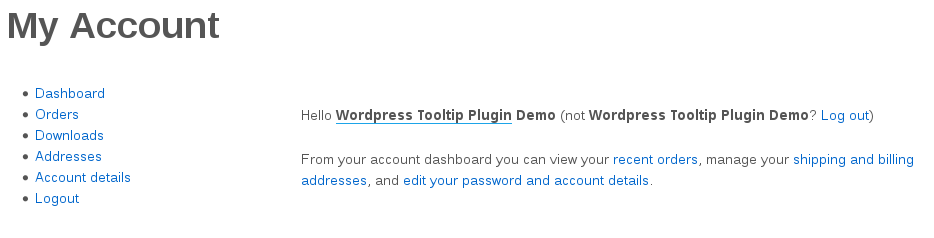
#Step 2, You will be redirected to “My Account” panel (https://tooltips.org/my-account/) automatically, it looks like this:

wordpress tooltip my account panel

wordpress tooltip my account panel

At the left hand of “My Account” panel, you will find “Downloads” link

#Step 3 Click “Downloads” link(https://tooltips.org/my-account/downloads/) in “My Account” panel, then you will open download plugin panel, it looks like this:

Download WordPress Tooltips Pro Plugin

Download WordPress Tooltips Pro Plugin

In here, you will find the red button “Tooltips Pro Pluing”, just click “Tooltips Pro Pluing” button to download newest version of wordpress tooltips pro plugin 🙂

Any more question is welcome 🙂

Thanks, have a blessed weekend with your family 🙂

Best Regards,

WordPress Tooltips Support Team


Tagged with:
Top