
An amazing wordpress tooltips pro plus user submitted a ticket to us, he asked a question to our wordpress tooltip plugin: “Hi, In the tooltip style menu I can define the color of the text using “Tooltip Term Color in Post”. If I create a tooltip with customized style I cannot define this color and always get the color defined in the global setting. Where can I fix this?”, this is a good question 🙂
If you are wordpress tooltips pro plus plugin user, may be you know, in wordpress tooltips pro plus 14.8.0, we added a new option “Tooltip Term Color in Post” in tooltip style panel, to solve another amazing user’s feature request:”Does the Pro plugin allow me to change the format of the term on the page? For instance, of the term being underlined, could I instead change the color of the term text in the post?”
The option “Tooltip Term Color in Post” in tooltip pro plus style panel looks like this:

As you can see, at the bottom of the wordpress tooltip style panel, there are a new option “Tooltip Term Color in Post”, you can just click to custom the color of wordpress tooltip term in wordpress post via wordpress color picker, If you changed the tooltip term color in here, then in front end, you can choose a color different from the default font color of the wordpress theme to make the tooltip more visible on the page and easier for your wordpress readers to find and activate the tooltip pop-up 🙂
How every, if wordpress tooltip plugin support customize color wordpress tooltip term for each wordpress tooltip term, then that means, in your wordpress posts, you can use some wordpress tooltip term rich in various colors to beautify the style of your wordpress pages, making your page lively and full of spirit, rather than dull only a black font 🙂
How to construct a colorful and lovely attention-grabbing wordpress post by adding different color tooltip terms?
1: Please login wordpress tooltip plugin site, if you have installed wordpress tooltip plugin 15.9.4, then please move to step #11 directly
2: In tooltips.org top menu bar, please click “download” menu item
3: You will be requested enter your user name and password to download wordpress tooltip pro plus plugin version 15.9.4
4: After logged in tooltips.org, you will be redirect to my account panel, in here you will find the newest version of wordpress tooltips pro plus, it is a .zip file
5: After downloaded wordpress-tooltips pro plus plugin, please login your wordpress site.
6: Then in wordpress dashboard, please click “Plugins” menu item and then deactivated the old tooltips plugin version
7: Then please click the “Delete” link to delete the old version of wordpress tooltip
8: In “Plugins” menu item, please click “add new” link which at the top of the plugins panel
9: Please upload the tooltips plugin zip file that you downloaded from wordpress glossary plugin site
10:Please activate wordpress tooltip glossary plugin 15.9.4
11: Then please Click “Tooltips” menu item
12: Now you will find all tooltip terms which you entered, just select a wordpress tooltip term and click edit link to edit it
13: Now you will open wordpress tooltip editor, please move to the bottom of the wordpress tooltip editor, you will find “Enable / Disable Custom Unique Style Functionality for this tooltip” panel, please select “Yes,I will customized a unique style for this tooltip at below”, it looks like this:
14: Then in the bottom of the tooltip box customize setting panel, you will find a new option “Tooltip term color in post”
15: Via the tooltip term color picker, you can select a lovely color for this wordpress tooltip term
16: Also you will find there are a enable / disable option under the “wordpress tooltip term color in post” option. if you do not want display a colorful wordpress tooltip effects for this tooltip term, you can just select “disable the option”, else just keep it as “enable the option”
17: If you do not enable this option, wordpress tooltip pro plus plugin will use global settings which in wordpress tooltip style panel, for example, let’s day in the front end, you have set up default global tooltip style looks like this:
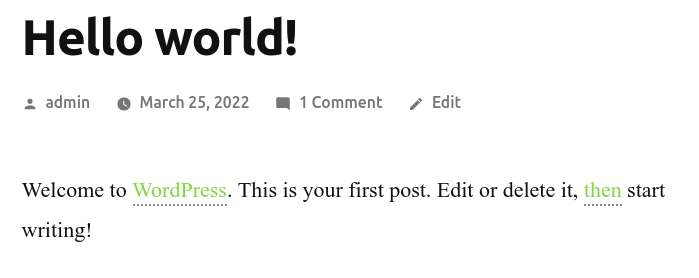
As you can see, all tooltip term have the same tooltip term color
18: Now if you set up to display different color for each wordpress tooltip terms, then it looks colorful in your wordpress post, for example, looks like this:

frontend of customized unique style of this tooltip term
It looks better, right? 🙂
Conclusion:
WordPress tooltips pro plus plugin has many sweet little tools that allow wordpress editor to decorate your wordprss post with colorful tooltip styles, you can use different lovely tooltip term colors to add some lovely and eye-catching spices to your carefully cooked thoughtful delicacies. You can add various videos, music, sounds, maps, payment QR codes… etc in your wordpress tooltip popup-window, saving you space in wordpress tooltip, and making it fun for users to keep discovering your thoughtful restaurant of thoughtful delicacies.





Leave a Reply