Optimisez la mise en page de votre glossaire : Conseils pour un meilleur espacement sur mobile, WordPress Tooltips Pro Plus 34.4.8

Créer de la Clarté : L’Importance de l’Espacement Correct dans Votre Glossaire — WordPress Tooltips Pro Plus 34.4.8

Bonjour, chers utilisateurs du plugin WordPress Tooltips , j’espère que ce message vous trouve en bonne santé et que vous passez de merveilleux moments en famille. Nous avons reçu un ticket d’un utilisateur de WordPress Tooltips qui a mentionné : « J’ai une question concernant l’espacement entre les entrées du glossaire. Y a-t-il une possibilité d’ajuster l’espacement ? Surtout dans la version mobile, cela ne rend pas bien. Je vous souhaite une bonne année ! » Notre développeur du plugin WordPress tooltips a examiné le ticket de l’utilisateur, et nous avons publié la version WordPress Tooltips Pro Plus 34.4.8 pour implémenter cette fonctionnalité pour les utilisateurs de WordPress tooltips.

Améliorer Votre Glossaire : Ajuster l’Espacement des Entrées pour une Lisibilité Optimale dans le Plugin WordPress Tooltips

  1. Veuillez ouvrir tooltips.org, puis cliquer sur l’élément de menu “Télécharger le plugin WordPress Tooltip” dans la barre de menu en haut pour télécharger la dernière version du plugin WordPress Tooltips Pro Plus (version 33.4.8 ou supérieure).

  2. Veuillez vous connecter à votre site wordpress en tant qu’administrateur.

  3. Dans le tableau de bord WordPress, accédez à l’élément de menu “Tooltips”, puis cliquez sur l’élément de sous-menu “Paramètres du Glossaire”.

  4. Vous ouvrirez maintenant le panneau “Paramètres du Glossaire”, qui ressemble à ceci :

Marge supérieure et inférieure des entrées du glossaire

  1. Comme vous pouvez le voir, en bas du panneau “Paramètres du Glossaire”, il y a de nouvelles options : “Marge supérieure de l’entrée du glossaire” et “Marge inférieure de l’entrée du glossaire”. Vous pouvez ajuster l’espacement entre les entrées du glossaire ici.

Conclusion :

Ce changement améliore la lisibilité et améliore l’esthétique générale de la version mobile de leur contenu :

Préoccupations de Lisibilité : Sur les écrans plus petits, un espacement excessif peut rendre difficile pour les utilisateurs de s’engager efficacement avec le contenu. Les utilisateurs peuvent trouver plus difficile de parcourir les entrées du glossaire si elles semblent trop espacées.

Attrait Esthétique : Une mise en page bien conçue est cruciale pour l’expérience utilisateur. Les utilisateurs peuvent remarquer que l’espacement actuel semble déséquilibré ou encombré, les incitant à rechercher un agencement plus attrayant visuellement.

Expérience Utilisateur (UX) : Les utilisateurs mobiles préfèrent souvent des mises en page concises qui leur permettent d’accéder rapidement à l’information sans faire défiler excessivement. L’utilisateur pourrait chercher à optimiser l’UX en minimisant l’espace inutile.

Cohérence : Maintenir un espacement cohérent dans les éléments de conception peut aider à créer un aspect cohésif tout au long de l’application ou du site Web. Les utilisateurs peuvent vouloir s’assurer que les entrées du glossaire s’alignent proprement avec d’autres contenus.

Avantages de l’Ajustement des Marges

Lisibilité Améliorée : En affinant les marges supérieure et inférieure, les entrées du glossaire peuvent devenir plus faciles à lire et à naviguer, en particulier sur les appareils mobiles où l’espace à l’écran est limité.

Flux Visuel Amélioré : Un espacement correctement ajusté peut mener à une mise en page plus harmonieuse, permettant aux utilisateurs de passer d’une entrée à une autre sans distractions visuelles.

Meilleur Engagement des Utilisateurs : Lorsque le contenu est facile à lire et esthétiquement plaisant, les utilisateurs sont plus susceptibles de s’y engager, ce qui conduit à une meilleure compréhension des termes et concepts présentés.

Accessibilité Accrue : Un espacement adéquat aide à accueillir les utilisateurs ayant des déficiences visuelles ou ceux qui peuvent avoir des difficultés avec des mises en page de texte denses, favorisant l’inclusivité.

Apparence Professionnelle : L’ajustement de l’espacement contribue à un aspect poli et professionnel, ce qui peut renforcer la confiance et la crédibilité auprès des utilisateurs.

En résumé, les utilisateurs peuvent remettre en question les problèmes d’espacement en raison de préoccupations concernant la lisibilité, l’esthétique et l’expérience utilisateur globale, et l’ajustement des marges des entrées du glossaire peut considérablement améliorer ces aspects.

Le glossaire des tooltips WordPress ressemble à ceci :

We will develop and cultivate the liberation of mind by lovingkindness, make it our vehicle, make it our basis, stabilize it, exercise ourselves in it, and fully perfect it.
The three great essentials to achieve anything worthwhile are: Hard work, Stick-to-itiveness, and Common sense.

Tagged with: , , ,

New Option “Do not Remove WPautop Function and Related Functions in WordPress Editor”, Supported by WordPress Tooltips Pro Plus Plugin 16.4.4

Dear   WordPress Tooltip plugin users, hope this message find you are doing well and have happy days with your family 🙂 We are happy to report you, we just released wordpress tooltip pro plus plugin 16.4.4, in this version, we added a new wordpress tooltips option: “Do not Remove WPautop Function and Related Functions in WordPress Editor” 🙂

We got an amazing wordpress tooltip user’s report:

I am using tooltip pro and it is causing elements to be inserted for
every empty line in the source and this is breaking my site. the site
works perfectly when tooltips is deactivated

Our wordpress tooltip support replied:

Hi,

Hope you are doing well and having happy days with your family 🙂

Thanks for the message 🙂

We are very happy to help you 🙂

Sorry, this is the first time to heard this kind of problem, Because we have many plugin versions with different functions, Would you please tell us:
1 the plugin version you are using
2 the URL related with the problem
3 a little more details to tell us how to find the problem in the URL
So we can understand it and help you better 🙂

Thanks, have a blessed day with your family 🙂

Best Regards,
Support Team

The great tooltip user said:

Hello

Thank you for your response.

I had first used the free version of tooltips and had no problems, so
I assumed there was some code in the pro version that caused the
problem.

My first step was to include the remove_filter( ‘the_content’,
‘wpautop’ ) filter in various places, first in my child theme
function, then in wp-admin, but that didn’t help.

I then searched the tooltips code and found the problem in
tooltips.php. I commented out all the code except to return $content.
That works perfect and I have no problems now.

I would suggest that you add an option to the settings to do this. I
use the toggle wpautop plugin to control the insertion of p and br
code but at present I have it set so the p and br code are never
inserted. I have been writing so long that it is just natural for me
to use all the html codes including p and br.

If you look at the source of any of the poems such
as https://elasticstyle.com/colorchords/ you will see that the
buttons are written as one button per line (of source). Before I made
the change tooltips.php, they displayed as a column since a br was
inserted between each button (as well as many other locations).

Anyway, I am very satisfied with this solution.

Our wordpress tooltips plugin developer checked our code, yes, the great wordpress editor and Gutenberg will change something in the content of wordpress tooltip author, and wordpress editor will add a insert a few things in the content of wordpress posts, for example, insert “<p>”…etc, to make the wordpress post looks better, some of these elements will break functions of advanced wordpress tooltips shortcode — in which wordpress tooltips can add video toooltip / image tooltip / QR code tooltip / Map tooltip / audio tooltip / PDF tooltip….etc, so in wordpress editor, we added a metabox to allow wordpress author to enable advanced tooltip shortcode or not, if wordpress editor enabled this tooltip metabox, we will disable wordpress function WPautoP(insert <p> in wordpress post automatically) 🙂

Actually, in wordpress tooltips plugin, we did a few more related works for ensure all wordpress tooltip shortcode works well 🙂

These function has been added in wordpress tooltips plugin in many years, this is the first time we heard a user told us this will generate empty line in their front end, in general, this is a conflicts with a wordpress plugin which generate the button for the great site of the user, or may be his theme have a few specify customized function

Based on the amazing wordpress tooltip user’s suggestion, we added a new option: “Do not Remove WPautop Function and Related Functions in WordPress Editor”, to support very few wordpress theme or very few wordpress plugin which UI based on the function WPautoP…etc 🙂

You can find the new option at the bottom of the tooltip optional settings panel. Please note, in general, you do not need to set this option, this only happen in a very few theme or 3rd plugin, so you can just pass this option.

Thanks for the great report, if you have any more feature request to wordpress tooltip plugin, please don’t hesitate to contact us, we are happy to improve wordpress tooltip plugin for you always 🙂

Thanks, have a blessed day with your family 🙂

Best Regards,

WordPress tooltips support team

Fixed Style in WordPress Tooltips Knowledge Base — WordPress Tooltips Plus Plugin 16.3.8 Released

Hi Dear  WordPress tooltip plugin users, hope this message find you are doing well and have happy days with your family 🙂 Our wordpress tooltip developer have released wordpress tooltips pro plus plugin 16.3.8, because we found the style of knowledge base in wordpress tooltips pro plugin messed up, in this new version we have fixed it 🙂

If you have any question or feature request about wordpress tooltips plugin, please contact us, we are very happy to help you realize it 🙂

Thanks, have a blessed day with your family 🙂

Best Regards,

WordPress tooltips support team

Tagged with: ,

How to Insert Image Tooltip Shortcode Inline in Gutenberg? Supported by WordPress Tooltips Pro Plus Plugin 16.3.4

Dear  WordPress tooltip plugin users, hope this message find you are doing well and have happy days with your family 🙂  Our wordpress tooltip developer have released wordpress tooltips pro plus plugin 16.3.4, to support enter wordpress image tooltip shortcode inline in Gutenberg 🙂

We got a ticket from a wordpress tooltip user:

Hello,
I’m trying to implement an image tooltip in the Gutenberg editor with this inline shortcode,
[tooltips keyword="Walnut" content="<img src='https://www.mydomain.com/wp-content/uploads/2021/06/Photo-1024x700.jpg'>"]]
and it looks like this “Walnut” and no image pops up and it says:

Proper Shortcode Usage is:
[[tooltips keyword='wordpress' content = 'hello, wp']]
or
[[tooltips content = 'hello, wp']]wordpress[[/tooltips]

All with single quotation marks ?

Your example here
https://tooltips.org/how-to-use-wordpress-tooltip-shortcode-tooltips-to-add-tooltips-manually/ says this:
[tooltips keyword="lovely girls" content="<img src='https://mydomain.com/wp-content/uploads/2017/02/screenshot.png'>"]
That’s not the same…is the keyword with single or double quotation mark?

On your site you don’t mention if you have must use Classic Editor (old) or if you can use Gutenberg Block editor (Paragraph/HTML) or the Classis editor block from Gutenberg which only has text possibility? It supposed to work inline in all these editors right?

It seems the Gutenberg editor doesn’t accept the single quotation marks before and after the image because they transform automatically in “
Is this the reason it doesn’t work?

Than there’s the overall question about the single and double quotation marks, I’ve tried every combination with “your” marks see  below above the line and “mine” below the line.
They vary also (is this important?), how do I replicate yours besides copying them? I’ve tried them all btw.


Is the Tooltips plugin actually compatible with Gutenberg editor or must I have to use the old editor?

I’d rather want to use this shortcode method for such a simple code than the tooltip editor with use of [Tooltip For Forms Demo - Message Field ]
(this works btw) because it’s more flexible with the term you want to use and quicker if it works right away. 🙂 And if you delete a tooltip in the editor your text/term in the post is gone also.

I’ve read https://tooltips.org/how-to-easily-add-a-powerful-pretty-wordpress-tooltips-in-wordpress-via-wordpress-shortcode-very-fast/

Could you explain under which conditions this might be going to work?
Is there a workaround?

Our wordpress tooltip plugin developer checked this question, yes, Gutenberg will change something in your content, for example, add the tag <p> automatically, replace with automatically….etc. If you are using a tooltip text shortcode , there are no any problem, but if you are using a wordpress image tooltip shortcode, because Gutenberg will change to automatically, if you did not entered image tooltip with correct format( the format is: In the shortcode, after the tag content, please use , and after the tag img src, use , please check description of the correct format at below), image tooltip shortcode will not works well, that’s why we develop a new version — wordpress tooltips pro plus 16.3.4 to solve this kind of problem 🙂

How to Insert Image Tooltip Shortcode Inline in Gutenberg?

1: Download newest wordpress tooltips plugin

2: Login your wordpress admin area, delete old version of wordpress tooltips pro plus plugin

3: upload / activate the newest version of wordpress tooltips pro plus plugin

4: in Gutenberg block, just copy and past the tooltips image shortcode directly, the real result in your block will looks like this: lovely girls

Actually the code of image tooltip shortcode looks like this:

 [tooltips keyword="lovely girls" content='<img src="https://tooltips.org/wp-content/uploads/2014/03/ben-white-179058.png">']

please note: a few user said their shortcode cannot works in Gutenberg, that is because they use the error format like this:

1 [tooltips keyword=”lovely girls” content=”<img src=’https://tooltips.org/wp-content/uploads/2014/03/ben-white-179058.png’>”]

This will not work, because Gutenberg will replace the in shortocode to format automatically like this:

2 [tooltips keyword=”lovely girls” content=”<img src=”https://tooltips.org/wp-content/uploads/2014/03/ben-white-179058.png”>”]

User have no way to stop Gutenberg replace the to , even you update the format manually, once Gutenburg saved the post, Gutenberg will replace the to again — automatically, so editor must use the correct format like this:

[tooltips keyword=”lovely girls” content=’<img src=”https://tooltips.org/wp-content/uploads/2014/03/ben-white-179058.png”>’]

The rule is: In the shortcode, after the tag content, please use ‘, and after the tag img src, use “

When you enter the wordpress image tooltip shortcode inline Gutenberg, Gutenberg will display the image directly in Gutenberg editor, we make the screenshot of our current post, it looks like this:

When you publish the post, all things will works well in front end automatically 🙂

5: Please note, At the right hand of Gutenberg, we have a metabox “Tooltip Settings for this page”, please remember checked the option “Enable Advance Tooltips Shortcode” 🙂

Does image tooltip shortcode works in Guternberg code editor?

Yes, just insert the tooltip shortcode with the correct format, all things works well in Guternberg code editor too.

The rule of the format of Gutenberg is: In the shortcode, after the tag content, please use ‘, and after the tag img src, use “

We make the screenshot of Gutenberg code editor for users too, it looks like this:

As you can see, we insert a tooltip popup window picture in the image tooltip shortcode, in front end, when mouse hover the tooltip term Walnut, the tooltip window looks like this:

If you have any more question or feature request to wordpress tooltip plugin, please don’t hesitate to contact us, we are very happy realize it for you 🙂

Thanks, have a blessed day with your family 🙂

Best Regards,

WordPress Tooltips Plugin Support

Tagged with: , ,

How to Change Color of Letters in Glossary Navigation Bar Which Have Terms. WordPress Tooltips Pro Plus 16.0.8 Released

Hi Dear  WordPress Tooltip plugin users, hope this message find you are doing well and have happy weekend with your family 🙂   We have released wordpress tooltips pro plus  16.0.8, to allow wordpress glossary admin to change color of letters which have terms in glossary Nav bar,   based on an amazing users’ feature request  🙂

How to Change Color of Letters in Glossary Navigation Bar Which Have Terms?

1: Login your account in wordpress tooltip plugin site

2: Click download link in top menu bar at wordpress tooltip site

3: In my account panel download newest version of wordpress tooltip plugin

4: Login your wordpress site as wordpress admin

5: In plugins panel,delete the old version of wordpress tooltips pro plugin

6: Then click “add new” button at the top of plugin panel to upload the zip file of the wordpress tooltip glossary plugin

7: Activate the wordpress tooltips pro plus plugin

8: In wordpress dashboard, click “Tooltips” menu item

9: Click “Glossary Settings” sub menu item

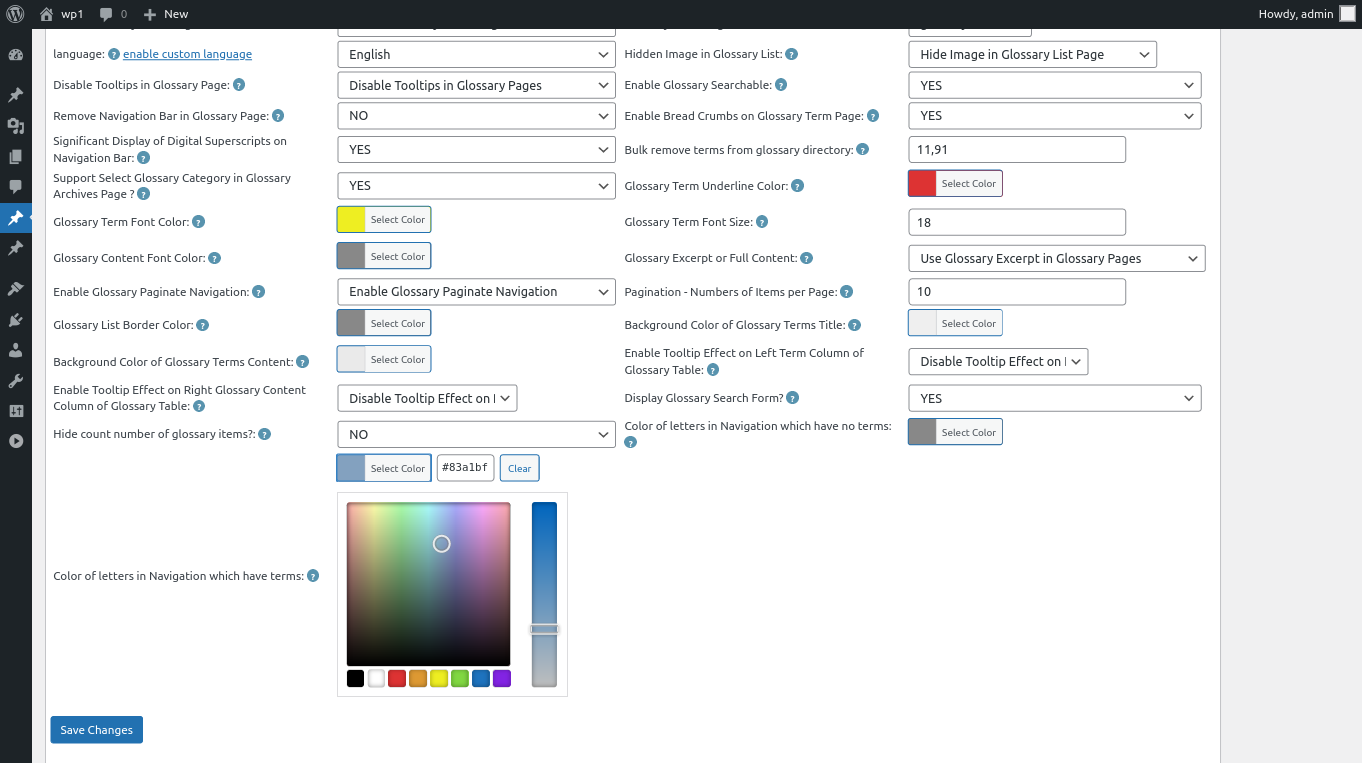
10: At the bottom of the “Glossary Settings” panel, you will find the new option “Color of Letters in Glossary Navigation Bar Which Have Terms”, it looks like this:

glossary custom panel in wordpress glossary 16.0.8

11: In the option “Color of Letters in Glossary Navigation Bar Which Have Terms”, you can click the color picker to change the color,it looks like this:

changing color of letters in Navigation which have terms

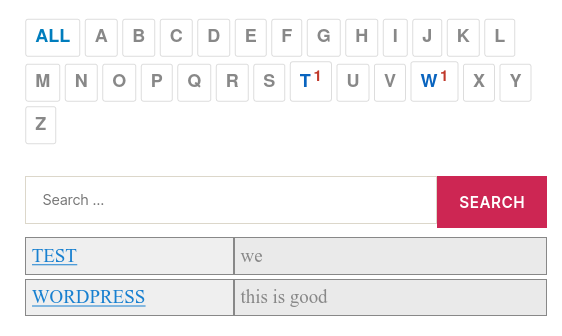
then just click “Save Changes” button, in front end the “Color of Letters in Glossary Navigation Bar Which Have Terms” will be changed as you modified in here :):

12: For example, the result in front end of  the step #11 will looks like this:

customized color of glossary terms which have items

Thanks for the feature request, if you have any more requirement, please don’t hesitate to contact us, we are happy to do it for you 🙂

Thanks, have a blessed weekend with your family 🙂

WordPress Tooltip Support

Tagged with: , ,
Top