Author: team

Introducerea opțiunii ‘Citește mai mult’ pentru a deschide linkurile într-o fereastră nouă în WordPress Tooltip

Plugin WordPress Tooltips Pro Plus 32.8.8, Nouă Funcție — Deschiderea Linkurilor ‘Citește mai mult’ într-o Fereastră Nouă în Tooltip-urile WordPress

Bună, dragi utilizatori ai pluginului WordPress Tooltips, sper că acest mesaj vă găsește într-o stare bună și că vă bucurați de momente plăcute cu familia. Acum câteva zile, am primit o cerere de la un utilizator minunat al pluginului WordPress Tooltips. Acesta a menționat că a creat o pagină de glosar și a selectat ‘Utilizează Extrasele Glosarului în Paginile Glosarului’ sub opțiunea ‘Extrasul Glosarului din Conținutul Complet’ în panoul de setări. Cu toate acestea, când face clic pe ‘Citește mai mult’ în extras pe frontend, linkul glosarului se deschide în aceeași fereastră. El a cerut posibilitatea de a deschide linkul glosarului într-o fereastră nouă.

Dezvoltatorul nostru al pluginului WordPress Tooltips a revizuit această cerere, iar noi am lansat o nouă versiune, WordPress Tooltips Pro Plus 32.8.8, pentru a implementa cerința de funcționalitate ‘Deschiderea Linkurilor ‘Citește mai mult’ într-o Fereastră Nouă’ pentru utilizatorul nostru minunat.

Cum să deschideți linkurile ‘Citește mai mult’ într-o fereastră nouă în Pluginul WordPress Tooltips?

1: Faceți clic pe elementul de meniu “descarcă” din bara de sus a site-ului WordPress Tooltips, descărcați pluginul WordPress Tooltips Pro Plus versiunea >= 32.8.8.

2: Conectați-vă la site-ul dvs. WordPress ca administrator.

3: În tabloul de bord WordPress, faceți clic pe elementul de meniu “Tooltips”, care arată astfel:

tooltips menu in wordpress tooltips pro plus 27.5.8

meniu tooltips în wordpress tooltips pro plus 27.5.8

4: Acum, faceți clic pe elementul de submeniu “Setări Glosar” în elementul de meniu “tooltips”.

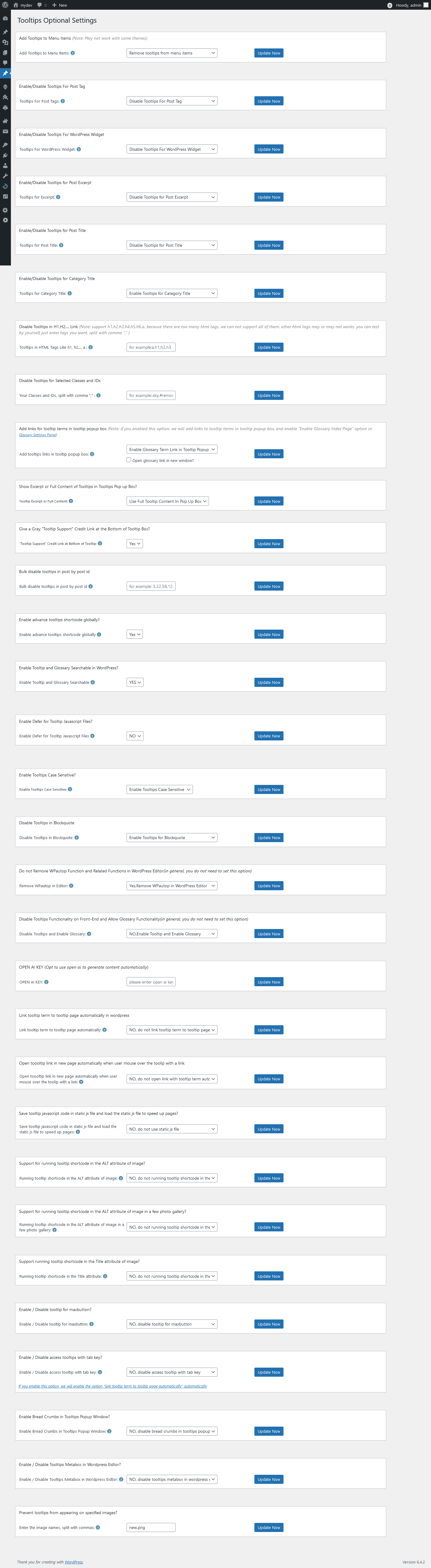
5: Apoi, în panoul de setări al glosarului, veți găsi noua opțiune “Deschide Citește mai mult într-o Fereastră Nouă”, care arată astfel:

Deschide Citește mai mult într-o Fereastră Nouă în panoul de setări al glosarului WordPress Tooltips

6: În opțiunea “Deschide Citește mai mult într-o Fereastră Nouă”, selectați “DA”. Aceasta va asigura că atunci când faceți clic pe linkul citit mai mult al extrasului de glosar în pagina de glosar, linkul citit mai mult se va deschide într-o fereastră nouă. Dacă selectați “NU”, acesta se va deschide în aceeași fereastră.

Sper că acest lucru să fie de ajutor
Glosarul nostru arată astfel:

Tagged with: , , ,

Weekly work report of the WordPress Tooltips working group for the 38th week of 2024

Hi, dear  WordPress Tooltip plugin users, I hope this message finds you well and that you are having happy days with your family.  In  the 38th week of 2024,  the WordPress Tooltips team worked hard, and we are pleased to report our recent efforts to wordpress tooltip users  🙂

Weekly work report of the WordPress Tooltips working group for the 38th week of 2024

A. Based on an amazing feature request from a WordPress Tooltips user, we released Tooltips Pro Plus 31.7.8, which allows WordPress Tooltip administrators to generate all items of WordPress Tooltips as a JSON file.

Generate Tooltips Json File

B: We are thrilled to announce the release of version 9.9.3,  packed with enhancements based on your invaluable feedback. In this update, we addressed several key issues to improve your experience:

1 Admin Tooltip Fixes: We resolved issues with admin tooltips in global settings that were not functioning optimally.

2 Clarified Titles: A few titles in global settings have been revamped for clarity and appeal.

3 Gutenberg Support: Our new version now supports the creation and editing of tooltip terms using the Gutenberg editor, enhancing your editing experience. One inspiring suggestion we received was to allow users to create tooltips directly within Gutenberg. This idea reflects the seamless and dynamic capabilities of Gutenberg’s block-based editor.

We agree—this would significantly enrich the user experience and streamline content creation. To enable tooltip creation in Gutenberg, simply log in to your WordPress admin, navigate to the “Tooltips” menu, select “Global Settings,” and enable the new Gutenberg option. Enjoy a more intuitive interface and improved flexibility in your content management!

C: Released wordpress tooltips plugin pro plus version 31.8.8, a new tab panel has been introduced in the WordPress Tooltip directory control panel, allowing users to view different types of directories in distinct tabs.

D: A teacher reached out with a request for our WordPress Tooltip plugin, highlighting difficulties in finding user directory options due to cluttered settings. In response, we developed WordPress Tooltips Pro Plus 31.8.8, introducing a Bootstrap tab panel for organizing different directory types into separate tabs.

This solution was well-received; however, the teacher noticed that two instances of bootstrap.min.js were loaded in the admin area. Upon investigation, we found another plugin was causing this. To address the issue, we released WordPress Tooltips Pro Plus 31.9.8, ensuring Bootstrap.js and Bootstrap.css are only loaded in the tooltip directory settings panel.

This improvement enhances performance and avoids conflicts.

E: We believe that incorporating a Bootstrap tab panel in the WordPress Tooltip directory settings panel is a positive step to help users navigate the directory more easily. Therefore, we added these new tab panels for displaying directory types in the WordPress Tooltip control panel in WordPress Tooltips Free 9.9.9.

F: We wrote a few WordPress Tooltip documents to address the tickets from WordPress Tooltip plugin users.

How can I handle wordpress tooltips with the same name but different meanings?

How to Disable WordPress Tooltips in URL-Links?

How to to avoid showing wordpress tooltips in the content list on top of the page?

G:We have updated our existing documents to incorporate the new changes in the WordPress Tooltip plugin documentation:

1 Features of WordPress Tooltips Plugin

2 WordPress Tooltips Pro Plus Plugin — Tooltips Plus 31.9.8 Powerful Features & 20 Addons & Multi-Site License One Time Payment, Unlimited Upgrade & AI Writer Auto-Generate WP Post

3 Change Log of WordPress Tooltips Pro Plus

4  Change Log of WordPress Tooltips Free Plugin

5  WordPress Tooltips Plugin Free

Additionally, based on user requests, we have created numerous documents in German, French, and Spanish for WordPress Tooltips Plugin users.

Tagged with: , , , ,

Wie kann man verhindern, dass Tooltips auf einem bestimmten Bild angezeigt werden?

Hallo, liebe WordPress Tooltip Nutzer, ich hoffe, es geht euch gut und ihr habt ein schönes Wochenende mit eurer Familie Ein erstaunlicher WordPress Tooltip-Nutzer hat uns geschrieben: „Hallo, ich möchte den Tooltip (den Text „home“), der beim Überfahren des Logos (jeder Seite) erscheint, entfernen. Ich benutze Tooltips für einige Bilder auf meiner Seite, also müsste ich den Tooltip NUR für das Logo-Bild entfernen. Danke im Voraus für eure Hilfe.“

Unser Unterstützungsteam für das wordpress tooltip plugin antwortete:

Hallo,
Danke für die Nachricht
Wir freuen uns, dir helfen zu können
Entschuldige das Problem. Könntest du bitte versuchen:
1: Im globalen Einstellungsbereich für WordPress Tooltips gehe zu der Option „Tooltips für Bilder aktivieren“ und wähle dann „Ich möchte Tooltips für Bilder deaktivieren“.
Wenn du die Tooltip-Funktion für Bilder trotzdem aktivieren möchtest, kannst du versuchen:
2: Im globalen Einstellungsbereich für WordPress Tooltips finde die Option „Tooltips für Bild Einstellungen“, wähle „rel-Attribut im img-Tag als Inhalt von Tooltips für Bilder verwenden“.
Wir haben ein detailliertes, schrittweise Dokument mit Screenshots unter:
Wie man die Anzeige von WordPress Tooltips auf dem Site-Logo und anderen Bildern vermeidet?
Ich hoffe, das hilft ein wenig
Danke, hab einen gesegneten Tag mit deiner Familie
Mit freundlichen Grüßen,
WordPress Tooltip Plugin Support

Der WordPress Tooltip Nutzer antwortete:

Betreff:
Tooltip NUR vom Site-Logo entfernen
Nachricht:
Hallo,
Ich möchte den Tooltip (den Text „home“), der beim Überfahren des Logos (jeder Seite) erscheint, entfernen.
Ich benutze Tooltips für einige Bilder auf meiner Seite, also müsste ich den Tooltip NUR für das Logo-Bild entfernen.
Danke im Voraus für eure Hilfe.

Dann überprüfte unser WordPress Tooltip-Entwickler dieses Ticket, und wir entschieden, eine neue Version zu entwickeln, um zu verhindern, dass Tooltips auf bestimmten Bildern erscheinen, da wir glauben, dass mehr Nutzer ähnliche Anforderungen haben, und wir antworteten:

Hallo,
Danke für die Antwort
In diesem Fall haben wir eine andere Lösung. Wir werden ein detailliertes Dokument für dich schreiben und dir erneut antworten
Danke, hab einen gesegneten Tag mit deiner Familie
Mit freundlichen Grüßen,
WordPress Tooltip Plugin Support

Deshalb haben wir eine neue Version des WordPress Tooltips Plugins entwickelt: WordPress Tooltips Pro Plus 31.3.8


Wie kann man verhindern, dass Tooltips auf bestimmten Bildern erscheinen?

1: Wenn du Kunde des WordPress Tooltip Pro Plus Plugins bist, klicke bitte auf den Link „WordPress Tooltip herunterladen“, um die neueste Version des Plugins zu erhalten. Stelle sicher, dass die Versionsnummer gleich oder größer als 31.3.8 ist. Wenn du ein neuer Benutzer bist, musst du eine Lizenz für das WordPress Tooltip Pro Plus Plugin erwerben.

2: Melde dich als WordPress-Admin auf deiner WordPress-Seite an und klicke im WordPress-Dashboard auf das Menü „Plugins“.

3: Deaktiviere und lösche die vorhandene Version des WordPress Tooltip Pro Plus Plugins aus dem WordPress-Plugin-Bereich.

5: Klicke auf die Schaltfläche „Neu hinzufügen“, um die WordPress Tooltip Pro Plus Plugin-Version >= 31.3.8 hochzuladen, und aktiviere das Plugin.

6: Wenn du ein neuer Benutzer des WordPress Tooltip Plugins bist, schaue dir unser Video zur Installation des WordPress Tooltip an: WordPress Tooltips Video-Tutorial 3: Wie man das WordPress Tooltips Pro Plugin hochlädt und aktiviert.

7: Gehe im WordPress-Dashboard zum Menü „Tooltips“. Klicke dann auf den Unterpunkt „Optional Einstellungen“. Das WordPress Tooltip-Menü erscheint wie folgt:

tooltips menu in wordpress tooltips pro plus 27.5.8

Tooltip-Menü in WordPress Tooltips Pro Plus 27.5.8

9: Im optionalen Einstellungsbereich von WordPress findest du die neue Option „Tooltips auf bestimmten Bildern verhindern“. Sie sieht so aus:

Prevent tooltips from appearing on specified images
Tooltips auf bestimmten Bildern verhindern

Wie du in der Option „Tooltips auf bestimmten Bildern verhindern“ sehen kannst, kannst du die Bildnamen eingeben. Wenn du mehrere Bilder hast, trenne die Namen mit Kommas.

In welchen Situationen sollte diese Einstellung verwendet werden?

Bitte beachte, dass diese Einstellung nur wirksam wird, wenn du den Wert von „Tooltips für Bild Schlüsselwortübereinstimmung Modus“ auf „ALT-Attribut im img-Tag als Inhalt von Tooltips für Bilder verwenden“ setzt, was die von dem Benutzer angeforderte Einstellung ist.“

Ich hoffe, das hilft ein wenig.

Danke für die großartige Funktionsanfrage, und entschuldige die verspätete Antwort. Unser WordPress Tooltip Plugin-Entwickler hat dir eine Lizenz in deinem Konto als Entschuldigung hinzugefügt. Das WordPress FAQ-Plugin ist eine leistungsstarke und schnelle jQuery FAQ-Lösung, um WordPress-Bloggern zu helfen, FAQs einfach zu erstellen / zu verwalten / zu bearbeiten, wähle das standardmäßige schöne FAQ-Template und den benutzerdefinierten FAQ-Stil im Backend mit wenigen Klicks. Mit dem WordPress FAQ Plugin ist es sehr einfach, Akkordeon-FAQs zu erstellen und anzuzeigen, FAQs nach Kategorien zu gruppieren… usw., einfach zu bedienen, wähle schöne FAQ-Templates aus vorgefertigten Vorlagen, benutzerdefinierter FAQ-Stil im Backend mit wenigen Klicks, unterstützt die Verwendung von OpenAI ChatGPT zur automatischen Erstellung hochwertiger Inhalte für WordPress F.A.Q und WordPress-Beiträge, unterstützt WooCommerce Produkt-FAQs, responsive FAQs, mehrere FAQ-Vorlagen, FAQs nach Kategorien gruppiert, bestimmte Anzahl von FAQ-Artikeln für jede FAQ… und noch vieles mehr. Weitere Details findest du unter:

WordPress FAQ Pro Plugin mit WordPress Tooltips (Version 4.6.6)

Danke, hab einen gesegneten Tag mit deinen Liebsten.

Mit freundlichen Grüßen,
WordPress Tooltips Plugin Support-Team

Tagged with: , ,

How to Replace the Glossary Category Link in the Glossary Breadcrumbs in the WordPress Tooltips Plugin? WordPress Tooltips Pro Plus version 31.0.8 has been released

Hi, dear users of  WordPress Tooltip plugin,I truly wish that this message reaches you in high spirits, surrounded by the joy and comfort of your dear family. 🙂 We just released the version 31.0.8 of wordpress tooltips pro plus, the reason for developing this version is that a few days before, we received a few support tickets from an amazing wordpress tooltip user:


Subject:
Help with the setup

Message:
Hello dear support team, I can’t quite  get to grips with the operation. I would like it to look
like this page (https://demo/lexikon). It looks like  this for me: (https://demo/lexiko
n) The pictures are not displayed and it doesn’t look nice. Can you help me?

Thank you
Regards


Our wordpress tooltip support replied:

Hi,
Hope this message find you are doing well and having happy weekend with
your family 🙂

Sir, it is greate to know you are SEO expert! 🙂

Sir, let’s solve the problem step by step:
1: Would you please create a new page in wordpress dashboard
2: In this new page, please insert glossary shortcode: [ glossary ]
3: Then in front end, the glossary page looks like this: https ://tooltips.org/glossary-demo/  🙂

Sir, we checked pages, the page https ://demo/lexikon is glossary index page which display all
glossary terms(with links) in one  page to improve SEO rank, it is a wordpress standard category archive page, in this page, we found your theme mentioned you need check theme panel and enable some functions in block…etc,  this page is designed by wordpress theme, so please just follow the top to check your theme  panel and enable image in backend, I
guess then you will find images display in this archive page 🙂

If you have any more question, please don’t hesitate to tell us, we are very happy to help you solve the problem asap we can

Thanks, have a blessed weekend with your loved ones 🙂
Best Regards,
Wordpress Tooltips Plugin Support ——————————————————————————————————–

The user replied:

Hello Support Team,
Thank you very much for your help! I have created a new page and inserted
the shortcode [ glossary ]  “https://demo/lexikon-glossary”. Now it looks exactly like  your glossary demo page. After I set the “Glossary Index Page:” in the “Glossary Settings”, I had  the archive page again. If I simply selected another page, the links were not correct. Unfortunately I can’t get to grips with the many functions, is it  possible that you can set this correctly for me? I would like to have it just like on your site:  https://tooltips.org/glossary-demo/
Many thanks and have a good start to the week.
Greetings
———————————————————————————————————–

Our wordpress tooltip plugin support team replied:

Hi,
Thanks for the reply 🙂

It is great to know you have created new page and insert the shortcode and it works well 🙂

Sorry for heard issues of

#1: After I set the “Glossary Index Page:” in the “Glossary Settings”, I had the archive page again.

#2: If I simply selected another page, the links were not correct. We ensure 100% we can solve  the problem for you 🙂

Sir, would you please give us a screenshot of glossary settings page, If you are using Firefox, you can find the screenshot tool by going to “More Tools” –“Customize  Firefox” and then you
can easily take screenshots:)

Also would you please tell us the page URLs in:
#1: After I set the “Glossary Index Page:” in the”Glossary Settings”, I had the archive page  again.

and #2: If I simply selected another page, the links were not correct.

So we can understand it better and help you solve the problem 🙂

Please note, in general, when you set up the option “glossary index page”, please do not select  the page https://demo/lexikon-glossary , because https://demo/lexikon-glossary is a glossary table page which created by the shortcode [ glossary ], and glossary index page is a category  archive page, you can use select another page in the option “glossary index page” 🙂

Thanks, have a blessed day with your loved ones 🙂

Best Regards,
Support

———————————————————————————————————–

And we checked settings for the amazing tooltip user, we reported to the user:

Hi,

Hope you are doing well and having happy days with your family 🙂

Sir, we have resolved the problem for you 🙂

We found you have two page  which inserted the the shortcode [ glossary ]:
1: Glossary & Lexikon the URL is: http://127.0.0.1/glossary-lexikon

2: Lexikon/Glossary http://127.0.0.1/lexikon-glossary

And you set up one of them as glossary index in glossary settings panel 🙂

Okay, A simple & fast way to resolve the problem is:
1 login wordpress

2 in wordpress dashbpoard, click wordpress “pages” menu item

3 please click “add new page” to create a new page, please just enter something like: “glossary index” as page title, you do not need to enter any content in the page, then just publish the
page 🙂

4 in wordpress dashboard, please click “tooltips” menu item, then click “Glossary Settings” sub-menu item

5 you will open Glossary Settings panel, in the option “Glossary Index Page”, please select the  new page “glossary index”, then click “save changes” in Glossary Settings panel

6 now when you open the page http://127.0.0.1/glossary-index, you will find the page is a glossary index page that like our glossary index page demo: https://tooltips.org/glossary/

7 then when you open http://127.0.0.1/lexikon-glossary or http://127.0.0.1/glossary-lexikon,
You will find it is a glossary page that that like our glossary page demo: https://tooltips.org/glossary-demo/

Would you please follow our guide to do a test? Any more question is welcome 🙂

Sorry for the delayed response again, our developer have added a wordpress FAQ pro plugin license in your account as a Sorry,  WordPress FAQ plugin is a powerful & fast jQuery FAQ
solution to help wordpress blodder create / manage / edit FAQs easily, select default pretty FAQ template and custom FAQ style in back-end via a few clicks. With wordpress faq plugin, it is very easy to create and show accordion FAQs, display FAQs grouped by category…etc, easy to use, select pretty FAQ templates from pre-designed template, custom FAQ style in
back-end via a few clicks, Support use OpenAI ChatGPT to generate high-quality content for WordPress F.A.Q and wordpress post automatically, support WooCommerce Product FAQ, Responsive FAQ, Multiple FAQ Templates, FAQs grouped by category, specified number of  FAQ items for each FAQ… and more and more, you can find more details at:

WordPress FAQ Pro Plugin With WordPress Tooltips (version 4.6.6)

Thanks, have a blessed day with your loved ones 🙂

Best Regards,
Support Team


Am 28.06.2024 um 21:38 schrieb
happysupport:

Hi ,

Hope you are doing well and having happy days with your family 🙂

Thanks for the message 🙂

We are very happy to help you 🙂

I am assign our developer to check it, we will reply you again 🙂

Thanks, have a blessed day with your family 🙂

Best Regards,
Wordpress Tooltips Plugin Support Team


Then the wordpress tooltip user replied:

Hi Support Team,

thank you very much for your commitment and efforts. It worked. I still have one small point.
When I click on Lexicon, I get to the following page: https://demo/lexikon-glossary That is also OK. If I now click on the first post: https://demo/glossary/302-weiterleitung Also OK.
In the post comes:

Home / Glossary Index Page / 302 Forwarding with the link (Glossary Index Page): https://demo/glossary

And this page should not be displayed, I would like to have the index again:
https://demo/lexikon-glossary

Is that possible?

Best Regards,
—————————————————————————————————————–

Then our wordpress tooltip support replied:

Hi,

Thanks for the reply 🙂

It is great to know it works 🙂

Thanks for the new report, our developer checked your page and checked our code, in the current time:

1: in glossary settings panel, we have option “enable bread crumbs on glossary term”, you can disable / enable these links in this option

2: currently, we have no function to change the link in bread crumbs, but our developer said he is start to add a new option to allow admin to select another page as this link in breadcrumbs, once we finished this new function, we will reply you again 🙂

Thanks, have a blessed day with your family 🙂

Best Regards,
Wordpress Tooltip Plugin Support


That’s why we need develop a new version of wordpress tooltip plugin to implement the feature request from the amazing wordpress tooltip user, Our wordpress tooltips plugin developer have released a new wordpress tooltips pro plus version 31.0.8 to resolve it for the user 🙂


How to Replace the Glossary Category Link in the Glossary Breadcrumbs in the WordPress Tooltips Plugin?

1:If you are a user of the WordPress Tooltip Pro Plus plugin, please click on the “download wordpress tooltip” link to get the latest version of the tooltips plus plugin. Make sure the version number is equal to or greater than 31.0.8. If you are a new user, you will need to purchase a license for the WordPress Tooltip Pro Plus plugin.

2: Log in to your WordPress site as an administrator.

3: Navigate to the “Plugins” menu in the dashboard.

4: Deactivate and delete the existing version of the WordPress Tooltip plugin from the plugins panel.

5: Next, upload the new version of the WordPress Tooltip plugin by selecting the “Add New” button and choosing the plugin’s zip file.

6: Once the file is uploaded, activate the plugin from the plugins panel to enable its features.

7: If you are new user of wordpress tooltip plugin, please check our  video of how to install wordpress tooltip at:  WordPress Tooltips Video Tutorial 3: How to upload and activate wordpress tooltips pro plugin

8: In the WordPress dashboard, go to the “Tooltips” menu. Then, click on the “Glossary Settings” sub-menu item. The WordPress Tooltip menu appears as follows:

tooltips menu in wordpress tooltips pro plus 27.5.8

tooltips menu in wordpress tooltips pro plus 27.5.8

9: Within the WordPress glossary settings panel, you will find the “Replace Tooltip Category Link in Glossary Bread Crumbs” option, it looks like this:

As you can see at the bottom of the WordPress Glossary Settings panel, we have added a new option called ‘Replace Tooltip Category Link in Glossary Breadcrumbs’ In this option, there is a dropdown box listing all WordPress pages. You can simply select a different page from this dropdown to replace the glossary category link in the breadcrumbs. 🙂

Please note:

1: If you do not want to replace the glossary category link in Glossary Bread Crumbs, just select the item “None” in the dropdown box

2: If you selected a wordpress page from the dropdown box, even if the glossary item does not belong a  glossary category, we will still display the selected wordpress page as the glossary category, if you do not want to replace the glossary category link in the glossary breadcrumbs, please simply select the item “None” from the dropdown box

Also, we are adding new option to allow wordpress tooltip editor to replace other links in the Glossary Bread Crumbs

Thanks for the great feature request, if you have any more feature request, please don’t hesitate to contact us, we are very happy to implement it for you 🙂

Thanks, have a blessed day with your family 🙂

Best Regards,

WordPress tooltip plugin support

Tagged with: , , ,

Understanding Glossaries: Their History, Importance, and the Relevance of WordPress Glossaries

What is a Glossary?

A glossary is a specialized list of terms along with their definitions, typically related to a specific subject or field. It acts as a reference tool that helps clarify jargon and technical language, making complex concepts more accessible to readers. Glossaries are found in various areas, including education, technical writing, medicine, and law, serving to enhance understanding and facilitate effective communication.

The Purpose of a Glossary

Glossaries serve several important functions:

  1. Clarification of Jargon: Many fields of study involve specialized terminology. A glossary provides clear definitions, helping newcomers understand complex language.
  2. Enhanced Learning: For educational contexts, glossaries aid students in mastering the vocabulary specific to a subject, which promotes better comprehension and retention.
  3. Improved Communication: In professional and casual settings, glossaries ensure that all parties have a shared understanding of critical terms.
  4. Localization: For global audiences, glossaries help maintain the intended meaning of terms when translated.

The Historical Context of Glossaries

The concept of glossaries dates back to ancient civilizations. Scholars in ancient Greece and Rome compiled lexicons and glossaries to preserve knowledge and assist readers in understanding complex language. Some of the earliest glossaries, dating back to the first century AD, contributed to academic work across various disciplines. As education systems developed, particularly during the Middle Ages, glossaries became integral to university curricula. The advent of the printing press in the 15th century facilitated the production and distribution of glossaries, allowing them to reach broader audiences. In the modern era, glossaries continue to find relevance in academic, technical, and digital content, emphasizing the necessity of clear communication in specialized domains.

What is a WordPress Glossary?

A WordPress glossary adapts traditional glossary concepts to the WordPress platform. It provides a dedicated section or feature where users can find definitions of terms relevant to the site’s content. This enhances user experience by allowing visitors to grasp key concepts quickly and efficiently. It looks like this:

Wordpress tooltips is an amazing plugin which help you create more colorful and varied tooltip to display your content with lively and elegant effects,  save your valuable screen space. When users hovers over an item on the page, a tooltip box will popup with custom animation effects. The tooltip content will show in the popup Read More
❤️ Made with Love since 2008, trusted by 20,000 sites. Plug & Play Simplicity, Lifetime Upgrades, Unlimited Download, 50+ design settings, 400+ Configuration Options, 688 Versions Released, 1,600+ multilingual docs. Beautiful, modern tooltips = higher trust → higher conversions. Get the WordPress Tooltip Plugin Now
Video  Tooltip = More Conversions
We will never share your email with anyone
Your first name and last name, thanks

Features of a WordPress Glossary

  1. Definitions and Explanations: Lists terms alongside their definitions, allowing users quick reference to jargon or technical language.
  2. Enhanced Navigation: It organizes terminology for easy access, helping users find terms while exploring related content.
  3. Search Functionality: Users can type a term and quickly find its definition, improving usability.
  4. Alphabetical Listings: Well-structured glossaries enable users to navigate terms easily.
  5. Tooltips: Some glossaries display definitions when hovering over specific terms, facilitating seamless access to information.

Why Include a Glossary on Your WordPress Site?

  1. Improved User Experience: Glossaries help visitors who encounter unfamiliar terms, allowing for greater engagement with the material.
  2. Increased Engagement: Quick access to definitions encourages users to spend more time on your site, exploring additional content.
  3. Search Engine Optimization (SEO): Glossaries create extra content that improves search visibility, potentially drawing more visitors to your site.
  4. Establishing Authority: By providing well-researched definitions, a glossary positions your site as a trusted information source.
  5. Facilitating Learning: For educational websites, glossaries are vital in helping learners navigate complex subject matter.

Why Should WordPress Webmasters Use a WordPress Glossary Plugin?

Using a WordPress glossary plugin can greatly simplify the creation and management of a glossary:

1. Simplicity and Ease of Use

These plugins are user-friendly, allowing webmasters to create and manage glossaries without extensive technical skills. Most provide intuitive interfaces for adding and editing terms.

2. Customization Options

Many plugins offer customization features, allowing you to tailor the appearance and functionality of the glossary to match your site’s design.

3. Search Functionality

Built-in search features let users locate terms quickly, enhancing the overall user experience.

4. Tooltip Capabilities

Plugins often include tooltips, providing definitions when users hover over terms, thus improving accessibility.

5. Automatic Linking

Some plugins can automatically link defined terms throughout your website, ensuring consistent presentations and easier access to definitions.

6. Responsive Design

Most plugins are designed to work seamlessly across devices and screen sizes, ensuring accessibility for all users, whether on a smartphone, tablet, or desktop.

7. SEO Optimization

Glossary plugins allow for SEO-friendly URLs and metadata for better search visibility, positively impacting your site’s ranking.

8. Time Efficiency

Glossary plugins automate many processes, allowing webmasters to save time and redirect focus to other essential site aspects.

9. Support and Updates

Popular glossary plugins typically offer dedicated support and regular updates, ensuring functionality with the latest WordPress versions.

10. Comprehensive User Documentation

Good plugins come equipped with extensive documentation, helping users maximize their potential through installation guidelines and customization tips.

More details please check WordPress glossary features

Implementing a Glossary on Your WordPress Site

Creating a WordPress glossary involves several straightforward steps:

Step 1: Choose the Right Glossary Plugin

Explore various glossary plugins available in the WordPress Plugin Directory. Popular options include:

  • WordPress Tooltips Plugin: Features tooltips, an easy-to-navigate glossary page, and automatic linking of terms.  (pro version download URL: https://tooltips.org)
  • WP Glossary: A simple solution for creating a glossary section on your site.
  • Glossary by Tips and Tricks HQ: Offers customization options suitable for any site.

Step 2: Install and Activate the Plugin

After choosing a plugin, install and activate it through your WordPress admin dashboard. Navigate to “Plugins” > “Add New,” search for your chosen plugin, click “Install Now,” and then “Activate.”

Step 3: Configure Plugin Settings

Navigate to the plugin’s settings page to customize options like glossary appearance, tooltip behaviors, and search features.

Step 4: Add Terms and Definitions

Begin building your glossary by adding terms and their definitions using the plugin interface.

Step 5: Organize the Glossary

Consider grouping terms by topics or using an alphabetical listing to enhance usability.

Step 6: Embed the Glossary on Your Site

Decide where to make your glossary accessible; creating a dedicated page, linking it in your navigation menu, or embedding it in related articles are effective options.

Step 7: Keep the Glossary Updated

Regularly update the glossary as your website evolves, ensuring you include relevant new terms and remove outdated ones.

Conclusion

Glossaries play a critical role in enhancing understanding and navigation within specialized fields. As they have evolved over time, their relevance has only increased, especially with the rise of digital content. A WordPress glossary offers tailored solutions to improve user experience, engagement, and SEO performance. By utilizing a WordPress glossary plugin, webmasters can create an engaging resource that enriches their site and positions it as an authoritative source of information in its niche. Implementing a glossary on your WordPress site not only empowers your audience with valuable knowledge but also enhances your site’s overall effectiveness in conveying information.

Tagged with: , ,

Support for ‘Display glossary term exactly as entered in the title column of the glossary’ in WordPress Tooltips Free Plugin 9.8.9

Hello, valued users of the WordPress Tooltip plugin! I trust you are having a wonderful weekend with your loved ones. We recently received an inquiry from a user regarding the WordPress Tooltip plugin, specifically asking how to resolve the “upper and lower case” concern on the glossary page. The user stated:”

hello,
as I reported on wordpress.org I noticed that if I enter a tooltip
with a capital letter, for example: “Open source” he replaces all
the words in my paragraph from open source to Open source.

Is it possible to make it keep the upper and lower case of the
paragraph and not be replaced by the tooltip title?

Thanks!

Our wordpress tooltip support team replied:


Hi,

Hope you are doing well and having happy days with your family

Thanks for the message

We are very happy to help you

Because we have many plugin versions with different functions, Would you please tell us:
1 the plugin version you are using
2 the URL related with the problem
3 a little more details to tell us how to find the problem in the URL

I will assign our developer to check it and solve it for you?

Thank you so much for the bug report, we’d like give you a gift as a THANKS, would you please make a $0 fake order at our demo:
https://tooltips.org/product/show-tooltips-in-woocommerce-products/
And then we can add one of our pro plugin license in your account as a THANKS?

Thanks, have a blessed day with your family

Best Regards,
Wordpress Tooltips Plugin Support Team

The amazing user replied:

Hello,

1. i am using version 9.6.9
2. my URL is: (removed)
3. As you can see all tooltips are with a capital initial letter but
within the article I wrote them with a lower case letter. For example
browser became Browser or even fork became Fork. I think it’s because
the tooltips were recorded with a capital letter but I think it’s not
correct that in the text they display capital letters without much
meaning.

What I expect is for the text to stay true to what I wrote in the
article.

Thank you.

Our wordpress tooltip support team replied:

Hi,

Thanks for the reply

I am assign our developer to check it and we will reply you again

Thanks, have a happy day with your loved ones

Best Regards,
Wordpress Tooltip Support

Then, our WordPress Tooltips plugin developer examined the user’s page, and we understood what the problem was. A few years ago, another amazing user of the WordPress glossary requested that glossary terms be displayed in uppercase to create a more dignified appearance. Now, we have developed a new version of the WordPress Tooltips plugin, version 9.8.9, to address this issue for WordPress Tooltip users. They can choose their preferred style for glossary terms.

How to Set Up Glossary Term Capitalization in the WordPress Tooltips Plugin?

1. Update to the most recent version of the WordPress Tooltips available through the WordPress Tooltips Free Plugin on WordPress, or easily obtain it at no cost from our official WordPress Tooltips download link.”

2. Within the WordPress admin panel, select the ‘Tooltips’ option from the menu. Then, from the list that appears, click on ‘Glossary Settings.’. This action will display the ‘Glossary Settings’ section, as depicted in the screenshot provided below:”

3. As you can see, at the bottom of the glossary settings panel, there is a new option: “Glossary Term Capitalization”. In the “Glossary Term Capitalization”, there are 2 options:

a: Display glossary term exactly as entered in the title column of the glossary

b: Uppercase letters display for glossary term in the title column of the glossary


with wordpress tooltips pro plus version, we added two more options:

c: Lowercase letters display for glossary term in the title column of the glossary

d: Initial Capitalization of glossary terms in the glossary title column

It looks like this:

In the case of what the user is requesting, you can simply select the option: “Display glossary term exactly as entered in the title column of the glossary” from the “Glossary Term Capitalization” dropdown box, then in the glossary page, you will find we have fulfilled your requirement:  “What I expect is for the text to stay true to what I wrote in the article”

You can select options based on your needs

We got a question from a new user of wordpress tooltip user, he asked us what is glossary, okay, a glossary looks like this:

Wordpress tooltips is an amazing plugin which help you create more colorful and varied tooltip to display your content with lively and elegant effects,  save your valuable screen space. When users hovers over an item on the page, a tooltip box will popup with custom animation effects. The tooltip content will show in the popup Read More
❤️ Made with Love since 2008, trusted by 20,000 sites. Plug & Play Simplicity, Lifetime Upgrades, Unlimited Download, 50+ design settings, 400+ Configuration Options, 688 Versions Released, 1,600+ multilingual docs. Beautiful, modern tooltips = higher trust → higher conversions. Get the WordPress Tooltip Plugin Now
Video  Tooltip = More Conversions
We will never share your email with anyone
Your first name and last name, thanks

The Historical Context of Glossaries

The history of glossaries can be traced back to ancient civilizations, where scholars documented specialized vocabulary to preserve knowledge and facilitate understanding. For example, in ancient Greece and Rome, lexicons served a similar purpose, providing definitions and usage notes for complex language. Some of the earliest known glossaries date back to the first century AD, when scholars began compiling lists of terms for various fields of study. As languages evolved, the need for glossaries continued. During the Middle Ages, the rise of universities produced scholarly works that often included glossaries to aid students in comprehending new ideas. The advent of the printing press in the 15th century made it easier to produce and disseminate glossaries, thus expanding their reach and influence. In the modern era, glossaries have found a permanent place in educational materials, academic papers, and digital content, further reflecting the necessity of clear communication in an increasingly specialized world.

Understanding Glossary and WordPress Glossary

A glossary is a list of terms in a specific domain of knowledge, accompanied by definitions. It serves as a reference tool to help users understand jargon, technical language, or specialized terminology that may not be immediately clear. Glossaries are commonly found in books, articles, websites, and various forms of media, providing clarity and enhancing comprehension for the audience. In many fields, having a glossary is essential, as it can help bridge the gap between experts and novices. For instance, in technical or academic writing, the inclusion of a glossary allows readers to grasp complex ideas without getting lost in unfamiliar vocabulary. Businesses, educators, and organizations often create glossaries tailored to their specific contexts to ensure effective communication. In the digital realm, a WordPress glossary is a similar concept adapted for websites built on the WordPress platform. It offers a dedicated section where visitors can find definitions of terms relevant to the content of the website. A WordPress glossary enhances user experience, making it easier for visitors to understand key concepts and terminologies used throughout the site.

Why Use a WordPress Glossary?

  1. Improved User Experience: A well-structured glossary provides quick access to definitions, making it easier for users to follow along with your content. This is especially beneficial for websites that use technical terms or industry-specific jargon. By having a glossary, you reduce the likelihood of visitors leaving the site due to confusion or frustration.
  2. Increased Engagement: When users can easily find explanations for terms they encounter, they are more likely to stay on your site longer. An engaging experience can lead to increased page views, longer session durations, and higher user satisfaction.
  3. SEO Benefits: Search engines appreciate content that is clear and valuable to users. By including a glossary, you can create additional content optimized for relevant keywords, potentially improving your site’s visibility in search engine rankings. Additionally, when users share your glossary on social media or link to it from their own websites, you gain backlinks that can further enhance your SEO efforts.
  4. Establishing Authority: A glossary showcases your expertise in your field. By providing clear definitions and information, you can position your website as a reliable resource for visitors seeking knowledge in your area of specialization. This can help build trust and credibility with your audience.

Implementing a WordPress Glossary

Creating a glossary on your WordPress site can be simple. Many plugins are available that facilitate the inclusion of a glossary feature with minimal effort. These plugins often allow you to input terms and definitions, generate additional pages for each entry, and even apply tooltips that display definitions when users hover over terms in your content. For those who prefer a more customized approach, you can create a dedicated page or section for your glossary, manually inputting terms and descriptions. Organizing the glossary alphabetically or categorically can enhance its usability, allowing users to quickly find the information they seek.

Conclusion

In conclusion, a glossary plays a vital role in enhancing understanding and communication, making it an essential tool for various forms of content, especially in specialized fields. A WordPress glossary not only aids users in navigating complex terminology but also contributes to improved SEO, increased engagement, and the establishment of your website’s authority. By integrating a glossary into your WordPress site, you provide valuable resources for your audience while simultaneously enhancing their overall experience.

If you have any more question, please don’t hesitate to contact us, we are very happy to implement your feature request to build a better and better wordpress glossary plugin

Thanks, have a blessed weekend with your family

Best Regards,

WordPress tooltips plugin support team


Tagged with: , , , ,

Hoe de woorden ‘Lees meer’ aan het einde van tiptekst in de WordPress tooltip-plugin te verbergen?

Hallo, Ik gebruik de Tooltips Pro-plugin en ik wil de woorden ‘Lees meer’ van de teksttips niet weergeven. Is het mogelijk om de hoogte van de tipvakjes te vergroten zodat de woorden ‘Lees meer’ niet verschijnen? Hoe kan ik dit doen? Alvast bedankt.

Ons WordPress Tooltip-plugin ondersteuningsteam reageerde op de gebruiker:

Hallo, Ik hoop dat het goed met je gaat en dat je fijne dagen met je gezin hebt

Bedankt voor het bericht

We helpen je graag

Zou je alsjeblieft:

1: inloggen op WordPress als admin

2: klikken op het tooltips-menu in het WordPress-dashboard

3: klikken op het submenu-item “optionele instellingen” om het optionele instellingenpaneel voor WordPress-tooltips te openen,

4: in het optionele instellingenpaneel voor WordPress-tooltips, de optie “toon samenvatting of volledige inhoud van tooltips in de pop-upbox” aan te vinken, selecteer “gebruik volledige inhoud in de pop-upbox” en klik op de knop nu bijwerken Op deze manier worden de tooltips niet langer de ‘lees meer’ link weergegeven

Hopelijk helpt dit een beetje, als ik je vraag verkeerd begreep, geef dan alsjeblieft meer details, en we helpen je graag om het probleem op te lossen

Bedankt, en een gezegende dag met je gezin

Vriendelijke groeten,
WordPress Tooltips Support Team

Toen reageerde de geweldige tooltip-gebruiker op ons:

Hallo! Opgelost! Bedankt voor je snelle en effectieve ondersteuning. Heb een geweldige dag! Heel erg bedankt! Vriendelijke groeten, Ons WordPress Tooltip-plugin ondersteuningsteam reageerde: plaintext Hallo, Bedankt voor je reactie, het is geweldig om te weten dat het goed werkt Dank je, en een gezegende dag met je geliefden Vriendelijke groeten,
WordPress Tooltips Support Team

Ook hebben we een gemakkelijkere oplossing: AJAX Lees Meer Plugin met WordPress Tooltip. De AJAX Lees Meer Plugin voegt automatisch een ajax lees meer link toe in WordPress berichten. Lezers hoeven de WordPress pagina niet opnieuw te verversen, waardoor tijd voor de lezer wordt bespaard en de middelen van je server worden gespaard. Je kunt het aantal woorden dat in het WordPress bericht wordt weergegeven aanpassen. Wanneer de gebruiker op de lees meer link klikt, wordt de volledige inhoud opnieuw geladen met ajax.
Wat is de AJAX Lees Meer Plugin?

De AJAX Lees Meer Plugin voegt automatisch een ajax lees meer link toe in WordPress berichten. Lezers hoeven de WordPress pagina niet opnieuw te verversen, wat tijd voor de lezer bespaart en de middelen van je server spaarzaam gebruikt. Je kunt het aantal woorden dat in het WordPress bericht wordt weergegeven aanpassen. Wanneer de gebruiker op de lees meer link klikt, wordt de volledige inhoud opnieuw geladen met ajax.
Waarom ontwikkel ik de AJAX lees meer plugin? We hebben veel WordPress berichten, sommige hebben heel veel woorden. Bijvoorbeeld, als je onze WordPress AI schrijver document bekijkt (dat automatisch is gegenereerd door OpenAI om WordPress tooltip gebruikers te helpen begrijpen hoe ze chatgpt automatisch WordPress tooltips genereren), zul je zien dat het artikel meer dan 4000 woorden heeft, met veel afbeeldingen, enz. Dit bericht laadt veel tekst met veel afbeeldingen, en gebruikers hebben een paar minuten nodig om te leren hoe ze de WordPress tooltips plugin kunnen gebruiken om WordPress berichten automatisch te genereren via de OpenAI API, hoe ze een OpenAI API-sleutel krijgen, wat OpenAI is, de kosten, enz. In dit geval hopen we alleen een samenvatting voor lezers te tonen, bijvoorbeeld ongeveer 400 woorden, met een mooie lees meer link. Als de gebruiker het bericht leuk vindt, zullen ze op de lees meer link klikken om de volledige inhoud van het WordPress bericht snel te laden met AJAX. Als we de standaard lees meer link van WordPress gebruiken, moeten lezers een lange tijd wachten om de volledige pagina opnieuw te laden en dit verspilt de tijd van de gebruikers en ook de serverbronnen. Dus in principe, zoals je weet, heeft WordPress een lees meer link, maar dat vereist opnieuw de volledige pagina van de server opnieuw te verversen. In de tijd van snelle leessessies zullen veel gebruikers niet lang wachten om een document te krijgen, en het vernieuwen van de pagina verspilt serverbronnen. Dat is de reden waarom we besluiten om deze lees meer met ajax plugin voor onze WordPress site te ontwikkelen. Na gebruik van AJAX om de volledige inhoud te laden, laadt de pagina snel, alleen gebruikers die echt de gedetailleerde documenten willen lezen zullen op de AJAX lees meer link klikken, en met de AJAX lees meer plugin zal de volledige inhoud zeer snel van de server worden geladen. WordPress beheerders kunnen de lengte van de samenvatting, het lettertype van de lees meer link, de kleur van de lees meer link in de backend aanpassen, enz. om de aandacht van de lezers te trekken. Lees Meer Ajax Instellingen In de frontend ziet het eruit als dit Waarom WordPress webmasters de AJAX lees meer plugin zouden moeten gebruiken? De beheerder geeft misschien de voorkeur aan het gebruik van een AJAX lees meer functie in hun WordPress berichten om verschillende redenen:

  • Verbeterde gebruikerservaring: Wanneer gebruikers op de “Lees Meer” knop klikken, worden ze naar een nieuwe pagina geleid, wat de flow van hun browsesessie kan verstoren. Het gebruik van een AJAX lees meer functie zou hen in staat stellen de volledige inhoud van het bericht te bekijken zonder de huidige pagina te verlaten, wat zorgt voor een soepelere en naadloze gebruikerservaring.
  • Snellere laadtijden: Elke keer dat een gebruiker de volledige inhoud van het bericht wil zien, wordt er een nieuwe pagina geladen, wat extra netwerkverzoeken vereist, wat kan leiden tot tragere laadtijden. Door AJAX te gebruiken om de inhoud te laden, kan de artikelinhoud asynchroon worden opgehaald, waardoor het sneller laadt en de performance van de site verbetert.
  • Verhoogde betrokkenheid: Met een AJAX lees meer functie hoeven gebruikers niet van de pagina te navigeren om de volledige inhoud van het bericht te bekijken. Dit kan hen aanmoedigen om langer op de site te blijven en meer artikelen te lezen, wat de betrokkenheid verhoogt.
  • Betere SEO: Sites die gebruik maken van een AJAX lees meer functie kunnen profiteren van betere zoekmachineoptimalisatie (SEO) omdat Google’s algoritme de voorkeur geeft aan sites met snellere laadtijden. Al met al kan het gebruik van een AJAX lees meer functie voor WordPress berichten zorgen voor een verbeterde gebruikerservaring, snellere laadtijden, verhoogde betrokkenheid en betere SEO, wat allemaal voordelig kan zijn voor site-eigenaren en gebruikers.
Tagged with: ,

Ondersteunt batchimport van videotips en audiotips: WordPress tooltips gratis 9.8.3 uitgebracht

Beste WordPress Tooltip gebruikers, Ik hoop dat dit bericht je goed bereikt en dat je een fijn weekend met je familie hebt . We hebben een ondersteuningsverzoek ontvangen van een gebruiker van de WordPress Tooltip-plugin die hulp nodig heeft bij het batch-importeren van videotips en audiotips via het importeer-tips paneel.

De WordPress tooltips-plugin heeft veel geweldige tooltip-effecten, zoals de WordPress video-tooltip en de afbeelding-tooltip:

Wat is een video-tooltip?

Een video-tooltip is een interactieve functie die vaak wordt gebruikt op websites en applicaties, waarbij een klein videovenster verschijnt wanneer een gebruiker met de muis over een specifiek woord, frase, of element beweegt of erop klikt. Deze tooltip kan aanvullende informatie of context bieden op een visuele en boeiende manier, waardoor de gebruikerservaring wordt verbeterd door dynamische inhoud aan te bieden zonder de huidige pagina te verlaten. Video-tooltips kunnen bijzonder nuttig zijn voor tutorials, productdemonstraties, educatieve inhoud, of in elke situatie waar extra visuele uitleg voordelig is. Het ziet er als volgt uit:

Video tooltip -> video demo

Je kunt afbeelding tooltip ( I am an unique toolip of example 1  ), audiotooltip, WooCommerce product tooltip, audiotooltip, ACF tooltip, PDF tooltip, GIF tooltip, SVG tooltip, knop tooltip, tabel tooltip, wiki tooltip, muziek tooltip… en nog veel meer vinden in:

wordpress tooltip demo


We hebben een ticket ontvangen van een geweldige gebruiker van tooltips die hulp nodig heeft bij het batch-importeren van video-tooltips en audio-tooltips via het importtooltips-paneel. Dit is een uitgebreid verhaal. Een paar maanden geleden schreef de geweldige gebruiker ons:

Speciale tekens bij import Hallo, ik probeer je plug-in te gebruiken voor de website van taaldocenten. Eén ding dat ik zou willen doen, is meerdere tooltips importeren voor gebruik op de site. Echter, dit kan ik niet doen met bepaalde tekens zoals é. Een voorbeeld hiervan is wanneer ik de tooltip wil toevoegen, ik denk niet dat ik -_ no créo tener heb. Ik gebruik het voorgestelde CSV-formaat en heb verschillende pogingen gedaan met aanhalingstekens en dergelijke zonder succes. Alle ondersteuning zou zeer op prijs worden gesteld.

Onze WordPress tooltips-pluginondersteuning antwoordde:

Hallo, Ik hoop dat je het goed maakt en een geweldig weekend met je gezin hebt

Bedankt voor het bericht

We zijn erg blij om je te helpen

Sorry, dit is de eerste keer dat we een dergelijk probleem horen. Omdat we veel verschillende versies van de plug-in hebben, zou je ons alsjeblieft kunnen vertellen: 1. de versie van de plug-in die je gebruikt 2. de URL die verband houdt met het probleem 3. iets meer details over de inhoud van het bestand, als je het CSV-bestand met ons kunt delen, willen we het in onze site testen om het voor je op te lossen

Dank, heb een gezegende dag met je gezin

Met vriendelijke groet, WordPress Tooltips Plugin Ondersteuning

De WordPress tooltip-gebruiker antwoordde:

Natuurlijk, versie 9.3.1 Geen URL, aangezien ik niet kan importeren en hier is het voorbeeld CSV-bestand dat ik gebruik, als bijlage. Met vriendelijke groet

Onze WordPress tooltipondersteuning controleerde zijn CSV-bestand en we antwoordden:

Hallo, Ik hoop dat je het goed maakt en geweldige dagen met je gezin hebt

Sorry voor de vertraging bij het antwoord, na veel tests hebben we de reden gevonden. Het komt omdat de CSV die je gebruikt ANSI-encoding is, als je UTF-8 encoding gebruikt, werkt het woord créo goed, je kunt het als volgt doen:

Hoe je je bestand converteert naar een UTF-8-gecodeerd bestand?

Om een ANSI-gecodeerd bestand om te zetten naar een UTF-8-gecodeerd bestand in Windows, kun je Kladblok of een andere teksteditor gebruiken. Voor een ANSI-gecodeerd bestand zijn hier de stappen:

1. Open Kladblok.

2. Open het ANSI-gecodeerde bestand in Kladblok.

3. Ga naar het bestandsmenu en selecteer "Opslaan als".

4. In het dropdownmenu "Opslaan als type" kies "Alle bestanden".

5. Geef het bestand een nieuwe naam en voeg de extensie “.csv” toe, bijvoorbeeld tt.csv.

6. In het dropdownmenu "Encoding" selecteer "UTF-8".

7. Klik op de knop “Opslaan”.

Je kunt ook andere tools gebruiken zoals Notepad++, Visual Studio Code, enz. om een ANSI-gecodeerd bestand naar UTF-8 om te zetten. Deze tools bieden meer geavanceerde opties en een betere behandeling van verschillende bestandstypen en tekenreeksen. We hebben een nieuwe versie 9.3.9 uitgebracht om deze tip in het tooltips-importpaneel toe te voegen

Bedankt voor de geweldige feedback, wij willen je graag een cadeau geven als DANK JE WEL. Zou je alsjeblieft een nepbestelling van $0 kunnen plaatsen in onze demo: WooCommerce Tooltip Demo En dan kunnen we een licentie voor de FAQ Pro-plug-in aan je account toevoegen als DANK JE WEL?

De WordPress FAQ Pro-plug-in is een echt effectieve en efficiënte oplossing voor WordPress-bloggers, waarmee ze moeiteloos FAQ's kunnen maken, beheren en bewerken. Met deze plug-in kunnen gebruikers eenvoudig visueel aantrekkelijke standaard FAQ-sjablonen kiezen, FAQ-stijlen in een paar simpele klikken aanpassen en prachtige FAQ's in accordeonstijl creëren. Het staat ook categorisering van FAQ's toe en biedt ondersteuning voor WooCommerce Product FAQ, Responsieve FAQ, meerdere FAQ-sjablonen en FAQ's gegroepeerd per categorie. Daarnaast heb je de flexibiliteit om het aantal FAQ-items voor elke categorie op te geven. Ondersteuning maakt gebruik van OpenAI ChatGPT om automatisch hoogwaardige inhoud voor WordPress FAQ's en WordPress-berichten te genereren. Door gebruik te maken van de WordPress FAQ-plug-in wordt het beheer van FAQ's een moeiteloze en naadloze ervaring. En er is nog veel meer te ontdekken! We zijn je erg dankbaar voor je rapport en zijn verheugd om deze verbeterde ervaring met je te delen. Als je nog meer vragen of functieaanvragen hebt, aarzel dan niet om contact met ons op te nemen, we zijn erg blij om de functies van de WordPress tooltip-plug-in voor je te verbeteren. Dank, heb een gezegende dag met je gezin. Met vriendelijke groet, WordPress tooltips-pluginondersteuning

Toen was het probleem opgelost.

Een half jaar later schreef de geweldige gebruiker weer naar ons:

deze importfunctionaliteit werkt niet meer, zie het bijgevoegde bestand. Het verwijdert mijn code-tags

Onze WordPress tooltip-ontwikkelaar controleerde zijn CSV-bestand. We ontdekten dat hij audio-tooltips in bulk wilde importeren via het importtooltips-paneel. We hebben een nieuwe WordPress tooltip-plug-in 9.8.3 ontwikkeld om het probleem voor de gebruiker op te lossen. Nu kun je video-tooltips/audio-tooltips in een CSV-bestand toevoegen en alle meerdere mediatooltips in één keer via het importtooltips-paneel importeren

Bedankt voor de melding, we willen je graag een van onze geavanceerde betaalde plug-ins aanbieden als DANK JE WEL. Zou je alsjeblieft een nepbestelling van $0 kunnen plaatsen in onze demo:

WooCommerce Tooltip Demo

En dan kunnen we een licentie voor een pro-plug-in aan je account toevoegen als DANK JE WEL?

Dank, heb een gezegend weekend met je gezin

Met vriendelijke groet, WordPress Tooltips Plugin Ondersteuning


Tagged with: , , , , , ,

Как отобразить названия терминов с начальной заглавной буквой в столбце названия глоссария в плагине WordPress Tooltip, поддерживаемом WordPress Tooltips Pro Plus 31.0.8

Привет, уважаемые пользователи WordPress Tooltip , я искренне надеюсь, что это сообщение найдет вас в хорошем настроении и в окружении любимых людей. Несколько дней назад мы получили заявку на поддержку от нового пользователя плагина WordPress Tooltip, в которой он выразил благодарность за плагин WordPress Tooltip и упомянул о незначительной проблеме. Он объяснил, что при вводе термина в глоссарий он автоматически преобразуется в заглавные буквы в столбце названия глоссария на фронтенде. Однако он хотел бы иметь возможность выбирать, отображать ли термин глоссария в заглавных или строчных буквах в столбце названия глоссария. Он считает, что наличие такого выбора предоставило бы пользователям больше гибкости. Пользователь попросил рассмотреть возможность добавления этой опции в будущих обновлениях. Он завершил свое сообщение выражением благодарности за плагин и надеждой на ответ и будущие обновления.

Наш разработчик плагина WordPress Tooltip разработал новую версию WordPress Tooltips Pro Plus 30.9.8, чтобы как можно скорее удовлетворить потребности замечательного пользователя плагина WordPress Tooltip (Как отображать заглавные или строчные буквы в указанном столбце названия глоссария в плагине WordPress Tooltip, поддерживаемом WordPress Tooltips Pro Plus 30.9.8)

Пользователь установил нашу новую версию на свой сайт WordPress, а затем ответил:
Большое спасибо за всю вашу работу! Я действительно ценю это. Вы проделали удивительную работу, точно выполнив мой запрос. Должен сказать, что новая версия плагина WordPress Tooltip просто невероятна! Однако я осознал, что на самом деле мне нужна функция начальной капитализации, чтобы сделать его еще лучше. Можно ли удалить эту опцию и всегда отображать термин глоссария с начальной заглавной буквы? Еще раз спасибо за все, что вы сделали. Ваше посвящение действительно замечательно!

Наш разработчик плагина WordPress глоссария учел это новое требование, и мы решили добавить новую опцию «Начальная капитализация терминов глоссария в столбце названия глоссария», чтобы удовлетворить потребности нашего пользователя WordPress глоссария

Как отобразить заголовки терминов с начальной заглавной буквой в колонке заголовков глоссария плагина WordPress Tooltip?

1. Если вы являетесь клиентом плагина WordPress Tooltip Pro Plus, пожалуйста, нажмите на ссылку «скачать WordPress Tooltip», чтобы получить последнюю версию плагина. Убедитесь, что номер версии равен или превышает 31.0.8. Если вы новый пользователь, вам необходимо приобрести лицензию на плагин WordPress Tooltip Pro Plus.
2. Войдите на свой сайт WordPress в качестве администратора.
3. Перейдите в меню «Плагины» на панели управления.
4. Деактивируйте и удалите существующую версию плагина WordPress Tooltip из панели плагинов.
5. Затем загрузите новую версию плагина WordPress Tooltip, выбрав кнопку «Добавить новый» и выбрав zip-файл плагина.
6. После загрузки файла активируйте плагин из панели плагинов, чтобы включить его функции.
7. Если вы новый пользователь плагина WordPress Tooltip, пожалуйста, посмотрите наше видео о том, как установить WordPress Tooltip по ссылке: Видео-урок WordPress Tooltips 3: Как загрузить и активировать плагин WordPress Tooltips Pro.
8. В панели управления WordPress перейдите в меню «Tooltips». Затем нажмите на пункт подменю «Glossary Settings». Меню WordPress Tooltip выглядит следующим образом:

tooltips menu in wordpress tooltips pro plus 27.5.8

– меню tooltips в WordPress Tooltips Pro Plus 27.5.8
9. В панели настроек глоссария WordPress вы найдете опцию «Glossary Term Capitalization». Это позволяет выбрать, как термины глоссария будут отображаться в колонке заголовков глоссария. У вас есть три варианта:
– «Заглавные буквы для терминов глоссария в колонке заголовков глоссария»
– «Строчные буквы для терминов глоссария в колонке заголовков глоссария»
– «Начальная заглавная буква для терминов глоссария в колонке заголовков глоссария»
Выбрав одну из этих опций, вы можете контролировать, будут ли термины глоссария отображаться заглавными буквами, строчными буквами или с начальной заглавной буквой в указанной колонке заголовков глоссария плагина WordPress Tooltip.

Надеемся, это немного поможет
Если у вас есть еще идеи, пожалуйста, не стесняйтесь обращаться к нам. Мы сделаем все возможное, чтобы выполнить ваши требования как можно скорее!
Спасибо, желаем вам благословенного дня в кругу ваших близких
С наилучшими пожеланиями,
Команда поддержки плагина WordPress Tooltips

Tagged with: , , , , , ,

Comment installer la dernière mise à jour de WordPress Tooltip PRO?

Bonjour, chers utilisateurs du plugin WordPress Tooltip, j’espère que ce message vous trouve en bonne santé et que vous profitez de jours heureux en famille Nous avons reçu un ticket d’un utilisateur du plugin WordPress Tooltip qui nous a demandé comment mettre à niveau vers la nouvelle version du plugin wordpress tooltips pro, nous pensons qu’il y a plus d’utilisateurs avec une question similaire concernant la mise à niveau du plugin tooltips pro vers la dernière version. Par conséquent, nous sommes heureux de fournir des instructions détaillées, étape par étape, sur la façon d’installer la dernière mise à jour de WordPress Tooltip PRO

L’utilisateur du plugin wordpress tooltips a demandé :

Texte en clair Mise à jour vers la dernière version de PRO J’utilise Tooltip PRO et Footnote depuis des années maintenant, comment puis-je mettre à jour automatiquement vers la dernière version ? Puis-je simplement installer la dernière archive de plugin .zip et m’attendre à ce que l’installation existante soit mise à niveau vers la dernière version ? J’ai actuellement la version 15.8.0. Veuillez donner des instructions (étape par étape) sur la façon d’installer la dernière mise à jour de Tooltip PRO ainsi que de Footnote. Puis-je simplement télécharger la dernière version et l’installer avec l’installateur d’archives zip intégré à WordPress et cela remplacera-t-il automatiquement l’ancienne version sans détruire ma base de données complète de tooltips qui est vraiment étendue ? Je n’ai pas une bonne expérience de la sauvegarde de WordPress, donc je veux une solution qui fonctionne simplement lors de la mise à niveau. Que se passera-t-il si je désinstalle ma version actuelle 15.8 et installe la dernière version de Tooltips PRO ? Ma LOOONGUE liste de tooltips réapparaîtra-t-elle automatiquement ? L’autre chose est que j’ai également acheté le plugin supplémentaire “Footnote” et sera-t-il modifié ? Dois-je supprimer l’installation existante de Tooltips PRO 15.8 avant d’installer la nouvelle version ? Les deux licences mentionnées sur ma facture sont :

  1. Licence pour un seul site du plugin Tooltip Pro – Paiement unique – Mises à jour illimitées et

  2. Plugin WordPress Footnote Veuillez me dire la manière la plus simple de faire cela pas à pas car vos instructions ne sont pas très claires, pour le moins.

Notre support du plugin WordPress Tooltips a répondu :

Bonjour, J’espère que vous allez bien et que vous passez de bons moments en famille

Merci pour votre message Nous sommes très heureux de pouvoir vous aider Monsieur, lorsque vous mettez à jour vers la nouvelle version du plugin Tooltips Pro, Tooltips Pro ne détruira pas la “base de données de tooltips”, il est toujours sécurisé de mettre à jour vers la dernière version du plugin tooltips

Comment mettre à jour vers la dernière version de WordPress Tooltips Pro?

Il est toujours sécurisé de passer d’une ancienne version à une nouvelle version, notre plugin WordPress Tooltips Pro détectera votre version et la mettra à jour en toute sécurité. Vous pouvez le faire de cette manière :

#1 Téléchargez la dernière version de WordPress Tooltips. Si vous ne savez pas comment télécharger le plugin tooltips, veuillez consulter : Comment télécharger le plugin WordPress Tooltips Pro ? – https://tooltips.org/how-to-download-wordpress-tooltips-pro-plugin/

#2 Facultatif : Installez le plugin de sauvegarde WordPress “Duplicator” ou “All-in-One WP Migration”, et effectuez une sauvegarde complète de votre site. Cela ne prend que quelques minutes. De cette façon, votre site sera toujours à l’abri de tout risque. Ceci est non seulement utile lors de la mise à niveau du plugin tooltips, mais également lors de la mise à niveau des autres plugins. Cela protégera vos données et votre site !

#3 Ensuite, accédez au tableau de bord des plugins WordPress, désactivez le plugin tooltips gratuit ou l’ancienne version du plugin tooltips pro.

#4 Cliquez sur le bouton “Supprimer” pour supprimer le plugin tooltips gratuit ou l’ancienne version du plugin tooltips pro.

#5 Téléchargez le nouveau fichier zip de Tooltips Pro dans le tableau de bord des plugins.

#6 Activez la dernière version du plugin Tooltips Pro. J’espère que cela vous sera d’une petite aide

Merci, passez une excellente journée en famille

Cordialement, L’équipe de support du plugin WordPress Tooltips

Tagged with: , ,
Top