Comment changer la couleur des liens affichés sur le fond de la boîte d’info-bulle WordPress Tooltip pour une meilleure visibilité ?

Bonjour chers utilisateurs du plugin d’info-bulles WordPress tooltip, j’espère que ce message vous trouve en forme et que vous passez une bonne journée. Un utilisateur du plugin d’info-bulles WordPress a soumis un ticket dans lequel il a demandé :

J’aimerais changer la couleur des liens (actuellement noire) sur le fond de la boîte d’info-bulle WordPress (actuellement gris foncé) pour une meilleure visibilité. Un exemple peut être trouvé sur mon site demo.com – sur la page d’accueil, le terme de recherche « sources indépendantes ».

Nos développeurs du plugin d’info-bulles WordPress ont consulté la page et ont réalisé que nous avions mis en œuvre cette demande de fonctionnalité dans la version 14.9.2 du plugin d’info-bulles WordPress il y a quelques années.

## Comment modifier les couleurs des liens pour le contenu de l’info-bulle dans la boîte d’info-bulle

1. Connectez-vous à votre compte sur le site du plugin d’info-bulles WordPress.
2. Cliquez sur l’élément de menu « Télécharger » pour obtenir le plugin WordPress Tooltip Pro ou le plugin WordPress Tooltips Pro Plus.
3. Accédez à votre panneau d’administration WordPress.
4. Sélectionnez « Plugins » dans le menu d’administration WordPress, désactivez la version précédente du plugin d’info-bulles WordPress et supprimez l’ancien plugin d’info-bulles WordPress.
5. Dans le menu « Plugins », cliquez sur « Ajouter Nouveau » en haut du panneau. Téléchargez le fichier ZIP du plugin d’info-bulles que vous avez téléchargé depuis le site du glossaire des info-bulles WordPress. Activez la dernière version du plugin d’info-bulles WordPress.
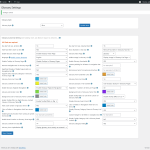
6. Cliquez sur l’élément de menu « Info-bulles » et sélectionnez le sous-menu « Style d’info-bulles » pour ouvrir le panneau « Paramètres de style d’info-bulles », qui devrait ressembler à ceci :

Tooltips Style Panel in wordpress tooltips pro plus 28.2.8
Panneau de style d’info-bulles dans WordPress Tooltips Pro Plus 28.2.8
7. En bas du panneau « Paramètres de style d’info-bulles », vous trouverez l’option « Couleur des liens dans la boîte d’info-bulle ». Vous pouvez personnaliser la couleur des liens à l’aide du sélecteur de couleurs. Cliquez simplement sur le sélecteur de couleurs pour choisir la couleur de lien souhaitée. Si vous décidez de ne pas personnaliser la couleur du lien, vous pouvez la supprimer dans la fenêtre contextuelle du sélecteur de couleurs.
8. N’oubliez pas de cliquer sur le bouton bleu « Enregistrer les modifications » pour appliquer vos modifications.
De l’autre côté, lorsque vous passez la souris sur un terme d’info-bulle, vous verrez que les couleurs des liens dans la boîte contextuelle d’info-bulle ont été mises à jour.
Il y a une démonstration par capture d’écran, vous pouvez voir que nous avons créé un lien dans le mot « test » dans la boîte d’info-bulle :


change color of links for tooltip content in the tooltip box

Changer la couleur des liens pour le contenu de l’info-bulle dans la boîte d’info-bulle
Vous pouvez voir que par défaut, la couleur des liens est déterminée par votre thème — elle est verte, mais après modification, la couleur du lien est devenue rouge. De plus, vous pouvez personnaliser les couleurs de fond des info-bulles d’un simple clic :
Veuillez aller au panneau « Paramètres de personnalisation de la boîte d’info-bulle », vous pouvez personnaliser les couleurs ici, par exemple :
Fond de la boîte d’info-bulle WordPress (champ requis)
Vous pouvez facilement changer le fond de la boîte contextuelle d’info-bulle WordPress à l’aide du sélecteur de couleurs d’info-bulles WordPress.

Wordpress Tooltip Box Background

Et ensuite, n’hésitez pas à libérer votre créativité pour personnaliser vos info-bulles, les rendant vraiment brillantes. N’hésitez pas à explorer le menu et à faire des ajustements qui conviennent à l’esthétique et aux besoins de votre site web.

### Ajouter différentes couleurs de fond pour chaque terme d’info-bulle WordPress dans un post WordPress :

Pour personnaliser vos paramètres d’info-bulle, commencez par vous connecter à votre site WordPress et accédez au menu des info-bulles. Ensuite, ajoutez un nouveau terme d’info-bulle ou modifiez-en un existant pour accéder à l’éditeur d’info-bulles WordPress. En bas de l’éditeur de contenu, vous découvrirez le panneau de personnalisation de la boîte d’info-bulle. Il apparaît comme suit :

Tooltip Term Background in Post in tooltips pro plus 18.1.8

Fond du terme d’info-bulle dans le post dans Tooltips Pro Plus 18.1.8
Comme le montre l’image, le panneau de personnalisation de la boîte d’info-bulle inclut désormais une nouvelle option : « Fond de terme d’info-bulle dans le post ». Ici, vous trouverez un sélecteur de couleurs ainsi qu’une case à cocher intitulée « Désactiver l’option ». Si vous souhaitez ajouter une couleur de fond à votre terme d’info-bulle WordPress, sélectionnez « Activer l’option » et choisissez votre couleur préférée à l’aide du sélecteur de couleurs.
Au-dessus de ce panneau de personnalisation, il y a une autre section intitulée « Style unique personnalisé pour cette info-bulle ». Assurez-vous de sélectionner « Oui, je vais personnaliser un style unique pour cette info-bulle ».
Une fois que vous avez saisi le titre et le contenu de votre info-bulle dans l’éditeur, publiez-le. Ensuite, insérez le mot-clé d’info-bulle dans n’importe quel post WordPress. Lorsque vous consultez le front-end, vous verrez que la couleur de fond du terme d’info-bulle a changé en fonction de vos paramètres dans l’éditeur.
Répétez ce processus pour créer de beaux fonds pour d’autres mots-clés d’info-bulles WordPress, transformant vos articles en contenu vivant et engageant qui encourage les utilisateurs à passer plus de temps sur votre page.

Achetez maintenant
Merci, passez une journée bénie avec votre famille.
Cordialement,
Support du plugin d’info-bulles WordPress

Tagged with: ,

How to change the color in which links appear against the wordpress tooltip box background for better visibility?

Hey Dear  users of  WordPress Tooltip plugin Hope this message find you are doing well and having happy day A wordpress tooltip user submitted a ticket, in which he asked:

I’d like change the color in which links appear(currently black) against the wordpress tooltip box background(currently dark-grey) for better visibility. An example can be found on my site demo.com – on the home page search term “independent sources”

Our WordPress Tooltips plugin developers checked the page and realized that we had implemented this feature request in the WordPress Tooltip plugin 14.9.2 a few years ago 🙂

How to Modify Link Colors for Tooltip Content in the Tooltip Box

1. Log in to your account on the WordPress tooltip plugin website.
2. Click on the “Download” menu item to get the WordPress tooltip pro plugin or wordpress tooltips pro plus plugin.
3. Access your WordPress admin panel.
4. Select “Plugins” from the WordPress admin menu, deactivate the previous version of the WordPress tooltip plugin, remove the old WordPress tooltip plugin.
5. In the “Plugins” menu, click on “Add New” at the top of the panel. Upload the ZIP file of the tooltip plugin that you downloaded from the WordPress glossary tooltip site. Activate the latest version of the WordPress tooltip plugin.
6. Click on the “Tooltips” menu item and Select the “Tooltip Style” submenu to open the “Tooltips Style Settings” panel, which should look like this:

Tooltips Style Panel in wordpress tooltips pro plus 28.2.8

Tooltips Style Panel in wordpress tooltips pro plus 28.2.8

7. At the bottom of the “Tooltips Style Settings” panel, you’ll find the “Color of Links in Tooltip Box” option. You can customize the link color using the color picker. Simply click on the color picker to choose your desired link color. If you decide not to customize the link color, you can remove it in the color picker popup window.
8. Don’t forget to click the blue “Save Changes” button to apply your modifications.

On the front end, when you hover over a tooltip term, you’ll see that the link colors in the tooltip pop-up box have been updated.

There are screenshot demo, you can see we made a link in the word “test” in the tooltip box:

change color of links for tooltip content in the tooltip box

change color of links for tooltip content in the tooltip box

You can see by default the link color is decided by your theme — it is green, but after changes link color has been changed to red.

Furthermore, you can customize tooltip background colors with a single click:

Please go to the panel “Tooltips Box Customize Setting”, you can customize colors in here, for example:

WordPress Tooltip Box Background (required field)

You can changer wordpress tootlip popup box background easily with wordpress tooltip color picker.

Wordpress Tooltip Box Background
and then please go ahead and unleash your creativity to customize your tooltips, making them truly shine. Feel free to explore the menu and make adjustments that suit your website’s aesthetic and needs.

Also, add different background colors for each wordpress tooltip term in wordpress post:

To customize your tooltip settings, start by logging into your WordPress site and navigating to the Tooltips menu.
Next, either add a new tooltip term or modify an existing one to access the WordPress tooltip editor. At the bottom of the content editor, you’ll discover the tooltip box customization settings panel. It appears as shown below:
Tooltip Term Background in Post in tooltips pro plus 18.1.8
Tooltip Term Background in Post (Tooltips Pro Plus 18.1.8)
As highlighted in the image, the tooltip box customization settings panel now includes a new option: “Tooltip Term Background in Post.” Here, you’ll find a color picker along with a selection box labeled “Disable the Option.” If you wish to add a background color to your WordPress tooltip term, select “Enable the Option” and choose your preferred color using the color picker.
Above this customization panel, there is another section titled “Custom Unique Style for This Tooltip.” Be sure to select “Yes, I will customize a unique style for this tooltip.”
Once you’ve entered the title and content for your tooltip in the editor, publish it. Then, insert the tooltip keyword into any WordPress post. When you view the front end, you’ll see that the background color of the tooltip term has changed according to your settings in the editor.
Repeat this process to create beautiful backgrounds for additional WordPress tooltip keywords, transforming your posts into vibrant and engaging content that encourages users to stay on your page longer.


Thanks, have a blessed day with your family
Best Regards,

WordPress Tooltips Pro Plus 31.1.8 has been released, It resolves conflicts between the member directory and the ‘Don’t load tooltip style and script for this page too’ option

Happy New Year! Dear WordPress Tooltip plugin users Hope this message find you are doing well and having happy new year holiday with your family Our wordpress tooltip developer developed a new wordpress tooltip pro plus plugin to resolves conflicts between the wordpress member directory and the ‘Don’t load tooltip style and script for this page too’ option 🙂

An amazing wordpress tooltips plugin user wrote to use:

Hello,

I like the pro plus version of tooltips. However, I am running into an issue.

I am getting an error in the browser console, this occurs when I disabled the script loading on an individual post, is this intentional? If not, do you have a fix for this?

Thank you

Our wordpress tooltip plugin developer checked the ticket, and we found yes, in wordpress editor, we added an metabox “Don’t load tooltip style and script for this page too”, it looks like this:

Disable specific tooltips

By checking the “Don’t load tooltip style and script for this page too” option within this meta box, tooltips will not be automatically loaded in that specific post. This option can improve your page load speed 🙂

We have recently added too many new modules in wordpress tooltips pro plus plugin, once of them is wordpress member directory module, and it conflicts with “Don’t load tooltip style and script for this page too” option, in wordpress tooltips plugin 31.1.8 we have fixed this problem 🙂

What is member directory?

Member directory is a list of members in your site, along with user name, user description, contact information…etc

How to build a member directory quickly?

1: click download wordpress tooltip to download latest version of wordpress tooltip lugin

2: upload the wordpress tooltip zip file into your wordpress site via wordpress plugins panel

3: activate wordpress tooltip plugin and click Tooltips menu item in wordpress dashboard

4: click member directory sub menu item, it looks like this:

member directory global settings in wordpress tooltip plugin

member directory global settings in wordpress tooltip plugin

5: As you can see, you will open member directory global settings panel, in which you can enable member directory or disable functions of member directory, also you can decide which user roles will be added into the member directory list, for example, you can just add authors into member directory to build a wordpress authro wall for your site, or you can just add teachers directory of your LMS system for your students…etc

6: In front-end, you can just insert the shortcode “member_directory” in any wordpress post, then you will find member directory which looks like this:

member directory orange style via wordpress tooltip

member directory orange style via wordpress tooltip

As you can see, users can click the  letter on the Navigation bar to open the list of users starting with that letter.

In the left column of the directory, we display the user name, in the right column of the member directory, we display user information and details of the user information, the user information is come from the biographical info field in wordpress user profile panel, it looks like this:

user profile of wordpress tooltip user

user profile of wordpress tooltip user

Once user change their information in wordpress user profile, wordpress tooltip will display the new user information in member directory too

In next version, we will add more options to help wordpress tooltip admin decide which user fields should be displayed in member directory

7: You can easily to custom the style from the wordpress glossary settings panel, the glossary settings panel looks like this:

glossary custom panel in wordpress glossary 16.0.8

glossary custom panel in wordpress glossary 16.0.8

As you can see, you can customize member-directory font background, border color, navigation, search form…etc in here, we believe we can re-use the same settings with glossary section, if we need dedicated settings for member-directory, we will build new panel for member-directory in the future

8: A faster method to change style for member directory is use our built-in template, for example, one click to change from orange template to  gray template, then it looks like this:

member directory gray template in wordpress tooltip

member directory gray template in wordpress tooltip

Thanks for the bug report, we have added a license for the wordpress life quote plugin to your account for a sincere thank you 🙂

WordPress Life Quotes Plugin is a lovely plugin to display random life quote on the bottom of wordpress post, life quote can serve as a source of inspiration and motivation for readers, including a random life quote in a wordperss post can help to break up the text and make the content more visually interesting and engaging and creating a connection with readers.

After activate the WordPress Life Quotes Plugin, at the end of the content of wordpress post , readers will find a lovely random life quote, everytime when user read your wordpress post, they will find different lovely life quote

Thanks, have a blessed day with your family 🙂

Best Regards,

WordPress tooltips plugin support

Tagged with: , ,

What is WordPress Glossary?

Unlock the power of knowledge with our WordPress Tooltips Pro Plus plugin! Easily build stunning glossaries, lists, and directories that enhance user understanding and engagement.

A glossary is more than just a list of terms; it’s a valuable educational tool that dates back to ancient lexicons. By integrating glossaries into your WordPress site, you offer your visitors immediate access to complex terminology, making their experience smoother and more enjoyable.

You can create a versatile knowledge base, including glossaries, WooCommerce product lists, member directories, and much more. Customize your formats to match your brand’s style, and seamlessly integrate third-party data sources—turning your site into a powerful knowledge hub!

Tagged with: , ,

Y a-t-il un moyen d’afficher sélectivement des infobulles WordPress à partir de catégories spécifiques ?

Bonjour, chers utilisateurs de WordPress Tooltip, j’espère que vous allez bien et que vous passez un bon week-end en famille. Nous avons reçu un ticket de support d’un incroyable utilisateur de WordPress Tooltip : « Y a-t-il un moyen d’afficher sélectivement des infobulles à partir de catégories spécifiques ? », a-t-il dit :
Par exemple, j’écris des articles sur différents jeux vidéo basés sur des cartes. Je veux ajouter des cartes comme infobulles pour chacun de ces jeux. Il y aura inévitablement des chevauchements avec les noms des cartes, et je voulais exclusivement afficher des cartes pour chaque jeu spécifique dont parle l’article. Je veux que seules les infobulles « Hearthstone » se chargent dans les articles Hearthstone, pareil pour « Slay the Spire », et ainsi de suite.
Je voudrais créer des règles pour afficher les infobulles de manière sélective. Par exemple, sur les pages contenant « hearthstone » dans l’URL, n’affichez que les infobulles de la catégorie « Hearthstone ».
Je sais que vous pouvez regrouper les infobulles par catégories, mais elles n’ont d’autre but que l’organisation en backend.
Désolé, c’est la première fois que nous entendons ce genre de question. Actuellement, nous n’avons pas de fonction pour désactiver/activer l’effet des infobulles en fonction des mots dans une URL. Je suppose que le nombre d’utilisateurs ayant ce besoin est peut-être relativement faible. Cependant, dans WordPress Tooltips Pro Plus, nous avons une solution pour répondre à votre besoin :

Y a-t-il un moyen d’afficher sélectivement des infobulles WordPress à partir de catégories spécifiques ?
1 : Connectez-vous au site du plugin WordPress Tooltip.
2 : Cliquez sur l’élément de menu “Télécharger” pour télécharger le plugin WordPress Tooltip, ce sera un fichier zip du plugin WordPress.
3 : Connectez-vous à votre site WordPress en tant qu’administrateur WordPress.
4 : Dans votre tableau de bord WordPress, veuillez cliquer sur le menu “Plugins”.
5 : Si vous avez installé le plugin gratuit WordPress Tooltips ou un ancien plugin WordPress Pro, veuillez le désactiver et supprimer l’ancien plugin WordPress Tooltip.
6 : Ensuite, dans le panneau “Plugins” de WordPress, veuillez cliquer sur le lien “Ajouter nouveau” en haut du panneau des plugins pour installer le plugin WordPress GIF Tooltip que vous avez téléchargé depuis tooltips.org.
7 : Téléchargez le fichier zip du plugin WordPress Tooltips que vous avez téléchargé depuis le site du plugin WordPress Tooltip Pro Plus.
8 : Activez la nouvelle version du plugin WordPress Tooltip que vous avez installée via le menu des plugins.
9 : Ensuite, créez un nouvel article WordPress ou modifiez un article WordPress existant.
10 : Dans l’éditeur WordPress, vous trouverez une nouvelle métabox “Désactiver des catégories d’infobulles spécifiques ?”, elle ressemble à ceci :
Désactiver des catégories d’infobulles spécifiques
Dans la métabox “Désactiver des catégories d’infobulles spécifiques”, vous pouvez entrer les ID des catégories dans la zone de saisie, séparés par une virgule “,” — pour exclure des catégories d’infobulles WordPress spécifiques sur cette page.
11 : Une fois que vous cliquez sur le bouton Publier dans l’éditeur WordPress, alors sur le front-end, vous verrez que l’effet des infobulles des termes d’infobulles dans ces catégories spécifiques a été supprimé.
Avec cette méthode, dans l’éditeur d’articles WordPress, vous pouvez afficher sélectivement des infobulles avec la catégorie “Hearthstone”
J’espère que cela vous aidera un peu
Merci, passez une journée bénie avec votre famille
Cordialement,
Support du plugin WordPress Tooltips.


Tagged with: ,

What is Glossary and What is a WordPress Glossary?

Understanding Glossary and WordPress Glossary

A glossary is a list of terms in a specific domain of knowledge, accompanied by definitions. It serves as a reference tool to help users understand jargon, technical language, or specialized terminology that may not be immediately clear. Glossaries are commonly found in books, articles, websites, and various forms of media, providing clarity and enhancing comprehension for the audience. In many fields, having a glossary is essential, as it can help bridge the gap between experts and novices. For instance, in technical or academic writing, the inclusion of a glossary allows readers to grasp complex ideas without getting lost in unfamiliar vocabulary. Businesses, educators, and organizations often create glossaries tailored to their specific contexts to ensure effective communication. In the digital realm, a WordPress glossary is a similar concept adapted for websites built on the WordPress platform. It offers a dedicated section where visitors can find definitions of terms relevant to the content of the website. A WordPress glossary enhances user experience, making it easier for visitors to understand key concepts and terminologies used throughout the site.

Why Use a WordPress Glossary?

  1. Improved User Experience: A well-structured glossary provides quick access to definitions, making it easier for users to follow along with your content. This is especially beneficial for websites that use technical terms or industry-specific jargon. By having a glossary, you reduce the likelihood of visitors leaving the site due to confusion or frustration.
  2. Increased Engagement: When users can easily find explanations for terms they encounter, they are more likely to stay on your site longer. An engaging experience can lead to increased page views, longer session durations, and higher user satisfaction.
  3. SEO Benefits: Search engines appreciate content that is clear and valuable to users. By including a glossary, you can create additional content optimized for relevant keywords, potentially improving your site’s visibility in search engine rankings. Additionally, when users share your glossary on social media or link to it from their own websites, you gain backlinks that can further enhance your SEO efforts.
  4. Establishing Authority: A glossary showcases your expertise in your field. By providing clear definitions and information, you can position your website as a reliable resource for visitors seeking knowledge in your area of specialization. This can help build trust and credibility with your audience.

Implementing a WordPress Glossary

Creating a glossary on your WordPress site can be simple. Simply install wordpress tooltips plugin, the plugin  allow you to input terms and definitions, generate additional pages for each entry, and even apply tooltips that display definitions when users hover over terms in your content. For those who prefer a more customized approach, you can create a dedicated page or section for your glossary, manually inputting terms and descriptions. Organizing the glossary alphabetically or categorically can enhance its usability, allowing users to quickly find the information they seek.

In wordpress tooltips plugin, what you need to do is simply insert the shortcode [ glossary ] in your wordpress post, and you will own a pretty glossary in 1 minutes, it looks like this:

Reflect on your present blessings, of which every man has many; not on your past misfortunes, of which all men have some.
WordPress Tooltips support more different tooltips in one page.
Hi, I came back yesterday, Any Question is welcome!
True happiness means forging a strong spirit that is undefeated, no matter how trying our circumstances.
Default addons in tooltips multiple site license plugin: 1: Tooltips for WooCommerce Products 2: Tooltips for Contact Form 7 3: Tooltips for TablePress 4: Glossary for WooCommerce Products 5: Tooltips for bbPress Topic & Reply 6: Tooltips for BuddyPress Activity 7: Tooltips Language Customization 8: Tooltips for ACF 9: Tooltips for OceanWP Theme 10: Tooltips Read More
An encyclopedia or encyclopaedia (British English) is a reference work or compendium providing summaries of knowledge either from all branches or from a particular field or discipline. Encyclopedias are divided into articles or entries that are often arranged alphabetically by article name and sometimes by thematic categories. Encyclopedia entries are longer and more detailed than Read More
Examples and Demos can be found at wordpress tooltips demo
A feature is a distinct property or piece
The GNU General Public License
We are happy to report, now we have thousands amazing happy users using our wordpress tooltip plugin, based on users amazing suggestion, we are adding more and more amazing wordpress tooltip features for our plugin, our client's review: I love this plugin! You can basically make the tips look any way you want. I’d tried Read More

Conclusion

In conclusion, a glossary plays a vital role in enhancing understanding and communication, making it an essential tool for various forms of content, especially in specialized fields. A WordPress glossary not only aids users in navigating complex terminology but also contributes to improved SEO, increased engagement, and the establishment of your website’s authority. By integrating a glossary into your WordPress site, you provide valuable resources for your audience while simultaneously enhancing their overall experience.

If you have any more question, please don’t hesitate to contact us, we are very happy to implement your feature request to build a better and better wordpress glossary plugin 🙂

Thanks, have a blessed weekend with your family 🙂

Best Regards,

WordPress tooltips plugin support team

Tagged with: ,

WordPress Tooltips Pro Plus 30.9.8 Released — New Option to Support Glossary Term Capitalization

Hey, dear  WordPress Tooltip plugin users , I hope this message finds you are doing well and that you are enjoying happy weekend with your family   We have received a ticket from a user of the WordPress Tooltip plugin who asked us how to fix the “Upper and lower case” issue on the glossary page, he said:


hello,
as I reported on wordpress.org I noticed that if I enter a tooltip
with a capital letter, for example: “Open source” he replaces all
the words in my paragraph from open source to Open source.

Is it possible to make it keep the upper and lower case of the
paragraph and not be replaced by the tooltip title?

Thanks!

Our wordpress tooltip support team replied:


Hi,

Hope you are doing well and having happy days with your family 🙂

Thanks for the message 🙂

We are very happy to help you 🙂

Because we have many plugin versions with different functions, Would you please tell us:
1 the plugin version you are using
2 the URL related with the problem
3 a little more details to tell us how to find the problem in the URL

I will assign our developer to check it and solve it for you? 🙂

Thank you so much for the bug report, we’d like give you a gift as a THANKS, would you please make a $0 fake order at our demo:
https://tooltips.org/product/show-tooltips-in-woocommerce-products/
And then we can add one of our pro plugin license in your account as a THANKS? 🙂

Thanks, have a blessed day with your family 🙂

Best Regards,
Wordpress Tooltips Plugin Support Team

The amazing user replied:

Hello,

1. i am using version 9.6.9
2. my URL is: (removed)
3. As you can see all tooltips are with a capital initial letter but
within the article I wrote them with a lower case letter. For example
browser became Browser or even fork became Fork. I think it’s because
the tooltips were recorded with a capital letter but I think it’s not
correct that in the text they display capital letters without much
meaning.

What I expect is for the text to stay true to what I wrote in the
article.

Thank you.

Our wordpress tooltip support team replied:

Hi,

Thanks for the reply 🙂

I am assign our developer to check it and we will reply you again 🙂

Thanks, have a happy day with your loved ones 🙂

Best Regards,
Wordpress Tooltip Support

Then our wordpress tooltips plugin developer checked the user’s page and we decided to develop a new version to resolve the “Upper and lower case” issue for wordpress tooltip users.

How to Set Up Glossary Term Capitalization in the WordPress Tooltips Plugin?

If you haven’t installed the WordPress Tooltips Pro Plus, please log in to your account on the WordPress Glossary Tooltip Plugin website at tooltip.org. If you have already done this, please refer to step #11.

Next, navigate to the ‘My Account‘ section and download the WordPress Glossary Tooltip Plugin.

Now, let’s proceed with the installation process:
1. Log in to your WordPress admin dashboard as an administrator.

2. In the WordPress dashboard, click on the ‘Plugins’ menu item.

3. Deactivate any older versions of the tooltip plugin that may be present.

4. Completely remove the previous WordPress Tooltip plugin.

5. Still within the ‘Plugins’ menu, click ‘Add New’ at the top of the plugins panel.

6. Upload the tooltip plugin ZIP file that you downloaded from the WordPress Glossary Plugin site.

7. Activate the most recent version of the WordPress Tooltip Glossary plugin. Excellent work!

8. In wordpress dashboard, click on the ‘Tooltips’ menu item. From the drop-down menu, choose ‘Glossary Settings’. This will open the ‘Glossary Settings’ panel, as shown in the screenshot below:

9. As you can see, at the bottom of the glossary settings panel, there is a new option: “Glossary Term Capitalization”. In the “Glossary Term Capitalization”, there are 4 options:

a: Display glossary term exactly as entered in the title column of the glossary

b: Uppercase letters display for glossary term in the title column of the glossary

c: Lowercase letters display for glossary term in the title column of the glossary

d: Initial Capitalization of glossary terms in the glossary title column

In the case of what the user is requesting, you can simply select the option: “Display glossary term exactly as entered in the title column of the glossary” from the “Glossary Term Capitalization” dropdown box, then in the glossary page, you will find we have fulfilled your requirement:  “What I expect is for the text to stay true to what I wrote in the article” 🙂

You can select options based on your needs 🙂

Understanding Glossary and WordPress Glossary

A glossary is a list of terms in a specific domain of knowledge, accompanied by definitions. It serves as a reference tool to help users understand jargon, technical language, or specialized terminology that may not be immediately clear. Glossaries are commonly found in books, articles, websites, and various forms of media, providing clarity and enhancing comprehension for the audience. In many fields, having a glossary is essential, as it can help bridge the gap between experts and novices. For instance, in technical or academic writing, the inclusion of a glossary allows readers to grasp complex ideas without getting lost in unfamiliar vocabulary. Businesses, educators, and organizations often create glossaries tailored to their specific contexts to ensure effective communication. In the digital realm, a WordPress glossary is a similar concept adapted for websites built on the WordPress platform. It offers a dedicated section where visitors can find definitions of terms relevant to the content of the website. A WordPress glossary enhances user experience, making it easier for visitors to understand key concepts and terminologies used throughout the site.

Why Use a WordPress Glossary?

  1. Improved User Experience: A well-structured glossary provides quick access to definitions, making it easier for users to follow along with your content. This is especially beneficial for websites that use technical terms or industry-specific jargon. By having a glossary, you reduce the likelihood of visitors leaving the site due to confusion or frustration.
  2. Increased Engagement: When users can easily find explanations for terms they encounter, they are more likely to stay on your site longer. An engaging experience can lead to increased page views, longer session durations, and higher user satisfaction.
  3. SEO Benefits: Search engines appreciate content that is clear and valuable to users. By including a glossary, you can create additional content optimized for relevant keywords, potentially improving your site’s visibility in search engine rankings. Additionally, when users share your glossary on social media or link to it from their own websites, you gain backlinks that can further enhance your SEO efforts.
  4. Establishing Authority: A glossary showcases your expertise in your field. By providing clear definitions and information, you can position your website as a reliable resource for visitors seeking knowledge in your area of specialization. This can help build trust and credibility with your audience.

Implementing a WordPress Glossary

Creating a glossary on your WordPress site can be simple. Many plugins are available that facilitate the inclusion of a glossary feature with minimal effort. These plugins often allow you to input terms and definitions, generate additional pages for each entry, and even apply tooltips that display definitions when users hover over terms in your content. For those who prefer a more customized approach, you can create a dedicated page or section for your glossary, manually inputting terms and descriptions. Organizing the glossary alphabetically or categorically can enhance its usability, allowing users to quickly find the information they seek.

Conclusion

In conclusion, a glossary plays a vital role in enhancing understanding and communication, making it an essential tool for various forms of content, especially in specialized fields. A WordPress glossary not only aids users in navigating complex terminology but also contributes to improved SEO, increased engagement, and the establishment of your website’s authority. By integrating a glossary into your WordPress site, you provide valuable resources for your audience while simultaneously enhancing their overall experience.

If you have any more question, please don’t hesitate to contact us, we are very happy to implement your feature request to build a better and better wordpress glossary plugin 🙂

Thanks, have a blessed weekend with your family 🙂

Best Regards,

WordPress tooltips plugin support team

Tagged with: ,

Gibt es eine Möglichkeit, WordPress-Tooltips selektiv aus bestimmten Kategorien anzuzeigen?

Hallo, liebe WordPress Tooltip Nutzer, ich hoffe, es geht euch gut und ihr verbringt ein tolles Wochenende mit eurer Familie. Wir haben ein Support-Ticket von einem großartigen WordPress Tooltip-Nutzer erhalten: „Gibt es eine Möglichkeit, Tooltips selektiv aus bestimmten Kategorien anzuzeigen?“, sagte er:

Zum Beispiel schreibe ich Artikel über verschiedene kartenbasierte Videospiele. Ich möchte für jedes dieser Spiele Karten als Tooltips hinzufügen. Es wird zwangsläufig einige Überschneidungen mit den Kartennamen geben, und ich möchte ausschließlich die Karten für jedes spezifische Spiel anzeigen, über das der Artikel handelt. Ich möchte, dass nur „Hearthstone“-Tooltips in Hearthstone-Artikeln geladen werden, gleiches gilt für „Slay the Spire“ und so weiter.
Ich würde gerne selektiv Regeln erstellen, für die die Tooltips angezeigt werden. Zum Beispiel: Auf Seiten mit „hearthstone“ in der URL sollen nur Tooltips mit der Kategorie „Hearthstone“ angezeigt werden.
Ich weiß, dass man Tooltips nach Kategorien gruppieren kann, aber sie haben keinen Zweck außer der organisatorischen Verwaltung im Backend.

Entschuldigung, das ist das erste Mal, dass wir so eine Frage hören. Momentan haben wir keine Funktion, um den Tooltip-Effekt basierend auf den Wörtern in einer URL zu deaktivieren oder zu aktivieren. Ich schätze, die Anzahl der Nutzer, die dieses Bedürfnis haben, ist wahrscheinlich relativ klein. In WordPress Tooltips Pro Plus haben wir jedoch eine Umgehungslösung, um eure Anforderungen zu erfüllen:“

Gibt es eine Möglichkeit, WordPress-Tooltips selektiv aus bestimmten Kategorien anzuzeigen?

1. Melde dich auf der Website des WordPress Tooltip-Plugins an.
2. Klicke auf den Menüpunkt „Herunterladen“, um das WordPress Tooltip-Plugin herunterzuladen. Es wird eine ZIP-Datei des WordPress-Plugins sein.
3. Melde dich als WordPress-Administrator auf deiner WordPress-Website an.
4. Klicke in deinem WordPress-Dashboard bitte auf den Menüpunkt „Plugins“.
5. Wenn du das kostenlose WordPress Tooltip-Plugin oder das alte WordPress Pro-Plugin installiert hast, deaktiviere es bitte und lösche das alte WordPress Tooltip-Plugin.
6. Klicke dann im WordPress „Plugins“-Panel oben auf den Link „Neu hinzufügen“, um das WordPress GIF Tooltip-Plugin zu installieren, das du von tooltips.org heruntergeladen hast.
7. Lade die ZIP-Datei des WordPress Tooltips-Plugins hoch, die du von der WordPress Tooltip Pro Plus-Plugin-Website heruntergeladen hast.
8. Aktiviere die neue Version des WordPress Tooltip-Plugins, die du über das Plugins-Menü installiert hast.
9. Erstelle dann einen neuen WordPress-Beitrag oder bearbeite einen vorhandenen WordPress-Beitrag.
10. Im WordPress-Editor findest du ein neues Metafeld „Spezifische Tooltip-Kategorien deaktivieren?“, das so aussieht:

Disable specific tooltip categories
Spezifische Tooltip-Kategorien deaktivieren
In dem Metafeld „Spezifische Tooltip-Kategorien deaktivieren“ kannst du die Kategorien-IDs in das Eingabefeld eingeben, durch Kommas „,“ getrennt — um spezifische WordPress Tooltip-Kategorien auf dieser Seite auszuschließen.
11. Nachdem du die Schaltfläche „Veröffentlichen“ im WordPress-Editor geklickt hast, wirst du im Frontend feststellen, dass der Tooltip-Effekt der Tooltip-Begriffe, die in diesen spezifischen Tooltip-Kategorien enthalten sind, entfernt wurde.
Mit dieser Methode kannst du im WordPress-Beitragseditor selektiv Tooltips mit der Kategorie „Hearthstone“ anzeigen.
Ich hoffe, das hilft ein wenig.
Danke, wünsche dir einen gesegneten Tag mit deiner Familie.
Mit freundlichen Grüßen,
Support für das WordPress Tooltip-Plugin

Tagged with: ,

Как скрыть слова «Читать далее» в конце текстов подсказок в плагине подсказок WordPress?

Привет, дорогие пользователи плагина WordPress Tooltip! Надеюсь, это сообщение находит вас в добром здравии и с хорошим настроением на выходных с вашей семьей. Мы получили запрос на поддержку от пользователя плагина WordPress Tooltip, который просил скрыть слова “Читать далее” в конце текстов подсказок. Я думаю, что у многих пользователей есть подобные вопросы, поэтому я хотел бы ответить на вопрос пользователя здесь публично. Потрясающий пользователь подсказок написал:

Привет,
Я использую плагин Tooltips Pro и хотел бы, чтобы слова “Читать далее” не отображались в текстах подсказок. Возможно ли увеличить высоту боксов подсказок, чтобы слова “Читать далее” не появлялись?
Как я могу это сделать?
Заранее спасибо.

Наша команда поддержки плагина WordPress Tooltip ответила пользователю:

Привет,
Надеюсь, у вас все хорошо, и вы проводите счастливые дни с вашей семьей
Спасибо за ваше сообщение
Мы очень рады помочь вам
Не могли бы вы:
1: войти в WordPress как администратор
2: нажать на меню подсказок в панели управления WordPress
3: нажать на подменю “дополнительные настройки”, чтобы открыть панель дополнительных настроек подсказок WordPress,
4: в панели дополнительных настроек подсказок WordPress, пожалуйста, проверьте опцию “показать аннотацию или полный текст подсказок в всплывающем окне подсказок”, затем выберите “использовать полный текст в всплывающем окне”, и нажмите кнопку “обновить сейчас”.
Таким образом, подсказки больше не будут отображать ссылку “Читать далее”
Надеюсь, это немного поможет. Если я неправильно понял ваш вопрос, пожалуйста, предоставьте больше деталей, и мы будем рады помочь вам решить проблему
Спасибо, желаем вам благословенного дня с вашей семьей
С наилучшими пожеланиями,
Команда поддержки WordPress Tooltips


Затем потрясающий пользователь подсказок ответил нам:

Привет!
Разобрался!
Спасибо за вашу быструю и эффективную поддержку.
Хорошего дня!
Большое вам спасибо!
С наилучшими пожеланиями,

Наша команда поддержки плагина WordPress Tooltip ответила:

Привет,
Спасибо за ответ, здорово знать, что все работает хорошо
Спасибо, и желаем вам благословенного дня с вашими близкими
С наилучшими пожеланиями,
Команда поддержки WordPress Tooltips


Также у нас есть более простое решение: плагин AJAX “Читать далее” с подсказкой WordPress. Плагин AJAX “Читать далее” автоматически добавит ссылку “читать далее” в постах WordPress, читателям не нужно обновлять страницу WordPress, что экономит время для читателя и ресурсы вашего сервера. Вы можете настроить количество слов, отображаемых в посте WordPress; когда пользователь нажимает на ссылку “читать далее”, полное содержание перезагружается с помощью AJAX.

Что такое плагин AJAX “Читать далее”?

Плагин AJAX “Читать далее” автоматически добавит ссылку “читать далее” в постах WordPress, читателям не нужно обновлять страницу WordPress, что экономит время для читателя и ресурсы вашего сервера.
Вы можете настроить количество слов, отображаемых в посте WordPress; когда пользователь нажимает на ссылку “читать далее”, полное содержание перезагружается с помощью AJAX.

Почему я разработал плагин AJAX “Читать далее”?

У нас есть много постов WordPress, некоторые из них содержат очень много слов. Например, если вы посмотрите наш документ по использованию AI-редактора WordPress (который автоматически сгенерирован OpenAI, чтобы помочь пользователям подсказки WordPress понять, как использовать ChatGPT для автоматического создания подсказок WordPress), вы обнаружите, что статья имеет более 4000 слов с множеством изображений и т.д. Этот пост загружает много текста с множеством изображений, и пользователям может потребоваться несколько минут, чтобы научиться использовать плагин подсказок WordPress для автоматического создания постов через OpenAI API, как получить ключ API OpenAI, что такое OpenAI, стоимость и т.д. В этом случае мы надеемся показывать только отрывки для читателей, например, отображая около 400 слов, с красивой ссылкой “читать далее”. Если пользователю понравится пост, он нажмет на ссылку “читать далее”, чтобы быстро загрузить полное содержание поста WordPress с помощью AJAX. Если мы используем стандартную ссылку “читать далее” WordPress, читателям придется долго ждать загрузки полной страницы, что тратит время пользователей и ресурсы сервера.
По сути, как вы знаете, у WordPress есть ссылка “читать далее”, но она требует перезагрузки полной страницы на стороне сервера. В эпоху быстрой передачи информации многие пользователи не будут ждать долго, чтобы получить документ, и обновление страницы потратит ресурсы сервера. Вот почему мы решили разработать этот плагин “читать далее” с использованием AJAX для нашего сайта WordPress. После использования AJAX для загрузки полного контента страница загружается быстро, только пользователи, которым действительно нужно прочитать детальный документ, нажмут на ссылку AJAX “читать далее”, и с помощью плагина AJAX “Читать далее” полное содержание будет загружаться очень быстро с сервера.
Администраторы WordPress могут настраивать длину отрывков, размер шрифта “читать далее”, цвет “читать далее” в бэкэнде и т.д., чтобы привлечь внимание читателей.

Read More Ajax Settings

Настройки AJAX “Читать далее”
На фронтенде это выглядит так

Read More Ajax front end

Фронтенд AJAX “Читать далее”

Почему веб-мастера WordPress должны использовать плагин AJAX “Читать далее”?

Администраторы могут предпочесть использовать функцию AJAX “читать далее” в своих постах WordPress по нескольким причинам:
Улучшенный пользовательский опыт: Когда пользователи нажимают на кнопку “Читать далее”, они попадают на новую страницу, что может нарушить поток их сеанса просмотра. Использование функции AJAX “читать далее” позволит им увидеть полный контент поста, не покидая текущую страницу, создавая более плавный и бесшовный пользовательский опыт.
Более быстрые времена загрузки: Загрузка новой страницы каждый раз, когда пользователь хочет увидеть полный контент поста, требует дополнительных сетевых запросов, что может привести к более медленным временам загрузки. Используя AJAX для загрузки контента, можно асинхронно загружать содержание статьи, что делает её загрузку более быстрой и повышает производительность сайта.
Повышенное вовлечение: С помощью функции AJAX “читать далее” пользователи не должны покидать страницу, чтобы увидеть полный контент поста. Это может побудить их оставаться на сайте дольше и читать больше статей, увеличивая вовлечение.
Лучшее SEO: Сайты, использующие функцию AJAX “читать далее”, могут получить преимущества в поисковой оптимизации (SEO), так как алгоритм Google предпочитает сайты с более быстрой загрузкой страниц.
В целом использование функции AJAX “читать далее” для постов WordPress может обеспечить улучшенный пользовательский опыт, более быстрые времена загрузки, повысить вовлечение и улучшить SEO, что будет полезно как владельцам сайтов, так и пользователям.

Tagged with: ,

¿Cómo ocultar las palabras ‘Leer más’ al final de los textos de consejos en el plugin de tooltips de WordPress?

Hola, queridos usuarios del plugin de wordpress tooltips, espero que este mensaje los encuentre bien y que estén disfrutando de un feliz fin de semana con su familia. Hemos recibido un ticket de soporte de un usuario del plugin de Tooltips de WordPress que solicita ocultar las palabras “Leer más” al final de los textos de consejos. Creo que más usuarios tienen preguntas similares, así que me gustaría responder al usuario aquí públicamente. El increíble usuario de tooltips dijo:

¡Hola!
Estoy usando el plugin Tooltips Pro y me gustaría no mostrar las palabras “Leer más” en los textos de los consejos. ¿Es posible aumentar la altura de las cajas de consejos para que las palabras “Leer más” no aparezcan?
¿Cómo puedo hacer esto?
Gracias de antemano.

Nuestro equipo de soporte del plugin de Tooltips de WordPress respondió al usuario:

Hola,
Espero que estés bien y disfrutando de días felices con tu familia
Gracias por el mensaje
Estamos muy contentos de ayudarte
¿Podrías por favor:
1: iniciar sesión en WordPress como administrador
2: hacer clic en el menú de tooltips en el panel de WordPress
3: hacer clic en el elemento del submenú “configuraciones opcionales” para abrir el panel de configuraciones opcionales de Tooltips de WordPress,
4: en el panel de configuraciones opcionales de Tooltips de WordPress, por favor verifica la opción “mostrar extracto o contenido completo de tooltips en la caja emergente de tooltips”, luego selecciona “usar contenido completo en la caja emergente” y haz clic en el botón “actualizar ahora”.
De esta manera, los tooltips ya no mostrarán el enlace “leer más”
Espero que esto ayude un poco, si he malinterpretado tu pregunta, por favor proporciona más detalles y estaremos encantados de ayudarte a resolver el problema
Gracias, que tengas un día bendecido con tu familia
Saludos cordiales,
Equipo de Soporte de Tooltips de WordPress

Luego, el increíble usuario de tooltips nos respondió:

¡Hola!
¡Todo resuelto!
Gracias por su apoyo rápido y efectivo.
¡Que tengas un gran día!
¡Muchas gracias!
Saludos cordiales,

Nuestro equipo de soporte del plugin de Tooltips de WordPress respondió:

Hola,
Gracias por la respuesta, es genial saber que funciona bien
Gracias y que tengas un día bendecido con tus seres queridos
Saludos cordiales,
Equipo de Soporte de Tooltips de WordPress

También tenemos una solución más fácil: el complemento AJAX Read More con WordPress Tooltip. El complemento AJAX Read More añadirá automáticamente un enlace de “leer más” en las publicaciones de WordPress, los lectores no necesitan actualizar la página de WordPress nuevamente, ahorrando tiempo para el lector y recursos de tu servidor. Puedes personalizar el número de palabras que se mostrarán en la publicación de WordPress, cuando el usuario haga clic en el enlace de “leer más”, se recargará el contenido completo con AJAX.

¿Qué es el complemento AJAX Read More?

El complemento AJAX Read More añadirá automáticamente un enlace de “leer más” en las publicaciones de WordPress, los lectores no necesitan actualizar la página de WordPress nuevamente, ahorrando tiempo para el lector y recursos de tu servidor.

Puedes personalizar el número de palabras que se mostrarán en la publicación de WordPress, cuando el usuario haga clic en el enlace de “leer más”, se recargará el contenido completo con AJAX.

¿Por qué desarrollé el complemento AJAX Read More?

Tenemos muchas publicaciones en WordPress, algunas de ellas tienen muchas palabras, por ejemplo, si revisas nuestro documento de escritor de IA en WordPress (que se generó automáticamente mediante OpenAI para ayudar a los usuarios de WordPress Tooltip a entender cómo usar chatGPT para generar automáticamente tooltips de WordPress), encontrarás que el artículo tiene más de 4000 palabras, con muchas imágenes, etc. Esta publicación carga mucho texto y muchas imágenes, y los usuarios necesitan algunos minutos para aprender cómo usar el complemento de tooltips de WordPress para generar automáticamente la publicación de WordPress a través de la API de OpenAI, cómo obtener la clave de API de OpenAI, qué es OpenAI, el costo, etc. En este caso, esperamos mostrar solo un extracto para los lectores, por ejemplo, mostrar alrededor de 400 palabras para los lectores, con un bonito enlace de “leer más”; si al usuario le gusta la publicación, hará clic en el enlace de “leer más” para cargar el contenido completo de la publicación de WordPress con AJAX, lo que es rápido. Si usamos el enlace de “leer más” predeterminado de WordPress, los lectores necesitarán esperar mucho tiempo para cargar nuevamente la página completa, lo que desperdicia el tiempo de los usuarios y también desperdicia recursos del servidor.
Así que, básicamente, como saben, WordPress tiene un enlace de “leer más”, pero eso necesita refrescar toda la página desde el lado del servidor nuevamente. En los tiempos de lectura rápida, muchos usuarios no esperarán mucho tiempo para obtener un documento, y actualizar la página desperdiciará recursos del servidor, por eso decidimos desarrollar este complemento de “leer más” con AJAX para nuestro sitio de WordPress. Después de usar AJAX para cargar el contenido completo, la página carga rápido, solo los usuarios que realmente necesitan leer el documento detallado harán clic en el enlace de “leer más” de AJAX, y con el complemento AJAX Read More, el contenido completo se cargará muy rápido desde el lado del servidor.
El administrador de WordPress puede personalizar la longitud del extracto, el tamaño de la fuente de “leer más”, el color de “leer más” en el backend, etc., para captar la atención de los lectores.

Read More Ajax SettingsConfiguraciones de Read More Ajax
En el frontend, se ve así:

Read More Ajax front end

Read More Ajax frontend

¿Por qué los webmasters de WordPress deberían usar el complemento AJAX Read More?

El administrador puede preferir usar una función de “leer más” con AJAX en sus publicaciones de WordPress por varias razones:
Mejor Experiencia de Usuario: Cuando los usuarios hacen clic en el botón “Leer más”, son llevados a una nueva página, lo que puede interrumpir el flujo de su sesión de navegación. Usar una función de “leer más” con AJAX les permitiría ver el contenido completo de la publicación sin tener que salir de la página actual, creando una experiencia de usuario más fluida y continua.
Tiempos de Carga Más Rápidos: Cargar una nueva página cada vez que un usuario quiere ver el contenido completo de la publicación requiere solicitudes de red adicionales, lo que puede resultar en tiempos de carga más lentos. Al usar AJAX para cargar el contenido, el contenido del artículo se puede obtener de manera asíncrona, lo que lo hace más rápido de cargar y mejora el rendimiento del sitio.
Mayor Compromiso: Con una función de “leer más” con AJAX, los usuarios no tendrán que navegar fuera de la página para ver el contenido completo de la publicación. Esto puede alentarlos a permanecer en el sitio más tiempo y leer más artículos, aumentando el compromiso.
Mejor SEO: Los sitios que utilizan una función de “leer más” con AJAX pueden beneficiarse de una mejor optimización para motores de búsqueda (SEO) porque el algoritmo de Google prefiere sitios con velocidades de carga de página más rápidas.
En general, usar una función de “leer más” con AJAX para publicacion


Tagged with: ,
Top