WordPress Tooltip Glossary Plugin 10.7.6, Support Ninja Forms, Try to Support Tooltip Effects in Dynamically Generated Content

WordPress Tooltip Glossary Plugin Users,

WordPress Tooltip Plugin 10.7.6 released, changes in this version:

Support Ninja Forms Tooltips, Try to Support Tooltip Effects in Dynamically Generated Content

We got a feature request, in which the user told us he want to add wordpress tooltip effect in ninja forms, ninja forms is a popular wordpress form plugins, the author said:

Ninja Forms is a simple, eloquent form builder that is a delight to use. Its minimalist yet beautiful interface is simple enough for anyone to learn quickly and easily, while still being more than powerful enough for any professional

We did a check on ninja forms, we found the amazing user is using a template to generate forms dynamically, in this case,those dynamically generated  forms will have a delay to load their content, in general, most of wordpress plugins designed based on wordpress standard API  to hook the_content API, and load css / javascript codes via wordpress filter “the_content”, so the traditional way cannot suppport these dynamically generated content, because javascript / jQuery codes can only works based on existed content in wordpress posts.

Our developer used a lot of time to read and research codes to find a solution, just sleep at 05:35am in the morning, finally he found a method to solve this kind of problem, it solved in this wordpress tooltip plugin 10.7.6, full of tears and seat 🙂

With wordpress tooltip 10.7.6, you will find “Delay the execution of tooltip function” metabox at right hand of wordpress editor,it looks like this:

delay the executon of wordpress tooltip function

delay the executon of wordpress tooltip function

Just enter the number of millisecond to delay in here, the execution of tooltip will delay specific milliseconds to wait javascript frameworks(ajax, vue…) generate and load dynamically generated content first, and then load our jQuery codes to add tooltip effects in those dynamically generated content, we entered 2000 in the “Delay the execution of tooltip function” meta box, Ninja forms tooltip works well on our side.  🙂

Please note, this is not a promise to support any kinds of dynamiclly generated content.

We also fixed a bug of tooltip customize style for single specific tooltip.

If you have any feature request or question of wordpress tooltip plugin, please don’t hesitate to tell us, we are very happy to build a better and better wordpress tooltip glossary plugin for you, also please check all features of wordpress tooltip  🙂

Thanks, have a blessed day with your family 🙂
WordPress Tooltip Glossary Plugin Support Team
Tagged with: , , , , ,

WordPress Tooltip Glossary Plugin 10.6.6, Support One Click to Bulk Disable Tooltips in Post by Post ids

Dear WordPress Tooltip Glossary Plugin Users,

Thanks for use our wordpress tooltip plugin and give us more and more feedback and suggestions, we are happy to report you, we just released WordPress Tooltip plugin 10.6.6, based on users feature request, changes in this version:

WordPress Tooltip Plugin Support One Click to Bulk Disable Tooltips in Post by Post ids

How to bulk disable tooltips in wordpress posts by posts ids?

#1 Please login wordpress admin area

#2 Click “Tooltips” menu item

#3 Click “Tooltips Optional Settings” sub menu item, it looks like this:

Wordpress Tooltips Menu Item

WordPress Tooltips Menu Item

#4 You will open “Tooltips Optional Settings” panel, you can find “Bulk disable tooltips in post by post id” option box,it looks like this:

Bulk disable tooltips in post by post id

Bulk disable tooltips in post by post id

Please just input post ids in this input box, split with comma “,”, for example, 3,22,58,126,583

In front end, wordpress tooltip plugin will not add tooltip effects in those wordpress posts.

Please note, this option invalid for tooltips which generated by [tooltips] shortcode

Thanks for the amazing wordpress tooltip feature request,  we are developing a new tooltip version, you will see it soon 🙂

Thanks, have a blessed day with your family 🙂
WordPress Tooltip Glossary Plugin Support Team
Tagged with: , ,

Updated! How to Use WordPress Tooltip ShortCode

Hi Dear WordPress Tooltip Users,

We received a user’s ticket, in which she told us she hope get more help of how to use wordpress tooltip shortcode, we have re-write our guide at How to use wordpress tooltip shortcode [tooltips] to add tooltips manually?

In the new version of guide, we added how to add videos in an image via [tooltips] shortcode, how to make a icon tooltip via [tooltips] enclose shortcode format, how to add an audio tooltip via [tooltips] shortcode… and so on, Please check our updated version. 🙂

Thanks, have a blessed day with your family 🙂

WordPress Tooltip Glossary Plugin Support Team

Tagged with: ,

How Can I Click Links, Play Audios, Play Videos in WordPress Tooltip Box?

Hi Dear WordPress Tooltip Plugin Users,

I get a user’s question, in which he asked us:

I just bought the Tooltips PRO plugin. I’m trying to show an audio tooltip when the mouse hover an image , The problem is that the tooltip disappears when I move the mouse towards the audio, so it doesn’t allow you to hear it. Any way to solve this problem?

I guess maybe a few users have the same question, I will reply in here publicly, it is very easy to solve the problem, would  you please:

#1 Go to wordpress admin area

#2 Click tooltips menu

#3 Click tooltips style sub menu item

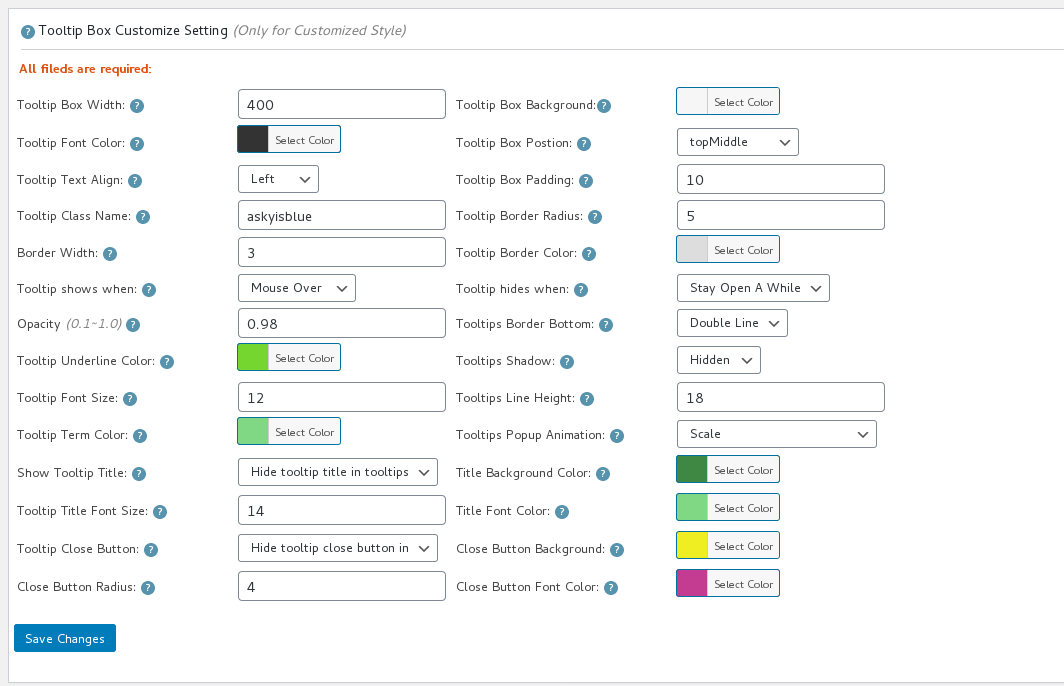
#4 You will open “Tooltips Style Settings” Panel, in “tooltip box cuustomize setting” option panel, you will find “tooltips hides when” option box, please select “stay open a while”

#5 Click “save changes” button.

It looks like this:

tooltip box customize setting

tooltip box customize setting

By this way, when the mouse leaves the tooltip terms, you can click links in the tooltip, or click button to play audio or video in tooltip box 🙂

Hope this have a little help 🙂

Any more question or feature request is welcome 🙂

Thanks, have a blessed day with your family 🙂
WordPress Tooltip Glossary Plugin Support Team
Tagged with: , ,

WordPress Tooltip Glossary Plugin 10.6.0 Released

Hi Dear WordPress Tooltip Glossary Plugin Users,

Hope this message find you are doing well and have happy weekend with your family 🙂

We are happy to report you, based on an amazing users’ feature request, we just released wordpress tooltip glossary plugin 10.6.0, in this version,  when you disable specific tooltips in wordpress post editor, all synonyms of the tooltip will be disabled in that wordpress post automatically too.

You can find the “Disable specific tooltip” meta box at right hand of your wordpress post editor, it looks like this:

disable specific tooltip meta box

disable specific tooltip meta box

Bounce Tip of WordPress Tooltip Plugin: How to disable wordpress tooltip for a specific page

As you can see, we added the tooltip term “Apple” in “Disable specific tooltip” meta box.

Also you can find Synonyms Tooltip box at the right hand of your wordpress tooltip editor, it looks like this:

synonyms tooltip

synonyms tooltip

In here, you can see I added a tooltip term “Apple”, and I have a synonyms tooltip “Kelly”

Now because I disabled the the tooltip “Apple” in a wordpress post, when you hover over the word apple in the wordpress post, we will not add tooltip effects on the word “apple” in front end, at the same time, if the wordpress post have the word “kelly”, when users hover over the word kelly, you will find tooltip effect has been disabled on the word kelly too. 🙂

Bounce Tip of WordPress Tooltip Plugin: How Do wordpress tooltip plugin Support Homonym Tooltip?

Thanks for the amazing feature request, if you have any suggestion or question, please don’t hesitate to tell us 🙂

Thanks, have a blessed weekend with your family 🙂
WordPress Tooltip Glossary Plugin Support Team


Tagged with: ,

We have updated guide article of how to use menu tooltip

Hi Dear WordPress Tooltip Plugin Users,

Based on users feedback, we have updated our guide article of How to add WordPress Tooltips in the menu?

In the new version of the guide, we have make two video tutorials, and added a few screenshot with detailed text description, also we added guide of “how to add a tooltip into menu item, and when users click the URL of the menu item, users will not be redirected to the page which menu item linked”, please check our new version of wordpress menu tooltips 🙂

Thanks, have a blessed day with your family 🙂
Best Regards,
WordPress Tooltips Plugin Support Team
Tagged with: ,

How to add WordPress Tooltips in the menu?

WordPress Tooltip can add tooltip effects on wordpress menu items automatically.

WordPress tooltip plugin will scan all wordpress menu items automatically, once find wordpress menu title have tooltip terms, wordpress tooltip plugin will add tooltip effect on menu title, please check our video at below:

How to add WordPress Tooltips in the menu?

1. Login wordpress admin area.

2. Click “Tooltips” menu item, then click “Add New” sub menu item to add a new tootips, just input the your tooltips title and content in wordpress tooltip editor, you can input text, video, image, QR Code, google map or any HTML code…and so on in content area. You can design many marvelous WordPress Tooltips for your wordpress menu item in here, it looks like this:

add new tooltip

add new tooltip

3: Design your menu tooltip style

We have a few methods to help you design your menu tooltip style:

You can customize your tooltips Box Width, Font Color, Tooltip Box Postion, opacity, background color … and so on in the “Tooltip Box Customize Setting” meta box — you can find “Tooltip Box Customize Setting” meta box at the bottom of the wordperss tooltip editor.

b) A faster method is just select one of default tooltips themes, please click “Tooltips” menu item, and then click “Tooltips Style” sub menu item, you will find 7 different color theme in “Tooltip Box Style” area, please select the theme your like, then Click the Button “Update Now”, it looks like this:

select tooltip default template

select tooltip default template

c) Also in “Tooltips Style”, you can customize your global tooltip style too, just selecting “Customized” in “Tooltip Box Style” area, and then Click the Button “Update Now”, then you select marvelous options in “Tooltip Box Customize Setting” panel, you can change background color, font color, border color, border color … , via colorpicker, or change border width, opacity, tooltip title font size, tooltip box position…. and so on.

4. Add your menu item

WordPress tooltip plugin will scan each wordpress menu item, once tooltip plugin find a tooltip term in the title of a menu item, wordpress tooltip plugin will add tooltip effect on the tooltip term which be found in menu titles automatically.

If you did not add a menu item yet, you can do it by this way:

Please click wordpress “appearance” menu item, then click “menus” sub menu item, select your page or posts that you want to add in the menu, click the button “add to menu”, then click the button “save menu”

5. You can see the menu tooltip in the menu like this:

menu tooltip on menu item

menu tooltip on menu item


Also we received another ticket which asked us how to add a tooltip into menu item, and when users click the URL of the menu item, they will not be redirected to the page which menu item linked too 🙂

Although it seems a little strange, because in general, the function of menu item is redirect users to a page, that’s how menu works, ?but of course if you really want to add a menu item with tooltip effect, and do not allow users redirect to other pages, yes, we can, please check our video at below:

As you can see, actually this is not related with tooltip functions, when you make a menu item via “Add menu items” panel, please just select “Custom Links”, and then in the “URL” field, just enter “#”, no anything more, just a # ,then add your tooltip term in “Link Text” field, in front end, you will find the menu tooltip, and when you click the menu, users will stay the same page, a sample screenshot can be found at below:

add new wordpress menu item

That’s all 🙂

If you have any feature request or question for wordpress tooltip, please don’t hesitate to tell us, we are always happy to build the best wordpress plugin for you 🙂

Thanks, have a blessed day with your family 🙂

Best Regards,

WordPress Tooltips Plugin Support Team

Tagged with: , ,

How to Disable WordPress Image Tooltip in Whole Site?

Dear WordPress Tooltip Glossary User,

Hope this message find you are doing well and have happy days with your family! 🙂

We received a ticket which the user asked a question:

How to Disable WordPress Image Tooltip in Whole Site?

As you know, we used a lot of energy to improve wordpress image tooltip function and build a power image tooltip function for users, if you search image tooltip,   you will find there are more than 100 articles / plugin release report in search result, for example:

Image Tooltips, Solved Problem of Image Dislocation

WordPress Tooltip 7.9.0, Improved Image Tooltip, Generate Tooltips Style Automatically

WordPress Tooltips 8.0.0, Improved Image Tooltips

WordPress Tooltips Plugin 8.7.2: Improved Use Image as Image tooltips functionality

…. and more 🙂

Also we did many works for use wordpress tooltip shortcode to build image tooltip and tooltips for image, for example:

How to add multimedia tooltip to an image using tooltip shortcode

You can find our image tooltip demo at:

WordPress Image Tooltips Demo

and

How to add multimedia tooltip to an image using tooltip shortcode

… and so on

I am happy to report you that wordpress tooltip plugin have a powerful image tooltip function, you can enable / disable image tooltip by this way:

#1 Login wordpress admin area

#2 Click “Tooltips” Menu item

#3 Click “Global Settings” Sub Menu item

#4 In ” Tooltips Global Settings” panel, you will find “Tooltips for Image setting” option box, in here, please select “I want to disable tooltips for image” and click “Update Now” button

The “Tooltips for Image setting” option box looks like this:


enable disable tooltips for image

enable disable tooltips for image

that’s all, simple? Yes, also we have a video tutorial at WordPress Tooltips Video Tutorial 8: Enable/Disable WordPress Tooltips for Images:


Please, if your image tooltip is generated by tooltips shortcode, the option “I want to disable tooltips for image” will not control these image tooltips which generated by wordpress tooltip plugin shortcodes.

We received many amazing feature requests, we are working hard to realize them for happy wordpress tooltip glossary plugin users, hope you will see it soon, if you have any question of feature request, please don’t hesitate to tell us, let’s work together to build a better and better wordpress tooltip glossary plugin 🙂

Thanks, have a blessed day with your family 🙂

Best Regards,

WordPress Tooltip Glossary Plugin Support Team


Tagged with: , , , ,

How to Search WordPress Tooltips Document?

Hi Dear WordPress Tooltip User,

We received a ticket, in which the user asked us how to get wordpress tooltip document, I guess may a few more users have the same question, I’d like reply in here publicly 🙂

The lovely user told us, she always go to google.com to search our document by site:tooltip.org…, actually in our site, you have two method to search and find tooltip document quickly:

1: When you open a page in tooltips.org, you will find on the top of the right sidebar, we have a search form

It looks like this:

tooltip document search form on sidebar

tooltip document search form on sidebar

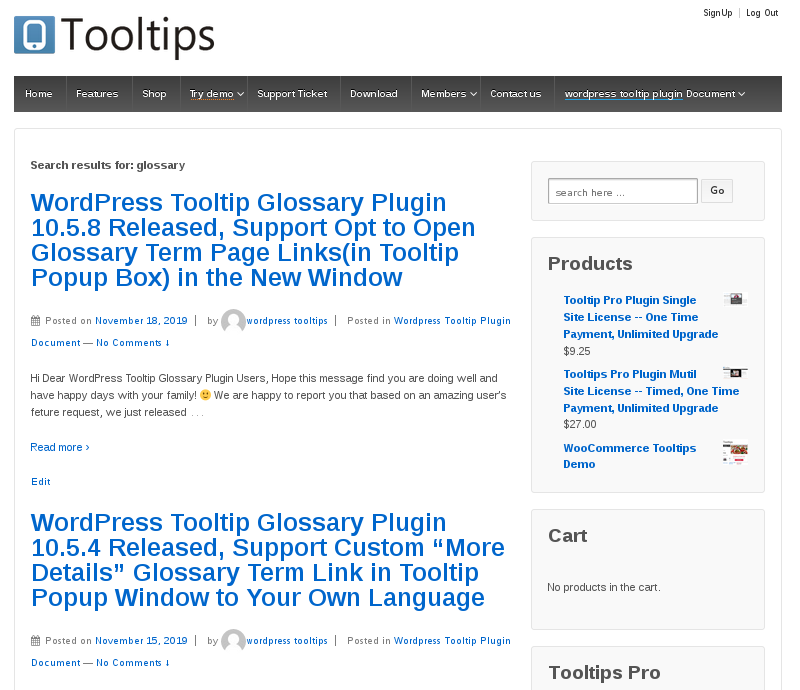
Now let’s search something, for example “glossary”, you will find all posts related with “glossary” will show in the result page, it looks like this:

search result by search form on-sidebar

search result by search form on-sidebar

2: Also you can search document of wordpress tooltip glossary plugin in wordpress tooltip document page

You will find our wordpress tooltip document page at the top menu, it looks like this:

wordpress tooltip top menu

wordpress tooltip top menu

Once you click the “wordpress tooltip plugin document” menn item, you will open our wordpress tooltip plugin document page, at the top of the wordpress tooltip plugin document page, you will find we putted a search form in here, it looks like this:

search form on wordpress document page

search form on wordpress document page

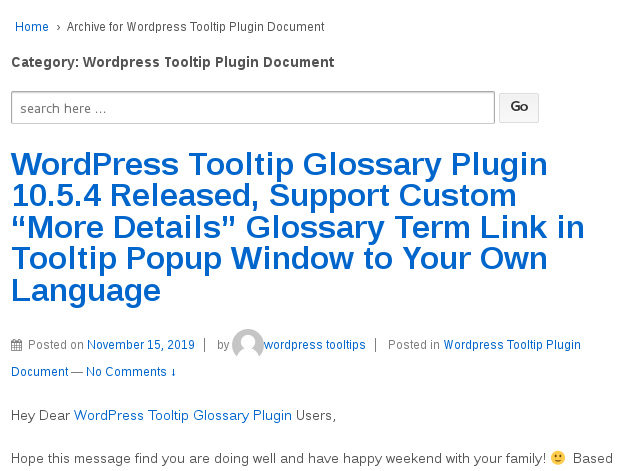
Just try to search something in the search form, for example glossary, you will find all glossary pages listed in the result page, it looks like this:

search result by search form on-sidebar

search result by search form on-sidebar

Actually it just the same search result page with the search result page via first search method 🙂

If you have any question, please search first, also we make detailed video tutorial for you, you can find all video tutorial at wordpress tooltip video tutorial page. 🙂

Thanks, have a blessed day with your family 🙂
Best Regards,
Tooltips Support Team
Tagged with: , ,

WordPress Tooltip Glossary Plugin 10.5.8 Released, Support Opt to Open Glossary Term Page Links(in Tooltip Popup Box) in the New Window

Hi Dear WordPress Tooltip Glossary Plugin Users,

Hope this message find you are doing well and have happy days with your family! 🙂

We are happy to report you that based on an amazing user’s feture request, we just released WordPress Tooltip Glossary Plugin 10.5.8, changes in this version:

WordPress Tooltip Glossary Plugin 10.5.8 Support Opt to Open Glossary Term Page Links in Tooltip Popup Box Window

Since wordpress tooltip 8.7.6, we support add glossary term links in tooltip popup box, for better SEO ranks, and when you opt to use tooltip excerpt as content in tooltip popup box, it is helpful for help users can find the full content of the tooltip / glossary via click the “More Details” link in tooltip popup box 🙂

Also  in WordPress Tooltip Glossary Plugin 10.5.4, Based on users feature request, wordpress tooltip plugin support Custom “More Details” Glossary Term Link in Tooltip Popup Window to Your Own Language

Then after released wordpress tooltip 10.5.4, an user told us he hope open “more details” glossary term link in new window, not in the same window, it’s why we developed a new wordpress tooltip glossary plugin, in wordpress tooltip glossary plugin 10.5.8,  now you can opt to open “more details” glossary term link in new window just via one click, it is very easy to do:

#1 Login your wordpress admin area

#2 Click “Tooltips” menu

#3 Click “Optional Settings” sub menu

#4 In “Add tooltips links in tooltip popup box” option box, you will find we added a new checkbox: “ “, if you checked this option, when users click “more details” glossary term link in tooltip popup box, they will be redirected to a new window to open related glossary term page. If you uncheck this checkbox, when users click the “more details” glossary term link in tooltip popup box, the glossary term page will be opened at the same window 🙂

In backend, it looks like this:

open glossary term link in new window

open glossary term link in new window

Easy, right? Creating a plugin with more features and being easier to use is our goal, if you have any feature request or question, please don’t hesitate to tell us 🙂

custom tooltip glossary more details with your own words

custom tooltip glossary more details with your own words

A new wordpress tooltip plugin is on the road now, you will see it soon 🙂

Thanks, have a blessed day with your family 🙂
Best Regards,
Tooltips Support Team


Tagged with: ,
Top