WordPress Tooltip Glossary Plugin 12.8.2, Support Customize Numbers of Items per Page in Glossary Pagination

Wordpress Tooltip Plugin

Hi Dear WordPress Tooltip Glossary Users,

Hope this message find you are doing well and having happy weekend with your family! 🙂

We get an amazing wordpress tooltip user’s suggestion, in his ticket, he said, in last version, allow user to enable and disable wordpress glossary pagination function is good, but wordpress tooltip plugin should allow wordpress glossary plugin users to change the numbers of items per page in wordpress glossary pagination, in our last version, it always hard code to show 30 glossary items in wordpress glossary page, but some users hope show more glossary items in one wordpress glossary page, and other users may be want to show less wordpress glossary items in wordpress glossary page, for example, if glossary items have large videos, then show 30 glossary is not a smart way, so it is better to allow wordpress tooltip users to decide how many glossary items show in glossary page, we agree with this, this is a excellent suggestion, we accept it 🙂

Our developer have re-developed our plugin to support his suggestions of wordpress glossary pagination section, now in WordPress Tooltip Glossary Plugin 12.8.2, we will support:

Customize Numbers of Items per Page in WordPress Glossary Pagination

In back end of wordpress glossary style settings panel, you will find the new option “Pagination – Numbers of Items per Page”, it looks like this:

glossary settings panel in wordpress tooltip glossary plugin 12.8.2

glossary settings panel in wordpress tooltip glossary plugin 12.8.2

At the bottom of the wordpress glossary style settings panel, you will find the “Pagination – Numbers of Items per Page” option, just enter the number of glossary items, and click “Save Changes” blue button, in front end, you will find the glossary items in glossary page will be changed as you customized in here 🙂

Thanks for the great suggestion for wordpress tooltip glossary plugin, we get Tons of suggestion, from wordpress glossary, to wordpress tooltip, to woocommerce tooltip…. we are try our best to finish them asap we can. If you have any question or suggestion of wordpress tooltip plugin, please don’t hesitate to tell us 🙂

Thanks, have a blessed weekend with your family 🙂

Best Regards,
Wordpress Tooltip Glossary Plugin Support Team

Tagged with: , , , ,

How to Only Add WordPress Tooltip to the First Matching Keyword in the Same WordPress Post?

Hi Dear WordPress Tooltip Glossary Users,
Hope this message find you are doing well and have happy days with your family! 🙂

We get a new user’s ticket, in the message she told us she do not want wordpress tooltip effect added to all words “Love” in her wordpress post, she just hope the first “Love” word have the tooltip popup window 🙂

I think we have relied this question a few times, and we guess may be more users have the same question of how to add tooltip to the first matching keyword in the wordpress posts, we’d like write a document for help users do this easier 🙂

How to Only Add WordPress Tooltip to the First Matching Keyword in the Same WordPress Post?

1: Login your wordpress site as wordpress admin

2: Click “Tooltips” menu item

3: Click wordpress tooltip “Global Settings” sub menu item, you will open wordpress tooltip “Global Settings” panel

4: The wordpress tooltip “Global Settings” looks like this:

5: You will find the first option in wordpress tooltip global settings panel is “Keyword Matching Mode”

6: Please select “Add WordPress Tooltip to the First Matching Keyword” in “Keyword Matching Mode” option

7: Click blue “Update Now” button

8: In front end, you will find only the first “Love” word have wordpress tooltip popup box, other “Love” word have no wordpress tooltip pop up

If you have any question or suggestion of wordpress tooltip plugin, please don’t hesitate to tell us 🙂
Thanks, have a blessed day with your family 🙂
Best Regards,
WordPress Tooltip Glossary Plugin Support Team
Tagged with: ,

How to Enable WordPress Glossary Categories Filter in WordPress Glossary Archives Page?

Hi Dear WordPress Tooltip Glossary Plugin Users,
Hope this message find you are doing well and have happy days with your family! 🙂
A wordpress tooltip plugin user asked us this question, I ensure may be more wordpress tooltip users have the same question, I am happy to reply the question in this wordpress tooltip knowledge base publicly:

How to Enable WordPress Glossary Categories Filter in WordPress Glossary Archives Page?

1: Login your wordpress site back end

2: Click “Tooltips” menu item

3: Click “Glossary Settings” sub menu item, then you will open “Glossary Settings” panel

The “Glossary Settings” panel looks like this:

glossary settings panel

glossary settings panel

4: In “Glossary Settings” panel, you will find “Support Select Glossary Category in Glossary Archives Page ?” option, please select “Yes”

5: Click blue “Save Changes” button

6: In front end, in wordpress glossary archive page, you will find the wordpress Glossary Categories filter, it looks like this:

wordpress glossary category filter

wordpress glossary category filter

7: Just select glossary category from wordpress glossary categories filter, you will find in glossary archive page, we will just show glossary term which related with specific glossary category 🙂

That’s all

In recent months, we have released a lot of version to improve wordpress glossary functionality for wordpress tooltip plugin, we are still adding new features for wordpress glossary plugin, if you have any more feature request, please don’t hesitate to tell us 🙂

Thanks, have a blessed day with your family 🙂
Best Regards,
WordPress Tooltip Glossary Plugin Support Team
Tagged with: , , , ,

WordPress Tooltips Plugin 12.7.8 Released, Added Glossary Paginate Navigation at the Top of Glossary List Page too

Hi Dear WordPress Tooltip Glossary Plugin Users,
Hope this message find you are doing well and have happy weekend with your family! 🙂
Based on wordpress tooltip user’s feature request, we released wordpress glossary plugin 12.7.8 🙂
A user told us, the glossary paginate navigation looks good, it is helpful, but it is a little hard to find wordpress glossary paginate navigation links, because these glossary paginate navigation links is at the bottom of the glossary lists, so if we can add glossary paginate navigation at top of wordpress glossary list and bottom of wordpress glossary page, it is better 🙂
This is an amazing feature request, we agree it, our developer give up his weekend to developed a new wordpress tooltip version 12.7.8 to realize it, now when wordpress tooltip users enabled “Enable Glossary Paginate Navigation” in glossary settings panel, in front end, wordpress glossary plugin will not only show wordpress glossary  paginate navigation at the bottom of glossary list, but also add glossary paginate navigation at the top of glossary list,this will make life more easier 🙂
Also we tweak tooltip glossary css. 🙂
Thanks for the great idea, thanks for share your amazing suggestion with us 🙂 If you have any question or suggestion of wordpress tooltip plugin, please don’t hesitate to tell us, we are very happy to make a powerful and user friendly wordpress glossary plugin for you 🙂
Thanks, have a blessed day with your family 🙂
Best Regards,
WordPress Glossary Plugin Support
Tagged with: , , , ,

WordPress Tooltips Plugin 12.7.4 Released, Added “Enable Glossary Paginate Navigation” Option in “Glossary Customize Setting” Panel

Hey Dear WordPress Tooltip Glossary Plugin Users,
Hope this message find you are doing well and have happy weekend with your family! 🙂
We get an wordpress tooltip user’s ticket, in which he suggested allow users to enable or disable glossary paginate navigation option in back end, because it is not each users like use glossary paginate navigation under glossary index page, actually, only heavy wordpress glossary users which have huge glossary terms need use glossary paginate navigation, his tooltip site just have 100 glossary terms, he hope show all glossary terms to users in one time 🙂
This is a great suggestion, our developer developed a new wordpress tooltip plugin version asap he can, and after test many times, we released wordpress tooltip plugin 12.7.4 🙂
Now in wordpress glossary settings panel, we added “Enable Glossary Paginate Navigation” option in “Glossary Customize Setting” setting panel, if you enable “Enable Glossary Paginate Navigation” option, in glossary page, we will show paginate navigation under glossary list. If you disable “Enable Glossary Paginate Navigation” option, in glossary page, we will remove paginate navigation under glossary list. By default, if you did not set up “Enable Glossary Paginate Navigation” option, we will not show paginate navigation under glossary list 🙂
The  “Enable Glossary Paginate Navigation” option in “Glossary Customize Setting” setting panel looks like this:
wordpress glossary plugin 12.7.4 settings panel

wordpress glossary plugin 12.7.4 settings panel

If you have any question or suggestion of wordpress tooltip plugin, please don’t hesitate to tell us 🙂
Thanks, have a blessed day with your family 🙂
Best Regards,
WordPress Tooltip Glossary Plugin Support Team
Tagged with: , , ,

Updates of This Week on WordPress Tooltip Site

Hi Dear WordPress Tooltip Glossary Users,
Hope this message find you are doing well and having happy weekend with your family! 🙂
We have many changes in this week on wordpress tooltip site:
1: We rewrite description of WordPress Pay With a Comment Plugin
2: We rewrite plugin description of WordPress Pay With a Login or Register Plugin
3: We rewrite plugin description of WordPress Pay With a Link Plugin
4: We added a few wordpress tooltip how to document in wordpress tooltip knowledge base:
5: We released a new version of wordpress tooltip plugin to add tooltip paginate navigation links for wordpress glossary: WordPress Tooltips Plugin 12.7.0 Released, Added Paginate Navigation Links in Glossary Page
6: We released a new version of wordpress 404s plugin:
Please upgrade your plugins in wordpress tooltip plugin account. If you have any question or suggestion of wordpress tooltip plugin, please don’t hesitate to tell us 🙂
Thanks, have a blessed weekend with your family 🙂
Best Regards,
WordPress Tooltip Glossary Plugin Support Team
Tagged with: , , ,

How Do I Make WordPress Tooltip Content Text Align Centered?

Hi Dear WordPress Tooltip Plugin Users,

We get a user’s ticket, in which he asked us how to make tooltip content text align centered, we have developed a new version to realize it, and we are happy write a document for use this tooltip style feature easier 🙂

How Do I Make WordPress Tooltip Content Text Align Centered?

1: Login wordpress admin

2: Click “Tooltips” menu item

3: Click “Tooltips Style” sub menu item to open “Tooltips Style Settings” panel

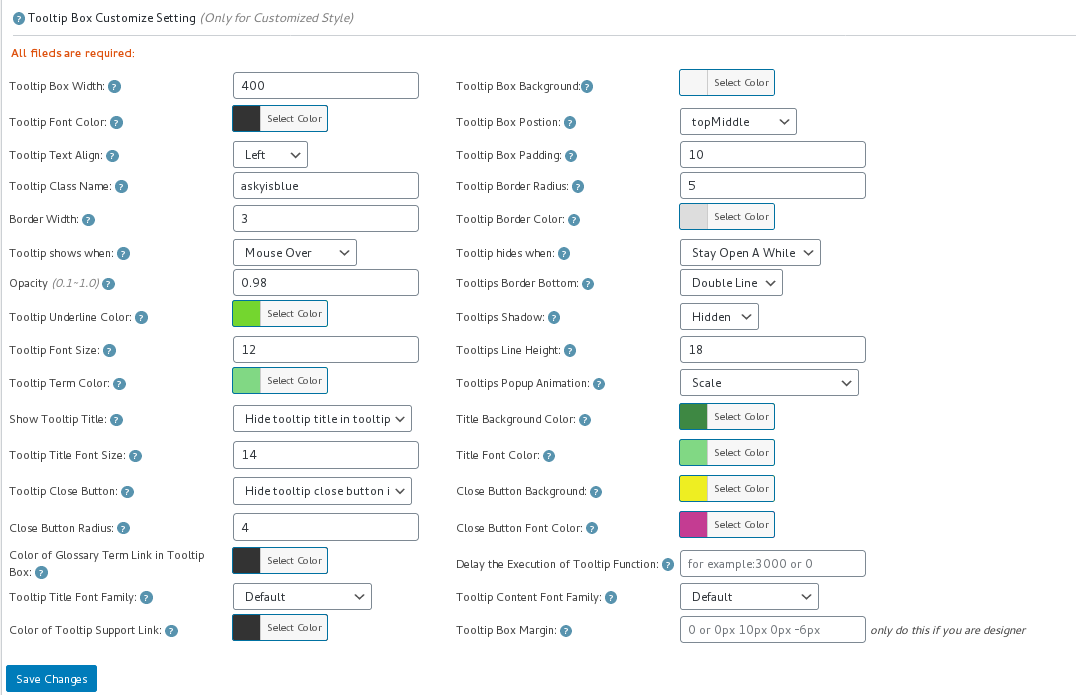
4: In “Tooltips Style Settings” panel, You will find “Tooltip Box Customize Settings” panel, it looks like this:

tooltip style panel version 12.3.6

tooltip style panel version 12.3.6

5: In “Tooltip Text Align” option, you will find 3 options “Left”, “Center”, “Right”, please just select “Center”

6: Also you will need finish other settings in “Tooltip Box Customize Settings” panel

7: Click “Save Changes” blue button

8: Check your wordpress tooltip in front end, when mouse hover a tooltip term, you will find in tooltip popup box, tooltip title and tooltip content is text align centered now 🙂

Via WordPress Tooltip plugin, just a few clicks, you can make a pretty style just in a few minutes, wordpress tooltip plugin is a time saver, so good and so easy, right? 🙂

If you have any features request of wordpress tooltip plugin or any question of wordpress tooltip, please contact us 🙂

Thanks, have a blessed weekend with your family 🙂
Best Regards,
WordPress Tooltip Glossary Plugin Support Team


Tagged with: ,

How to Regenerate All WordPress Tooltip Style?

We get a ticket, a user of wordpress tooltip plugin ask us a question, he created many tooltips, also he created unique tooltip style for a few tooltips , it seems a few of them not works well, because he changed tooltip style too many times, in tooltip editor tooltip style metabox, and added a few customized tooltip style in tooltips.css file, the user think something messed up a little, but he  do not want to use a lot of time to find out wordpress tooltip posts which have customized tooltip style, he want to know:

How to Regenerate All WordPress Tooltip Style?

1: Login your wordpress admin area

2: Click “Tooltips” menu item

3: Click “Reset Tooltips” sub menu item

4: Then You will open “Reset Tooltips” panel, in which you will find “Regenerate All Tooltips Style” option, just click “Regenerate Style” blue button, we will regenerate all wordpress tooltip style for you automatically 🙂

It looks like this:

Regenerate All Tooltips Style

Regenerate All Tooltips Style

5: In front end, you will find all tooltip styles be regenerated with the tooltip style global settings and customized style of each wordpress tooltip posts.

WordPress Tooltip plugin is very easy to use, right? 🙂

We are develop a new version of wordpress tooltip plugin, in which we will improve wordpress tooltip glossary pagination functions, you will see it soon 🙂

Thanks, have a blessed day with your family 🙂
Best Regards,
WordPress Tooltip Glossary Plugin Support Team
Tagged with: ,

How can I Make WordPress Tooltip doesn’t Apply to a Specific Page?

We get a user’s ticket, in which he asked us a question:

How can I Make WordPress Tooltip doesn’t Apply to a Specific Page?

1 Login your wordpress site admin area

2 Click “Posts” menu item in wordpress admin area

3 Click “Add New” sub menu item, you will open wordpress post editor

4 When you edit wordpress post in editor, you can find the “disable all tooltips in this post” metabox in right hand of wordpress editor, please just click   “disable all tooltips for this post” option, and save your wordpress post, it looks like this:

disable all tooltips in this post

disable all tooltips in this post

5 In front end, you will find wordpress tooltip effects has been removed from your wordpress posts 🙂

6 If you do not want to remove all wordpress tooltip effects, if you just want to remove wordpress tooltip effect for a few specific tooltip terms in front end, you can use another option “Disable specific tooltips”, which under “Disable all tooltips in this post” option in “wordpress tooltip settings for this page” metabox, it looks like this:

Disable specific tooltips

Disable specific tooltips

7 In “Disable specific tooltips” option, you can enter multiple tooltips to exclude a few specific tooltips in this post, split by comma “,”  🙂

8 If you think remove wordpress tooltips effects in each post is a hard work, we have a tool to make the life more easier for wordpress toolti editor:

WordPress Tooltip Plugin Support One Click to Bulk Disable Tooltips in Post by Post ids

9 Click “Tooltips” menu item

10 Click “Tooltips Optional Settings” sub menu item, it looks like this:

Wordpress Tooltips Menu Item

WordPress Tooltips Menu Item

11 You will open “Tooltips Optional Settings” panel, you can find “Bulk disable tooltips in post by post id” option box,it looks like this:

Bulk disable tooltips in post by post id

Bulk disable tooltips in post by post id

12 Please just input post ids in this input box, split with comma “,”, for example, 3,22,58,126,583

13 In front end, wordpress tooltip plugin will not add tooltip effects in those wordpress posts.

Easy? Yes 🙂
If you have any question or suggestion of wordpress tooltip plugin, please don’t hesitate to tell us 🙂
Thanks, have a blessed day with your family 🙂
Best Regards,
Tagged with: ,

WordPress Tooltips Plugin 12.7.0 Released, Added Paginate Navigation Links in Glossary Page

Hi, WordPress Tooltip Glossary Plugin Users,

Hope this message find you are doing well and having happy weekend with your family! 🙂

We are happy to report you, we just released wordpress tooltip glossary plugin 12.7.0, changes in wordpress tooltip glossary plugin 12.7.0:

WordPress Tooltips Plugin Support add Paginate Navigation Links in Glossary Page

An amazing user write to us, said he have x,000s glossary terms, so when loading glossary page, it used many munutes, he hope we can add paginate functions for glossary page, this is a great suggestion, we re-developed our wordpress tooltip plugin to realize this feature, since wordpress tooltip 12.7.0, in wordpress glossary page, wordpress tooltip plugin added paginate navigation links, if the number of glossary terms more than 30, wordpress glossary plugin will show paginate navigation links at the bottom of the glossary pages, you will see navigation links previous , 1,2,3…, next.. and so on, and per glossary page will only show 30 glossary terms, it looks like this:

paginate navigation links in glossary page

paginate navigation links in glossary page

Thanks for the amazing feature request for wordpress tooltip ,  Any question or suggestion for wordpress glossary plugin, please don’t hesitate to tell us, we are always happy to offer an amazing wordpress tooltip glossary plugin for you.   🙂

Thanks, have a blessed weekend with your family 🙂

Best Regards,
Wordpress Tooltip Glossary Plugin Support Team

Tagged with: , , ,
Top