WordPress Tooltips Free Plugin 7.6.3 Released

Hi Dear WordPress Tooltip plugin users, hope you have happy weekend with your family ! 🙂  We got a wordpress tooltip ticket from a new wordpress tooltip user, in which he said he do not know how to create the first tooltip for his wordpress tooltip site, so we developed wordpress tooltips free plugin 7.6.3 to help new users create the first tooltip easier 🙂

Once upgraded to wordpress tooltips free plugin version 7.6.3, please click login as admin in wordpress dashboard, and then click  “Tooltips”  menu item ,then click “Knowledge Base” sub menu item, you will open the “How to Use WordPress Tooltip” panel, it looks like this:

how to create first wordpress tooltip

how to create first wordpress tooltip

You will find we added a new wordpress tooltip knowledge base item: “WordPress Tooltips Video Tutorial 4: How to Create Your First Tooltips”, if you click the wordpress tooltip knowledge base tab “WordPress Tooltips Video Tutorial 4: How to Create Your First Tooltips”, you will get the video tutorial link with a simple description, if you click the link of “How to Create Your First Tooltips”, then you will open the video with detailed screenshot and step by step document to help new wordpress tooltip plugin users to create a new tooltip term quickly — just 2 minutes 🙂

Also wordpress tooltips plugin 7.6.3 support wordpress 5.8 🙂

Thanks for the ticket, if you have any more question or suggestion for wordpress tooltip plugin, please don’t hesitate to tell us, have a happy weekend with your family 🙂

If you want to check features of our wordpress tooltips pro plugin, check it at here:


Best Regards,

WordPress Tooltip Support Team

Tagged with: ,

New Function to Generate Tooltip Excerpt Automatically, WordPress Tooltip Plugin 15.0.4

Hey dear WordPress Tooltip Plugin Users, hope you are doing well and have happy weekend with your family! We are happy to report you, we just released wordpress tooltip plugin 15.0.4, in this version, we re-developed wordpress tooltip excerpt module to generate wordpress tooltip excerpt automatically — even when you did not enter tooltip excerpt in tooltip editor 🙂

We get a wordpress tooltip user’s ticket, in which he said:

I am selecting “excerpt” and the plugin is not following the settings, it is still showing the full content without adding the read more  link.

It is strange, we replied:

Hi,
Hope you are doing well and having happy days with your family 🙂

Thanks for the message 🙂

We are very happy to help you 🙂

Sorry this is the first time we heard this kind of problem, because we have many plugin versions with different functions, Would you please tell us the plugin version you are using? 🙂

Thanks, have a blessed day with your family 🙂

Best Regards,
Support Team

Then the amazing user made a video screenshot to us, we built a development platform to follow users video and check the problem, finally, we find then tooltip users did not enter excerpt in tooltip editor, then tooltip will not return a excpert content in the tooltip pop-up window, this is correctly working method of a wordpress plugin, but our developer said he can do more, then he developed a new version for the user — when the user did not enter anything in the tooltip excerpt text input box, our new function will generate the tooltip excerpt for this wordpress tooltip term based on the tooltip content, automatically. this is why we released wordpress tooltip plugin 15.0.4, this version effected wordpress tooltips pro plus version and wordpress tooltips pro version 🙂

How to Setup to Display Tooltip Excerpt in WordPress Tooltip Box?

At first, please upgrade to the wordpress tooltips pro plus plugin 15.0.4:

1: Login wordpress tooltip plugin site

2: At the top menu bar of the tooltips.org, you will find the download link, just click it

3: Please download wordpress tooltip pro plus plugin 15.0.4

4: Then login your wordpress site as wordpress administrator user

5: After login wordpress, by default, you will open wordpress dashboard, in the left hand of the wordpress dashboard, you will find the “Plugins”  menu, please click it 🙂

6: Please note, if you have installed wordpress tooltips glossary free plugin or old wordpress tooltips pro version or wordpress tooltips pro plugin version, please deactivate it and delete the old wordpress tooltip plugin

7: Then, back to the the top of the wordpress “Plugins” panel, you will find the “add new” link, please click the add new link to upload the latest wordpress tooltips pro plus plugin — it is a .zip file which you downloaded from tooltips.org in the step #3 🙂

8: After uploaded the newest wordpress tooltip glossary plugin version, please activate the wordpress tooltip plugin in the plugin panel 🙂

9: Please click Tooltips Menu in the left hand in the wordpress dashboard

10 Please click “Add New” sub link, you will open the tooltips editor

11: In wordpress tooltips editor, please just enter a tooltip term and tooltip content, in general, you need enter wordpress tooltip excerpt in the tooltip editor, but since wordpress tooltips plugin 15.0.4, if you do not enter it, we will generate wordpress tooltip excerpt for you based on wordpress tooltip content in this tooltip term — automatically

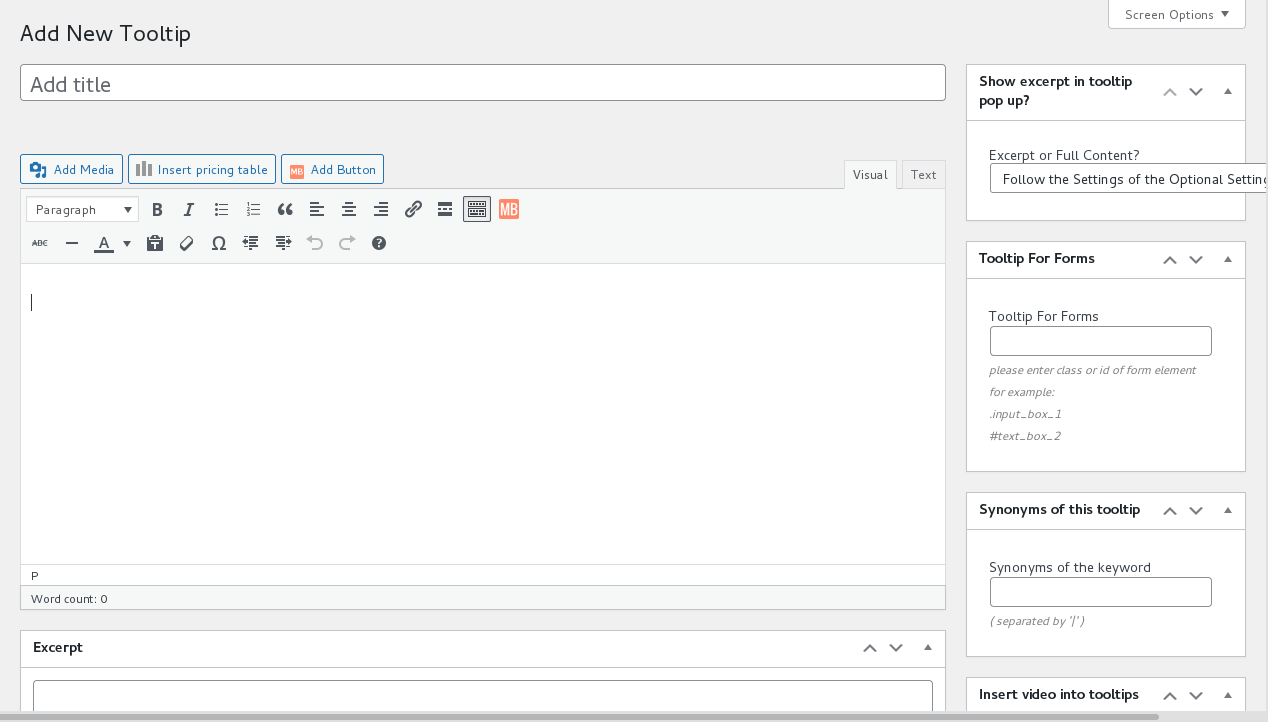
12: Then in the right hand of the wordpress tooltip editor, you will find a metabox “Show excerpt in tooltip popup?” It looks like this:


wordpress tooltips edtior in wordpress tooltips plugin 15.0.4

wordpress tooltips edtior in wordpress tooltips plugin 15.0.4

13: In the “Show excerpt in tooltip popup?” metabox, you will find 3 options:

a: ” Follow the Settings of the Optional Settings Panel” — this is the default option, if you select this option, we will follow your settings in the wordpress tooltips optional settings — you can set up it by click the “Optional Settings” sub menu item, the wordpress tooltips optional settings panel looks like this:

Wordpress Tooltip Plugin 14.6.6 Optional Settings

WordPress Tooltip Plugin 14.6.6 Optional Settings

As you can see, in the screenshot of wordpress optional settings panel,  there are an option “Show excerpt or full content in tooltips popup box?” — this settings will effect globally tooltip terms, but you can custom a specific tooltip term to use excerpt or full content in tooltip popup box in the “Show excerpt in tooltip popup?” metabox in tooltip editor. If you select  ” Follow the Settings of the Optional Settings Panel” in the “Show excerpt in tooltip popup?” metabox, then wordpress tooltips plugin will use your wordpress excerpt settings in the “Optional Settings” panel 🙂

b: ” Use Full Tooltip Content In Pop Up Box” — this means you decide to use full tooltip content in the wordpress tooltip pop-up window

c: ” Use Tooltip Excerpt In Pop Up Box” — this means you decide to use wordpress tooltip excerpt in the wordpress tooltip pop-up window

14: Okay, now, you can decide to enter excerpt in the wordpress tooltips excerpt metabox or not, if you did not enter any text in the wordpress tooltips excerpt metabox, wordpress tooltips plugin will generate a wordpress tooltips excerpt for this wordpress tooltip term automatically — based on the content you entered in the tooltip content textarea, words length is 55

15: Please remember to click “Publish” blue button in wordpress tooltips editor

16: Then in the front end, you will find in the wordpress tooltips pop-up window, we will display tooltip excerpt of tooltip full content for users, based on your settings 🙂

Please note, from our introduction above, you can find there are two places to setup the “tooltip excerpt” or “tooltip content” in the wordpress tooltips popup window, one is tooltips optional settings panel, and one is in the sparate tooltips editor, rememberm the metabox option in the separate tooltip post has the highest priority

Hope this will have a little help 🙂

Thanks for the great feedback to us, and thanks for the video screenshot for us, that make the wordpress tooltips plugin better and better for wordpress tooltip users, if you have any more question or feature request to wordpress tooltip plugin, please don’t hesitate to contact us, we are very happy to help you solve any problem of wordpress tooltip plugin 🙂

Thanks, have a blessed day with your family 🙂

Best Regards,
WordPress Tooltip Support Team

Tagged with: , , ,

WordPress Tooltip Tips: How to solve the problem of “The words are underlined but no pop-ups appear”?

Dear WordPress Tooltip Users, hope you are doing well and have happy weekend with your family.  We got a wordpress tooltip ticket from a new wordpress tooltip user, he said he have installed wordpress tooltips pro plugin, and he found all tooltip terms have underline, but when mouse hover the tooltip term, there are no tooltip box pop-up. We think may be more users have the same problem, we’d like write a document in here to help users to avoid similar problem 🙂

The original ticket from the amazing user:

Not sure what’s going on with the plugin but I can’t get any tooltips to show up. The words are underlined but no pop-ups appear.

For example:
his site url
Both have content and excerpt filled in.

In general, there are a 3 may be reason will caused this kind of problem, and all of them is very easy to solve, please just follow our step by step document, you will find the reason and solve problems quickly 🙂

At first, please ensure you are using the latest version of wordpress tooltip plugin, in the current time — 2021-08-09, it is version 15.0.2, because old version do not support many new functions about speed up your site and support more cache plugin… and so on. So please login tooltips.org to download the newest version of wordpress tooltip plugin and install it, if you have downloaded and installed wordpress glossary plugin, please jump to step #9 directly 🙂

1: Login our site: wordpress tooltip plugin

2: Please click the “download”  link on the top menu bar

3: Please download latest wordpress tooltip pro plus plugin — it is a wordpress plugin “.zip” file.

3: Login your wordpress site

4: After logged in wordpress dashboard, please click “Plugins” menu.

5: If you have installed wordpress tooltips glossary free plugin or old wordpress tooltips pro version or wordpress tooltips pro plugin version, please deactivate it and delete the old wordpress tooltip plugin

6: At the top of the wordpress “Plugins” panel, you will find the “add new” link, in which you can upload the .zip file of the wordpress tooltip pro plugin ,please upload the wordpress tooltip plugin .zip file via the add new link in plugin dashboard

7: Please activate the newest wordpress tooltip glossary plugin version which you uploaded via plugins menu

8: Then open your site URL in your browser, and right click on your wordpress page front end, you will find “view page source” link in browser pop-up window

9: Click “view page source” link in browser pop-up window, you will open a new tab in the browser, the url looks like this:

view-source:https ://tooltips.org/

10: Then enter “Ctrl + F”, you will find a search box, just enter “jquery.js”, if there are no jquery.js in your page source, then it will caused many plugin cannot works well on your wordpress site

11: To solve the problem of lack “jquery.js”, you can solve this problem by inserting a script in the head of your Theme / Theme Editor : functions.php:

<script src=”https://code.jquery.com/jquery-migrate-3.0.0.min.js”></script>

12: Then clear your cache in the browser and your cache plugin, then you will find wordpress tooltips box pop-up with tooltips content 🙂

13: Okay, from step #8 to step #12, you will solve the problem of “not loaded jquery.js”, in general, this can be caused by error settings in the theme option, or caused by a 3rd wordpress plugin, if you can find an option in your wordpress theme option, which told you enable or disable jquery, then enable it, and you can ignore actions from step #8 to #step 12

14: If your site have loaded jquery.js correctly, and still can not find tooltip popup window, then it may caused by a cache plugin conflict, wordpress tooltips pro have modules to optimize site loading speed to support wordpress cache plugins, and the module will avoid confliction with many cache plugins, you can do it by this way:

15: Please click “Tooltips” menu item in the wordpress dashboard menu

16: Click “Global Settings” sub menu item

17: You will open “Global Settings” panel, it looks like this:


custom unique tooltip style for the wordpress tooltip term

If you want to custom a dedicated & pretty style this the specific wordpress tooltip term, then please select “YES”, else please select “NO”, if you select “NO”, then the specific wordpress tooltip term will use default settings from wordpress tooltip global style.

12: Then under the “Enable / Disable Custom Unique Style Functionality for this Tooltip”, you will find “Tooltip Box Customize Setting” panel, it looks like this:

13: As you can see, in tooltips global settings panel, there are “load tooltip javascript in wordpress header or wordpress footer” option,
please select “load tooltip javascript in wordpress footer” option and click “update now” blue button, in the current time, in your front end pages, we found you are load tooltip js codes in the wordpress header 🙂

14: This will solve many cache plugin conflicts, and in wordpress front end, when you mouse hover the wordpress tooltip term, you will find tooltips box pop-up and works well 🙂

15: If this still not work, then may be it caused by your cache plugin, it means you need set up it in your wordpress cache plugins, we have a few documents about how to set up wordpress cache plugins to make it works well with wordpress tooltip plugin, would you please do a check at our document:

How to let wordpress tooltips works well with autoptimize plugin

How to let wordpress tooltips works well with SG Optimizer plugin

After replied our client with these suggestions, we got reply from the user:

Thanks for the assistance. Problem solved!

For reference:
JS was turned off in my theme so I just had to enable it (I’m using the
Acabado theme).

Placed JS <script src=”https://code.jquery.com/jquery-migrate-3.0.0.min.js
“></script>

Thanks for the quick response. Enjoy the rest of your day.

Our reply:

Hi

Thanks for the message, it is great to know it solved! 🙂

Should you require any further assistance, please do not hesitate to contact us. We’re always ready to assist you the best we can. 🙂

Thanks, have a blessed day with your family 🙂

Best Regards,
WordPress Tooltip Support Team


Basically, if you find wordpress tooltip box did not pop-up, then it will caused by something related with javascript codes, just follow our detailed steps by steps document, you will solve this kind of problem quickly 🙂 Iif you have more question or feature request, please don’t hesitate to contact us, we are very happy to help you solve any problem of wordpress tooltip plugin 🙂

Thanks, have a blessed day with your family 🙂

Best Regards,
WordPress Tooltip Support Team

Tagged with: , , ,

Improved Tooltip Style for Dedicated WordPress Tooltip Terms, WordPress Tooltips Plugin 15.0.2

Hey dear users of WordPress Tooltip plugin, hope you are doing well and having happy weekend with your family 🙂 We get a wordpress tooltip ticket from a new wordpress tooltip user:

Good morning,

I have set the settings in the tooltip template but i’m going issues. Here is a video of my settings.

Basically I want the text white not black. I have set this in the settings but it is not working.

I also do not want a boarder around my gif. I have set the settings to 0 but it does not let me save that setting as you can see if in the video.

Our wordpress tooltip developer checked the user’s video and site URL, and we replied:

Hi,

Hope you are doing well and having happy weekend with your family 🙂

our developer have checked your great video 🙂

Please note, at the top of the tooltips box customize settings panel, we have added a red note “all fields are required”. 🙂

The problem is because all option is “required field”, when you set up border width as “0”, the value 0 will not be accepted, actually you can set up it as 1, and then select border color as the same color of tooltip window background 🙂

We will try to develop a new version to allow users enter 0 in the future version 🙂

Thanks, have a blessed day with your family 🙂

Best Regards,
WordPress Tooltip Plugin Support Team

And then the user said:

I plan on having some kind of pattern in the background of my image so setting the color doesn’t really work unfortunately… Is there a way to remove it with CSS? It seems silly you cannot set the value to 0.

We have offer a solution, but it is a little strange why it cannot works, we know the amazing users is new user of wordpress tooltips plugin, we want to know more details about the reason:

Hi Trevor,

Thanks for the reply 🙂

I am assign our developer to check the css code 🙂

Would you please tell us why you can not use the method to “select border color as the same color of tooltip window background” for “I plan on having some kind of pattern in the background of my image so setting the color doesn’t really work”? 🙂

Just like we said we will develop new version to allow user set up the value as 0 🙂

Thanks, have a blessed day with your family 🙂

Best Regards,
WordPerss Tooltip Plugin Support Team

Then the user replied:

Thank you for assigning to the developer,

The background of the section is going to be multi colors. I do not want the boarder around the gifs seeing it looks tacky.

When are you planning on having the new version?

Our wordpress tooltip developer checked carefully, and he think we need help users use wordpress tooltips plugin easier, we decide realize the user’s feature request first, we will change our code to allow wordpress tooltip editor change the Tooltip Box border width as 0, set Tooltip Border Radius  as 0 and set Tooltip Box Padding value as 0, so we replied:

Hi,

Thanks for the reply 🙂

Understood, we will develop the new version today, I hope you can see it not more than 3 days 🙂

Thanks for the URL, it is a great site to show issue videos, is the loom.com need a phone number to register and publish a video?

Thanks, have a blessed day with your family 🙂

Best Regards,
WordPress Tooltip Plugin Support Team

That’s why we developed wordpress tooltip pro plus version 15.0.2 and wordpress tooltip pro plugin version 15.0.2 🙂

How to set up wordpress tooltip box border width as 0?

WordPress Tooltip Plugin  is a very easy to use tool that comes with seven already designed and beautiful tooltip templates, all you need to do is just “two clicks” of the mouse and you can start building a beautiful wordpress tooltip website. WordPress tooltip has a powerful template customization function, you can customize nearly all elements of tooltip, for example, Tooltip Box Background, Tooltip Font Color, Tooltip Box Position, Tooltip Box Width, Tooltip Border Color, Opacity, Tooltips Underline Style, Tooltip Underline Color, Tooltips Shadow, Tooltips Popup Animation, Tooltip Term Hover Color…, in wordpress tooltip global style settings panel, you can customize the style of more than 42 components of the wordpress tooltip box. 🙂

WordPress tooltip global style settings panel looks like this:

tooltip style panel -- change color of links for tooltip content in the tooltip box option

tooltip style panel — change color of links for tooltip content in the tooltip box option, this is a screenshot of an old version

As you can see, you can select 7 preset pretty tooltip template from tooltip box style panel, of customize style of more than 42 tooltip components in Tooltip Box Customize Setting panel 🙂

Also, wordpress tooltip pro plus plugin allow wordpress tooltip editor customize dedicated style for each wordpress tooltip term, that means, each wordpress tooltip box will be able to have a unique unique and beautiful style, it looks like this:

unique pretty style for each tooltip term

unique pretty style for each tooltip term

When you edit a wordpress tooltip term in wordpress tooltip editor, in the metabox, you will find this tooltip customize style settings panel, just a few clicks, you will own a unique & pretty wordpress tooltip template for the specific wordpress tooltip term 🙂

It is very easy to use, so how to customize tooltip border value? Let’s start, at first, what you need to do is download the latest wordpress tooltip version, if you have downloaded and installed wordpress glossary plugin, please jump to step #9 directly 🙂

1: Login our site: wordpress tooltip plugin

2: Then you will find the “download”  menu item at the top menu bar,

3: Please download latest wordpress tooltip pro plus plugin — it is a wordpress plugin “.zip” file.

3: Login your wordpress site admin area

4: In wordpress dashboard, please click “Plugins” menu.

5: If you have installed wordpress tooltips glossary free plugin or old wordpress tooltips pro version or wordpress tooltips pro plugin version, please deactivate it and delete the old wordpress tooltip plugin

6: Then in the wordpress “Plugins” panel, please click “add new” link at the top of the plugins panel to install the wordpress tooltip pro plugin which downloaded from tooltips.org

7: Upload the wordpress tooltip plugin .zip file which you downloaded from wordpress tooltip glossary pro plus plugin site

8: Activate the new wordpress tooltip glossary plugin version which you uploaded via plugins menu

9: Click “Tooltips” menu item

10: Click “Add new” sub menu item, or edit a tooltip term via the All tooltip sub menu item

11: You will open wordpress editor, and you will find custom unique tooltip customize style settings panel, it looks like this:

custom unique tooltip style for the wordpress tooltip term

custom unique tooltip style for the wordpress tooltip term

If you want to custom a dedicated & pretty style this the specific wordpress tooltip term, then please select “YES”, else please select “NO”, if you select “NO”, then the specific wordpress tooltip term will use default settings from wordpress tooltip global style.

12: Then under the “Enable / Disable Custom Unique Style Functionality for this Tooltip”, you will find “Tooltip Box Customize Setting” panel, it looks like this:

unique pretty style for each tooltip term

13: As you can see, you can customize unique style in this metabox just via a few clicks, and it accept the value 0 for the option “Tooltip Box border width”, and the option “Tooltip Border Radius” and the option “Tooltip Box Padding”. 🙂

14: After customized the tooltip color and tooltip component’s  value for the specific tooltip,  in the front end, you will find wordpress tooltip pop-up box border will works like what you customized in tooltip style settings panel.

Thanks for the great feedback of the wordpress tooltip plugin, we don’t know users have this kind of requirement,  if you have more question or feature request, please don’t hesitate to contact us, we are very happy to improve wordpress tooltip plugin to help wordpress tooltip users use wordpress tooltip plugin easier 🙂

Related Tips:
Thanks, have a blessed day with your family 🙂

Best Regards,

WordPress Glossary Plugin Support Team

Tagged with: , , ,

How to Customize WordPress Tooltip Border Width and Border Color?

Hi dear WordPress Tooltip users, hope you are doing well and have happy day with your family 🙂 An new wordpress tooltip user asked us a question about set up wordpress tooltip border:

Hello,

I managed to get it to work after changing the url. Thanks you for your help with that.

I have a couple of questions about the styling now. I have tried setting the boarder width and radius to 0 but it won’t allow in the settings

I think may be there are more new wordpress tooltip users have similar question, I’d like write a document with detailed step by step text and images to help you do this easier 🙂

How to Customize WordPress Tooltip Border Width and Border Color?

With WordPress Tooltip Plugin, it is very easy to customize each elements of wordpress tooltip, at first, what you need to do is download the latest wordpress tooltip version, if you have downloaded and installed wordpress glossary plugin, please jump to step #9 directly 🙂

1: Login wordpress tooltip glossary plugin site

2: Click “download”  menu item to download newest wordpress tooltip plugin, please note, it is a wordpress plugin .zip file.

3: Login your wordpress site admin area as wordpress admin user.

4: In your wordpress dashboard, click “Plugins” menu.

5: If you have installed wordpress tooltips glossary free plugin or old wordpress tooltips pro version or wordpress tooltips pro plugin version, please deactivate it and delete the old wordpress tooltip plugin

6: Then in the wordpress “Plugins” panel, please click “add new” link at the top of the plugins panel to install the wordpress tooltip pro plugin which downloaded from tooltips.org

7: Upload the wordpress tooltip plugin .zip file which you downloaded from wordpress tooltip glossary pro plus plugin site

8: Activate the new wordpress tooltip glossary plugin version which you uploaded via plugins menu

9: Click “Tooltips” menu item

10: Click “Tooltips Style” sub menu item

11: You will open “Tooltip Style Settings” panel, it looks like this:

wordpress tooltip style panel 14.8.0

wordpress tooltip style panel 14.8.0

12: In the “Tooltip Bx Style” option panel, please select the option “Customized” option and click “Update Now” blue button

13: Then in the “Tooltip Box Customize Setting” panel, you will find “Tooltip Border Radius”, “Border Width”, “Tooltip Border Color” options, please just set up it to match your site style and design

14: In the front end, you will find wordpress tooltip pop-up box border will works like what you customized in tooltip style settings panel.

Also wordpress tooltip plugin support customize unique tooltip style for each wordpress tooltip term

From the step #1 to step #14 at the above, you can see it is very easy to set up wordpress tooltip box border, actually, it is tooltip style global settings, you can customize a unique tooltip style for eech wordpress tooltip term very easy 🙂

If you want to set up a different tooltip style for specific tooltip term, please:

1: Login your wordpress site admin area as wordpress admin user.

2: Click tooltips menu item and then click add new sub menu item

3: You will open the wordpress tooltip editor, and at the bottom of the wordpress tooltip editor, you will find tooltip box customize setting panel which only works for this tooltip term, it looks like this:

unique pretty style for each tooltip term

unique pretty style for each tooltip term

Just change your tooltip border radius, border color, border width, and enter your tooltip title and tooltip content, then click publish button

4: In the front end, just mouse hover this tooltip term in your wordpress post, you will find this tooltip term have dedicated tooltip border color and border width 🙂

Thanks for the question about tooltips border, if you have any more question or feature request of wordpress tooltip glossary plugin, please don’t hesitate to contact us, we are happy to help you use wordpress tooltip plugin easier and realize more amazing features for the wordrpess tooltip plugin 🙂

Thanks, have a blessed day with your family 🙂

Best Regards,

WordPress Glossary Plugin Support Team

Tagged with: , , , ,

WordPress Email Blacklist Plugin 2.0.6 Released

Dear  WordPress Tooltip users,   hope you are doing well and have happy weekend with your family 🙂  We have released wordpress email blacklist plugin 2.0.6 in which we added 10 spam domains and spam email address into our wordpress spam blacklist firewall plugin 🙂

Everyday, we received many spam mails, and we found 10 spam domains and spam emails which always push adult link and “hot … pictures” and spam links, it is not safe for our users, so we added these 10 spam domains and spam email address into our csv file — spamemaildomains.csv, you can import these spam domain and spam emails like this way:

1: login wordpress admin area

2: click email blacklist menu item

3: click import sub menu item

4: import spammer files spamemaildomains.csv which in the wordpress email blacklist plugin root folder


If you have any question of feature request about our wordpress email blacklist plugin, please don’t hesitate to contact us, we are very happy to help you 🙂

Best Regards,

WordPress Tooltip Plugin Support


how can I disable the Superscript numbers on the Navigation of the Glossary?

Hey dear users of  WordPress Tooltip plugin, hope you are doing well and have happy weekend with your family 🙂 We got a ticket from an amazing wordpress tooltips user, in which he ask us:

Hello, can you tell me how can I disable the Superscript numbers on the Navigation of the shortcode. Is there any setting to disable that?

If you are using wordpress tooltips pro plugin, then the answer is yet, we have this feature in glossary settings panel already, what you need to do is just enable / disable the superscript numbers via once click 🙂

How can I disable the Superscript numbers on the Navigation of the Glossary?

If you have downloaded ans installed wordpress glossary plugin, please jump to step #9 directly 🙂

1: Login wordpress glossary plugin site

2: Click “download”  menu item to download wordpress glossary plugin, it will be a wordpress plugin zip file.

3: Login your wordpress site admin area

4: In your wordpress backend, click “Plugins” menu please

5: If you installed wordpress glossary free plugin or old wordpress glossary pro plugin, please deactivate it and delete the old wordpress glossary plugin

6: Then in the wordpress “Plugins” panel, please click “add new” link at the top of the plugins panel to install the wordpress glossary pro plugin which downloaded from tooltips.org

7: Upload the wordpress glossary plugin zip file which you downloaded from wordpress tooltip glossary pro plus plugin site

8: Activate the new wordpress tooltip glossary plugin version which you installed via plugins menu

9: Click “Tooltips” menu item

10: Click “Glossary Settings” sub menu item

11: You will open wordpress “Glossary Settings” panel, it looks like this:

glosasry global settings panel in wordpress glossary plugin 15.0.0

glosasry global settings panel in wordpress glossary plugin 15.0.0

12: At the bottom of the wordpress glossary settings panel, you will find the option “Hide count number of glossary item?”, please just select “YES” and click “Save changes” blue button

13: In the front end, you will find wordpress tooltip glossary plugin has removed the superscript numbers on the navigation of the glossary 🙂

If you want to add the superscript numbers on the navigation of the glossary in glossary page again, please just click “NO” and click “Save Changes” blue button, then you will find it comes back, it looks like this:

wordpress glossary frontend

wordpress glossary frontend

Please note, wordpress tooltip glossary plugin have more related option about the superscript numbers, for example: “Significant Display of Digital Superscripts on Navigation Bar”, ” Show Numbers in Nav bar”… and so on, please set up based on your requirement 🙂

You can find more wordpress glossary features at: features of wordpress tooltip glossary plugin.

Thanks for the great ticket,if you have any more question or feature request of wordpress tooltip glossary plugin, please don’t hesitate to contact us, we are happy to help you use wordpress glossary plugin easier and realize more amazing features for the wordrpess glossary plugin 🙂


Thanks, have a blessed day with your family 🙂

Best Regards,

WordPress Glossary Plugin Support Team

Tagged with: , , ,

July work summary of wordpress tooltips

Hey  WordPress Tooltip plugin users, hope you are doing well and have have happy weekend with your family 🙂 This is our work summary of July:

We developed  a few new wordpress tooltip plugin version:

How to Disable specific tooltip categories? How to build multiple-languages tooltips? WordPress Tooltips Pro Plus 15.0.0, a important version

Since wordpress tooltip pro plus plugin 15.0.0, we have built-in multiple language  tooltip function

WordPress Tooltips Pro Single Site License Version 15.0.0 Released, New Core Algorithm

Please upgrade to wordpress tooltips plugin 14.9.4

How to Change Color of Links for Tooltip Content in Tooltip Box? Supported by WordPress Tooltip Plugin 14.9.2

WordPress tooltip editor can change color of links in tooltip content box with one click in wordpress tooltip style settings panel

French Wikipedia Tooltip and Spanish Wikipedia Tooltip, WordPress Tooltip Plugin 14.9.0

Support French wikipedia tooltip and spanish wikpedia tooltip

Speed Up Wikipedia Tooltips, WordPress Tooltips Multi-site Version 14.8.8

How do I Add German WikiPedia Tooltip? Supported by WordPress Tooltip Multi-site Version 14.8.4

WordPress tooltips pro plus plugin start to support German wikipedia tooltip

How to Auto Fit the Display Box to WordPress Tooltips Content? Supported by WordPress Tooltip Plugin 14.8.2

wordpress tooltip content box will automatically match tooltip content

How to Custom WordPress Tooltip Term Color in WordPress Post? Supported by WordPress Tooltip Plugin 14.8.0

You can change wordpress tooltip term color via wordpress color picker via one click


WordPress free plugins for wordpress tooltip users:

WordPress Email Anti-Spam Blacklist Plugin 2.0.2 Released

Added more than 200 heavy spam email address and domains

How to custom wordpress tooltip content font size? WordPress tooltip plugin 7.5.7 Released

WordPress Restricted Content Plugin 1.0.7, Support Customize the Redirect Link for Non-Permission User Roles For WordPress Private Content

Rectricts your private content section in your wordpress post with a simple shortcode

Document:

How to Create WordPress Tooltip for Contact Form 7?

How to Create a Gif Tooltip in WordPress Post?

How to Bulk Remove Glossary Terms From Glossary Directory?

How to Custom WordPress Tooltip Title Font Family and WordPress Tooltip Content Font Family?

How to create a wordpress icon tooltip using tooltips shortcode (added SVG tooltip)?

How to Create WordPress Tooltip List Widget and How to Add Tooltip in Widget Text?

WordPress Tooltip Site Maintanance:

We have customized checkout page to remove phone filed for wordpress tooltip products

A few wordpress tooltip users told us, when he try to check wordpress tooltip demos link in the top menu bar in wordpress tooltip site, he found he the menu is in sticky model, so he can not click many wordpress tooltip demos link, we have changed wordpress tooltip menu from sticky header to full menu model, so wordpress tooltip users can check all wordpress tooltip demos in wordpress tooltip demo menu item

Rebuild contact form 7 tooltips demo:

Contact form 7 tooltip demo

contact form tooltip demo

Rewrite tooltips for anything document

Added GIF tooltip demo and added GIF tooltip demo in wordpress tooltip demo menu

Based on users feedback, we have removed phone filed ( it was a required filed) in checkout page to protect users’ privacy 🙂

Updated updated change log of wordpress tooltip free

Replied wordpress users comment at: wordpress tooltip plugin features

Tagged with: ,

WordPress Tooltips Pro Single Site License Version 15.0.0 Released, New Core Algorithm

Hi Dear WordPress Tooltip plugin users, hope you are doing well and have happy weekend with your family 🙂

We get a lot of feature requests, some of them is amazing, but it is hard to realized in our current wordpress tooltip version, our wordpress tooltips plugin developer check our codes, and decide change the core algorithm of the wordpress tooltip plugin, for make it possible to add more amazing wordpress tooltip functions for wordpress tooltip users 🙂

We are happy to report you, today we have released a new wordpress tooltips plugin 15.0.0 for you 🙂

From the front end, you will not find any changes, but this is a very important version in the backbone of the wordpress tooltip plugins, and this change effected wordpress main program, bbpress tooltip addon, buddypress tooltip addon, table tooltip addon, contact form 7 wordpress tooltip addon, woocommerce tooltip addon, woocommerce glossary addon, tooltip language addon, ACF tooltip addon, OceanWP tooltip addon, Tooltips for Custom Product Tabs for WooCommerce addon … and so on, so please upgrade to the wordpress tooltip plugin 15.0.0 asap you can 🙂

If you have any feature request or question for wordpress tooltip plugin, please don’t hesitate to contact us 🙂

Thanks, have a blessed day with your family 🙂

Best Regards,

WordPress Tooltip Plugin Support Team

Tagged with: ,
Top