How to Change the Colour of Letters that don’t Have Terms, Rather Than Hide Them? Supported by WordPress Tooltips Pro Plus 16.0.0

Hi Dear  WordPress Tooltip plugin users, hope this message find you are doing well and have happy weekend with your family 🙂 Just like we reported in last wordpress tooltips version, we got an amazing request from an amazing wordpress tooltip user, in which he hope we can solve a js conflict with wordpress ninja form. That why we release the wordpress tooltips pro plus 15.9.6, not only support add tooltips effects on the content which generated by ninja form dynamically, but also support a few more 3rd plugins which generate their content dynamically, this is improve wordpress tooltips plugin fucntcion to support more wordpress plugins. 🙂 After solved the problem in wordpress tooltips pro plus 15.9.6, we get a great feature request  from this amazing tooltip user, in which he said:

It’s working well, thank you.

Quick question: with the glossary, is there a way we can change the colour of letters that don’t have terms, rather than hide them?

Thank you

A few hours later, our developer replied:

Hi,,

I have developed wordpress tooltips pro plus 16.0.0 to support your feature request:”with the glossary, is there a way we can change the colour of letters that don’t have terms, rather than hide them?” 🙂

If you want to upgrade to tooltips pro plus, I’d like offer a 25% discount for your great feature request, please just let me know 🙂

Thanks, have a blessed day with your family 🙂

Best Wishes,
Tomas

Yes, the user offered many great suggestions for wordpress tooltips plugin, this helped all users of wordpress tooltip, we always offer discount for really great suggestions to amazing wordpress tooltip users 🙂

How to Change the Colour of Letters that don’t Have Terms, Rather Than Hide Them? Supported by WordPress Tooltips Pro Plus 16.0.0

1: Please upgrade to wordpress tooltips pro plugin 16.0.0, if you did not upgrade to the latest wordpress tooltips pro plus please, please login  wordpress tooltip site, then click “download” menu item at home page of wordpress tooltip to download the wordpress tooltips pro plugin 16.0.0, this is a zip file

2: After downloaded wordpress-tooltips pro plus 16.0.0 plugin, please login your wordpress site as admin, then in your wordpress site dashboard, please click “Plugins” menu item and then deactivated the old tooltips plugin version

3: Then please click the “Delete” link to delete the old version of wordpress tooltip and in “Plugins” menu item, click “add new” link which at the top of the plugins panel, in here you can upload the tooltips plugin zip file that you downloaded from wordpress glossary plugin site

4:After activated wordpress glossary plugin 16.0.0, please Click “Tooltips” menu item in wordpress dashboard,  now please click “Glossary Settings” sub menu item, you will open “Glossary Settings”  panel in wordpress glossary pluigin 16.0.0, it looks like this:
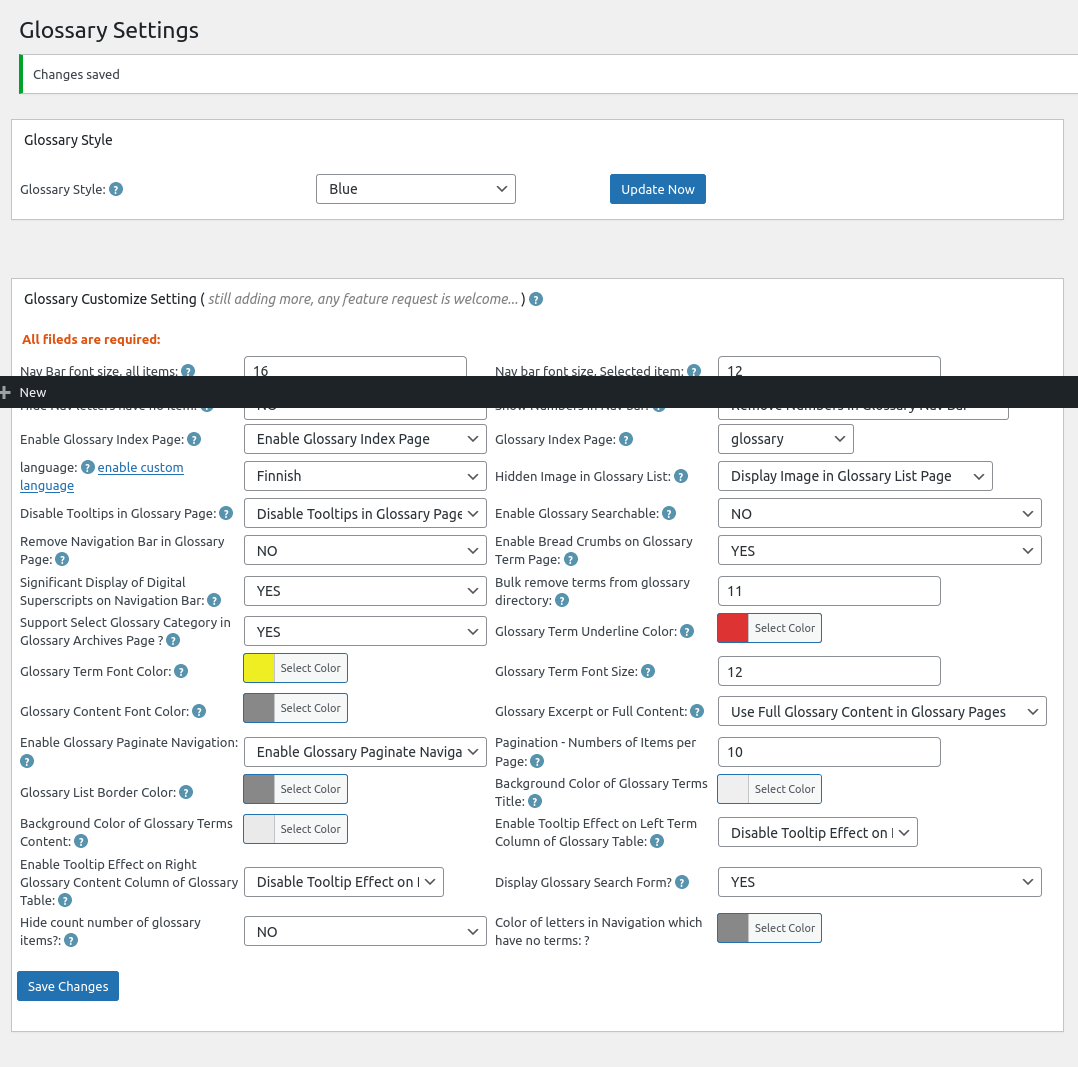
Glossary Settings panel in wordpress tooltips glossary plugin 16.0.0

Glossary Settings panel in wordpress tooltips glossary plugin 16.0.0

Please note, because my screenshot tooltip have some problem, in the screenshot of glossary settings panel, you will find there are a black bar on the screenshot, in the real glossary settings panel, you will not see this black bar 🙂

5: At the bottom of the glossary settings panel, you will see “there are a new option: color of letters in navigation which have no items”, please just click the color picker to select the color for the color of letters in navigation which have no items and click “save changes” button 🙂

also the admin tooltip did not displayed because we make this screenshot after function verified, in the real version of wordpress tooltips pro plus, the “?” is a real admin tooltip in which you can get guide of how to use the option  🙂

6:Before: In front end, before you changed the settings of the option “color of letters in navigation which have no items”, color of letters in navigation which have no items looks like this:
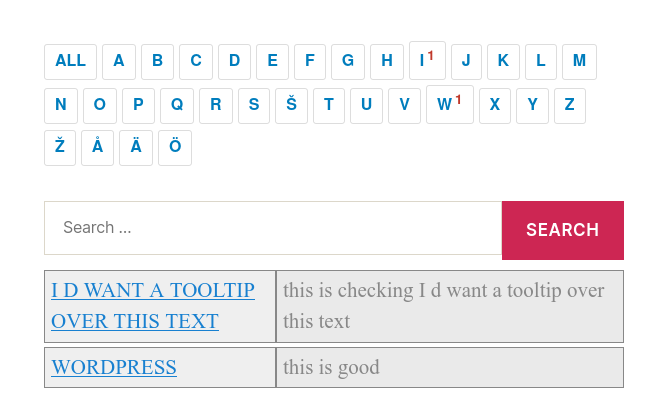
wordpress glossary default blue template

wordpress glossary default blue template

You can see in here I selected blue template for my wordpress glossary page, we have 5 pretty wordpress glossary template: blue , blonde, dark, green ,  red, once you clicked to select a glossary theme, the color and style has been set up by default good-designed wordpress glossary template, in general, what you need just one-click, no other works need to do 🙂

After:  after changed “color of letters in navigation which have no items”, it looks like this:
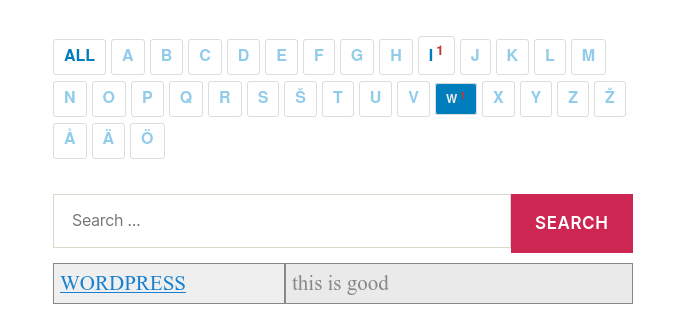
wordpress glossary customized color of letter color in blue template

wordpress glossary customized color of letter color in blue template

You can see I selected another blue color for “color of letters in navigation which have no items”, so user will focus on the letters which have items 🙂

You can chose another pretty color for your “color of letters in navigation which have no items”,  I believe you will do better work for me, I just focus on develop work, this is just a sample 🙂

Conclusion:

An amazing wordpress tooltips user gave us a few great suggestions, for example, he suggested us to add an option to re-set “color of letters in navigation which have no items”, our wordpress tooltip developer think this is a great suggestion to improve user experience, so we realized the great feature request asap we can in a few hours. Based on user’s suggestion in last 12 years, wordpress glossary plugin has been build as a powerful wordpress glossary tool for users. If you have any amazing suggestion, please don’t hesitate to contact us, we are happy to realize it, we’d like offer discount for you if your idea is helpful for wordpress tooltip users 🙂
Tagged with: , , , , , , ,

WordPress Tooltips Free Plugin 7.8.7 Releases

Hi Dear Users of WordPress Tooltip plugin, hope this message find you are doing well and having happy weekend with your family, we are happy to report you, we have released wordpress tooltips free plugin 7.8.7 🙂

As some long-time users of the wordpress tooltip plugin may know, our plugin was designed almost 12 years ago, and over the past 12 years, we have developed more than 400 versions of the wordpress tooltip free plugin and wordpress tooltip pro plugin and wordpress tooltip pro plus plugin have been developed in more than 400 versions in order to meet the new needs of our users. At the same time, wordpress has been upgraded many times, and some of the code we designed more than 10 years ago is quite old, so we regularly check our code against the latest wordpess code and update our code to keep up with wordpress updates.

In WordPress Tooltips free plugin 7.8.7, our wordpress tooltip plugin developer followed wordpress security to enhanced our code to check and  filter the data submitted by the wordpress admin in the wordpress tooltip management panel, to ensure all data is safe 🙂

Changes in wordpress tooltip 7.8.7:

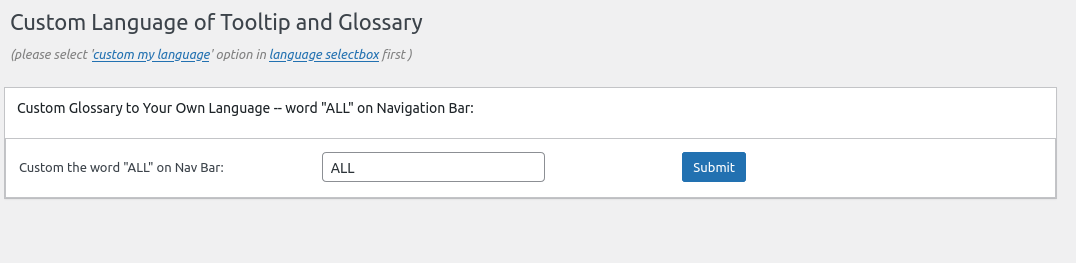
1: Enhanced code to check and filter data submitted by admin in wordpress tooltip language addon, the wordpress tooltip language addon panel looks like this:

custom language for wordpress tooltip glossary panel

If you want to use wordpress tooltips language addon, you need enable the it in wordpress tooltips addon panel, it looks like this:

addon settings panel in wordpress tooltips free.png

With wordpress tooltips pro plus version, we developed many more addons for wordpress tooltip users, this is a screenshot for a old version of wordpress tooltips pro plus plugin, because my screenshot software has some problems, so the screenshot shows my WP bar, in the real panel, there are no this WP bar:

tooltip addons in tooltip multisite license version

tooltip addons in tooltip multisite license version

2: Check and filter data submitted by admin in wordpress tooltip glossary settings panel, the wordpress tooltip glossary settings panel looks like this:

wordpress glossary panel in wordpress tootips free plugin 7.8.7

This is a screenshot of an earlier wordpress tooltips pro version of the glossary settings panel, because my screenshot software has some problems, so the screenshot shows my PC bar

wordpress glossary settings panel in wordpress glossary plugin 15.6.8

wordpress glossary settings panel in wordpress glossary plugin 15.6.8

Conclusion:

In wordpress tooltips plugin 7.8.7, wordpress tooltip developer followed wordpress standard to use wordpress security function sanitize_textarea_field to check and filter data be submitted by admin in wordpress glossary settings panel and wordpress tooltip language addon panel, to enhance wordpress security for wordpress tooltip admins 🙂


Thanks, have a happy weekend with your family 🙂

Best Regards,

WordPress Tooltip Plugin Support

Tagged with: , , ,

WordPress Tooltip Demo for Mr Dave

We get a ticket from an amazing wordpress tooltip user, thanks for wrote to us about the question of wordpress tooltips plugin, it seems it is hard to just use a few words to show the final result of your question, so we build this demo to show how wordpress tooltip works 🙂

please note, the content of tooltip demo is come from the song “The most beautiful moment”

The ticket:

Hi, I have the free ver. at present. I think that the pro version is case sensitive, can you confirm? Also phrases ie. “a matrix”. I think this can be done in pro using shortcode; however, wondered if will also work if entered into the ‘Synonyms of the keyword’ text box?

Thanks.

We replied:

Thanks for the message 🙂

We are very happy to help you 🙂

Yes, in pro version, support case sensitive and Synonyms of the keyword 🙂

Thanks, have a happy weekend with your family 🙂

Best Regards,

WordPress Tooltip Plugin Support Team

The user replied:

Hi Support Team,
Thanks for the reply. Actually, I already knew about the case  sensitive feature. I am more interested in phrases, ie a tooltip associated with two or more consecutive words for example: ‘I want a tooltip over this text’.
1- can that be done in shortcode? (I think it can)
2- can that be done in the synonym text box? (I think it can’t)
Thanks

We replied:

Thanks for the reply 🙂

If you meant you want add tooltip effect on the tooltip term ” I want a tooltip over this text”, then we can do it via shortcode and this  can   be done in synonym tooltip too, you can check our menu item at  tooltips.org/ if you mouse hover “menu tooltip demo”, then  you  can find tooltip pop-up window 🙂

If I miss-understand you, would you please tell me more detail? I hope  this have a little help, but because you have repeat the question twice, I think it is better let our developer to do a check and reply  you again 🙂

Thanks, have a happy day with your family 🙂

Best Regards,
WordPress Tooltip Plugin Support Team

Then the user replied:

You have answered the question perfectly, thanks.
When you say it can be done in the synonym tooltip too, do you mean only in the Pro version? I have tried to enter in the free version
and cannot get it to work.

It is great that this is a feature, but just one more question please.
Say, in the demo you have “menu tooltip demo” working. What happens if you have another single keyword “menu”? For instance, if the word menu is hovered over, will two tooltips appear, one for the word “menu” and  one for the phrase “menu tooltip demo”?

Sorry to ask all these questions.

Thank you.

Okay, I’d like build a demo at here, I build a tooltip demo for the tooltip term “was it Honestly the best”

and then I added a synonyms tooltip “Honestly” in tooltips editor, it looks like this:

synonyms tooltip demo

synonyms tooltip demo

So the result of the tooltip demo is here:

honestly

and

Thanks for the great question, help this demo have a little help 🙂

If you have any more question, please don’t hesitate to contact us, we are very happy to help you 🙂

Best Regards,

WordPress Tooltip Plugin Support Team

Tagged with: , , ,

Solved javascript conflicts between wordpress tooltips free and ninja form — wordpress tooltips free plugin

Dear WordPress Tooltip users, hope this message find you are doing well and have happy days with your family 🙂 Our wordpress tooltip developer have released wordpress tooltips free plugin 7.8.3 to solve a javascript conflicts between wordpress tooltips free plugin and wordpress ninja forms plugin 🙂

A few days before, we received a ticket from an amazing wordpress tooltips free user, he is working for a hospital which offer service for solved problem from the covid-19, he told us:

Hey there.

I’m getting the following on some page pages with ninja forms, when tooltips is enabled: and the ninja form doesn’t appear.

SyntaxError: Unexpected identifier ‘tooltipsall’. Expected ‘}’ to end an object literal.

Any ideas what might cause this?

We actually just want to use the glossary, is there a way to disable the tooltips but have the glossary enabled?

and

If I enable tooltips, the form on the page does not appear, and I see “SyntaxError: Unexpected identifier ‘tooltipsall’. Expected ‘}’ to end > an object literal.” in the console.

I’ve attached a screen video demonstrating the issue. This is their covid screening form (the client runs seniors centres), so we can’t really leave it on. I would like to use your plugin though, its great.

Our wordpress tooltip plugin checked codes of wordpress ninja form carefully, we found the amazing plugin author is generate the content for ninja forms via a javascript template, and when the amazing author process content, he did not change the format of javascript, this caused the javascript errors and which stopped ninja form be loaded correctly in wordpress post, our wordpress tooltip plugin developer have tried to fix the problem on our site to match the javascript format with wordpress ninja form plugin 🙂

In the wordpress tooltip pro plus, our wordpress tooltip pro plus plugin support add tooltip effects on content which generated by wordpress ninja form plugin, but in the wordpress tooltip free version, we cannot support it yet, because the struct of wordpress tooltips pro plus version is different with wordpress tooltips free plugin, and wordpress tooltips pro plus version will support many more famous wordpress plugins which generate content by javascript codes dynamically 🙂


Thanks for the great feedback, if you have any more question or feature request, please don’t hesitate to contact us 🙂

Best Regards,

WordPress Tooltips Plugin Support Team

Tagged with: , ,

WordPress tooltips pro plus 15.9.6, Support tooltips for ninja form and support add tooltips effect for more plugins which generate content dynamically

Hi Dear Users of WordPress Tooltip , hope this message find you are doing well and have happy weekend with your family 🙂 We get an amazing tooltip user’s ticket, in which he said:

Hey there.

I’m getting the following on some page pages with ninja forms, when tooltips is enabled: and the ninja form doesn’t appear.

SyntaxError: Unexpected identifier ‘tooltipsall’. Expected ‘}’ to end an object literal.

Any ideas what might cause this?

We actually just want to use the glossary, is there a way to disable the tooltips but have the glossary enabled?

and

If I enable tooltips, the form on the page does not appear, and I see “SyntaxError: Unexpected identifier ‘tooltipsall’. Expected ‘}’ to end > an object literal.” in the console.

I’ve attached a screen video demonstrating the issue. This is their covid screening form (the client runs seniors centres), so we can’t really leave it on. I would like to use your plugin though, its great.

Our wordpress tooltips developer checked code of ninja form and we found in their code, there are a javascription section will include some codes which generated by wordpress tooltips plugin, and they did not change the js format when re-use our codes, our developer fixed this problem 🙂

Then we found wordpress tooltips plugin cannot works in the content which generated by ninja form, after read many codes of ninja form, finally we found ninja form use a javascript html template to generate content, in the template there are some javascript codes, in this kind of plugins, it seems we have no method to find an API to hook the content because it will be generated by javascript codes, no in some wordpress standard API “the_content”, our developer tried many methods to solve this kind of problem, finally, after many many times, we found a way to add tooltips effects in content which generated by ninja form javascript codes dynamically 🙂

So in WordPress tooltips plugin pro plus 15.9.6, we support wordpress tooltips for ninja form and support add tooltips effect for a few more plugins which generate content dynamically — please note, this do not means we will All kinds of content which generate dynamically, because there are too many methods to generate content dynamically, but we tested on a few plugin which generate content dynamically, in the current time, wordpress tooltips pro plus works well with them 🙂


Tagged with: , , ,

Recent Works in WordPress Tooltips Plugin Site Until 2022-06-10

Dear  WordPress tooltip plugin users, hope this message find you are doing well and having happy weekend with your family 🙂  In recent days, we have developed 7 versions of wordpress tooltips plugin for wordpress tooltip users,  also we have developed 4 wordpress plugins for wordpress tooltip users too, also we have improved wordpress tooltip site to make it easier to user for wordpress tooltip users 🙂

1: Our wordpress tooltip plugin author released 7 wordpress tooltips plugin:

2: We have developed 4 wordpress plugins for wordpress tooltip users

Also we have updated new wordpress tooltip functions in wordpress tooltip plugin feature page

A wordpress tooltip user told us in our menu items, there are still too many sub-menu which is not helpful for wordpress tooltip users, this is right, we do not need add all functions of wordpress tooltip site in top menu bar, we have removed a few menu items from top menu bar, also we have removed a few free plugin links in sidebar too, because users of our wordpress tooltip site is focus on functions and support in wordpress tooltip plugin 🙂

And we have re-design wordpress tooltip effect for our contact us demo, because a wordpress tooltip user said it is not pretty, hope now it looks more pretty? We used a few hours to re-design it and added a friendly image to make it more pretty 🙂

Another wordpress tooltip user told us, in his site, he’d like add a tag cloud for his users, and he found this is helpful for users to find most important content and ideas in his site, he suggest us try this too…, okay, in the current time, our important content is in the wordpress tooltip document menu item, and in the wordpress tooltip plugin document page, we have a search box, in which wordpress tooltip users can search all tips related with wordpress tooltip plugin, I am not sure is this suggestion will help wordpress tooltip users better or not? Anyway, our wordpress tooltips author tried added a wortdpress tooltip tag cloud in the widget, and we are waiting for more user’s feedback 🙂

Based another amazing wordpress tooltip user’s suggestion, we are add a new function for wordpress tooltip plugin, you will see it soon 🙂

Tagged with:

How to construct a colorful and lovely attention-grabbing wordpress post by adding different color tooltip terms? WordPress Tooltip Pro Plus 15.9.4 Released

An amazing wordpress tooltips pro plus user submitted a ticket to us, he asked a question to our wordpress tooltip plugin: “Hi, In the tooltip style menu I can define the color of the text using “Tooltip Term Color in Post”. If I create a tooltip with customized style I cannot define this color and always get the color defined in the global setting. Where can I fix this?”, this is a good question 🙂

If you are wordpress tooltips pro plus plugin user, may be you know, in wordpress tooltips pro plus 14.8.0, we added a new option “Tooltip Term Color in Post” in tooltip style panel, to solve another amazing user’s feature request:”Does the Pro plugin allow me to change the format of the term on the page? For instance, of the term being underlined, could I instead change the color of the term text in the post?”

The option “Tooltip Term Color in Post” in tooltip pro plus style panel looks like this:

As you can see, at the bottom of the wordpress tooltip style panel, there are a new option “Tooltip Term Color in Post”, you can just click to custom the color of wordpress tooltip term in wordpress post via wordpress color picker, If you changed the tooltip term color in here, then in front end, you can choose a color different from the default font color of the wordpress theme to make the tooltip more visible on the page and easier for your wordpress readers to find and activate the tooltip pop-up 🙂

How every, if wordpress tooltip plugin support customize color wordpress tooltip term for each wordpress tooltip term, then that means, in your wordpress posts, you can use some wordpress tooltip term rich in various colors to beautify the style of your wordpress pages, making your page lively and full of spirit, rather than dull only a black font 🙂

How to construct a colorful and lovely attention-grabbing wordpress post by adding different color tooltip terms?

1: Please login  wordpress tooltip plugin site, if you have installed  wordpress tooltip plugin 15.9.4, then please move to step #11 directly

2: In tooltips.org top menu bar, please click “download” menu item

3: You will be requested enter your user name and password to download wordpress tooltip pro plus plugin version 15.9.4

4: After logged in tooltips.org, you will be redirect to my account panel, in here you will find the newest version of wordpress tooltips pro plus, it is a .zip file

5: After downloaded wordpress-tooltips pro plus plugin, please login your wordpress site.

6: Then in wordpress dashboard, please click “Plugins” menu item and then deactivated the old tooltips plugin version

7: Then please click the “Delete” link to delete the old version of wordpress tooltip

8: In “Plugins” menu item, please click “add new” link which at the top of the plugins panel

9: Please upload the tooltips plugin zip file that you downloaded from wordpress glossary plugin site

10:Please activate wordpress tooltip glossary plugin 15.9.4

11: Then please Click “Tooltips” menu item

12: Now you will find all tooltip terms which you entered, just select a wordpress tooltip term and click edit link to edit it

13: Now you will open wordpress tooltip editor, please move to the bottom of the wordpress tooltip editor, you will find “Enable / Disable Custom Unique Style Functionality for this tooltip” panel, please select “Yes,I will customized a unique style for this tooltip at below”, it looks like this:

14: Then in the bottom of the tooltip box customize setting panel, you will find a new option “Tooltip term color in post”

15: Via the tooltip term color picker, you can select a lovely color for this wordpress tooltip term

16: Also you will find there are a enable / disable option under the “wordpress tooltip term color in post” option. if you do not want display a colorful wordpress tooltip effects for this tooltip term, you can just select “disable the option”, else just keep it as “enable the option”

17: If you do not enable this option, wordpress tooltip pro plus plugin will use global settings which in wordpress tooltip style panel, for example, let’s day in the front end, you have set up default global tooltip style looks like this:

As you can see, all tooltip term have the same tooltip term color

18: Now if you set up to display different color for each wordpress tooltip terms, then it looks colorful in your wordpress post, for example, looks like this:

frontend of customized unique style of this tooltip term

It looks better, right? 🙂

Conclusion:

WordPress tooltips pro plus plugin has many sweet little tools that allow wordpress editor to decorate your wordprss post with colorful tooltip styles, you can use different lovely tooltip term colors to add some lovely and eye-catching spices to your carefully cooked thoughtful delicacies. You can add various videos, music, sounds, maps, payment QR codes… etc in your wordpress tooltip popup-window, saving you space in wordpress tooltip,  and making it fun for users to keep discovering your thoughtful restaurant of thoughtful delicacies.


Tagged with: , ,

How to hide count number of glossary items? WordPress Tooltips plugin free 7.8.1 released

Hey, Dear users of WordPress tooltip plugin, hope this message find you are doing well and have happy weekend with your family 🙂 We get a wordpress tooltip user’s ticket, in which he said he found our wordpress tooltips pro version have an option to disable number for each letter in the navigation bar of Glossary, he hope we can add this feature in wordpress tooltips free version, because his glossary is just have a little glossary items, so he do not want to display number for letters on the glossary navigation bar 🙂

How to hide count number of glossary items?

It is very easy, wordpress tooltip admin can enable / disable number of letters in the glossary navigation just via a few clicks,

1 please login your wordpress site as wordpress admin

2 in wordpress admin, please click “tooltips” menu

3 then please click glossary settings sub menu item

4 then you will open wordpress glossary settings panel, we have a screenshot of pro version, but wordpress tooltip free and tooltip pro version have the same  “enable / disable number of letters in the glossary navigation ” option

wordpress glossary settings panel of wordpress tooltip 14.4.4

wordpress glossary settings panel of wordpress tooltip 14.4.4

As you can see, there are a new option “Hide count number of glossary items” at the bottom of the wordpress glossary setting panel, if you select the option “Yes”,  then in the front end, we will hide count number of letters in glossary  navigation bar , if you select “No” (this is default value), then in font end , we will display count number on each glossary items, it looks like this:

woocommerce glossary tab with full items

woocommerce glossary tab with full items

If you have any question of feature request, please don’t hesitate to contact us, we are happy to build the best wordpress tooltip glossary plugin for you 🙂

Thanks, have a happy weekend with your family 🙂

Best Regards,

WordPress Tooltip Plugins Support Team

Tagged with: , , , ,

Sync WordPress with ActiveCampaign Plugin 1.3.1 Released

Hi, Dear  WordPress tooltip plugin users, hope this message find you are doing well and have happy days with your family 🙂  Our wordpress tooltips plugin developer have released a new version of Sync WordPress with ActiveCampaign Plugin, Sync WordPress with ActiveCampaign Plugin will integrates WordPress with ActiveCampaign by adding new users information to contact on ActiveCampaign, when a new user registered.

Sync WordPress with ActiveCampaign Plugin is a simple & easy-to-use solution that help you to sync your new wordpress users with your ActiveCampaign account.
After users registered on your wordpress site, our plugin will add users to ActiveCampaign automatically.
In back end, you can add your ActiveCampaign list id, ActiveCampaign URL, ActiveCampaign API Key.
You can get your ActiveCampaign Email Marketing API at http://www.activecampaign.com/api/

Maybe problem:
In general hosting has installed php curl already, but maybe some self-managed hosting did not installed php curl, in this case there are 500 error when SYNC accounts between wordpress and ActiveCampaign,
it is generated by ActiveCampaign official API codes, in this case you need install and enable php curl, it is very simple, for examle on ubuntu and php5, the command is:
apt-get install php5-curl, and all things will works well.

More amazing features are being developed and any feature request is welcome.

== Installation ==

1:Upload the SYNC AC with WP plugin to your blog
2:Activate it
3: You will find WP TO AC menu item, just enter your ActiveCampaign list ID, ActiveCampaign URL, ActiveCampaign API Key
1, 2, 3: You’re done!

== Frequently Asked Questions ==
FAQs & Feature Request and Plugin Support URI can be found here: https://tomas.zhu.bz/wordpress-plugin-sync-activecampaign-with-wordpress.html/

== Screenshots ==

== Changelog ==
= Version 1.3.1 =
New option to enable / disable Sync WP with AC, by default we will sync new user information from wp with ac, but you can stop it in back end now

= Version 1.2.1 =
follow wordpress standard to use ABSPATH and exit() to protect 24 php files
Changed plugin url and author url to our official site https://tooltips.org for better support and feature request
Support wordpress 5.3.2
Update license and copyright — GPL3

= Version 1.1.1 =
Fixed deprecated functions

= Version 1.0.0 =
* Spell out that the license is GPLv3
* Finished the first version
* General code clean up

== Upgrade Notice ==
= Version 1.0.0 =
* Spell out that the license is GPLv3
* Finished the first version
* General code clean up


Tagged with: , ,

How to fixed broken images in wordpress automatically, wordpress 404s plugin 3.4.1 released

Hi, Dear  WordPress tooltip plugin users, hope this message find you are doing well and have happy days with your family 🙂  We get an amazing user’s ticket, in which he said he purchased a site from another webmaster, then he found that wordpress site removed many posts, so there are many broken links, he using our wordpress 404 all in one solution plugin, he like our wordpress 404s plugin because our wordpress 404 plugin will fix broken links in wordpress automatically, and if there are 404 errors happened, he can receive 404 errors mail alert immediately and he can always find the 404 broken links in 404 logs in settings panel, wordpress 404s plugin helped him fixed all broken links, and in 404s logs, he did not find any more 404 errors, that’s great. 🙂

But one day, when he read comments in his site, in one wordpress post, he found the original author of his wordpress site — deleted a few images in his wordpress site too, that make a few broken image and it is not good for his users, he hope we can find a solution to replace these removed wordpress images in his wordpress posts with his own image 🙂

This is great feedback, when our wordpress 404s plugin author develop the 404 plugin, it is because our wordpress tooltips plugin site has been built many years, so there are a few broken links, then our wordpress tooltip develope developed the wordpress 404 plugins to fix 404 page not found error for our wordpress site automatically, we never know there are requirement of fix broken image in wordpress post 🙂

Our wordpress 404 plugin author researched wordpress codes, and we found a method to fix broken image for wordpress authors automatically, that’s why we developed wordpress 404s plugin 3.4.1 to fix the 404 image not found error for wordpress editors 🙂

How to fixed broken images in wordpress automatically?

Easy:

1: login to your  wordpress as admin

2: in wordpress dashboard, please click “404s” menu

3: then please click “settings” sub menu item

4: you will open “404s Global Settings” panel, at the bottom of the “404s Global Settings” panel, you will find the new option: “Redirect broken images to specific image”, it looks like this:

replace broken images with specific image

replace broken images with specific image

5: by default, you will find in dropdown box,default option is “No, do not fix broken image”, but once you select the option “YES, fix broken image”, then the image url input box will be displayed under the option “YES, fix broken image”, in here, please just enter the default image which will be used to replace broken images in your wordpress 🙂

6: in front end, when user open the wordpress posts, if there are broken images, these broken images will be replaced by your default image automatically 🙂

Thanks for the great suggestion, it is great to know so many feature request from wordpress users, if you have any more idea or question, please don’t hesitate to contact us 🙂

Thanks, have a blessed weekend with your family 🙂

Best Regards,

WordPress Tooltips Plugin Support Team

Tagged with: , , ,
Top