
1: If you have not yet downloaded and installed our latest wordpress tooltip plugin., please login your account at wordpress glossary tooltip plugin site, if you have installed latest wordpress tooltip plugin, please jump to step #10 directly 🙂
2: Download wordpress glossary tooltip plugin via “My account” page
3: Login wordpress admin area in your wordpress site
4: Click “Plugins” menu item
5: Deactivated old version of wordpress tooltips plugin
6: Delete the old version of wordpress tooltip plugin
7: In “Plugins” menu item, please click “add new” link at the top of the plugins panel
8: Upload the tooltips plugin zip file which you downloaded from wordpress glossary plugin site
9: Activate latest version of wordpress tooltip glossary plugin
10: Click “Tooltips” menu item
11: Click “Glossary Settings” sub menu item, you will open “Glossary Settings” panel
12: You will find the option: “Remove Navigation Bar in Glossary Page” in the “Glossary Customize Setting” panel, please just select the “Yes”,it looks like this:
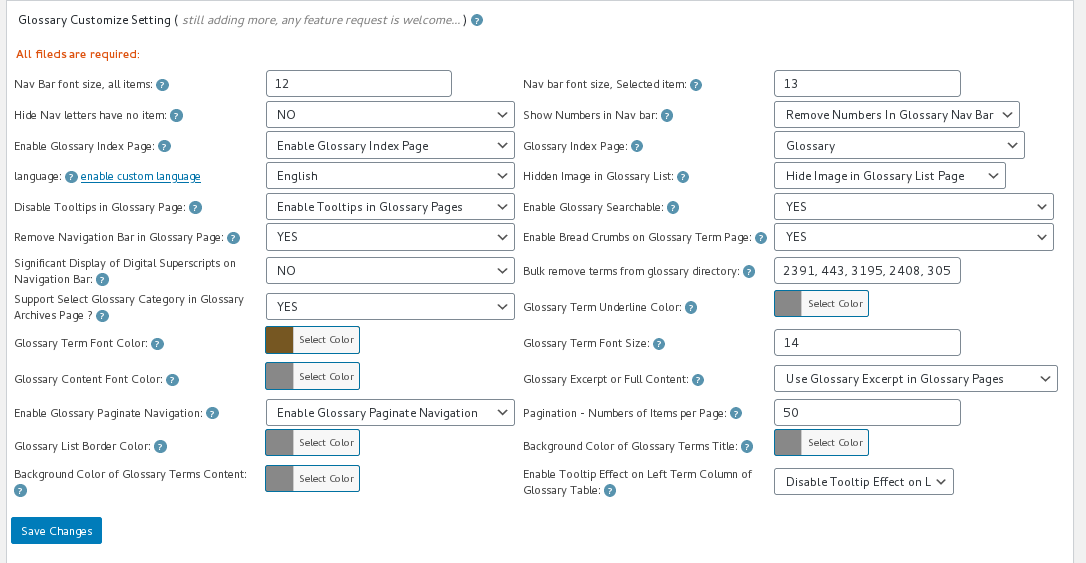
wordpress glossary settings panel 14.0.6
13: Please remember to click “Save Changes” blue button
14 In front end, if you open glossary index page, you will find tabs have be removed from glossary page 🙂





Leave a Reply