
Using WordPress Tooltips Shortcodes in Elementor: A Guide to the WordPress Tooltips Plugin Shortcode
Hello, esteemed users of WordPress Tooltip! I trust this note reaches you in good spirits and that you are having delightful moments with your loved ones. We received a request in the support forum for the WordPress Tooltips plugin from a fantastic user. They mentioned:
I see lots of help if its a Post page which may have a class and other ID but this doesn’t seem to appear for ordinary page. Your help suggests “wordpress page directory shortcode [ pagedirectory ] in the page” but what is and where to put shortcode in an Elementor page?
We’re thrilled to assist the WordPress Tooltips user in tackling their issue, and we think there are plenty of others out there with similar inquiries. We’d love to put together a comprehensive guide for all WordPress Tooltips plugin users to share right here.
Maximize Your Elementor Pages: Where to Place the WordPress Tooltips Shortcode
With the wordpress tooltips pro plugin, you can effortlessly enhance your WordPress posts by automatically adding tooltip effects to specific terms. This plugin is packed with fantastic features, like glossary support, directory capabilities, and even a bullet screen option! Plus, WordPress tooltip users can easily integrate these effects into their posts and Elementor pages using shortcodes. It’s a breeze!
How to Add a Shortcode in the WordPress Elementor Page Builder:
Open Your Page with Elementor:
- Head over to the page or post where you’d like to add your shortcode.
- Hit the “Edit with Elementor” button to get started.
Add a New Section or Choose an Existing One:
- You can create a fresh section by clicking the “+” icon, or simply pick an existing section where you want to drop your shortcode.
Drag and Drop the Shortcode Widget:
- In the Elementor panel on the left, look for the “Shortcode” widget.
- Just drag it over and drop it into the section you’ve chosen.
Enter Your Shortcode:
- Once the Shortcode widget is in place, you’ll see a spot to enter your shortcode.
- Go ahead and type or paste your shortcode right there.
- insert-tooltip-shortcode-in-elementor-text-edit-widget

insert-tooltip-shortcode-in-elementor-shortcode-widget
or:
Preview and Save:
- After you’ve added your shortcode, take a moment to preview how it looks on the page.
- If everything seems just right, click the “Update” button to save your changes.

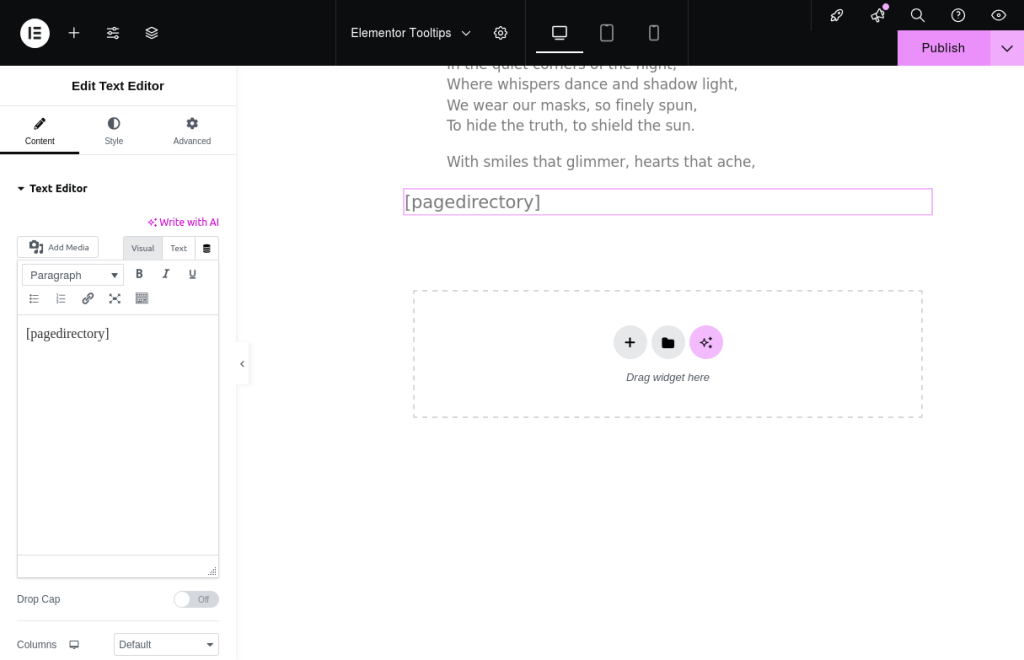
Everything will run smoothly! We’ve put together a demo just for Elementor tooltip users.
If your shortcode is [ postdirectory ], just pop that right into the Shortcode widget.
Feel free to check out our guide here: https://demos.tooltips.org/elementor-tooltips/.
a: We’ve even included a handy screenshot to show you how to insert a wordpress tooltips shortcode in Elementor.
b: On the demo page, you’ll see that the shortcode works like a charm! 🙂
Explanation of Elementor Terms:
Elementor Builder: Elementor is a popular drag-and-drop page builder for WordPress that allows users to create beautiful and responsive websites without needing to write any code. It provides a user-friendly interface where you can design your pages visually.
Elementor Widget: Widgets are the building blocks of Elementor. They are individual elements that you can add to your pages, such as text boxes, images, buttons, and more. Each widget comes with its own set of customization options, allowing you to tailor the look and feel of your site.
Elementor Shortcode Widget: The Shortcode widget in Elementor allows you to insert shortcodes into your pages. Shortcodes are small snippets of code that can execute specific functions or display content dynamically. By using the Shortcode widget, you can easily integrate various functionalities or features into your Elementor designs.
Why Elementor Tooltips Help Readers
Elementor tooltips are small informational boxes that appear when a user hovers over an element on the page. They can provide additional context, explanations, or tips related to specific content. Here are a few reasons why wordpress tooltips can be beneficial for readers:
Enhanced Understanding: Tooltips can clarify complex terms or concepts, helping readers grasp the content better without cluttering the page with excessive text.
Improved User Experience: By providing instant information, tooltips can make navigation smoother and more intuitive, allowing users to find what they need quickly.
Reduced Cognitive Load: Tooltips can help keep the main content clean and focused while still offering supplementary information, reducing the cognitive load on readers.
Engagement: Interactive elements like tooltips can make the content more engaging, encouraging users to explore and learn more about the topic.
Overall, Elementor tooltips can significantly enhance the usability and accessibility of a website, making it easier for readers to interact with the content.
What is the AnyThing Directory in WordPress Tooltips Plugin?
Okay, dear WordPress enthusiasts! If you’re diving into the world of WordPress, you probably know that managing different types of content can be quite the adventure. From FAQs and portfolios to testimonials, events, and reviews, there’s a lot to keep track of. That’s where the magic of directories comes in!
A directory, in this context, is essentially a well-organized listing that helps you present various posts or custom content types in a neat and accessible way. Think of it as a digital filing cabinet where everything is categorized and easy to find.
With the Pro Plus version of the WordPress Tooltips Plugin, you can effortlessly create a directory from any of these custom post types using a simple shortcode. For instance, the AnyThing Directory showcases all posts from the “tooltips” custom post type in one convenient location.
What’s great about the WordPress Tooltip Directory is that it not only displays the titles with links to each post but also provides a brief overview or the full content right there in the listing. Plus, you can enhance your directory by including images or videos for each entry, making it visually appealing and engaging for your readers. You have the flexibility to customize these settings through the options in the settings panel, ensuring that your directory fits your unique style and needs.
So, whether you’re looking to streamline your content or create a vibrant showcase of your work, the AnyThing Directory is a fantastic tool to help you connect with your audience!
It is very easy to make a Elementor Directory via wordpress tooltips plugin (check AnyThing Directory), It looks like this:
Please check the wordpress elementor tooltips at https://tooltips.org/product/tooltips-pro-mutil-site-license/
Related posts:
- Wie man den WordPress Tooltips Shortcode auf seinen Elementor-Seiten implementiert
- Comment implémenter le shortcode Tooltips de WordPress sur vos pages Elementor
- Come implementare lo shortcode di WordPress Tooltips sulle tue pagine Elementor
- Hoe de WordPress Tooltips Shortcode te Implementeren op Je Elementor Pagina’s





Leave a Reply